# Set up asymmetric keys
> For the complete documentation index, see [llms.txt](/llms.txt). Markdown versions of documentation pages are available by appending `.md` to the page URL.
Register an RSA-3072 asymmetric key pair from your cloud provider for use with OpenAI.
Your private key stays in AWS KMS, Azure Key Vault, Google Cloud KMS, or Oracle Cloud Infrastructure (OCI) Vault. OpenAI stores a copy of the corresponding public key at registration.
Registering a key doesn't configure product features or storage. This guide
covers keys for [PSP
decryption](https://developers.openai.com/api/docs/guides/private-safety-processing#psp-decryption).
## Before you start
- Have your organization ID. Use the same organization for cloud trust, registration, and API access.
- Create an [organization Admin API key](https://developers.openai.com/api/docs/guides/admin-apis) with external-key read/write access. Load it securely as `OPENAI_ADMIN_KEY`; project inference keys won't work.
- Have permission to create an enabled RSA-3072 key and grant OpenAI the scoped public-key read access described in this guide.
- Restrict private-key use to authorized users and retain old key versions while records depend on them.
## Set up a cloud key
Follow the steps for your provider before registering the key. Each setup uses RSA-3072 and grants OpenAI only public-key and metadata reads.
### AWS KMS
#### 1. Create an RSA key
Open **KMS** > **Customer managed keys** > **Create key** and choose your region. Use these settings:
- **Key type:** Asymmetric
- **Key usage:** Encrypt and decrypt
- **Key spec:** `RSA_3072`
Finish creating the key with your own key administrators. Keep it enabled and copy its full ARN, ending in `key/`. Don't use an alias ARN.
#### 2. Create a public-key read policy
Open **IAM** > **Policies** > **Create policy** > **JSON**. Replace `` and save this policy as `OpenAI-PublicKeyRead`.
```json
{
"Version": "2012-10-17",
"Statement": [
{
"Effect": "Allow",
"Action": ["kms:DescribeKey", "kms:GetPublicKey"],
"Resource": ""
}
]
}
```
The key supports decryption, but OpenAI only needs these read permissions. Don't grant OpenAI key-user or key-administrator access.
#### 3. Create the trusted IAM role
Open **IAM** > **Roles** > **Create role** > **Custom trust policy**. Replace `` with your OpenAI organization ID. Keep the OpenAI principal unchanged.
```json
{
"Version": "2012-10-17",
"Statement": [
{
"Effect": "Allow",
"Principal": {
"AWS": "arn:aws:iam::790389265272:role/EnterpriseKeyManagement"
},
"Action": "sts:AssumeRole",
"Condition": {
"StringEquals": {
"sts:ExternalId": ""
}
}
}
]
}
```
Attach `OpenAI-PublicKeyRead` and create the role. Copy its ARN. Use the same organization ID as `external_id` when registering the key.
#### 4. Check the KMS key policy
Confirm that the key policy authorizes the role. If it doesn't delegate authorization to IAM, add this statement. Replace `` and preserve existing administrator access.
In this KMS key policy, `"Resource": "*"` applies only to the key the policy is attached to. The IAM policy uses the exact key ARN.
```json
{
"Sid": "AllowPublicKeyRead",
"Effect": "Allow",
"Principal": {
"AWS": ""
},
"Action": ["kms:DescribeKey", "kms:GetPublicKey"],
"Resource": "*"
}
```
Keep the role ARN and key ARN for registration.
### Azure Key Vault
#### 1. Add the OpenAI enterprise application
Ask a tenant administrator to add **EKM - OpenAI Azure** to your tenant. Its application ID is `20a14814-5ab7-4612-a671-1382b412bf93`.
Install Azure CLI, then sign in and check for the application:
```bash
az login --tenant ''
az ad sp show --id '20a14814-5ab7-4612-a671-1382b412bf93' \
--query '{name:displayName,objectId:id}' -o table
```
If the application is missing, add it:
```bash
az ad sp create --id '20a14814-5ab7-4612-a671-1382b412bf93' \
--query '{name:displayName,objectId:id}' -o table
```
Save the tenant-local object ID for the role assignment.
#### 2. Create the key
Open **Key vaults** > **Create**. Select your subscription, resource group, vault name, and region. Under **Access configuration**, choose **Azure role-based access control**.
Your administrator needs a role that permits key creation, such as **Key Vault Crypto Officer** on this vault. Don't grant that role to OpenAI.
In the vault, open **Objects** > **Keys** > **Generate/Import** and use:
- **Name:** `--asymmetric-key`, using your OpenAI organization ID
- **Key type:** RSA
- **RSA key size:** 3072
- **Enabled:** Yes
If you set activation or expiration dates, make sure the key is currently valid. Include **Decrypt** in the key's permitted operations. OpenAI receives key-read access only.
RSA-HSM keys in a Key Vault are also supported. Standalone Managed HSM endpoints aren't supported.
#### 3. Grant key-read access
Create a custom role with the key-read `DataAction`. Save this as `public-key-reader.json` and replace the subscription and resource-group values.
```json
{
"Name": "OpenAI Public Key Reader",
"IsCustom": true,
"Description": "Read key metadata and public keys.",
"Actions": [],
"NotActions": [],
"DataActions": ["Microsoft.KeyVault/vaults/keys/read"],
"NotDataActions": [],
"AssignableScopes": [
"/subscriptions//resourceGroups/"
]
}
```
Set `VAULT_RESOURCE_ID` to the vault's Azure resource ID from **Properties**, not its HTTPS URI. Set `OPENAI_SP_ID` to the application's tenant-local object ID, then assign the role on the key:
```bash
az role definition create --role-definition @public-key-reader.json
OPENAI_SP_ID=''
VAULT_RESOURCE_ID=''
KEY_NAME='--asymmetric-key'
KEY_SCOPE="$VAULT_RESOURCE_ID/keys/$KEY_NAME"
az role assignment create \
--assignee-object-id "$OPENAI_SP_ID" \
--assignee-principal-type ServicePrincipal \
--role 'OpenAI Public Key Reader' \
--scope "$KEY_SCOPE"
```
For a vault using legacy access policies, grant key **Get** instead. Keep its existing permission model.
#### 4. Record the exact version
Record your tenant ID, vault URI, and key name. Open the enabled key version and copy the 32-character hexadecimal version from the end of its **Key Identifier**.
### Google Cloud KMS
#### 1. Prepare the project and key
Enable Cloud KMS in the key project and IAM and Security Token Service in the federation project. If these projects differ, enable Cloud KMS in both.
Record your federation project's 12-digit project number. The KMS project may be different.
Open **Security** > **Key Management**. Create a key ring, then create a key with:
- **Protection level:** Software
- **Purpose:** Asymmetric decrypt
- **Algorithm:** 3072 bit RSA - OAEP Padding - SHA256 Digest
Copy the KMS project ID, location, key ring, key name, and enabled version. Use a specific version such as `"1"`, not `"latest"` or `"0"`. Asymmetric keys don't have a primary version.
#### 2. Configure workload identity federation
Open **IAM & Admin** > **Workload Identity Federation**. Create a global pool, such as `openai-keys`, and an OIDC provider, such as `openai-google`, with these settings:
| Provider setting | Value |
| ------------------- | ------------------------------------------ |
| Issuer URL | `https://accounts.google.com` |
| Allowed audience | Your exact OpenAI organization ID |
| Attribute mapping | `google.subject = assertion.sub` |
| Attribute condition | `assertion.sub == '105900137572174660365'` |
Use your OpenAI organization ID as the audience. Keep the issuer and OpenAI subject unchanged.
#### 3. Create and assign the key-reader role
In **IAM & Admin** > **Roles**, create a custom role in the KMS project with:
```text
cloudkms.cryptoKeyVersions.get
cloudkms.cryptoKeyVersions.viewPublicKey
```
Both permissions are required; public-key-viewer alone is insufficient. No decrypt, sign, or service-account impersonation grant is needed.
On the key's **Permissions** tab, choose **Grant access**. Assign the role to this principal, replacing `` and ``:
```text
principal://iam.googleapis.com/projects//locations/global/workloadIdentityPools//subject/105900137572174660365
```
Use your pool's project number and scope the grant to this key. Key-level IAM covers its versions. Save the pool and provider IDs, organization audience, and KMS identifiers for registration.
### OCI Vault
#### 1. Create the vault and RSA key
Confirm OCI key registration and region availability with your OpenAI contact. Your tenancy and OpenAI's tenancy both need a subscription to the region.
In the OCI Console, open **Vault**. Create or select a vault in a commercial OCI region, such as `us-ashburn-1`. Wait for the vault to become **Active**.
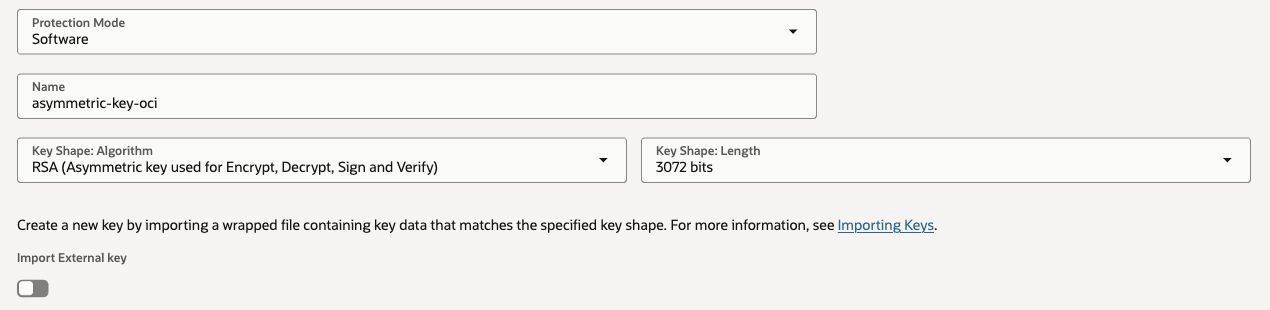
Open **Master encryption keys** and choose **Create key**. Use RSA with a length of 3072 bits and software protection. Keep the key enabled. Use a separate AES-256 key if you also configure EKM.
#### 2. Tag the key for your organization
Add this free-form tag to the key:
| Tag field | Value |
| ------------- | -------------------------------------------------------- |
| Tag namespace | None (free-form tag) |
| Tag key | `openai_organization_id` |
| Tag value | Your OpenAI organization ID, including the `org-` prefix |
The tag must be on the key itself, even if you also tag the vault or compartment.

#### 3. Grant public-key read access
In **Identity & Security > Policies**, select your tenancy's root compartment and create a policy. Turn on **Show manual editor** and enter these statements with your vault OCID and key OCID. Keep OpenAI's tenancy and group identifiers unchanged.
```text snippet=configuration reason="OCI IAM policy granting scoped vault and public-key reads"
Define tenancy OpenAIEKM as ocid1.tenancy.oc1..aaaaaaaa4kzwe5jdr4gsxft7dfnwbnp3aozhxeskabsqo7czdkbp6fkh3uha
Define group OpenAIEKMProduction as ocid1.group.oc1..aaaaaaaaerxukyeaxwqtbsxasnp54mem3sfgyokzdk7s27o7yvepluynxi5q
Admit group OpenAIEKMProduction of tenancy OpenAIEKM to {VAULT_READ} in tenancy where target.vault.id = ''
Admit group OpenAIEKMProduction of tenancy OpenAIEKM to {KEY_READ} in tenancy where target.key.id = ''
```
`VAULT_READ` lets OpenAI discover the vault endpoints. `KEY_READ` covers key metadata and the public key at the selected version. These grants don't include decryption, key export, or key management. Use this key-management identity even if you already configured a separate OCI Object Storage policy for PSP.
#### 4. Record the exact key version
Record the region identifier, vault OCID, and key OCID. In the key's versions list, copy the full OCID of the version you want to register. It starts with `ocid1.keyversion.`, not `ocid1.key.`.
Use the exact version OCID, not `latest` or a version number. The vault, key, and version must belong to the same commercial region, and the key must belong to the registered vault.
## Register your key
The examples use `curl` and a Bash-compatible shell. Load `OPENAI_ADMIN_KEY` securely, then set your organization ID:
```bash
API_BASE="https://api.openai.com/v1"
ORG_ID=""
: "${OPENAI_ADMIN_KEY:?Load your organization admin key securely}"
KEYS_URL="$API_BASE/organization/external_keys"
```
### Prepare the registration request
The `purpose` enum accepts `ekm` (the default) or `psp_decryption`. Use `psp_decryption` for the asymmetric keys in this guide; `ekm` is for Enterprise Key Management (EKM).
Save your provider's request as `registration.json`. Replace the example values; JSON doesn't expand shell variables.
#### AWS KMS request
```json
{
"type": "aws",
"purpose": "psp_decryption",
"name": "asymmetric-key-aws",
"role_arn": "",
"external_id": "",
"kms_arn": ""
}
```
#### Azure Key Vault request
```json
{
"type": "azure",
"purpose": "psp_decryption",
"name": "asymmetric-key-azure",
"tenant_id": "",
"vault_uri": "https://.vault.azure.net",
"key_name": "--asymmetric-key",
"key_version": ""
}
```
#### Google Cloud KMS request
```json
{
"type": "gcp",
"purpose": "psp_decryption",
"name": "asymmetric-key-gcp",
"workload_identity_project_number": "",
"workload_identity_pool_id": "openai-keys",
"workload_identity_provider_id": "openai-google",
"audience": "",
"kms_project_id": "",
"kms_key_ring_name": "asymmetric-keys",
"kms_key_name": "asymmetric-key",
"kms_key_location": "us-central1",
"kms_key_version": "1"
}
```
#### OCI Vault request
```json snippet=configuration reason="OCI external-key registration request body"
{
"type": "oci",
"purpose": "psp_decryption",
"name": "asymmetric-key-oci",
"region": "us-ashburn-1",
"vault_ocid": "",
"key_ocid": "",
"key_version_ocid": ""
}
```
### 1. Register and validate the key
```bash
curl --fail-with-body -sS "$KEYS_URL" \
-H "Authorization: Bearer $OPENAI_ADMIN_KEY" \
-H "OpenAI-Organization: $ORG_ID" \
-H "Content-Type: application/json" \
--data @registration.json
```
Registration validates the key before saving it. Success returns HTTP 200 with an `extkey` ID and your provider configuration. Example response fields:
```json
{
"id": "extkey_11111111111111111111111111111111",
"object": "organization.external_key",
"name": "asymmetric-key-gcp",
"type": "gcp",
"purpose": "psp_decryption",
"api_project_ids": []
}
```
Save the returned registration ID:
```bash
KEY_ID=""
```
### 2. Revalidate the key (optional)
`GET` returns stored details. `POST /validate` rechecks current access and key validity against the saved public key. It doesn't decrypt records or refresh the snapshot.
```bash
curl --fail-with-body -sS "$KEYS_URL/$KEY_ID" \
-H "Authorization: Bearer $OPENAI_ADMIN_KEY" \
-H "OpenAI-Organization: $ORG_ID"
```
```bash
curl --fail-with-body -sS -X POST "$KEYS_URL/$KEY_ID/validate" \
-H "Authorization: Bearer $OPENAI_ADMIN_KEY" \
-H "OpenAI-Organization: $ORG_ID"
```
Expected response (HTTP 200):
```json
{ "status": "success" }
```
Validate again after key, permission, or network changes. Allow IAM changes to propagate before retrying.
To use your registered key for PSP decryption, [select it for a project](https://developers.openai.com/api/docs/guides/private-safety-processing#select-a-key-for-psp-decryption).
## List keys
Use `purpose=psp_decryption` to list these asymmetric-key registrations. Omitting the filter returns all purposes; `purpose=ekm` returns EKM only.
```bash
curl --fail-with-body -sS --get "$KEYS_URL" \
-H "Authorization: Bearer $OPENAI_ADMIN_KEY" \
-H "OpenAI-Organization: $ORG_ID" \
--data-urlencode "purpose=psp_decryption" \
--data-urlencode "order=asc" \
--data-urlencode "limit=20"
```
While `has_more` is `true`, request the next page with `after` set to `last_id`. Keep `purpose`, `order`, and `limit` unchanged.
## Replace a key
1. Create a replacement AWS key or Azure/GCP/OCI key version and grant read access.
2. Register the replacement.
3. [Select the new `extkey` ID on the project](https://developers.openai.com/api/docs/guides/private-safety-processing#select-a-key-for-psp-decryption) and verify the selection.
Registrations are fixed snapshots; cloud rotation doesn't update them. Keep old private keys for records that depend on them. Changing the selection doesn't migrate existing records.
## Delete a key
[Clear](https://developers.openai.com/api/docs/guides/private-safety-processing#clear-the-key-selection) or [replace](https://developers.openai.com/api/docs/guides/private-safety-processing#select-a-key-for-psp-decryption) the selection on every active project before deleting the registration:
```bash
curl --fail-with-body -sS -X DELETE "$KEYS_URL/$KEY_ID" \
-H "Authorization: Bearer $OPENAI_ADMIN_KEY" \
-H "OpenAI-Organization: $ORG_ID"
```
Deletion returns HTTP 200 with `object: "organization.external_key.deleted"`. It doesn't delete your cloud key.
## Troubleshooting
| Error | What to check |
| -------------------------------------- | ------------------------------------------------------------------------------------------------------------------------------ |
| 401 or 403 | Use an organization Admin API key and confirm access to external-key registration. |
| 400 `external_key_provider_error` | Check cloud trust, read permissions, network access, and the key's enabled state and algorithm. |
| 400 request-validation errors | Check the purpose, concrete AWS key ARN, and exact Azure/GCP/OCI version. |
| OCI key validation fails | Check the key's `openai_organization_id` tag, RSA-3072 size, enabled state, vault ownership, and scoped vault/key read grants. |
| 404 | Check the registration ID and organization. Deleted registrations and registrations from another organization can't be used. |
| `external_key_used_by_active_projects` | Clear or replace all active project selections. |
| Key no longer matches | Register the replacement and select its new ID. |
For support, share the error and `x-request-id`. Never share credentials.
## Related guides
- [Decrypt PSP records](https://developers.openai.com/api/docs/guides/psp-decryption)
- [ZDR with Private Safety Processing](https://developers.openai.com/api/docs/guides/private-safety-processing)
- [Admin APIs](https://developers.openai.com/api/docs/guides/admin-apis)