# ChatKit
import {
BookBookmark,
Code,
Cube,
Inpaint,
Globe,
Playground,
Sparkles,
} from "@components/react/oai/platform/ui/Icon.react";
ChatKit is the best way to build agentic chat experiences. Whether you’re building an internal knowledge base assistant, HR onboarding helper, research companion, shopping or scheduling assistant, troubleshooting bot, financial planning advisor, or support agent, ChatKit provides a customizable chat embed to handle all user experience details.
Use ChatKit's embeddable UI widgets, customizable prompts, tool‑invocation support, file attachments, and chain‑of‑thought visualizations to build agents without reinventing the chat UI.
## Overview
Choose between two ChatKit paths:
- **Custom server integration**. Run ChatKit on your own infrastructure. Use the ChatKit Python SDK and connect to any agentic service, including one built with the [Agents SDK](https://developers.openai.com/api/docs/guides/agents). Use widgets to build the frontend.
- **Existing Agent Builder-hosted integration**. If you already use ChatKit with an Agent Builder workflow, you can keep using that hosted workflow during the Agent Builder transition window.
OpenAI is deprecating Agent Builder. Existing users can continue using it
during the transition window, and the product is scheduled to shut down on
November 30, 2026. ChatKit is still available. For new work or migration
planning, use [advanced ChatKit integrations](https://developers.openai.com/api/docs/guides/custom-chatkit)
with your own server-side agent implementation, and see [Migrate from Agent
Builder](https://developers.openai.com/api/docs/guides/agent-builder/migrate-from-agent-builder) for Agent
Builder transition guidance.
## Get started with ChatKit
## Embed ChatKit in your frontend
Use this path only if you already have an Agent Builder workflow that backs your ChatKit implementation. For new ChatKit apps, or when migrating before Agent Builder shuts down, use the [advanced integration](https://developers.openai.com/api/docs/guides/custom-chatkit) to connect ChatKit to your own server-side agent implementation.
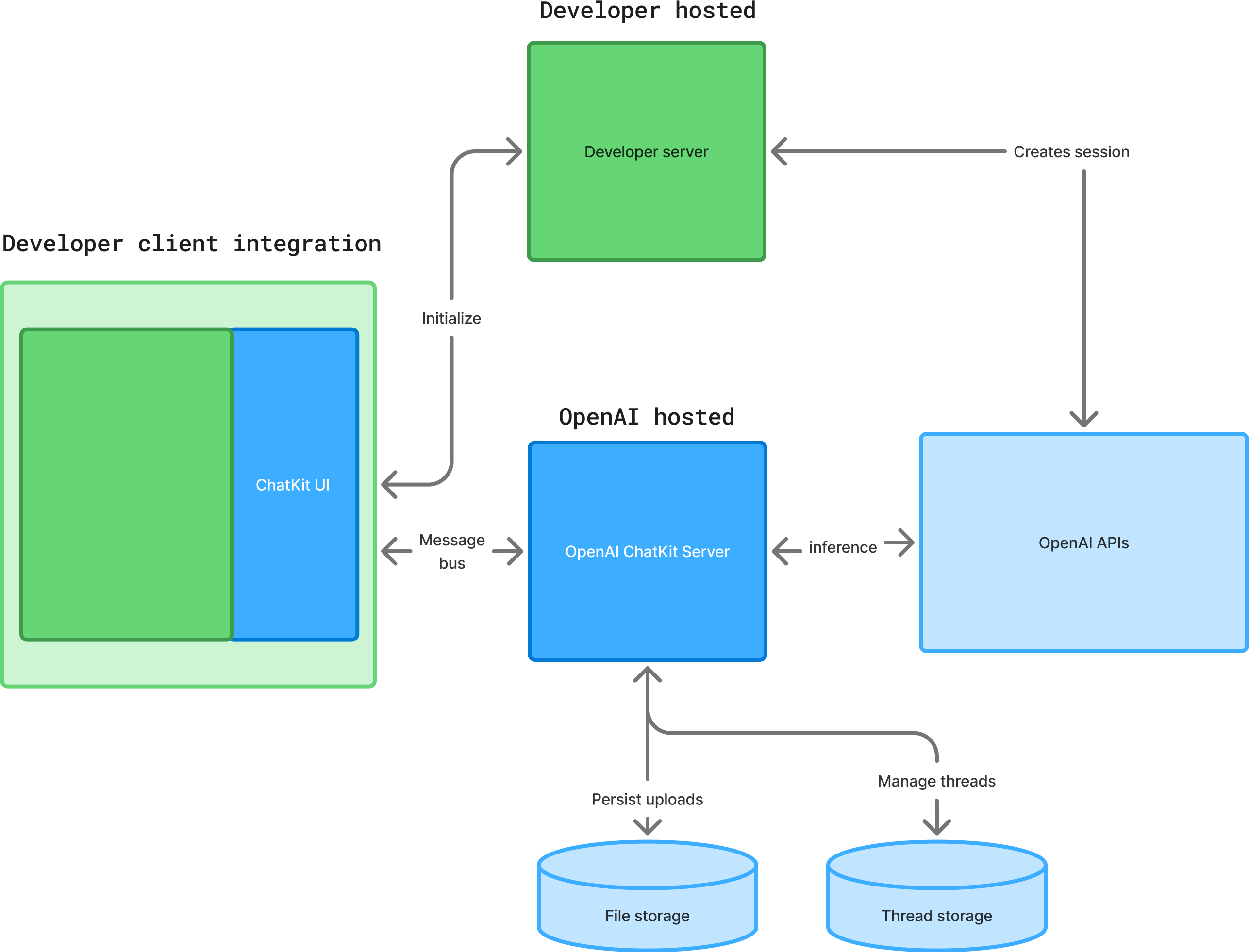
At a high level, setting up ChatKit with an existing hosted workflow is a three-step process. Open your existing workflow while Agent Builder remains available. Then set up ChatKit and add features to build your chat experience.
### 1. Use an existing hosted workflow
Open your existing workflow in [Agent Builder](https://developers.openai.com/api/docs/guides/agent-builder). You'll get a workflow ID. For transition planning, see [Migrate from Agent Builder](https://developers.openai.com/api/docs/guides/agent-builder/migrate-from-agent-builder).
The chat embedded in your frontend will point to the workflow you select.
### 2. Set up ChatKit in your product
To set up ChatKit, you'll create a ChatKit session and create a backend endpoint, pass in your workflow ID, exchange the client secret, add a script to embed ChatKit on your site.
**Important Security Note:** When creating a ChatKit session, you must pass in a `user` parameter, which should be unique for each individual end user. It is your backend's responsibility
to authenticate your application's users and pass a unique identifier for them in this parameter.
1. On your server, generate a client token.
This snippet spins up a FastAPI service whose sole job is to create a new ChatKit session via the [OpenAI Python SDK](https://github.com/openai/chatkit-python) and hand back the session's client secret:
server.py
```python
from fastapi import FastAPI
from pydantic import BaseModel
from openai import OpenAI
import os
app = FastAPI()
openai = OpenAI(api_key=os.environ["OPENAI_API_KEY"])
@app.post("/api/chatkit/session")
def create_chatkit_session():
session = openai.chatkit.sessions.create({
# ...
})
return { client_secret: session.client_secret }
```
2. In your server-side code, pass in your workflow ID and secret key to the session endpoint.
The client secret is the credential that your ChatKit frontend uses to open or refresh the chat session. You don't store it; you immediately hand it off to the ChatKit client library.
See the [chatkit-js repo](https://github.com/openai/chatkit-js) on GitHub.
chatkit.ts
```typescript
export default async function getChatKitSessionToken(
deviceId: string
): Promise {
const response = await fetch("https://api.openai.com/v1/chatkit/sessions", {
method: "POST",
headers: {
"Content-Type": "application/json",
"OpenAI-Beta": "chatkit_beta=v1",
Authorization: "Bearer " + process.env.VITE_OPENAI_API_SECRET_KEY,
},
body: JSON.stringify({
workflow: { id: "wf_68df4b13b3588190a09d19288d4610ec0df388c3983f58d1" },
user: deviceId,
}),
});
const { client_secret } = await response.json();
return client_secret;
}
```
3. In your project directory, install the ChatKit React bindings:
```bash
npm install @openai/chatkit-react
```
4. Add the ChatKit JS script to your page. Drop this snippet into your page’s `` or wherever you load scripts, and the browser will fetch and run ChatKit for you.
index.html
```html
```
5. Render ChatKit in your UI. This code fetches the client secret from your server and mounts a live chat widget connected to your workflow.
Your frontend code
```react
import { ChatKit, useChatKit } from '@openai/chatkit-react';
export function MyChat() {
const { control } = useChatKit({
api: {
async getClientSecret(existing) {
if (existing) {
// implement session refresh
}
const res = await fetch('/api/chatkit/session', {
method: 'POST',
headers: {
'Content-Type': 'application/json',
},
});
const { client_secret } = await res.json();
return client_secret;
},
},
});
return ;
}
```
```javascript
const chatkit = document.getElementById('my-chat');
chatkit.setOptions({
api: {
getClientSecret(currentClientSecret) {
if (!currentClientSecret) {
const res = await fetch('/api/chatkit/start', { method: 'POST' })
const {client_secret} = await res.json();
return client_secret
}
const res = await fetch('/api/chatkit/refresh', {
method: 'POST',
body: JSON.stringify({ currentClientSecret })
headers: {
'Content-Type': 'application/json',
},
});
const {client_secret} = await res.json();
return client_secret
}
},
});
```
### 3. Build and iterate
See the [custom theming](https://developers.openai.com/api/docs/guides/chatkit-themes), [widgets](https://developers.openai.com/api/docs/guides/chatkit-widgets), and [actions](https://developers.openai.com/api/docs/guides/chatkit-actions) docs to learn more about how ChatKit works. Or explore the following resources to test your chat, iterate on prompts, and add widgets and tools.
#### Build your implementation
Learn to handle authentication, add theming and customization, and more.
Add server-side storage, access control, tools, and other backend
functionality.
Check out the ChatKit JS repo.
#### Explore ChatKit UI
Play with an interactive demo of ChatKit.
Browse available widgets.
Play with an interactive demo to learn by doing.
#### See working examples
See working examples of ChatKit and get inspired.
Clone a repo to start with a fully working template.
## Next steps
When you're happy with your ChatKit implementation, learn how to optimize it with [evals](https://developers.openai.com/api/docs/guides/agent-evals). For new ChatKit apps, or to move an existing ChatKit app off an Agent Builder-hosted workflow, see the [advanced integration docs](https://developers.openai.com/api/docs/guides/custom-chatkit).