# Secure MCP Tunnel
> For the complete documentation index, see [llms.txt](/llms.txt). Markdown versions of documentation pages are available by appending `.md` to the page URL.
Secure MCP Tunnel lets you connect private MCP servers to supported OpenAI products without opening inbound firewall ports or exposing those servers to the public internet. Run `tunnel-client` inside the network that can already reach your MCP server; it opens an outbound HTTPS path to OpenAI, pulls queued MCP work, forwards requests locally, and returns responses through the same tunnel.
Secure MCP Tunnel supports private MCP connections, including developer-mode
testing. It does not support public plugin submission or distribution. Public
plugins require a stable, publicly reachable HTTPS MCP endpoint. If the MCP
server must stay private, expose a public HTTPS proxy that forwards requests
to it. See [public plugin submission](https://developers.openai.com/plugins/deploy/submission) for endpoint
and authentication requirements.
## What is an MCP tunnel?
An MCP tunnel is an outbound-only connection from a host inside your network to an OpenAI-hosted MCP endpoint. Use it when your MCP server is private, on-premises, or behind a firewall, but ChatGPT, Codex, the Responses API, or another supported OpenAI surface still needs to call it.
Secure MCP Tunnel keeps the MCP server private while giving supported OpenAI products a normal MCP request path. `tunnel-client` polls OpenAI for work, forwards MCP requests locally, and returns responses through the same tunnel.
## Use Secure MCP Tunnel when
- Your MCP server runs on a private network, on-premises, on a developer machine, or behind existing access controls.
- You want ChatGPT, Codex, the Responses API, or another supported OpenAI surface to use that server without making the MCP server public.
- Your network allows the host running `tunnel-client` to make outbound HTTPS requests to `api.openai.com:443` by default, or `mtls.api.openai.com:443` when control-plane mTLS is configured, and reach the private MCP server.
- Start with the [MCP and Connectors guide](https://developers.openai.com/api/docs/guides/tools-connectors-mcp) for general MCP concepts.
## How it works
1. Create or manage an OpenAI-hosted MCP tunnel endpoint in Platform tunnel settings.
2. Run `tunnel-client` inside the network that can reach your private MCP server.
3. Configure `tunnel-client` with the tunnel identity and the private MCP server address.
4. OpenAI products send MCP requests to the OpenAI-hosted tunnel endpoint.
5. `tunnel-client` long-polls for queued work, forwards each `JSON-RPC` request to the private MCP server, and posts the response back through the tunnel.
The private MCP server does not need a public listener. The OpenAI-hosted endpoint gives supported products a normal MCP request path, while the network initiation point stays inside your boundary. When a connector asks for streamed results, the tunnel path can forward intermediate server-sent events.
OpenAI products call the OpenAI-hosted tunnel endpoint; `tunnel-client`
long-polls for queued work and returns the MCP response through the same
tunnel.
## Before you start
You need:
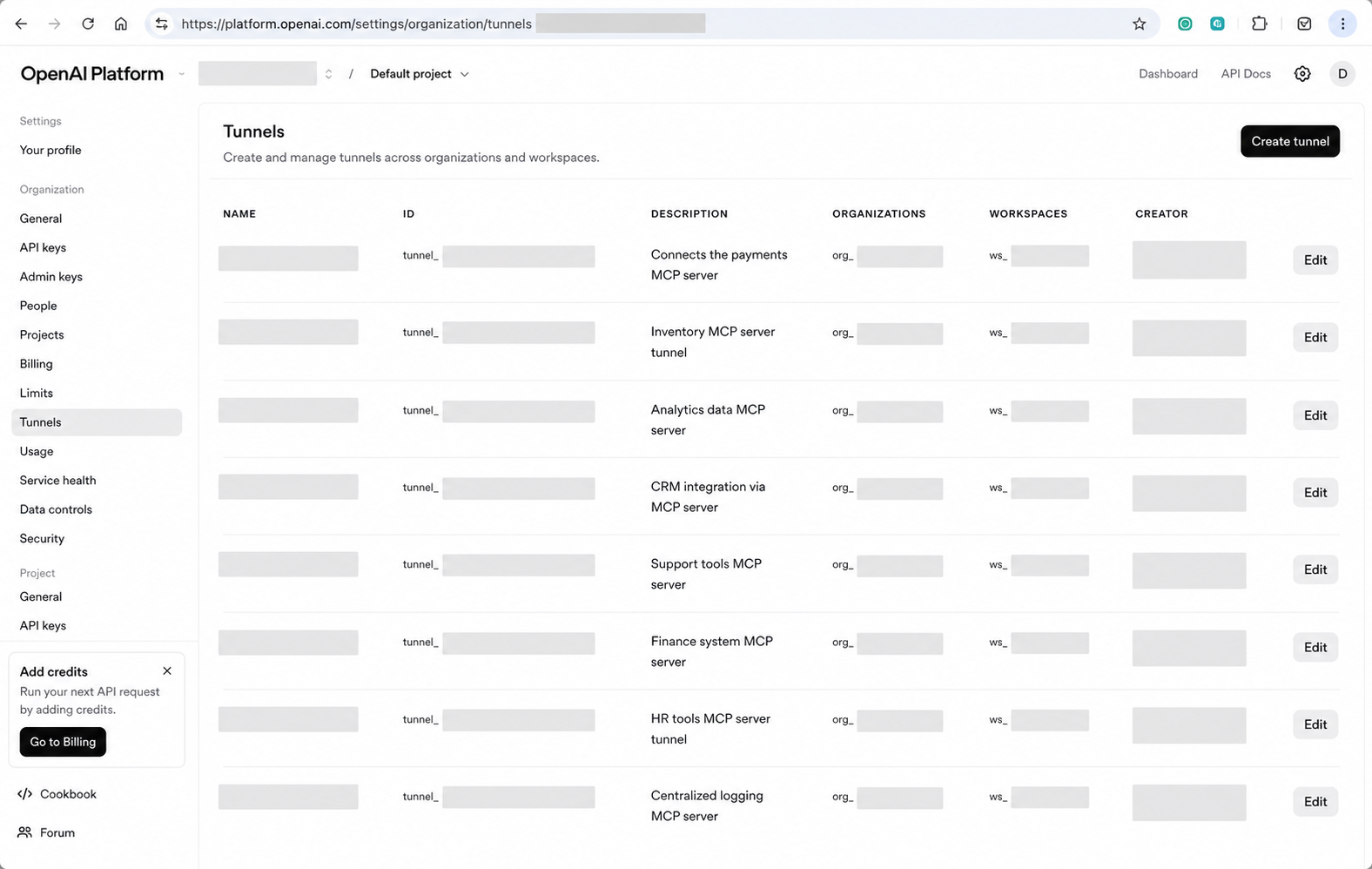
- A `tunnel_id` from [Platform tunnel settings](https://platform.openai.com/settings/organization/tunnels).
- A runtime API key for `tunnel-client`.
- An MCP server that `tunnel-client` can reach over stdio or HTTP from inside your network.
## Permissions and access
[Platform tunnel permissions](https://developers.openai.com/api/docs/guides/rbac) and ChatGPT developer-mode access are separate:
- Creating or editing a tunnel requires Tunnels **Read** + **Manage**.
- Running `tunnel-client` or selecting the tunnel while creating an app requires Tunnels **Read** + **Use**.
- Tunnel permissions apply to a Platform organization. A Platform organization owner or RBAC administrator grants the tunnel role.
- ChatGPT developer mode is a separate workspace permission. For Enterprise/Edu, a workspace admin grants developer-mode access; the user then enables it in **Settings → Security and login**. See the [developer-mode Help Center article](https://help.openai.com/en/articles/12584461-developer-mode-apps-and-full-mcp-connectors-in-chatgpt-beta) for plan-specific policy.
Ask the target ChatGPT workspace admin for developer-mode access, and ask the target Platform organization owner/RBAC admin for tunnel permissions.
## Associate tunnels with the right organizations and workspaces
A tunnel can be associated with one or more Platform organizations or ChatGPT workspaces. Use these associations to define every OpenAI context that should be allowed to find or use the tunnel.
- Include the Platform organization that owns or manages the tunnel.
- Include the ChatGPT workspace that should list the tunnel when creating apps.
- Include another Platform organization when Codex, the Responses API, or another supported product will call the private MCP server from that organization.
- Use the same `tunnel_id` for `tunnel-client`; adding organizations or workspaces does not create a second tunnel or change the private MCP server endpoint.
For personal accounts, use the personal Platform organization that belongs to that account. For ChatGPT and Codex testing, associate the tunnel with the target ChatGPT workspace and the Platform organization that Codex will use. A tunnel associated only with a personal Platform organization doesn't automatically appear in an Enterprise/Edu workspace.
If the Platform organization and ChatGPT workspace are already linked, you can add the missing organization or workspace in [Platform tunnel settings](https://platform.openai.com/settings/organization/tunnels). If your enterprise setup can't be verified automatically, such as when the Platform organization has no corresponding ChatGPT workspace, contact your OpenAI account team to request a reviewed manual association override for the enterprise account mapping that should use the tunnel.
## Network requirements
`tunnel-client` does not need inbound internet access. It needs outbound HTTPS to OpenAI and local reachability to the private MCP server:
| From | To | Used for |
| ---------------------------- | ------------------------------------------------------ | ------------------------------------------------------------------- |
| Host running `tunnel-client` | `api.openai.com:443` over HTTPS on `/v1/tunnel/*` | Default polling and response posting. |
| Host running `tunnel-client` | `mtls.api.openai.com:443` over HTTPS on `/v1/tunnel/*` | Polling and response posting when control-plane mTLS is configured. |
| Host running `tunnel-client` | The configured stdio command or MCP server URL | Forwarding MCP requests from inside your network. |
## Set up tunnel-client
Open [Platform tunnel settings](https://platform.openai.com/settings/organization/tunnels), then use the download link there or the latest public `tunnel-client` release from [openai/tunnel-client](https://github.com/openai/tunnel-client/releases/latest). Keep your runbook pointed at the latest-release URL instead of hard-coding a specific release URL.
If you already have a binary, start with `tunnel-client help quickstart`. For a named local stdio profile, use:
```bash
export CONTROL_PLANE_API_KEY="sk-..."
tunnel-client init \
--sample sample_mcp_stdio_local \
--profile local-stdio \
--tunnel-id tunnel_0123456789abcdef0123456789abcdef \
--mcp-command "python /path/to/server.py"
tunnel-client doctor --profile local-stdio --explain
tunnel-client run --profile local-stdio
```
For an HTTP MCP server, use `--mcp-server-url https://mcp.internal.example.com/mcp` instead of `--mcp-command`.
Keep `tunnel-client run ...` healthy while you create or test the app. App discovery and MCP tool calls depend on the running client.
The local admin UI at `/ui` shows whether the running client is
healthy, ready, and connected before you test from ChatGPT, Codex, or an API
flow.
## Choose where to run tunnel-client
Run `tunnel-client` in the same trust boundary that can already reach the private MCP server. Common deployment patterns are:
- **Kubernetes sidecar:** Run `tunnel-client` beside the MCP server in one Pod and connect over `localhost`.
- **Dedicated Kubernetes deployment:** Run `tunnel-client` separately when the MCP server is already reachable through a private Service.
- **VM or systemd service:** Run `tunnel-client` on a host that can reach the MCP server over private networking.
## Connect from ChatGPT
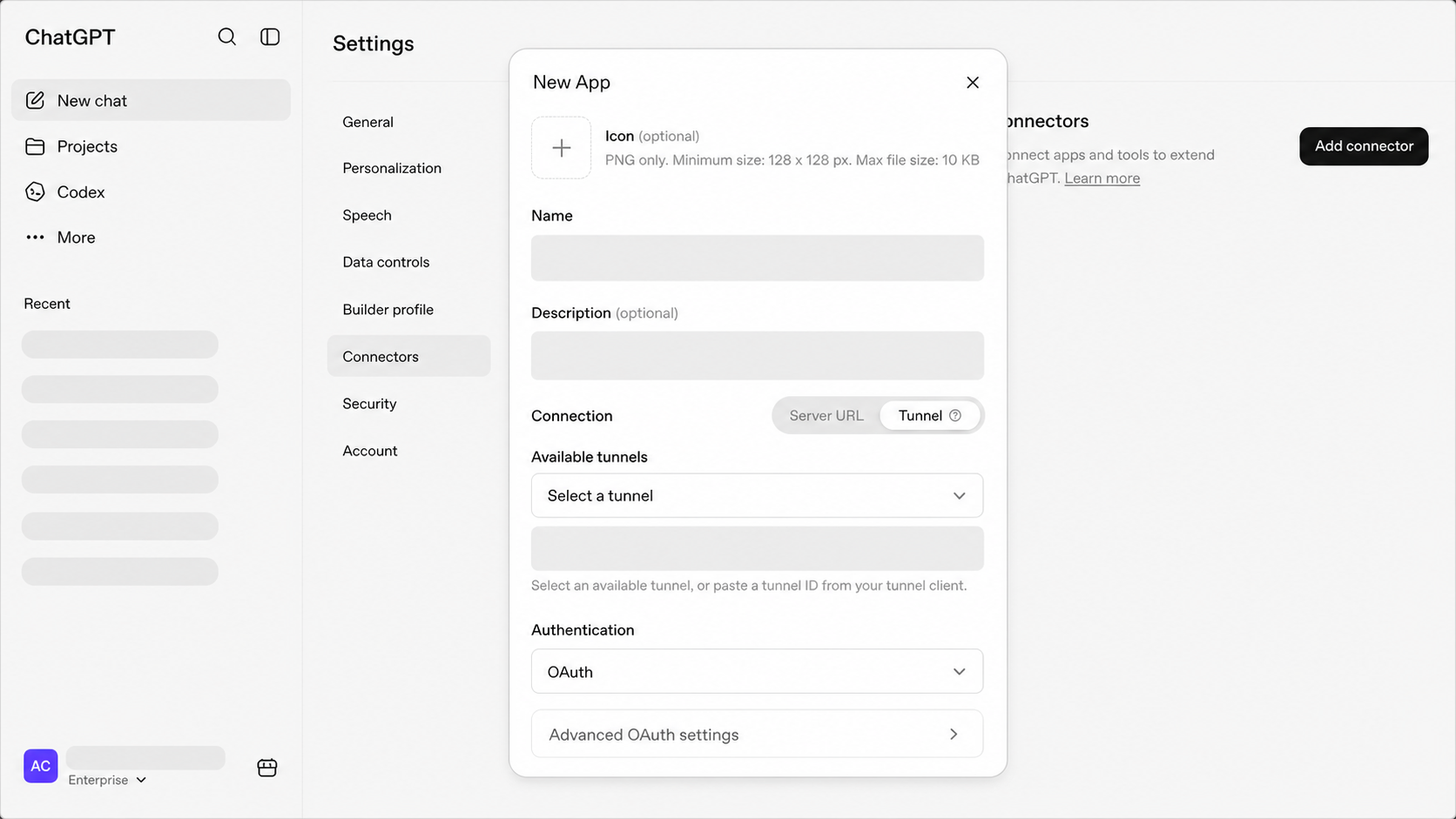
Go to [ChatGPT Plugins](https://chatgpt.com/plugins), select the plus button to create a developer-mode app, and choose **Tunnel** under **Connection**. Select an available tunnel when ChatGPT lists it, or paste a valid `tunnel_id` if you already have one.
If the tunnel does not appear in ChatGPT, verify that the tunnel is associated with the target ChatGPT workspace, not only with a Platform organization, and that the app creator has Tunnels **Read** + **Use**.
## Security and networking
The private MCP server stays inside the customer-controlled environment.
`tunnel-client` reaches OpenAI over outbound HTTPS using the runtime API key
and, when required, optional control-plane mTLS.
- The MCP server address stays private and is used only from inside the environment where `tunnel-client` runs.
- `tunnel-client` authenticates to the OpenAI tunnel control plane; supported OpenAI products use the OpenAI-hosted tunnel endpoint.
- Tunnel access follows the existing organization and workspace context instead of introducing a separate public ingress path.
- `tunnel-client` supports enterprise networking requirements such as outbound proxies, custom CA bundles, control-plane client certificates, and MCP-side `mTLS`.
### Logging boundaries
Secure MCP Tunnel separates tunnel transport from app-level product logging:
- Tunnel control-plane auth, long-poll / response traffic, and individual tunnel transport requests are not emitted as ChatGPT Compliance Platform app events by the tunnel path.
- Tunnel metadata changes are exposed through the API Platform [Audit logs](https://developers.openai.com/api/reference/resources/admin/subresources/organization/subresources/audit_logs) surface as `tunnel.created`, `tunnel.updated`, and `tunnel.deleted`.
- When ChatGPT reaches a custom app through Secure MCP Tunnel, the tunnel remains only the transport path. Normal app-level compliance logging still applies on the app path, including app invocation logs and app auth lifecycle logs such as `APP_AUTH_LOG` when the app is linked or unlinked.
## Advanced: allowlisted HTTP callouts
Secure MCP Tunnel can also support narrowly scoped HTTP callouts from supported agent or API flows into a customer network. `tunnel-client` includes an embedded MCP server, Harpoon, that exposes configured HTTP targets by label and lets callers invoke them through the tunnel with bounded request/response limits.
Use this when you need to reach a small set of private REST endpoints without exposing them publicly. Harpoon is not a general-purpose proxy: callers cannot choose arbitrary hosts, and requests are limited to the targets and methods configured by the customer.
## Troubleshooting
- **“Tunnels access required” in Platform tunnel settings:** Tunnel permissions are organization-level, not project-level. Select the intended Platform organization, then ask an organization owner or RBAC administrator to add you to a role or group with **Read** to view tunnels, or **Read** + **Manage** to create, edit, or delete them. If no matching role exists, they can create one, assign it to a group, and add you to that group. You also need **Use** to run `tunnel-client` or select a tunnel in connector settings. Allow up to 30 minutes for a new role assignment to propagate.
- **Tunnel not visible in ChatGPT:** Check that the tunnel includes the target ChatGPT workspace, not only a Platform organization; then check the connector operator's Tunnels **Use** permission. If the workspace cannot be linked automatically for an enterprise account, contact your OpenAI account team for a reviewed manual association override.
- **Connector discovery or tool calls fail:** Confirm that `tunnel-client run ...` is still running, then re-run `tunnel-client doctor --profile --explain`.
- **You can inspect a tunnel but cannot edit it:** The operator likely has Tunnels **Read** but not Tunnels **Manage**.
- `tunnel-client` exposes `/healthz`, `/readyz`, `/metrics`, and a local admin UI at `/ui`.
- The admin UI is loopback-only by default. Expose it remotely only when you intentionally need an operator network to reach it.
- Use those surfaces to confirm that the client is healthy, ready, and polling before testing from ChatGPT, Codex, or an API flow.
- If the client is not connected, requests through the tunnel fail until `tunnel-client` reconnects.
- Raw HTTP logging is disabled by default, and support exports are redacted.
## OAuth
- OAuth discovery can travel through the tunnel path so the MCP server itself can remain private.
- The tunnel preserves the upstream authorization server metadata needed for browser-facing OAuth flows.
- The authorization server itself is not automatically tunneled. If it is unreachable from the public internet and from the `tunnel-client` host, the OAuth flow can still fail even when the MCP server is reachable.
## Where to configure it
- Manage OpenAI-hosted MCP tunnel endpoints in [Platform tunnel settings](https://platform.openai.com/settings/organization/tunnels).
- Use a tunnel when creating a developer-mode app at [ChatGPT Plugins](https://chatgpt.com/plugins).
- For Codex or API flows, use the tunnel-backed MCP target exposed by the supported product surface.
## Next steps
- Create or manage the tunnel in [Platform tunnel settings](https://platform.openai.com/settings/organization/tunnels).
- Validate your `tunnel-client` profile with `tunnel-client doctor --profile --explain`.
- Connect the tunnel from [ChatGPT Plugins](https://chatgpt.com/plugins) or the supported OpenAI surface you are using.
[](https://platform.openai.com/settings/organization/tunnels)
Create and manage OpenAI-hosted MCP tunnel endpoints from Platform tunnel
settings.
[](https://chatgpt.com/plugins)
Select Tunnel when connecting a ChatGPT developer-mode app to a private
MCP server.
 ](https://platform.openai.com/settings/organization/tunnels)
 ](https://chatgpt.com/plugins)