# Use Codex in Linear
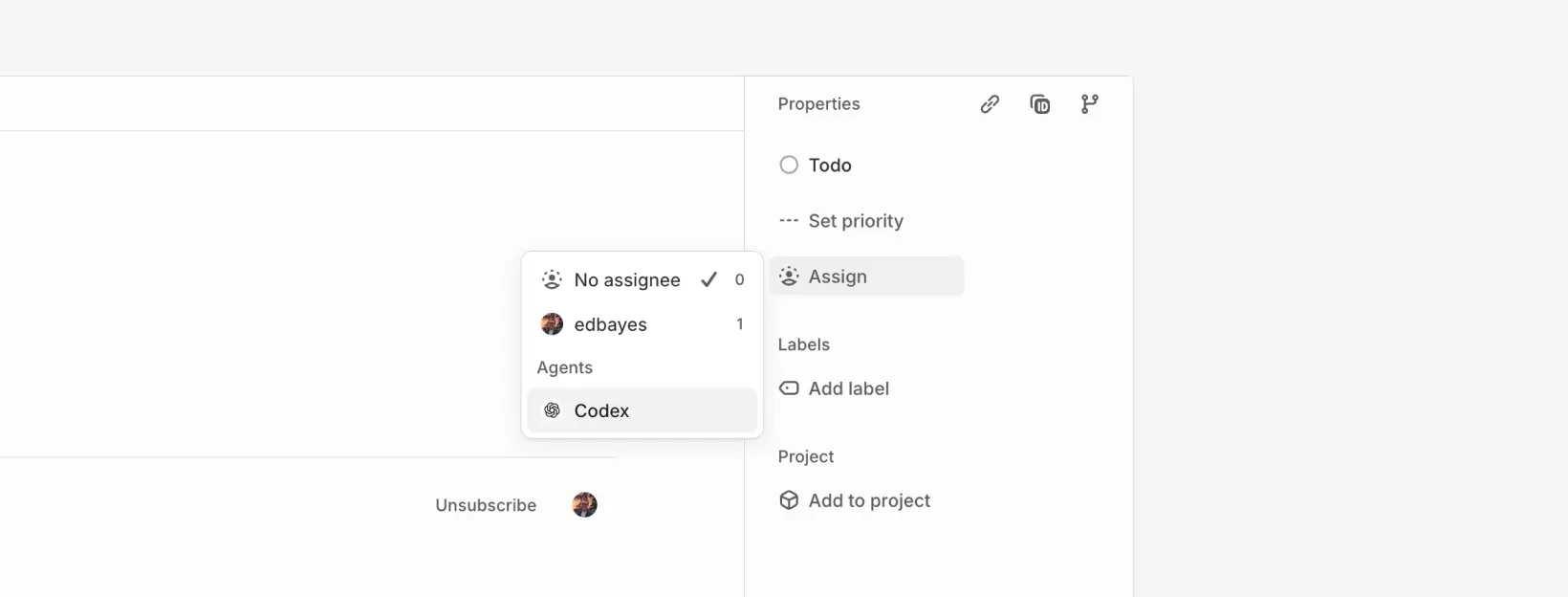
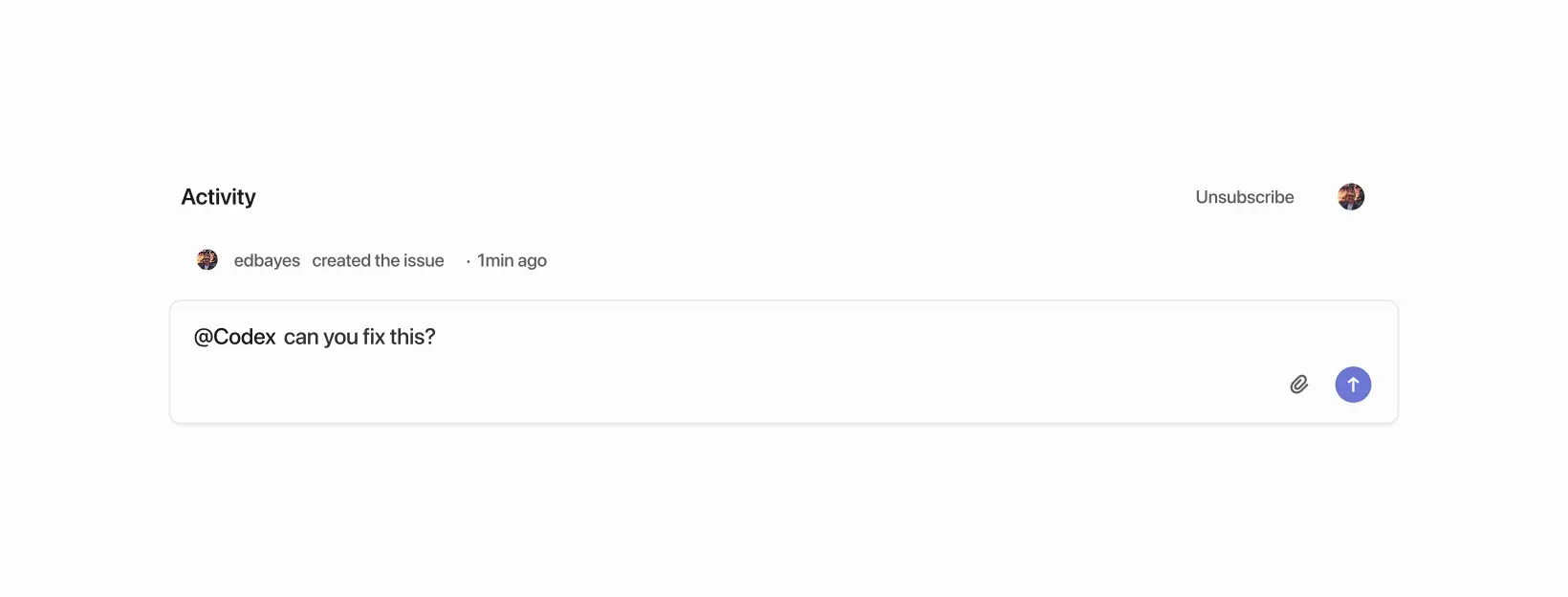
Use Codex in Linear to delegate work from issues. Assign an issue to Codex or mention `@Codex` in a comment, and Codex creates a cloud task and replies with progress and results.
Codex in Linear is available on paid plans (see [Pricing](https://developers.openai.com/codex/pricing)).
If you're on an Enterprise plan, ask your ChatGPT workspace admin to turn on Codex cloud tasks in [workspace settings](https://chatgpt.com/admin/settings) and enable **Codex for Linear** in [connector settings](https://chatgpt.com/admin/ca).
## Set up the Linear integration
1. Set up [Codex cloud tasks](https://developers.openai.com/codex/cloud) by connecting GitHub in [Codex](https://chatgpt.com/codex) and creating an [environment](https://developers.openai.com/codex/cloud/environments) for the repository you want Codex to work in.
2. Go to [Codex settings](https://chatgpt.com/codex/settings/connectors) and install **Codex for Linear** for your workspace.
3. Link your Linear account by mentioning `@Codex` in a comment thread on a Linear issue.
## Delegate work to Codex
You can delegate in two ways:
### Assign an issue to Codex
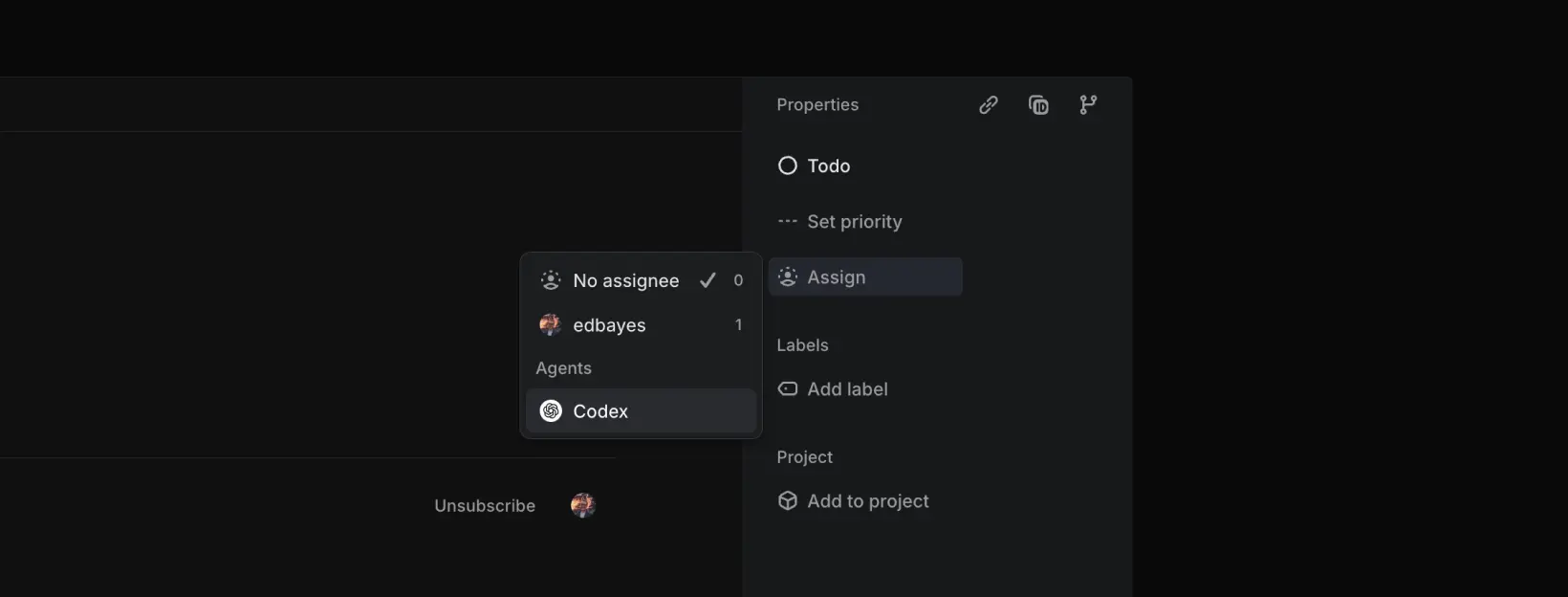
After you install the integration, you can assign issues to Codex the same way you assign them to teammates. Codex starts work and posts updates back to the issue.
### Mention `@Codex` in comments
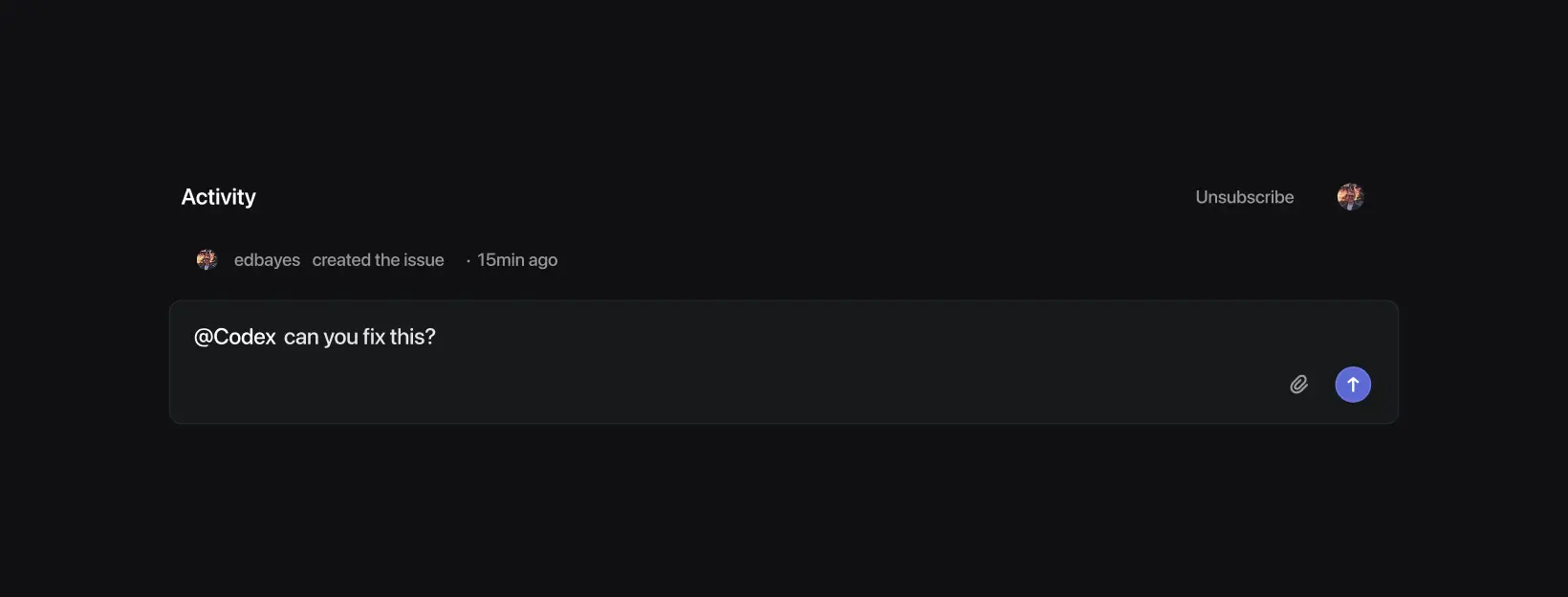
You can also mention `@Codex` in comment threads to delegate work or ask questions. After Codex replies, follow up in the thread to continue the same session.
After Codex starts working on an issue, it [chooses an environment and repo](#how-codex-chooses-an-environment-and-repo) to work in.
To pin a specific repo, include it in your comment, for example: `@Codex fix this in openai/codex`.
To track progress:
- Open **Activity** on the issue to see progress updates.
- Open the task link to follow along in more detail.
When the task finishes, Codex posts a summary and a link to the completed task so you can create a pull request.
### How Codex chooses an environment and repo
- Linear suggests a repository based on the issue context. Codex selects the environment that best matches that suggestion. If the request is ambiguous, it falls back to the environment you used most recently.
- The task runs against the default branch of the first repository listed in that environment’s repo map. Update the repo map in Codex if you need a different default or more repositories.
- If no suitable environment or repository is available, Codex will reply in Linear with instructions on how to fix the issue before retrying.
## Automatically assign issues to Codex
You can assign issues to Codex automatically using triage rules:
1. In Linear, go to **Settings**.
2. Under **Your teams**, select your team.
3. In the workflow settings, open **Triage** and turn it on.
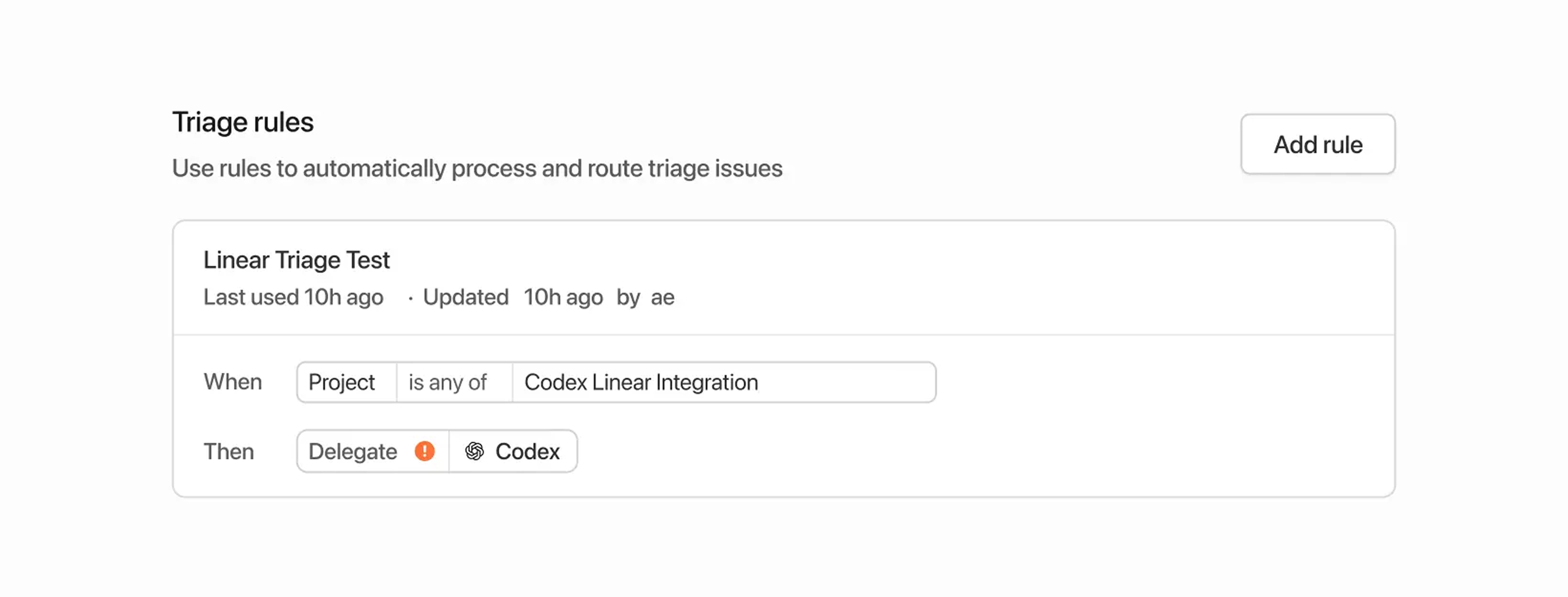
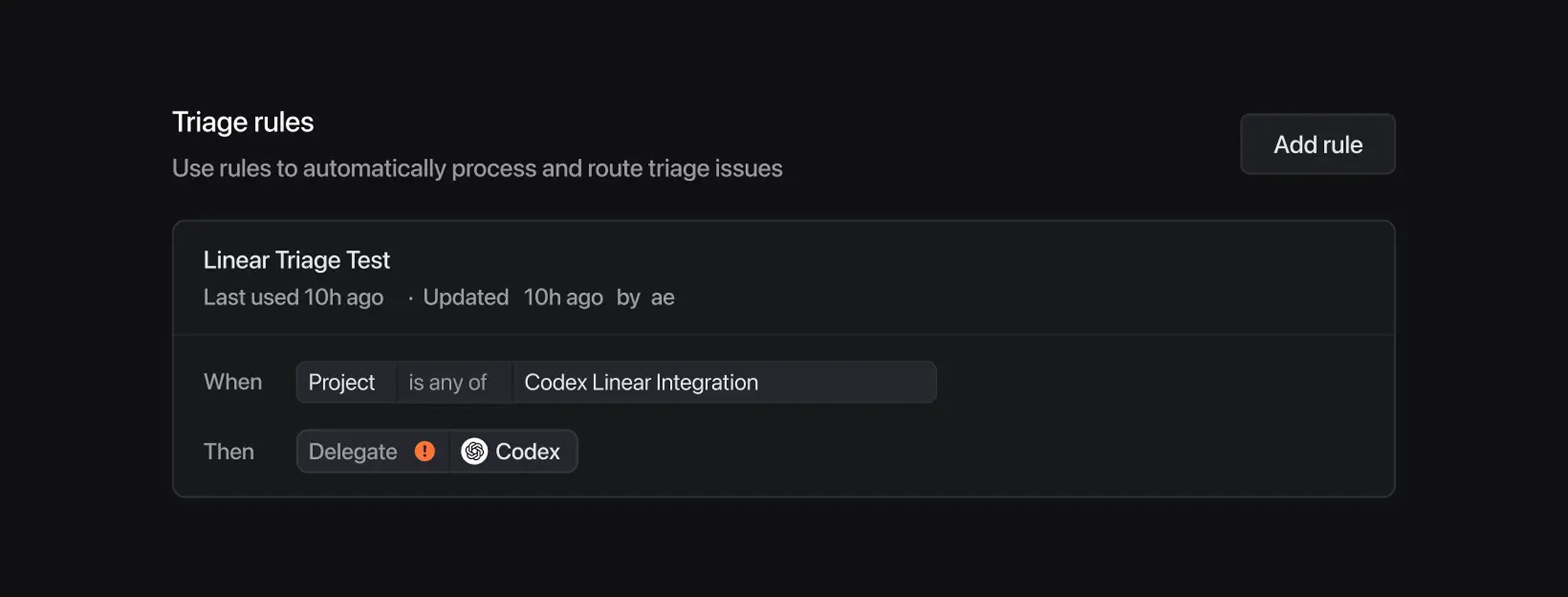
4. In **Triage rules**, create a rule and choose **Delegate** > **Codex** (and any other properties you want to set).
Linear assigns new issues that enter triage to Codex automatically.
When you use triage rules, Codex runs tasks using the account of the issue creator.
## Data usage, privacy, and security
When you mention `@Codex` or assign an issue to it, Codex receives your issue content to understand your request and create a task.
Data handling follows OpenAI's [Privacy Policy](https://openai.com/privacy), [Terms of Use](https://openai.com/terms/), and other applicable [policies](https://openai.com/policies).
For more on security, see the [Codex security documentation](https://developers.openai.com/codex/agent-approvals-security).
Codex uses large language models that can make mistakes. Always review answers and diffs.
## Tips and troubleshooting
- **Missing connections**: If Codex can't confirm your Linear connection, it replies in the issue with a link to connect your account.
- **Unexpected environment choice**: Reply in the thread with the environment you want (for example, `@Codex please run this in openai/codex`).
- **Wrong part of the code**: Add more context in the issue, or give explicit instructions in your `@Codex` comment.
- **More help**: See the [OpenAI Help Center](https://help.openai.com/).
## Connect Linear for local tasks (MCP)
If you're using the Codex app, CLI, or IDE Extension and want Codex to access Linear issues locally, configure Codex to use the Linear Model Context Protocol (MCP) server.
To learn more, [check out the Linear MCP docs](https://linear.app/integrations/codex-mcp).
The setup steps for the MCP server are the same regardless of whether you use the IDE extension or the CLI since both share the same configuration.
### Use the CLI (recommended)
If you have the CLI installed, run:
```bash
codex mcp add linear --url https://mcp.linear.app/mcp
```
This prompts you to sign in with your Linear account and connect it to Codex.
### Configure manually
1. Open `~/.codex/config.toml` in your editor.
2. Add the following:
```toml
[mcp_servers.linear]
url = "https://mcp.linear.app/mcp"
```
3. Run `codex mcp login linear` to log in.