# Submit plugins
> For the complete documentation index, see [llms.txt](/llms.txt). Markdown versions of documentation pages are available by appending `.md` to the page URL.
Use the plugin submission portal to submit a plugin for review when you're
ready to publish it for public use.
If you're migrating an existing Claude Code plugin or connector, first review
[Submit your Claude Code plugin to OpenAI](https://developers.openai.com/plugins/guides/submit-claude-plugin)
to see what you need to change before starting the submission.
If the portal returns an error code, use the
[submission error reference](https://developers.openai.com/plugins/deploy/submission-errors) to find the
matching requirement.
A plugin can contain skills, an MCP server, or both. You can submit:
- A skills-only plugin that packages reusable workflows.
- An MCP-only plugin. Custom UI is optional.
- A plugin that combines an MCP server with uploaded or MCP-imported skills.
The submission form collects listing information, MCP server details, skills,
starter prompts, test cases, country availability, and policy
attestations. Which fields you complete depends on whether the plugin includes
skills, an MCP server, or both.
For local development, packaging, and marketplace setup, see
[Build plugins](https://developers.openai.com/plugins/build/plugins).
For server-backed capabilities, see
[Build an MCP server](https://developers.openai.com/plugins/build/mcp-server).
## Before you submit
### Submit the MCP server, not an existing integration reference
You cannot submit a plugin that references an existing, already-published
integration. If your plugin includes an MCP server that already exists in
ChatGPT or Codex, submit that server from scratch through the portal as a new
MCP-backed plugin submission. The portal scans that MCP server, validates the
tool metadata, and uses the submitted server details during review.
### Get plugin submission access
You need an organization role with plugin submission write access before you
can create or submit plugin drafts. The Platform currently labels this
permission **Apps Management**.
1. Open [OpenAI Platform roles settings](https://platform.openai.com/settings/organization/people/roles).
2. Select the organization that owns the plugin.
3. Open the role assigned to the submitter, or create a new role.
4. In the role permissions, set **Apps Management** to **Write**.
5. Save the role and assign it to each person who needs to create, edit, or
submit plugin drafts.
6. Reload the [plugin submission portal](https://platform.openai.com/plugins).
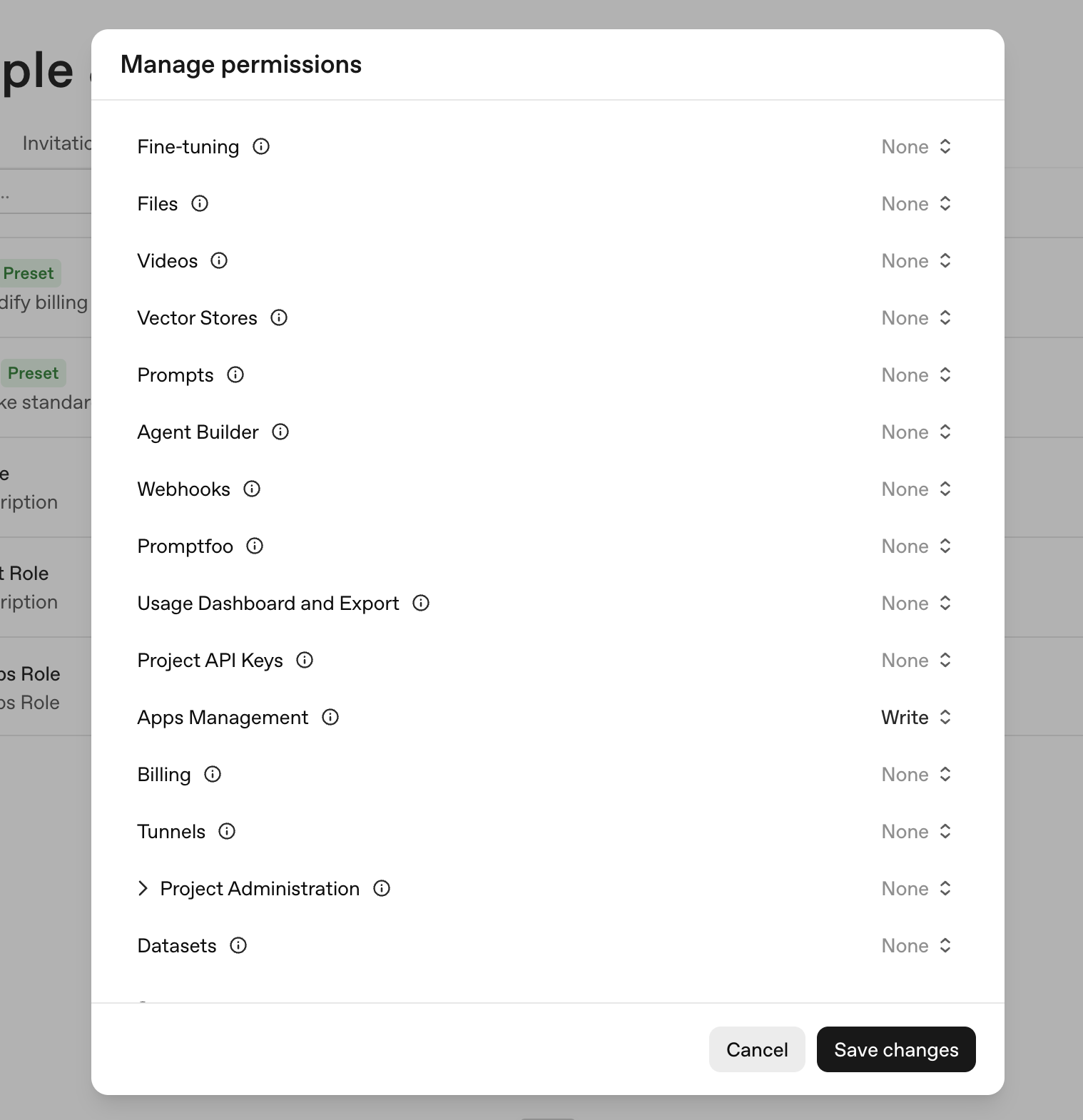 Organization owners already have these permissions. Non-owner submitters need
write access to create or submit drafts, and read access to view drafts and
review status.
### Verify your developer or business identity
Every public submission must use a verified developer or business identity in
the OpenAI Platform. Reviewers use this identity to confirm the submission
matches the name, website, support contact, privacy policy, and terms in your
public listing.
To verify an identity:
1. Sign in to the [OpenAI Platform](https://platform.openai.com).
2. Select the organization that will publish the plugin.
3. Open [organization settings](https://platform.openai.com/settings/organization/general).
4. Complete **individual verification** if you will publish under your own
name, or **business verification** if you will publish under a company name.
5. Return to the plugin submission form and select the verified identity in the
**Developer Identity** field.
Reviewers may reject submissions that use an unverified or mismatched publisher
identity. See the
[organization verification requirements](https://developers.openai.com/plugins/deploy/app-review#organization-verification)
for the underlying review rule.
If the Platform shows that the developer or business identity is verified but
the plugin submission form does not recognize it, check that you are submitting
from the same organization and project where the identity was verified. The
submitter also needs **Apps Management** write access for that organization.
Ask an organization owner or admin to update the role assigned to the person
submitting, then reload the plugin submission portal.
### Prepare required materials
Before opening the form, collect:
| Material | What to prepare |
| ------------------ | --------------------------------------------------------------------------------------------------------------------------------------------------------------------------------- |
| Listing details | Plugin name, short description, long description, logo, category, website, support URL, privacy policy URL, and terms URL. |
| Developer identity | Verified individual or business identity in the OpenAI Platform. |
| MCP server | For plugins with MCP: public MCP server URL, domain verification access, authentication details, demo credentials if needed, content security policy, and accurate tool metadata. |
| Tool annotations | For plugins with MCP: `readOnlyHint`, `openWorldHint`, and `destructiveHint` values for every MCP tool. |
| Skills | For skills plugins: a final skill bundle or an MCP server that exposes static skills for **Scan Tools** to import. |
| Prompts | Starter prompts that show useful, realistic workflows. |
| Test cases | Five positive test cases and three negative test cases with clear expected behavior. |
| Availability | Countries or regions where the plugin should be available. |
| Release notes | A short summary of what you are submitting and what changed since any prior version. |
## Create a plugin submission
1. Open the [plugin submission portal](https://platform.openai.com/plugins).
2. Select **Create plugin**.
3. Choose the submission type:
- **Skills only** for a plugin that only packages skills.
- **With MCP** for an MCP-only plugin.
- **With MCP** for a plugin that combines an MCP server with uploaded or
MCP-imported skills.
The portal saves the submission as a draft while you complete the form.
## Complete the form
### Info
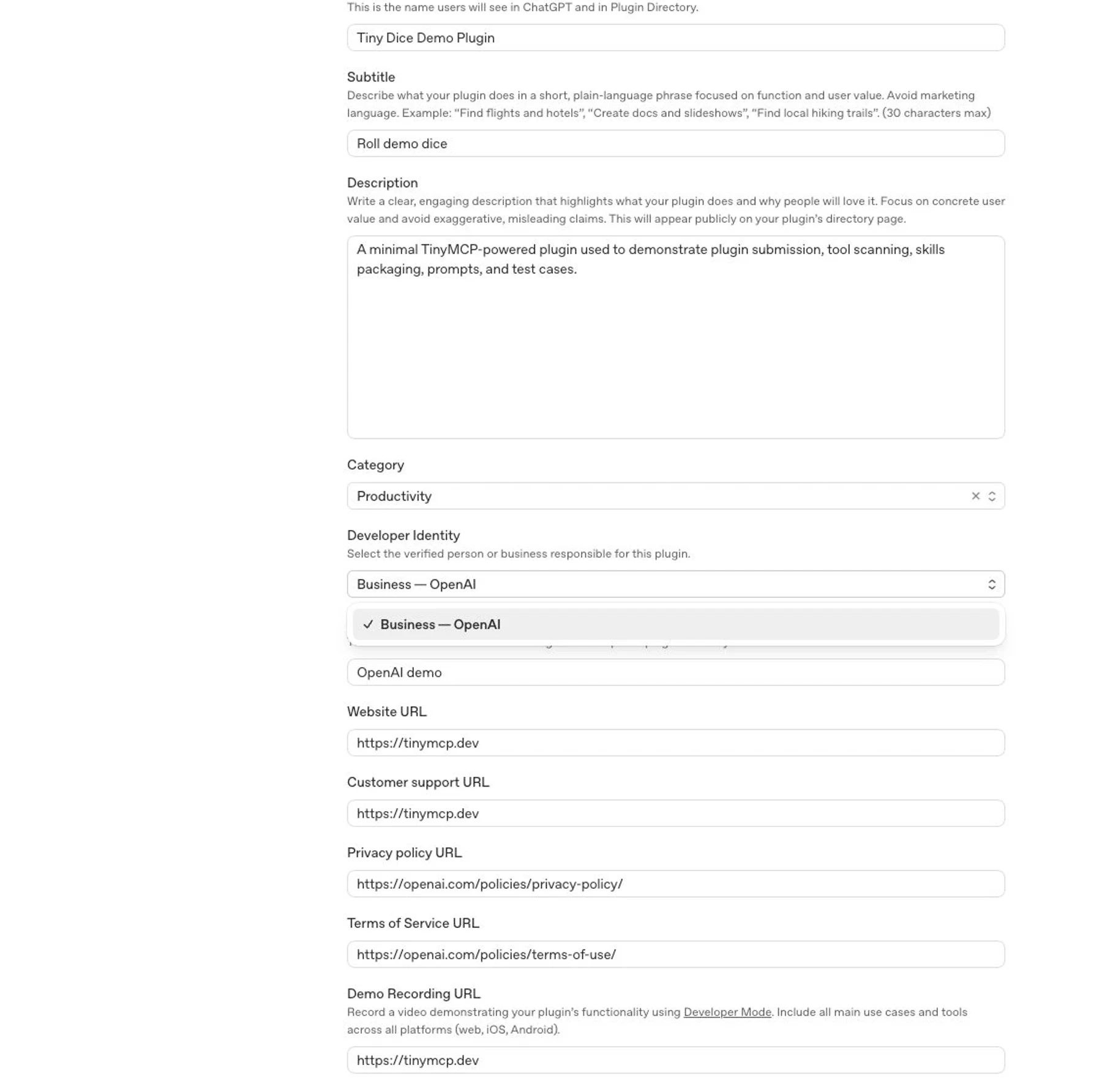
Complete the public listing and publisher fields:
- **Plugin name:** Use the customer-facing product or workflow name.
- **Descriptions:** Explain what the plugin helps users do. Keep the short
description concise and use the long description for workflow details.
- **Developer Identity:** Select the verified individual or business identity
for the publisher.
- **Logo and category:** Use production-ready brand assets.
- **Website, support, privacy, and terms URLs:** Use public URLs that match the
publisher and disclose relevant data handling.
Organization owners already have these permissions. Non-owner submitters need
write access to create or submit drafts, and read access to view drafts and
review status.
### Verify your developer or business identity
Every public submission must use a verified developer or business identity in
the OpenAI Platform. Reviewers use this identity to confirm the submission
matches the name, website, support contact, privacy policy, and terms in your
public listing.
To verify an identity:
1. Sign in to the [OpenAI Platform](https://platform.openai.com).
2. Select the organization that will publish the plugin.
3. Open [organization settings](https://platform.openai.com/settings/organization/general).
4. Complete **individual verification** if you will publish under your own
name, or **business verification** if you will publish under a company name.
5. Return to the plugin submission form and select the verified identity in the
**Developer Identity** field.
Reviewers may reject submissions that use an unverified or mismatched publisher
identity. See the
[organization verification requirements](https://developers.openai.com/plugins/deploy/app-review#organization-verification)
for the underlying review rule.
If the Platform shows that the developer or business identity is verified but
the plugin submission form does not recognize it, check that you are submitting
from the same organization and project where the identity was verified. The
submitter also needs **Apps Management** write access for that organization.
Ask an organization owner or admin to update the role assigned to the person
submitting, then reload the plugin submission portal.
### Prepare required materials
Before opening the form, collect:
| Material | What to prepare |
| ------------------ | --------------------------------------------------------------------------------------------------------------------------------------------------------------------------------- |
| Listing details | Plugin name, short description, long description, logo, category, website, support URL, privacy policy URL, and terms URL. |
| Developer identity | Verified individual or business identity in the OpenAI Platform. |
| MCP server | For plugins with MCP: public MCP server URL, domain verification access, authentication details, demo credentials if needed, content security policy, and accurate tool metadata. |
| Tool annotations | For plugins with MCP: `readOnlyHint`, `openWorldHint`, and `destructiveHint` values for every MCP tool. |
| Skills | For skills plugins: a final skill bundle or an MCP server that exposes static skills for **Scan Tools** to import. |
| Prompts | Starter prompts that show useful, realistic workflows. |
| Test cases | Five positive test cases and three negative test cases with clear expected behavior. |
| Availability | Countries or regions where the plugin should be available. |
| Release notes | A short summary of what you are submitting and what changed since any prior version. |
## Create a plugin submission
1. Open the [plugin submission portal](https://platform.openai.com/plugins).
2. Select **Create plugin**.
3. Choose the submission type:
- **Skills only** for a plugin that only packages skills.
- **With MCP** for an MCP-only plugin.
- **With MCP** for a plugin that combines an MCP server with uploaded or
MCP-imported skills.
The portal saves the submission as a draft while you complete the form.
## Complete the form
### Info
Complete the public listing and publisher fields:
- **Plugin name:** Use the customer-facing product or workflow name.
- **Descriptions:** Explain what the plugin helps users do. Keep the short
description concise and use the long description for workflow details.
- **Developer Identity:** Select the verified individual or business identity
for the publisher.
- **Logo and category:** Use production-ready brand assets.
- **Website, support, privacy, and terms URLs:** Use public URLs that match the
publisher and disclose relevant data handling.
 Review your MCP responses against your privacy policy before you submit. Remove
unnecessary personal data, auth secrets, debug payloads, internal identifiers,
and undisclosed user-related fields from tool responses.
### MCP
For submissions with MCP:
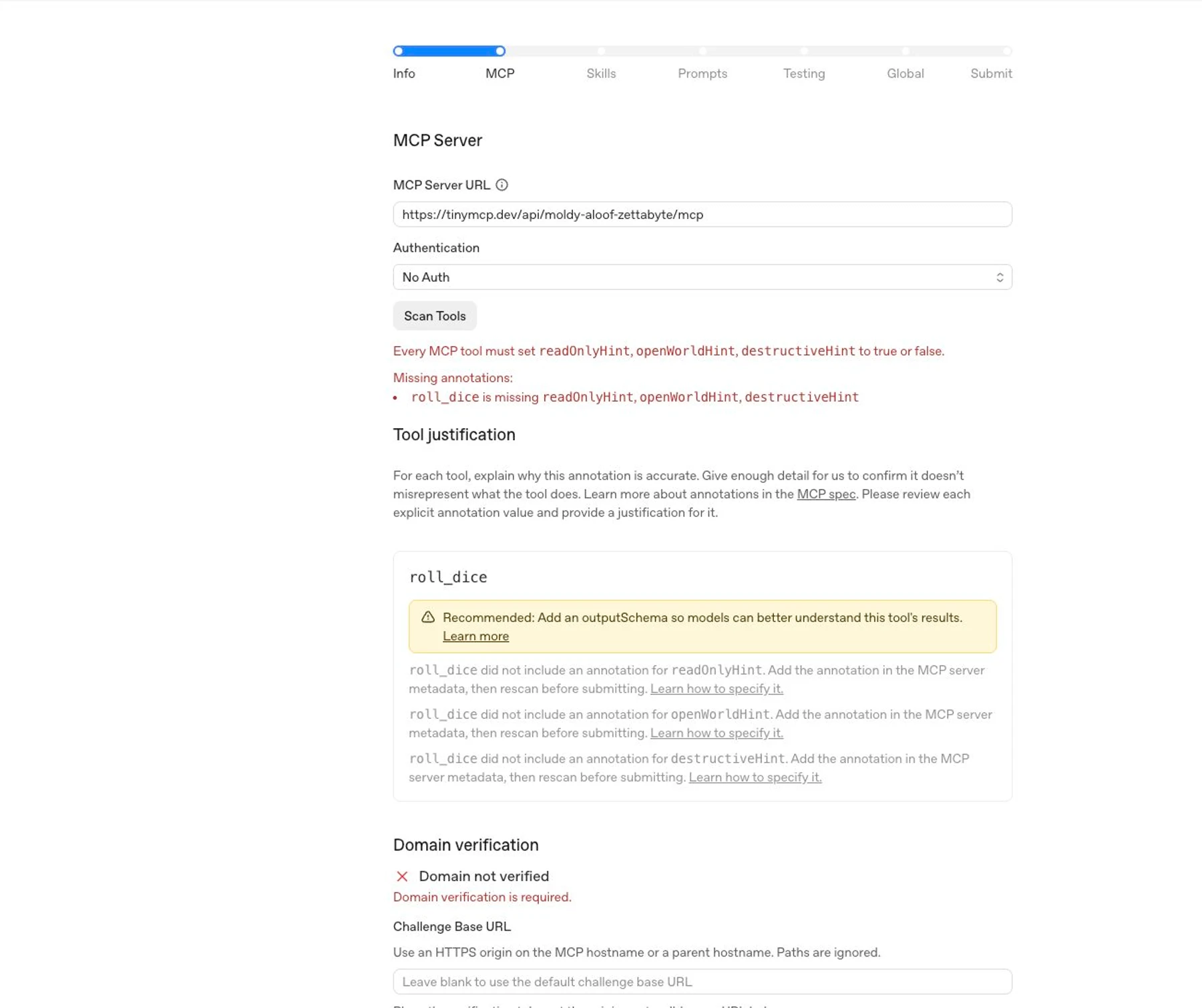
1. Choose the MCP server URL type:
- Choose **Universal** when one fixed MCP server URL works for all users and
organizations.
- Choose **Template** only when OpenAI has approved a workspace-specific URL,
such as when each customer has a separate tenant, workspace, or managed MCP
endpoint.
2. Enter the required URL:
- For **Universal**, enter the production **MCP Server URL**.
- For **Template**, enter both an **Example MCP Server URL** and a **Template
MCP Server URL**. The example must be a concrete, working endpoint that
matches the template and works with the submitted test credentials.
3. Configure authentication and provide reviewer-ready demo credentials if the
server requires sign-in.
4. Define a content security policy that allows the exact domains your UI
fetches from.
5. Complete domain verification if the portal shows a **Domain not verified**
challenge. Use an HTTPS origin on the MCP host name or a parent host name, and
host the exact token at `/.well-known/openai-apps-challenge`.
6. Select **Scan Tools**.
7. Review the discovered tools, imported skills, domains, validation output,
and tool metadata.
8. Fix server, skill, or metadata issues, deploy the fix, then scan again.
Review your MCP responses against your privacy policy before you submit. Remove
unnecessary personal data, auth secrets, debug payloads, internal identifiers,
and undisclosed user-related fields from tool responses.
### MCP
For submissions with MCP:
1. Choose the MCP server URL type:
- Choose **Universal** when one fixed MCP server URL works for all users and
organizations.
- Choose **Template** only when OpenAI has approved a workspace-specific URL,
such as when each customer has a separate tenant, workspace, or managed MCP
endpoint.
2. Enter the required URL:
- For **Universal**, enter the production **MCP Server URL**.
- For **Template**, enter both an **Example MCP Server URL** and a **Template
MCP Server URL**. The example must be a concrete, working endpoint that
matches the template and works with the submitted test credentials.
3. Configure authentication and provide reviewer-ready demo credentials if the
server requires sign-in.
4. Define a content security policy that allows the exact domains your UI
fetches from.
5. Complete domain verification if the portal shows a **Domain not verified**
challenge. Use an HTTPS origin on the MCP host name or a parent host name, and
host the exact token at `/.well-known/openai-apps-challenge`.
6. Select **Scan Tools**.
7. Review the discovered tools, imported skills, domains, validation output,
and tool metadata.
8. Fix server, skill, or metadata issues, deploy the fix, then scan again.
 To support workspace domain restrictions for a plugin that uses OAuth,
configure the authorization server to advertise a UserInfo Endpoint that
returns the user's `email` claim and `email_verified: true`. Before submitting,
confirm that the provider also advertises and enables the `openid` and `email`
scopes. You can also return these claims in an ID token, but the UserInfo
Endpoint is required for workspace domain restrictions. If the provider doesn't
support these requirements, work with the provider to add support. See
[Support workspace domain restrictions](https://developers.openai.com/plugins/build/auth#support-workspace-domain-restrictions).
#### Template MCP server URLs
Most plugins should use **Universal**. Template MCP server URLs are available
only in limited cases where different groups of users or data require different
MCP server URLs. OpenAI supports template-based URLs only for trusted developers
with whom we have an established relationship. If OpenAI has not approved your
use of a template URL, submit a universal URL.
In the **Template MCP Server URL**, use `{name}` placeholders for the parts that
a workspace admin configures. Placeholder names must start with a letter,
contain only letters, numbers, or underscores, and be unique within the URL.
The **Example MCP Server URL** must replace each placeholder with a real value.
For example:
```text
Example MCP Server URL: https://acme.example.com/mcp
Template MCP Server URL: https://{workspace}.example.com/mcp
```
The example URL must be publicly accessible during review. Don't enter a
placeholder URL in the **Example MCP Server URL** field. For the complete MCP
review requirements, see
[Template MCP server URLs](https://developers.openai.com/plugins/deploy/app-review#template-mcp-server-urls).
Do not enter an existing integration ID or try to point the portal at an
existing published integration. The submission must provide the MCP server URL
and review materials directly, even when that server backs an integration
already published in ChatGPT or Codex.
#### Domain verification
Plugins with MCP must verify control of the domain that hosts the server. When
the portal shows a domain verification challenge, place the exact verification
token at the generated well-known URL:
```text
https:///.well-known/openai-apps-challenge
```
The challenge endpoint must return only that plugin's verification token. Do not
return JSON, a list of tokens, or multiple tokens from the same URL.
The **Challenge Base URL** is an optional HTTPS origin that tells the portal
where to check the token. It must be the MCP host name or a parent host name.
Paths are ignored. For example, if the MCP server URL is
`https://api.example.com/mcp`, the default challenge URL is
`https://api.example.com/.well-known/openai-apps-challenge`, and
`https://example.com` can be used as a parent-origin challenge base if you can
host the token there.
If two plugins with MCP share the same host name but differ only by
path, they also share the same default challenge URL. You cannot verify them
separately by putting different tenant paths in the Challenge Base URL, because
the path is ignored. Use a parent origin that can host the new token, give the
MCP server a distinct host name, or work with OpenAI support if neither
hosting option is possible.
If another plugin with MCP already uses the same host name, do
not replace its existing challenge token unless that plugin no longer needs it.
Use an allowed parent-origin Challenge Base URL or a distinct MCP host name for
the new submission.
Every tool should have clear names, descriptions, schemas, and output
structure. Add output schemas when they help reviewers and models understand
what the tool returns.
Set tool annotations to match each tool's real behavior:
| Annotation | Use it when |
| ----------------- | ------------------------------------------------------------------------------------------------------------------------------------------------------------------------------------------------------------------------------------------------------------------------------------------------------------------------------------------------------ |
| `readOnlyHint` | Set to `true` only when the tool fetches, looks up, lists, retrieves, previews, or computes information and doesn't change anything. Set to `false` if the tool can create, update, delete, send, enqueue, run jobs, start workflows, write logs, or otherwise change state. |
| `openWorldHint` | For write tools, set to `true` if the tool can change publicly visible internet state, such as posting online, sending external messages, publishing content, pushing code, or submitting forms to third parties. Set to `false` only if the tool operates entirely within closed or private systems and can't change publicly visible internet state. |
| `destructiveHint` | For write tools, set to `true` if the tool can delete, overwrite, revoke access, send messages or transactions that can't be undone, or cause another irreversible side effect. Otherwise, set it to `false`. |
For implementation details, see
[tool annotations and elicitation](https://developers.openai.com/plugins/build/mcp-server#tool-annotations-and-elicitation).
For review expectations, see the
[tool hint rejection guidance](https://developers.openai.com/plugins/deploy/app-review#review-and-approval-faqs).
### Skills
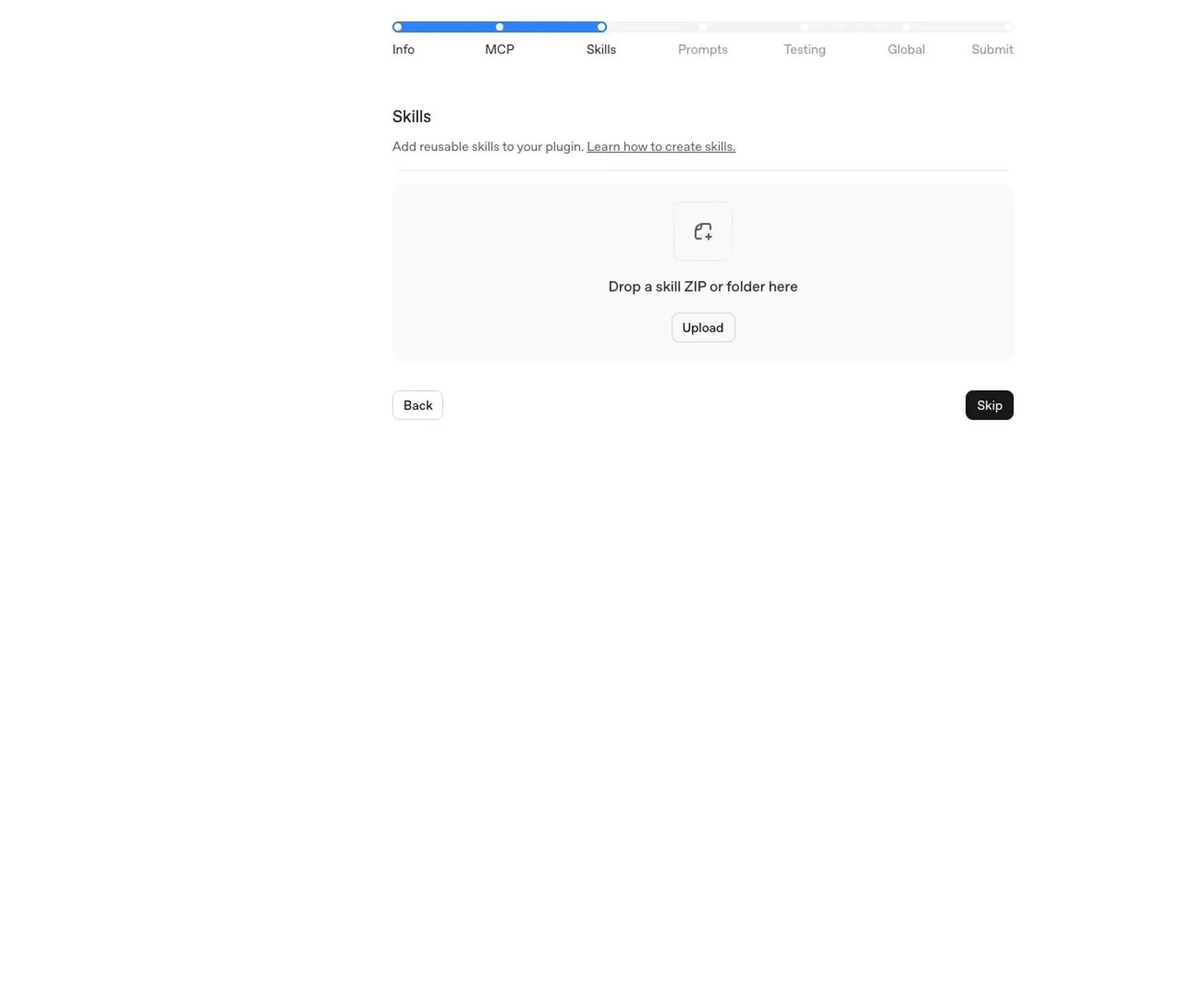
Add skills to the draft in either of these ways:
- Upload the final skill bundle for skills-only or skills-plus-MCP submissions.
- For submissions with MCP, import static skills from the MCP server. When you
select **Scan Tools**, OpenAI imports them into the draft.
Use the same file tree and instructions you tested locally. To import skills
from MCP, follow the
[draft skills extension and static resource manifest](https://developers.openai.com/plugins/build/mcp-server#import-skills-from-the-mcp-server).
To support workspace domain restrictions for a plugin that uses OAuth,
configure the authorization server to advertise a UserInfo Endpoint that
returns the user's `email` claim and `email_verified: true`. Before submitting,
confirm that the provider also advertises and enables the `openid` and `email`
scopes. You can also return these claims in an ID token, but the UserInfo
Endpoint is required for workspace domain restrictions. If the provider doesn't
support these requirements, work with the provider to add support. See
[Support workspace domain restrictions](https://developers.openai.com/plugins/build/auth#support-workspace-domain-restrictions).
#### Template MCP server URLs
Most plugins should use **Universal**. Template MCP server URLs are available
only in limited cases where different groups of users or data require different
MCP server URLs. OpenAI supports template-based URLs only for trusted developers
with whom we have an established relationship. If OpenAI has not approved your
use of a template URL, submit a universal URL.
In the **Template MCP Server URL**, use `{name}` placeholders for the parts that
a workspace admin configures. Placeholder names must start with a letter,
contain only letters, numbers, or underscores, and be unique within the URL.
The **Example MCP Server URL** must replace each placeholder with a real value.
For example:
```text
Example MCP Server URL: https://acme.example.com/mcp
Template MCP Server URL: https://{workspace}.example.com/mcp
```
The example URL must be publicly accessible during review. Don't enter a
placeholder URL in the **Example MCP Server URL** field. For the complete MCP
review requirements, see
[Template MCP server URLs](https://developers.openai.com/plugins/deploy/app-review#template-mcp-server-urls).
Do not enter an existing integration ID or try to point the portal at an
existing published integration. The submission must provide the MCP server URL
and review materials directly, even when that server backs an integration
already published in ChatGPT or Codex.
#### Domain verification
Plugins with MCP must verify control of the domain that hosts the server. When
the portal shows a domain verification challenge, place the exact verification
token at the generated well-known URL:
```text
https:///.well-known/openai-apps-challenge
```
The challenge endpoint must return only that plugin's verification token. Do not
return JSON, a list of tokens, or multiple tokens from the same URL.
The **Challenge Base URL** is an optional HTTPS origin that tells the portal
where to check the token. It must be the MCP host name or a parent host name.
Paths are ignored. For example, if the MCP server URL is
`https://api.example.com/mcp`, the default challenge URL is
`https://api.example.com/.well-known/openai-apps-challenge`, and
`https://example.com` can be used as a parent-origin challenge base if you can
host the token there.
If two plugins with MCP share the same host name but differ only by
path, they also share the same default challenge URL. You cannot verify them
separately by putting different tenant paths in the Challenge Base URL, because
the path is ignored. Use a parent origin that can host the new token, give the
MCP server a distinct host name, or work with OpenAI support if neither
hosting option is possible.
If another plugin with MCP already uses the same host name, do
not replace its existing challenge token unless that plugin no longer needs it.
Use an allowed parent-origin Challenge Base URL or a distinct MCP host name for
the new submission.
Every tool should have clear names, descriptions, schemas, and output
structure. Add output schemas when they help reviewers and models understand
what the tool returns.
Set tool annotations to match each tool's real behavior:
| Annotation | Use it when |
| ----------------- | ------------------------------------------------------------------------------------------------------------------------------------------------------------------------------------------------------------------------------------------------------------------------------------------------------------------------------------------------------ |
| `readOnlyHint` | Set to `true` only when the tool fetches, looks up, lists, retrieves, previews, or computes information and doesn't change anything. Set to `false` if the tool can create, update, delete, send, enqueue, run jobs, start workflows, write logs, or otherwise change state. |
| `openWorldHint` | For write tools, set to `true` if the tool can change publicly visible internet state, such as posting online, sending external messages, publishing content, pushing code, or submitting forms to third parties. Set to `false` only if the tool operates entirely within closed or private systems and can't change publicly visible internet state. |
| `destructiveHint` | For write tools, set to `true` if the tool can delete, overwrite, revoke access, send messages or transactions that can't be undone, or cause another irreversible side effect. Otherwise, set it to `false`. |
For implementation details, see
[tool annotations and elicitation](https://developers.openai.com/plugins/build/mcp-server#tool-annotations-and-elicitation).
For review expectations, see the
[tool hint rejection guidance](https://developers.openai.com/plugins/deploy/app-review#review-and-approval-faqs).
### Skills
Add skills to the draft in either of these ways:
- Upload the final skill bundle for skills-only or skills-plus-MCP submissions.
- For submissions with MCP, import static skills from the MCP server. When you
select **Scan Tools**, OpenAI imports them into the draft.
Use the same file tree and instructions you tested locally. To import skills
from MCP, follow the
[draft skills extension and static resource manifest](https://developers.openai.com/plugins/build/mcp-server#import-skills-from-the-mcp-server).
 Each skill should include:
- A clear `SKILL.md` with trigger conditions and task instructions.
- Any referenced scripts, templates, or assets.
- Minimal, scoped instructions that fit the plugin's purpose.
OpenAI scans uploaded and MCP-imported skills for policy compliance and security
risks, including sensitive information, unnecessary access requests, and
instructions that may conflict with safe or expected plugin behavior. Skills
must follow the same standards as the rest of the plugin and may block
submission or require remediation if they fail automated scanning.
OpenAI imports skills from MCP as a submission-time snapshot. Published plugins
do not update those skills live. After changing a skill on the server, select
**Scan Tools** again and review the updated skills before submitting a new
plugin version.
To remove every MCP-imported skill, keep the skills extension enabled, return
`{ "skills": [] }` without a `nextCursor`, and scan again. Removing the
extension or returning a response that does not pass validation preserves the
previous snapshot.
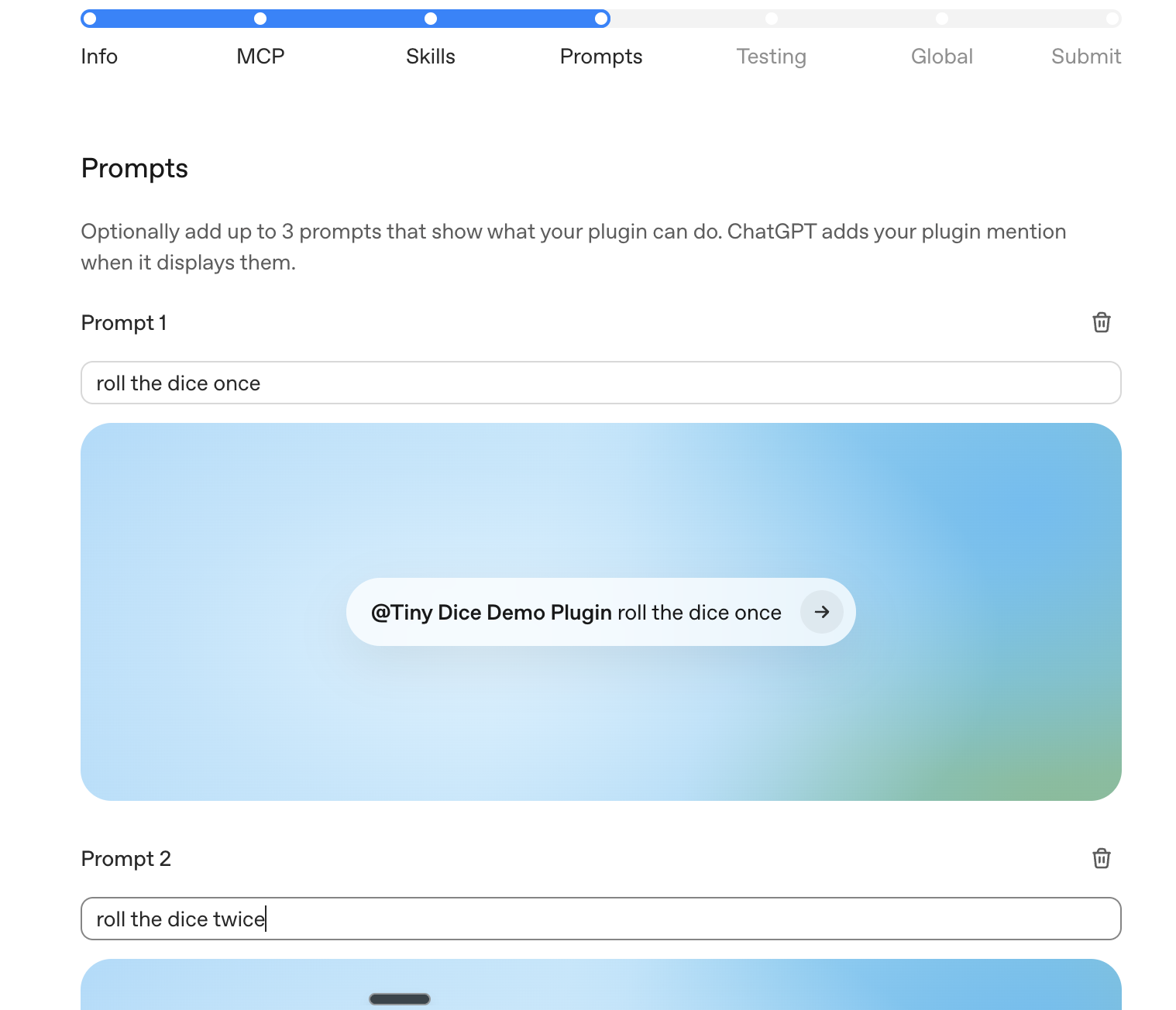
### Prompts
Add starter prompts that show the plugin's highest-value workflows. Good
prompts are specific enough to show when to use the plugin, but general enough
that users can adapt them.
Examples:
- "Investigate checkout errors from the last release and summarize likely root
causes."
- "Create a P1 incident brief from the latest support tickets and related
deploys."
- "Review unsuccessful deployment logs and recommend the next debugging step."
Each skill should include:
- A clear `SKILL.md` with trigger conditions and task instructions.
- Any referenced scripts, templates, or assets.
- Minimal, scoped instructions that fit the plugin's purpose.
OpenAI scans uploaded and MCP-imported skills for policy compliance and security
risks, including sensitive information, unnecessary access requests, and
instructions that may conflict with safe or expected plugin behavior. Skills
must follow the same standards as the rest of the plugin and may block
submission or require remediation if they fail automated scanning.
OpenAI imports skills from MCP as a submission-time snapshot. Published plugins
do not update those skills live. After changing a skill on the server, select
**Scan Tools** again and review the updated skills before submitting a new
plugin version.
To remove every MCP-imported skill, keep the skills extension enabled, return
`{ "skills": [] }` without a `nextCursor`, and scan again. Removing the
extension or returning a response that does not pass validation preserves the
previous snapshot.
### Prompts
Add starter prompts that show the plugin's highest-value workflows. Good
prompts are specific enough to show when to use the plugin, but general enough
that users can adapt them.
Examples:
- "Investigate checkout errors from the last release and summarize likely root
causes."
- "Create a P1 incident brief from the latest support tickets and related
deploys."
- "Review unsuccessful deployment logs and recommend the next debugging step."
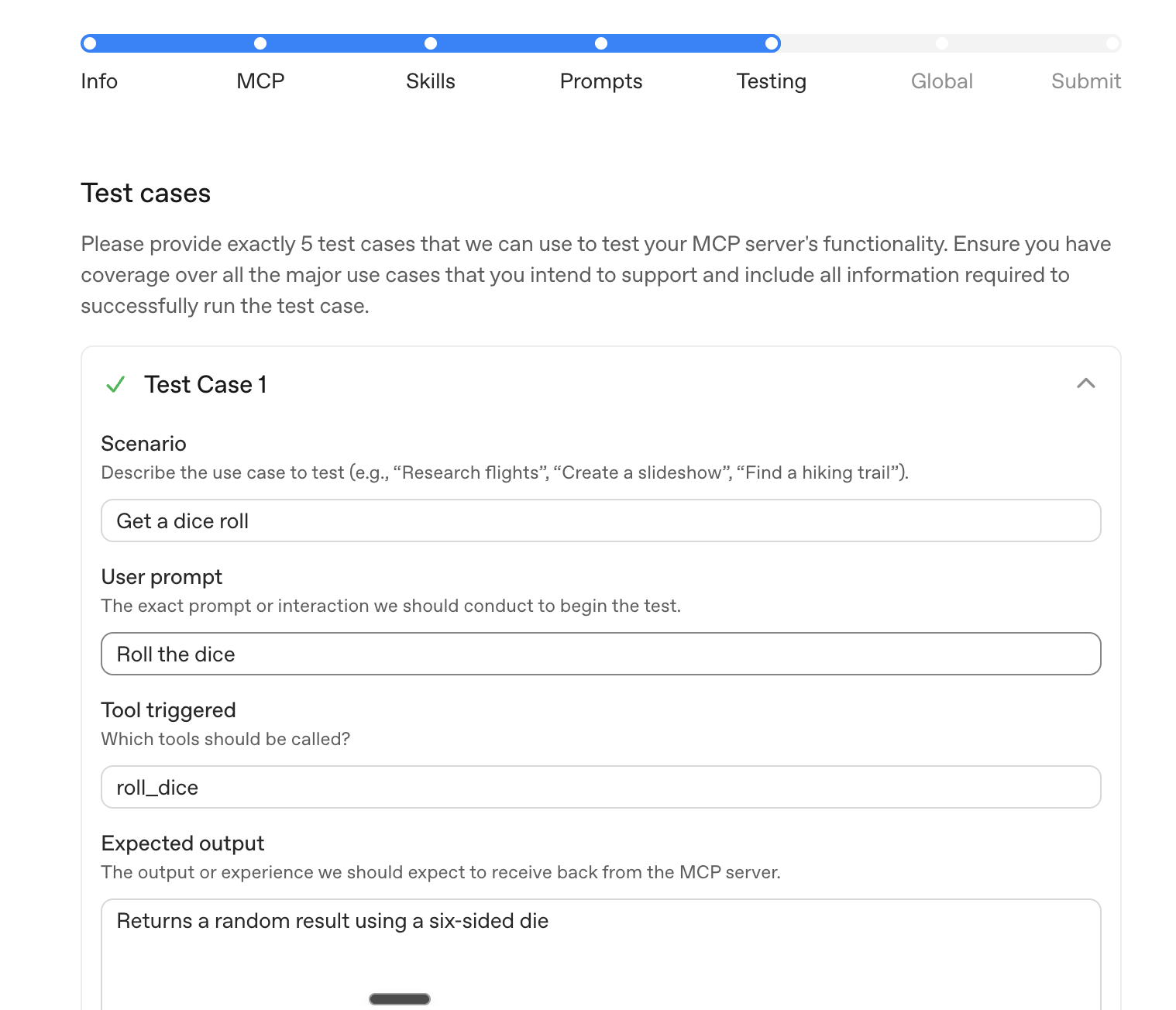
 ### Testing
Submit at least five positive test cases and three negative test cases.
For each positive test case, include:
- User prompt.
- Expected tool, skill, or workflow behavior.
- Expected result shape.
- Test account or fixture data required to reproduce it.
For each negative test case, include:
- User prompt or scenario.
- Expected refusal, clarification, or safe fallback behavior.
- Why the plugin shouldn't complete the requested action.
Use test cases that reviewers can run without internal context. If your plugin
requires authentication, make sure the provided demo credentials can complete
each test without MFA, SMS, email confirmation, or private-network access.
### Testing
Submit at least five positive test cases and three negative test cases.
For each positive test case, include:
- User prompt.
- Expected tool, skill, or workflow behavior.
- Expected result shape.
- Test account or fixture data required to reproduce it.
For each negative test case, include:
- User prompt or scenario.
- Expected refusal, clarification, or safe fallback behavior.
- Why the plugin shouldn't complete the requested action.
Use test cases that reviewers can run without internal context. If your plugin
requires authentication, make sure the provided demo credentials can complete
each test without MFA, SMS, email confirmation, or private-network access.
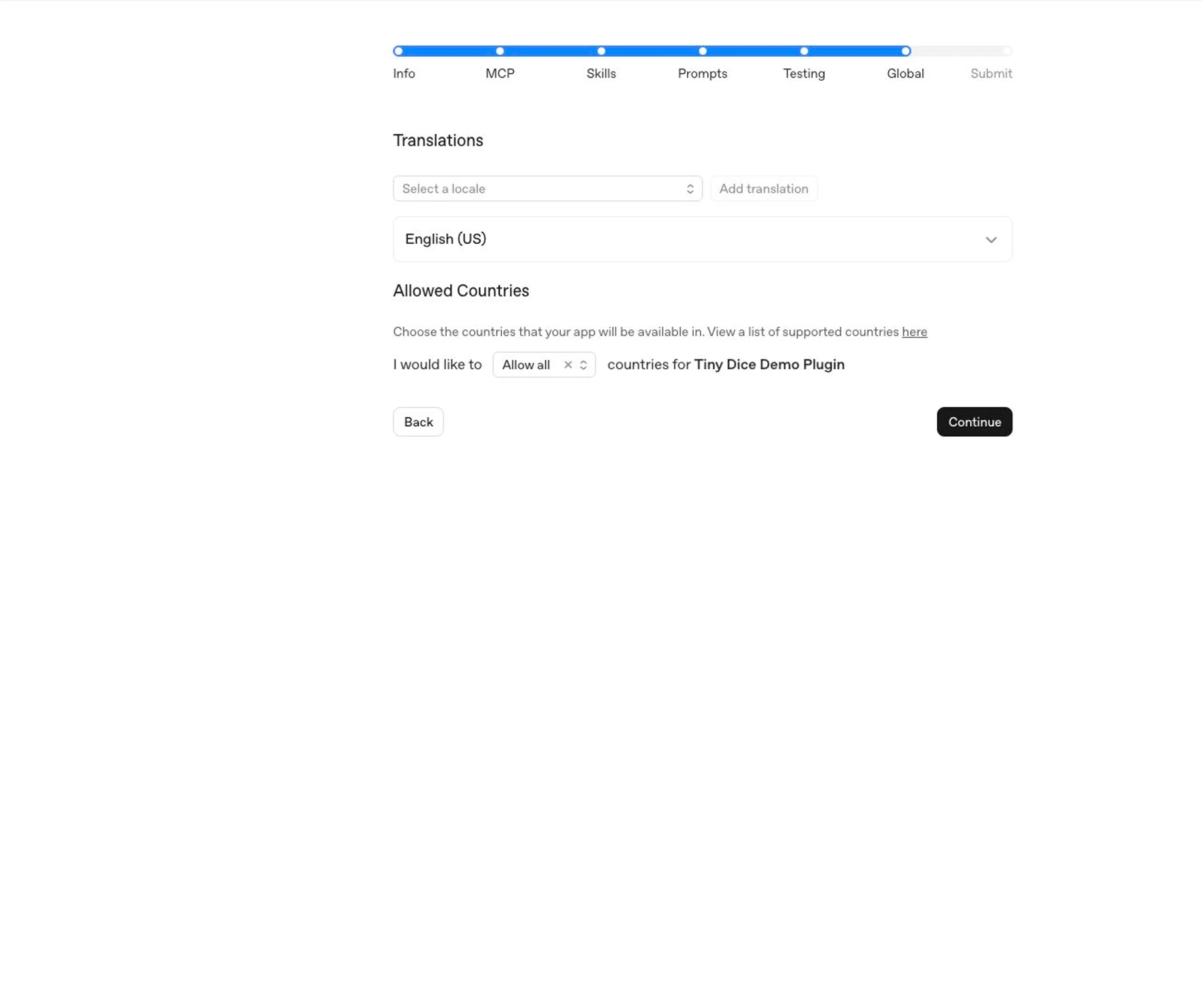
 ### Global
Choose the countries or regions where the plugin should be available. Only
select locations where the publisher, product, support process, and legal terms
are ready for users.
### Global
Choose the countries or regions where the plugin should be available. Only
select locations where the publisher, product, support process, and legal terms
are ready for users.
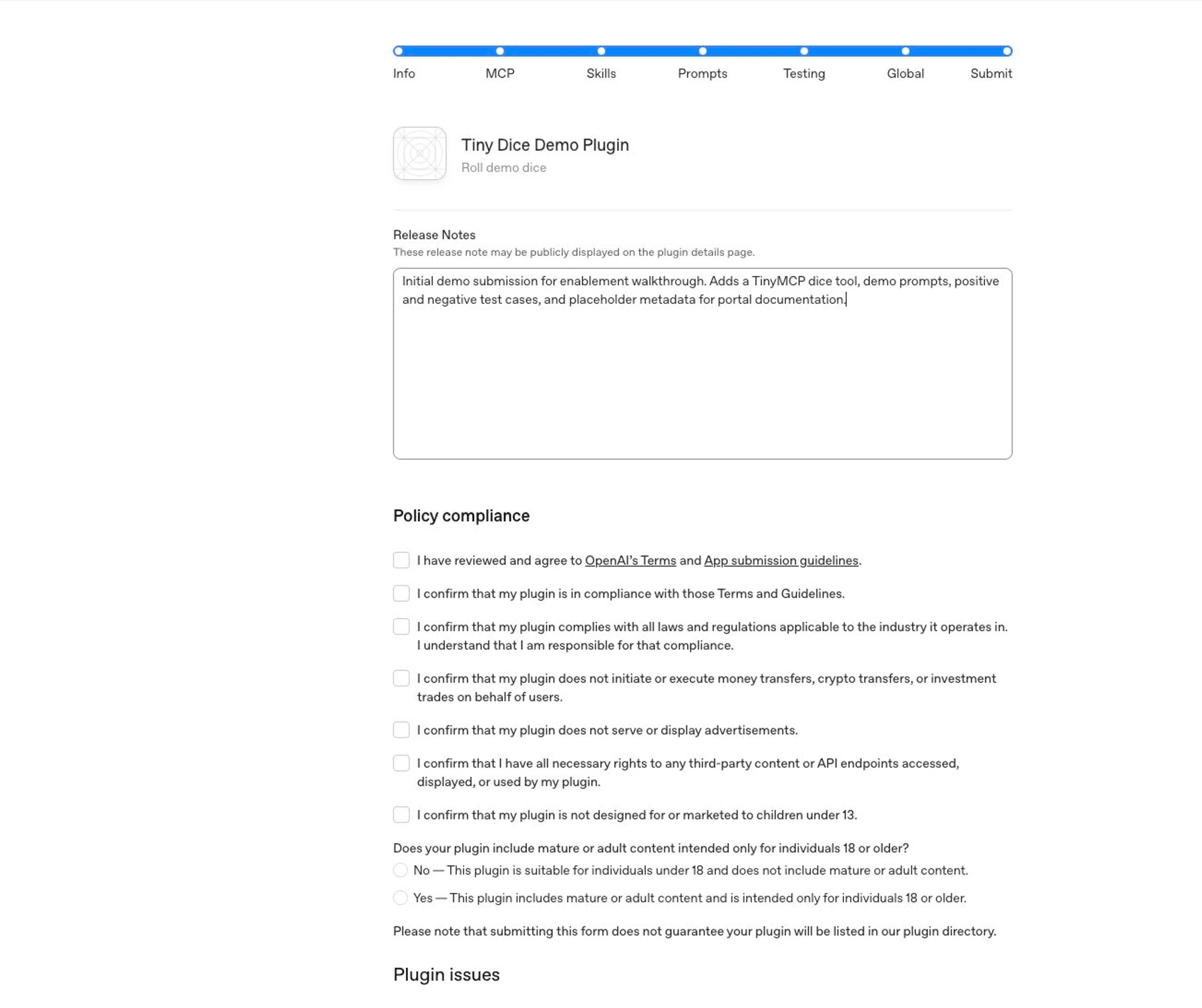
 ### Submit
Review the full draft before submitting.
In the release notes, summarize:
- What the plugin does.
- Whether this is an initial submission or an update.
- What changed since the prior submitted version, if any.
- Anything reviewers should know about test credentials, expected data, or
setup.
Complete the policy attestations only after confirming the listing, server,
skills, prompts, tests, and availability are accurate. Then select
**Submit for Review**.
### Submit
Review the full draft before submitting.
In the release notes, summarize:
- What the plugin does.
- Whether this is an initial submission or an update.
- What changed since the prior submitted version, if any.
- Anything reviewers should know about test credentials, expected data, or
setup.
Complete the policy attestations only after confirming the listing, server,
skills, prompts, tests, and availability are accurate. Then select
**Submit for Review**.
 ## Public publishing flow
Submitting a plugin starts review; it doesn't publish the plugin immediately.
For public availability, the flow is:
1. Submit the plugin through the plugin submission portal.
2. OpenAI reviews the submission. Review timelines may vary as OpenAI builds
and scales the review process.
3. After OpenAI approves the plugin, the developer chooses when to publish it
and publishes it from the portal.
4. After publication, the plugin appears in the universal Plugins Directory
shared by ChatGPT and Codex.
MCP-only, skills-only, and skills-plus-MCP plugins all
appear in the Plugins Directory.
### How published MCP metadata versions work
Plugins with MCP publish reviewed metadata and skill snapshots. To change a
snapshot, scan the MCP server, submit a new version for review, and publish the
approved version. For metadata-specific maintenance rules, see
[MCP server review requirements](https://developers.openai.com/plugins/deploy/app-review#how-published-mcp-metadata-versions-work).
## Final checklist
Before submitting, confirm:
- The submitter has **Apps Management** write access.
- The publisher has a verified developer or business identity.
- The MCP server uses a public, production URL.
- Plugins with UI define a content security policy for the exact domains the
component fetches from.
- Reviewer credentials work without MFA, email confirmation, SMS confirmation,
or private-network access.
- Tool names, descriptions, schemas, and annotations match actual behavior.
- Every tool has accurate `readOnlyHint`, `openWorldHint`, and
`destructiveHint` values.
- Tool responses don't include unnecessary personal data, auth secrets, debug
payloads, internal identifiers, or undisclosed user-related fields.
- You tested the skills locally with the final file tree.
- MCP-imported skills match the latest **Scan Tools** snapshot.
- Starter prompts show realistic user workflows.
- The submission includes five positive and three negative test cases.
- Privacy policy, terms, support, and website URLs are public and match the
publisher identity.
## Public publishing flow
Submitting a plugin starts review; it doesn't publish the plugin immediately.
For public availability, the flow is:
1. Submit the plugin through the plugin submission portal.
2. OpenAI reviews the submission. Review timelines may vary as OpenAI builds
and scales the review process.
3. After OpenAI approves the plugin, the developer chooses when to publish it
and publishes it from the portal.
4. After publication, the plugin appears in the universal Plugins Directory
shared by ChatGPT and Codex.
MCP-only, skills-only, and skills-plus-MCP plugins all
appear in the Plugins Directory.
### How published MCP metadata versions work
Plugins with MCP publish reviewed metadata and skill snapshots. To change a
snapshot, scan the MCP server, submit a new version for review, and publish the
approved version. For metadata-specific maintenance rules, see
[MCP server review requirements](https://developers.openai.com/plugins/deploy/app-review#how-published-mcp-metadata-versions-work).
## Final checklist
Before submitting, confirm:
- The submitter has **Apps Management** write access.
- The publisher has a verified developer or business identity.
- The MCP server uses a public, production URL.
- Plugins with UI define a content security policy for the exact domains the
component fetches from.
- Reviewer credentials work without MFA, email confirmation, SMS confirmation,
or private-network access.
- Tool names, descriptions, schemas, and annotations match actual behavior.
- Every tool has accurate `readOnlyHint`, `openWorldHint`, and
`destructiveHint` values.
- Tool responses don't include unnecessary personal data, auth secrets, debug
payloads, internal identifiers, or undisclosed user-related fields.
- You tested the skills locally with the final file tree.
- MCP-imported skills match the latest **Scan Tools** snapshot.
- Starter prompts show realistic user workflows.
- The submission includes five positive and three negative test cases.
- Privacy policy, terms, support, and website URLs are public and match the
publisher identity.