
Automate recurring tasks in the background. Codex adds findings to the inbox, or automatically archives the task if there’s nothing to report. You can combine automations with skills for more complex tasks.
For project-scoped automations, the machine running the local Codex app must be powered on, Codex must be running, and the selected project must still be available on disk when the automation is scheduled to run.
In Git repositories, you can choose whether an automation runs in your local project or on a new worktree. Both options run in the background. Worktrees keep automation changes separate from unfinished local work, while running in your local project can modify files you are still working on. In non-version-controlled projects, automations run directly in the project directory.
You can also leave the model and reasoning effort on their default settings, or choose them explicitly if you want more control over how the automation runs.
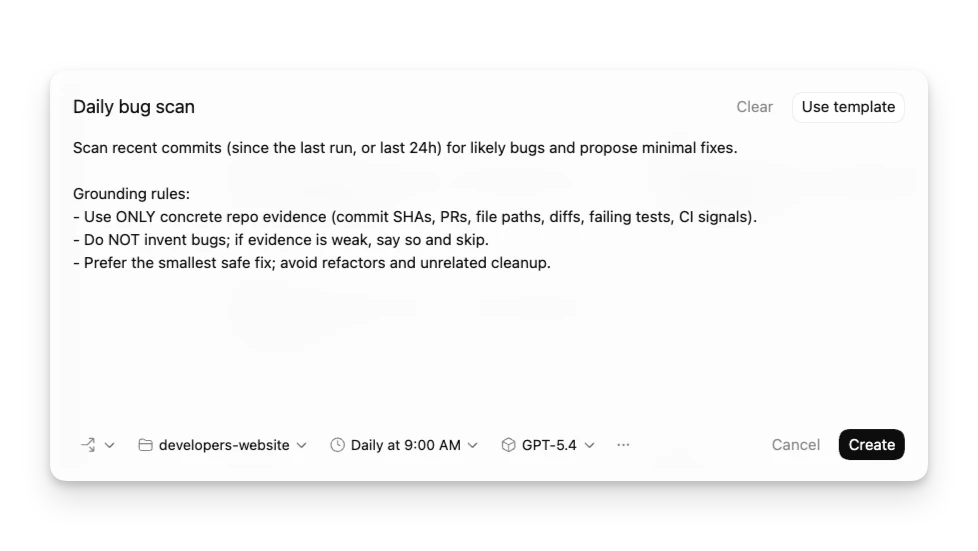
Managing tasks
Find all automations and their runs in the automations pane inside your Codex app sidebar.
The “Triage” section acts as your inbox. Automation runs with findings show up there, and you can filter your inbox to show all automation runs or only unread ones.
Standalone automations start fresh runs on a schedule and report results in Triage. Use them when each run should be independent or when one automation should run across one or more projects. If you need a custom cadence, choose a custom schedule and enter cron syntax.
For Git repositories, each automation can run either in your local project or on a dedicated background worktree. Use worktrees when you want to isolate automation changes from unfinished local work. Use local mode when you want the automation to work directly in your main checkout, keeping in mind that it can change files you are actively editing. In non-version-controlled projects, automations run directly in the project directory. You can have the same automation run on more than one project.
Automations use your default sandbox settings. In read-only mode, tool calls fail if they require modifying files, network access, or working with apps on your computer. With full access enabled, background automations carry elevated risk. You can adjust sandbox settings in Settings and selectively allowlist commands with rules.
Automations can use the same plugins and skills available to Codex. To keep
automations maintainable and shareable across teams, use skills
to define the action and provide tools and context. You can explicitly trigger a
skill as part of an automation by using $skill-name inside your automation.
Ask Codex to create or update automations
You can create and update automations from a regular Codex thread. Describe the task, the schedule, and whether the automation should stay attached to the current thread or start fresh runs. Codex can draft the automation prompt, choose the right automation type, and update it when the scope or cadence changes.
For example, ask Codex to remind you in this thread while a deployment finishes, or ask it to create a standalone automation that checks a project on a recurring schedule.
Skills can also create or update automations. For example, a skill for babysitting a pull request could set up a recurring automation that checks the PR status with the GitHub plugin and fixes new review feedback.
Thread automations
Thread automations are heartbeat-style recurring wake-up calls attached to the current thread. Use them when you want Codex to keep returning to the same conversation on a schedule.
Use a thread automation when the scheduled work should preserve the thread’s context instead of starting from a new prompt each time.
Thread automations can use minute-based intervals for active follow-up loops, or daily and weekly schedules when you need a check-in at a specific time.
Thread automations are useful for:
- checking a long-running command until it finishes
- polling Slack, GitHub, or another connected source when the results should stay in the same thread
- reminding Codex to continue a review loop at a fixed cadence
- running a skill-driven workflow that uses plugins, such as checking PR status and addressing new feedback
- keeping a chat focused on an ongoing research or triage task
Use a standalone or project automation when each run should be independent, when it should run across more than one project, or when findings should appear as separate automation runs in Triage.
When you create a thread automation, make the prompt durable. It should describe what Codex should do each time the thread wakes up, how to decide whether there is anything important to report, and when to stop or ask you for input.
Test automations
Before you schedule an automation, test the prompt manually in a regular thread first. This helps you confirm:
- The prompt is clear and scoped correctly.
- The selected or default model, reasoning effort, and tools behave as expected.
- The resulting diff is reviewable.
When you start scheduling runs, review the first few outputs and adjust the prompt or cadence as needed.
Worktree cleanup for automations
If you choose worktrees for Git repositories, frequent schedules can create many worktrees over time. Archive automation runs you no longer need, and avoid pinning runs unless you intend to keep their worktrees.
Permissions and security model
Automations run unattended and use your default sandbox settings.
- If your sandbox mode is read-only, tool calls fail if they require modifying files, accessing network, or working with apps on your computer. Consider updating sandbox settings to workspace write.
- If your sandbox mode is workspace-write, tool calls fail if they require modifying files outside the workspace, accessing network, or working with apps on your computer. You can selectively allowlist commands to run outside the sandbox using rules.
- If your sandbox mode is full access, background automations carry elevated risk, as Codex may change files, run commands, and access network without asking. Consider updating sandbox settings to workspace write, and using rules to selectively define which commands the agent can run with full access.
If you are in a managed environment, admins can restrict these behaviors using
admin-enforced requirements. For example, they can disallow approval_policy = "never" or constrain allowed sandbox modes. See
Admin-enforced requirements (requirements.toml).
Automations use approval_policy = "never" when your organization policy
allows it. If admin requirements disallow approval_policy = "never",
automations fall back to the approval behavior of your selected mode.
Examples
Automatically create new skills
Scan all of the `~/.codex/sessions` files from the past day and if there have been any issues using particular skills, update the skills to be more helpful. Personal skills only, no repo skills.

If there’s anything we’ve been doing often and struggle with that we should save as a skill to speed up future work, let’s do it.

Definitely don't feel like you need to update any- only if there's a good reason!

Let me know if you make any.
Stay up-to-date with your project
Look at the latest remote origin/master or origin/main . Then produce an exec briefing for the last 24 hours of commits that touch <DIRECTORY>

Formatting + structure:

- Use rich Markdown (H1 workstream sections, italics for the subtitle, horizontal rules as needed).
- Preamble can read something like “Here’s the last 24h brief for <directory>:”
- Subtitle should read: “Narrative walkthrough with owners; grouped by workstream.”
- Group by workstream rather than listing each commit. Workstream titles should be H1.
- Write a short narrative per workstream that explains the changes in plain language.
- Use bullet points and bolding when it makes things more readable
- Feel free to make bullets per person, but bold their name

Content requirements:

- Include PR links inline (e.g., [#123](...)) without a “PRs:” label.
- Do NOT include commit hashes or a “Key commits” section.
- It’s fine if multiple PRs appear under one workstream, but avoid per‑commit bullet lists.

Scope rules:

- Only include changes within the current cwd (or main checkout equivalent)
- Only include the last 24h of commits.
- Use `gh` to fetch PR titles and descriptions if it helps.
  Also feel free to pull PR reviews and comments
Combining automations with skills to fix your own bugs
Create a new skill that tries to fix a bug introduced by your own commits by creating a new $recent-code-bugfix and store it in your personal skills.
---
name: recent-code-bugfix
description: Find and fix a bug introduced by the current author within the last week in the current working directory. Use when a user wants a proactive bugfix from their recent changes, when the prompt is empty, or when asked to triage/fix issues caused by their recent commits. Root cause must map directly to the author’s own changes.
---

# Recent Code Bugfix

## Overview

Find a bug introduced by the current author in the last week, implement a fix, and verify it when possible. Operate in the current working directory, assume the code is local, and ensure the root cause is tied directly to the author’s own edits.

## Workflow

### 1) Establish the recent-change scope

Use Git to identify the author and changed files from the last week.

- Determine the author from `git config user.name`/`user.email`. If unavailable, use the current user’s name from the environment or ask once.
- Use `git log --since=1.week --author=<author>` to list recent commits and files. Focus on files touched by those commits.
- If the user’s prompt is empty, proceed directly with this default scope.

### 2) Find a concrete failure tied to recent changes

Prioritize defects that are directly attributable to the author’s edits.

- Look for recent failures (tests, lint, runtime errors) if logs or CI outputs are available locally.
- If no failures are provided, run the smallest relevant verification (single test, file-level lint, or targeted repro) that touches the edited files.
- Confirm the root cause is directly connected to the author’s changes, not unrelated legacy issues. If only unrelated failures are found, stop and report that no qualifying bug was detected.

### 3) Implement the fix

Make a minimal fix that aligns with project conventions.

- Update only the files needed to resolve the issue.
- Avoid adding extra defensive checks or unrelated refactors.
- Keep changes consistent with local style and tests.

### 4) Verify

Attempt verification when possible.

- Prefer the smallest validation step (targeted test, focused lint, or direct repro command).
- If verification cannot be run, state what would be run and why it wasn’t executed.

### 5) Report

Summarize the root cause, the fix, and the verification performed. Make it explicit how the root cause ties to the author’s recent changes.
Afterward, create a new automation:
Check my commits from the last 24h and submit a $recent-code-bugfix.