
In the Codex app, worktrees let Codex run multiple independent tasks in the same project without interfering with each other. For Git repositories, automations run on dedicated background worktrees so they don’t conflict with your ongoing work. In non-version-controlled projects, automations run directly in the project directory. You can also start threads on a worktree manually, and use Handoff to move a thread between Local and Worktree.
What’s a worktree
Worktrees only work in projects that are part of a Git repository since they use Git worktrees under the hood. A worktree allows you to create a second copy (“checkout”) of your repository. Each worktree has its own copy of every file in your repo but they all share the same metadata (.git folder) about commits, branches, etc. This allows you to check out and work on multiple branches in parallel.
Terminology
- Local checkout: The repository that you created. Sometimes just referred to as Local in the Codex app.
- Worktree: A Git worktree that was created from your local checkout in the Codex app.
- Handoff: The flow that moves a thread between Local and Worktree. Codex handles the Git operations required to move your work safely between them.
Why use a worktree
- Work in parallel with Codex without disturbing your current Local setup.
- Queue up background work while you stay focused on the foreground.
- Move a thread into Local later when you’re ready to inspect, test, or collaborate more directly.
Getting started
Worktrees require a Git repository. Make sure the project you selected lives in one.
-
Select “Worktree”
In the new thread view, select Worktree under the composer. Optionally, choose a local environment to run setup scripts for the worktree.
-
Select the starting branch
Below the composer, choose the Git branch to base the worktree on. This can be your
main/masterbranch, a feature branch, or your current branch with unstaged local changes. -
Submit your prompt
Submit your task and Codex will create a Git worktree based on the branch you selected. By default, Codex works in a “detached HEAD”.
-
Choose where to keep working
When you’re ready, you can either keep working directly on the worktree or hand the thread off to your local checkout. Handing off to or from local will move your thread and code so you can continue in the other checkout.
Working between Local and Worktree
Worktrees look and feel much like your local checkout. The difference is where they fit into your flow. You can think of Local as the foreground and Worktree as the background. Handoff lets you move a thread between them.
Under the hood, Handoff handles the Git operations required to move work between two checkouts safely. This matters because Git only allows a branch to be checked out in one place at a time. If you check out a branch on a worktree, you can’t check it out in your local checkout at the same time, and vice versa.
In practice, there are two common paths:
- Work exclusively on the worktree. This path works best when you can verify changes directly on the worktree, for example because you have dependencies and tools installed using a local environment setup script.
- Hand the thread off to Local. Use this when you want to bring the thread into the foreground, for example because you want to inspect changes in your usual IDE or can run only one instance of your app.
Option 1: Working on the worktree
If you want to stay exclusively on the worktree with your changes, turn your worktree into a branch using the Create branch here button in the header of your thread.
From here you can commit your changes, push your branch to your remote repository, and open a pull request on GitHub.
You can open your IDE to the worktree using the “Open” button in the header, use the integrated terminal, or anything else that you need to do from the worktree directory.
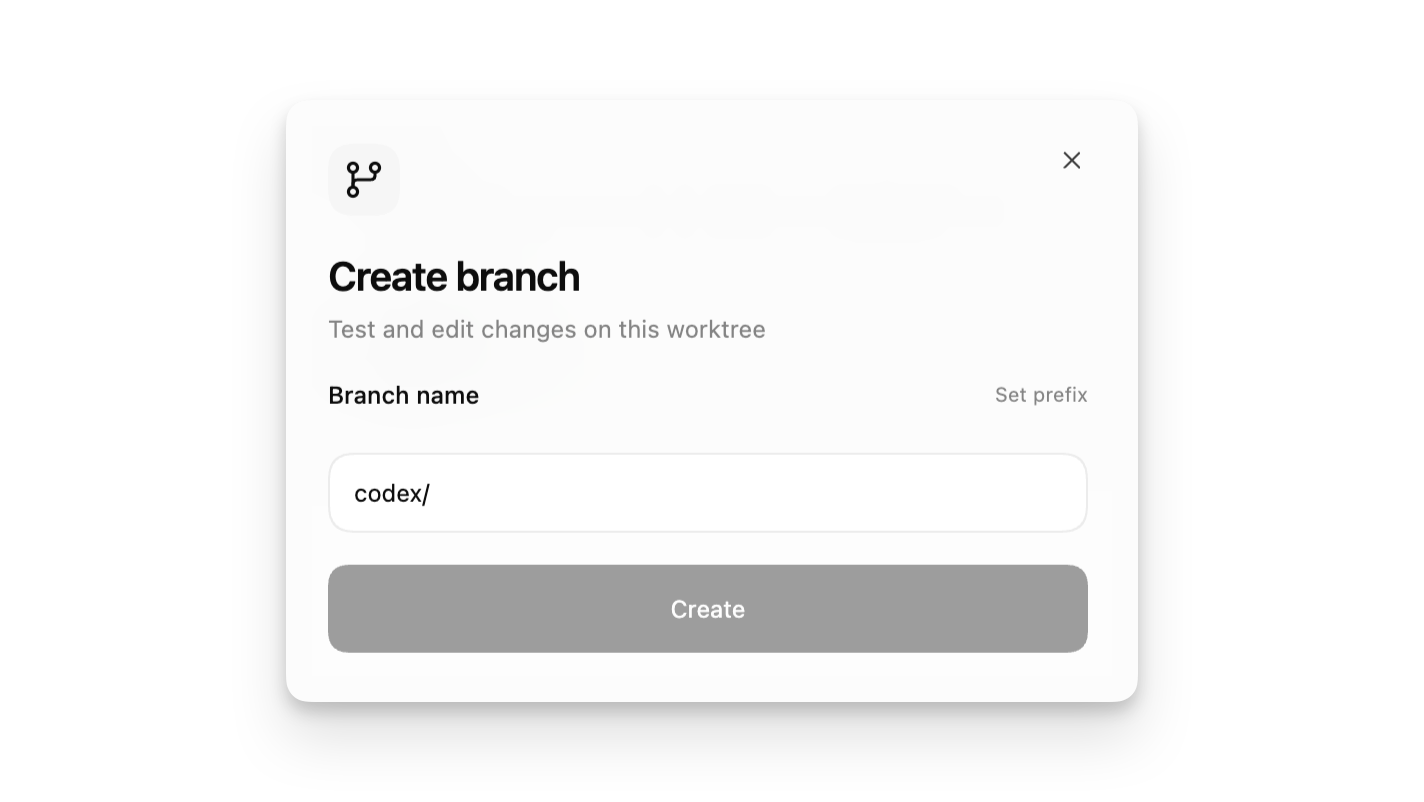
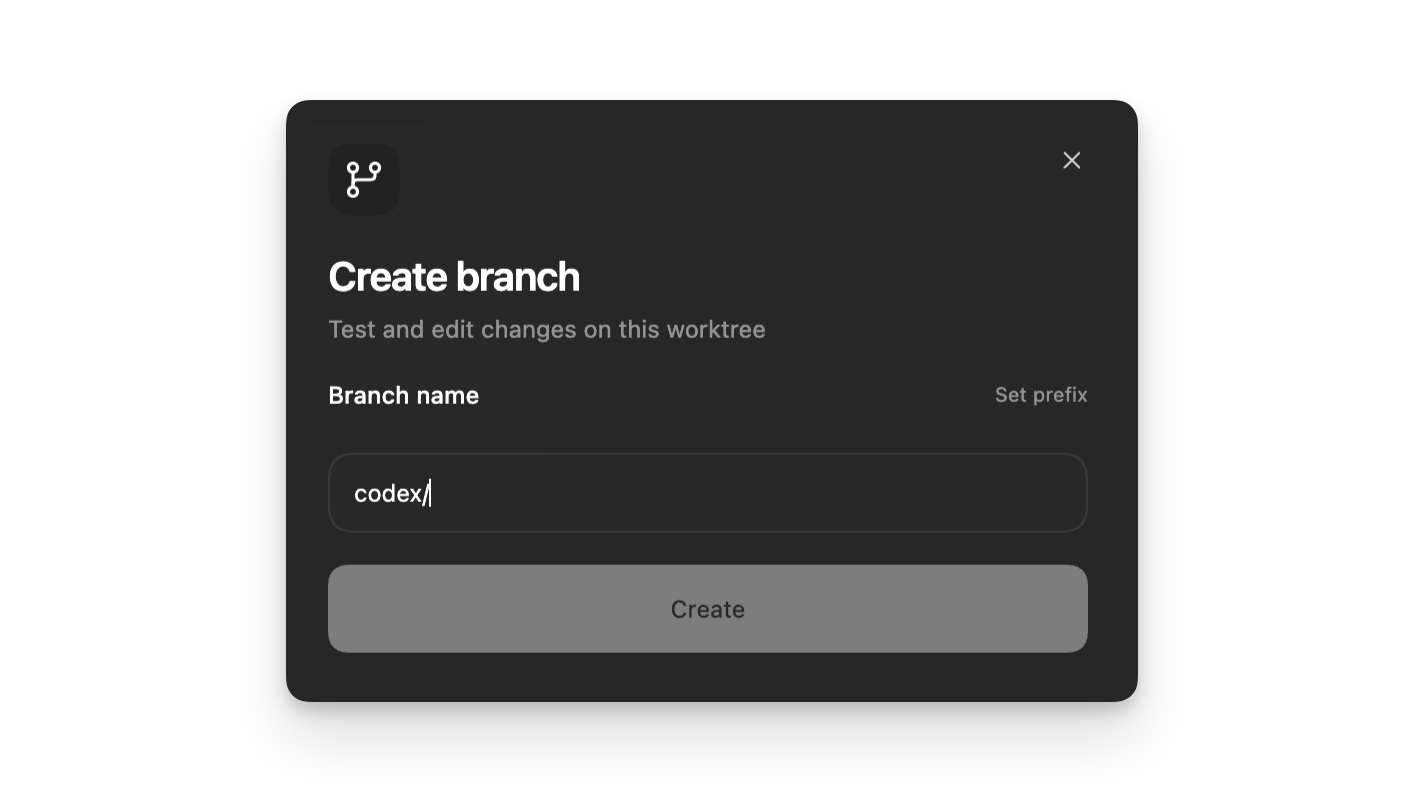
Remember, if you create a branch on a worktree, you can’t check it out in any other worktree, including your local checkout.
Option 2: Handing a thread off to Local
If you want to bring a thread into the foreground, click Hand off in the header of your thread and move it to Local.
This path works well when you want to read the changes in your usual IDE window, run your existing development server, or validate the work in the same environment you already use day to day.
Codex handles the Git steps required to move the thread safely between the worktree and your local checkout.
Each thread keeps the same associated worktree over time. If you hand the thread back to a worktree later, Codex returns it to that same background environment so you can pick up where you left off.
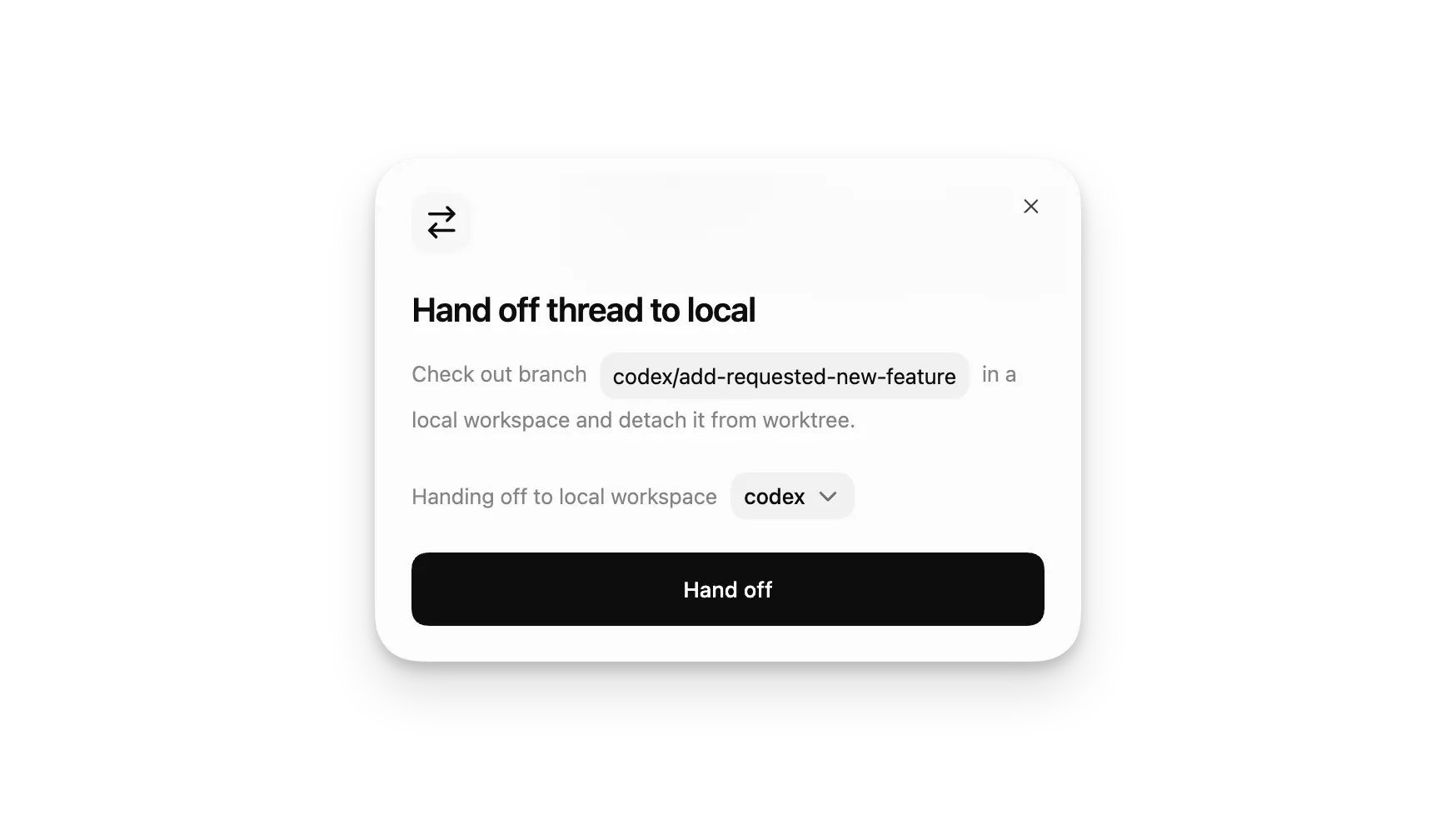
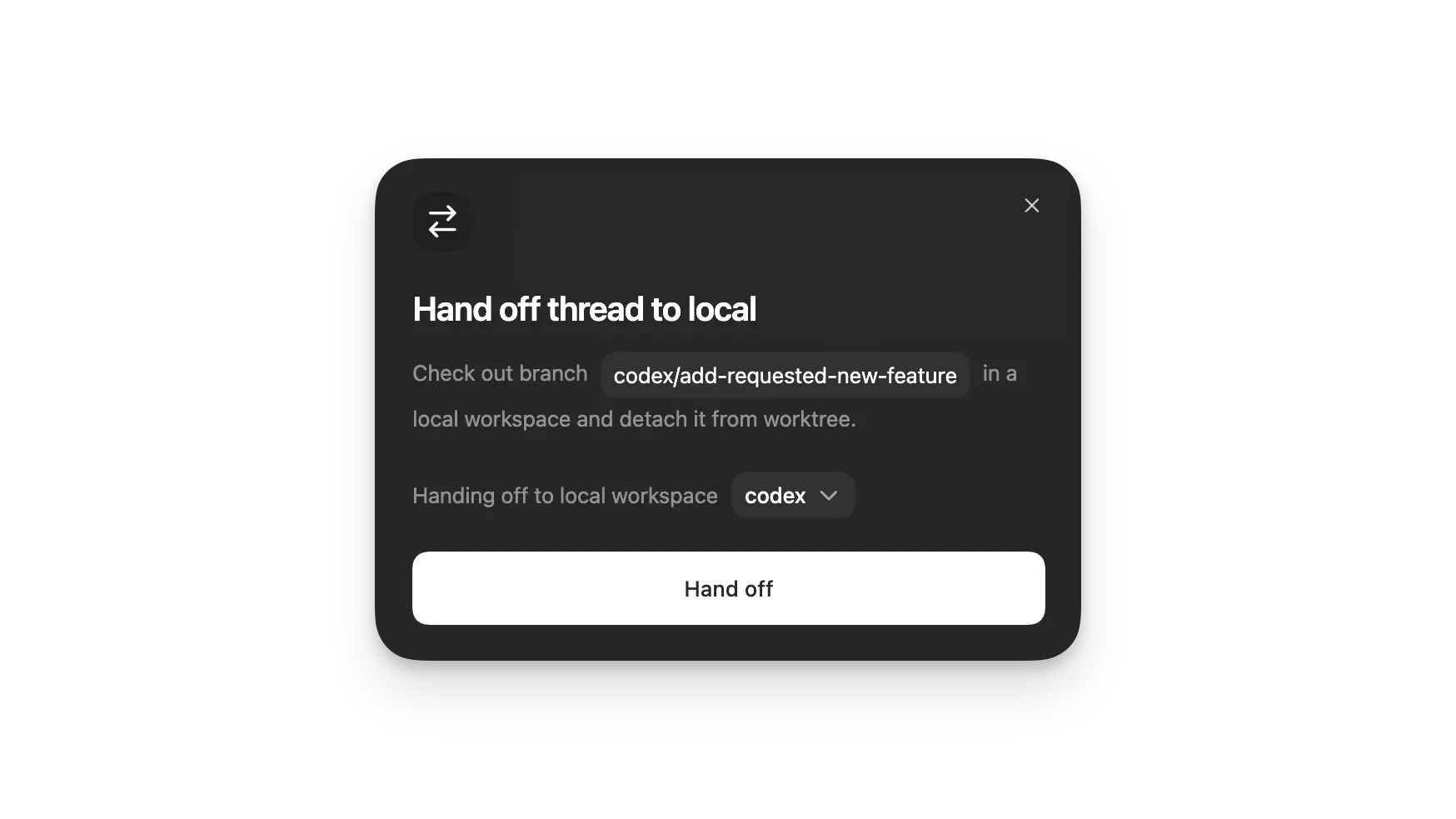
You can also go the other direction. If you’re already working in Local and want to free up the foreground, use Hand off to move the thread to a worktree. This is useful when you want Codex to keep working in the background while you switch your attention back to something else locally.
Since Handoff uses Git operations, any files that are part of your .gitignore file won’t move with the thread unless Codex copies them into a local managed worktree with .worktreeinclude.
Advanced details
Codex-managed and permanent worktrees
By default, threads use a Codex-managed worktree. These are meant to feel lightweight and disposable. A Codex-managed worktree is typically dedicated to one thread, and Codex returns that thread to the same worktree if you hand it back there later.
If you want a long-lived environment, create a permanent worktree from the three-dot menu on a project in the sidebar. This creates a new permanent worktree as its own project. Permanent worktrees aren’t automatically deleted, and you can start multiple threads from the same worktree.
How Codex manages worktrees for you
Codex creates worktrees in $CODEX_HOME/worktrees. The starting commit will be the HEAD commit of the branch selected when you start your thread. If you chose a branch with local changes, the uncommitted changes will be applied to the worktree as well. The worktree will not be checked out as a branch. It will be in a detached HEAD state. This lets Codex create several worktrees without polluting your branches.
Copy ignored local files into managed worktrees
Local Codex-managed worktrees start from a Git checkout, so tracked files are already present. If your repository ignores local setup files that a new worktree needs, add a .worktreeinclude file to the repository root and list the ignored paths or .gitignore-style patterns to copy when Codex creates a managed worktree.
Use this for files Git intentionally ignores, such as .env, .env.local, or config/secrets.json. Codex only copies ignored files that match .worktreeinclude; it doesn’t copy other local files that Git doesn’t track. Don’t list tracked files.
Codex automatically copies an ignored AGENTS.override.md into local managed worktrees, so you don’t need to list it in .worktreeinclude.
# .worktreeinclude
.env
.env.local
config/secrets.json
Codex skips source symlinks and won’t overwrite files that already exist in the new checkout. This behavior applies to local Codex app managed worktrees, not remote worktrees or Git worktrees you create yourself from the command line.
Branch limitations
Suppose Codex finishes some work on a worktree and you choose to create a feature/a branch on it using Create branch here. Now, you want to try it on your local checkout. If you tried to check out the branch, you would get the following error:
fatal: 'feature/a' is already used by worktree at '<WORKTREE_PATH>'To resolve this, you would need to check out another branch instead of feature/a on the worktree.
If you plan on checking out the branch locally, use Handoff to move the thread into Local instead of trying to keep the same branch checked out in both places at once.
Why this limitation exists
Git prevents the same branch from being checked out in more than one worktree at a time because a branch represents a single mutable reference (refs/heads/<name>) whose meaning is “the current checked-out state” of a working tree.
When a branch is checked out, Git treats its HEAD as owned by that worktree and expects operations like commits, resets, rebases, and merges to advance that reference in a well-defined, serialized way. Allowing multiple worktrees to simultaneously check out the same branch would create ambiguity and race conditions around which worktree’s operations update the branch reference, potentially leading to lost commits, inconsistent indexes, or unclear conflict resolution.
By enforcing a one-branch-per-worktree rule, Git guarantees that each branch has a single authoritative working copy, while still allowing other worktrees to safely reference the same commits via detached HEADs or separate branches.
Worktree cleanup
Worktrees can take up a lot of disk space. Each one has its own set of repository files, dependencies, build caches, etc. As a result, the Codex app tries to keep the number of worktrees to a reasonable limit.
By default, Codex keeps your most recent 15 Codex-managed worktrees. You can change this limit or turn off automatic deletion in settings if you prefer to manage disk usage yourself.
Codex tries to avoid deleting worktrees that are still important. Codex-managed worktrees won’t be deleted automatically if:
- A pinned conversation is tied to it
- The thread is still in progress
- The worktree is a permanent worktree
Codex-managed worktrees are deleted automatically when:
- You archive the associated thread
- Codex needs to delete older worktrees to stay within your configured limit
Before deleting a Codex-managed worktree, Codex saves a snapshot of the work on it. If you open a conversation after its worktree was deleted, you’ll see the option to restore it.
Frequently asked questions
Can I control where worktrees are created?
Not today. Codex creates worktrees under $CODEX_HOME/worktrees so it can
manage them consistently.
Can I move a thread between Local and Worktree?
Yes. Use Hand off in the thread header to move a thread between your local checkout and a worktree. Codex handles the Git operations needed to move the thread safely between environments. If you hand a thread back to a worktree later, Codex returns it to the same associated worktree.
What happens to threads if a worktree is deleted?
Threads can remain in your history even if the underlying worktree directory is deleted. For Codex-managed worktrees, Codex saves a snapshot before deleting the worktree and offers to restore it if you reopen the associated thread. Permanent worktrees are not automatically deleted when you archive their threads.