
The Codex IDE extension gives you access to Codex directly in VS Code, Cursor, Windsurf, and other VS Code-compatible editors. It uses the same agent as the Codex CLI and shares the same configuration.
Prompting Codex
Use Codex in your editor to chat, edit, and preview changes seamlessly. When Codex has context from open files and selected code, you can write shorter prompts and get faster, more relevant results.
You can reference any file in your editor by tagging it in your prompt like this:
Use @example.tsx as a reference to add a new page named "Resources" to the app that contains a list of resources defined in @resources.tsSwitch between models
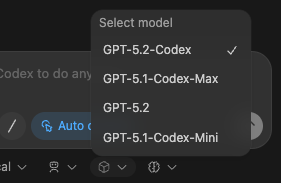
You can switch models with the switcher under the chat input.
Adjust reasoning effort
You can adjust reasoning effort to control how long Codex thinks before responding. Higher effort can help on complex tasks, but responses take longer. Higher effort also uses more tokens and can consume your rate limits faster, especially with higher-capability models.
Use the same model switcher shown above, and choose low, medium, or high for each model. Start with medium, and only switch to high when you need more depth.
Choose an approval mode
By default, Codex runs in Agent mode. In this mode, Codex can read files, make edits, and run commands in the working directory automatically. Codex still needs your approval to work outside the working directory or access the network.
When you just want to chat, or you want to plan before making changes, switch to Chat with the switcher under the chat input.
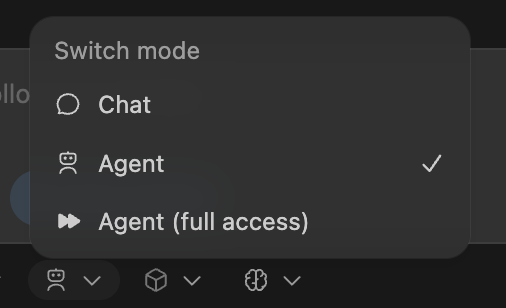
If you need Codex to read files, make edits, and run commands with network access without approval, use Agent (Full Access). Exercise caution before doing so.
Cloud delegation
You can offload larger jobs to Codex in the cloud, then track progress and review results without leaving your IDE.
- Set up a cloud environment for Codex.
- Pick your environment and select Run in the cloud.
You can have Codex run from main (useful for starting new ideas), or run from your local changes (useful for finishing a task).
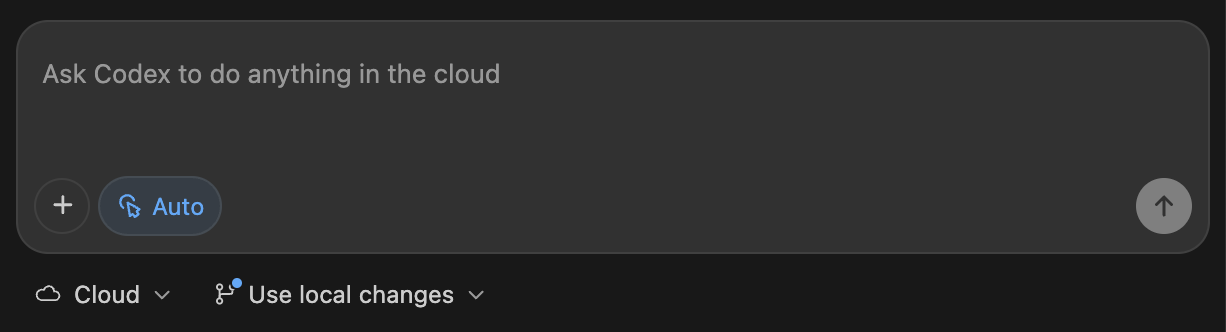
When you start a cloud task from a local conversation, Codex remembers the conversation context so it can pick up where you left off.
Cloud task follow-up
The Codex extension makes previewing cloud changes straightforward. You can ask for follow-ups to run in the cloud, but often you’ll want to apply the changes locally to test and finish. When you continue the conversation locally, Codex also retains context to save you time.
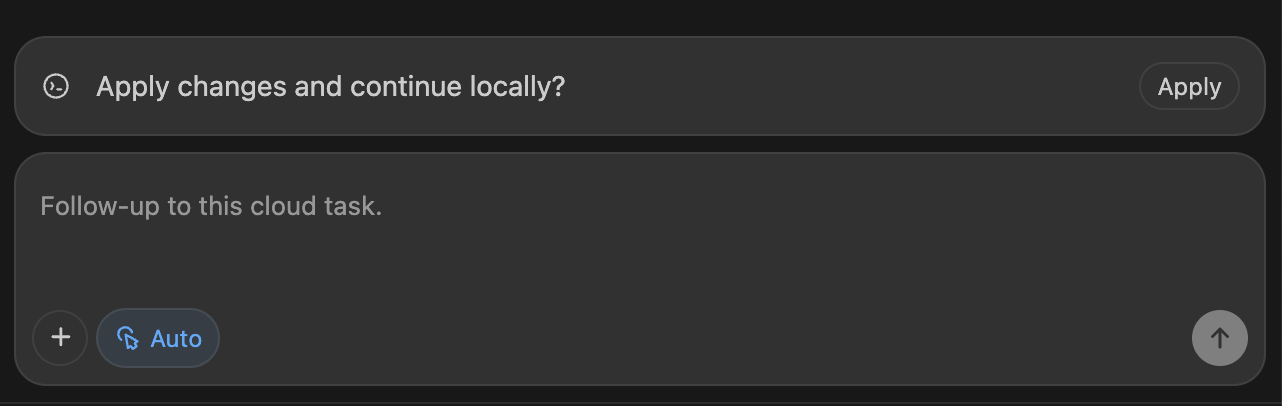
You can also view the cloud tasks in the Codex cloud interface.
Web search
Codex ships with a first-party web search tool. For local tasks in the Codex IDE Extension, Codex enables web search by default and serves results from a web search cache. The cache is an OpenAI-maintained index of web results, so cached mode returns pre-indexed results instead of fetching live pages. This reduces exposure to prompt injection from arbitrary live content, but you should still treat web results as untrusted. If you configure your sandbox for full access, web search defaults to live results. See Config basics to disable web search or switch to live results that fetch the most recent data.
You’ll see web_search items in the transcript or codex exec --json output whenever Codex looks something up.
Drag and drop images into the prompt
You can drag and drop images into the prompt composer to include them as context.
Hold down Shift while dropping an image. VS Code otherwise prevents extensions from accepting a drop.
Image generation
Ask Codex to generate or edit images without leaving your editor. This is useful for UI assets, layouts, illustrations, sprite sheets, and quick placeholders while you work. Add a reference image to the prompt when you want Codex to transform or extend an existing asset.
You can ask in natural language or explicitly invoke the image generation skill by including $imagegen in your prompt.
Built-in image generation uses gpt-image-2, counts toward your general Codex usage limits, and uses included limits 3-5x faster on average than similar turns without image generation, depending on image quality and size. For details, see Pricing. For prompting tips and model details, see the image generation guide.
For larger batches of image generation, set OPENAI_API_KEY in your environment variables and ask Codex to generate images through the API so API pricing applies instead.