
Use these commands and keyboard shortcuts to navigate the Codex app.
Keyboard shortcuts
| Action | macOS shortcut | |
|---|---|---|
| General | ||
| Command menu | Cmd + Shift + P or Cmd + K | |
| Settings | Cmd + , | |
| Keyboard shortcuts | Cmd + / | |
| Open folder | Cmd + O | |
| Navigate back | Cmd + [ | |
| Navigate forward | Cmd + ] | |
| Increase font size | Cmd + + or Cmd + = | |
| Decrease font size | Cmd + - or Cmd + _ | |
| Toggle sidebar | Cmd + B | |
| Toggle diff panel | Cmd + Option + B | |
| Toggle terminal | Cmd + J | |
| Clear the terminal | Ctrl + L | |
| Thread | ||
| New thread | Cmd + N or Cmd + Shift + O | |
| Search threads | Cmd + G | |
| Find in thread | Cmd + F | |
| Previous thread | Cmd + Shift + [ | |
| Next thread | Cmd + Shift + ] | |
| Dictation | Ctrl + M |
To find, customize, or reset shortcuts, open Settings > Keyboard Shortcuts. You can search by command name or switch the search field into keystroke mode and press the shortcut you want to find.
Search past threads and find in a thread
Use thread search (Cmd/Ctrl + G) to reopen a
past conversation. When expanded matching is available in your Codex desktop
app, it can also match conversation content and Git branch names, so you can
search for a phrase from the thread or a branch such as fix/login-redirect.
Use Find in thread (Cmd + F) after opening a thread to find text within that current conversation. It does not search across other threads.
Slash commands
Slash commands let you control Codex without leaving the thread composer. Available commands vary based on your environment and access.
Use a slash command
- In the thread composer, type
/. - Select a command from the list, or keep typing to filter (for example,
/status).
You can also explicitly invoke skills by typing $ in the thread composer. See Skills.
Enabled skills also appear in the slash command list.
Available slash commands
| Slash command | Description |
|---|---|
/feedback | Open the feedback dialog to submit feedback and optionally include logs. |
/goal | Set a persistent goal for Codex to work toward; use /plan first to shape it. |
/init | Generate an AGENTS.md scaffold for the current project. |
/mcp | Open MCP status to view connected servers. |
/plan | Toggle plan mode for multi-step planning. |
/review | Start code review mode to review uncommitted changes or compare against a base branch. |
/status | Show the thread ID, context usage, and rate limits. |
Set or manage a goal with /goal
Use /goal in the app composer to start Goal mode. A goal is a persistent
objective that Codex works toward until it finishes the task, pauses, or needs
more input. To define the goal with Codex first, start with /plan, then set
the refined goal with /goal.
If /goal doesn’t appear in the slash command list, enable features.goals
in config.toml:
[features]
goals = true
You can also run codex features enable goals from the CLI or ask Codex to run it.
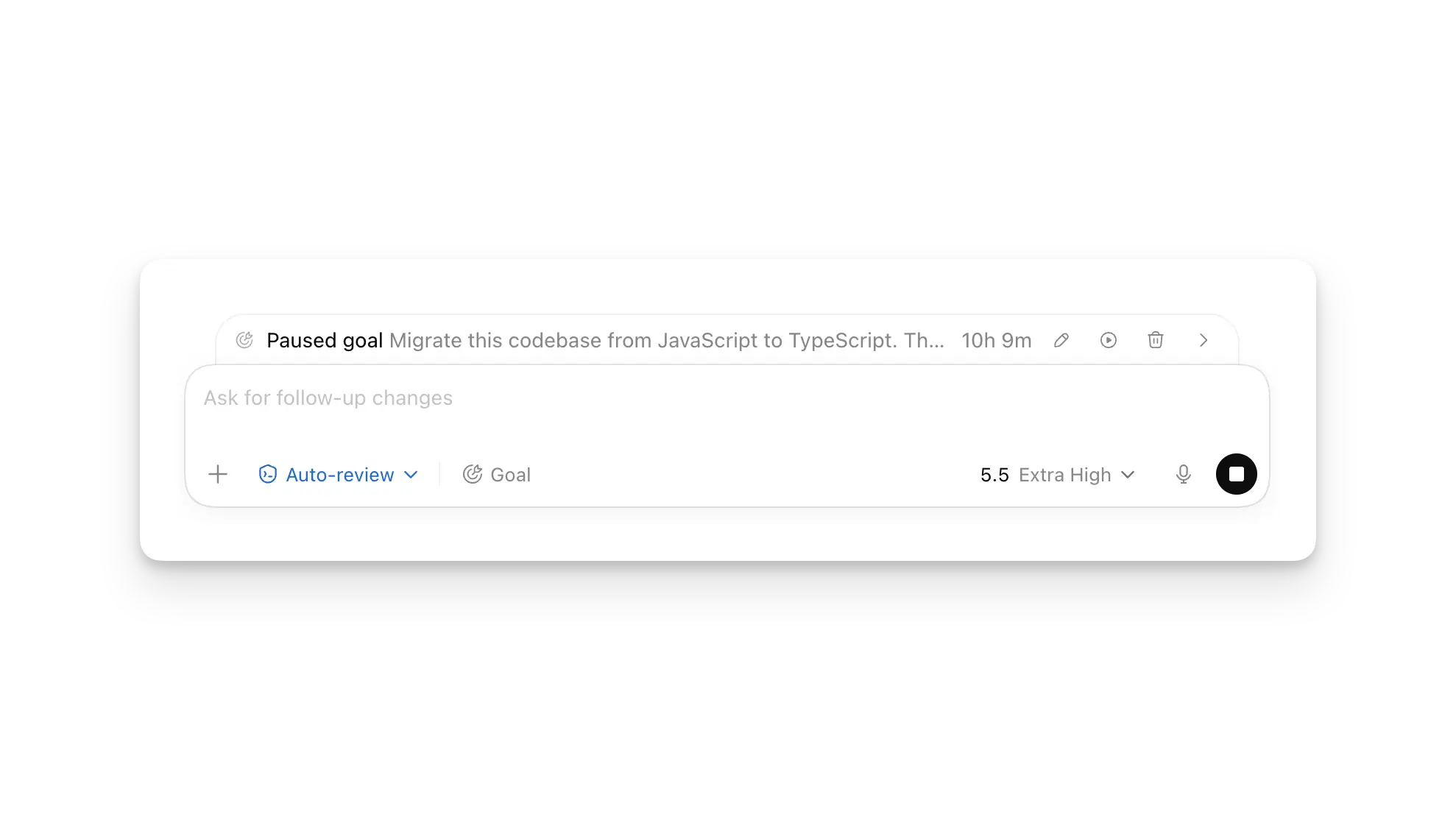
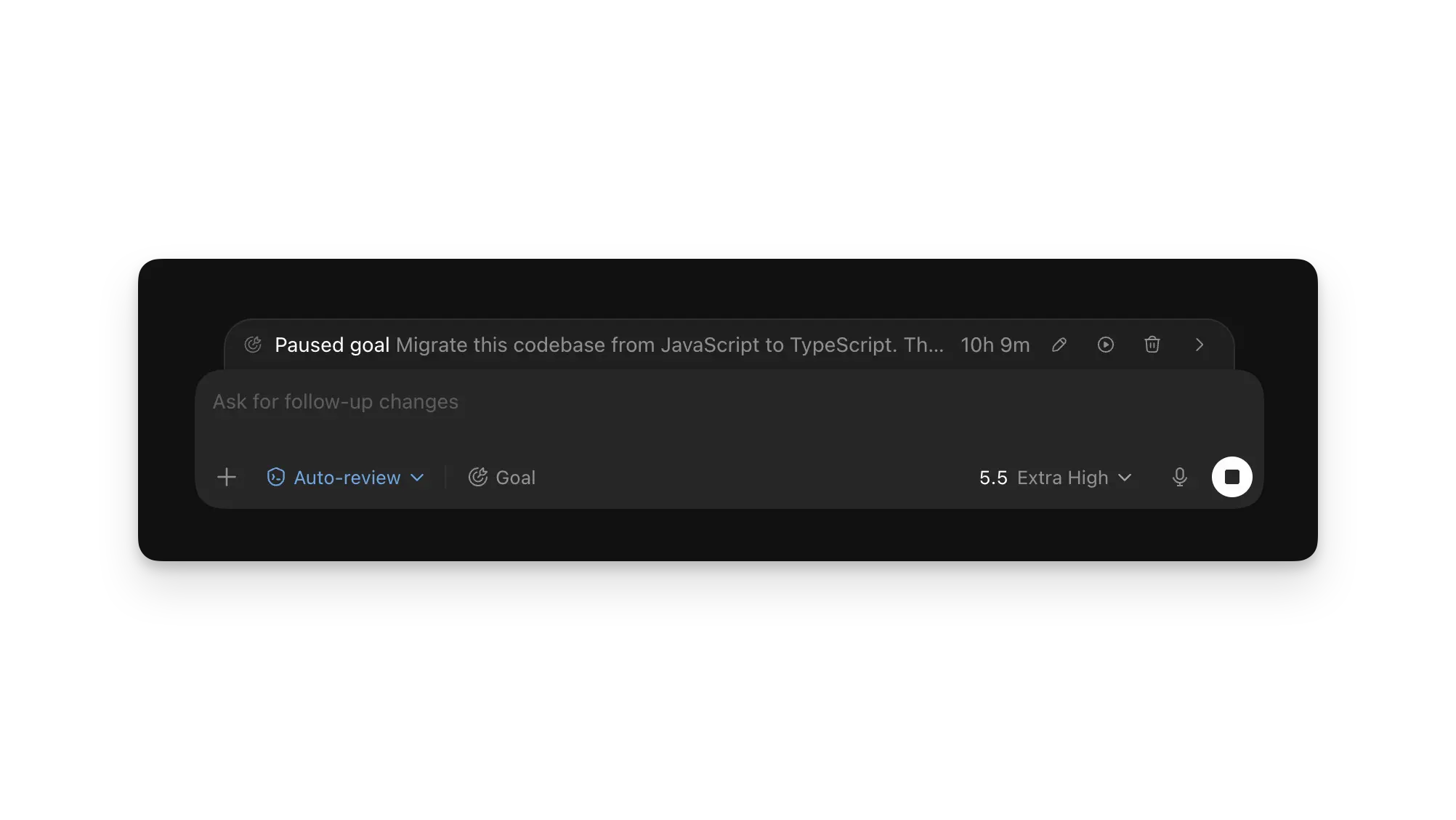
When a goal is active, the app shows its progress above the composer. Use the buttons in that progress row to pause or resume the goal, edit the goal text, or clear the goal instead of typing another slash command. You can keep steering Codex with follow-up messages while the goal runs.
For guidance on writing effective goals, see Goal mode.
Deep links
The Codex app registers the codex:// URL scheme so links can open specific parts of the app directly. Encode query string values before adding them to a URL.
Supported links
Use these canonical forms when you create links. The sections below list the full reference by link type.
| Deep link | Opens |
|---|---|
codex://threads/new | A new local thread. |
codex://new?<query> | A new local thread with at least one new-thread query parameter. |
codex://threads/<thread-id> | A local thread. <thread-id> must be the thread’s session UUID. |
codex://settings | Settings. |
codex://skills | Skills. |
codex://automations | Automations with the create flow open. |
codex://plugins/install/<plugin-name>?marketplace=<marketplace-name> | The install flow for a plugin from a known marketplace. |
codex://plugins/<plugin-id> | A plugin detail page. |
codex://plugins/<plugin-name>?marketplacePath=<absolute-marketplace-path> | A local plugin detail page from a local marketplace. |
codex://pets/install?name=<pet-name>&imageUrl=<https-image-url> | The pet install flow. |
Threads
Use these links when you need to open an existing local thread or start a new one.
| Deep link | Opens |
|---|---|
codex://threads/<thread-id> | A local thread. <thread-id> must be the thread’s session UUID. |
codex://threads/new | A new local thread. |
codex://threads/new?<query> | A new local thread with optional query parameters. |
codex://new?<query> | A new local thread. Include at least one of prompt, path, or originUrl; otherwise the link does nothing. |
For codex://threads/new or codex://new, add any of these query parameters as needed; you can combine them in the same URL.
| Query parameter | Required | What it does |
|---|---|---|
prompt=<text> | No | Sets the initial composer text. |
path=<absolute-path> | No | Opens the new thread in a local workspace. path must be an absolute path to a local directory. When valid, Codex uses that directory as the active workspace. |
originUrl=<git-remote-url> | No | Matches one of your current workspace roots by Git remote URL. If path is also present, Codex resolves path first. |
Example: Show me some fun stats about how I’ve been using Codex
Settings
Use these links when you need to open Settings or a specific settings page.
| Deep link | Opens |
|---|---|
codex://settings | Settings. |
codex://settings/browser-use | Browser settings. |
codex://settings/computer-use/google-chrome | Google Chrome settings for computer use. |
codex://settings/connections | Remote connections settings. |
Unsupported codex://settings/... paths open the main Settings page.
Skills
Use these links when you need to open Skills.
| Deep link | Opens |
|---|---|
codex://skills | Skills. |
Automations
Use these links when you need to open Automations.
| Deep link | Opens |
|---|---|
codex://automations | Automations with the create flow open. |
Plugins
Plugin links use different forms depending on whether you are installing from a marketplace, opening a plugin, or working from a local marketplace.json. For plugin basics, see Plugins. For local or repo marketplace setup, see Build plugins.
Plugin install
Use this form to open the install flow for a plugin from a marketplace that Codex already knows about.
| Deep link | Opens |
|---|---|
codex://plugins/install/<plugin-name>?marketplace=<marketplace-name> | The plugin detail or install flow for a plugin. |
| Query parameter | Required | What it does |
|---|---|---|
marketplace=<marketplace-name> | Yes | Identifies the marketplace. For an OpenAI-curated plugin, use openai-curated. |
The install link accepts only the marketplace query parameter. If Codex cannot find the requested marketplace or plugin, it opens the Plugins page instead.
Plugin detail
| Deep link | Opens |
|---|---|
codex://plugins/<plugin-id> | A plugin detail page. |
<plugin-id> must identify the plugin. For an OpenAI-curated plugin, use the form <plugin-name>@openai-curated.
Codex-generated plugin links can also include these query parameters. Omit both when you handwrite a link.
| Query parameter | Required | What it does |
|---|---|---|
hostId=<host-id> | No | Identifies the Codex host that owns the plugin context, such as local or one of your configured remote connections. Codex provides these IDs. |
source=manage | No | Preserves the app’s plugin-management entry point. It is not admin-only. |
Example: Open the OpenAI Developers plugin
Local plugin
For local or repo marketplace setup, see Build plugins.
| Deep link | Opens |
|---|---|
codex://plugins/<plugin-name>?marketplacePath=<absolute-marketplace-path> | A local plugin detail page from a local marketplace. |
| Query parameter | Required | What it does |
|---|---|---|
marketplacePath=<absolute-marketplace-path> | Yes | Absolute path to the local marketplace.json, for example /Users/alex/.agents/plugins/marketplace.json. |
mode=share | No | Opens the share flow for that local plugin. |
Pets
Use these links to open the pet install flow when that feature is enabled.
| Deep link | Opens |
|---|---|
codex://pets/install?name=<pet-name>&imageUrl=<https-image-url> | The pet install flow. |
| Query parameter | Required | What it does |
|---|---|---|
name=<pet-name> | Yes | Sets the pet name. |
imageUrl=<https-image-url> | Yes | Sets the pet image URL. imageUrl must be HTTPS. |
description=<text> | No | Sets the optional pet description. |