The Codex Chrome extension lets Codex use Chrome for browser tasks that need your signed-in browser state. Use it when Codex needs to read or act on sites such as LinkedIn, Salesforce, Gmail, or internal tools.
For local development servers, file-backed previews, and public pages that do not require sign-in, use the in-app browser first. The in-app browser keeps preview and verification work inside Codex without using your Chrome profile.
Codex can also switch between tools as a task requires, using plugins when a dedicated integration is available, Chrome when it needs logged-in browser context, and the in-app browser for localhost.
Set up Chrome from Plugins
Set up the extension from Codex:
- Open Codex and go to Plugins.
- Add the Chrome plugin.
- Follow the setup flow. It guides you through installing the Codex Chrome extension and approving Chrome’s permission prompts.
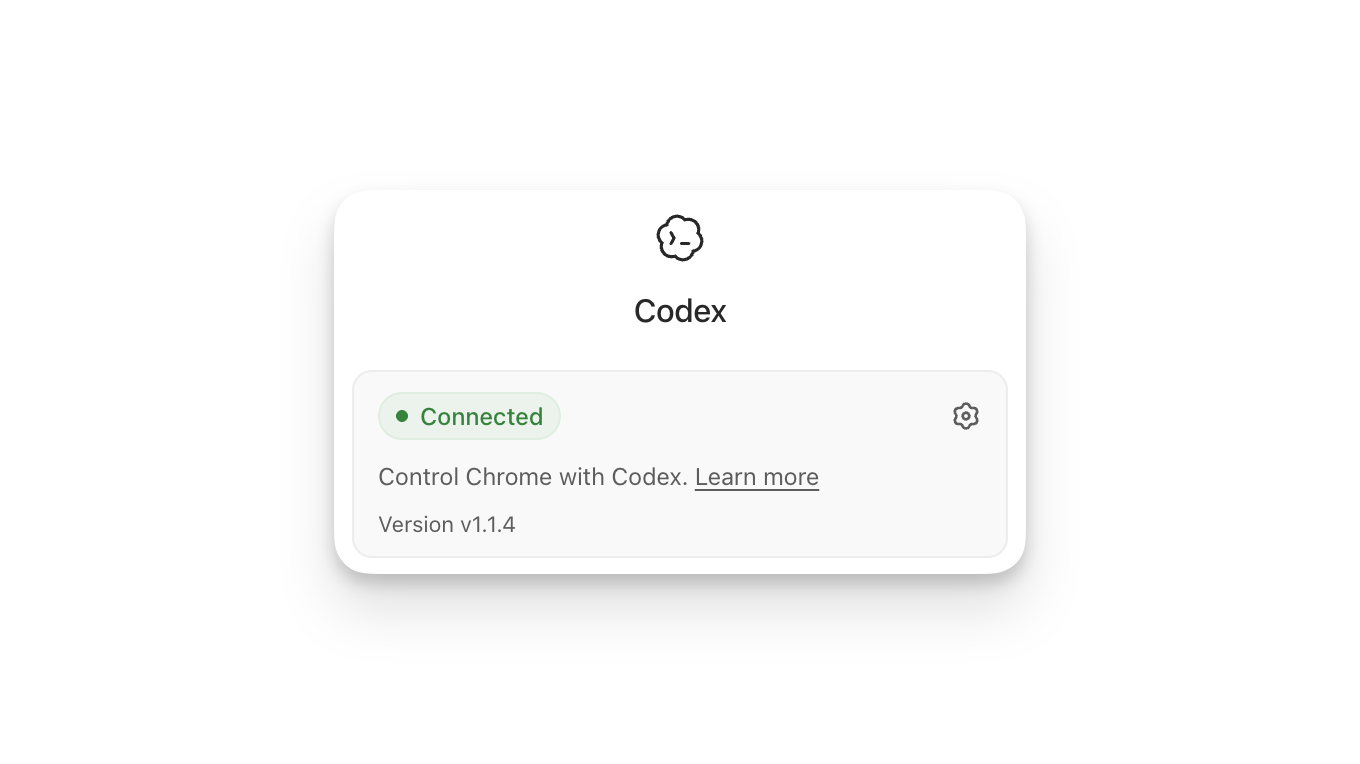
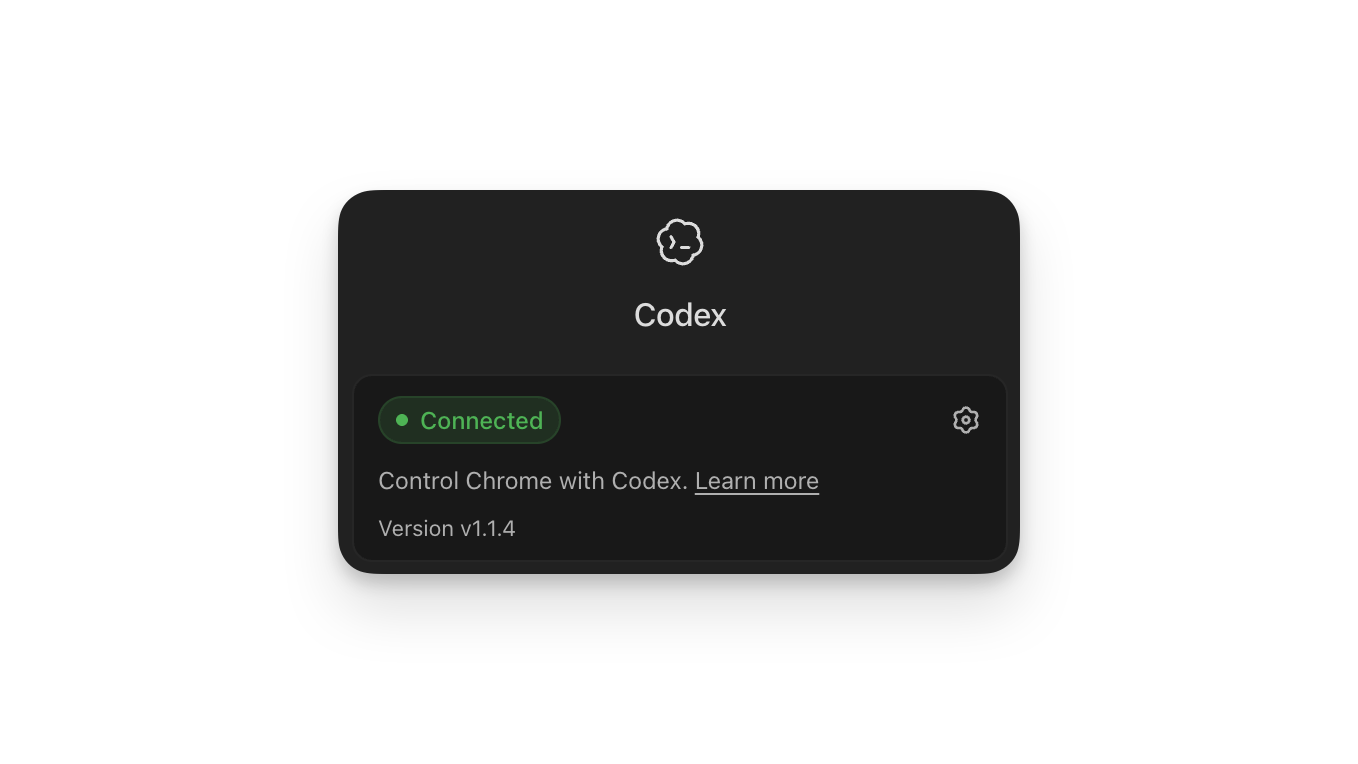
- Open Chrome and confirm the Codex extension shows Connected.
After the plugin setup is complete, start a new Codex thread. Codex can suggest Chrome when a task needs a signed-in website. You can also invoke it directly in a prompt:
@Chrome open Salesforce and update the account from these call notes.If Chrome isn’t already open, Codex can open it. Chrome browser tasks run in Chrome tab groups so the work for a thread stays grouped together.
Control website access
By default, Codex asks before it interacts with each new website. Codex bases
the prompt on the website host, such as example.com.
When Codex asks to use a website, you can choose the option that matches the task and your risk tolerance:
- Allow the website for the current chat.
- Always allow the host so Codex can use that website again without asking.
- Decline the website.
Manage the allowlist and blocklist
In Computer Use settings, you can manage an allowlist and blocklist for domains. The allowlist contains domains Codex can use without asking again. The blocklist contains domains Codex shouldn’t use.
Removing a domain from the allowlist means Codex asks again before using it. Removing a domain from the blocklist means Codex can ask again instead of treating the domain as blocked.
Always allow browser content Elevated Risk
If you turn on always allow browser content, Codex no longer asks for confirmation before using websites.
Browser history Elevated Risk
Browser history can include sensitive telemetry, internal URLs, search terms, and activity from Chrome sessions on signed-in devices. If you allow Codex to access browser history, relevant history entries can become part of the context Codex uses for the task. Malicious or misleading page content can increase the risk that Codex copies this data somewhere unintended.
Codex asks when it wants to use browser history. Codex scopes history access to the request, and history doesn’t have an always-allow option.
Data and security
Chrome extension permissions
Chrome asks you to accept extension permissions when you install the extension. The permission prompt may include:
- Access the page debugger
- Read and change all your data on all websites
- Read and change your browsing history on all your signed-in devices
- Display notifications
- Read and change your bookmarks
- Manage your downloads
- Communicate with cooperating native applications
- View and manage your tab groups
These Chrome permissions make the extension capable of operating browser workflows. Codex still uses its own confirmations, settings, allowlists, and blocklists before using websites or browser history during a task.
Memories
Browser use follows your Codex Memories setting. If Memories is on, Codex can use relevant saved memories while working in Chrome. If Memories is off, browser use doesn’t use memories.
What OpenAI stores from browsing
OpenAI doesn’t store a separate complete record of your Chrome actions from the extension. OpenAI stores browser activity only when it becomes part of the Codex context, such as text Codex reads from a page, screenshots, tool calls, summaries, messages, or other content included in the thread.
Your ChatGPT and Codex data controls apply to content processed in context. Avoid sending secrets or highly sensitive data through browser tasks unless they’re required and you are present to review each prompt.
Troubleshooting
If Codex can’t connect to Chrome, first confirm the website Codex is trying to access isn’t in the blocklist in Settings. If the website isn’t blocked, work through these checks:
- Open the Codex extension from the Chrome toolbar or Chrome’s extensions menu. Make sure it shows Connected. If it shows disconnected or mentions a missing native host, remove and re-add the Chrome plugin from Plugins in Codex, then follow the setup flow again.
- In Codex, open Plugins and confirm that the Chrome plugin is on. If the plugin is off, turn it on and try the task again.
- Make sure you are using the same Chrome profile where the Codex extension is installed. If you use more than one Chrome profile, install and enable the extension in the active profile.
- Start a new Codex thread and try the Chrome task again. This can clear a thread-specific connection state.
- Restart Chrome and Codex, then try again. If the extension still doesn’t connect, uninstall the Codex Chrome extension, remove and re-add the Chrome plugin from Plugins, and follow the setup flow again.
- If the extension shows Connected but Codex still can’t use Chrome, run
/feedbackin the Codex app and include the thread ID when you contact support.
Upload Files
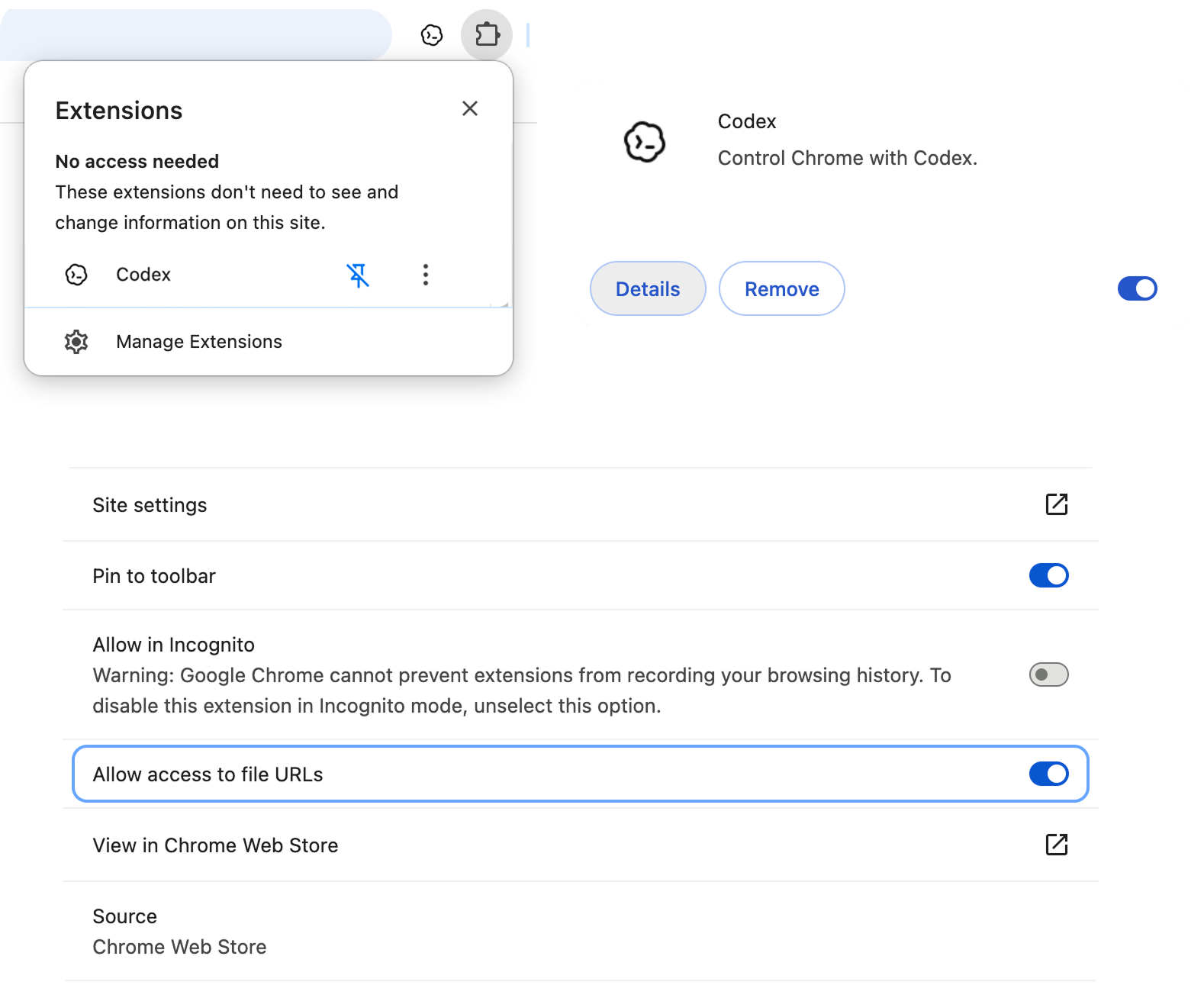
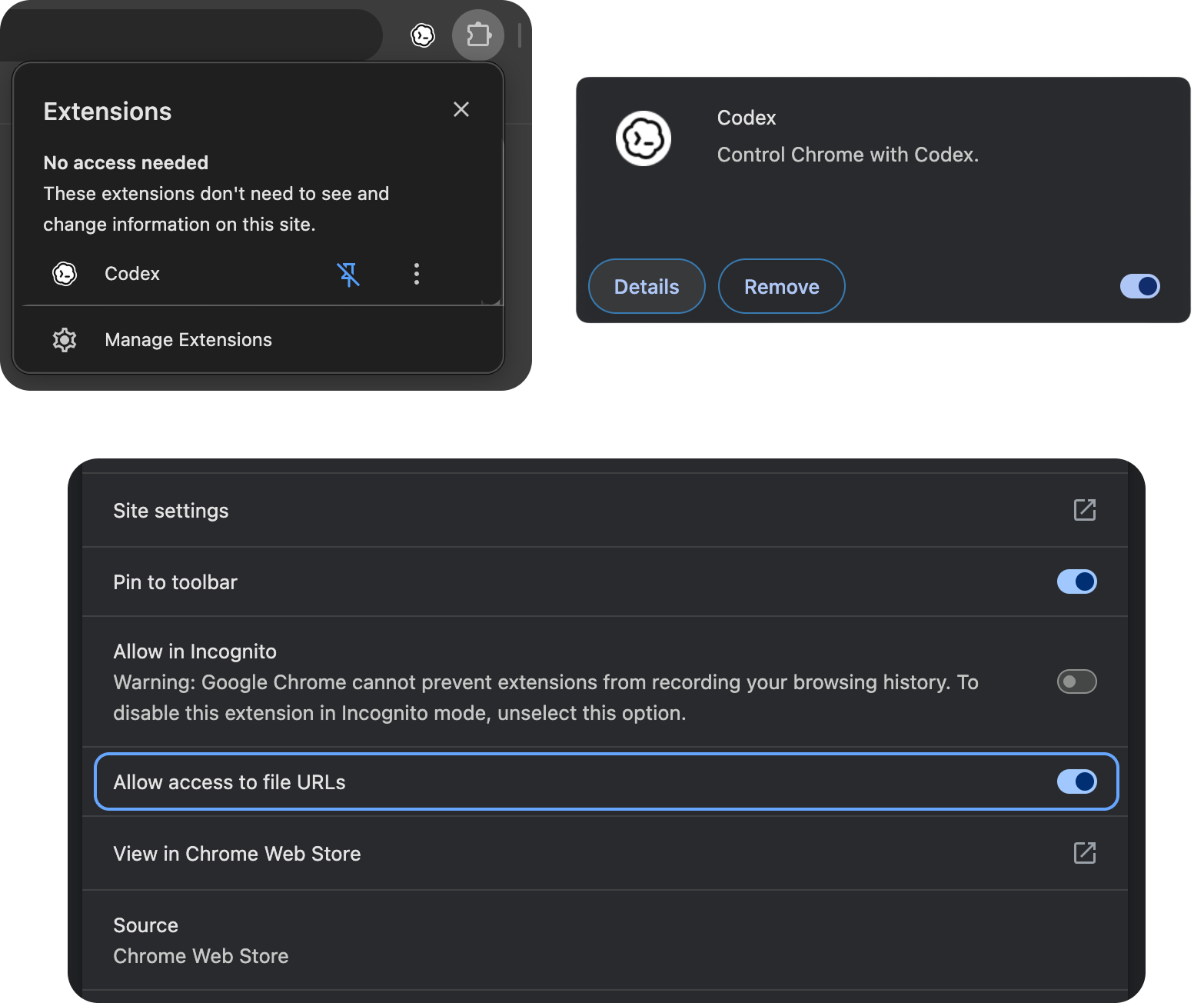
If a Chrome task needs to upload a file from your computer, allow the Codex extension to access file URLs in Chrome:
- In Chrome, open the extensions icon in the toolbar, then click Manage Extensions.
- On the Codex extension card, click Details.
- Turn on Allow access to file URLs.
After you change the setting, start the Chrome task again.