
After building your skills and, when needed, an MCP server, assemble those parts into the plugin people will install. Packaging gives the plugin a stable identity and tells ChatGPT and Codex which skills, MCP server connections, and other resources belong together.
Before bundling skills, review the instruction-following guidance.
For a portable Agent Plugins package, add plugin.json at the plugin root and
declare the Agent Plugins schema. Depending on the plugin’s architecture, its
folder can also include:
- A
skills/directory containing the workflows you built. - An
mcp.jsonfile for MCP servers distributed with the plugin. - Optional assets and lifecycle hooks.
Put OpenAI-specific presentation, registered MCP server mappings, and hook settings
under extensions.com.openai in root plugin.json. Existing
.codex-plugin/plugin.json files remain supported as a compatibility fallback.
UI and authentication remain part of the MCP server integration you built in the preceding steps; the plugin manifest connects that integration to the rest of the package.
Public plugins are published once to the universal plugin directory shared by ChatGPT and Codex. Local and repo marketplaces are separate authoring, testing, and team-distribution sources, and their availability can vary by surface.
Use @plugin-creator for the fastest OpenAI-specific path, or create the
portable manifest and folder structure manually.
For complete public examples, inspect Figma, Notion, and Build web apps.
Package with @plugin-creator
For the fastest setup, use the built-in @plugin-creator skill.
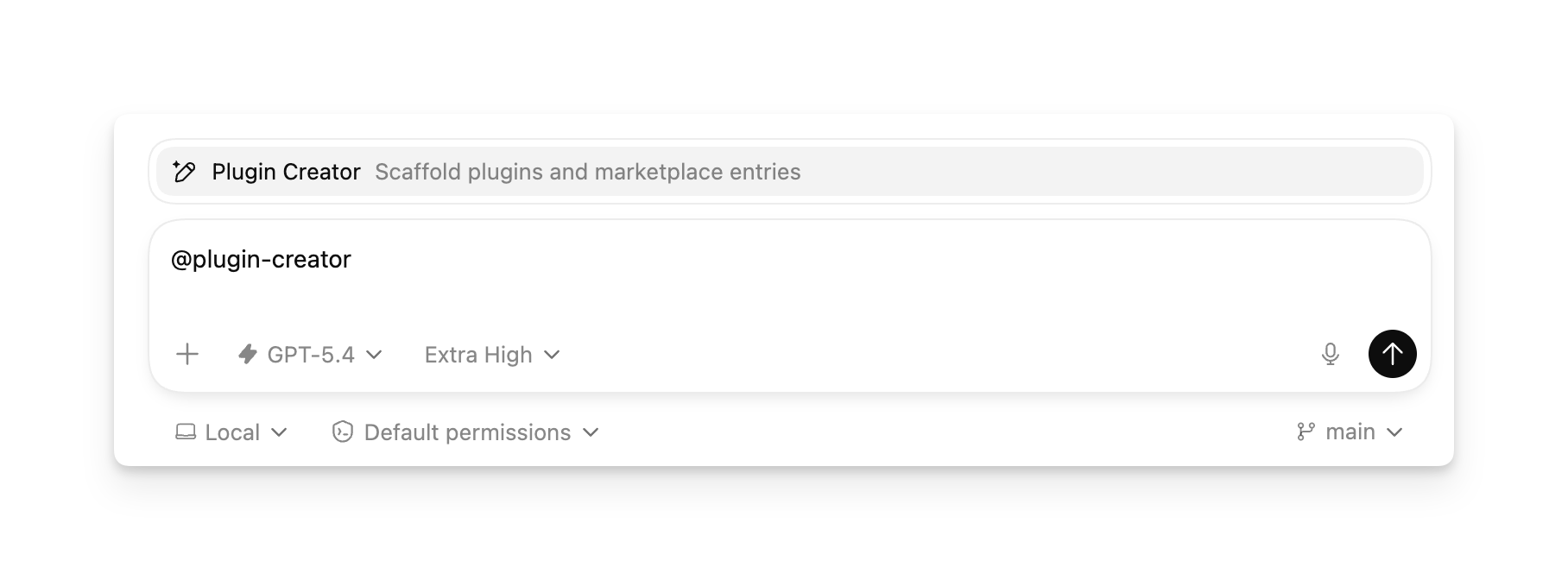
It scaffolds a supported .codex-plugin/plugin.json compatibility manifest
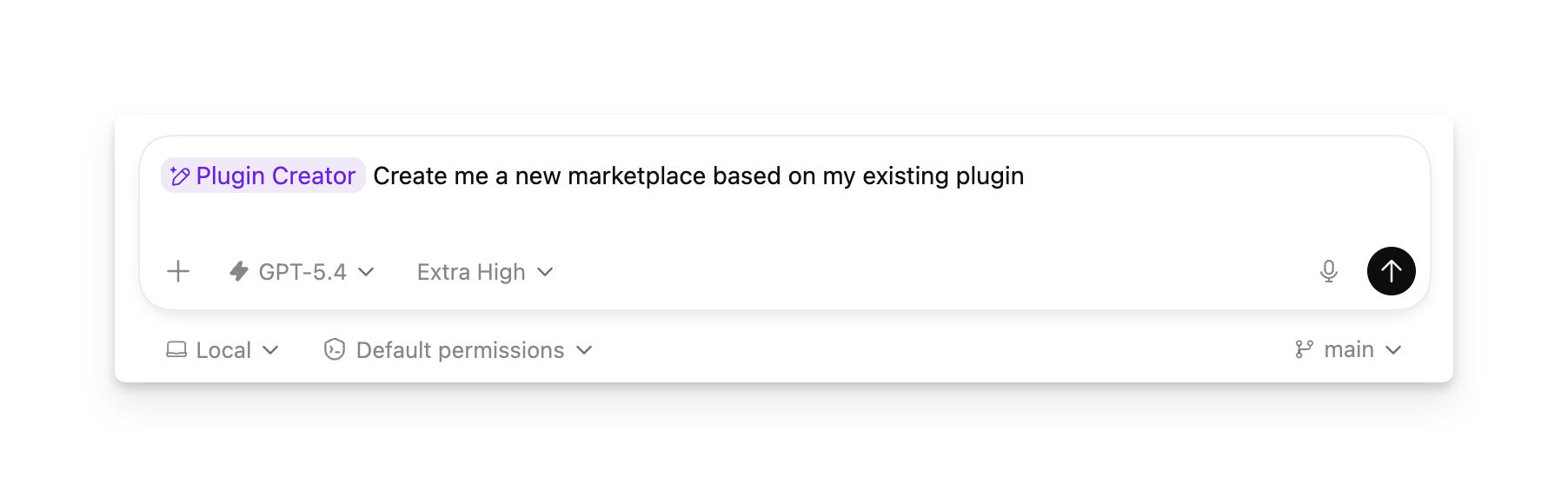
and can also generate a local marketplace entry for testing. If you already
have a plugin folder, you can still use @plugin-creator to wire it into a
local marketplace.
Plugin creator output
The current scaffold uses the Codex compatibility layout, not the portable Agent Plugins layout. When you request all optional components, it can create:
my-plugin/
├── .codex-plugin/
│   └── plugin.json
├── .mcp.json
├── .app.json
├── skills/
├── hooks/
├── scripts/
└── assets/
Only .codex-plugin/plugin.json is always created. The other files and
directories are optional. .mcp.json starts with an empty mcpServers object,
and .app.json starts with an empty apps object. The manifest references
these files when requested. It also declares skills: "./skills/"; add your
skill folders there before testing a skills-based plugin.
Requesting hooks creates an empty hooks/ directory, not a hook configuration
or executable script. Add hooks/hooks.json and its scripts using the
bundled hooks guidance.
The scaffold remains supported. To author a portable package, follow
Create a plugin manually and use root plugin.json
and mcp.json with their Agent Plugins schemas. Don’t just rename .mcp.json:
the portable MCP format also declares a transport type for each server.
Create and test a plugin locally with an MCP server
You can also use the plugin-creator skill to test a plugin that includes an MCP server. The plugin still needs a local folder and manifest, and you first register the MCP server connection in ChatGPT developer mode.
First, enable developer mode in ChatGPT:
- Open ChatGPT.
- Open Settings.
- Select Security and login.
- Turn on Developer mode.
Then register the MCP server in developer mode:
- Go to ChatGPT Plugins.
- Select the plus button.
- Complete the modal with your MCP server URL and connection details.
- After ChatGPT creates the connection, copy its technical ID from the browser
URL. It starts with
plugin_asdk_app.
Give that plugin_asdk_app... ID to @plugin-creator in Work mode in ChatGPT
or $plugin-creator in Codex. For example, in Work mode:
Plugin Creator prompt
@plugin-creator create a plugin for ChatGPT and Codex using my MCP server.
Use plugin_asdk_app_6a4c0062f3b88191855c0a80eac5d53d and name it Acme Support.
Include a personal marketplace entry so I can test it locally.
The plugin-creator skill will create the plugin folder, create a supported
.codex-plugin/plugin.json compatibility manifest, and add MCP server wiring
for the plugin. If you ask it to create a personal marketplace entry, the
plugin appears under your local source in the Plugins Directory for testing.
After the plugin-creator skill creates the plugin:
- Review
.app.jsonand confirm the registered MCP server mapping points at the correctplugin_asdk_app...ID. - Review
.codex-plugin/plugin.jsonand make sure itsappsfield points to./.app.json. - Add any bundled skills under
skills/if the plugin should include repeatable workflows alongside the MCP server. - If the skill created a personal marketplace entry, refresh ChatGPT and install the plugin from your local source in the Plugins Directory. Then test it in a new chat.
For the manifest shape and file layout, see Plugin structure and Path rules.
Build your own curated plugin list
A marketplace is a JSON catalog of plugins. @plugin-creator can generate one
for a single plugin, and you can keep adding entries to that same marketplace
to build your own curated list for a repo, team, or personal workflow.
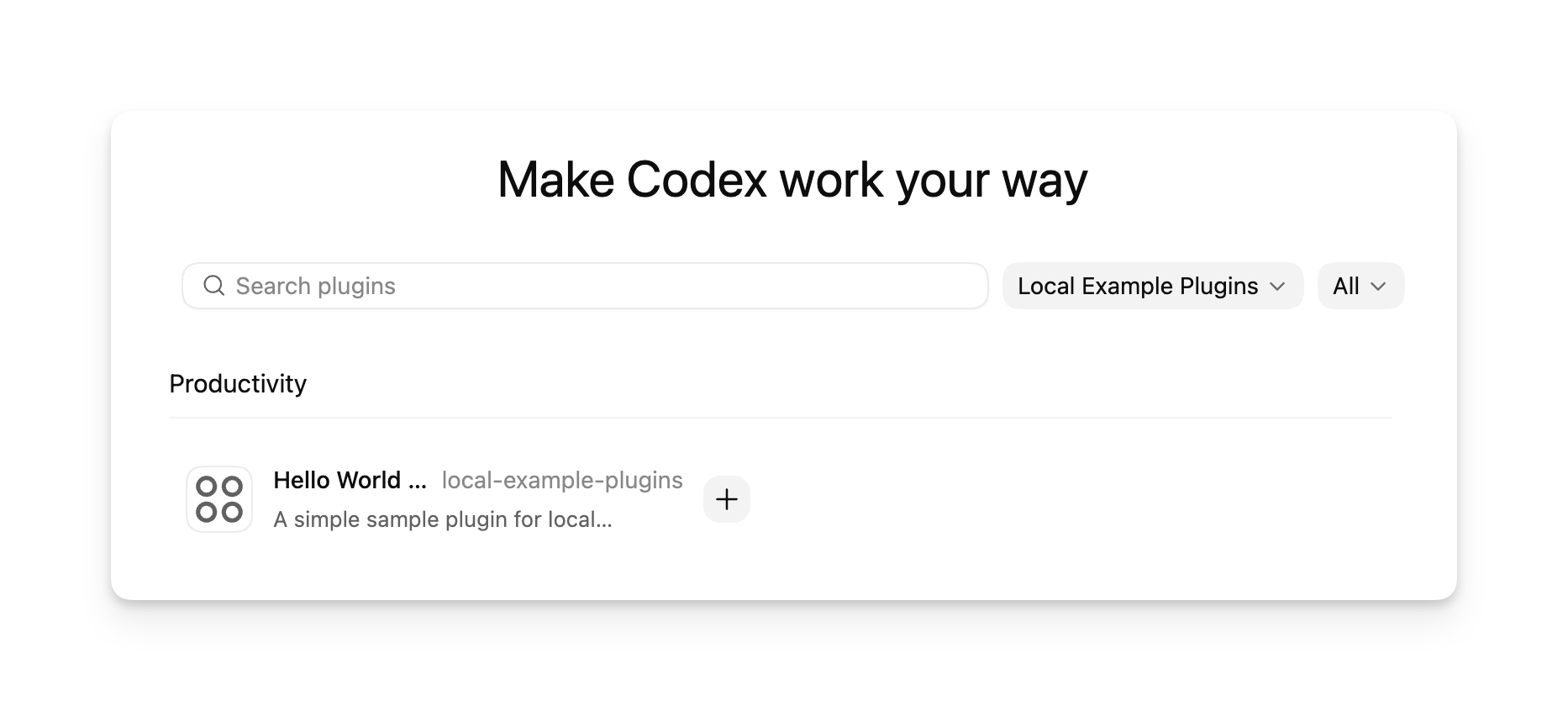
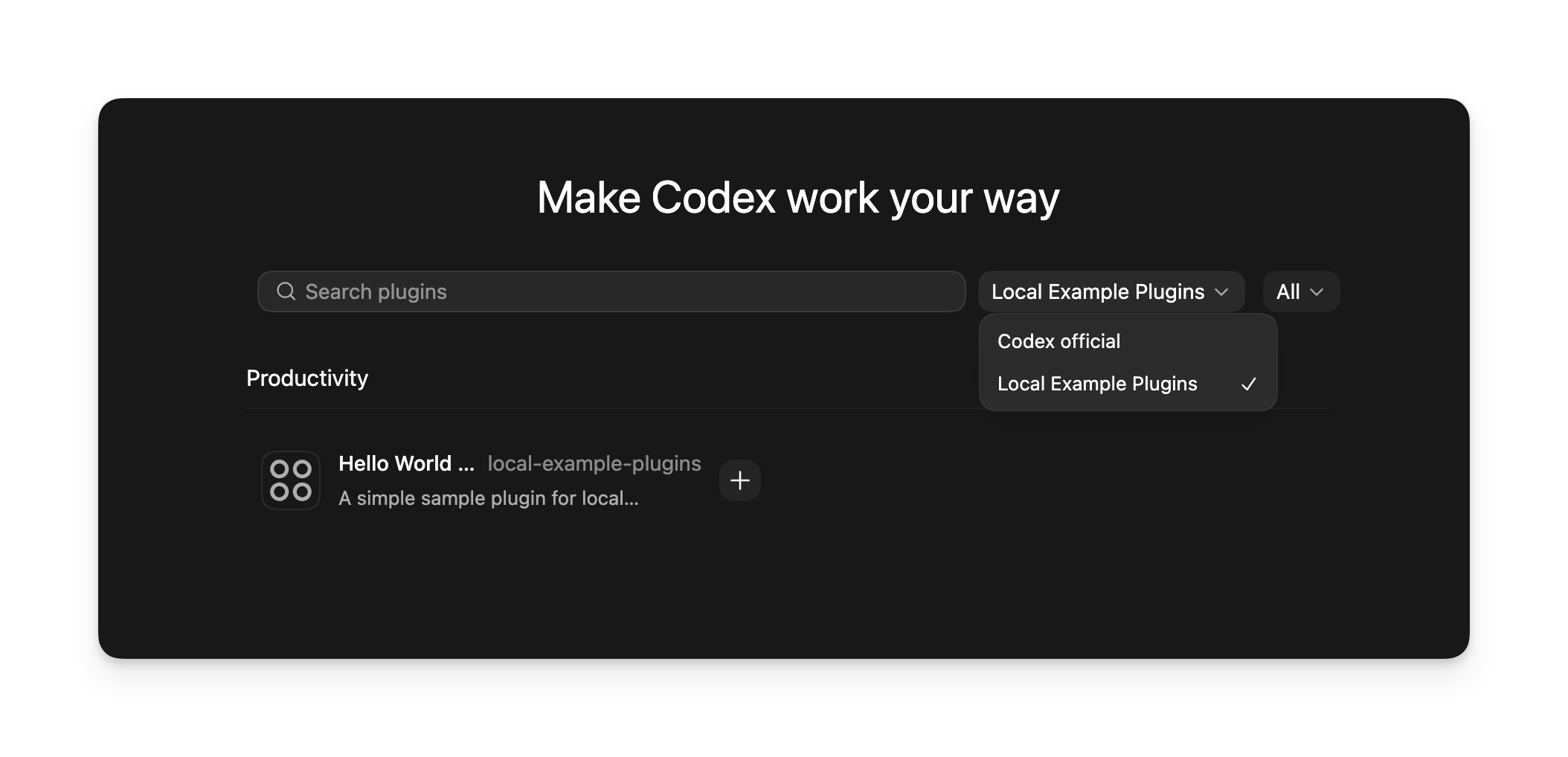
In Work mode or Codex in the ChatGPT desktop app, each marketplace appears as a
selectable source in the Plugins Directory. Use
$REPO_ROOT/.agents/plugins/marketplace.json for a repo-scoped list or
~/.agents/plugins/marketplace.json for a personal list. Add one entry per
plugin under plugins[], point each source.path at the plugin folder with a
./-prefixed path relative to the marketplace root, and set
interface.displayName to the label you want the plugin to show in the marketplace
picker. Then restart the ChatGPT desktop app. After that, open the Plugins
Directory, choose your marketplace, and browse or install the plugins in that
curated list.
You don’t need a separate marketplace per plugin. One marketplace can expose a single plugin while you are testing, then grow into a larger curated catalog as you add more plugins.
Add a marketplace from the CLI
Use codex plugin marketplace add to add and track a marketplace source instead
of editing config.toml by hand. These commands support plugin authoring and
catalog setup. Use the ChatGPT desktop app to install and test a local plugin.
codex plugin marketplace add owner/repo
codex plugin marketplace add owner/repo --ref main
codex plugin marketplace add https://github.com/example/plugins.git --sparse .agents/plugins
codex plugin marketplace add ./local-marketplace-root
Marketplace sources can be GitHub shorthand (owner/repo or
owner/repo@ref), HTTP or HTTPS Git URLs, SSH Git URLs, or local marketplace root
directories. Use --ref to pin a Git ref, and repeat --sparse PATH to use a
sparse checkout for Git-backed marketplace repos. --sparse is valid only for
Git marketplace sources.
To inspect, refresh, or remove configured marketplaces:
codex plugin marketplace list
codex plugin marketplace upgrade
codex plugin marketplace upgrade marketplace-name
codex plugin marketplace remove marketplace-name
codex plugin marketplace list prints each marketplace Codex is considering
and the root path it resolves from, including local default marketplaces and
configured marketplace snapshots.
Administrators can also define local or Git marketplaces in system
config.toml or cloud-managed configuration. These sources use the same
marketplace catalog format. See Configure plugin marketplaces and
defaults
for managed setup guidance and links to the configuration reference.
Create a plugin manually
Start with a minimal plugin that packages one skill.
- Create a plugin folder with a portable manifest at
plugin.json.
mkdir -p my-first-pluginmy-first-plugin/plugin.json
{
  "$schema": "https://agent-plugins.org/schemas/1.0.0/plugin.schema.json",
  "name": "my-first-plugin",
  "version": "1.0.0",
  "description": "Reusable greeting workflow"
}
Use a stable plugin name in kebab-case. Plugin hosts use it as the plugin
identifier and component namespace. Portable packages discover skills from
the root skills/ directory, so the manifest doesn’t need a skills field.
- Add a skill under
skills/<skill-name>/SKILL.md.
mkdir -p my-first-plugin/skills/hellomy-first-plugin/skills/hello/SKILL.md
---
name: hello
description: Greet the user with a friendly message.
---

Greet the user warmly and ask how you can help.- Add the plugin to a marketplace. Use
@plugin-creatorto generate one, or follow Build your own curated plugin list to wire the plugin into a local marketplace manually.
From there, you can add MCP server configuration or marketplace metadata as needed.
Install a local plugin manually
Use a repo marketplace or a personal marketplace, depending on who should be able to access the plugin or curated list.
Add a marketplace file at $REPO_ROOT/.agents/plugins/marketplace.json
and store your plugins under $REPO_ROOT/plugins/.
Example repo marketplace
Step 1: Copy the plugin folder into $REPO_ROOT/plugins/my-plugin.
mkdir -p ./plugins
cp -R /absolute/path/to/my-plugin ./plugins/my-plugin
Step 2: Add or update $REPO_ROOT/.agents/plugins/marketplace.json so
that source.path points to that plugin directory with a ./-prefixed
relative path:
{
  "name": "local-repo",
  "plugins": [
    {
      "name": "my-plugin",
      "source": {
        "source": "local",
        "path": "./plugins/my-plugin"
      },
      "policy": {
        "installation": "AVAILABLE",
        "authentication": "ON_INSTALL"
      },
      "category": "Productivity"
    }
  ]
}
Step 3: Restart the ChatGPT desktop app and verify that the plugin appears.
Add a marketplace file at ~/.agents/plugins/marketplace.json and store
your plugins under ~/.codex/plugins/.
Personal marketplace example
Step 1: Copy the plugin folder into ~/.codex/plugins/my-plugin.
mkdir -p ~/.codex/plugins
cp -R /absolute/path/to/my-plugin ~/.codex/plugins/my-plugin
Step 2: Add or update ~/.agents/plugins/marketplace.json so that the
plugin entry’s source.path points to that directory.
Step 3: Restart the ChatGPT desktop app and verify that the plugin appears.
The marketplace file points to the plugin location, so those directories are
examples rather than fixed requirements. Codex resolves source.path relative
to the marketplace root, not relative to the .agents/plugins/ folder. See
Marketplace metadata for the file format.
After you change the plugin, update the plugin directory that your marketplace entry points to and restart the ChatGPT desktop app so the local install picks up the new files.
Enable or disable a plugin for a repo
The repo marketplace at .agents/plugins/marketplace.json makes plugins
discoverable. Use the repo’s .codex/config.toml to control whether a
local-marketplace plugin is enabled for that project:
[plugins."my-plugin@local-repo"]
enabled = true
The quoted key uses plugin-name@marketplace-name: my-plugin is the plugin
entry’s name, and local-repo is the marketplace’s top-level name. Set
enabled = false to disable the plugin for the project without uninstalling it.
During marketplace refresh, Codex can install or refresh files for configured
plugins, even when enabled = false. Connected services still require
authentication.
Codex loads project .codex/config.toml only for trusted projects. Project
settings override user, cloud-managed, and system defaults, subject to enforced
requirements. See Configuration precedence.
These settings apply to local-marketplace plugins in supported local clients, including Codex CLI and Codex in the ChatGPT desktop app. They don’t change workspace installation policies for plugins imported through Admin > Plugins. Those plugins use their workspace-managed enabled state, even when their source is a GitHub repository. See Plugin management.
Publish a local plugin to your workspace
You must be a workspace admin to publish a plugin to your workspace.
After you create and add a plugin, you can publish it to your ChatGPT workspace:
- Go to ChatGPT Plugins.
- Select Personal.
- Find the plugin you want to publish and open its three-dot menu.
- Select Publish.
- Specify the workspace roles that should have access to the plugin.
Publishing a local plugin to your workspace doesn’t publish it to the universal public Plugins Directory shared by ChatGPT and Codex. Workspace-published plugins stay within your workspace and organization boundary; accounts that aren’t signed in to that workspace can’t access them. Use a marketplace for repo or CLI distribution, and publish to your workspace when you want to make a plugin available to selected roles.
Workspace admins can disable workspace plugin publishing through cloud-managed
requirements by adding features.plugin_sharing = false to requirements.toml:
features.plugin_sharing = falseMarketplace metadata
If you maintain a repo marketplace, define it in
$REPO_ROOT/.agents/plugins/marketplace.json. For a personal marketplace, use
~/.agents/plugins/marketplace.json. A marketplace file controls plugin
ordering and install policies in the ChatGPT desktop app. It can represent one
plugin while you are testing or a curated list of plugins that you want ChatGPT
to show together under one marketplace name. Before you add a plugin to a
marketplace, make sure its version, publisher metadata, and install-surface
copy are ready for other developers to see.
{
  "name": "local-example-plugins",
  "interface": {
    "displayName": "Local Example Plugins"
  },
  "plugins": [
    {
      "name": "my-plugin",
      "source": {
        "source": "local",
        "path": "./plugins/my-plugin"
      },
      "policy": {
        "installation": "AVAILABLE",
        "authentication": "ON_INSTALL"
      },
      "category": "Productivity"
    },
    {
      "name": "research-helper",
      "source": {
        "source": "local",
        "path": "./plugins/research-helper"
      },
      "policy": {
        "installation": "AVAILABLE",
        "authentication": "ON_INSTALL"
      },
      "category": "Productivity"
    }
  ]
}- Use top-level
nameto identify the marketplace. - Use
interface.displayNamefor the marketplace title shown in the ChatGPT desktop app. - Add one object per plugin under
pluginsto build a curated list that ChatGPT shows under that marketplace title. - Point each plugin entry’s
source.pathat the plugin directory you want the local host to load. For repo installs, that often lives under./plugins/. For personal installs, a common pattern is./.codex/plugins/<plugin-name>. - Keep
source.pathrelative to the marketplace root, start it with./, and keep it inside that root. - For local entries,
sourcecan also be a plain string path such as"./plugins/my-plugin". - Always include
policy.installation,policy.authentication, andcategoryon each plugin entry. - Use
policy.installationvalues such asAVAILABLE,INSTALLED_BY_DEFAULT, orNOT_AVAILABLE. - Use
policy.authenticationto decide whether auth happens on install or first use.
The marketplace controls where the local host loads the plugin from. A local
source.path can point somewhere else if your plugin lives outside those
example directories. A marketplace file can live in the repo where you are
developing the plugin or in a separate marketplace repo, and one marketplace
file can point to one plugin or many.
Marketplace entries can also point at Git-backed plugin sources. Use
"source": "url" when the plugin lives at the repository root, or
"source": "git-subdir" when the plugin lives in a subdirectory:
{
  "name": "remote-helper",
  "source": {
    "source": "git-subdir",
    "url": "https://github.com/example/codex-plugins.git",
    "path": "./plugins/remote-helper",
    "ref": "main"
  },
  "policy": {
    "installation": "AVAILABLE",
    "authentication": "ON_INSTALL"
  },
  "category": "Productivity"
}
Git-backed entries may use ref or sha selectors. If Codex can’t resolve a
marketplace entry’s source, it skips that plugin entry instead of failing the
whole marketplace.
Marketplace entries can also install a plugin from a JavaScript package registry:
{
  "name": "npm-helper",
  "source": {
    "source": "npm",
    "package": "@example/codex-plugin",
    "version": "^1.2.0",
    "registry": "https://registry.npmjs.org"
  },
  "policy": {
    "installation": "AVAILABLE",
    "authentication": "ON_INSTALL"
  },
  "category": "Productivity"
}
package is required and can include a registry scope. version is optional
and accepts package versions, distribution tags, and version ranges, but not
path or URL selectors.
registry is optional and must be an HTTPS URL without embedded credentials,
a query, or a fragment. Codex downloads the package without running lifecycle
scripts. The npm CLI must be installed, and registry authentication comes
from its configuration.
How local marketplaces work
A plugin marketplace is a JSON catalog of plugins. These local sources are separate from the universal public directory and support authoring, testing, and private distribution.
The ChatGPT desktop app can read marketplace files from:
- a repo marketplace at
$REPO_ROOT/.agents/plugins/marketplace.json - a legacy-compatible marketplace at
$REPO_ROOT/.claude-plugin/marketplace.json - a personal marketplace at
~/.agents/plugins/marketplace.json
You can install any plugin exposed through a marketplace. ChatGPT installs
plugins into
~/.codex/plugins/cache/$MARKETPLACE_NAME/$PLUGIN_NAME/$VERSION/. For local
plugins, $VERSION is local, and ChatGPT loads the installed copy from that
cache path rather than directly from the marketplace entry.
You can enable or disable each local-marketplace plugin individually. The
plugin browser saves user-level choices in ~/.codex/config.toml; repo,
cloud-managed, and system configuration can also supply plugin settings. See
Enable or disable a plugin for a repo
and Configure plugin marketplaces and defaults.
Package and distribute plugins
Plugin structure
A portable plugin has a plugin.json manifest at its root. It can also include
a skills/ directory, an mcp.json file for bundled MCP servers, and assets.
Put OpenAI-specific settings in the root manifest’s extensions.com.openai
object. A separate .codex-plugin/plugin.json is optional and serves as a
compatibility fallback when that object is absent.
-
my-plugin/
- plugin.json Required: portable plugin manifest
-
skills/
-
my-skill/
- SKILL.md Optional: skill instructions
-
-
- mcp.json Optional: portable MCP server configuration
-
.codex-plugin/
- plugin.json Optional: compatibility fallback
-
- hooks/ Optional: hook configuration and scripts
- assets/ Optional: icons, logos, screenshots
-
Keep plugin.json, mcp.json, skills/, and assets/ at the plugin root.
When you add a Codex overlay, keep only its plugin.json inside
.codex-plugin/; referenced hooks, .app.json, and other resources stay at
the plugin root.
The portable manifest identifies the plugin. Fixed package paths identify its
portable components: skills/ contains skills, and mcp.json configures MCP
servers.
Here’s a complete portable manifest example:
{
  "$schema": "https://agent-plugins.org/schemas/1.0.0/plugin.schema.json",
  "name": "my-plugin",
  "version": "0.1.0",
  "description": "Bundle reusable skills and MCP servers.",
  "author": {
    "name": "Your team",
    "email": "team@example.com",
    "url": "https://example.com"
  },
  "homepage": "https://example.com/plugins/my-plugin",
  "repository": "https://github.com/example/my-plugin",
  "license": "MIT",
  "keywords": ["research", "crm"]
}
The root plugin.json is the portable entry point. OpenAI also accepts legacy
and Claude-compatible manifests, but new packages should use this format.
Add OpenAI-specific metadata
Add extensions.com.openai to root plugin.json for presentation, existing
registered MCP server mappings, and lifecycle hooks. Keep portable identity and
metadata, such as name, version, and description, at the root.
For example:
{
  "$schema": "https://agent-plugins.org/schemas/1.0.0/plugin.schema.json",
  "name": "my-plugin",
  "version": "0.1.0",
  "description": "Reusable skills and MCP servers",
  "extensions": {
    "com.openai": {
      "apps": "./.app.json",
      "hooks": "./hooks/hooks.json",
      "interface": {
        "displayName": "My Plugin",
        "shortDescription": "Reusable skills and MCP servers",
        "longDescription": "Distribute skills and MCP servers together.",
        "developerName": "Your team",
        "category": "Productivity",
        "capabilities": ["Read", "Write"],
        "websiteURL": "https://example.com",
        "privacyPolicyURL": "https://example.com/privacy",
        "termsOfServiceURL": "https://example.com/terms",
        "defaultPrompt": [
          "Use My Plugin to summarize new CRM notes.",
          "Use My Plugin to triage new customer follow-ups."
        ],
        "brandColor": "#10A37F",
        "composerIcon": "./assets/icon.png",
        "logo": "./assets/logo.png",
        "screenshots": ["./assets/screenshot-1.png"]
      }
    }
  }
}
When extensions.com.openai is an object, it replaces the entire
.codex-plugin/plugin.json overlay as the source of OpenAI-specific settings;
the two aren’t merged. If the inline object is absent, the compatibility
overlay supplies those settings. Root identity and portable components remain
canonical in either case.
Manifest fields
Use the root manifest fields to define portable package metadata:
$schemadeclares the supported Agent Plugins version.nameidentifies the plugin.versionanddescriptionprovide optional release and discovery metadata.author,homepage,repository,license, andkeywordsprovide publisher and discovery metadata.
Use extensions.com.openai for OpenAI-specific fields:
appspoints to registered MCP server mappings in.app.json.hookspoints to lifecycle hook configuration.interfacecontrols how OpenAI install surfaces present the plugin.
Portable packages always discover skills in skills/ and MCP servers in
mcp.json. A skills or mcpServers declaration in the inline extension or
compatibility overlay can’t replace, disable, or add to those components.
Those declarations apply only to legacy packages without a recognized portable
root manifest.
Use the interface object for install-surface metadata:
displayName,shortDescription, andlongDescriptioncontrol the title and descriptive copy.developerName,category, andcapabilitiesadd publisher and capability metadata.websiteURL,privacyPolicyURL, andtermsOfServiceURLprovide external links.defaultPrompt,brandColor,composerIcon,logo, andscreenshotscontrol starter prompts and visual presentation.
Path rules
- Keep portable
plugin.json,mcp.json, andskills/at the plugin root. - Keep paths in
extensions.com.openaior a compatibility manifest relative to the plugin root and start them with./. - Store visual assets such as
composerIcon,logo, andscreenshotsunder./assets/when possible. - Use the OpenAI extension’s
appsfield only for registered MCP server mappings in.app.json. - Enabled plugins can include lifecycle hooks alongside skills and MCP servers.
Bundled MCP servers and lifecycle hooks
Configure portable MCP servers in root mcp.json. Include the Agent Plugins
MCP schema and a named entry under mcpServers.
Remote HTTP server:
{
  "$schema": "https://agent-plugins.org/schemas/1.0.0/mcp.schema.json",
  "mcpServers": {
    "docs": {
      "type": "streamable-http",
      "url": "https://example.com/mcp"
    }
  }
}
For public submission, submit the remote HTTPS endpoint through With MCP. If your MCP server runs locally, deploy it to a public HTTPS URL. If you can’t, reach out to your OpenAI contact for local MCP support.
After installation, users can enable or disable a bundled MCP server and tune
tool approval policy from their Codex config without editing the plugin. Use
plugins.<plugin>.mcp_servers.<server> for plugin-scoped MCP server policy:
[plugins."my-plugin".mcp_servers.docs]
enabled = true
default_tools_approval_mode = "prompt"
enabled_tools = ["search"]

[plugins."my-plugin".mcp_servers.docs.tools.search]
approval_mode = "approve"
When your plugin is enabled, the Codex runtime can load lifecycle hooks from your plugin alongside user, project, and managed hooks. This includes ChatGPT Work and Codex. Hook scripts must exist in the execution environment; installing a plugin on the web doesn’t deploy them. Enterprise admins can deploy required scripts through mobile device management (MDM).
Installing or enabling a plugin doesn’t automatically trust its hooks. Plugin-bundled hooks are non-managed hooks, so Codex skips them until the user reviews and trusts the current hook definition.
Codex discovers hooks/hooks.json by default when the selected OpenAI extension
or compatibility manifest doesn’t define hooks:
{
  "hooks": {
    "SessionStart": [
      {
        "hooks": [
          {
            "type": "command",
            "command": "python3 ${PLUGIN_ROOT}/hooks/session_start.py",
            "statusMessage": "Loading plugin context"
          }
        ]
      }
    ]
  }
}
To override that default, define hooks inside extensions.com.openai in root
plugin.json. The field can be a single path, an array of paths, an inline
hooks object, or an array of inline hooks objects. An explicit value replaces
default-file discovery; it doesn’t add to hooks/hooks.json.
{
  "$schema": "https://agent-plugins.org/schemas/1.0.0/plugin.schema.json",
  "name": "repo-policy",
  "extensions": {
    "com.openai": {
      "hooks": ["./hooks/session.json", "./hooks/tools.json"]
    }
  }
}
Legacy packages can declare hooks directly in .codex-plugin/plugin.json.
Hook paths start with ./, resolve relative to the plugin root, and stay inside
the plugin root.
Plugin hook commands receive the Codex-specific environment variables
PLUGIN_ROOT and PLUGIN_DATA. PLUGIN_ROOT points to the installed plugin
root, and PLUGIN_DATA points to the plugin’s writable data directory. Codex
also sets CLAUDE_PLUGIN_ROOT and CLAUDE_PLUGIN_DATA for compatibility with
existing plugin hooks.
Plugin hooks use the same event schema as regular hooks. See Hooks on Learn for supported events, inputs, outputs, trust review, and current limitations.
Publish official public plugins
To publish a plugin for public use, submit it through the plugin submission portal. After publication, the plugin is listed in the universal directory shared by ChatGPT and Codex. See Submit plugins for the full review and publishing process.