
Agent Builder is a visual canvas for composing agentic workflows. Workflows are made up of nodes and connections that control the sequence and flow. Insert nodes, then configure and connect them to define the process you want your agents to follow.
OpenAI is deprecating Agent Builder. Existing users can continue using it during the transition window, and the product is scheduled to shut down on November 30, 2026. ChatKit remains available. See the deprecations page for the current timeline.
Explore all available nodes below. To learn more, read the Agent Builder guide.
Core nodes
Get started with basic building blocks. All workflows have start and agent nodes.
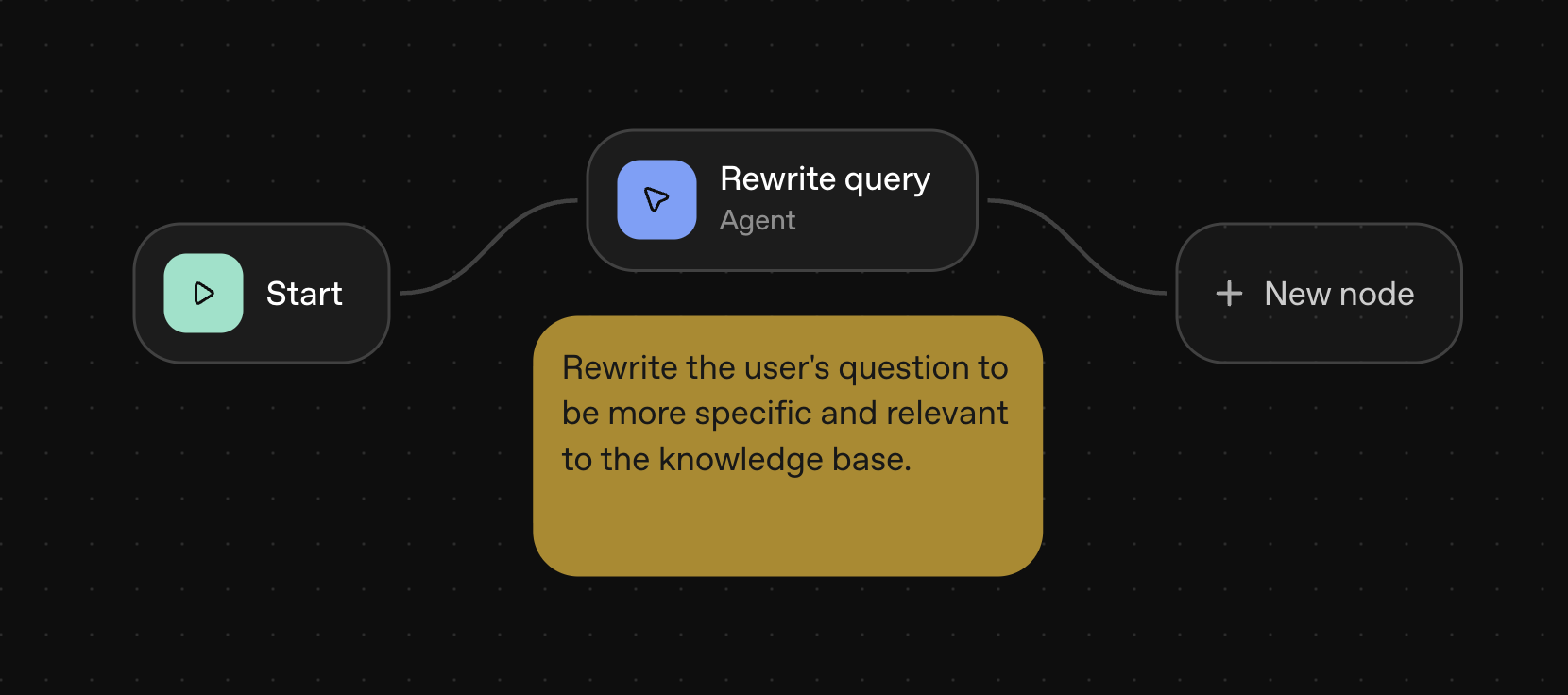
Start
Define inputs to your workflow. For user input in a chat workflow, start nodes do two things:
- Append the user input to the conversation history
- Expose
input_as_textto represent the text contents of this input
All chat start nodes have input_as_text as an input variable. You can add state variables too.
Agent
Define instructions, tools, and model configuration, or attach evaluations.
Keep each agent well defined in scope. In our homework helper example, we use one agent to rewrite the user’s query for more specificity and relevance with the knowledge base. We use another agent to classify the query as either Q&A or fact-finding, and another agent to field each type of question.
Add model behavior instructions and user messages as you would with any other model prompt. To pipe output from a previous step, you can add it as context.
You can have as many agent nodes as you’d like.
Note
Leave comments and explanations about your workflow. Unlike other nodes, notes don’t do anything in the flow. They’re just helpful commentary for you and your team.
Tool nodes
Tool nodes let you equip your agents with tools and external services. You can retrieve data, monitor for misuse, and connect to external services.
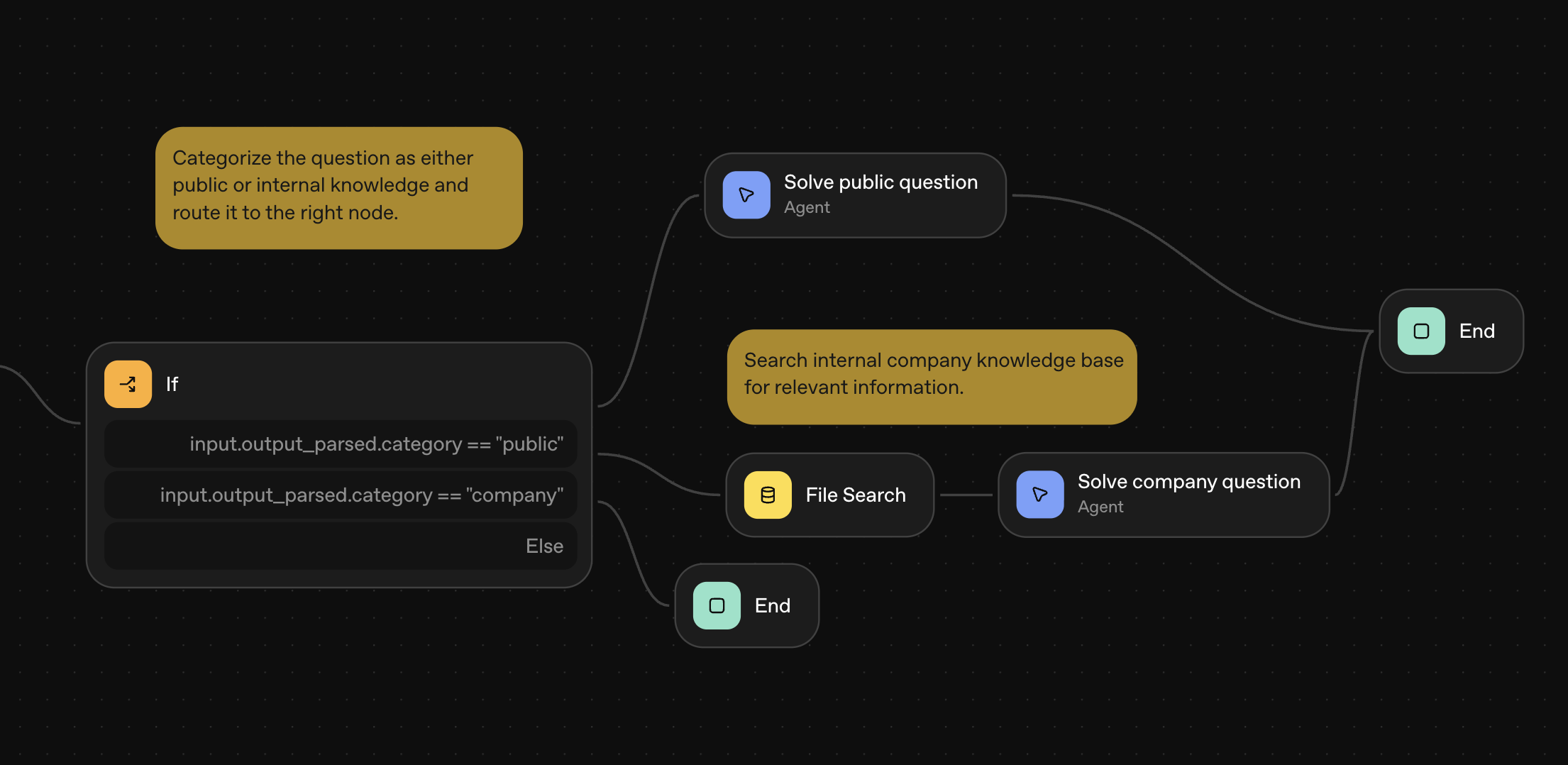
File search
Retrieve data from vector stores you’ve created in the OpenAI platform. Search by vector store ID, and add a query for what the model should search for. You can use variables to include output from previous nodes in the workflow.
See the file search documentation to set up vector stores and see supported file types.
To search outside of your hosted storage with OpenAI, use MCP instead.
Guardrails
Set up input monitors for unwanted inputs such as personally identifiable information (PII), jailbreaks, hallucinations, and other misuse.
Guardrails are pass/fail by default, meaning they test the output from a previous node, and you define what happens next. When there’s a guardrails failure, we recommend either ending the workflow or returning to the previous step with a reminder of safe use.
MCP
Call third-party tools and services. Connect with OpenAI connectors or third-party servers, or add your own server. MCP connections are helpful in a workflow that needs to read or search data in another application, like Gmail or Zapier.
Browse options in the Agent Builder. To learn more about MCP, see the MCP documentation.
Logic nodes
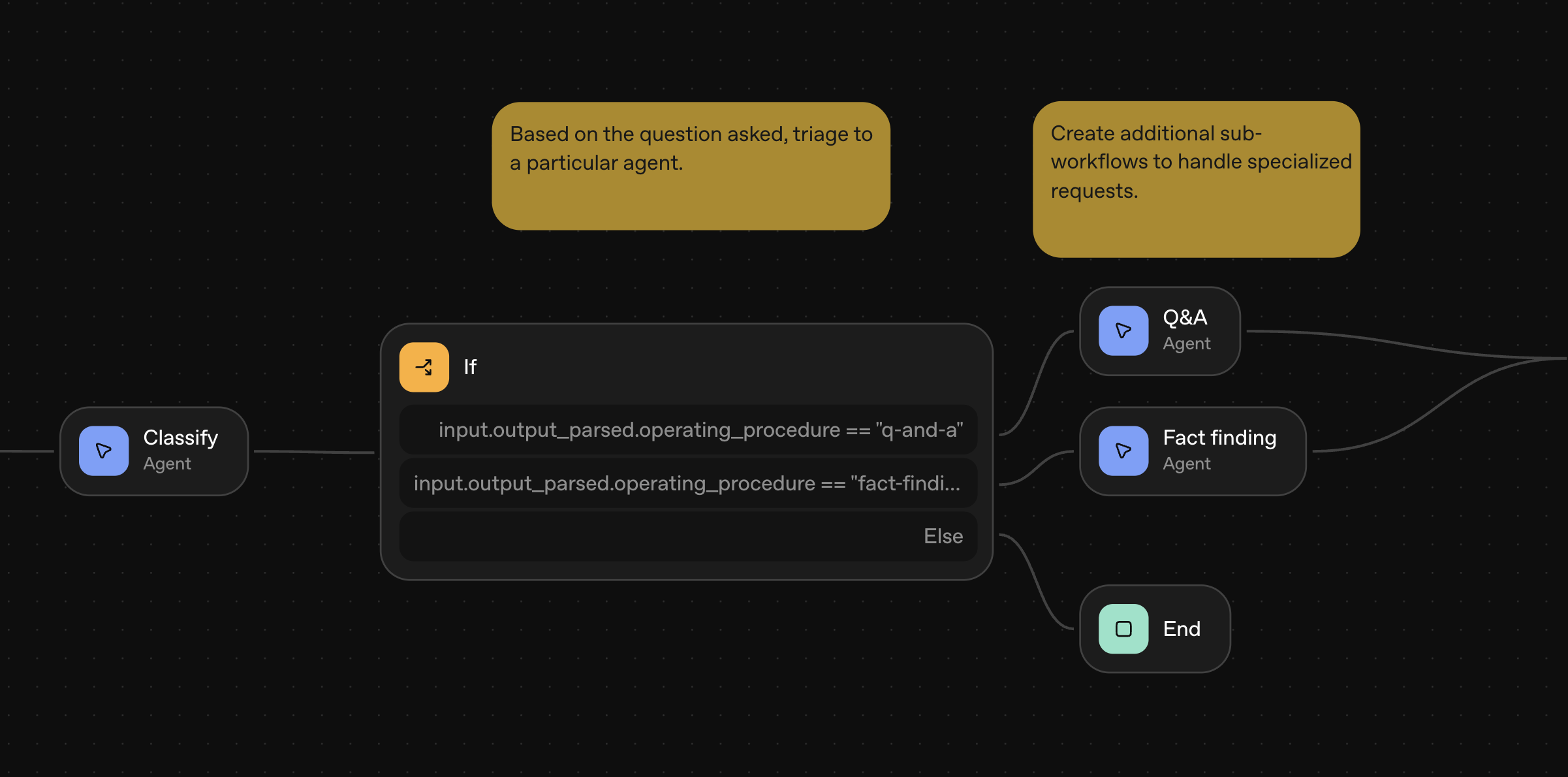
Logic nodes let you write custom logic and define the control flow—for example, looping on custom conditions, or asking the user for approval before continuing an operation.
If/else
Add conditional logic. Use Common Expression Language (CEL) to create a custom expression. Useful for defining what to do with input that’s been sorted into classifications.
For example, if an agent classifies input as Q&A, route that query to the Q&A agent for a straightforward answer. If it’s an open-ended query, route to an agent that finds relevant facts. Else, end the workflow.
While
Loop on custom conditions. Use Common Expression Language (CEL) to create a custom expression. Useful for checking whether a condition is still true.
Human approval
Defer to end-users for approval. Useful for workflows where agents draft work that could use a human review before it goes out.
For example, picture an agent workflow that sends emails on your behalf. You’d include an agent node that outputs an email widget, then a human approval node immediately following. You can configure the human approval node to ask, “Would you like me to send this email?” and, if approved, proceeds to an MCP node that connects to Gmail.
Data nodes
Data nodes let you define and manipulate data in your workflow. Reshape outputs or define global variables for use across your workflow.
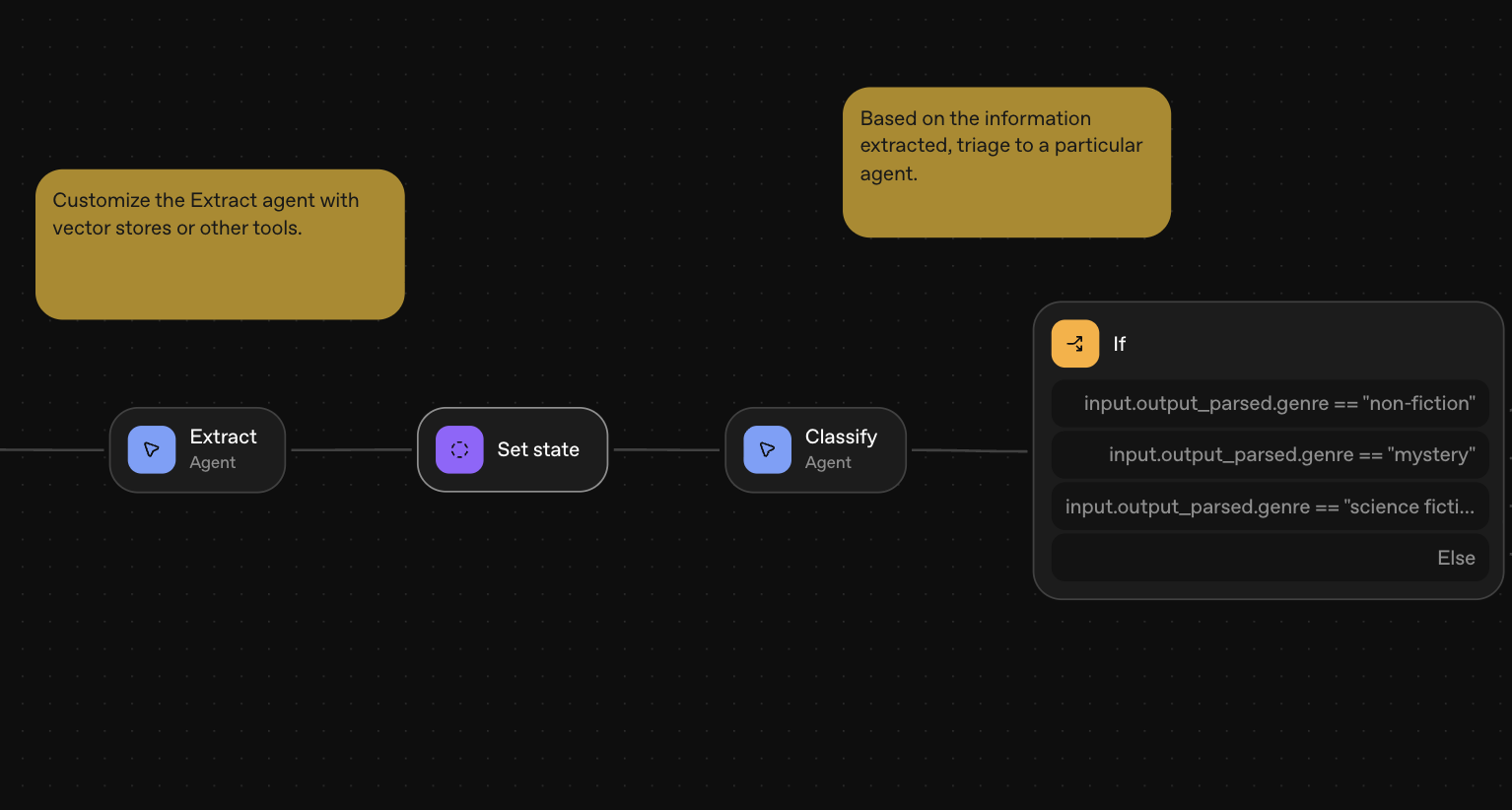
Transform
Reshape outputs (for example, object → array). Useful for enforcing types to adhere to your schema or reshaping outputs for agents to read and understand as inputs.
Set state
Define global variables for use across the workflow. Useful for when an agent takes input and outputs something new that you’ll want to use throughout the workflow. You can define that output as a new global variable.