The OpenAI API lets you generate and edit images from text prompts using GPT Image models, including our latest, gpt-image-2. You can access image generation capabilities through two APIs:
Image API
Starting with gpt-image-1 and later models, the Image API provides two endpoints, each with distinct capabilities:
Generations: Generate images from scratch based on a text prompt
The Responses API allows you to generate images as part of conversations or multi-step flows. It supports image generation as a built-in tool, and accepts image inputs and outputs within context.
Compared to the Image API, it adds:
Multi-turn editing: Iteratively make high fidelity edits to images with prompting
Flexible inputs: Accept image File IDs as input images, not just bytes
The Responses API image generation tool uses its own GPT Image model selection. For details on mainline models that support calling this tool, refer to the supported models below.
Choosing the right API
If you only need to generate or edit a single image from one prompt, the Image API is your best choice.
If you want to build conversational, editable image experiences with GPT Image, go with the Responses API.
With the Image API, you choose a GPT Image model directly. With the Responses API, you choose a mainline model that supports the image generation tool; the tool handles GPT Image model selection. Responses API requests include the mainline model’s token usage in addition to image generation costs.
Both APIs let you customize output by adjusting quality, size, format, and compression. Transparent backgrounds depend on model support.
This guide focuses on GPT Image.
To ensure these models are used responsibly, you may need to complete the API
Organization
Verification
from your developer
console before
using GPT Image models, including gpt-image-2, gpt-image-1.5,
gpt-image-1, and gpt-image-1-mini.
To learn more about customizing the output (size, quality, format, compression), refer to the customize image output section below.
You can set the n parameter to generate multiple images at once in a single request (by default, the API returns a single image).
Image API
Generate an image
Python
1
2
3
4
5
6
7
8
9
10
11
12
13
14
15
16
17
18import OpenAI from "openai";import fs from "fs";const openai = new OpenAI();const prompt = `A children's book drawing of a veterinarian using a stethoscope tolisten to the heartbeat of a baby otter.`;const result = await openai.images.generate({ model: "gpt-image-2", prompt,});// Save the image to a fileconst image_base64 = result.data[0].b64_json;const image_bytes = Buffer.from(image_base64, "base64");fs.writeFileSync("otter.png", image_bytes);
1
2
3
4
5
6
7
8
9
10
11
12
13
14
15
16
17
18from openai import OpenAIimport base64client = OpenAI()prompt ="""A children's book drawing of a veterinarian using a stethoscope tolisten to the heartbeat of a baby otter."""result = client.images.generate(model="gpt-image-2", prompt=prompt)image_base64 = result.data[0].b64_jsonimage_bytes = base64.b64decode(image_base64)# Save the image to a filewithopen("otter.png", "wb") as f: f.write(image_bytes)
1
2
3
4
5
6
7
8
9
10
11
12
13
14
15
16
17
18
19
20
21
22
23
24
25
26
27
28package mainimport ( "context" "encoding/base64" "os" "github.com/openai/openai-go/v3")func main() { client := openai.NewClient() result, err := client.Images.Generate(context.Background(), openai.ImageGenerateParams{ Model: openai.ImageModel("gpt-image-2"), Prompt: "A children's book drawing of a veterinarian using a stethoscope to " + "listen to the heartbeat of a baby otter.", }) if err != nil { panic(err) } image, err := base64.StdEncoding.DecodeString(result.Data[0].B64JSON) if err != nil { panic(err) } if err := os.WriteFile("otter.png", image, 0o600); err != nil { panic(err) }}
1
2
3
4
5
6
7curl -X POST "https://api.openai.com/v1/images/generations" \
    -H "Authorization: Bearer $OPENAI_API_KEY" \
    -H "Content-type: application/json" \
    -d '{
        "model": "gpt-image-2",
        "prompt": "A children'\''s book drawing of a veterinarian using a stethoscope to listen to the heartbeat of a baby otter."
    }' | jq -r '.data[0].b64_json' | base64 --decode > otter.png
1
2
3
4
5openai images generate \
  --model gpt-image-2 \
  --prompt "A children's book drawing of a veterinarian using a stethoscope to listen to the heartbeat of a baby otter." \
  --raw-output \
  --transform 'data.0.b64_json' | base64 --decode > otter.png
Responses API
Generate an image
Python
1
2
3
4
5
6
7
8
9
10
11
12
13
14
15
16
17
18
19
20import OpenAI from "openai";const openai = new OpenAI();const response = await openai.responses.create({ model: "gpt-5.6", input: "Generate an image of gray tabby cat hugging an otter with an orange scarf", tools: [{ type: "image_generation" }],});// Save the image to a fileconst imageData = response.output .filter((output) => output.type === "image_generation_call") .map((output) => output.result);if (imageData.length > 0) { const imageBase64 = imageData[0]; const fs = await import("fs"); fs.writeFileSync("otter.png", Buffer.from(imageBase64, "base64"));}
1
2
3
4
5
6
7
8
9
10
11
12
13
14
15
16
17
18
19
20
21
22from openai import OpenAIimport base64client = OpenAI()response = client.responses.create(model="gpt-5.6",input="Generate an image of gray tabby cat hugging an otter with an orange scarf",tools=[{"type": "image_generation"}],)# Save the image to a fileimage_data = [ output.resultfor output in response.outputif output.type =="image_generation_call"]if image_data: image_base64 = image_data[0]withopen("otter.png", "wb") as f: f.write(base64.b64decode(image_base64))
1
2
3
4
5
6
7
8
9
10
11
12
13
14
15
16
17
18
19
20
21
22
23
24
25
26
27
28
29
30
31
32
33
34
35
36
37
38
39
40
41
42package mainimport ( "context" "encoding/base64" "os" "github.com/openai/openai-go/v3" "github.com/openai/openai-go/v3/responses")func main() { client := openai.NewClient() response, err := client.Responses.New(context.Background(), responses.ResponseNewParams{ Model: "gpt-5.6", Input: responses.ResponseNewParamsInputUnion{ OfString: openai.String("Generate an image of gray tabby cat hugging an otter with an orange scarf"), }, Tools: []responses.ToolUnionParam{{OfImageGeneration: &responses.ToolImageGenerationParam{}}}, }) if err != nil { panic(err) } saveFirstGeneratedImage(response, "otter.png")}func saveFirstGeneratedImage(response *responses.Response, filename string) { for _, output := range response.Output { if output.Type != "image_generation_call" { continue } image, err := base64.StdEncoding.DecodeString(output.AsImageGenerationCall().Result) if err != nil { panic(err) } if err := os.WriteFile(filename, image, 0o600); err != nil { panic(err) } return } panic("response did not include an image generation call")}
Multi-turn image generation
With the Responses API, you can build multi-turn conversations involving image generation either by providing image generation calls outputs within context (you can also just use the image ID), or by using the previous_response_id parameter.
This lets you iterate on images across multiple turns—refining prompts, applying new instructions, and evolving the visual output as the conversation progresses.
With the Responses API image generation tool, supported tool models can choose whether to generate a new image or edit one already in the conversation. The optional action parameter controls this behavior: keep action: "auto" to let the model decide, set action: "generate" to always create a new image, or set action: "edit" to force editing when an image is in context.
Force image creation with action
Python
1
2
3
4
5
6
7
8
9
10
11
12
13
14
15
16
17
18
19
20import OpenAI from "openai";const openai = new OpenAI();const response = await openai.responses.create({ model: "gpt-5.6", input: "Generate an image of gray tabby cat hugging an otter with an orange scarf", tools: [{ type: "image_generation", action: "generate" }],});// Save the image to a fileconst imageData = response.output .filter((output) => output.type === "image_generation_call") .map((output) => output.result);if (imageData.length > 0) { const imageBase64 = imageData[0]; const fs = await import("fs"); fs.writeFileSync("otter.png", Buffer.from(imageBase64, "base64"));}
1
2
3
4
5
6
7
8
9
10
11
12
13
14
15
16
17
18
19
20
21
22from openai import OpenAIimport base64client = OpenAI()response = client.responses.create(model="gpt-5.6",input="Generate an image of gray tabby cat hugging an otter with an orange scarf",tools=[{"type": "image_generation", "action": "generate"}],)# Save the image to a fileimage_data = [ output.resultfor output in response.outputif output.type =="image_generation_call"]if image_data: image_base64 = image_data[0]withopen("otter.png", "wb") as f: f.write(base64.b64decode(image_base64))
1
2
3
4
5
6
7
8
9
10
11
12
13
14
15
16
17
18
19
20
21
22
23
24
25
26
27
28
29
30
31
32
33
34
35
36
37
38package mainimport ( "context" "encoding/base64" "os" "github.com/openai/openai-go/v3" "github.com/openai/openai-go/v3/responses")func main() { client := openai.NewClient() response, err := client.Responses.New(context.Background(), responses.ResponseNewParams{ Model: "gpt-5.6", Input: responses.ResponseNewParamsInputUnion{ OfString: openai.String("Generate an image of gray tabby cat hugging an otter with an orange scarf"), }, Tools: []responses.ToolUnionParam{{OfImageGeneration: &responses.ToolImageGenerationParam{Action: "generate"}}}, }) if err != nil { panic(err) } for _, output := range response.Output { if output.Type != "image_generation_call" { continue } image, err := base64.StdEncoding.DecodeString(output.AsImageGenerationCall().Result) if err != nil { panic(err) } if err := os.WriteFile("otter.png", image, 0o600); err != nil { panic(err) } return } panic("response did not include an image generation call")}
If you force edit without providing an image in context, the call will return an error. Leave action at auto to have the model decide when to generate or edit.
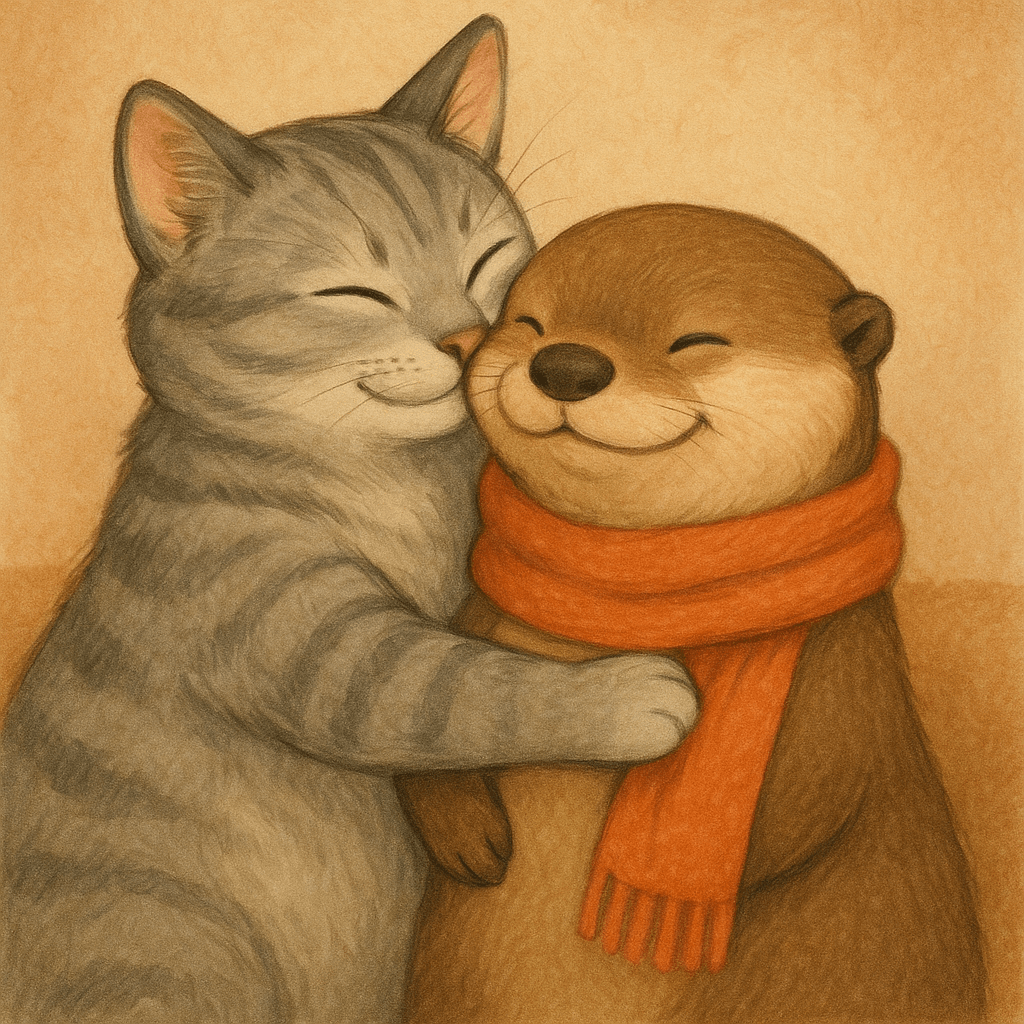
“Generate an image of gray tabby cat hugging an otter with an orange
scarf”
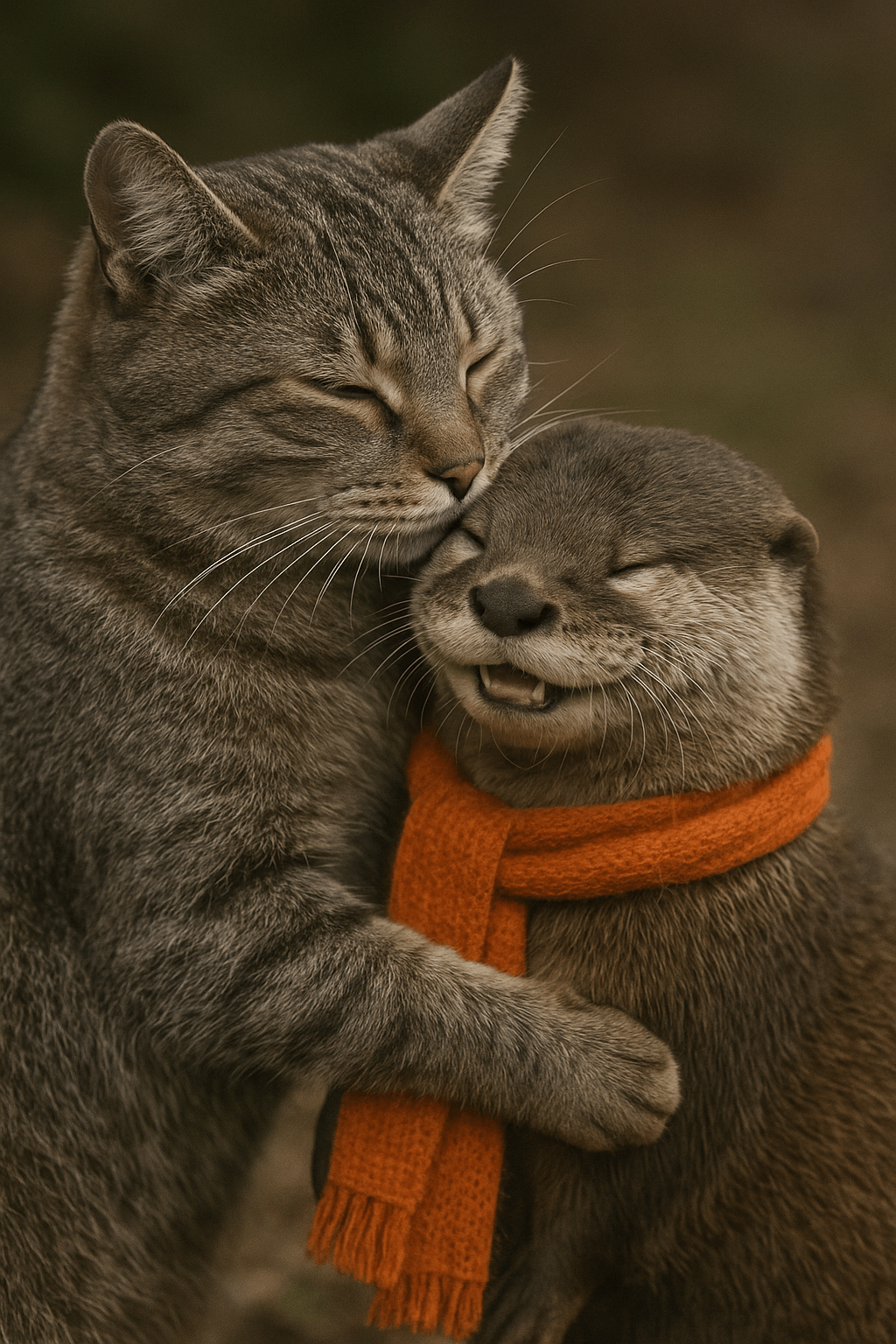
“Now make it look realistic”
Streaming
The Responses API and Image API support streaming image generation. You can stream partial images as the APIs generate them, providing a more interactive experience.
You can adjust the partial_images parameter to receive 0-3 partial images.
If you set partial_images to 0, you will only receive the final image.
For values larger than zero, you may not receive the full number of partial images you requested if the full image is generated more quickly.
Responses API
Stream an image
Python
1
2
3
4
5
6
7
8
9
10
11
12
13
14
15
16
17
18
19
20
21
22
23
24
25
26
27
28
29
30
31import OpenAI from "openai";import fs from "fs";const openai = new OpenAI();function saveBase64Image(filename, imageBase64) { const imageBuffer = Buffer.from(imageBase64, "base64"); fs.writeFileSync(filename, imageBuffer);}const stream = await openai.responses.create({ model: "gpt-5.6", input: "Draw a gorgeous image of a river made of white owl feathers, snaking its way through a serene winter landscape", stream: true, tools: [{ type: "image_generation", partial_images: 2 }],});for await (const event of stream) { if (event.type === "response.image_generation_call.partial_image") { const idx = event.partial_image_index; saveBase64Image(`river-partial-${idx}.png`, event.partial_image_b64); } else if (event.type === "response.completed") { const imageData = event.response.output .filter((output) => output.type === "image_generation_call") .map((output) => output.result); if (imageData.length > 0) { saveBase64Image("river-final.png", imageData[0]); } }}
1
2
3
4
5
6
7
8
9
10
11
12
13
14
15
16
17
18
19
20
21
22
23
24
25
26
27
28
29
30
31
32from openai import OpenAIimport base64client = OpenAI()defsave_base64_image(filename, image_base64): image_bytes = base64.b64decode(image_base64)withopen(filename, "wb") as f: f.write(image_bytes)stream = client.responses.create(model="gpt-5.6",input="Draw a gorgeous image of a river made of white owl feathers, snaking its way through a serene winter landscape",stream=True,tools=[{"type": "image_generation", "partial_images": 2}],)for event in stream:if event.type =="response.image_generation_call.partial_image": idx = event.partial_image_index save_base64_image(f"river-partial-{idx}.png", event.partial_image_b64)elif event.type =="response.completed": image_data = [ output.resultfor output in event.response.outputif output.type =="image_generation_call" ]if image_data: save_base64_image("river-final.png", image_data[0])
1
2
3
4
5
6
7
8
9
10
11
12
13
14
15
16
17
18
19
20
21
22
23
24
25
26
27
28
29
30
31
32
33
34
35
36
37
38
39
40
41
42
43
44
45
46
47
48
49package mainimport ( "context" "encoding/base64" "fmt" "os" "github.com/openai/openai-go/v3" "github.com/openai/openai-go/v3/responses")func main() { client := openai.NewClient() stream := client.Responses.NewStreaming(context.Background(), responses.ResponseNewParams{ Model: "gpt-5.6", Input: responses.ResponseNewParamsInputUnion{ OfString: openai.String("Draw a gorgeous image of a river made of white owl feathers, snaking its way through a serene winter landscape"), }, Tools: []responses.ToolUnionParam{{OfImageGeneration: &responses.ToolImageGenerationParam{PartialImages: openai.Int(2)}}}, }) for stream.Next() { event := stream.Current() if event.Type == "response.image_generation_call.partial_image" { partial := event.AsResponseImageGenerationCallPartialImage() saveImage(fmt.Sprintf("river-partial-%d.png", partial.PartialImageIndex), partial.PartialImageB64) } if event.Type == "response.completed" { for _, output := range event.AsResponseCompleted().Response.Output { if output.Type == "image_generation_call" { saveImage("river-final.png", output.AsImageGenerationCall().Result) } } } } if err := stream.Err(); err != nil { panic(err) }}func saveImage(filename, encoded string) { image, err := base64.StdEncoding.DecodeString(encoded) if err != nil { panic(err) } if err := os.WriteFile(filename, image, 0o600); err != nil { panic(err) }}
Image API
Stream an image
Python
1
2
3
4
5
6
7
8
9
10
11
12
13
14
15
16
17
18
19
20
21
22import fs from "fs";import OpenAI from "openai";const openai = new OpenAI();const prompt = "Draw a gorgeous image of a river made of white owl feathers, snaking its way through a serene winter landscape";const stream = await openai.images.generate({ prompt: prompt, model: "gpt-image-2", stream: true, partial_images: 2,});for await (const event of stream) { if (event.type === "image_generation.partial_image") { const idx = event.partial_image_index; const imageBase64 = event.b64_json; const imageBuffer = Buffer.from(imageBase64, "base64"); fs.writeFileSync(`river${idx}.png`, imageBuffer); }}
1
2
3
4
5
6
7
8
9
10
11
12
13
14
15
16
17
18
19from openai import OpenAIimport base64client = OpenAI()stream = client.images.generate(prompt="Draw a gorgeous image of a river made of white owl feathers, snaking its way through a serene winter landscape",model="gpt-image-2",stream=True,partial_images=2,)for event in stream:if event.type =="image_generation.partial_image": idx = event.partial_image_index image_base64 = event.b64_json image_bytes = base64.b64decode(image_base64)withopen(f"river{idx}.png", "wb") as f: f.write(image_bytes)
1
2
3
4
5
6
7
8
9
10
11
12
13
14
15
16
17
18
19
20
21
22
23
24
25
26
27
28
29
30
31
32
33
34
35
36
37
38
39
40package mainimport ( "context" "encoding/base64" "fmt" "os" "github.com/openai/openai-go/v3")func main() { client := openai.NewClient() stream := client.Images.GenerateStreaming(context.Background(), openai.ImageGenerateParams{ Model: openai.ImageModel("gpt-image-2"), Prompt: "Draw a gorgeous image of a river made of white owl feathers, snaking its way through a serene winter landscape", PartialImages: openai.Int(2), }) for stream.Next() { event := stream.Current() if event.Type != "image_generation.partial_image" { continue } partial := event.AsImageGenerationPartialImage() saveImage(fmt.Sprintf("river%d.png", partial.PartialImageIndex), partial.B64JSON) } if err := stream.Err(); err != nil { panic(err) }}func saveImage(filename, encoded string) { image, err := base64.StdEncoding.DecodeString(encoded) if err != nil { panic(err) } if err := os.WriteFile(filename, image, 0o600); err != nil { panic(err) }}
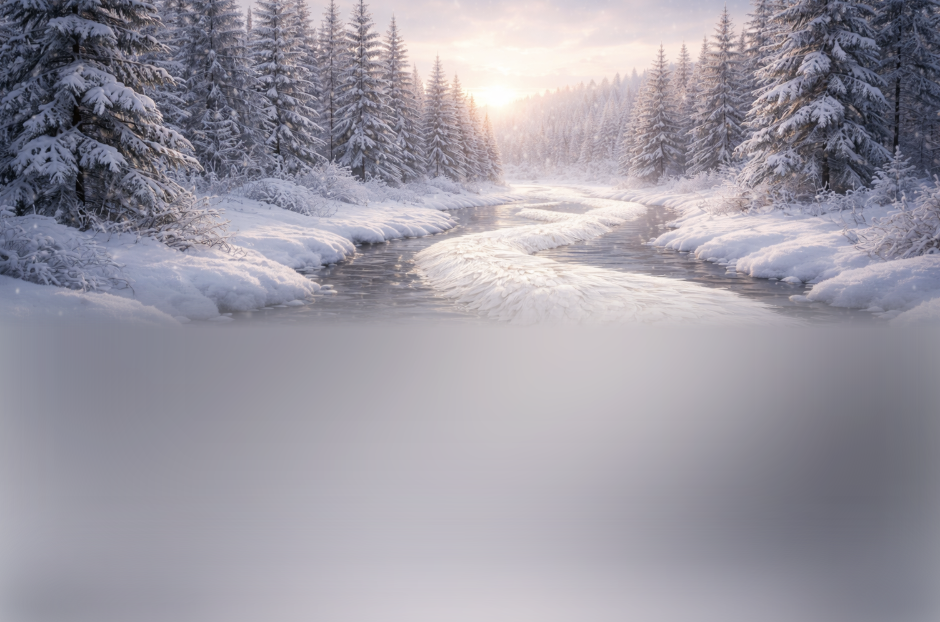
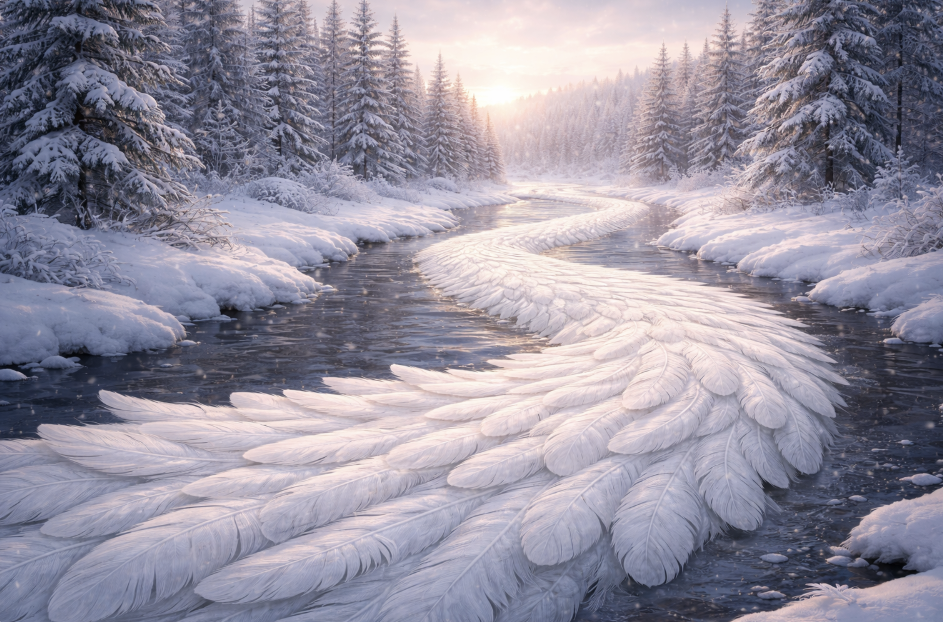
Result
Partial 1
Partial 2
Final image
Prompt: Draw a gorgeous image of a river made of white owl feathers, snaking
its way through a serene winter landscape
Revised prompt
When using the image generation tool in the Responses API, the mainline model (for example, gpt-5.5) will automatically revise your prompt for improved performance.
You can access the revised prompt in the revised_prompt field of the image generation call:
Revised prompt response
1
2
3
4
5
6
7{"id": "ig_123","type": "image_generation_call","status": "completed","revised_prompt": "A gray tabby cat hugging an otter. The otter is wearing an orange scarf. Both animals are cute and friendly, depicted in a warm, heartwarming style.","result": "..."}
1
2
3
4
5
6
7
8
9
10
11
12
13
14
15
16
17
18
19
20
21
22
23
24
25
26
27
28
29
30
31
32
33
34
35
36
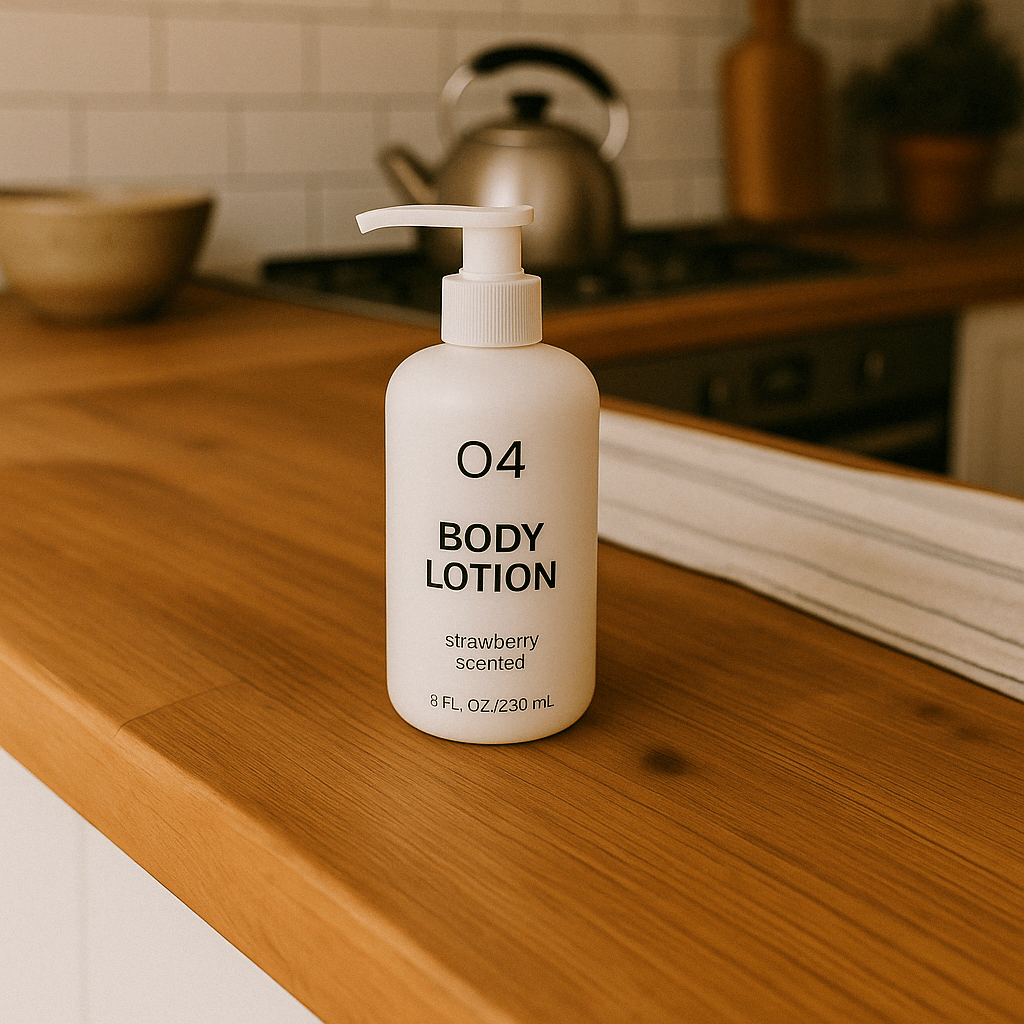
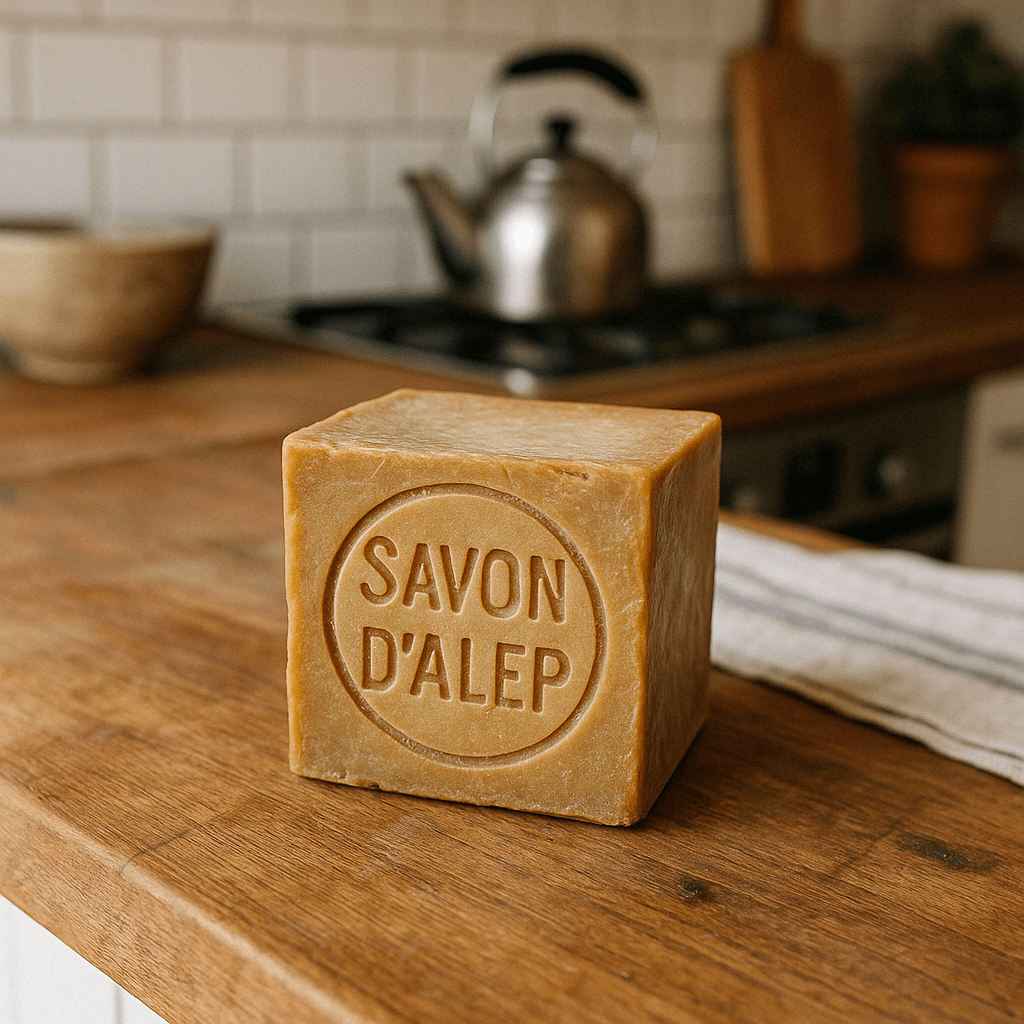
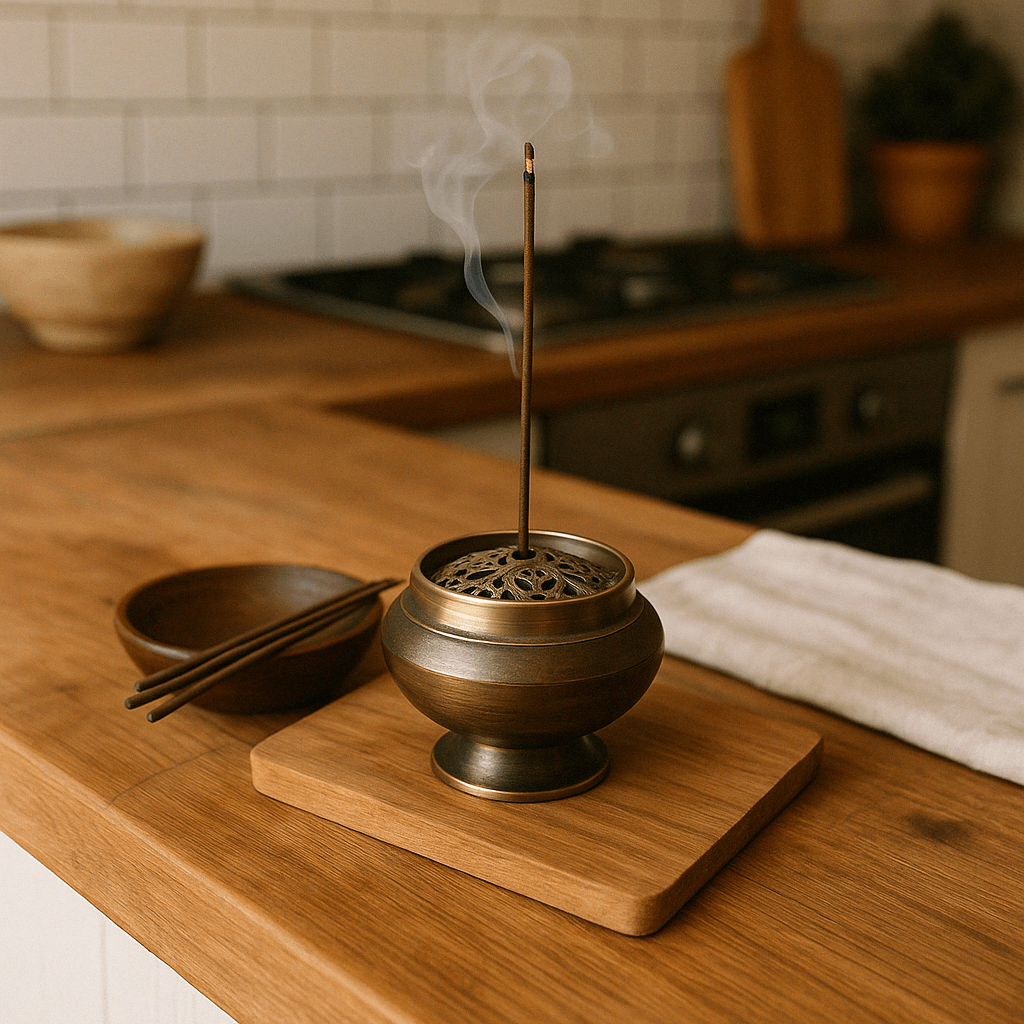
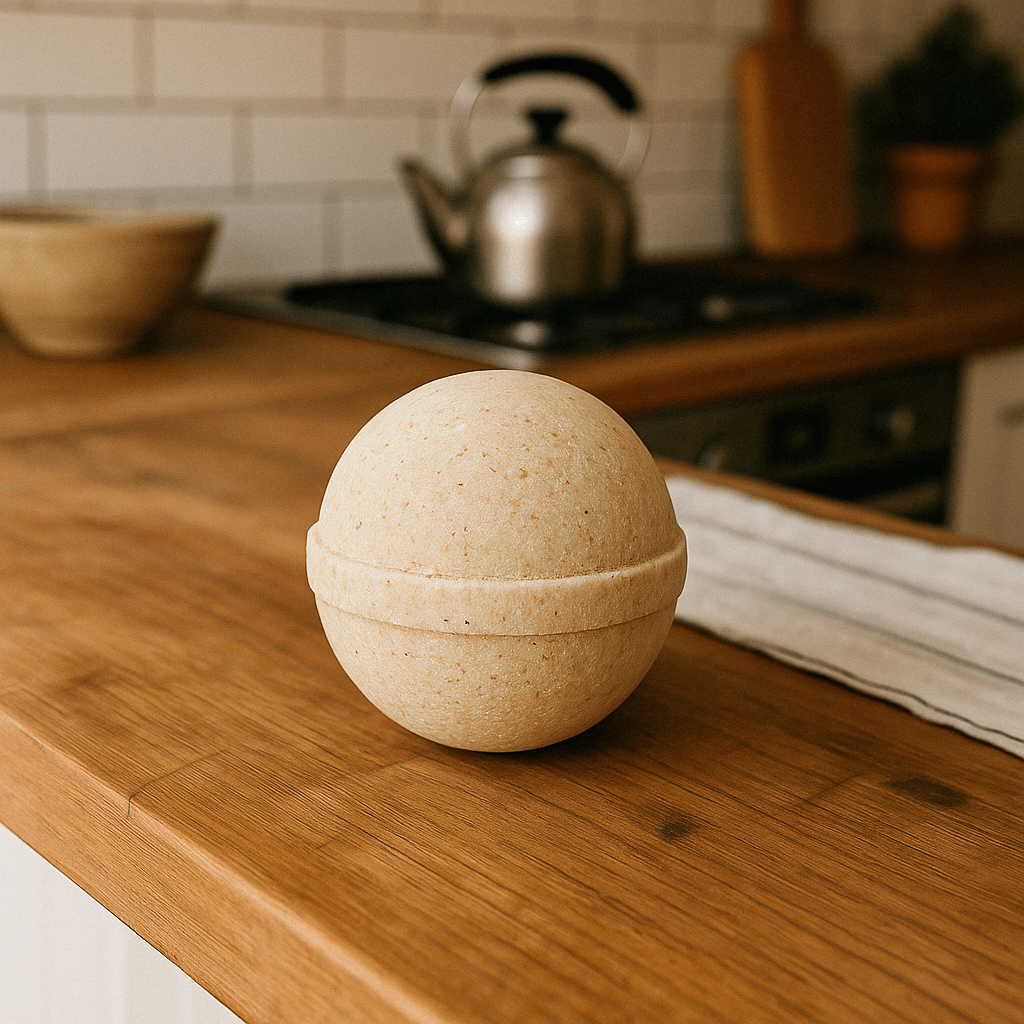
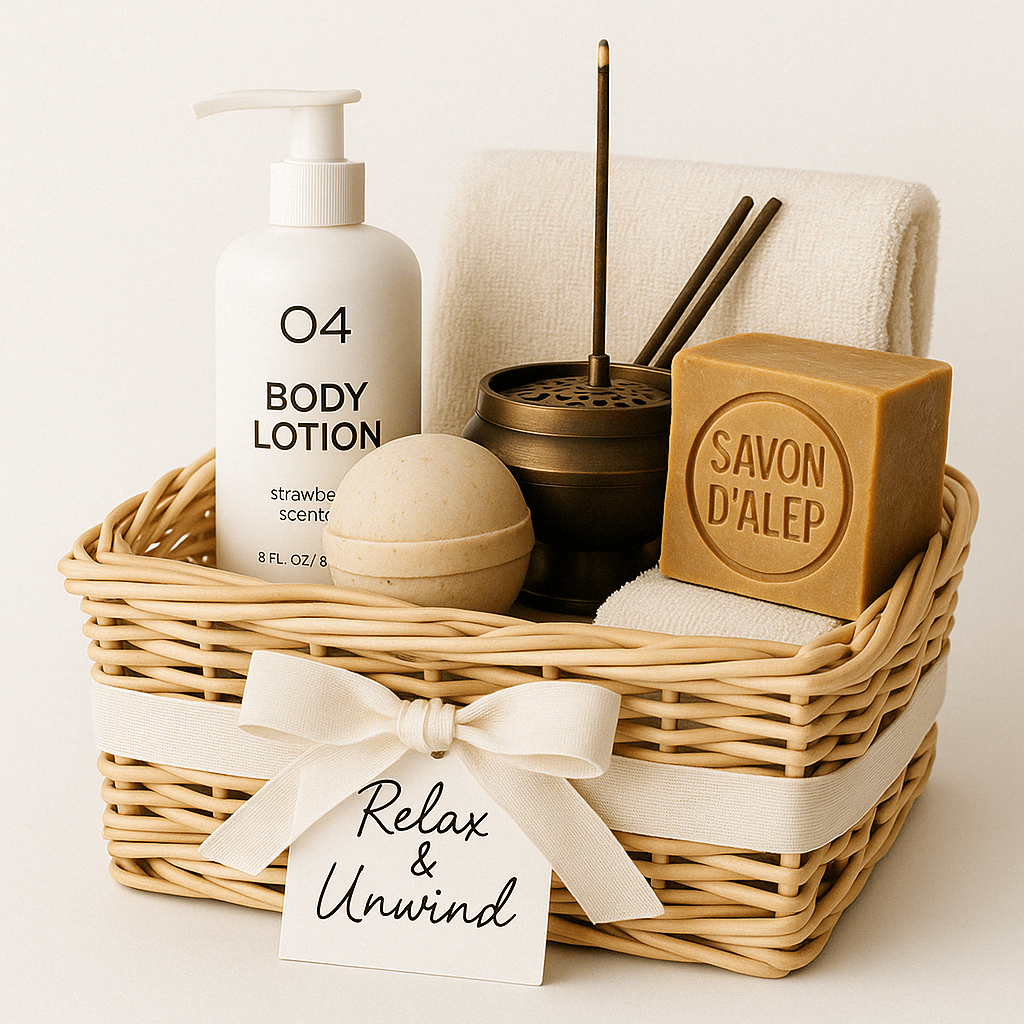
37import fs from "fs";import OpenAI, { toFile } from "openai";const client = new OpenAI();const prompt = `Generate a photorealistic image of a gift basket on a white backgroundlabeled 'Relax & Unwind' with a ribbon and handwriting-like font,containing all the items in the reference pictures.`;const imageFiles = [ "fixtures/bath-bomb.png", "fixtures/body-lotion.png", "fixtures/incense-kit.png", "fixtures/soap.png",];const images = await Promise.all( imageFiles.map( async (file) => await toFile(fs.createReadStream(file), null, { type: "image/png", }) ));const response = await client.images.edit({ model: "gpt-image-2", image: images, prompt,});// Save the image to a fileconst image_base64 = response.data[0].b64_json;const image_bytes = Buffer.from(image_base64, "base64");fs.writeFileSync("basket.png", image_bytes);
1
2
3
4
5
6
7
8
9
10
11
12
13
14
15
16
17
18
19
20
21
22
23
24
25
26
27
28import base64from openai import OpenAIclient = OpenAI()prompt ="""Generate a photorealistic image of a gift basket on a white backgroundlabeled 'Relax & Unwind' with a ribbon and handwriting-like font,containing all the items in the reference pictures."""result = client.images.edit(model="gpt-image-2",image=[open("body-lotion.png", "rb"),open("bath-bomb.png", "rb"),open("incense-kit.png", "rb"),open("soap.png", "rb"), ],prompt=prompt,)image_base64 = result.data[0].b64_jsonimage_bytes = base64.b64decode(image_base64)# Save the image to a filewithopen("gift-basket.png", "wb") as f: f.write(image_bytes)
1
2
3
4
5
6
7
8
9
10
11
12
13
14
15
16
17
18
19
20
21
22
23
24
25
26
27
28
29
30
31
32
33
34
35
36
37
38
39
40
41
42
43
44
45
46
47
48
49
50
51
52
53
54
55
56
57
58
59
60
61
62
63
64
65package mainimport ( "context" "encoding/base64" "io" "os" "github.com/openai/openai-go/v3")func main() { client := openai.NewClient() files, closeFiles := openImages( "bath-bomb.png", "body-lotion.png", "incense-kit.png", "soap.png", ) defer closeFiles() response, err := client.Images.Edit(context.Background(), openai.ImageEditParams{ Model: openai.ImageModel("gpt-image-2"), Image: openai.ImageEditParamsImageUnion{OfFileArray: files}, Prompt: "Generate a photorealistic image of a gift basket on a white background " + "labeled 'Relax & Unwind' with a ribbon and handwriting-like font, containing all the items in the reference pictures.", }) if err != nil { panic(err) } saveImage("basket.png", response.Data[0].B64JSON)}func openImages(names ...string) ([]io.Reader, func()) { images := make([]io.Reader, 0, len(names)) files := make([]*os.File, 0, len(names)) for _, name := range names { file, err := os.Open(name) if err != nil { closeFiles(files) panic(err) } images = append(images, openai.File(file, name, "image/png")) files = append(files, file) } return images, func() { closeFiles(files) }}func closeFiles(files []*os.File) { for _, file := range files { if err := file.Close(); err != nil { panic(err) } }}func saveImage(filename, encoded string) { image, err := base64.StdEncoding.DecodeString(encoded) if err != nil { panic(err) } if err := os.WriteFile(filename, image, 0o600); err != nil { panic(err) }}
1
2
3
4
5
6
7
8
9
10curl -s -D >(grep -i x-request-id >&2) \
  -o >(jq -r '.data[0].b64_json' | base64 --decode > gift-basket.png) \
  -X POST "https://api.openai.com/v1/images/edits" \
  -H "Authorization: Bearer $OPENAI_API_KEY" \
  -F "model=gpt-image-2" \
  -F "image[]=@body-lotion.png" \
  -F "image[]=@bath-bomb.png" \
  -F "image[]=@incense-kit.png" \
  -F "image[]=@soap.png" \
  -F 'prompt=Generate a photorealistic image of a gift basket on a white background labeled "Relax & Unwind" with a ribbon and handwriting-like font, containing all the items in the reference pictures'
1
2
3
4
5
6
7
8
9openai images edit \
  --model gpt-image-2 \
  --image body-lotion.png \
  --image bath-bomb.png \
  --image incense-kit.png \
  --image soap.png \
  --prompt 'Generate a photorealistic image of a gift basket on a white background labeled "Relax & Unwind" with a ribbon and handwriting-like font, containing all the items in the reference pictures' \
  --raw-output \
  --transform 'data.0.b64_json' | base64 --decode > gift-basket.png
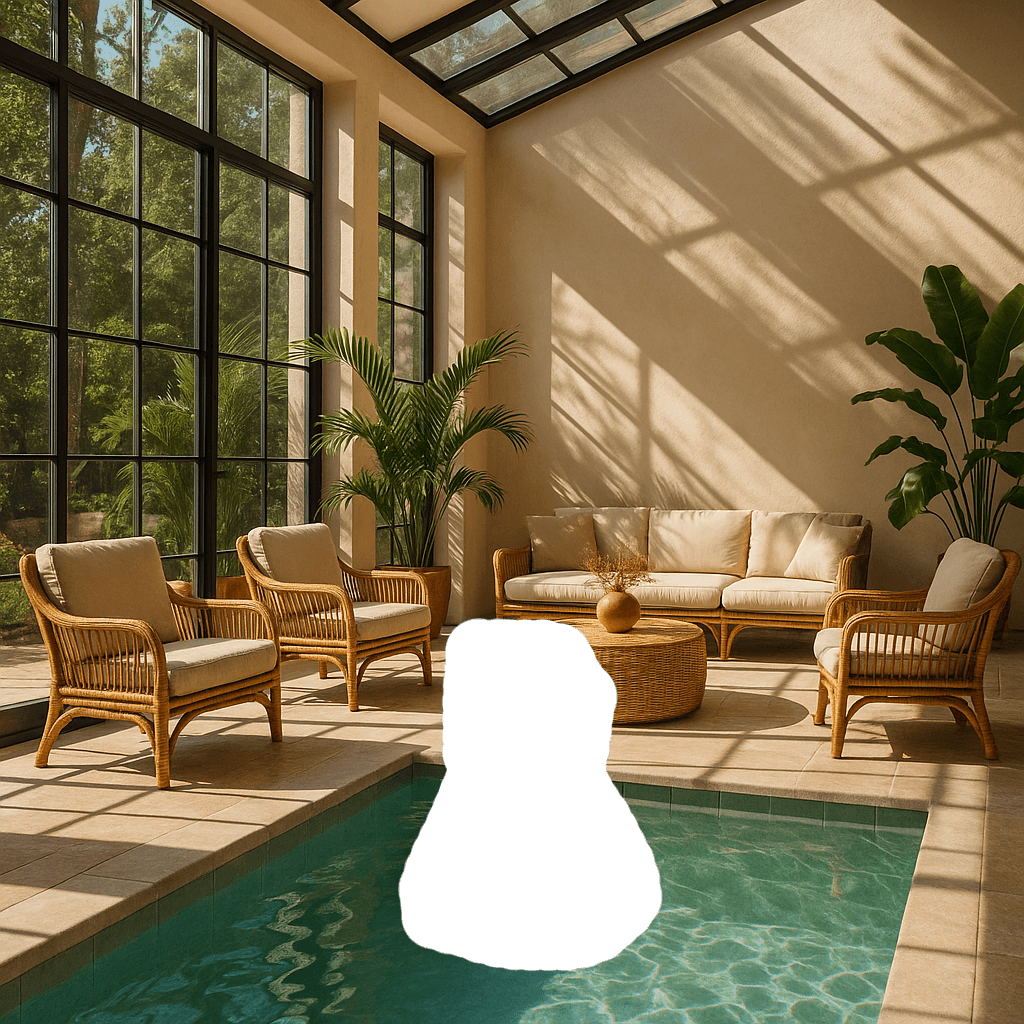
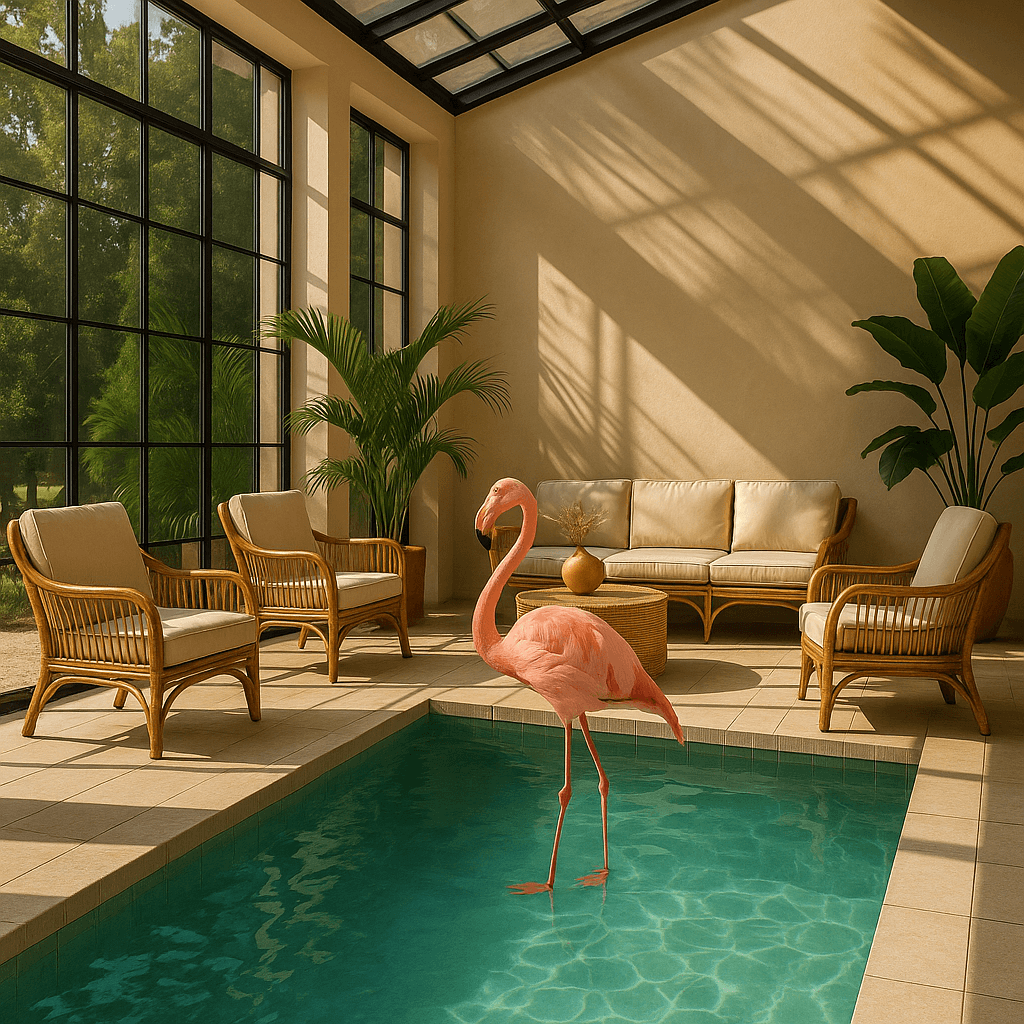
Edit an image using a mask
You can provide a mask to indicate which part of the image should be edited.
When using a mask with GPT Image, additional instructions are sent to the model to help guide the editing process accordingly.
Masking with GPT Image is entirely prompt-based. The model uses the mask as
guidance, but may not follow its exact shape with complete precision.
If you provide multiple input images, the mask will be applied to the first image.
Responses API
Edit an image with a mask
Python
1
2
3
4
5
6
7
8
9
10
11
12
13
14
15
16
17
18
19
20
21
22
23
24
25
26
27
28
29
30
31
32
33
34
35
36
37
38
39
40
41
42
43
44
45
46
47
48
49
50
51
52
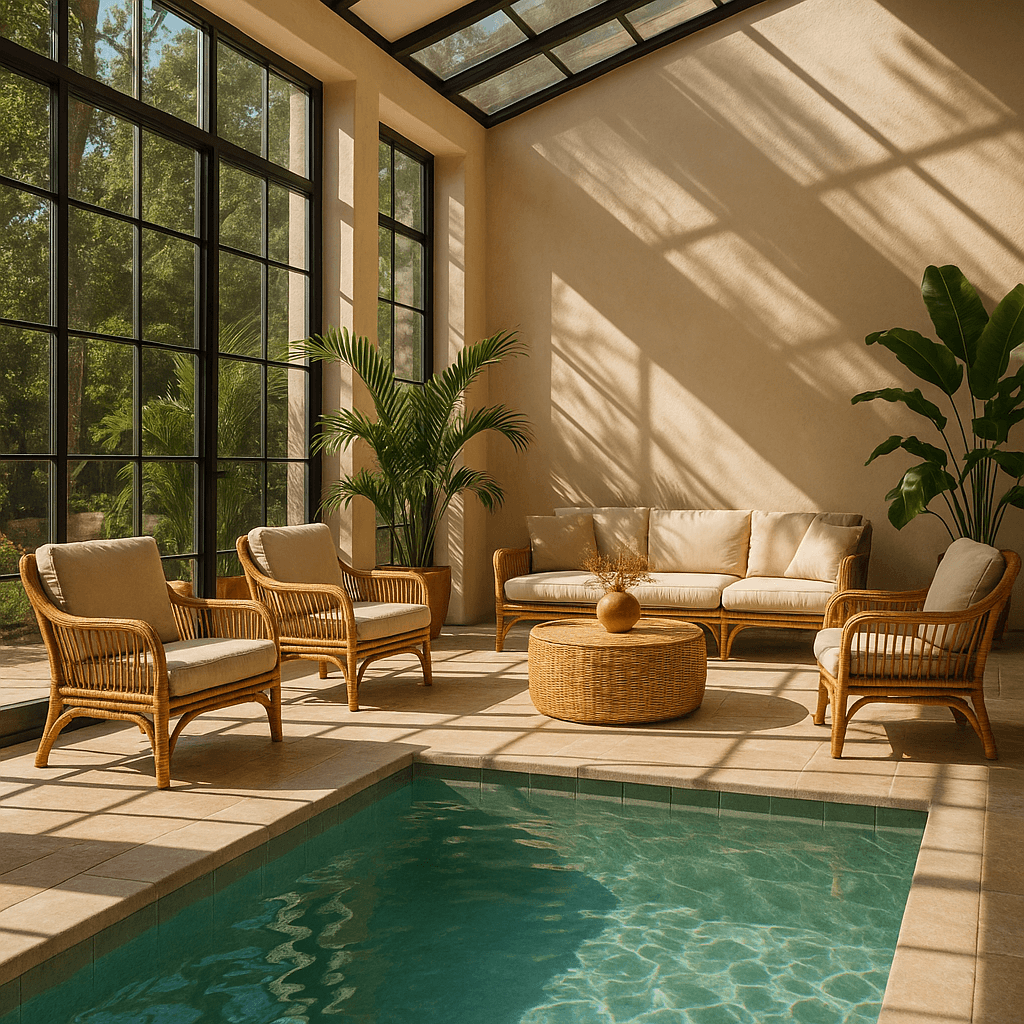
53import fs from "fs";import OpenAI from "openai";const openai = new OpenAI();async function createFile(filePath) { const result = await openai.files.create({ file: fs.createReadStream(filePath), purpose: "vision", }); return result.id;}const fileId = await createFile("fixtures/sunlit_lounge.png");const maskId = await createFile("fixtures/mask.png");const response = await openai.responses.create({ model: "gpt-5.6", input: [ { role: "user", content: [ { type: "input_text", text: "generate an image of the same sunlit indoor lounge area with a pool but the pool should contain a flamingo", }, { type: "input_image", file_id: fileId, detail: "auto", }, ], }, ], tools: [ { type: "image_generation", quality: "high", input_image_mask: { file_id: maskId, }, }, ],});const imageData = response.output .filter((output) => output.type === "image_generation_call") .map((output) => output.result);if (imageData.length > 0) { const imageBase64 = imageData[0]; fs.writeFileSync("lounge.png", Buffer.from(imageBase64, "base64"));}
1
2
3
4
5
6
7
8
9
10
11
12
13
14
15
16
17
18
19
20
21
22
23
24
25
26
27
28
29
30
31
32
33
34
35
36
37
38
39
40
41
42
43
44
45
46
47
48
49
50
51
52
53from openai import OpenAIimport base64client = OpenAI()defcreate_file(file_path):withopen(file_path, "rb") as file_content: result = client.files.create(file=file_content, purpose="vision")return result.idfileId = create_file("sunlit_lounge.png")maskId = create_file("mask.png")response = client.responses.create(model="gpt-5.6",input=[ {"role": "user","content": [ {"type": "input_text","text": "generate an image of the same sunlit indoor lounge area with a pool but the pool should contain a flamingo", }, {"type": "input_image","file_id": fileId, }, ], }, ],tools=[ {"type": "image_generation","quality": "high","input_image_mask": {"file_id": maskId, }, }, ],)image_data = [ output.resultfor output in response.outputif output.type =="image_generation_call"]if image_data: image_base64 = image_data[0]withopen("lounge.png", "wb") as f: f.write(base64.b64decode(image_base64))
1
2
3
4
5
6
7
8
9
10
11
12
13
14
15
16
17
18
19
20
21
22
23
24
25
26
27
28
29
30
31
32
33
34
35
36
37
38
39
40
41
42
43
44
45
46
47
48
49
50
51
52
53
54
55
56
57
58
59
60
61
62
63
64
65
66package mainimport ( "context" "encoding/base64" "os" "github.com/openai/openai-go/v3" "github.com/openai/openai-go/v3/responses")func main() { client := openai.NewClient() imageID := uploadImage(client, "sunlit_lounge.png") maskID := uploadImage(client, "mask.png") response, err := client.Responses.New(context.Background(), responses.ResponseNewParams{ Model: "gpt-5.6", Input: responses.ResponseNewParamsInputUnion{OfInputItemList: responses.ResponseInputParam{ responses.ResponseInputItemParamOfMessage( responses.ResponseInputMessageContentListParam{ responses.ResponseInputContentParamOfInputText("Generate an image of the same sunlit indoor lounge area with a pool, but the pool should contain a flamingo."), {OfInputImage: &responses.ResponseInputImageParam{FileID: openai.String(imageID), Detail: responses.ResponseInputImageDetailAuto}}, }, responses.EasyInputMessageRoleUser, ), }}, Tools: []responses.ToolUnionParam{{OfImageGeneration: &responses.ToolImageGenerationParam{ Quality: "high", InputImageMask: responses.ToolImageGenerationInputImageMaskParam{FileID: openai.String(maskID)}, }}}, }) if err != nil { panic(err) } saveFirstGeneratedImage(response, "lounge.png")}func uploadImage(client openai.Client, filename string) string { file, err := os.Open(filename) if err != nil { panic(err) } defer file.Close() uploaded, err := client.Files.New(context.Background(), openai.FileNewParams{File: file, Purpose: openai.FilePurposeVision}) if err != nil { panic(err) } return uploaded.ID}func saveFirstGeneratedImage(response *responses.Response, filename string) { for _, output := range response.Output { if output.Type != "image_generation_call" { continue } image, err := base64.StdEncoding.DecodeString(output.AsImageGenerationCall().Result) if err != nil { panic(err) } if err := os.WriteFile(filename, image, 0o600); err != nil { panic(err) } return } panic("response did not include an image generation call")}
Image API
Edit an image with a mask
Python
1
2
3
4
5
6
7
8
9
10
11
12
13
14
15
16
17
18
19
20import fs from "fs";import OpenAI, { toFile } from "openai";const client = new OpenAI();const rsp = await client.images.edit({ model: "gpt-image-2", image: await toFile(fs.createReadStream("fixtures/sunlit_lounge.png"), null, { type: "image/png", }), mask: await toFile(fs.createReadStream("fixtures/mask.png"), null, { type: "image/png", }), prompt: "A sunlit indoor lounge area with a pool containing a flamingo",});// Save the image to a fileconst image_base64 = rsp.data[0].b64_json;const image_bytes = Buffer.from(image_base64, "base64");fs.writeFileSync("lounge.png", image_bytes);
1
2
3
4
5
6
7
8
9
10
11
12
13
14
15
16
17
18from openai import OpenAIimport base64client = OpenAI()result = client.images.edit(model="gpt-image-2",image=open("sunlit_lounge.png", "rb"),mask=open("mask.png", "rb"),prompt="A sunlit indoor lounge area with a pool containing a flamingo",)image_base64 = result.data[0].b64_jsonimage_bytes = base64.b64decode(image_base64)# Save the image to a filewithopen("composition.png", "wb") as f: f.write(image_bytes)
1
2
3
4
5
6
7
8curl -s -D >(grep -i x-request-id >&2) \
  -o >(jq -r '.data[0].b64_json' | base64 --decode > lounge.png) \
  -X POST "https://api.openai.com/v1/images/edits" \
  -H "Authorization: Bearer $OPENAI_API_KEY" \
  -F "model=gpt-image-2" \
  -F "mask=@mask.png" \
  -F "image[]=@sunlit_lounge.png" \
  -F 'prompt=A sunlit indoor lounge area with a pool containing a flamingo'
1
2
3
4
5
6
7openai images edit \
  --model gpt-image-2 \
  --image sunlit_lounge.png \
  --mask mask.png \
  --prompt "A sunlit indoor lounge area with a pool containing a flamingo" \
  --raw-output \
  --transform 'data.0.b64_json' | base64 --decode > out.png
Image
Mask
Output
Prompt: a sunlit indoor lounge area with a pool containing a flamingo
Mask requirements
The image to edit and mask must be of the same format and size (less than 50MB in size).
The mask image must also contain an alpha channel. If you’re using an image editing tool to create the mask, make sure to save the mask with an alpha channel.
You can modify a black and white image programmatically to add an alpha channel.
Add an alpha channel to a black and white mask
Python
1
2
3
4
5
6
7
8
9
10
11
12
13
14
15
16
17
18
19
20
21fromPILimport Imagefrom io import BytesIO# 1. Load your black & white mask as a grayscale imagemask = Image.open("mask.png").convert("L")# 2. Convert it to RGBA so it has space for an alpha channelmask_rgba = mask.convert("RGBA")# 3. Then use the mask itself to fill that alpha channelmask_rgba.putalpha(mask)# 4. Convert the mask into bytesbuf = BytesIO()mask_rgba.save(buf, format="PNG")mask_bytes = buf.getvalue()# 5. Save the resulting fileimg_path_mask_alpha ="mask_alpha.png"withopen(img_path_mask_alpha, "wb") as f: f.write(mask_bytes)
The input_fidelity parameter controls how strongly a model preserves details from input images during edits and reference-image workflows. For gpt-image-2, omit this parameter; the API doesn’t allow changing it because the model processes every image input at high fidelity automatically.
Because gpt-image-2 always processes image inputs at high fidelity, image
input tokens can be higher for edit requests that include reference images. To
understand the cost implications, refer to the vision
costs
section.
Customize Image Output
You can configure the following output options:
Size: Image dimensions (for example, 1024x1024, 1024x1536)
Quality: Rendering quality (for example, low, medium, high)
Format: File output format
Compression: Compression level (0-100%) for JPEG and WebP formats
Background: Opaque or automatic
size, quality, and background support the auto option, where the model will automatically select the best option based on the prompt.
gpt-image-2 doesn’t currently support transparent backgrounds. Requests with
background: "transparent" aren’t supported for this model.
Size and quality options
gpt-image-2 accepts any resolution in the size parameter when it satisfies the constraints below. Square images are typically fastest to generate.
Popular sizes
1024x1024 (square)
1536x1024 (landscape)
1024x1536 (portrait)
2048x2048 (2K square)
2048x1152 (2K landscape)
3840x2160 (4K landscape)
2160x3840 (4K portrait)
auto (default)
Size constraints
Maximum edge length must be less than or equal to
3840px
Both edges must be multiples of 16px
Long edge to short edge ratio must not exceed 3:1
Total pixels must be at least 655,360 and no more than
8,294,400
Quality options
low
medium
high
auto (default)
Use quality: "low" for fast drafts, thumbnails, and quick iterations. It is
the fastest option and works well for many common use cases before you move to
medium or high for final assets.
Outputs that contain more than 2560x1440 (3,686,400) total pixels,
typically referred to as 2K, are considered experimental.
Output format
The Image API returns base64-encoded image data.
The default format is png, but you can also request jpeg or webp.
If using jpeg or webp, you can also specify the output_compression parameter to control the compression level (0-100%). For example, output_compression=50 will compress the image by 50%.
Using jpeg is faster than png, so you should prioritize this format if
latency is a concern.
Limitations
GPT Image models (gpt-image-2, gpt-image-1.5, gpt-image-1, and gpt-image-1-mini) are powerful and versatile image generation models, but they still have some limitations to be aware of:
Latency: Complex prompts may take up to 2 minutes to process.
Text Rendering: Although significantly improved, the model can still struggle with precise text placement and clarity.
Consistency: While capable of producing consistent imagery, the model may occasionally struggle to maintain visual consistency for recurring characters or brand elements across multiple generations.
Composition Control: Despite improved instruction following, the model may have difficulty placing elements precisely in structured or layout-sensitive compositions.
Content Moderation
All prompts and generated images are filtered in accordance with our content policy.
For image generation using GPT Image models (gpt-image-2, gpt-image-1.5, gpt-image-1, and gpt-image-1-mini), you can control moderation strictness with the moderation parameter. This parameter supports two values:
auto (default): Standard filtering that seeks to limit creating certain categories of potentially age-inappropriate content.
low: Less restrictive filtering.
Handling blocked requests and other errors
Handle image generation failures the same way you handle other API errors: check the HTTP status or SDK exception type, log the request ID, and refer to the error codes guide for authentication, quota, rate-limit, and server failures. Retries are appropriate for transient failures like 429 and 5xx, but not for image generation user errors that require changing the request.
Some image generation failures are user-correctable and may return error.type = "image_generation_user_error". Don’t automatically retry these errors without modifying the prompt or input images. For programmatic handling, use error.code as the stable discriminator.
When error.code = "moderation_blocked", the error may also include an optional error.moderation_details object:
The moderation_details object provides coarse debugging context without exposing internal classifier labels or scores.
moderation_stage can be:
input: The block came from the prompt or request inputs.
output: The block came from a generated image or downstream output moderation stage.
unknown: A rare fallback when provenance is hard to determine.
categories contains coarse public labels. For example, you might see values like harassment, self-harm, sexual, or violence.
For most apps, keep the primary end-user message generic. Use moderation_details for developer logs, support workflows, analytics, and light remediation hints.
For example, if harassment appears, suggest removing abusive or targeting language. If the block happened at the input stage, guide the user to revise the prompt. If it happened at the output stage, treat it as a generated result safety block and distinguish it in your logs. Always branch on error.code = "moderation_blocked" first, and treat moderation_details as optional extra context.
Handle moderation-blocked image generation errors
JavaScript
1
2
3
4
5
6
7
8
9
10
11
12
13
14
15
16
17
18
19
20
21
22
23
24
25
26
27
28
29
30
31
32
33
34
35
36
37
38
39
40
41
42import OpenAI from"openai";constopenai=newOpenAI();try {// The same error handling pattern applies to image generation requests,// image edits, and Responses API tool calls that generate images.await openai.images.generate({ model: "gpt-image-2", prompt: "Create a poster humiliating my coworker with insulting captions", });} catch (error) {if (error?.code !=="moderation_blocked") {throw error; }constmoderationDetails= error?.moderation_details;constcategories= moderationDetails?.categories ?? [];conststage= moderationDetails?.moderation_stage;let hint ="This request could not be completed because it did not meet safety requirements.";if (categories.includes("harassment")) { hint ="Try removing abusive or targeting language and focus on neutral visual details instead."; } elseif (stage ==="input") { hint ="Try revising the prompt or input images and submit the request again."; } elseif (stage ==="output") { hint ="The generated result was blocked by a safety check. Try changing the prompt and generating again."; } console.error("Image generation blocked", { request_id: error?.request_id, code: error?.code, moderation_details: moderationDetails, }); console.log(hint);}
1
2
3
4
5
6
7
8
9
10
11
12
13
14
15
16
17
18
19
20
21
22
23
24
25
26
27
28
29
30
31
32
33
34
35
36
37
38
39
40import openaifrom openai import OpenAIclient = OpenAI()try: # The same error handling pattern applies to image generation requests, # image edits, and Responses API tool calls that generate images. client.images.generate( model="gpt-image-2", prompt="Create a poster humiliating my coworker with insulting captions", )except openai.BadRequestError as error: if error.code != "moderation_blocked": raise error_body = error.body if isinstance(error.body, dict) else {} moderation_details = error_body.get("moderation_details") or {} categories = moderation_details.get("categories") or [] stage = moderation_details.get("moderation_stage") hint = "This request could not be completed because it did not meet safety requirements." if "harassment" in categories: hint = "Try removing abusive or targeting language and focus on neutral visual details instead." elif stage == "input": hint = "Try revising the prompt or input images and submit the request again." elif stage == "output": hint = "The generated result was blocked by a safety check. Try changing the prompt and generating again." print( "Image generation blocked", { "request_id": error.request_id, "code": error.code, "moderation_details": moderation_details, }, ) print(hint)
1
2
3
4
5
6
7
8
9
10
11
12
13
14
15
16
17
18
19
20
21
22
23
24
25
26
27
28
29
30
31
32
33
34
35
36
37
38
39
40
41
42
43
44
45
46
47
48package mainimport ( "context" "encoding/json" "errors" "fmt" "slices" "github.com/openai/openai-go/v3")func main() { client := openai.NewClient() _, err := client.Images.Generate(context.Background(), openai.ImageGenerateParams{ Model: openai.ImageModel("gpt-image-2"), Prompt: "Create a poster humiliating my coworker with insulting captions", }) if err == nil { return } var apiError *openai.Error if !errors.As(err, &apiError) || apiError.Code != "moderation_blocked" { panic(err) } var body struct { ModerationDetails struct { Categories []string `json:"categories"` ModerationStage string `json:"moderation_stage"` } `json:"moderation_details"` } if err := json.Unmarshal([]byte(apiError.RawJSON()), &body); err != nil { panic(err) } hint := "This request could not be completed because it did not meet safety requirements." if slices.Contains(body.ModerationDetails.Categories, "harassment") { hint = "Try removing abusive or targeting language and focus on neutral visual details instead." } else if body.ModerationDetails.ModerationStage == "input" { hint = "Try revising the prompt or input images and submit the request again." } else if body.ModerationDetails.ModerationStage == "output" { hint = "The generated result was blocked by a safety check. Try changing the prompt and generating again." } fmt.Printf("Image generation blocked (%s): %s\n", apiError.Code, hint)}
Supported models
When using image generation in the Responses API, gpt-5 and newer models should support the image generation tool. Check the model detail page for your model to confirm if your desired model can use the image generation tool.
Cost and latency
gpt-image-2 output tokens
For gpt-image-2, use the calculator to estimate output tokens from the requested quality and size:
Quality
Output tokens
196
Models prior to gpt-image-2
GPT Image models prior to gpt-image-2 generate images by first producing specialized image tokens. Both latency and eventual cost are proportional to the number of tokens required to render an image—larger image sizes and higher quality settings result in more tokens.
The number of tokens generated depends on image dimensions and quality:
Quality
Square (1024×1024)
Portrait (1024×1536)
Landscape (1536×1024)
Low
272 tokens
408 tokens
400 tokens
Medium
1056 tokens
1584 tokens
1568 tokens
High
4160 tokens
6240 tokens
6208 tokens
Note that you will also need to account for input tokens: text tokens for the prompt and image tokens for the input images if editing images.
Because gpt-image-2 always processes image inputs at high fidelity, edit requests that include reference images can use more input tokens.
Refer to the pricing page for current
text and image token prices, and use the Calculating costs
section below to estimate request costs.
The final cost is the sum of:
input text tokens
input image tokens if using the edits endpoint
image output tokens
Calculating costs
Use the pricing calculator below to estimate request costs for GPT Image models.
gpt-image-2 supports thousands of valid resolutions; the table below lists the
same sizes used for previous GPT Image models for comparison. For GPT Image 1.5,
GPT Image 1, and GPT Image 1 Mini, the legacy per-image output pricing table is
also listed below. You should still account for text and image input tokens when
estimating the total cost of a request.
A larger non-square resolution can sometimes produce fewer output tokens than
a smaller or square resolution at the same quality setting.
Model
Quality
1024 x 1024
1024 x 1536
1536 x 1024
GPT Image 2
Additional sizes available
Low
$0.006
$0.005
$0.005
Medium
$0.053
$0.041
$0.041
High
$0.211
$0.165
$0.165
GPT Image 1.5
Low
$0.009
$0.013
$0.013
Medium
$0.034
$0.05
$0.05
High
$0.133
$0.2
$0.2
GPT Image 1
Low
$0.011
$0.016
$0.016
Medium
$0.042
$0.063
$0.063
High
$0.167
$0.25
$0.25
GPT Image 1 Mini
Low
$0.005
$0.006
$0.006
Medium
$0.011
$0.015
$0.015
High
$0.036
$0.052
$0.052
Partial images cost
If you want to stream image generation using the partial_images parameter, each partial image will incur an additional 100 image output tokens.