
Weather.gov example
The NSW (National Weather Service) maintains a public API that users can query to receive a weather forecast for any lat-long point. To retrieve a forecast, there’s 2 steps:
- A user provides a lat-long to the api.weather.gov/points API and receives back a WFO (weather forecast office), grid-X, and grid-Y coordinates
- Those 3 elements feed into the api.weather.gov/forecast API to retrieve a forecast for that coordinate
For the purpose of this exercise, let’s build a Custom GPT where a user writes a city, landmark, or lat-long coordinates, and the Custom GPT answers questions about a weather forecast in that location.
Step 1: Write and test Open API schema (using Actions GPT)
A GPT Action requires an Open API schema to describe the parameters of the API call, which is a standard for describing APIs.
OpenAI released a public Actions GPT to help developers write this schema. For example, go to the Actions GPT and ask: “Go to https://www.weather.gov/documentation/services-web-api and read the documentation on that page. Build an Open API Schema for the /points/{latitude},{longitude} and /gridpoints/{office}/{gridX},{gridY}/forecast” API calls”
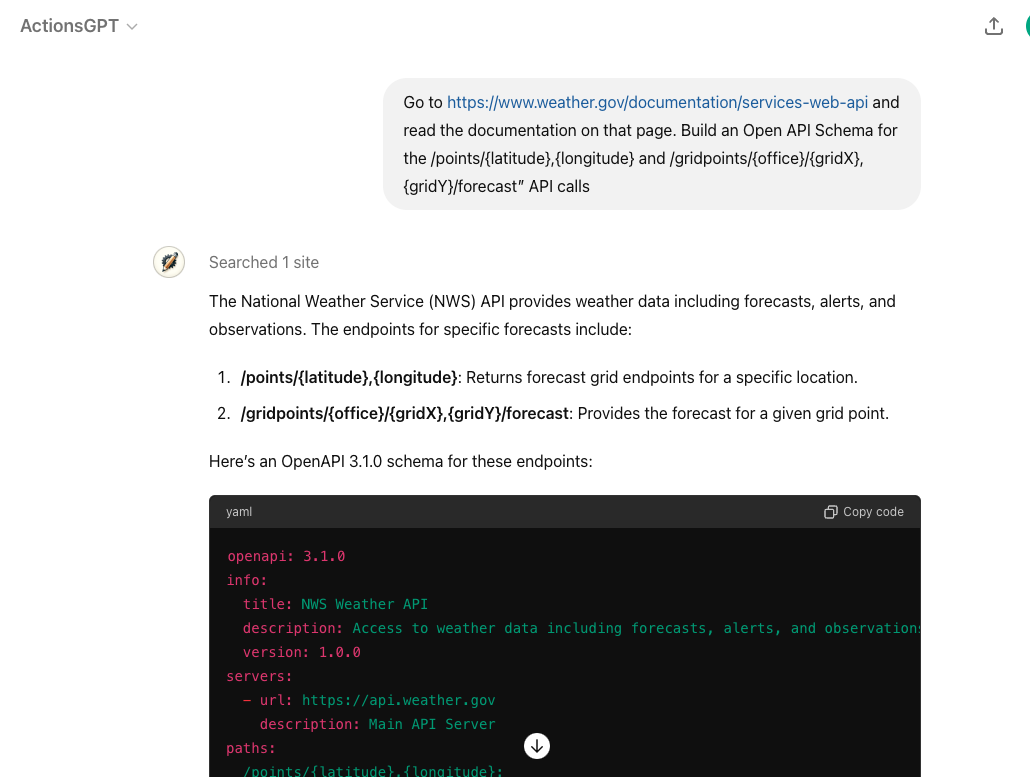
Below is the full Open API Schema that the Actions GPT Returned:
openapi: 3.1.0
info:
title: NWS Weather API
description: Access to weather data including forecasts, alerts, and observations.
version: 1.0.0
servers:
- url: https://api.weather.gov
description: Main API Server
paths:
/points/{latitude},{longitude}:
get:
operationId: getPointData
summary: Get forecast grid endpoints for a specific location
parameters:
- name: latitude
in: path
required: true
schema:
type: number
format: float
description: Latitude of the point
- name: longitude
in: path
required: true
schema:
type: number
format: float
description: Longitude of the point
responses:
"200":
description: Successfully retrieved grid endpoints
content:
application/json:
schema:
type: object
properties:
properties:
type: object
properties:
forecast:
type: string
format: uri
forecastHourly:
type: string
format: uri
forecastGridData:
type: string
format: uri
/gridpoints/{office}/{gridX},{gridY}/forecast:
get:
operationId: getGridpointForecast
summary: Get forecast for a given grid point
parameters:
- name: office
in: path
required: true
schema:
type: string
description: Weather Forecast Office ID
- name: gridX
in: path
required: true
schema:
type: integer
description: X coordinate of the grid
- name: gridY
in: path
required: true
schema:
type: integer
description: Y coordinate of the grid
responses:
"200":
description: Successfully retrieved gridpoint forecast
content:
application/json:
schema:
type: object
properties:
properties:
type: object
properties:
periods:
type: array
items:
type: object
properties:
number:
type: integer
name:
type: string
startTime:
type: string
format: date-time
endTime:
type: string
format: date-time
temperature:
type: integer
temperatureUnit:
type: string
windSpeed:
type: string
windDirection:
type: string
icon:
type: string
format: uri
shortForecast:
type: string
detailedForecast:
type: stringChatGPT uses the info at the top (including the description in particular) to determine if this action is relevant for the user query.
info:
title: NWS Weather API
description: Access to weather data including forecasts, alerts, and observations.
version: 1.0.0Then the parameters below further define each part of the schema. For example, we’re informing ChatGPT that the office parameter refers to the Weather Forecast Office (WFO).
/gridpoints/{office}/{gridX},{gridY}/forecast:
get:
operationId: getGridpointForecast
summary: Get forecast for a given grid point
parameters:
- name: office
in: path
required: true
schema:
type: string
description: Weather Forecast Office IDKey: Pay special attention to the schema names and descriptions that you use in this Open API schema. ChatGPT uses those names and descriptions to understand (a) which API action should be called and (b) which parameter should be used. If a field is restricted to only certain values, you can also provide an “enum” with descriptive category names.
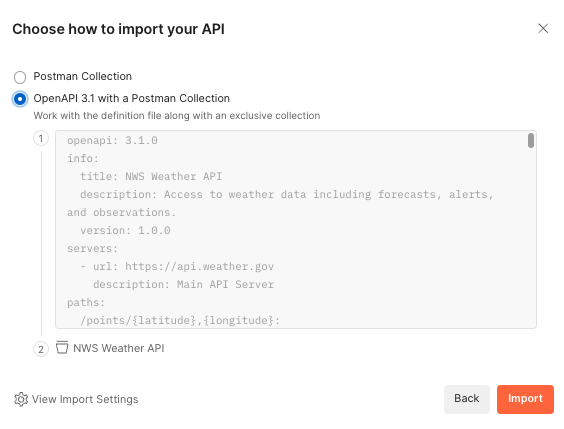
While you can just try the Open API schema directly in a GPT Action, debugging directly in ChatGPT can be a challenge. We recommend using a 3rd party service, like Postman, to test that your API call is working properly. Postman is free to sign up, verbose in its error-handling, and comprehensive in its authentication options. It even gives you the option of importing Open API schemas directly (see below).
Step 2: Identify authentication requirements
This Weather 3rd party service does not require authentication, so you can skip that step for this Custom GPT. For other GPT Actions that do require authentication, there are 2 options: API Key or OAuth. Asking ChatGPT can help you get started for most common applications. For example, if I needed to use OAuth to authenticate to Google Cloud, I can provide a screenshot and ask for details: “I’m building a connection to Google Cloud via OAuth. Please provide instructions for how to fill out each of these boxes.”
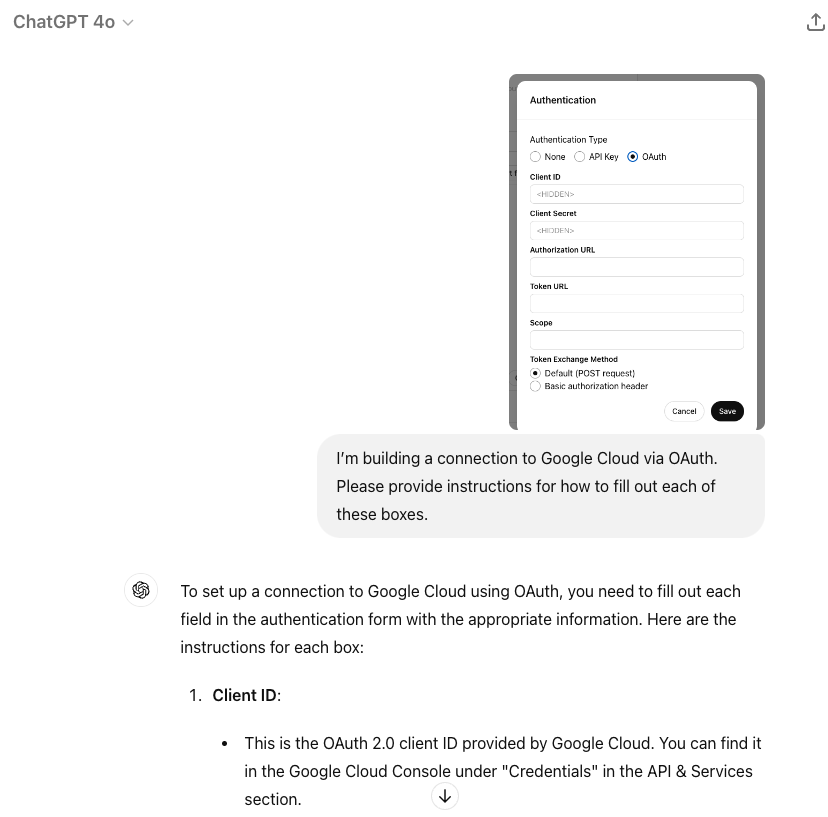
Often, ChatGPT provides the correct directions on all 5 elements. Once you have those basics ready, try testing and debugging the authentication in Postman or another similar service. If you encounter an error, provide the error to ChatGPT, and it can usually help you debug from there.
Step 3: Create the GPT Action and test
Now is the time to create your Custom GPT. If you’ve never created a Custom GPT before, start at our Creating a GPT guide.
- Provide a name, description, and image to describe your Custom GPT
- Go to the Action section and paste in your Open API schema. Take a note of the Action names and json parameters when writing your instructions.
- Add in your authentication settings
- Go back to the main page and add in instructions
There are many ways to write successful instructions: the most important thing is that the instructions enable the model to reflect the user’s preferences.
Typically, there are three sections:
- Context to explain to the model what the GPT Action(s) is doing
- Instructions on the sequence of steps – this is where you reference the Action name and any parameters the API call needs to pay attention to
- Additional Notes if there’s anything to keep in mind
Here’s an example of the instructions for the Weather GPT. Notice how the instructions refer to the API action name and json parameters from the Open API schema.
**Context**: A user needs information related to a weather forecast of a specific location.

**Instructions**:
1. The user will provide a lat-long point or a general location or landmark (e.g. New York City, the White House). If the user does not provide one, ask for the relevant location
2. If the user provides a general location or landmark, convert that into a lat-long coordinate. If required, browse the web to look up the lat-long point.
3. Run the "getPointData" API action and retrieve back the gridId, gridX, and gridY parameters.
4. Apply those variables as the office, gridX, and gridY variables in the "getGridpointForecast" API action to retrieve back a forecast
5. Use that forecast to answer the user's question

**Additional Notes**:
- Assume the user uses US weather units (e.g. Fahrenheit) unless otherwise specified
- If the user says "Let's get started" or "What do I do?", explain the purpose of this Custom GPT
Test the GPT Action
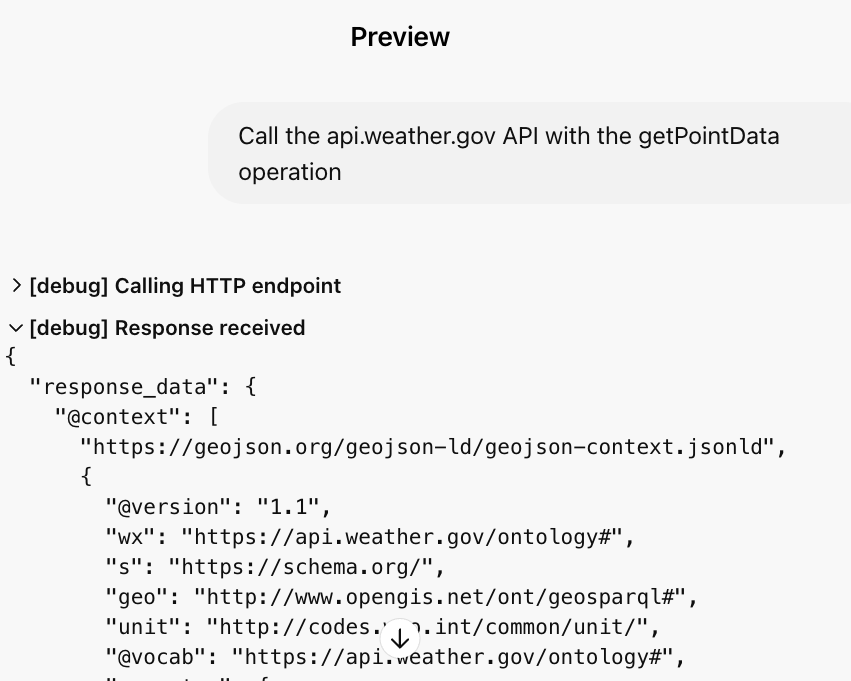
Next to each action, you’ll see a Test button. Click on that for each action. In the test, you can see the detailed input and output of each API call.
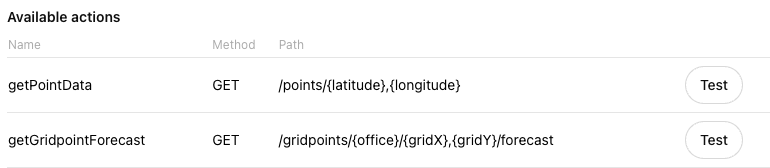
If your API call is working in a 3rd party tool like Postman and not in ChatGPT, there are a few possible culprits:
- The parameters in ChatGPT are wrong or missing
- An authentication issue in ChatGPT
- Your instructions are incomplete or unclear
- The descriptions in the Open API schema are unclear
Step 4: Set up callback URL in the 3rd party app
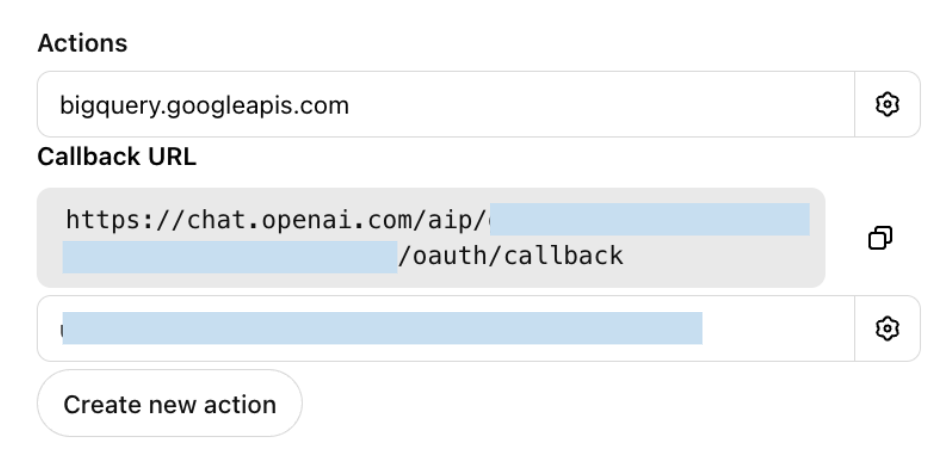
If your GPT Action uses OAuth Authentication, you’ll need to set up the callback URL in your 3rd party application. Once you set up a GPT Action with OAuth, ChatGPT provides you with a callback URL (this will update any time you update one of the OAuth parameters). Copy that callback URL and add it to the appropriate place in your application.
Step 5: Evaluate the Custom GPT
Even though you tested the GPT Action in the step above, you still need to evaluate if the Instructions and GPT Action function in the way users expect. Try to come up with at least 5-10 representative questions (the more, the better) of an “evaluation set” of questions to ask your Custom GPT.
Key: Test that the Custom GPT handles each one of your questions as you expect.
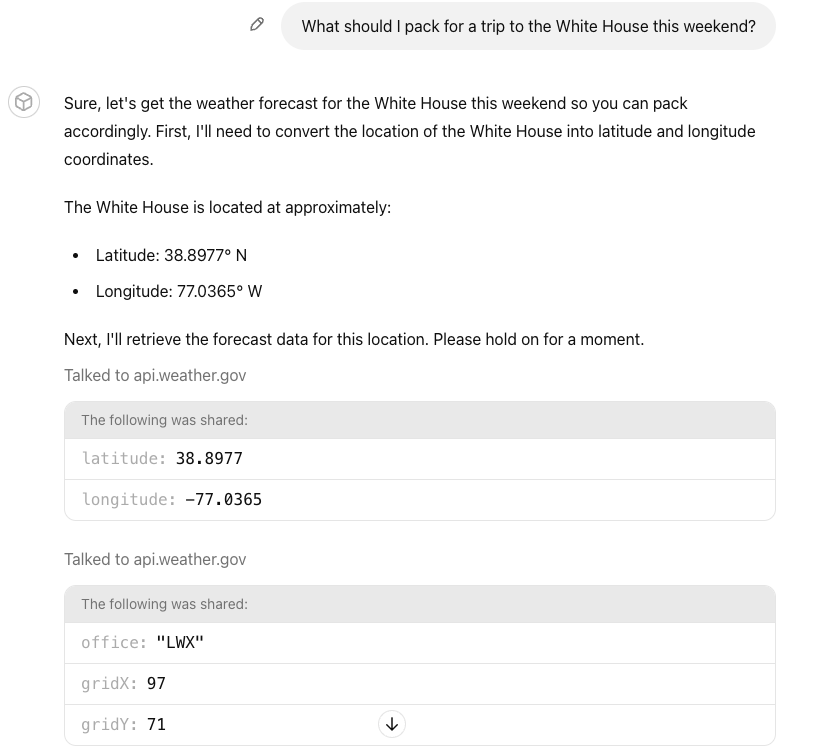
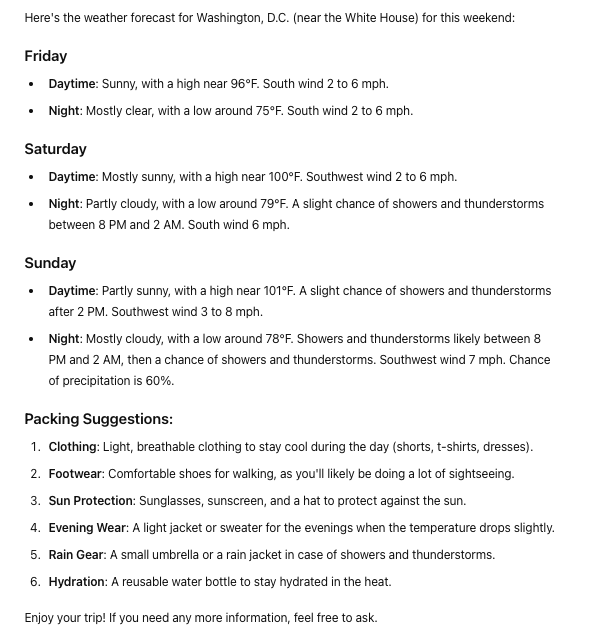
An example question: “What should I pack for a trip to the White House this weekend?” tests the Custom GPT’s ability to: (1) convert a landmark to a lat-long, (2) run both GPT Actions, and (3) answer the user’s question.
Common Debugging Steps
Challenge: The GPT Action is calling the wrong API call (or not calling it at all)
- Solution: Make sure the descriptions of the Actions are clear - and refer to the Action names in your Custom GPT Instructions
Challenge: The GPT Action is calling the right API call but not using the parameters correctly
- Solution: Add or modify the descriptions of the parameters in the GPT Action
Challenge: The Custom GPT is not working but I am not getting a clear error
- Solution: Make sure to test the Action - there are more robust logs in the test window. If that is still unclear, use Postman or another 3rd party service to better diagnose.
Challenge: The Custom GPT is giving an authentication error
- Solution: Make sure your callback URL is set up correctly. Try testing the exact same authentication settings in Postman or another 3rd party service
Challenge: The Custom GPT cannot handle more difficult / ambiguous questions
- Solution: Try to prompt engineer your instructions in the Custom GPT. See examples in our prompt engineering guide
This concludes the guide to building a Custom GPT. Good luck building and leveraging the OpenAI developer forum if you have additional questions.