
The review pane helps you understand what Codex changed, give targeted feedback, and decide what to keep.
It only works for projects that live inside a Git repository. If your project isn’t a Git repository yet, the review pane will prompt you to create one.
What changes it shows
The review pane reflects the state of your Git repository, not just what Codex edited. That means it will show:
- Changes made by Codex
- Changes you made yourself
- Any other uncommitted changes in the repo
By default, the review pane focuses on uncommitted changes. You can also switch the scope to:
- All branch changes (diff against your base branch)
- Last turn changes (just the most recent assistant turn)
When working locally, you can also toggle between Unstaged and Staged changes.
Navigating the review pane
- Clicking a file name typically opens that file in your chosen editor. You can choose the default editor in settings.
- Clicking the file name background expands or collapses the diff.
- Clicking a single line while holding Cmd pressed will open the line in your chosen editor.
- If you are happy with a change you can stage the changes or revert changes you don’t like.
Inline comments for feedback
Inline comments let you attach feedback directly to specific lines in the diff. This is often the fastest way to guide Codex to the right fix.
To leave an inline comment:
- Open the review pane.
- Hover the line you want to comment on.
- Click the + button that appears.
- Write your feedback and submit it.
- After you finish leaving feedback, send a message back to the thread.
Because comments are line-specific, Codex can respond more precisely than with a general instruction.
Codex treats inline comments as review guidance. After leaving comments, send a follow-up message that makes your intent explicit, for example “Address the inline comments and keep the scope minimal.”
Code review results
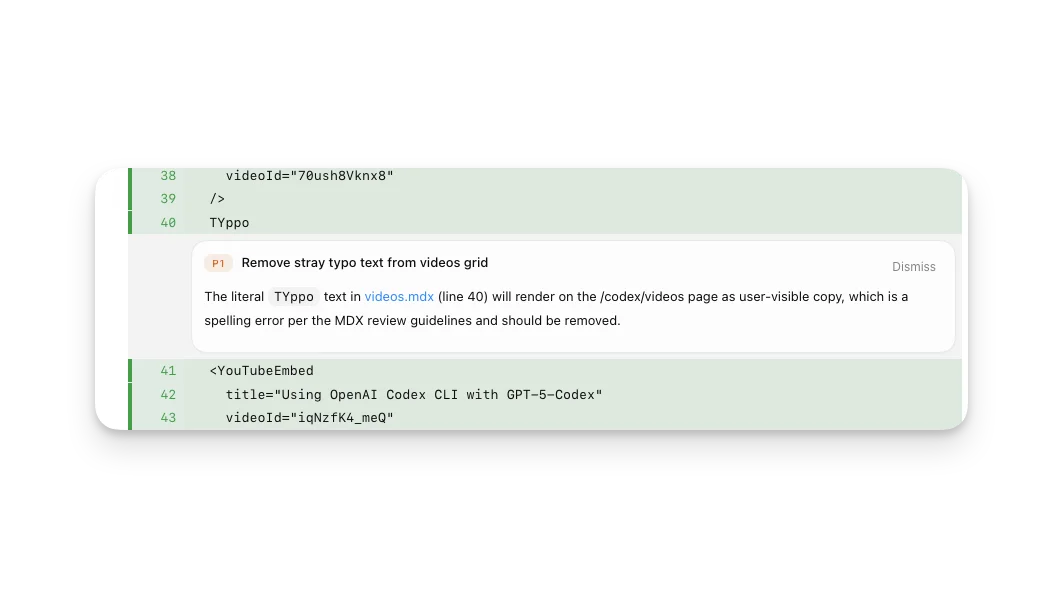
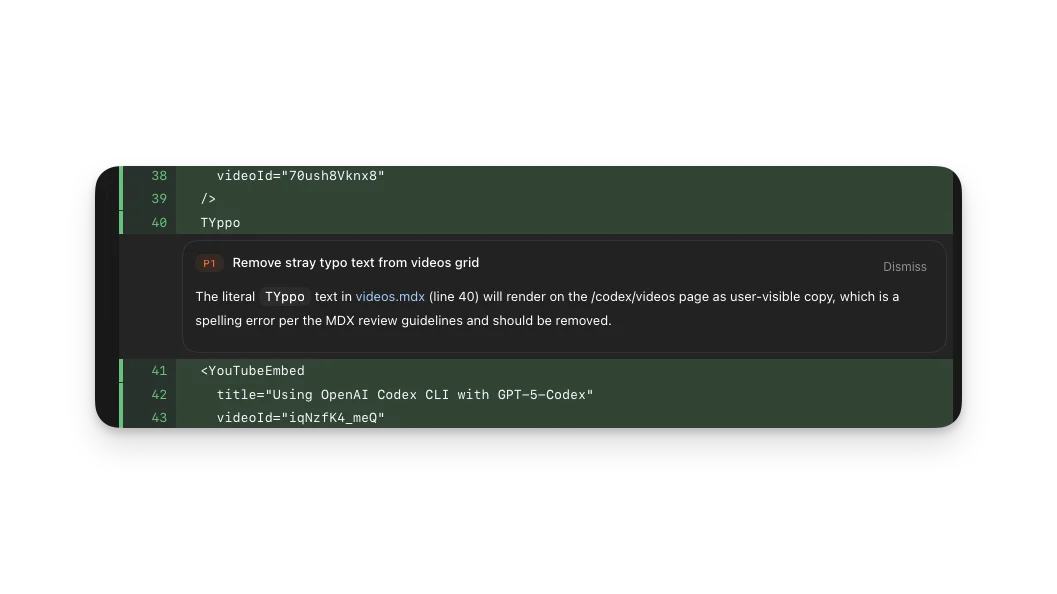
If you use /review to run a code review, comments will show up directly
inline in the review pane.
Pull request reviews
When Codex has GitHub access for your repository and the current project is on the pull request branch, the Codex app can help you work through pull request feedback without leaving the app. The sidebar shows pull request context and feedback from reviewers, and the review pane shows comments alongside the diff so you can ask Codex to address issues in the same thread.
Install the GitHub CLI (gh) and authenticate it with gh auth login so Codex
can load pull request context, review comments, and changed files. If gh is
missing or unauthenticated, pull request details may not appear in the sidebar
or review pane.
Use this flow when you want to keep the full fix loop in one place:
- Open the review pane on the pull request branch.
- Review the pull request context, comments, and changed files.
- Ask Codex to fix the specific comments you want handled.
- Inspect the resulting diff in the review pane.
- Stage, commit, and push the changes to the PR branch when you are ready.
For GitHub-triggered reviews, see Use Codex in GitHub.
Staging and reverting files
The review pane includes Git actions so you can shape the diff before you commit.
You can stage, unstage, or revert changes at these levels:
- Entire diff: use the action buttons in the review header (for example, “Stage all” or “Revert all”)
- Per file: stage, unstage, or revert an individual file
- Per hunk: stage, unstage, or revert a single hunk
Use staging when you want to accept part of the work, and revert when you want to discard it.
Staged and unstaged states
Git can represent both staged and unstaged changes in the same file. When that happens, it can look like the pane is showing “the same file twice” across staged and unstaged views. That’s normal Git behavior.