
Use Codex in Linear to delegate work from issues. Assign an issue to Codex or mention @Codex in a comment, and Codex creates a cloud task and replies with progress and results.
Codex in Linear is available on paid plans (see Pricing).
If you’re on an Enterprise plan, ask your ChatGPT workspace admin to turn on Codex cloud tasks in workspace settings and enable Codex for Linear in connector settings.
Set up the Linear integration
- Set up Codex cloud tasks by connecting GitHub in Codex and creating an environment for the repository you want Codex to work in.
- Go to Codex settings and install Codex for Linear for your workspace.
- Link your Linear account by mentioning
@Codexin a comment thread on a Linear issue.
Delegate work to Codex
You can delegate in two ways:
Assign an issue to Codex
After you install the integration, you can assign issues to Codex the same way you assign them to teammates. Codex starts work and posts updates back to the issue.
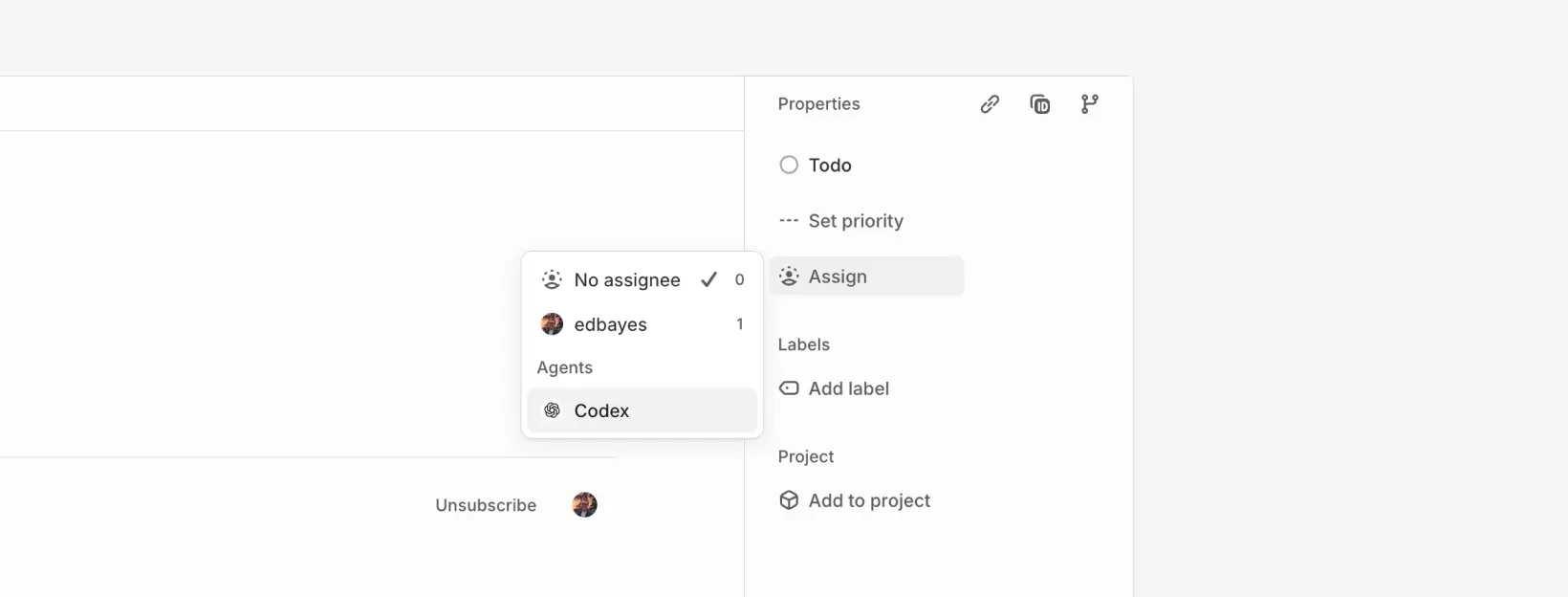
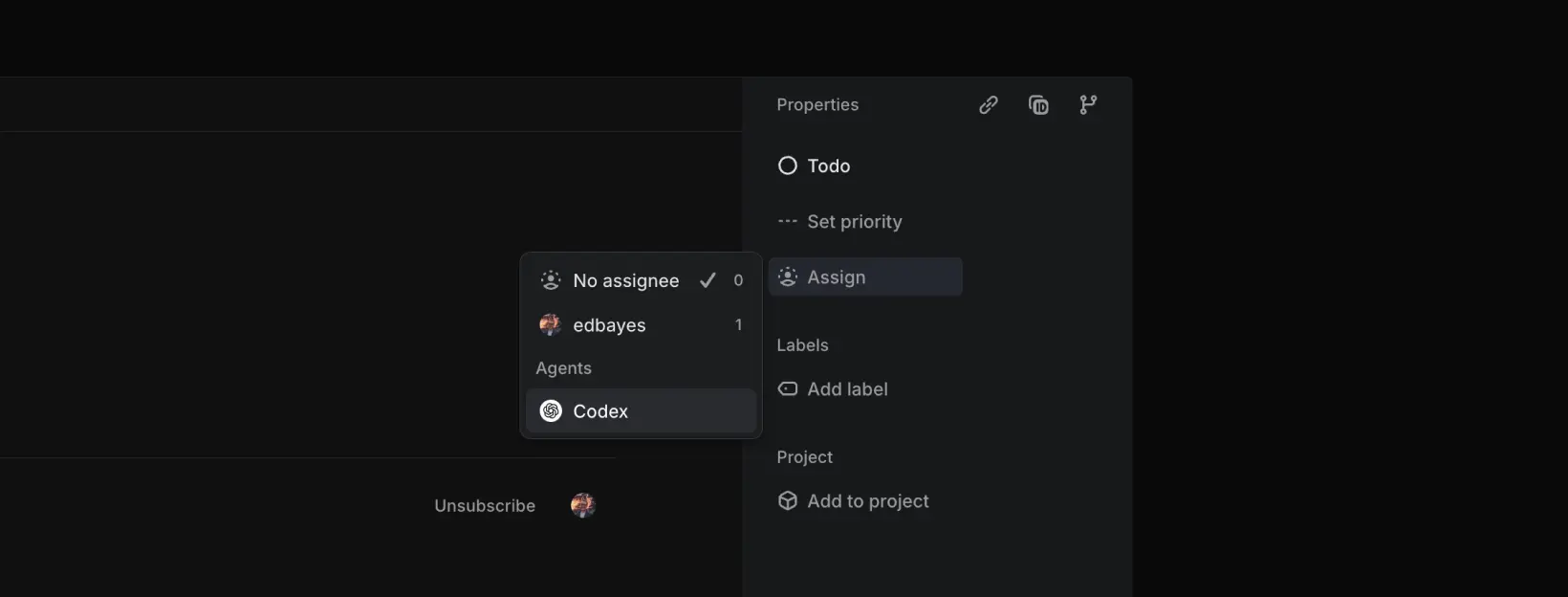
Mention @Codex in comments
You can also mention @Codex in comment threads to delegate work or ask questions. After Codex replies, follow up in the thread to continue the same session.
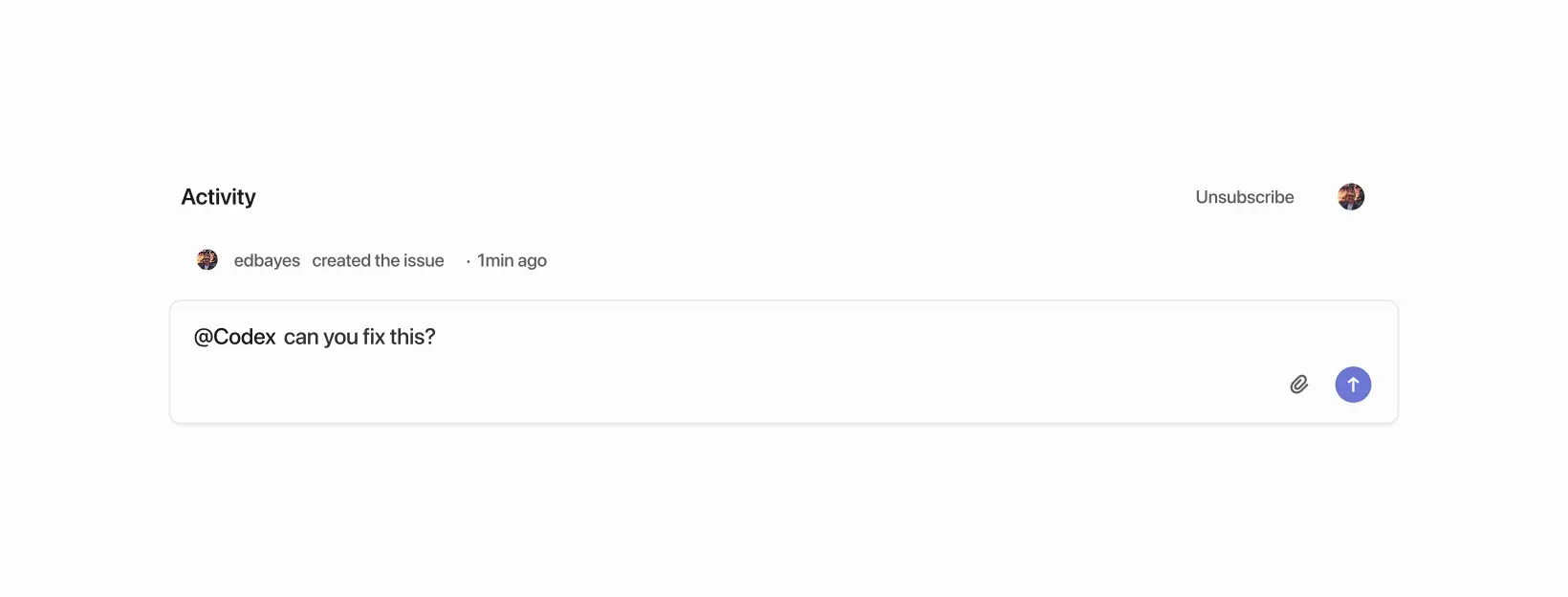
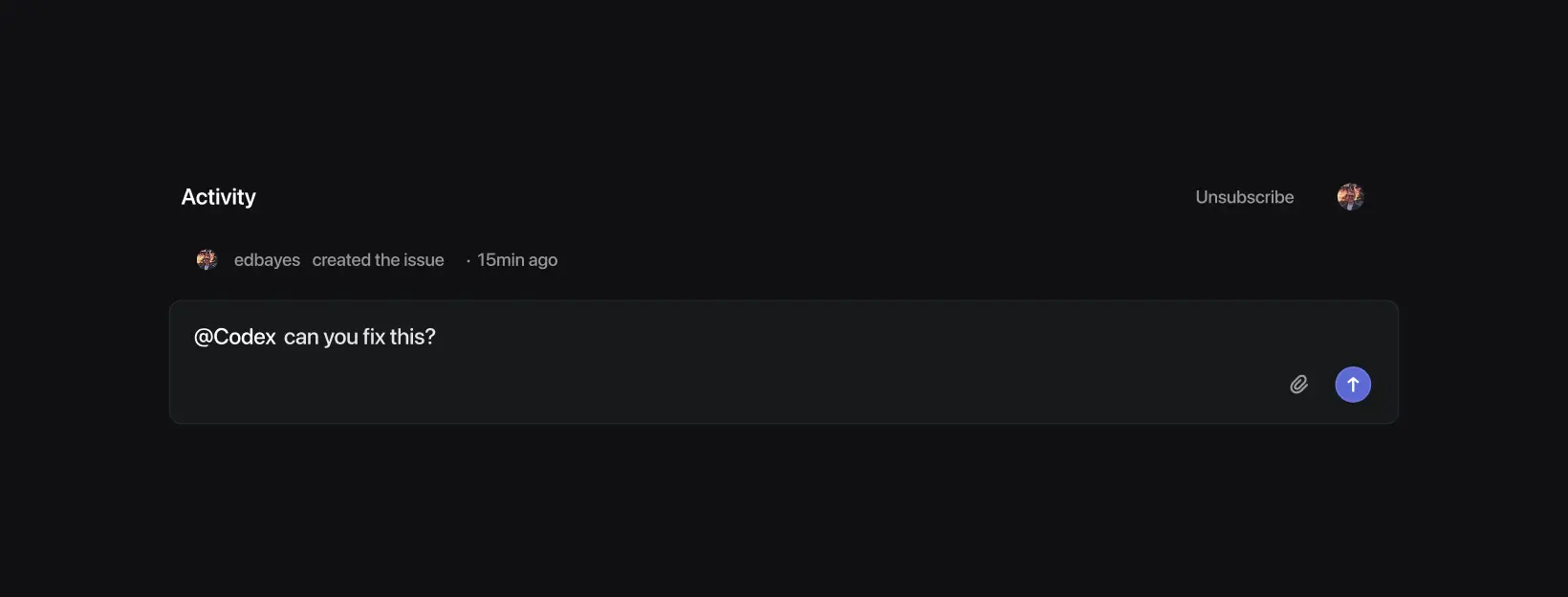
After Codex starts working on an issue, it chooses an environment and repo to work in.
To pin a specific repo, include it in your comment, for example: @Codex fix this in openai/codex.
To track progress:
- Open Activity on the issue to see progress updates.
- Open the task link to follow along in more detail.
When the task finishes, Codex posts a summary and a link to the completed task so you can create a pull request.
How Codex chooses an environment and repo
- Linear suggests a repository based on the issue context. Codex selects the environment that best matches that suggestion. If the request is ambiguous, it falls back to the environment you used most recently.
- The task runs against the default branch of the first repository listed in that environment’s repo map. Update the repo map in Codex if you need a different default or more repositories.
- If no suitable environment or repository is available, Codex will reply in Linear with instructions on how to fix the issue before retrying.
Automatically assign issues to Codex
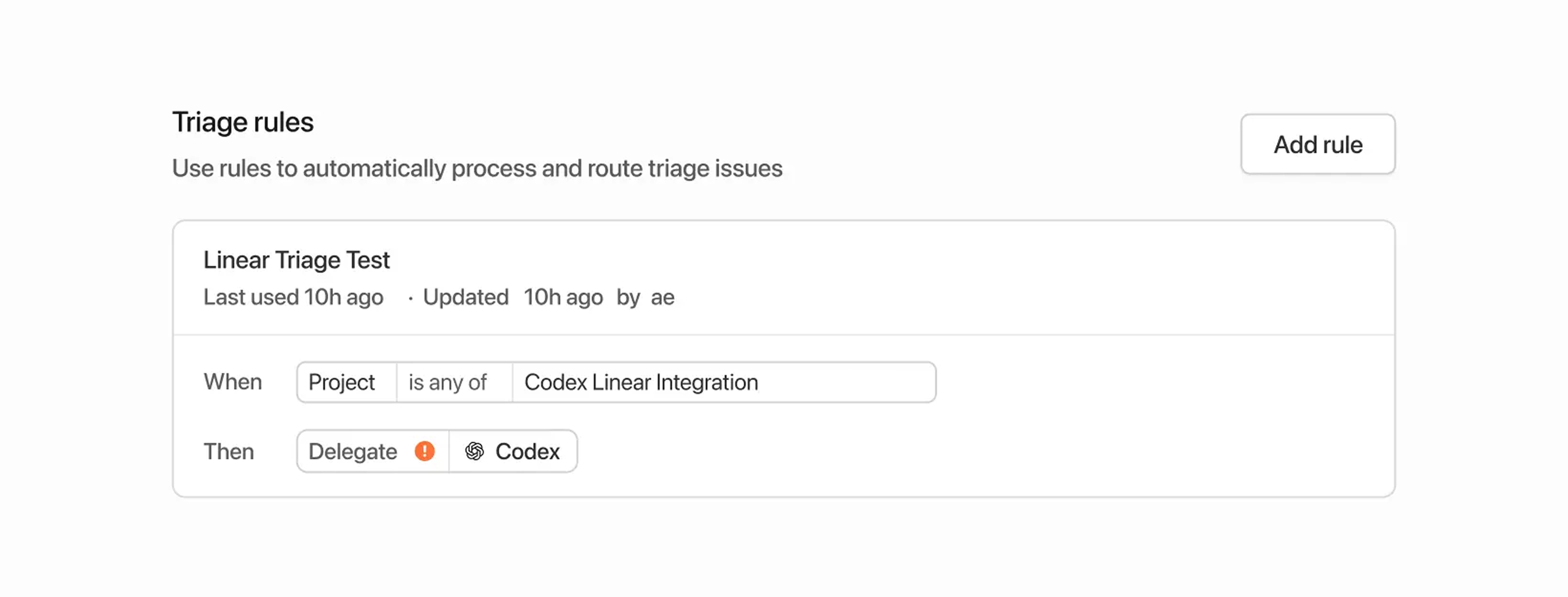
You can assign issues to Codex automatically using triage rules:
- In Linear, go to Settings.
- Under Your teams, select your team.
- In the workflow settings, open Triage and turn it on.
- In Triage rules, create a rule and choose Delegate > Codex (and any other properties you want to set).
Linear assigns new issues that enter triage to Codex automatically. When you use triage rules, Codex runs tasks using the account of the issue creator.
Data usage, privacy, and security
When you mention @Codex or assign an issue to it, Codex receives your issue content to understand your request and create a task.
Data handling follows OpenAI’s Privacy Policy, Terms of Use, and other applicable policies.
For more on security, see the Codex security documentation.
Codex uses large language models that can make mistakes. Always review answers and diffs.
Tips and troubleshooting
- Missing connections: If Codex can’t confirm your Linear connection, it replies in the issue with a link to connect your account.
- Unexpected environment choice: Reply in the thread with the environment you want (for example,
@Codex please run this in openai/codex). - Wrong part of the code: Add more context in the issue, or give explicit instructions in your
@Codexcomment. - More help: See the OpenAI Help Center.
Connect Linear for local tasks (MCP)
If you’re using the Codex app, CLI, or IDE Extension and want Codex to access Linear issues locally, configure Codex to use the Linear Model Context Protocol (MCP) server.
To learn more, check out the Linear MCP docs.
The setup steps for the MCP server are the same regardless of whether you use the IDE extension or the CLI since both share the same configuration.
Use the CLI (recommended)
If you have the CLI installed, run:
codex mcp add linear --url https://mcp.linear.app/mcpThis prompts you to sign in with your Linear account and connect it to Codex.
Configure manually
- Open
~/.codex/config.tomlin your editor. - Add the following:
[mcp_servers.linear]
url = "https://mcp.linear.app/mcp"- Run
codex mcp login linearto log in.