
This page walks you from initial access to reviewed findings and remediation pull requests in Codex Security.
Confirm you’ve set up Codex Cloud first. If not, see Codex Cloud to get started.
1. Access and environment
Codex Security scans GitHub repositories connected through Codex Cloud.
- Confirm your workspace has access to Codex Security.
- Confirm the repository you want to scan is available in Codex Cloud.
Go to Codex environments and check whether the repository already has an environment. If it doesn’t, create one there before continuing.
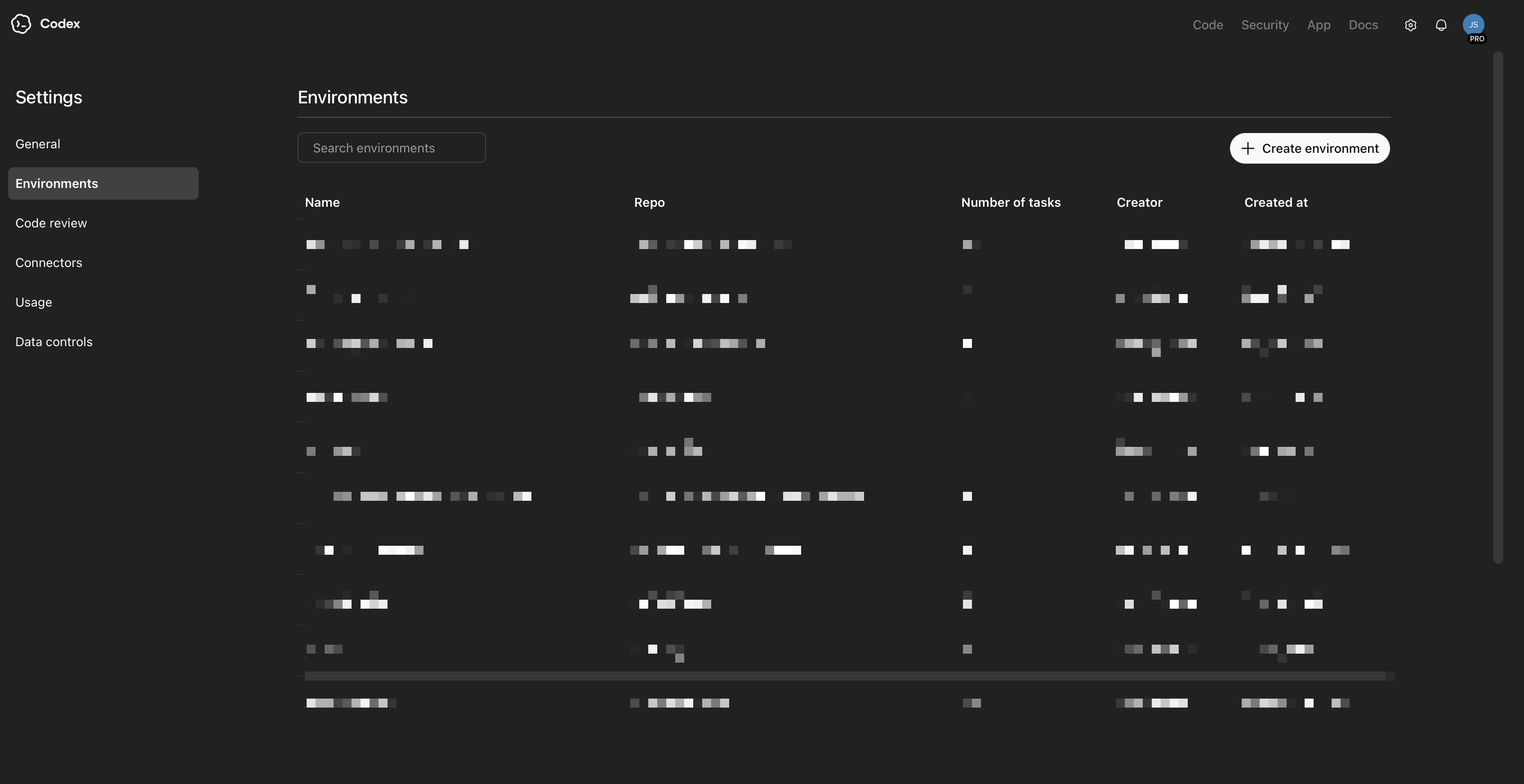
2. New security scan
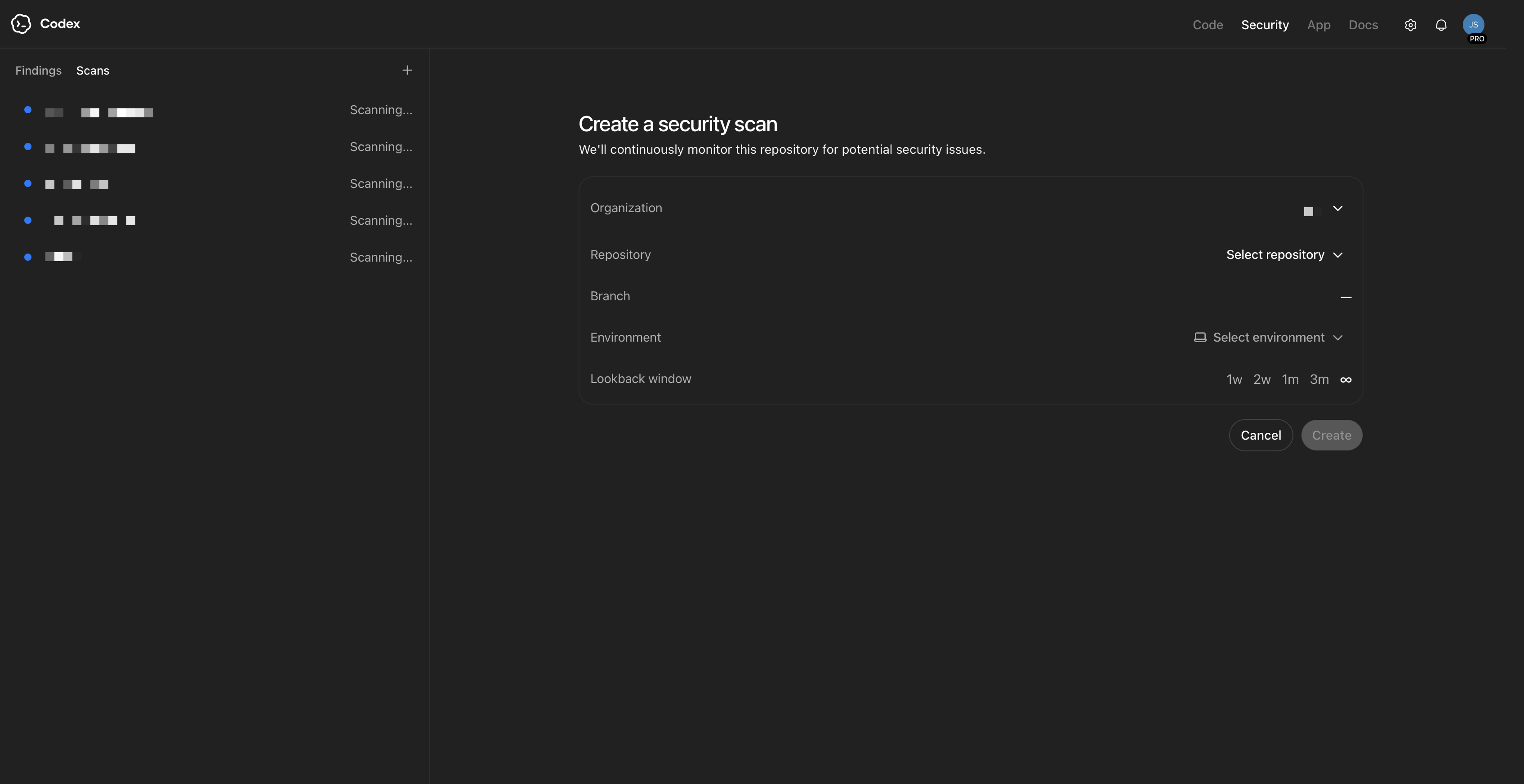
After the environment exists, go to Create a security scan and choose the repository you just connected.
Codex Security scans repositories from newest commits backward first. It uses this to build and refresh scan context as new commits come in.
To configure a repository:
- Select the GitHub organization.
- Select the repository.
- Select the branch you want to scan.
- Select the environment.
- Choose a history window. Longer windows provide more context, but backfill takes longer.
- Click Create.
3. Initial scans can take a while
When you create the scan, Codex Security first runs a commit-level security pass across the selected history window. The initial backfill can take a few hours, especially for larger repositories or longer windows. If findings aren’t visible right away, this is expected. Wait for the initial scan to finish before opening a ticket or troubleshooting.
Initial scan setup is automatic and thorough. This can take a few hours. Don’t be alarmed if the first set of findings is delayed.
4. Review scans and improve the threat model
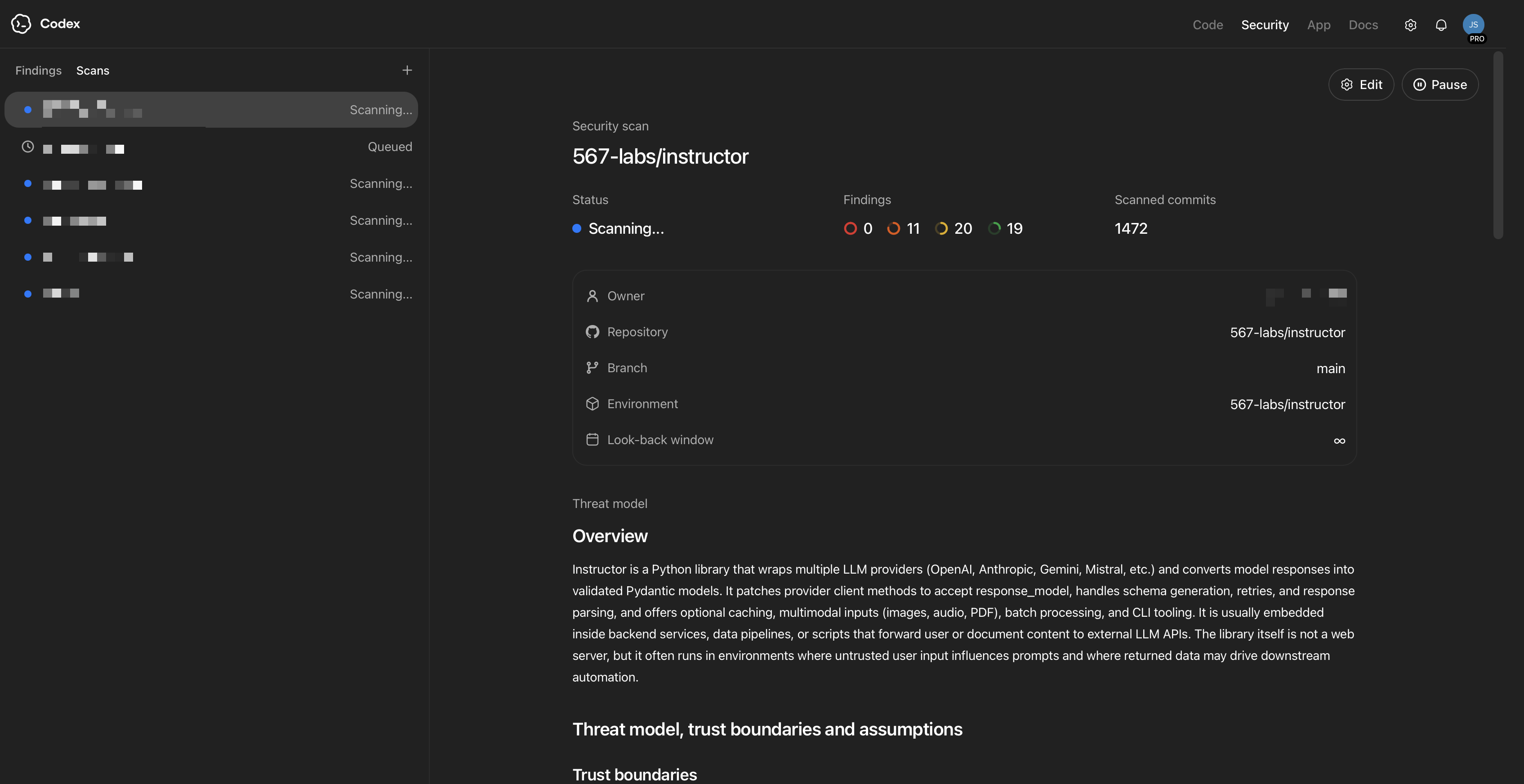
When the initial scan finishes, open the scan and review the threat model that was generated. After initial findings appear, update the threat model so it matches your architecture, trust boundaries, and business context. This helps Codex Security rank issues for your team.
If you want scan results to change, you can edit the threat model with your updated scope, priorities, and assumptions.
After initial findings appear, revisit the model so scan guidance stays aligned with current priorities. Keeping it current helps Codex Security produce better suggestions.
For a deeper explanation of threat models and how they affect criticality and triage, see Improving the threat model.
5. Review findings and patch
After the initial backfill completes, review findings from the Findings view.
You can use two views:
- Recommended Findings: an evolving top 10 list of the most critical issues in the repo
- All Findings: a sortable, filterable table of findings across the repository
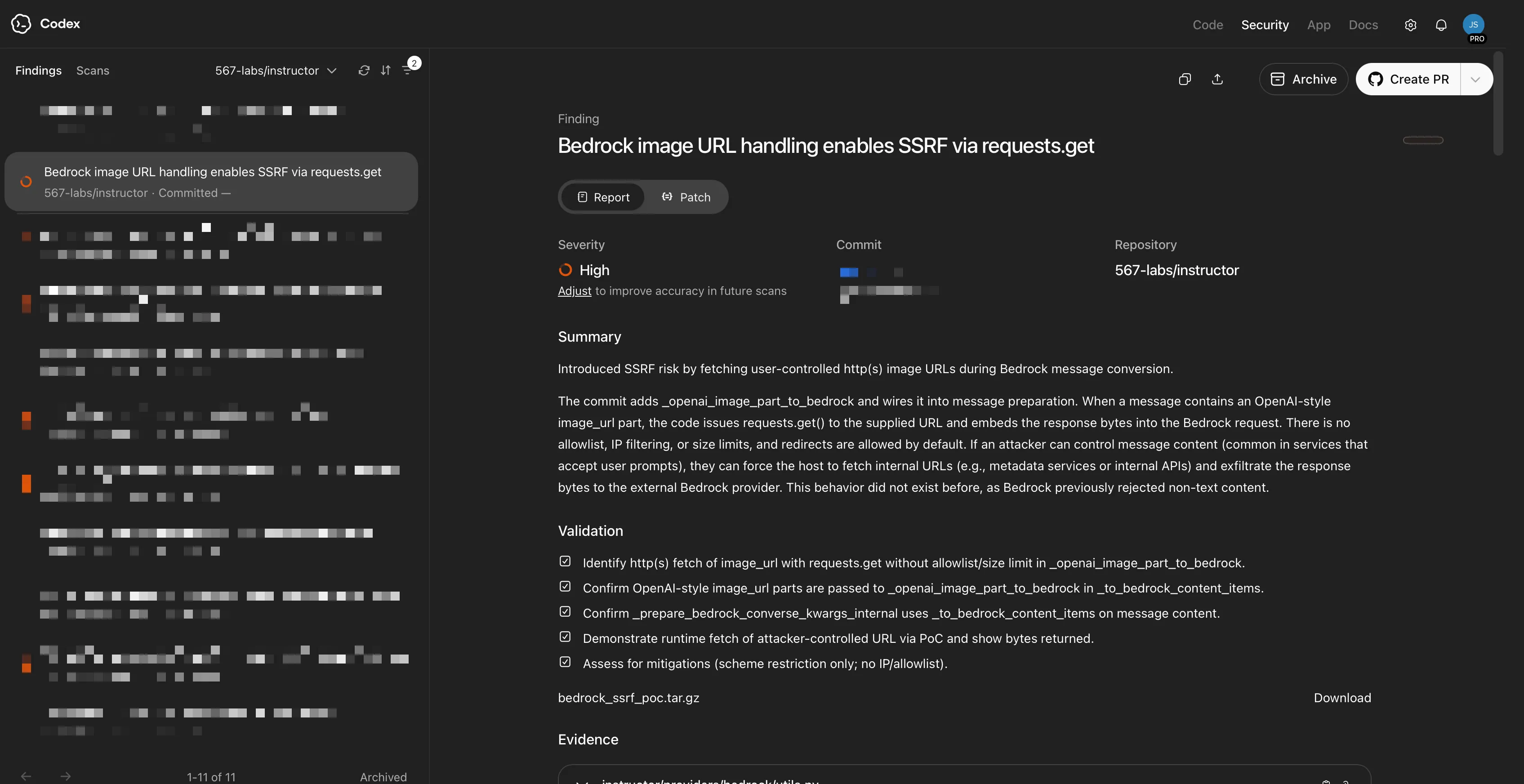
Click a finding to open its detail page, which includes:
- a concise description of the issue
- key metadata such as commit details and file paths
- contextual reasoning about impact
- relevant code excerpts
- call-path or data-flow context when available
- validation steps and validation output
You can review each finding and create a PR directly from the finding detail page.
Related docs
- Codex Security gives the product overview.
- FAQ covers common questions.
- Improving the threat model explains how to improve scan context and finding prioritization.