
Use the import flow to bring your instructions, settings, skills, plugins, projects, and recent chat sessions from other agents into Codex. Codex imports the supported items directly and lets you finish setup for any imported plugins or connections that need authorization.
Importing does not change or delete your existing agent setup.
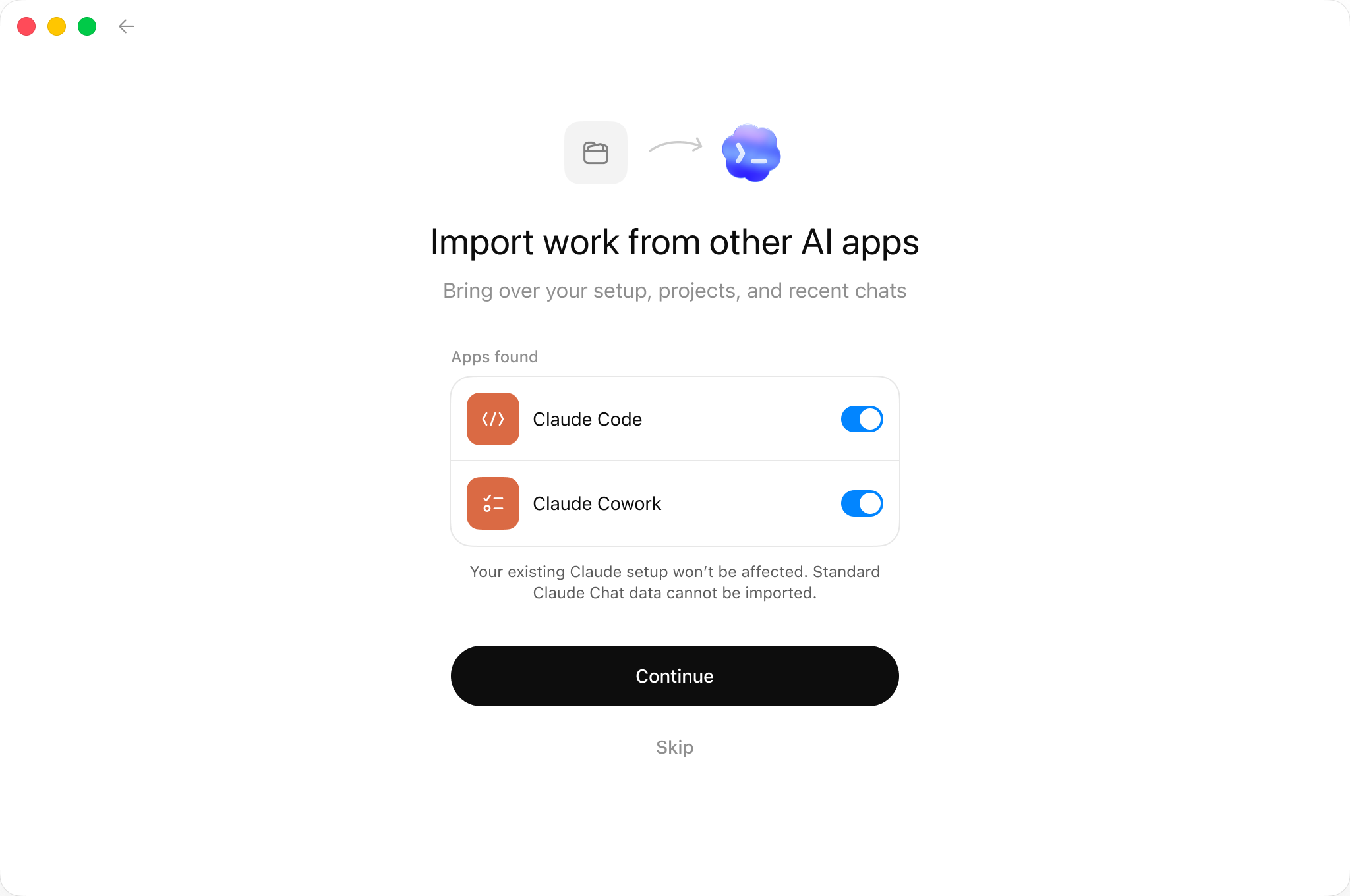
Start an import
- In the Codex app, open Settings.
- Under General, find Import other agent setup.
- Select Import.
- Choose the agents you want to import from, then select Continue.
- On Select items to import, select Continue to import everything or Customize to choose specific items.
- If you customize the import, select the items to bring over, then select Confirm.
- After the import finishes, open an imported project or thread to continue working.
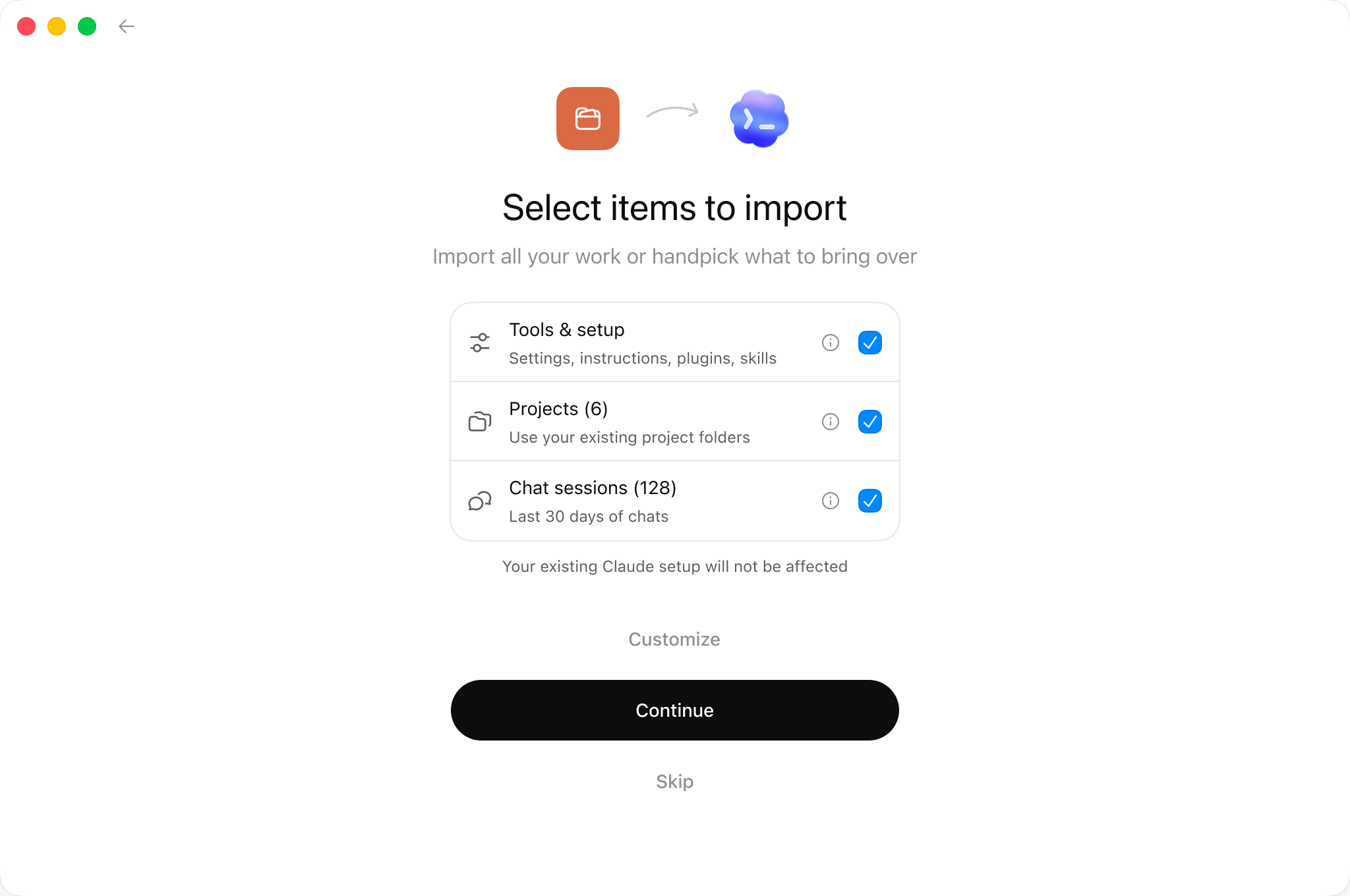
How importing works
Codex checks both your user-level setup and your existing projects. User-level setup comes from files on your machine. Project-level setup comes from files in the repositories and folders you select.
When you import, Codex:
- Detects supported setup and recent work.
- Imports the items you select.
- Leaves your existing agent setup unchanged.
- Checks whether imported plugins or connections still need setup.
- Shows a status card when follow-up is required.
What Codex can import
| Imported item | Codex destination |
|---|---|
| Instruction files | AGENTS.md |
settings.json | config.toml |
| Skills | Codex skills |
| Plugins | Codex plugins |
| Existing project folders | Codex projects using the same folders |
| Chat sessions from the last 30 days | Codex threads |
| MCP server configuration | Codex MCP configuration |
| Hooks | Codex hooks |
| Slash commands | Codex skills |
| Subagents | Codex agents |
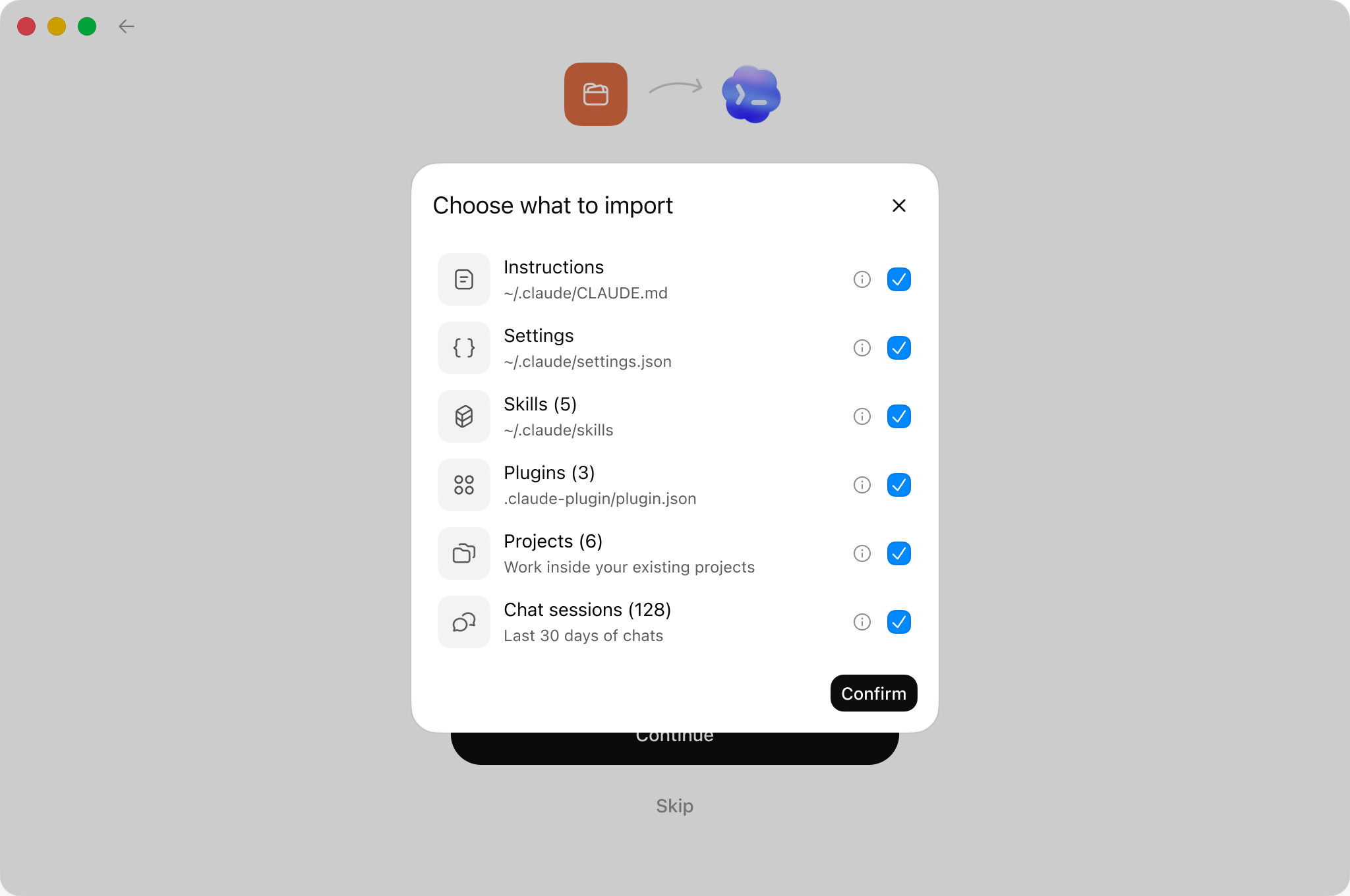
Finish setup after importing
When the import completes, Codex shows a status card in the lower-left corner. If an imported plugin or connection still needs setup, the card calls it out.
When Codex flags an item that needs attention, select Finish and follow the prompts to complete setup.
What to review after importing
Review imported setup before you rely on it, especially:
- Tool restrictions or permissions in imported skills and agents.
- MCP server settings that use custom authentication, headers, environment variables, or transports. You may need to sign in again.
- Hooks whose behavior may differ in Codex.
- Plugins, marketplaces, or other setup that needs manual follow-up.
- Prompt templates or command-style prompts that depend on arguments, shell interpolation, or file-path placeholders.
After you import
Once the import finishes, open one of your imported projects and continue from there. If you are new to Codex, see the quickstart for the rest of the setup flow.