
The in-app browser gives you and Codex a shared view of rendered web pages inside a thread. Use it when you’re building or debugging a web app and want to preview pages and attach visual comments.
Use it for local development servers, file-backed previews, and public pages that don’t require sign-in. For anything that depends on login state or browser extensions, use your regular browser or the Codex Chrome extension.
Open the in-app browser from the toolbar, by clicking a URL, by navigating manually in the browser, or by pressing Cmd+Shift+B (Ctrl+Shift+B on Windows).
The in-app browser does not support authentication flows, signed-in pages, your regular browser profile, cookies, extensions, or existing tabs. Use it for pages Codex can open without logging in.
Treat page content as untrusted context. Don’t paste secrets into browser flows.
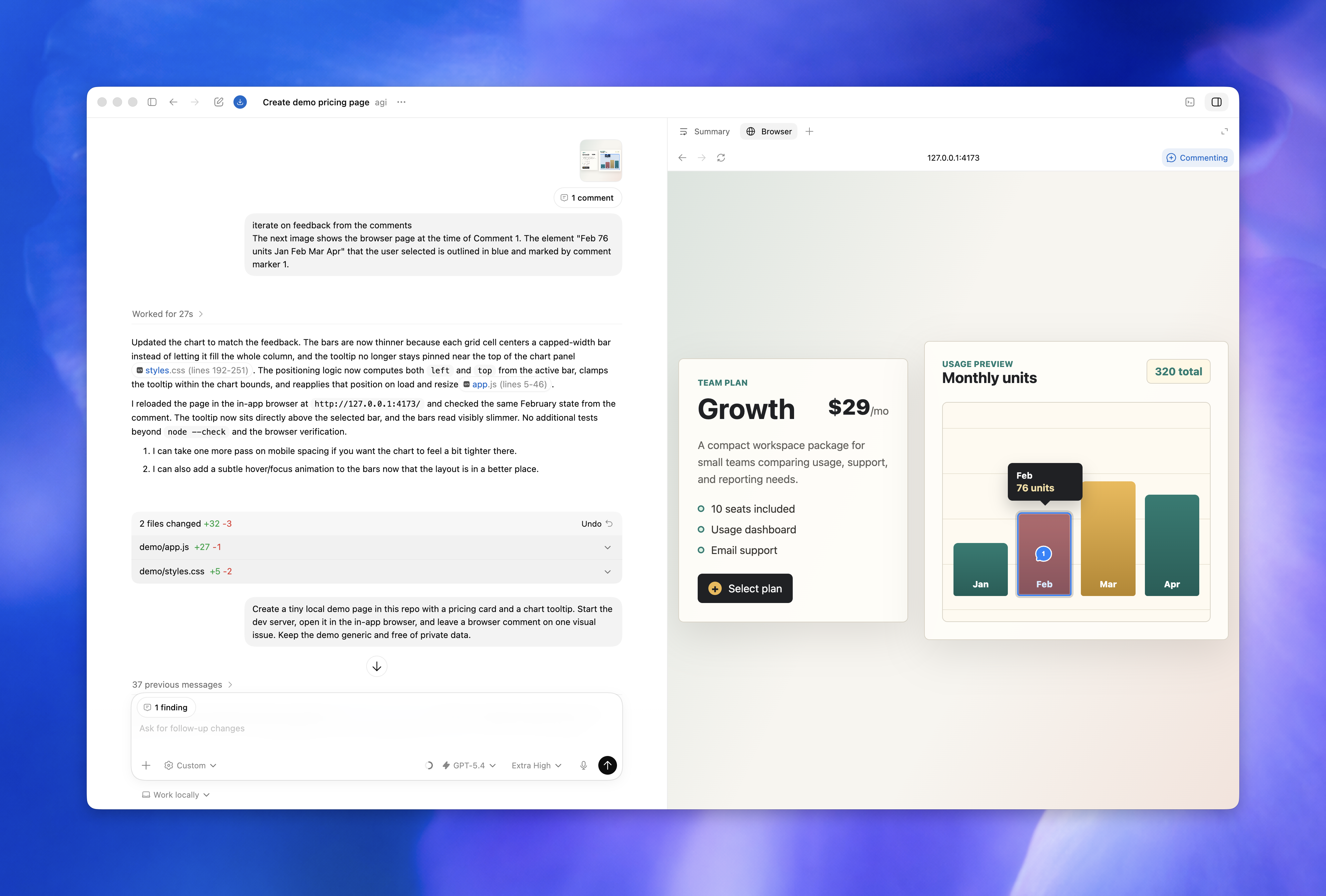
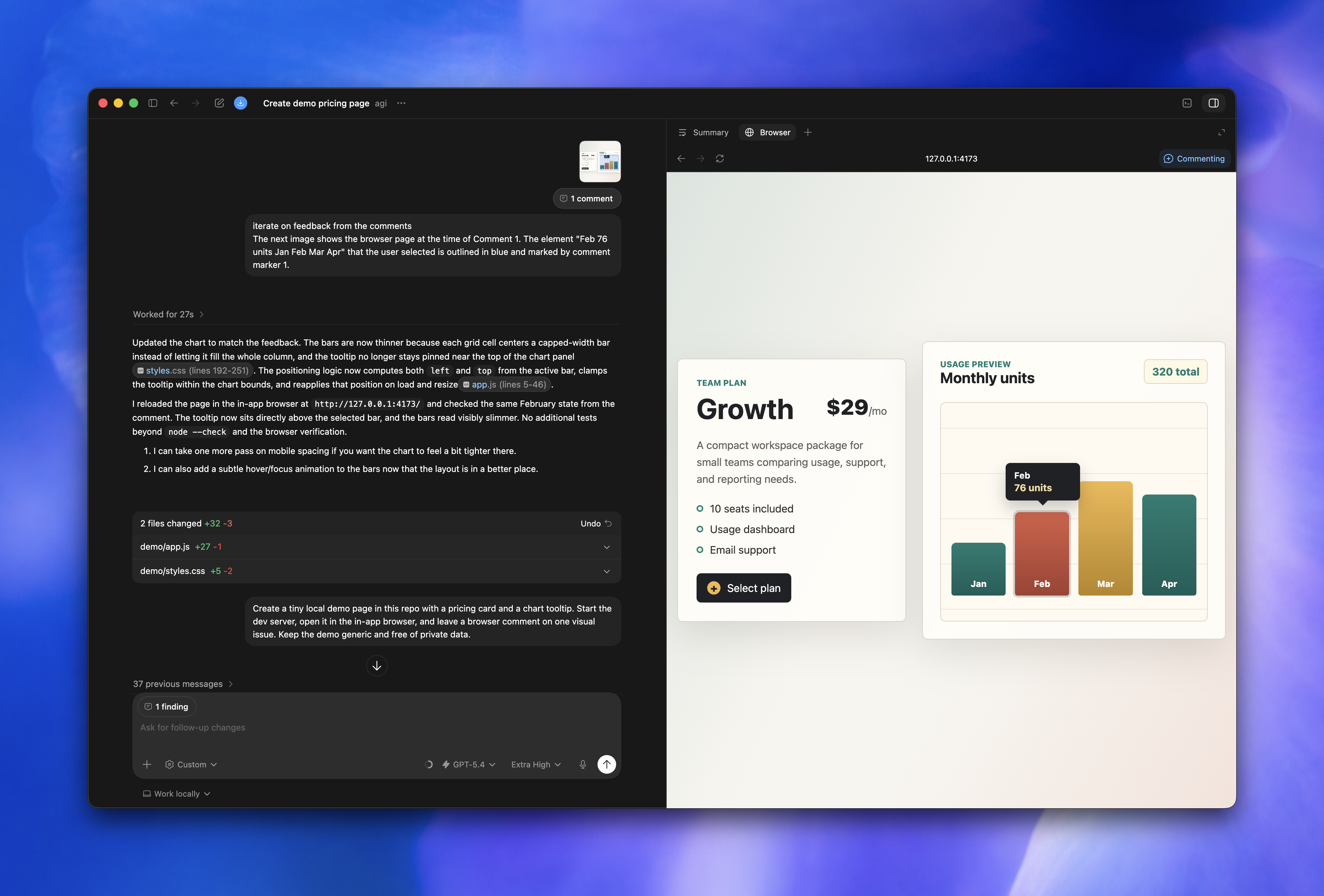
Browser use
Browser use lets Codex operate the in-app browser directly. Use it for local development servers and file-backed previews when Codex needs to click, type, inspect rendered state, take screenshots, download page assets, run read-only page inspection JavaScript, or verify a fix in the page.
To use it, install and enable the Browser plugin. Then ask Codex to use the
browser in your task, or reference it directly with @Browser. The app keeps
browser use inside the in-app browser and lets you manage allowed and blocked
websites from settings.
Example:
Use the browser to open http://localhost:3000/settings, reproduce the layout
bug, and fix only the overflowing controls.
Codex asks before using a website unless you’ve allowed it. Removing a site from the allowed list means Codex asks again before using it; removing a site from the blocked list means Codex can ask again instead of treating it as blocked.
For signed-in websites in Chrome, see Codex Chrome extension.
Preview a page
- Start your app’s development server in the integrated terminal or with a local environment action.
- Open an unauthenticated local route, file-backed page, or public page by clicking a URL or navigating manually in the browser.
- Review the rendered state alongside the code diff.
- Leave browser comments on the elements or areas that need changes.
- Ask Codex to address the comments and keep the scope narrow.
Example feedback:
I left comments on the pricing page in the in-app browser. Address the mobile
layout issues and keep the card structure unchanged.
Comment on the page
When a bug is visible only in the rendered page, use browser comments to give Codex precise feedback on the page.
- Turn on Annotation mode, select an element or area, and submit a comment.
- In Annotation mode, hold Shift and click to select an area.
- Hold Cmd while clicking to send a comment immediately.
After you leave comments, send a message in the thread asking Codex to address them. Comments are most useful when Codex needs to make a precise visual change.
Good feedback is specific:
This button overflows on mobile. Keep the label on one line if it fits,
otherwise wrap it without changing the card height.
This tooltip covers the data point under the cursor. Reposition the tooltip so
it stays inside the chart bounds.Styling feedback
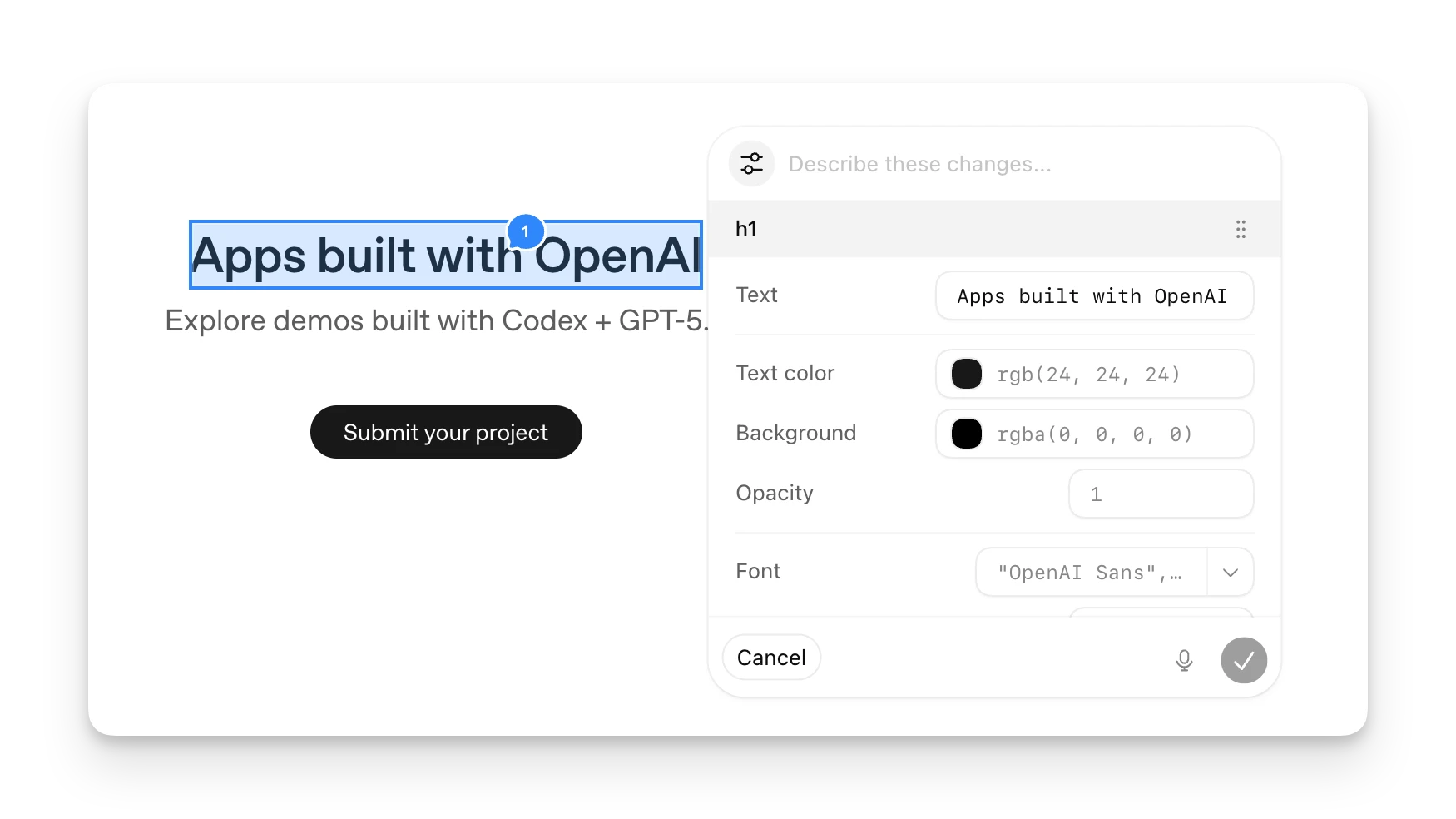
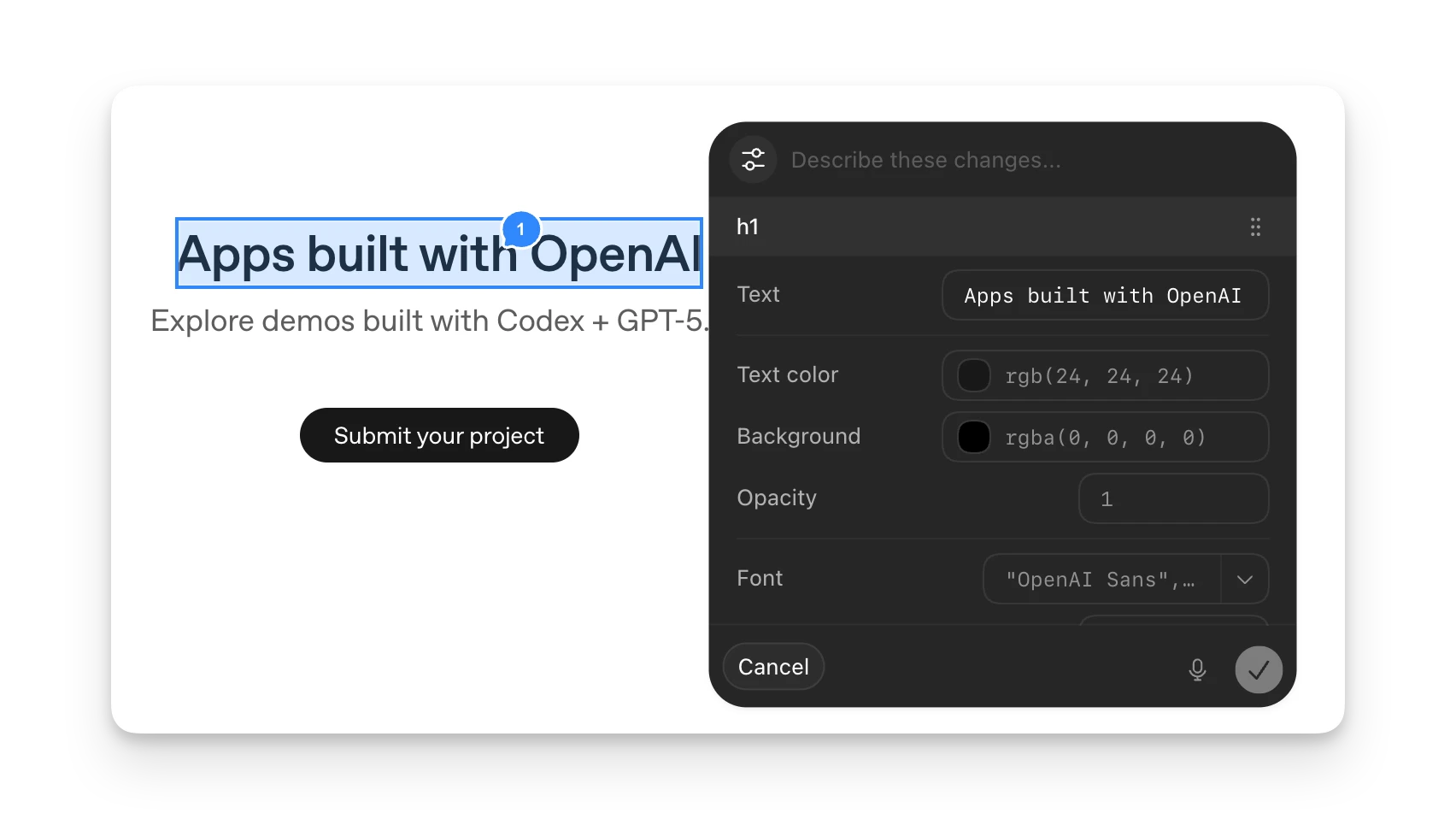
When you add an annotation to a section on the page, press the config icon next to the text input to give Codex more granular style feedback. You can change values like font, text, spacing, and color, preview the result directly on the page, and then send the annotation so Codex has a clearer target for the change.
Keep browser tasks scoped
The in-app browser is for review and iteration. Keep each browser task small enough to review in one pass.
- Name the page, route, or local URL.
- Name the visual state you care about, such as loading, empty, error, or success.
- Leave comments on the exact elements or areas that need changes.
- Review the updated route after Codex changes the code.
- Ask Codex to start or check the dev server before it uses the browser.
For repository changes, use the review pane to inspect the changes and leave comments.