
Codex access tokens are ChatGPT access tokens scoped to Codex permissions that let trusted automation run Codex local with a ChatGPT workspace identity. Use them when a script, scheduled job, or CI runner needs repeatable, non-interactive Codex access.
Codex access tokens are currently supported for ChatGPT Business and Enterprise workspaces.
Access tokens are created in the ChatGPT admin console at Access tokens. They are tied to the ChatGPT user and workspace that create them, and Codex uses them as agent identities for programmatic local workflows.
If a Platform API key works for your automation, keep using API key auth. Use Codex access tokens when the workflow specifically needs ChatGPT workspace access, ChatGPT-managed Codex entitlements, or enterprise workspace controls.
Need to trigger a published ChatGPT workspace agent from your own system? Use a Workspace Agent access token for the Workspace Agents API instead. Codex access tokens authenticate Codex local workflows; they do not authenticate workspace agent trigger calls. See Authenticate with Workspace Agent access tokens.
How access tokens work
Use an access token when Codex needs to run without a user completing a browser sign-in. The token represents the ChatGPT workspace user who created it, so runs can use that user’s Codex access and appear in workspace governance data.
Codex checks the token when a run starts and ties the run to that workspace identity. Treat the token like any other automation secret: store it in a secret manager, keep it out of logs, and rotate it regularly.
Use access tokens for:
codex execjobs that run from trusted automation.- Local scripts that need repeatable, non-interactive Codex runs.
- Enterprise workflows where usage should be associated with a ChatGPT workspace user instead of an API organization key.
Main risks to avoid:
- Leaked secrets: anyone with the token can start Codex runs as the token creator. Store tokens in a secret manager, keep them out of logs, and rotate them regularly.
- Untrusted runners: public CI, forked pull requests, or shared machines can expose tokens to people outside your workspace. Use access tokens only on trusted runners.
- Shared identities: one person’s token reused across unrelated teams makes ownership and audit trails harder to interpret. Create tokens for a specific workflow owner.
- Stale credentials: long-lived tokens can remain active after the workflow changes. Prefer finite expirations and revoke tokens that are no longer used.
- Wrong credential type: Codex access tokens are for Codex local workflows. Use Workspace Agent access tokens to trigger published ChatGPT workspace agents, and use Platform API keys for general OpenAI API calls.
Enable access token creation
Use the access token permission in workspace settings to turn on access token creation for allowed members.
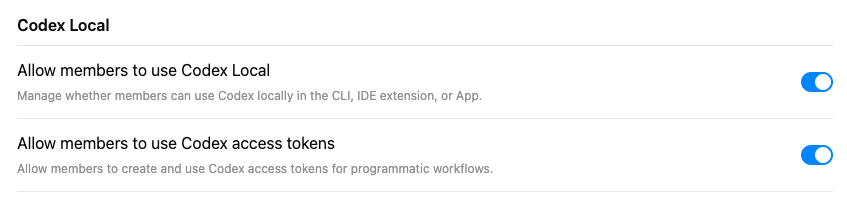
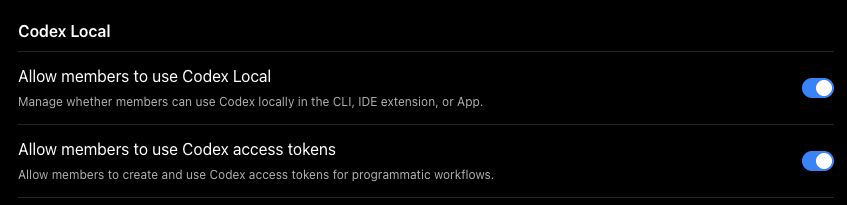
- Go to Workspace Settings > Permissions & roles.
- In the Access tokens section, turn on Allow users to create access tokens if all allowed members should be able to create access tokens.
- If members need to use those tokens with the Codex app, CLI, or IDE extension, make sure Allow members to use Codex Local is also turned on in the Codex Local section.
Keep access token creation limited to people or service owners who understand where the token will be stored, which automation will use it, and how it will be rotated.
Set an access token expiration limit
Workspace owners and admins can set the longest expiration that members can choose when they create a Codex access token. Go to Workspace Settings > Permissions & roles, then set Access token expiration limit in the Codex Local section.
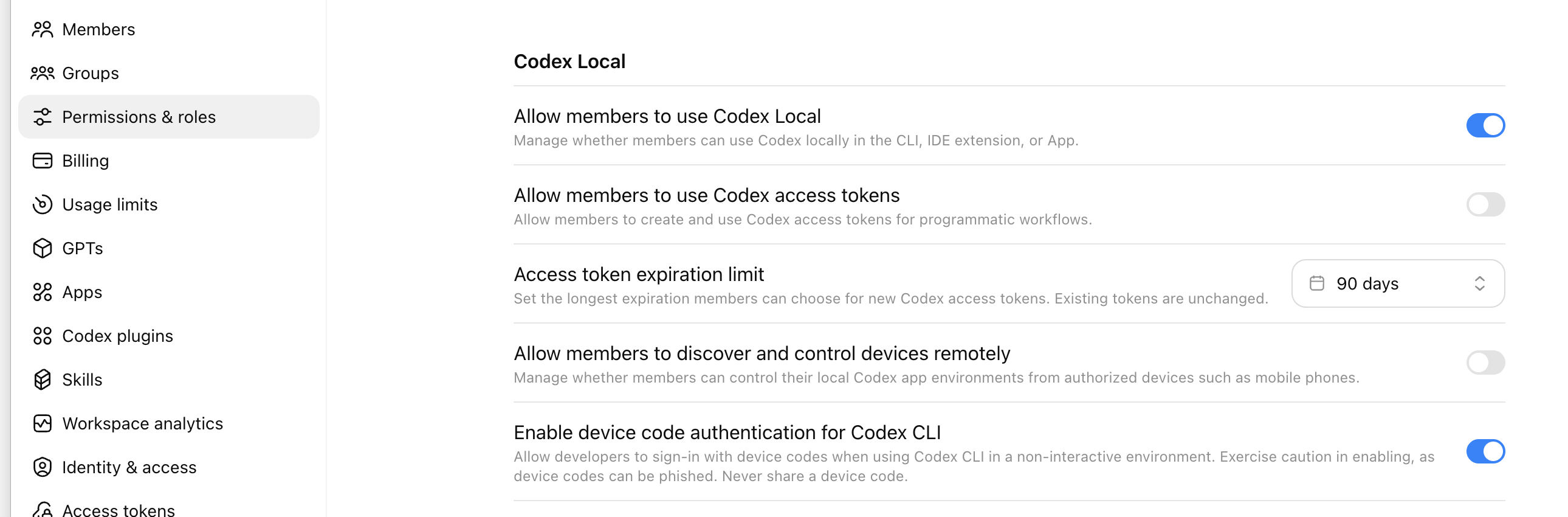
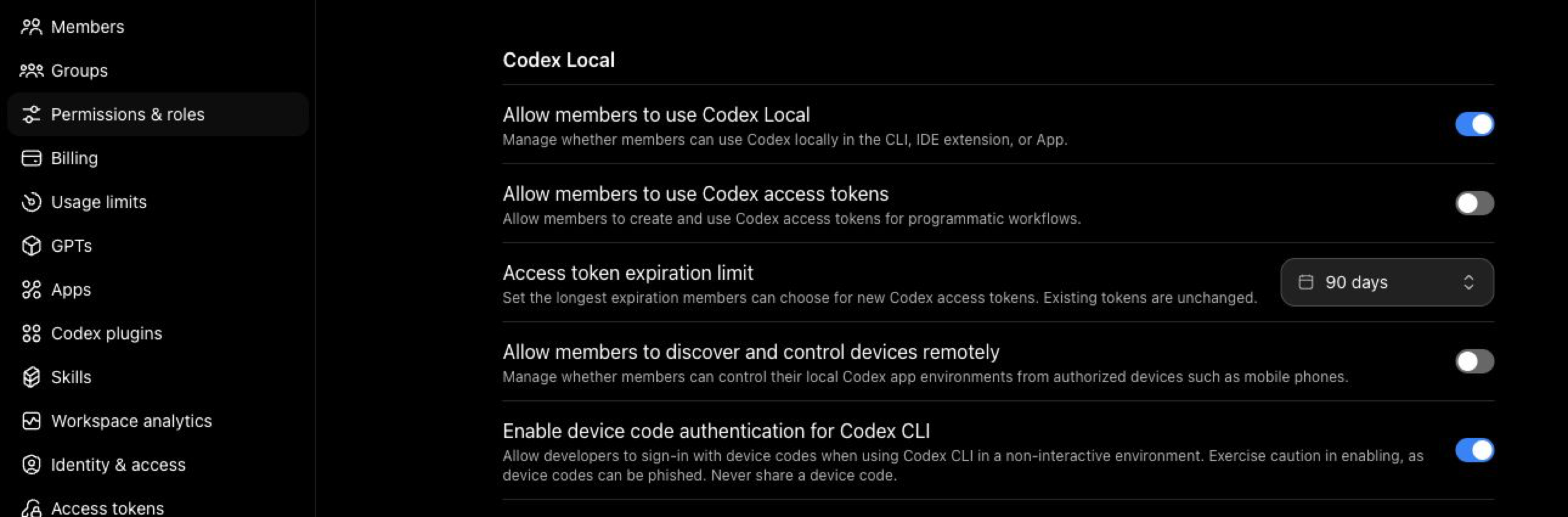
The limit applies to new access tokens. Existing tokens keep their current expiration.
Create an access token
Use the Access tokens page to name the token and choose when it expires.
- Go to Access tokens.
- Select Create.
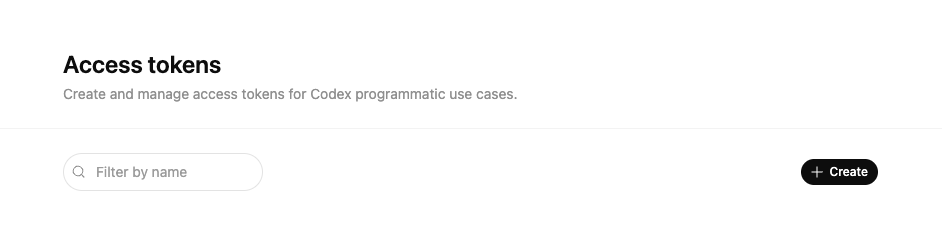
- Enter a descriptive name, such as
release-ciornightly-docs-check.
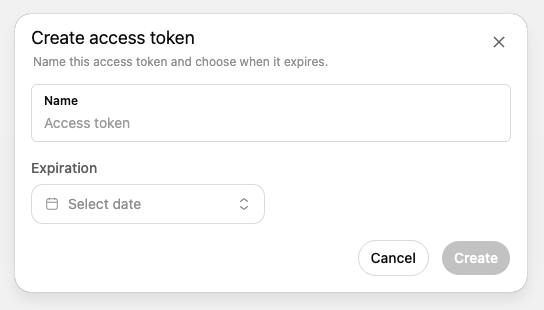
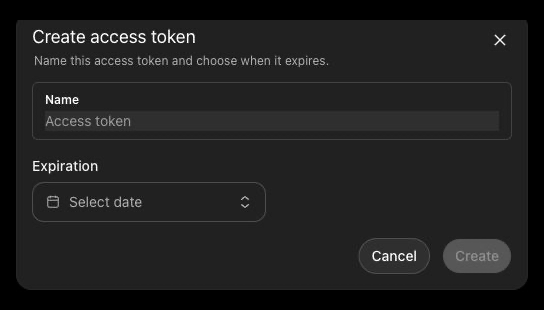
- Choose an expiration. Prefer a finite expiration such as 7, 30, 60, or 90 days. If you choose No expiration, rotate the token on a regular schedule.
- Select Create.
- Copy the generated access token immediately. You cannot view it again after you close the modal.
- Store the token in your secret manager or CI secret store.
The shortest custom expiration is one day. Revoked and expired tokens cannot be used to start new Codex runs.
Use an access token with Codex CLI
For ephemeral automation, store the token in CODEX_ACCESS_TOKEN and run Codex normally:
export CODEX_ACCESS_TOKEN="<access-token>"
codex exec --json "review this repository and summarize the top risks"
For a persistent local login, pipe the token to codex login --with-access-token:
printf '%s' "$CODEX_ACCESS_TOKEN" | codex login --with-access-token
codex exec "summarize the last release diff"
codex login --with-access-token stores an agent identity credential in Codex auth storage. If you prefer not to persist credentials on the machine, use the CODEX_ACCESS_TOKEN environment variable instead.
Rotate or revoke a token
Rotate access tokens the same way you rotate other automation secrets:
- Create a replacement token.
- Update the secret in the runner, scheduler, or secret manager.
- Run a smoke test with the new token.
- Revoke the old token from Access tokens.
From the Access tokens page, workspace owners and admins can revoke any workspace token. Members with access token permission can revoke only the tokens they created.
Permission model
Access token creation is controlled by the workspace’s access token permission, which is separate from the general Codex local permission. A member can have access to the Codex app, CLI, or IDE extension without being allowed to create access tokens.
| Capability | Workspace owners and admins | Member with access token permission | Member without access token permission |
|---|---|---|---|
| Open Access tokens | Yes | Yes | No |
| Create access tokens | Yes, for their own ChatGPT workspace identity | Yes, for their own ChatGPT workspace identity | No |
| List access tokens | Workspace list, including who created each token | Only tokens they created | No |
| Revoke access tokens from the Access tokens page | Any token in the workspace | Only tokens they created | No page access |
| Grant or remove access token permission | Yes | No | No |
| Manage other Codex enterprise settings | Yes, based on admin role and Codex admin permissions | No, unless separately granted | No |
In short: workspace owners and admins manage access at the workspace level. Members need the access token permission to create and manage their own tokens, but the permission does not grant admin rights or access to other members’ tokens.
Troubleshooting
The access tokens page returns 404 or forbidden
Ask a workspace owner or admin to confirm that your role includes Allow users to create access tokens and that Allow members to use Codex Local is enabled if you plan to use the token with Codex.
codex login --with-access-token fails
Confirm that you copied the generated access token, not a browser session token or Platform API key. Also confirm that the token has not expired or been revoked.