
In the Codex app, computer use is available on macOS and Windows, except in the European Economic Area, the United Kingdom, and Switzerland at launch. Install the Computer Use plugin. On macOS, grant Screen Recording and Accessibility permissions when prompted.
With computer use, Codex can see and operate graphical user interfaces on macOS or Windows. Use it for tasks where command-line tools or structured integrations aren’t enough, such as checking a desktop app, using a browser, changing app settings, working with a data source that isn’t available as a plugin, or reproducing a bug that only happens in a graphical user interface.
Because computer use can affect app and system state outside your project workspace, use it for scoped tasks and review permission prompts before continuing.
Set up computer use
In Codex settings, open Computer Use and click Install to install the Computer Use plugin before you ask Codex to operate desktop apps. On Windows, keep the target app visible on the active desktop while the task runs. On macOS, grant Screen Recording and Accessibility permissions when prompted so Codex can see and interact with the target app.
On macOS, grant:
- Screen Recording permission so Codex can see the target app.
- Accessibility permission so Codex can click, type, and navigate.
When to use computer use
Choose computer use when the task depends on a graphical user interface that’s hard to verify through files or command output alone.
Good fits include:
- Testing a macOS app, Windows app, iOS simulator flow, or another desktop app that Codex is building.
- Performing a task that requires your web browser.
- Reproducing a bug that only appears in a graphical interface.
- Changing app settings that require clicking through a UI.
- Inspecting information in an app or data source that isn’t available through a plugin.
- On macOS, running a scoped task in the background while you keep working elsewhere.
- Executing a workflow that spans more than one app.
For web apps you are building locally, use the in-app browser first.
Windows foreground use
On Windows, computer use runs on the active desktop. It can’t operate in the background while you keep using the same Windows session, so expect Codex to move the pointer, type, and take over the foreground while the task runs.
For Windows tasks that should continue while you step away, keep the Windows device unlocked and connected to the internet. Use remote control from your phone to check progress or send follow-up instructions, or run the Codex app inside a Windows virtual machine so computer use takes over the VM instead of your main desktop.
Start a computer use task
Mention @Computer or @AppName in your prompt, or ask Codex to use
computer use. Describe the exact app, window, or flow Codex should operate.
Open the app with computer use, reproduce the onboarding bug, and fix the
smallest code path that causes it. After each change, run the same UI flow
again.
Open @Chrome and verify the checkout page still works after the latest changes.If the target app exposes a dedicated plugin or MCP server, prefer that structured integration for data access and repeatable operations. Choose computer use when Codex needs to inspect or operate the app visually.
Permissions and approvals
System permissions for computer use are separate from app approvals in Codex. On macOS, Screen Recording and Accessibility permissions let Codex see and operate apps. App approvals determine which apps you allow Codex to use. File reads, file edits, and shell commands still follow the sandbox and approval settings for the thread.
With computer use, Codex can see and take action only in the apps you allow. During a task, Codex asks for your permission before it can use an app on your computer. You can choose Always allow so Codex can use that app in the future without asking again. You can remove apps from the Always allow list in the Computer Use section of Codex settings.
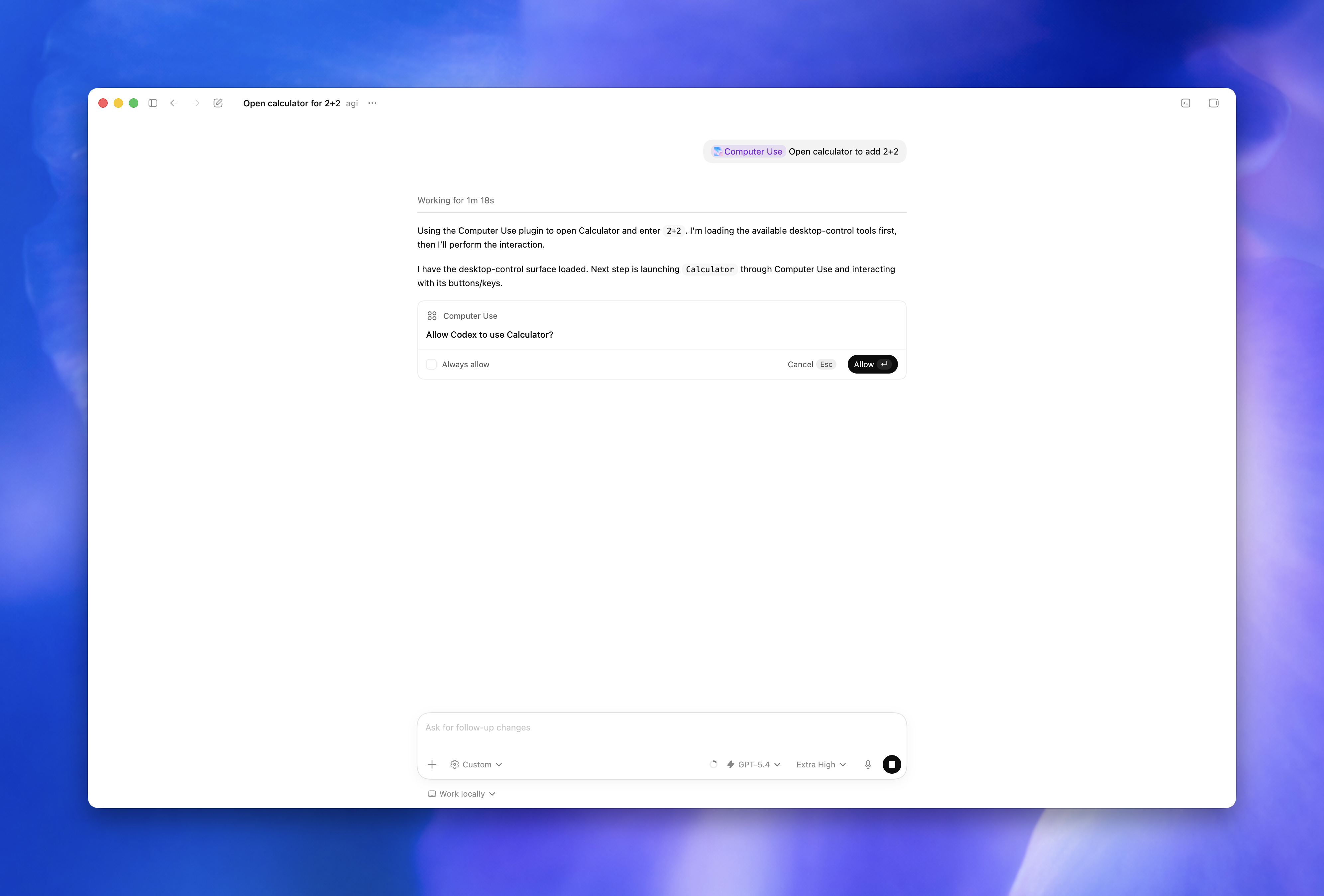
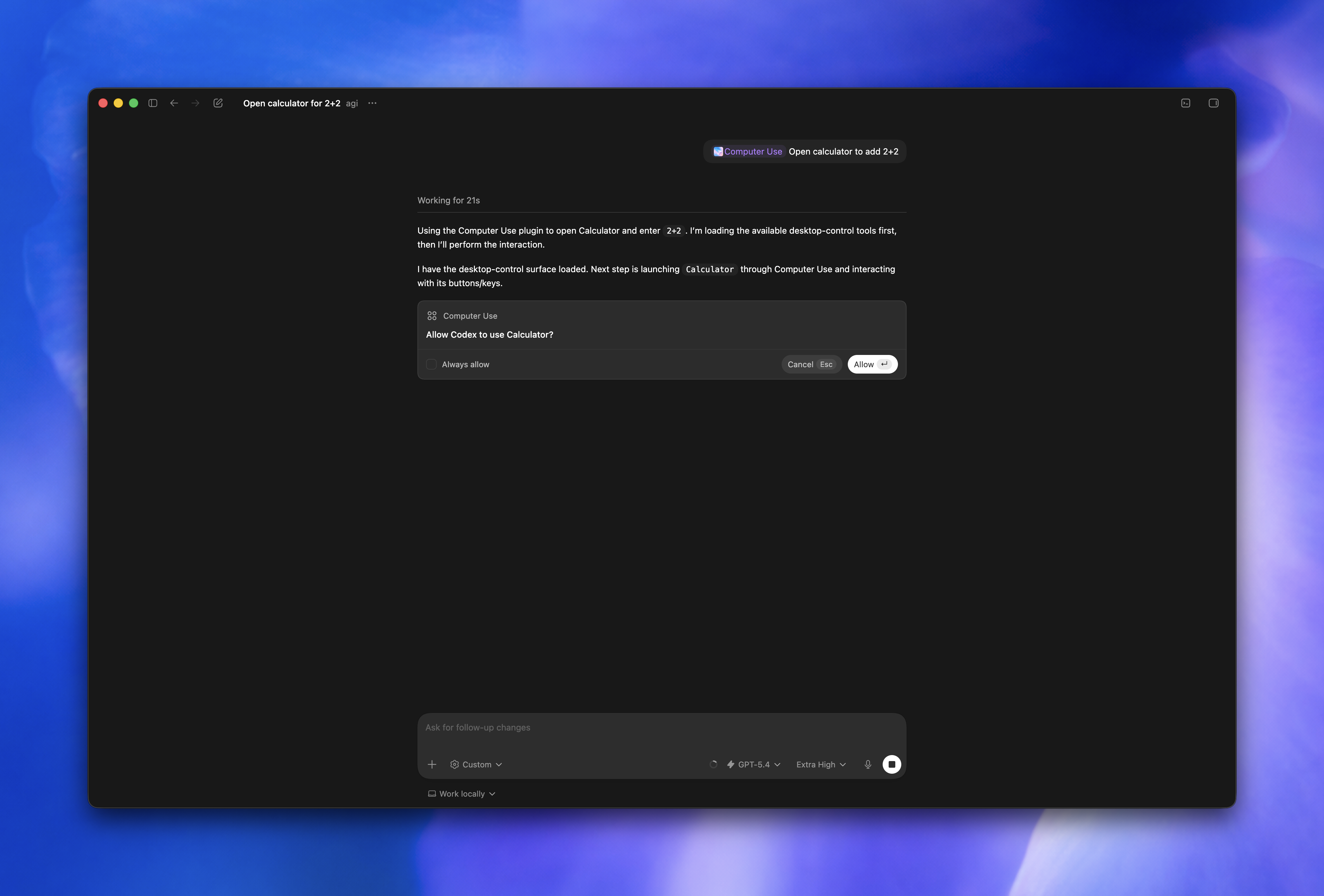
Codex may also ask for permission before taking sensitive or disruptive actions.
If Codex can’t see or control an app, open System Settings > Privacy & Security and check Screen Recording and Accessibility for the Codex app on macOS. On Windows, make sure the target app is visible in the active desktop session.
Locked use
Locked use is for macOS. On Windows, computer use works in the foreground.
Locked computer use lets Codex use Computer Use after your Mac locks, but only after you enable it. Use it when a Codex task needs to use desktop apps from a connected device after the Mac locks.
When you enable locked computer use, Codex installs an Apple authorization plug-in that participates in the macOS unlock flow.
Locked use is intentionally narrow. It’s not a general-purpose remote-unlock path for your Mac, and it doesn’t let other apps or local processes unlock the computer.
To use locked computer use:
- Open Codex settings > Computer Use.
- Enable locked computer use.
- Start a task that uses computer use from a connected device after your Mac’s screen has locked.
When a Codex task accesses an app via Computer Use after your Mac locks, Codex temporarily unlocks the Mac while blocking local use and preserving the locked screen protections. Before unlocking, Codex checks whether the unlock attempt is for an active, trusted computer use turn. Outside that short-lived window, Codex denies the unlock and asks you to unlock manually if needed.
Locked use includes safeguards:
- The authorization window is short-lived and scoped to the current unlock attempt.
- Automatic unlock is available only to Codex during active computer use turns.
- Codex covers every display while the desktop is temporarily unlocked.
- If Codex detects local keyboard or pointer input, it relocks the Mac and pauses automatic unlock until you unlock it manually.
Safety guidance
With computer use, Codex can view screen content, take screenshots, and interact with windows, menus, keyboard input, and clipboard state in the target app. Treat visible app content, browser pages, screenshots, and files opened in the target app as context Codex may process while the task runs.
Keep tasks narrow and stay present for sensitive flows:
- Give Codex one clear target app or flow at a time.
- You can stop the task or take over your computer at any time.
- Keep sensitive apps closed unless they’re required for the task.
- On Windows, expect Codex to take over foreground input while it works; use a secondary device, a VM, or stop the task before using that desktop yourself.
- Avoid tasks that require secrets unless you’re present and can approve each step.
- Review app permission prompts before allowing Codex to use an app.
- Use Always allow only for apps you trust Codex to use automatically in future tasks.
- Stay present for account, security, privacy, network, payment, or credential-related settings.
- Cancel the task if Codex starts interacting with the wrong window.
If Codex uses your browser, it can interact with pages where you’re already signed in. Review website actions as if you were taking them yourself: web pages can contain malicious or misleading content, and sites may treat approved clicks, form submissions, and signed-in actions as coming from your account. To keep using your browser while Codex works, ask Codex to use a different browser.
The feature can’t automate terminal apps or Codex itself, since automating them could bypass Codex security policies. It also can’t authenticate as an administrator or approve security and privacy permission prompts on your computer.
File edits and shell commands still follow Codex approval and sandbox settings where applicable. Changes made through desktop apps may not appear in the review pane until they’re saved to disk and tracked by the project. Your ChatGPT data controls apply to content processed through Codex, including screenshots taken by computer use.