
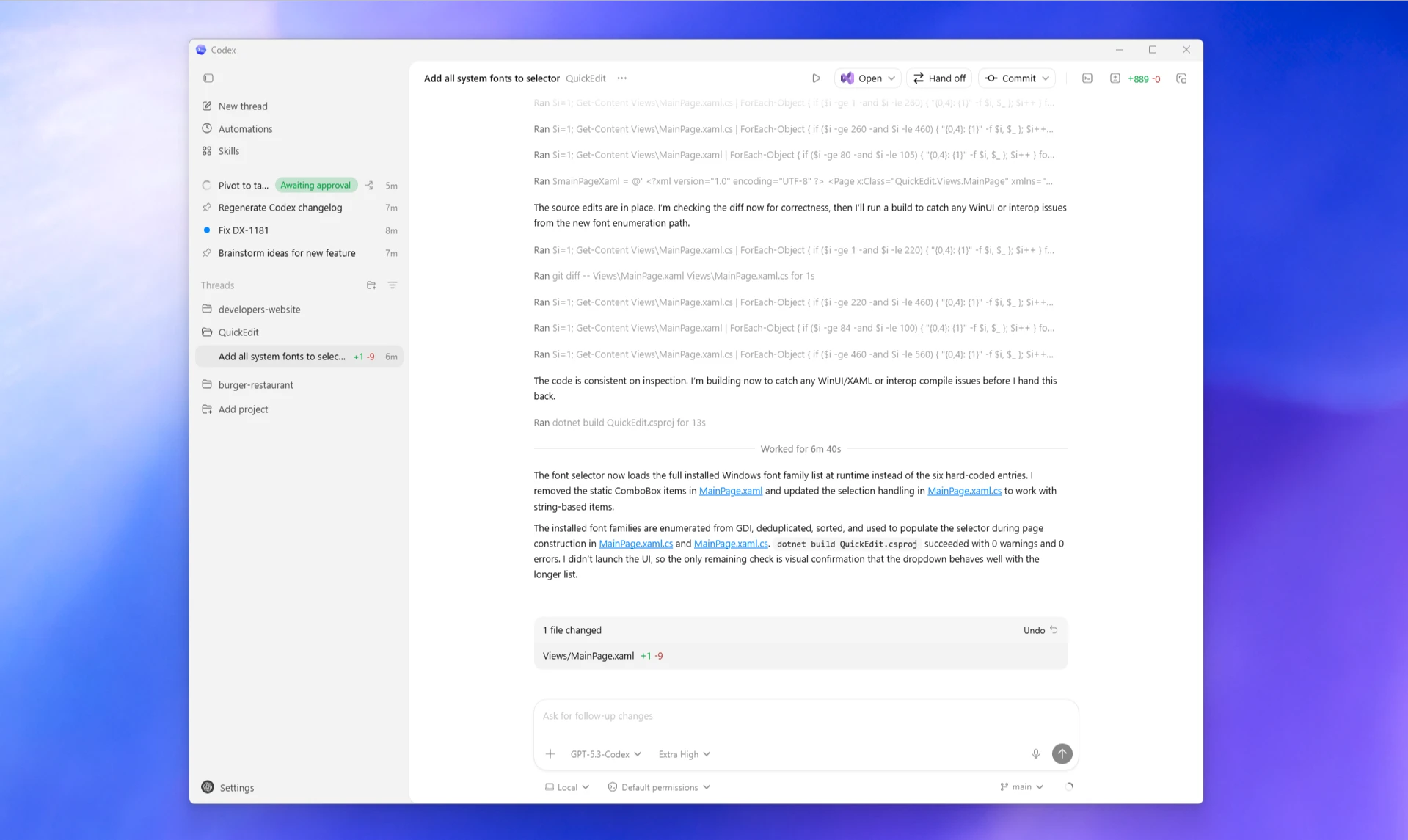
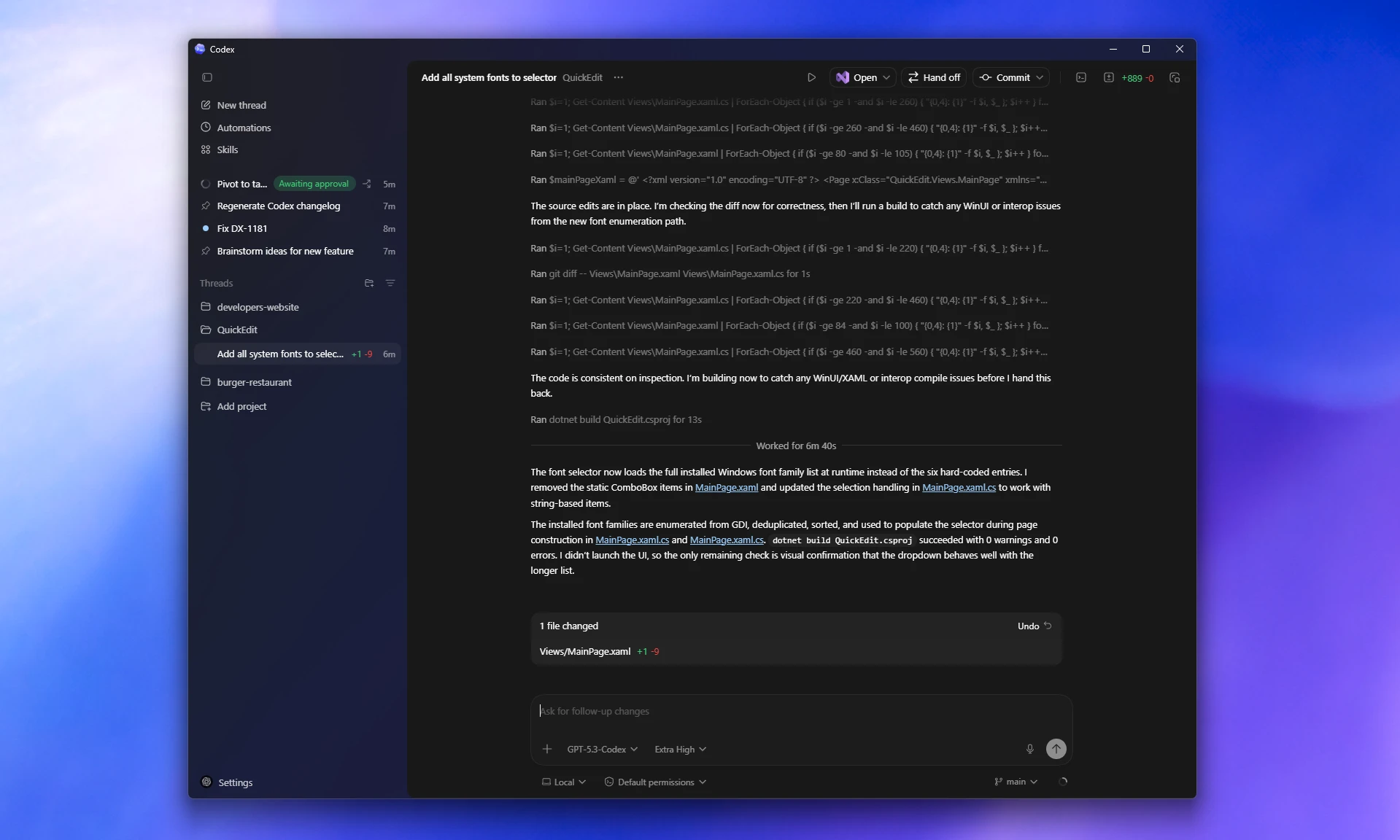
The Codex app for Windows gives you one interface for working across projects, running parallel agent threads, and reviewing results. The Windows app supports core workflows such as worktrees, automations, Git functionality, the in-app browser, artifact previews, plugins, and skills. It runs natively on Windows using PowerShell and the Windows sandbox, or you can configure it to run in Windows Subsystem for Linux 2 (WSL2).
Download and update the Codex app
Download the Codex app from the Microsoft Store.
Then follow the quickstart to get started.
To update the app, open the Microsoft Store, go to Downloads, and click Check for updates. The Store installs the latest version afterward.
For enterprises, administrators can deploy the app with Microsoft Store app distribution through enterprise management tools.
If you prefer a command-line install path, or need an alternative to opening the Microsoft Store UI, run:
winget install Codex -s msstoreNative sandbox
The Codex app on Windows supports a native Windows sandbox when the agent runs in PowerShell, and uses Linux sandboxing when you run the agent in Windows Subsystem for Linux 2 (WSL2). To apply sandbox protections in either mode, set sandbox permissions to Default permissions in the Composer before sending messages to Codex.
Running Codex in full access mode means Codex is not limited to your project directory and might perform unintentional destructive actions that can lead to data loss. Keep sandbox boundaries in place and use rules for targeted exceptions, or set your approval policy to never to have Codex attempt to solve problems without asking for escalated permissions, based on your approval and security setup.
Customize for your dev setup
Preferred editor
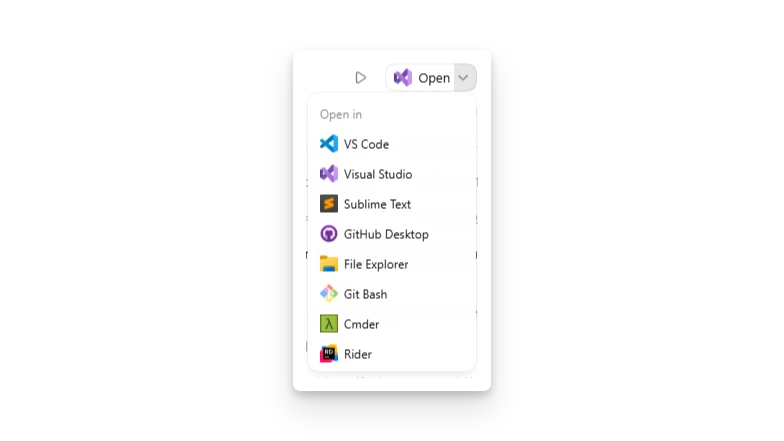
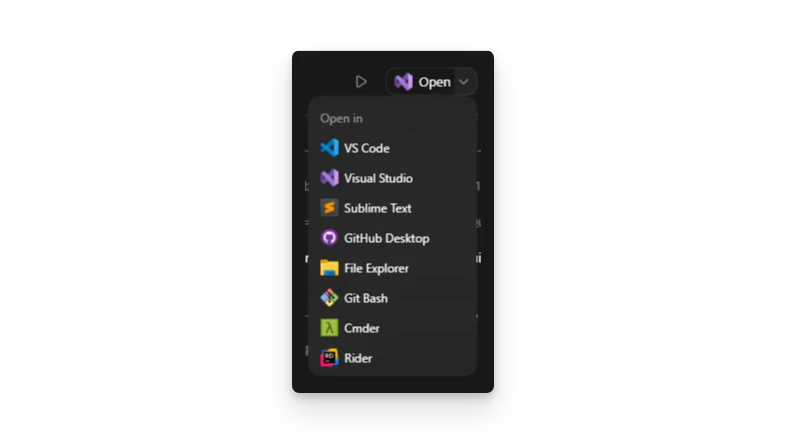
Choose a default app for Open, such as Visual Studio, VS Code, or another editor. You can override that choice per project. If you already picked a different app from the Open menu for a project, that project-specific choice takes precedence.
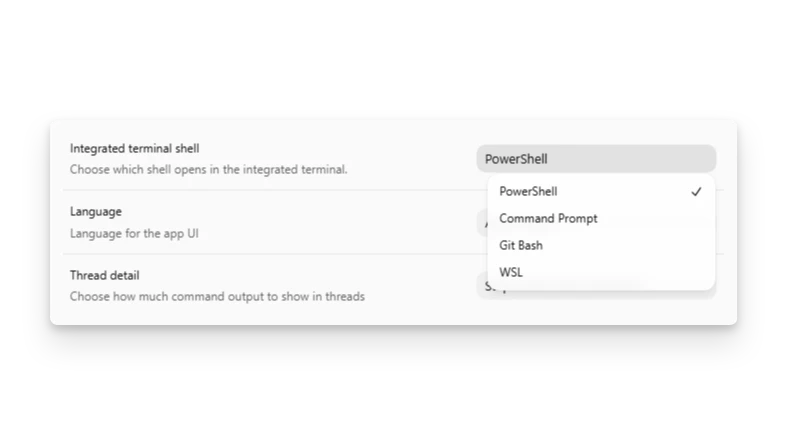
Integrated terminal
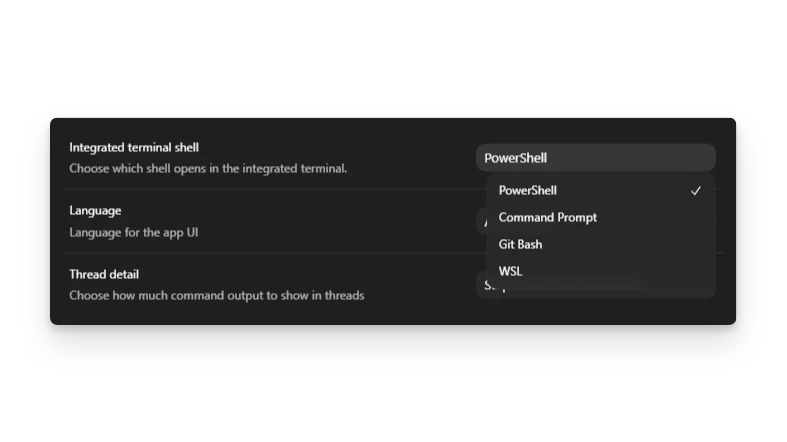
You can also choose the default integrated terminal. Depending on what you have installed, options include:
- PowerShell
- Command Prompt
- Git Bash
- WSL
This change applies only to new terminal sessions. If you already have an integrated terminal open, restart the app or start a new thread before expecting the new default terminal to appear.
Windows Subsystem for Linux (WSL)
By default, the Codex app uses the Windows-native agent. That means the agent
runs commands in PowerShell. The app can still work with projects that live in
Windows Subsystem for Linux 2 (WSL2) by using the wsl CLI when needed.
If you want to add a project from the WSL filesystem, click Add new project
or press Ctrl+O, then type \\wsl$\ into the File
Explorer window. From there, choose your Linux distribution and the folder you
want to open.
If you plan to keep using the Windows-native agent, prefer storing projects on
your Windows filesystem and accessing them from WSL through
/mnt/<drive>/.... This setup is more reliable than opening projects
directly from the WSL filesystem.
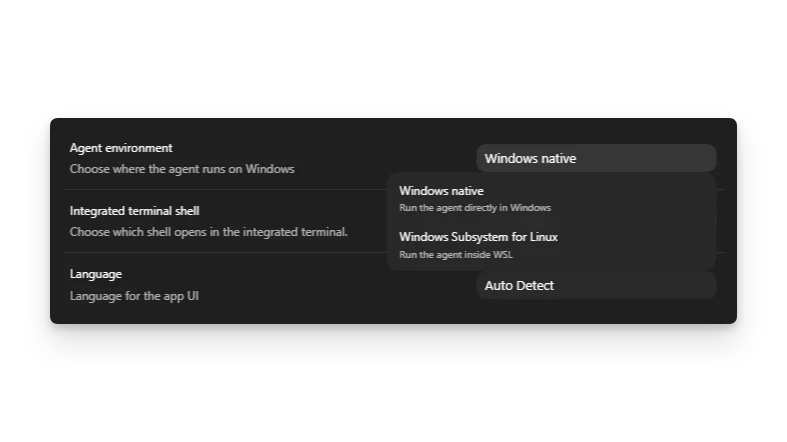
If you want the agent itself to run in WSL2, open Settings, switch the agent from Windows native to WSL, and restart the app. The change doesn’t take effect until you restart. Your projects should remain in place after restart.
WSL1 was supported through Codex 0.114. Starting in Codex 0.115, the Linux
sandbox moved to bubblewrap, so WSL1 is no longer supported.
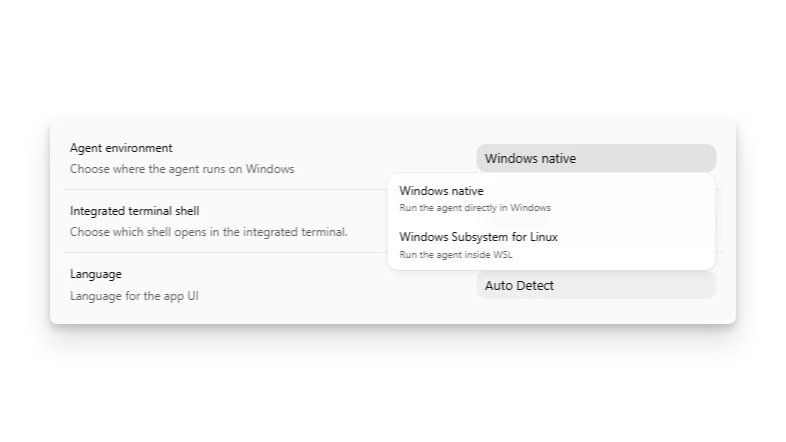
You configure the integrated terminal independently from the agent. See Customize for your dev setup for the terminal options. You can keep the agent in WSL and still use PowerShell in the terminal, or use WSL for both, depending on your workflow.
Useful developer tools
Codex works best when a few common developer tools are already installed:
- Git: Powers the review panel in the Codex app and lets you inspect or revert changes.
- Node.js: A common tool that the agent uses to perform tasks more efficiently.
- Python: A common tool that the agent uses to perform tasks more efficiently.
- .NET SDK: Useful when you want to build native Windows apps.
- GitHub CLI: Powers GitHub-specific functionality in the Codex app.
Install them with the default Windows package manager winget by pasting this
into the integrated terminal or
asking Codex to install them:
winget install --id Git.Git
winget install --id OpenJS.NodeJS.LTS
winget install --id Python.Python.3.14
winget install --id Microsoft.DotNet.SDK.10
winget install --id GitHub.cli
After installing GitHub CLI, run gh auth login to enable GitHub features in
the app.
If you need a different Python or .NET version, change the package IDs to the version you want.
Troubleshooting and FAQ
Run commands with elevated permissions
If you need Codex to run commands with elevated permissions, start the Codex app itself as an administrator. After installation, open the Start menu, find Codex, and choose Run as administrator. The Codex agent inherits that permission level.
PowerShell execution policy blocks commands
If you have never used tools such as Node.js or npm in PowerShell before, the
Codex agent or integrated terminal may hit execution policy errors.
This can also happen if Codex creates PowerShell scripts for you. In that case, you may need a less restrictive execution policy before PowerShell will run them.
An error may look something like this:
npm.ps1 cannot be loaded because running scripts is disabled on this system.A common fix is to set the execution policy to RemoteSigned:
Set-ExecutionPolicy -ExecutionPolicy RemoteSignedFor details and other options, check Microsoft’s execution policy guide before changing the policy.
Local environment scripts on Windows
If your local environment uses cross-platform
commands such as npm scripts, you can keep one shared setup script or
set of actions for every platform.
If you need Windows-specific behavior, create Windows-specific setup scripts or Windows-specific actions.
Actions run in the environment used by your integrated terminal. See Customize for your dev setup.
Local setup scripts run in the agent environment: WSL if the agent uses WSL, and PowerShell otherwise.
Share config, auth, and sessions with WSL
The Windows app uses the same Codex home directory as native Codex on Windows:
%USERPROFILE%\.codex.
If you also run the Codex CLI inside WSL, the CLI uses the Linux home directory by default, so it doesn’t automatically share configuration, cached auth, or session history with the Windows app.
To share them, use one of these approaches:
- Sync WSL
~/.codexwith%USERPROFILE%\.codexon your file system. - Point WSL at the Windows Codex home directory by setting
CODEX_HOME:
export CODEX_HOME=/mnt/c/Users/<windows-user>/.codexIf you want that setting in every shell, add it to your WSL shell profile, such
as ~/.bashrc or ~/.zshrc.
Git features are unavailable
If you don’t have Git installed natively on Windows, the app can’t use some
features. Install it with winget install Git.Git from PowerShell or cmd.exe.
Git isn’t detected for projects opened from \\wsl$
For now, if you want to use the Windows-native agent with a project also
accessible from WSL, the most reliable workaround is to store the project
on the native Windows drive and access it in WSL through /mnt/<drive>/....
Cmder isn’t listed in the open dialog
If Cmder is installed but doesn’t show in Codex’s open dialog, add it to the
Windows Start Menu: right-click Cmder and choose Add to Start, then
restart Codex or reboot.