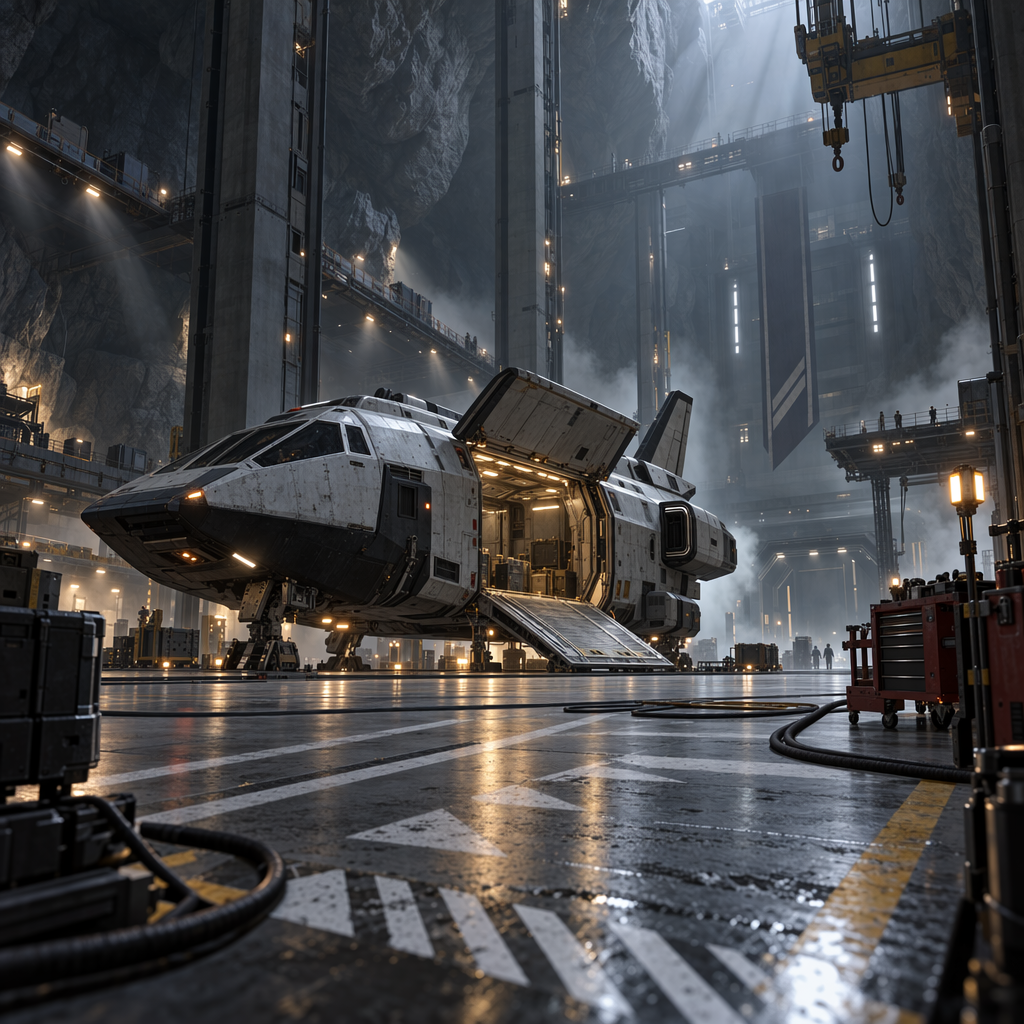
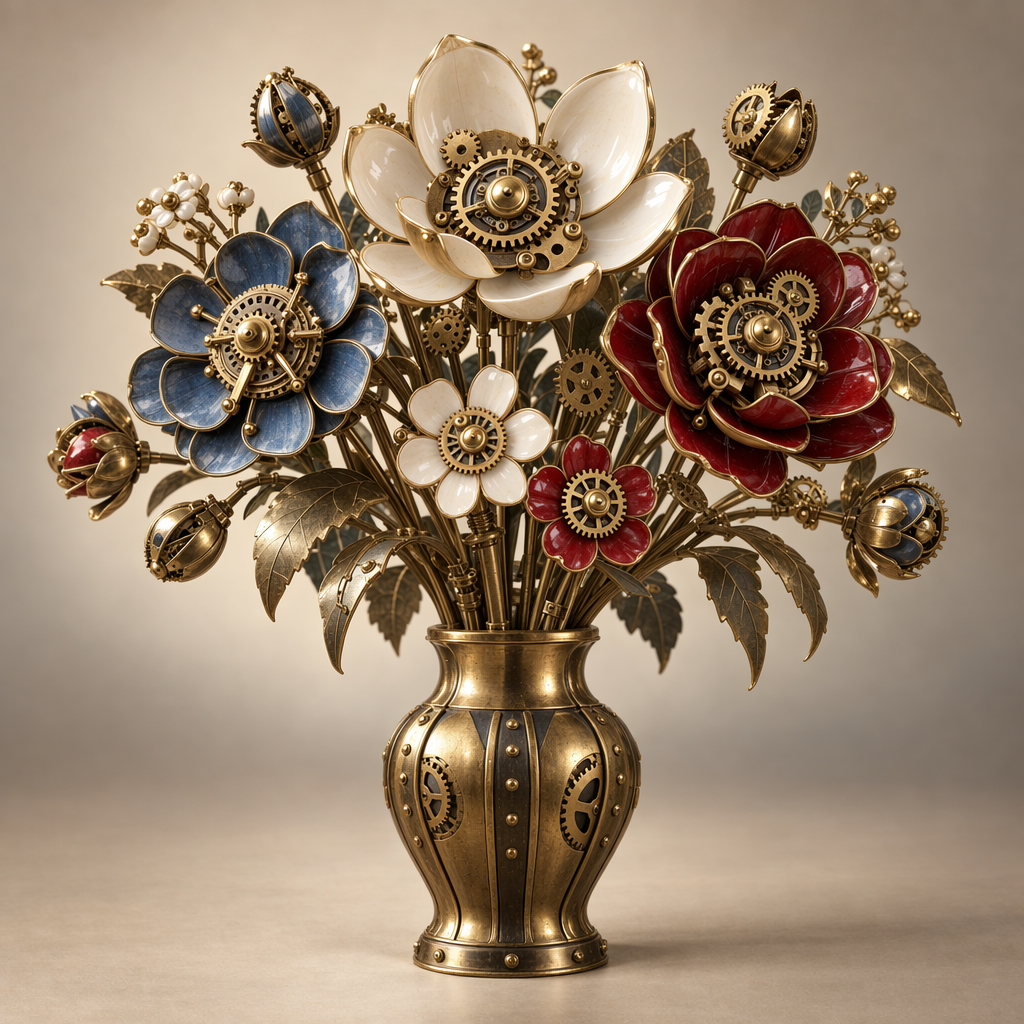
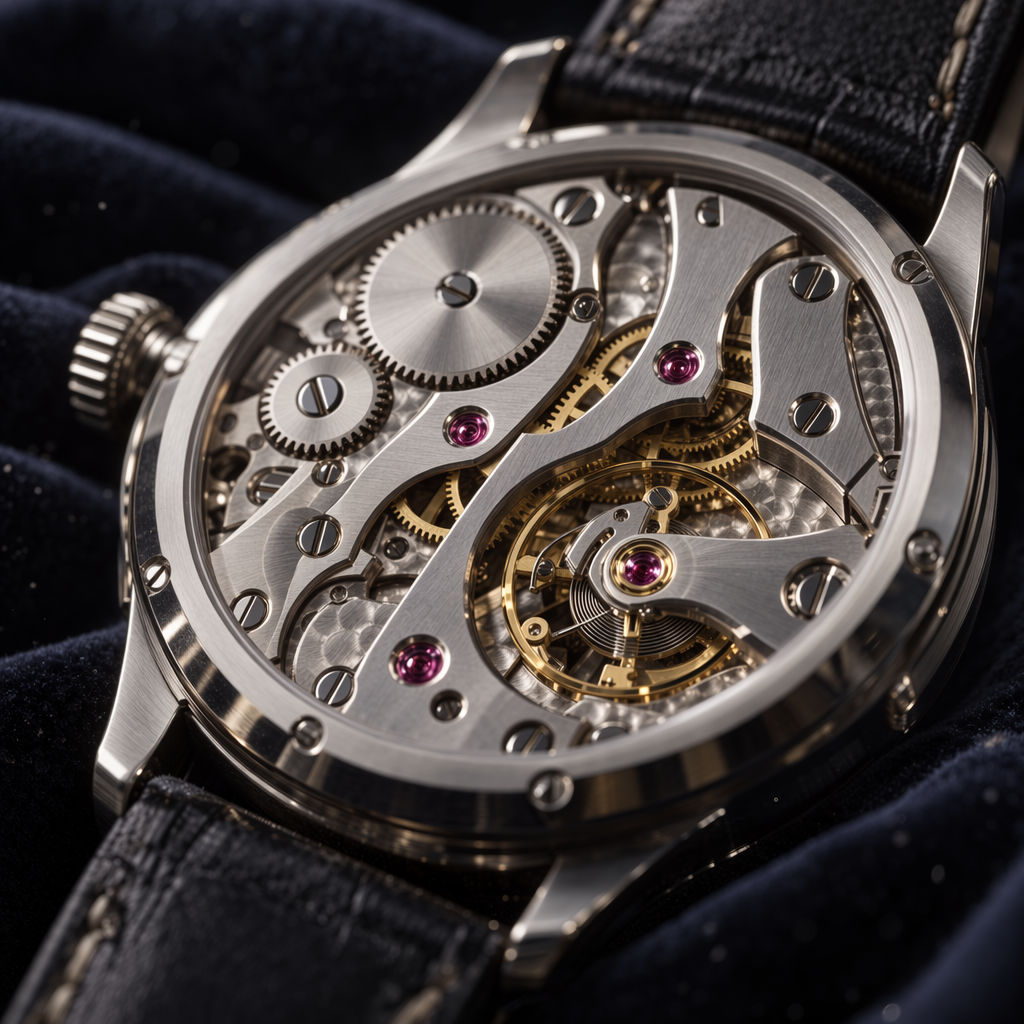
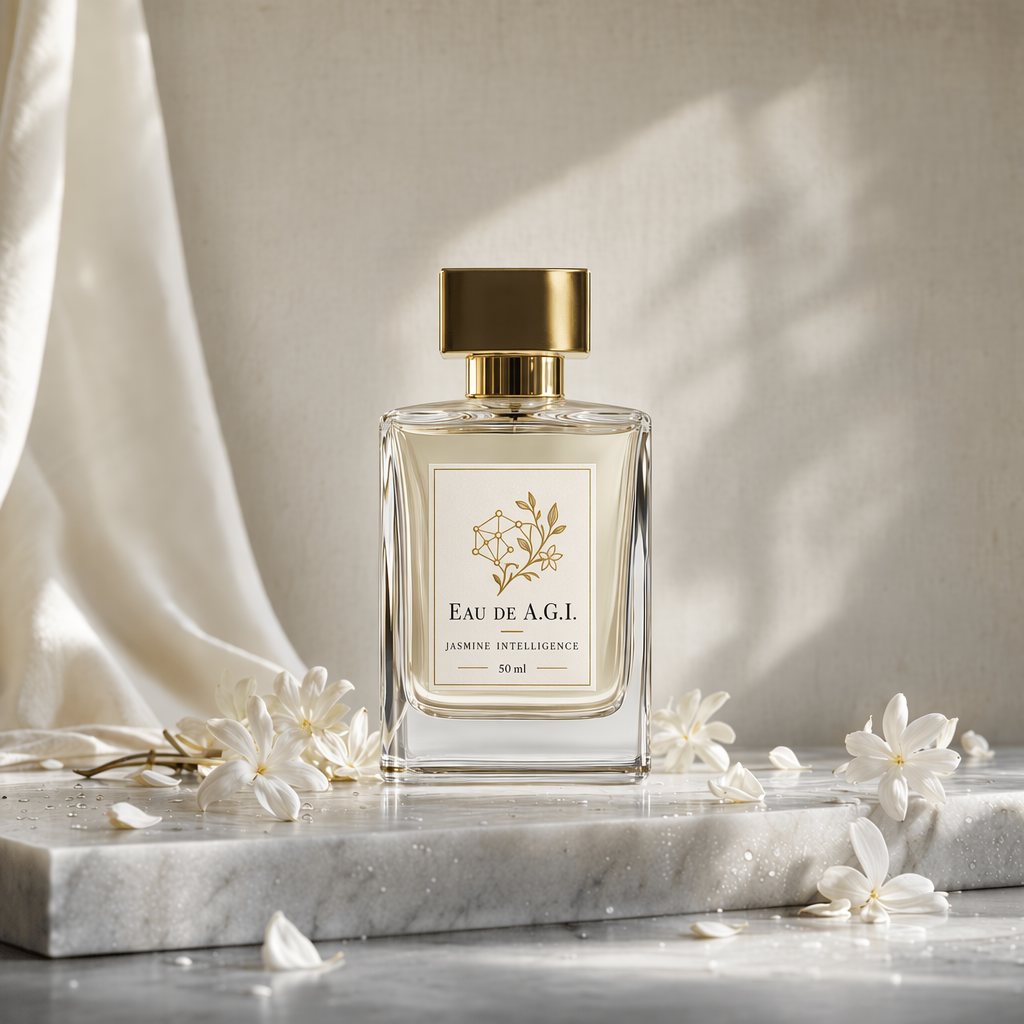
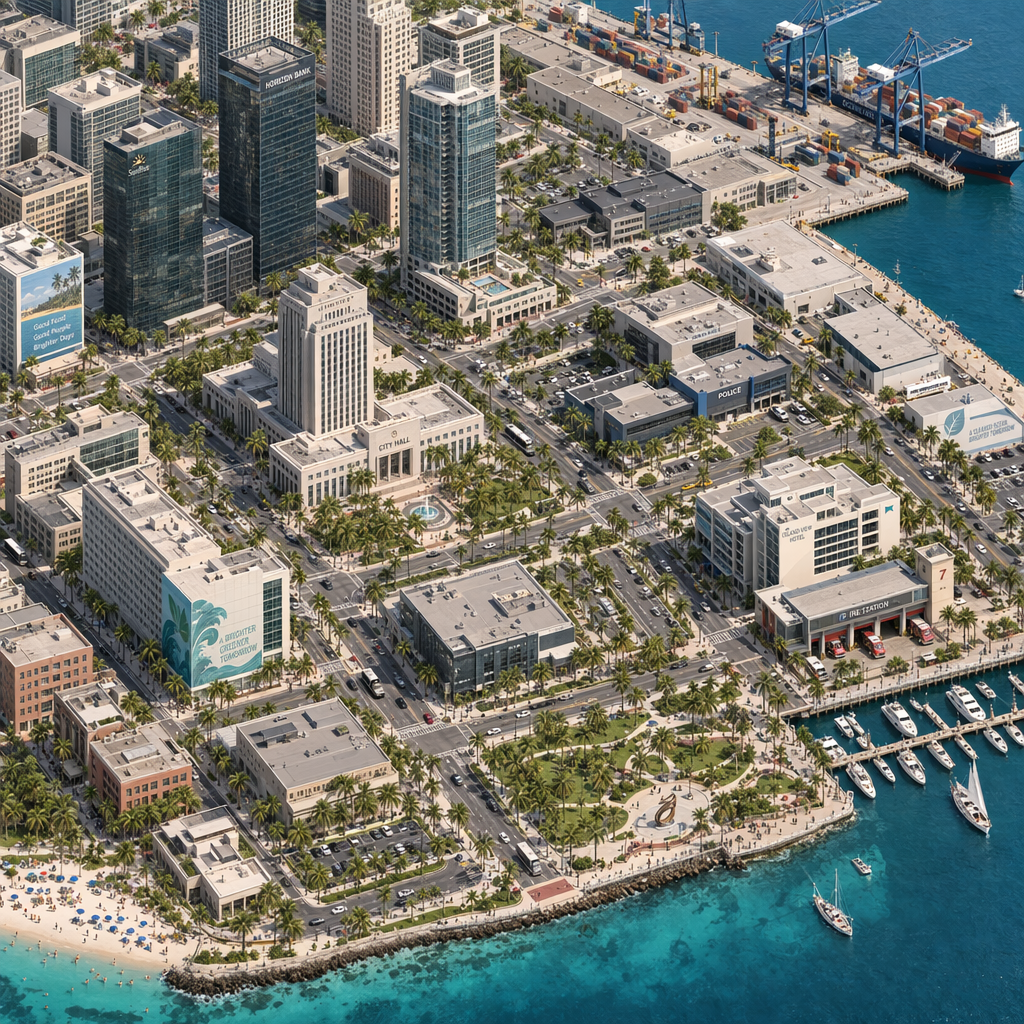
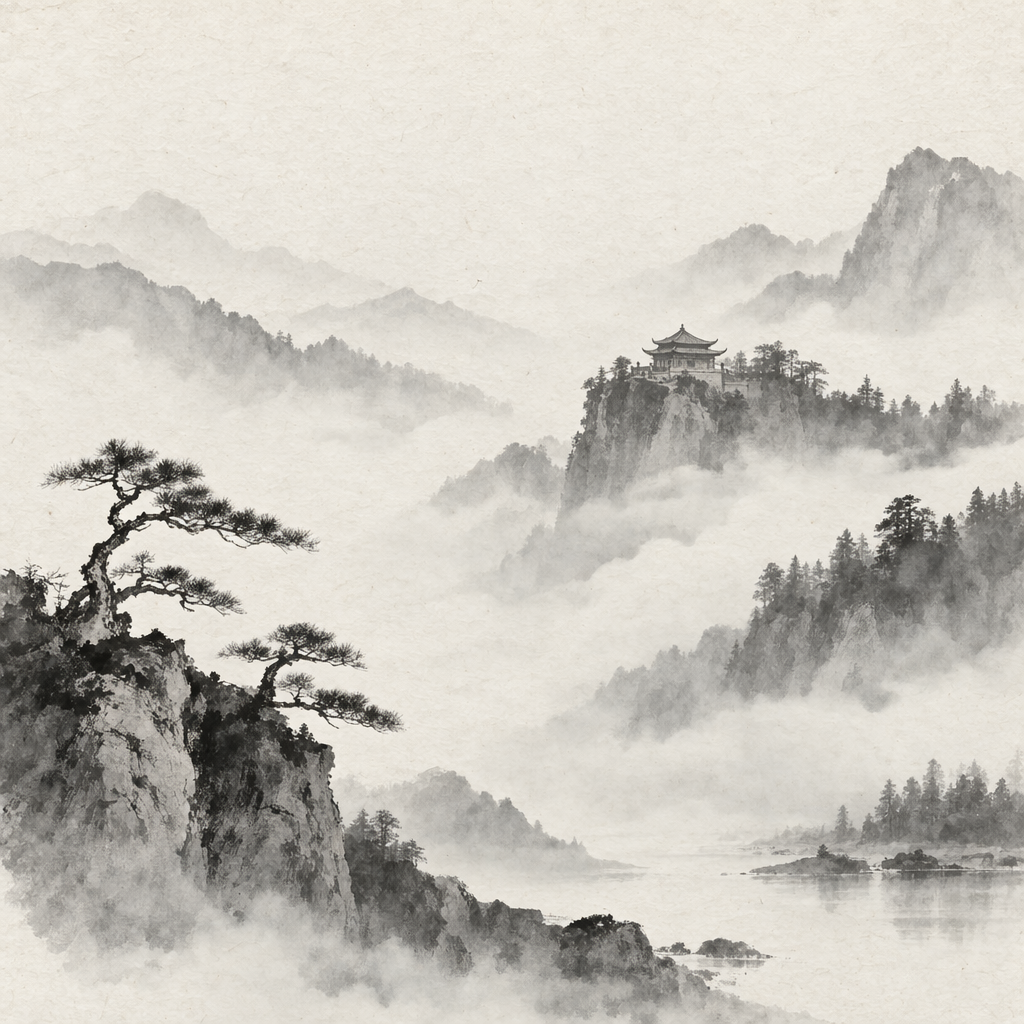
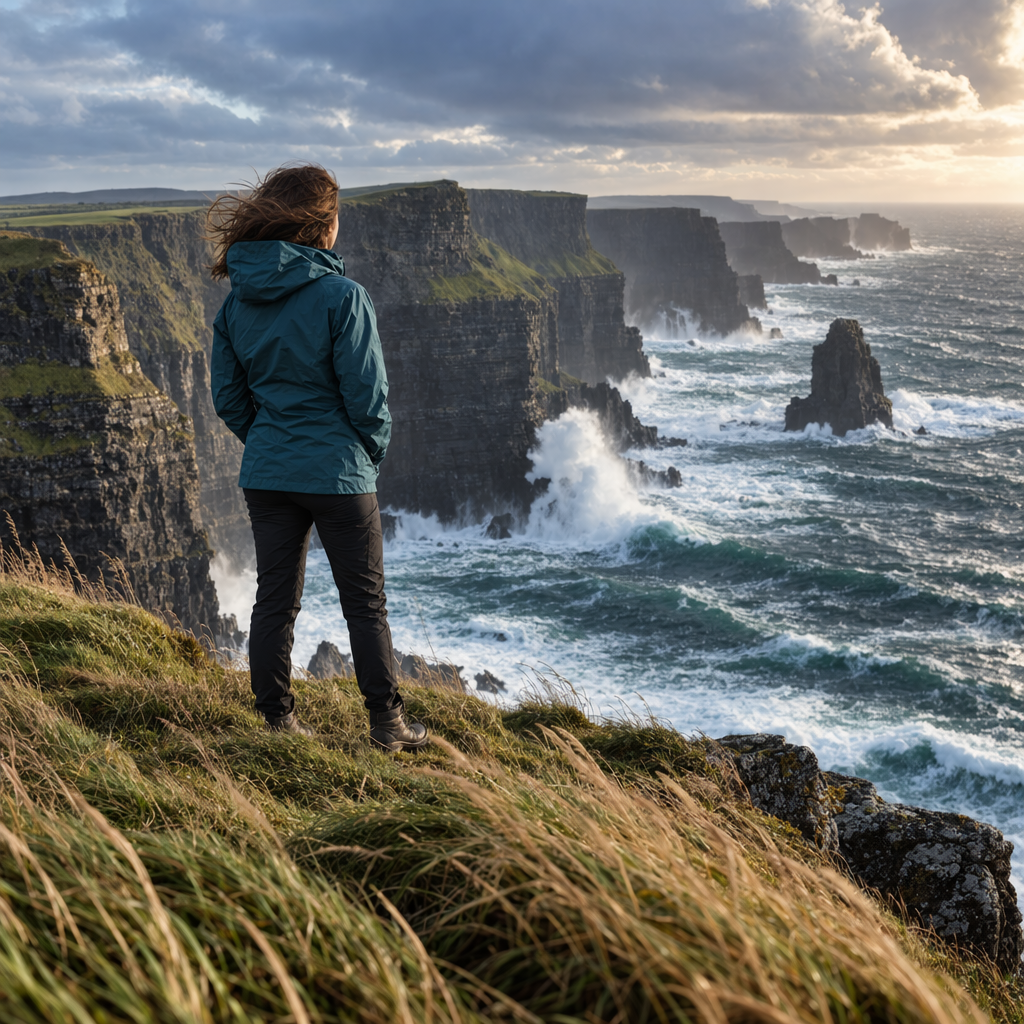
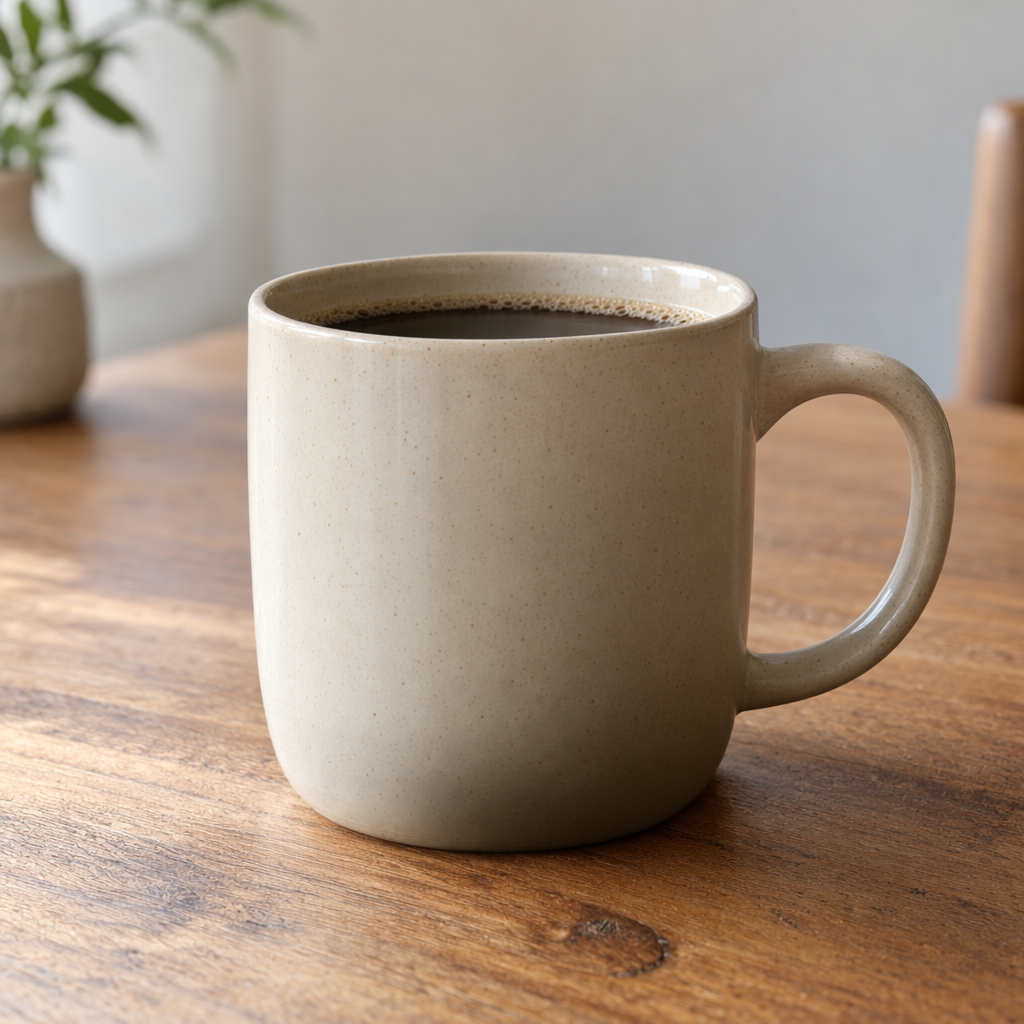
使用 Image API 時,直接將 model 設為 gpt-image-2.5-sunburst 或 gpt-image-2.5-flare。使用 Responses API 時,請在最上層選擇支援的主系列模型,並在圖像生成工具的 model 欄位中指定 gpt-image-2.5-sunburst 或 gpt-image-2.5-flare。
1
2
3
4
5
6
7
8
9
10
11
12
13
14
15
16
17
18import OpenAI from "openai";import fs from "fs";const openai = new OpenAI();const prompt = `A children's book drawing of a veterinarian using a stethoscope tolisten to the heartbeat of a baby otter.`;const result = await openai.images.generate({ model: "gpt-image-2.5-sunburst", prompt,});// Save the image to a fileconst image_base64 = result.data[0].b64_json;const image_bytes = Buffer.from(image_base64, "base64");fs.writeFileSync("otter.png", image_bytes);
1
2
3
4
5
6
7
8
9
10
11
12
13
14
15
16
17
18from openai import OpenAIimport base64client = OpenAI()prompt ="""A children's book drawing of a veterinarian using a stethoscope tolisten to the heartbeat of a baby otter."""result = client.images.generate(model="gpt-image-2.5-sunburst", prompt=prompt)image_base64 = result.data[0].b64_jsonimage_bytes = base64.b64decode(image_base64)# Save the image to a filewithopen("otter.png", "wb") as f: f.write(image_bytes)
1
2
3
4
5
6
7
8
9
10
11
12
13
14
15
16
17
18
19
20
21
22
23
24
25
26
27
28package mainimport ( "context" "encoding/base64" "os" "github.com/openai/openai-go/v3")func main() { client := openai.NewClient() result, err := client.Images.Generate(context.Background(), openai.ImageGenerateParams{ Model: openai.ImageModel("gpt-image-2.5-sunburst"), Prompt: "A children's book drawing of a veterinarian using a stethoscope to " + "listen to the heartbeat of a baby otter.", }) if err != nil { panic(err) } image, err := base64.StdEncoding.DecodeString(result.Data[0].B64JSON) if err != nil { panic(err) } if err := os.WriteFile("otter.png", image, 0o600); err != nil { panic(err) }}
1
2
3
4
5
6
7
8
9
10
11
12using OpenAI.Images;string key = Environment.GetEnvironmentVariable("OPENAI_API_KEY")!;string model = "gpt-image-2.5-sunburst";ImageClient client = new(model, key);GeneratedImage image = await client.GenerateImageAsync( "A children's book drawing of a veterinarian using a stethoscope to " + "listen to the heartbeat of a baby otter.");await File.WriteAllBytesAsync("otter.png", image.ImageBytes.ToArray());
1
2
3
4
5
6
7
8
9
10
11
12
13require "base64"require "openai"client = OpenAI::Client.newresult = client.images.generate( model: "gpt-image-2.5-sunburst", prompt: "A watercolor robot reading in a library")generated_image = result.data&.first or raise "No image returned"File.binwrite( "generated-image.png", Base64.strict_decode64(generated_image.b64_json))
1
2
3
4
5
6
7curl -X POST "https://api.openai.com/v1/images/generations" \
    -H "Authorization: Bearer $OPENAI_API_KEY" \
    -H "Content-type: application/json" \
    -d '{
        "model": "gpt-image-2.5-sunburst",
        "prompt": "A children'\''s book drawing of a veterinarian using a stethoscope to listen to the heartbeat of a baby otter."
    }' | jq -r '.data[0].b64_json' | base64 --decode > otter.png
1
2
3
4
5openai images generate \
  --model gpt-image-2.5-sunburst \
  --prompt "A children's book drawing of a veterinarian using a stethoscope to listen to the heartbeat of a baby otter." \
  --raw-output \
  --transform 'data.0.b64_json' | base64 --decode > otter.png
Responses API
生成圖像
Python
1
2
3
4
5
6
7
8
9
10
11
12
13
14
15
16
17
18
19
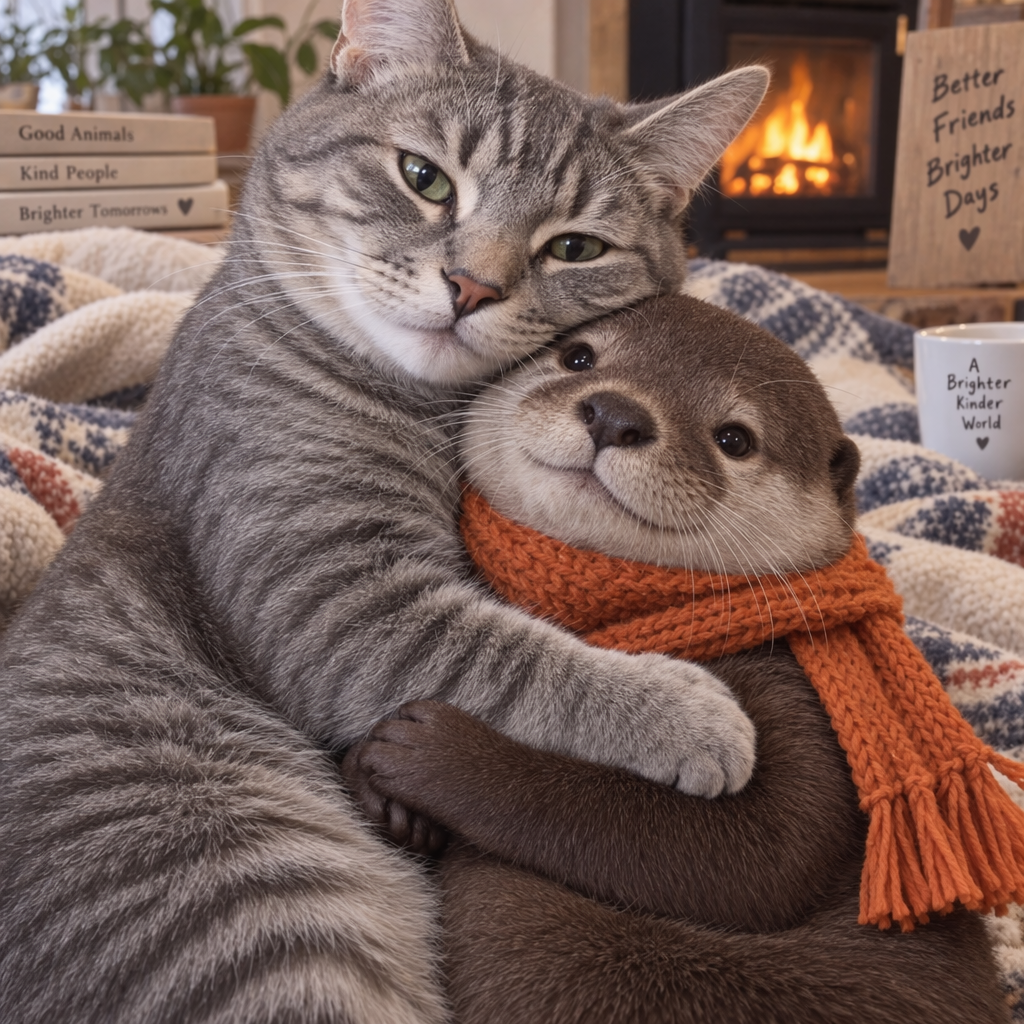
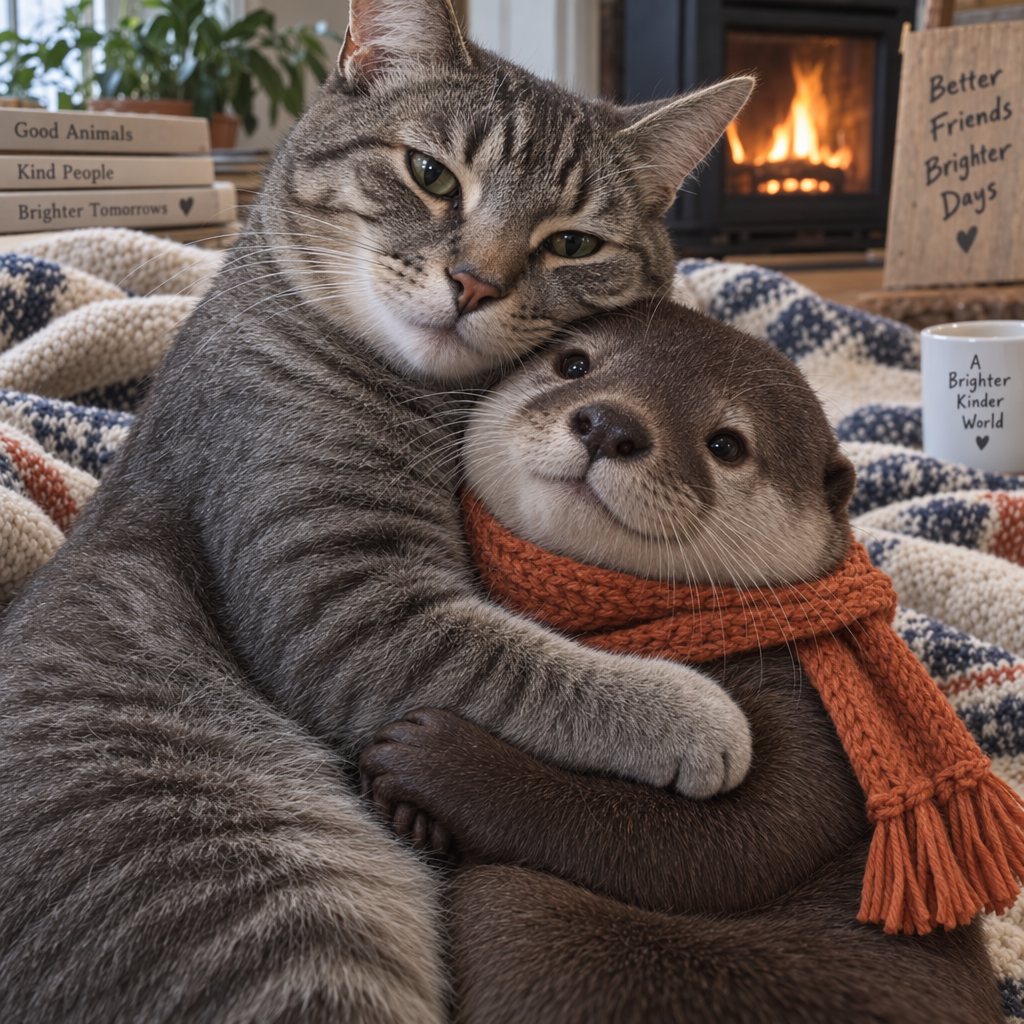
20import OpenAI from "openai";const openai = new OpenAI();const response = await openai.responses.create({ model: "gpt-6-astra", input: "Generate an image of gray tabby cat hugging an otter with an orange scarf", tools: [{ type: "image_generation", model: "gpt-image-2.5-sunburst" }],});// Save the image to a fileconst imageData = response.output .filter((output) => output.type === "image_generation_call") .map((output) => output.result);if (imageData.length > 0) { const imageBase64 = imageData[0]; const fs = await import("fs"); fs.writeFileSync("otter.png", Buffer.from(imageBase64, "base64"));}
1
2
3
4
5
6
7
8
9
10
11
12
13
14
15
16
17
18
19
20
21
22from openai import OpenAIimport base64client = OpenAI()response = client.responses.create(model="gpt-6-astra",input="Generate an image of gray tabby cat hugging an otter with an orange scarf",tools=[{"type": "image_generation", "model": "gpt-image-2.5-sunburst"}],)# Save the image to a fileimage_data = [ output.resultfor output in response.outputif output.type =="image_generation_call"]if image_data: image_base64 = image_data[0]withopen("otter.png", "wb") as f: f.write(base64.b64decode(image_base64))
1
2
3
4
5
6
7
8
9
10
11
12
13
14
15
16
17
18
19
20
21
22
23
24
25
26
27
28
29
30
31
32
33
34
35
36
37
38
39
40
41
42package mainimport ( "context" "encoding/base64" "os" "github.com/openai/openai-go/v3" "github.com/openai/openai-go/v3/responses")func main() { client := openai.NewClient() response, err := client.Responses.New(context.Background(), responses.ResponseNewParams{ Model: "gpt-6-astra", Input: responses.ResponseNewParamsInputUnion{ OfString: openai.String("Generate an image of gray tabby cat hugging an otter with an orange scarf"), }, Tools: []responses.ToolUnionParam{{OfImageGeneration: &responses.ToolImageGenerationParam{Model: "gpt-image-2.5-sunburst"}}}, }) if err != nil { panic(err) } saveFirstGeneratedImage(response, "otter.png")}func saveFirstGeneratedImage(response *responses.Response, filename string) { for _, output := range response.Output { if output.Type != "image_generation_call" { continue } image, err := base64.StdEncoding.DecodeString(output.AsImageGenerationCall().Result) if err != nil { panic(err) } if err := os.WriteFile(filename, image, 0o600); err != nil { panic(err) } return } panic("response did not include an image generation call")}
1
2
3
4
5
6
7
8
9
10
11
12
13
14
15
16
17
18
19
20using OpenAI.Responses;#pragma warning disable OPENAI001string key = Environment.GetEnvironmentVariable("OPENAI_API_KEY")!;ResponsesClient client = new(key);CreateResponseOptions options = new() { Model = "gpt-6-astra" };options.InputItems.Add( ResponseItem.CreateUserMessageItem( "Generate an image of a gray tabby cat hugging an otter with an orange scarf." ));options.Tools.Add(ResponseTool.CreateImageGenerationTool(model: "gpt-image-2.5-sunburst"));ResponseResult response = await client.CreateResponseAsync(options);ImageGenerationCallResponseItem image = response .OutputItems.OfType<ImageGenerationCallResponseItem>() .FirstOrDefault() ?? throw new InvalidOperationException("No generated image was returned.");await File.WriteAllBytesAsync("otter.png", image.ImageResultBytes.ToArray());
1
2
3
4
5
6
7
8
9
10
11
12
13
14
15
16
17
18
19
20
21
22
23
24require "base64"require "openai"client = OpenAI::Client.newresponse = client.responses.create( model: "gpt-6-astra", input: "Generate an image of a gray tabby cat hugging an otter with an orange scarf.", tools: [ { type: :image_generation, model: "gpt-image-2.5-sunburst" } ])image_call = response.output.find do |item| item.is_a?(OpenAI::Models::Responses::ResponseOutputItem::ImageGenerationCall)endunless image_call.is_a?(OpenAI::Models::Responses::ResponseOutputItem::ImageGenerationCall) raise "No image generation call returned"endencoded_image = image_call.result or raise "No image returned"File.binwrite("otter.png", Base64.strict_decode64(encoded_image))
Responses API 和 Image API 都支援串流圖像生成。你可以在 API 生成圖像的過程中,以串流方式接收部分圖像,提供更具互動性的體驗。
你可以調整 partial_images 參數,接收 0–3 張部分圖像。
如果將 partial_images 設為 0,就只會收到最終圖像。
當設定值大於零時,如果完整圖像較快生成,你收到的部分圖像數量可能會少於請求的數量。
Responses API
以串流方式接收圖像
Python
1
2
3
4
5
6
7
8
9
10
11
12
13
14
15
16
17
18
19
20
21
22
23
24
25
26
27
28
29
30
31
32
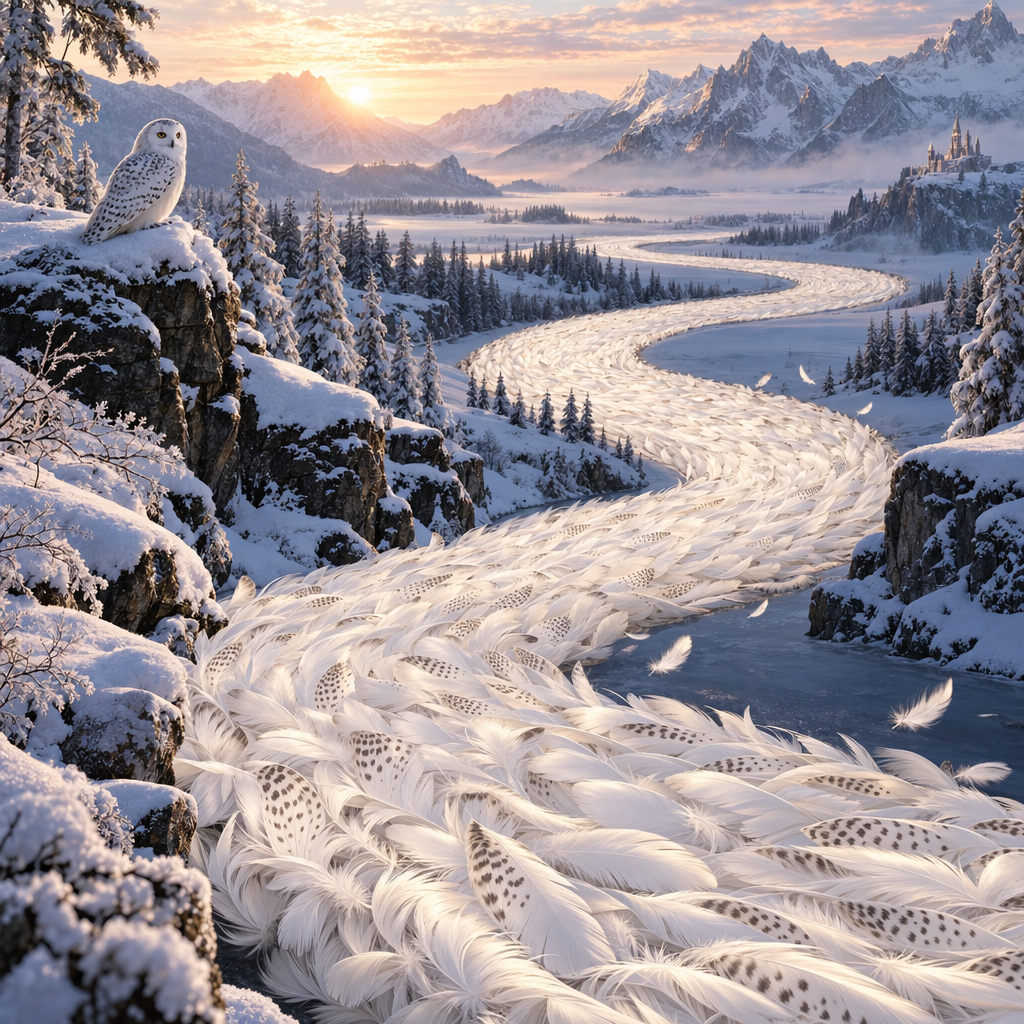
33import OpenAI from "openai";import fs from "fs";const openai = new OpenAI();function saveBase64Image(filename, imageBase64) { const imageBuffer = Buffer.from(imageBase64, "base64"); fs.writeFileSync(filename, imageBuffer);}const stream = await openai.responses.create({ model: "gpt-6-astra", input: "Draw a gorgeous image of a river made of white owl feathers, snaking its way through a serene winter landscape", stream: true, tools: [ { type: "image_generation", model: "gpt-image-2.5-sunburst", partial_images: 2 }, ],});for await (const event of stream) { if (event.type === "response.image_generation_call.partial_image") { const idx = event.partial_image_index; saveBase64Image(`river-partial-${idx}.png`, event.partial_image_b64); } else if (event.type === "response.completed") { const imageData = event.response.output .filter((output) => output.type === "image_generation_call") .map((output) => output.result); if (imageData.length > 0) { saveBase64Image("river-final.png", imageData[0]); } }}
1
2
3
4
5
6
7
8
9
10
11
12
13
14
15
16
17
18
19
20
21
22
23
24
25
26
27
28
29
30
31
32
33
34from openai import OpenAIimport base64client = OpenAI()defsave_base64_image(filename, image_base64): image_bytes = base64.b64decode(image_base64)withopen(filename, "wb") as f: f.write(image_bytes)stream = client.responses.create(model="gpt-6-astra",input="Draw a gorgeous image of a river made of white owl feathers, snaking its way through a serene winter landscape",stream=True,tools=[ {"type": "image_generation", "model": "gpt-image-2.5-sunburst", "partial_images": 2} ],)for event in stream:if event.type =="response.image_generation_call.partial_image": idx = event.partial_image_index save_base64_image(f"river-partial-{idx}.png", event.partial_image_b64)elif event.type =="response.completed": image_data = [ output.resultfor output in event.response.outputif output.type =="image_generation_call" ]if image_data: save_base64_image("river-final.png", image_data[0])
1
2
3
4
5
6
7
8
9
10
11
12
13
14
15
16
17
18
19
20
21
22
23
24
25
26
27
28
29
30
31
32
33
34
35
36
37
38
39
40
41
42
43
44
45
46
47
48
49package mainimport ( "context" "encoding/base64" "fmt" "os" "github.com/openai/openai-go/v3" "github.com/openai/openai-go/v3/responses")func main() { client := openai.NewClient() stream := client.Responses.NewStreaming(context.Background(), responses.ResponseNewParams{ Model: "gpt-6-astra", Input: responses.ResponseNewParamsInputUnion{ OfString: openai.String("Draw a gorgeous image of a river made of white owl feathers, snaking its way through a serene winter landscape"), }, Tools: []responses.ToolUnionParam{{OfImageGeneration: &responses.ToolImageGenerationParam{Model: "gpt-image-2.5-sunburst", PartialImages: openai.Int(2)}}}, }) for stream.Next() { event := stream.Current() if event.Type == "response.image_generation_call.partial_image" { partial := event.AsResponseImageGenerationCallPartialImage() saveImage(fmt.Sprintf("river-partial-%d.png", partial.PartialImageIndex), partial.PartialImageB64) } if event.Type == "response.completed" { for _, output := range event.AsResponseCompleted().Response.Output { if output.Type == "image_generation_call" { saveImage("river-final.png", output.AsImageGenerationCall().Result) } } } } if err := stream.Err(); err != nil { panic(err) }}func saveImage(filename, encoded string) { image, err := base64.StdEncoding.DecodeString(encoded) if err != nil { panic(err) } if err := os.WriteFile(filename, image, 0o600); err != nil { panic(err) }}
1
2
3
4
5
6
7
8
9
10
11
12
13
14
15
16
17
18
19
20
21
22
23
24
25
26
27
28
29
30
31
32
33require "base64"require "openai"client = OpenAI::Client.newstream = client.responses.stream( model: "gpt-6-astra", input: "Generate an image of a river made of white owl feathers.", tools: [ { type: :image_generation, model: "gpt-image-2.5-sunburst", partial_images: 2 } ])stream.each do |event| case event when OpenAI::Models::Responses::ResponseImageGenCallPartialImageEvent image = Base64.strict_decode64(event.partial_image_b64) File.binwrite("river-partial-#{event.partial_image_index}.png", image) when OpenAI::Models::Responses::ResponseCompletedEvent image_call = event.response.output.find do |item| item.is_a?(OpenAI::Models::Responses::ResponseOutputItem::ImageGenerationCall) end next unless image_call.is_a?(OpenAI::Models::Responses::ResponseOutputItem::ImageGenerationCall) File.binwrite( "river-final.png", Base64.strict_decode64(image_call.result) ) endend
Image API
以串流方式接收圖像
Python
1
2
3
4
5
6
7
8
9
10
11
12
13
14
15
16
17
18
19
20
21
22import fs from "fs";import OpenAI from "openai";const openai = new OpenAI();const prompt = "Draw a gorgeous image of a river made of white owl feathers, snaking its way through a serene winter landscape";const stream = await openai.images.generate({ prompt: prompt, model: "gpt-image-2.5-sunburst", stream: true, partial_images: 2,});for await (const event of stream) { if (event.type === "image_generation.partial_image") { const idx = event.partial_image_index; const imageBase64 = event.b64_json; const imageBuffer = Buffer.from(imageBase64, "base64"); fs.writeFileSync(`river${idx}.png`, imageBuffer); }}
1
2
3
4
5
6
7
8
9
10
11
12
13
14
15
16
17
18
19from openai import OpenAIimport base64client = OpenAI()stream = client.images.generate(prompt="Draw a gorgeous image of a river made of white owl feathers, snaking its way through a serene winter landscape",model="gpt-image-2.5-sunburst",stream=True,partial_images=2,)for event in stream:if event.type =="image_generation.partial_image": idx = event.partial_image_index image_base64 = event.b64_json image_bytes = base64.b64decode(image_base64)withopen(f"river{idx}.png", "wb") as f: f.write(image_bytes)
1
2
3
4
5
6
7
8
9
10
11
12
13
14
15
16
17
18
19
20
21
22
23
24
25
26
27
28
29
30
31
32
33
34
35
36
37
38
39
40package mainimport ( "context" "encoding/base64" "fmt" "os" "github.com/openai/openai-go/v3")func main() { client := openai.NewClient() stream := client.Images.GenerateStreaming(context.Background(), openai.ImageGenerateParams{ Model: openai.ImageModel("gpt-image-2.5-sunburst"), Prompt: "Draw a gorgeous image of a river made of white owl feathers, snaking its way through a serene winter landscape", PartialImages: openai.Int(2), }) for stream.Next() { event := stream.Current() if event.Type != "image_generation.partial_image" { continue } partial := event.AsImageGenerationPartialImage() saveImage(fmt.Sprintf("river%d.png", partial.PartialImageIndex), partial.B64JSON) } if err := stream.Err(); err != nil { panic(err) }}func saveImage(filename, encoded string) { image, err := base64.StdEncoding.DecodeString(encoded) if err != nil { panic(err) } if err := os.WriteFile(filename, image, 0o600); err != nil { panic(err) }}
1
2
3
4
5
6
7
8
9
10
11
12
13
14
15
16require "base64"require "openai"client = OpenAI::Client.newstream = client.images.generate_stream_raw( model: "gpt-image-2.5-sunburst", prompt: "A river made of white owl feathers in a winter landscape", partial_images: 2)stream.each do |event| next unless event.is_a?(OpenAI::Models::ImageGenPartialImageEvent) image = Base64.strict_decode64(event.b64_json) File.binwrite("river#{event.partial_image_index}.png", image)end
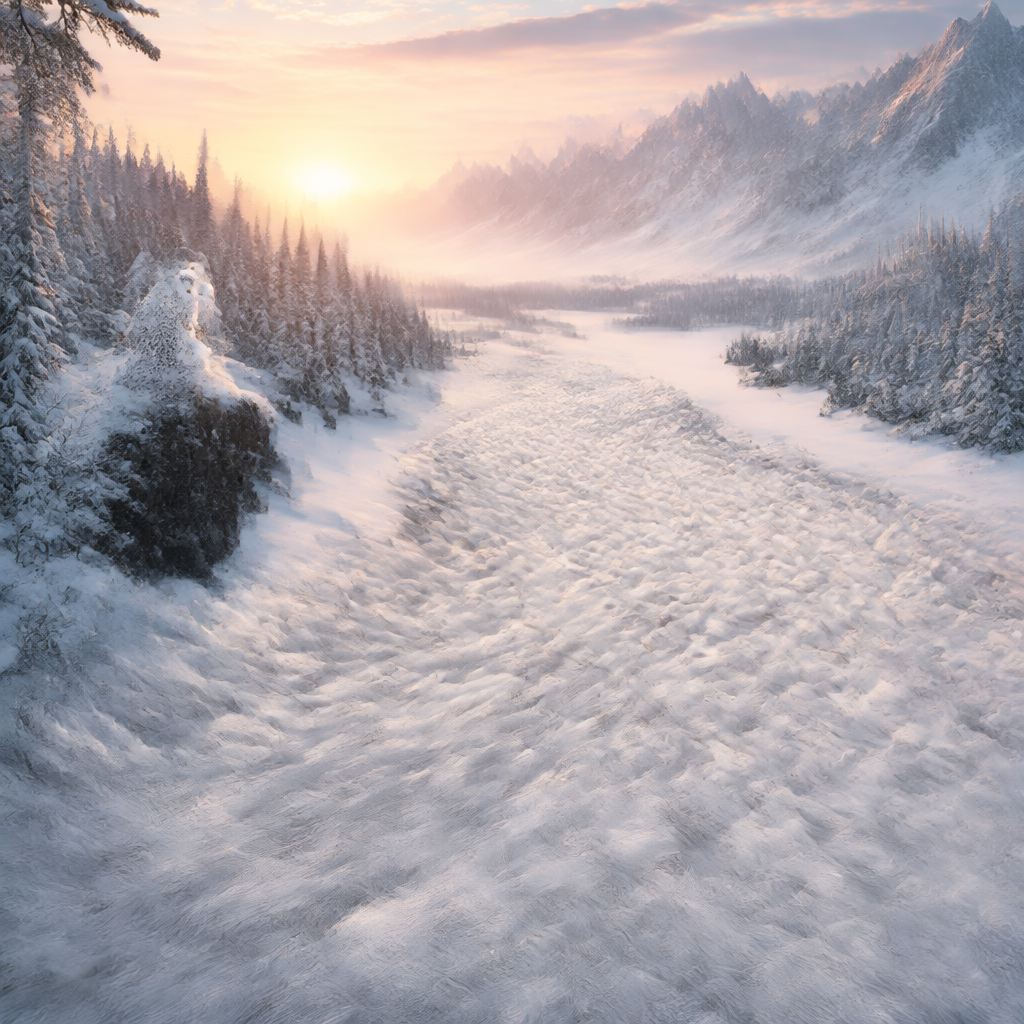
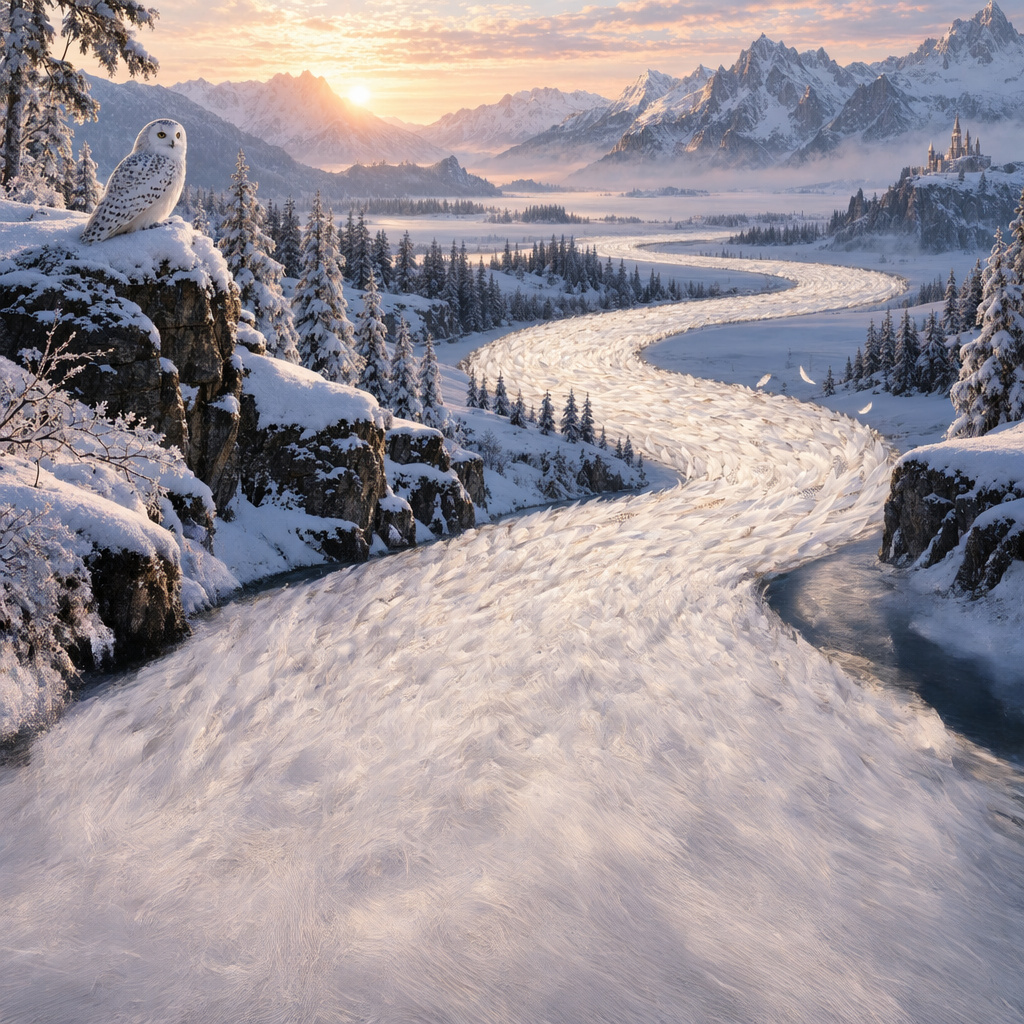
結果
部分圖像 1
部分圖像 2
最終圖像
提示詞:畫一幅絢麗的圖像,呈現一條由貓頭鷹的白色羽毛構成的河流,蜿蜒穿過寧靜的冬日景色
修訂後的提示詞
使用 Responses API 中的圖像生成工具時,主系列模型(例如 gpt-5.5)會自動修訂你的提示詞,以改善生成效果。
你可以從圖像生成呼叫的 revised_prompt 欄位取得修訂後的提示詞:
包含修訂後提示詞的回應
1
2
3
4
5
6
7{"id": "ig_123","type": "image_generation_call","status": "completed","revised_prompt": "A gray tabby cat hugging an otter. The otter is wearing an orange scarf. Both animals are cute and friendly, depicted in a warm, heartwarming style.","result": "..."}
1
2
3
4
5
6
7
8
9
10
11
12
13
14
15
16
17
18
19
20
21
22
23
24
25
26
27
28
29
30
31
32
33
34
35
36
37
38
39
40
41
42
43
44
45
46
47
48
49
50
51
52
53
54
55
56
57
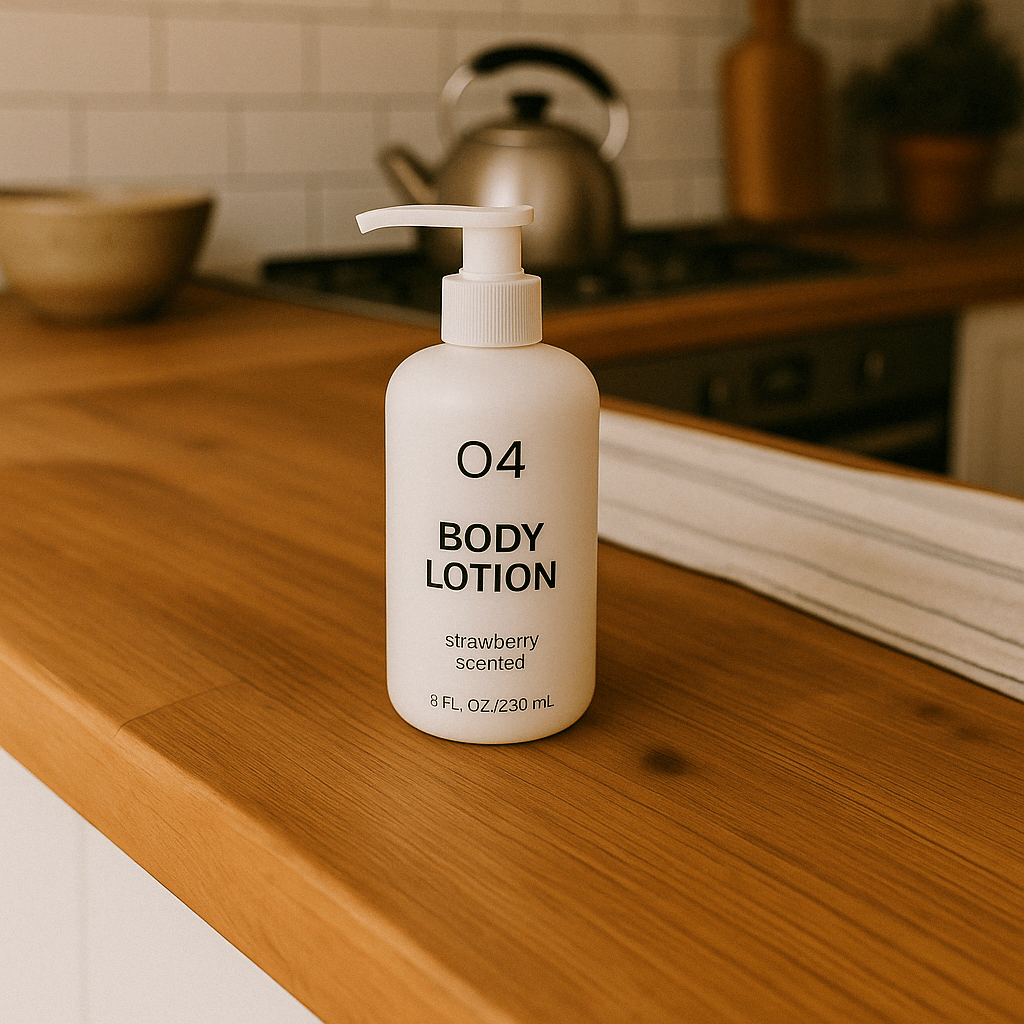
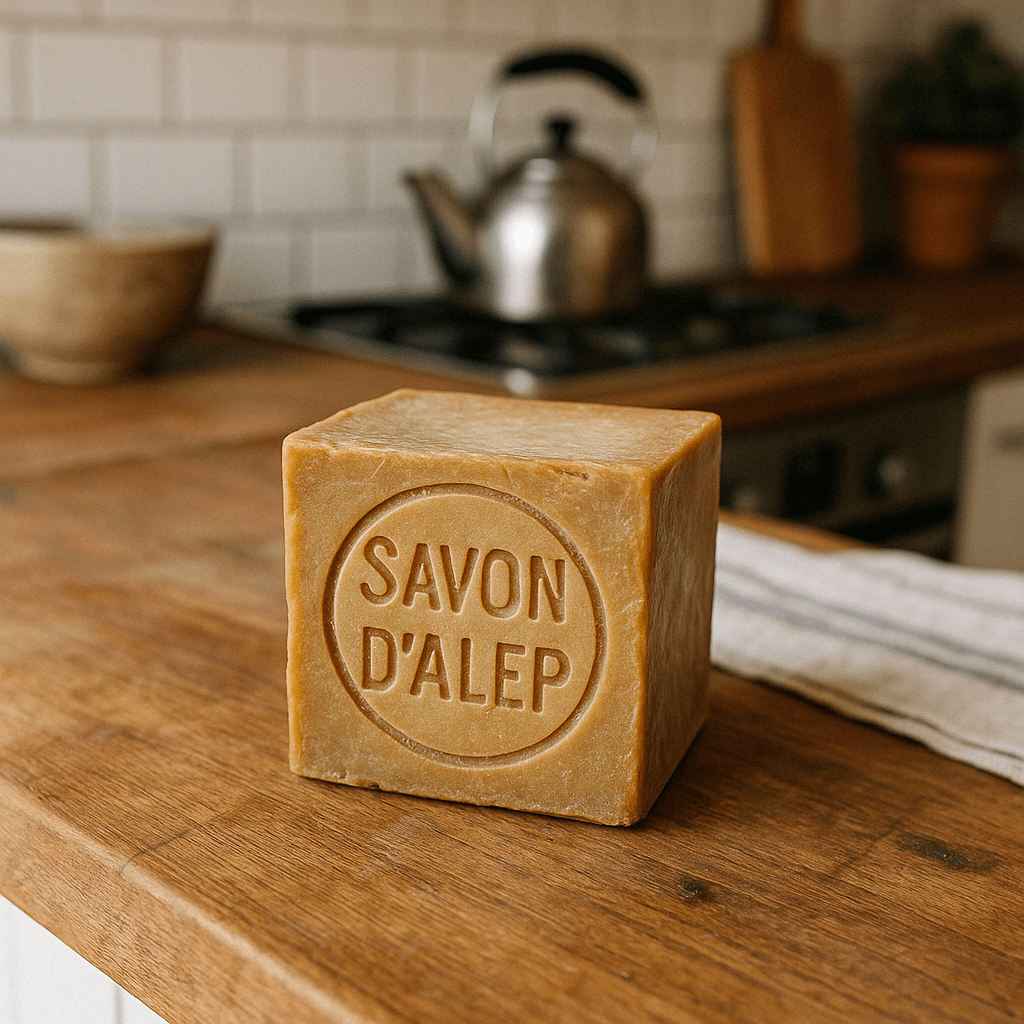
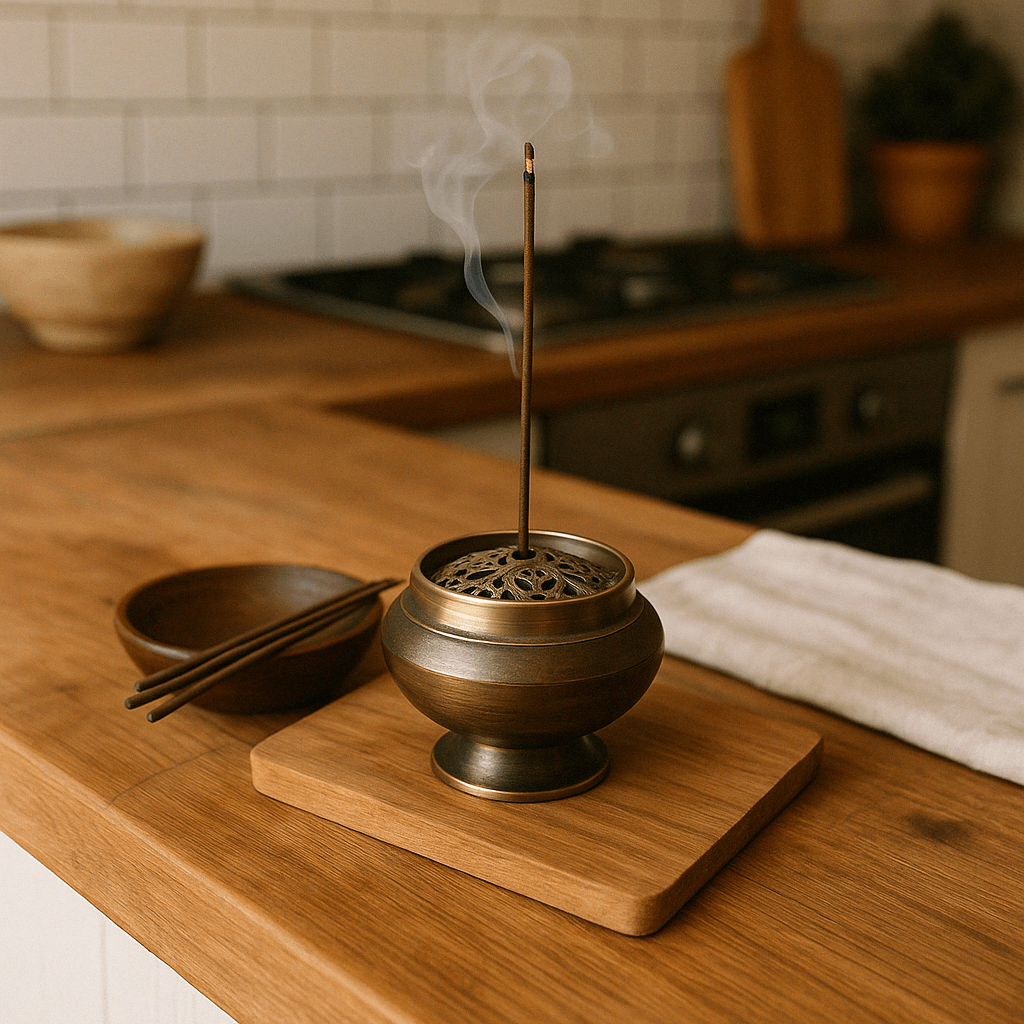
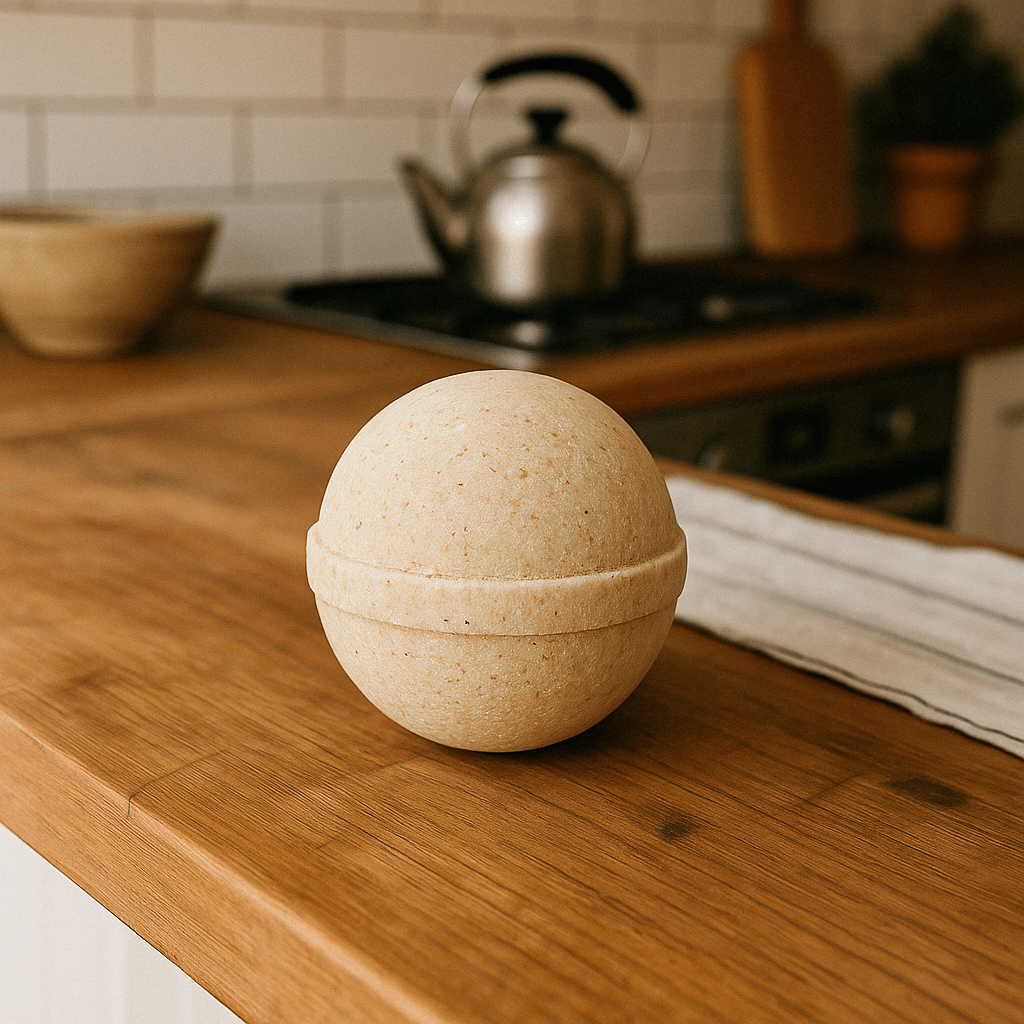
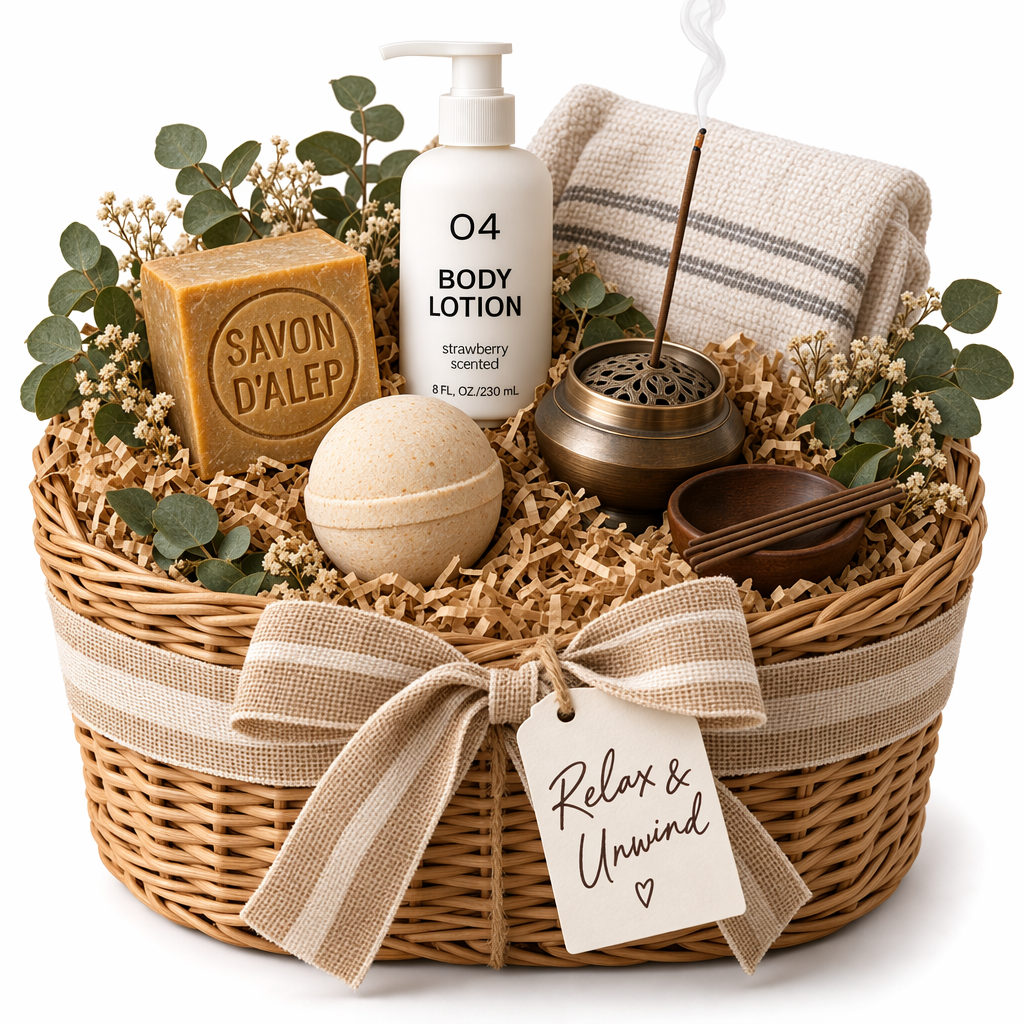
58require "base64"require "openai"require "pathname"client = OpenAI::Client.newbase64_images = ["body-lotion.png", "soap.png"].map do |path| Base64.strict_encode64(File.binread(path))endfile_ids = [ client.files.create(file: Pathname("bath-bomb.png"), purpose: :vision).id, client.files.create(file: Pathname("incense-kit.png"), purpose: :vision).id]prompt = <<~PROMPT Generate a photorealistic image of a gift basket on a white background labeled 'Relax & Unwind' with a ribbon and handwriting-like font, containing all the items in the reference pictures.PROMPTresponse = client.responses.create( model: "gpt-6-astra", input: [ { role: :user, content: [ { type: :input_text, text: prompt }, *base64_images.map do |image| { type: :input_image, image_url: "data:image/png;base64,#{image}" } end, *file_ids.map do |file_id| { type: :input_image, file_id: file_id } end ] } ], tools: [ { type: :image_generation, model: "gpt-image-2.5-sunburst" } ])image_call = response.output.find do |item| item.is_a?(OpenAI::Models::Responses::ResponseOutputItem::ImageGenerationCall)endunless image_call.is_a?(OpenAI::Models::Responses::ResponseOutputItem::ImageGenerationCall) raise "No image generation call returned"endFile.binwrite("gift-basket.png", Base64.strict_decode64(image_call.result))
Image API
編輯圖像
Python
1
2
3
4
5
6
7
8
9
10
11
12
13
14
15
16
17
18
19
20
21
22
23
24
25
26
27
28
29
30
31
32
33
34
35
36
37import fs from "fs";import OpenAI, { toFile } from "openai";const client = new OpenAI();const prompt = `Generate a photorealistic image of a gift basket on a white backgroundlabeled 'Relax & Unwind' with a ribbon and handwriting-like font,containing all the items in the reference pictures.`;const imageFiles = [ "fixtures/bath-bomb.png", "fixtures/body-lotion.png", "fixtures/incense-kit.png", "fixtures/soap.png",];const images = await Promise.all( imageFiles.map( async (file) => await toFile(fs.createReadStream(file), null, { type: "image/png", }) ));const response = await client.images.edit({ model: "gpt-image-2.5-sunburst", image: images, prompt,});// Save the image to a fileconst image_base64 = response.data[0].b64_json;const image_bytes = Buffer.from(image_base64, "base64");fs.writeFileSync("basket.png", image_bytes);
1
2
3
4
5
6
7
8
9
10
11
12
13
14
15
16
17
18
19
20
21
22
23
24
25
26
27
28import base64from openai import OpenAIclient = OpenAI()prompt ="""Generate a photorealistic image of a gift basket on a white backgroundlabeled 'Relax & Unwind' with a ribbon and handwriting-like font,containing all the items in the reference pictures."""result = client.images.edit(model="gpt-image-2.5-sunburst",image=[open("body-lotion.png", "rb"),open("bath-bomb.png", "rb"),open("incense-kit.png", "rb"),open("soap.png", "rb"), ],prompt=prompt,)image_base64 = result.data[0].b64_jsonimage_bytes = base64.b64decode(image_base64)# Save the image to a filewithopen("gift-basket.png", "wb") as f: f.write(image_bytes)
1
2
3
4
5
6
7
8
9
10
11
12
13
14
15
16
17
18
19
20
21
22
23
24
25
26
27
28
29
30
31
32
33
34
35
36
37
38
39
40
41
42
43
44
45
46
47
48
49
50
51
52
53
54
55
56
57
58
59
60
61
62
63
64
65package mainimport ( "context" "encoding/base64" "io" "os" "github.com/openai/openai-go/v3")func main() { client := openai.NewClient() files, closeFiles := openImages( "bath-bomb.png", "body-lotion.png", "incense-kit.png", "soap.png", ) defer closeFiles() response, err := client.Images.Edit(context.Background(), openai.ImageEditParams{ Model: openai.ImageModel("gpt-image-2.5-sunburst"), Image: openai.ImageEditParamsImageUnion{OfFileArray: files}, Prompt: "Generate a photorealistic image of a gift basket on a white background " + "labeled 'Relax & Unwind' with a ribbon and handwriting-like font, containing all the items in the reference pictures.", }) if err != nil { panic(err) } saveImage("basket.png", response.Data[0].B64JSON)}func openImages(names ...string) ([]io.Reader, func()) { images := make([]io.Reader, 0, len(names)) files := make([]*os.File, 0, len(names)) for _, name := range names { file, err := os.Open(name) if err != nil { closeFiles(files) panic(err) } images = append(images, openai.File(file, name, "image/png")) files = append(files, file) } return images, func() { closeFiles(files) }}func closeFiles(files []*os.File) { for _, file := range files { if err := file.Close(); err != nil { panic(err) } }}func saveImage(filename, encoded string) { image, err := base64.StdEncoding.DecodeString(encoded) if err != nil { panic(err) } if err := os.WriteFile(filename, image, 0o600); err != nil { panic(err) }}
1
2
3
4
5
6
7
8
9
10
11
12
13
14
15
16
17
18
19
20
21
22
23
24
25
26
27
28
29
30
31
32
33
34
35
36
37
38
39
40
41
42
43
44
45import com.openai.client.OpenAIClient;import com.openai.client.okhttp.OpenAIOkHttpClient;import com.openai.core.MultipartField;import com.openai.models.images.ImageEditParams;import java.io.IOException;import java.io.InputStream;import java.nio.file.Files;import java.nio.file.Path;import java.util.Base64;import java.util.List;Path lotion = Path.of(System.getenv("OPENAI_EXAMPLE_IMAGE_PATH"));Path soap = Path.of(System.getenv("OPENAI_EXAMPLE_IMAGE_PATH_2"));Path bathBomb = Path.of(System.getenv("OPENAI_EXAMPLE_IMAGE_PATH_3"));Path incense = Path.of(System.getenv("OPENAI_EXAMPLE_IMAGE_PATH_4"));try (InputStream lotionImage = Files.newInputStream(lotion); InputStream bathBombImage = Files.newInputStream(bathBomb); InputStream incenseImage = Files.newInputStream(incense); InputStream soapImage = Files.newInputStream(soap)) { var images = client .images() .edit( ImageEditParams.builder() .model("gpt-image-2.5-sunburst") .image( MultipartField.<ImageEditParams.Image>builder() .value( ImageEditParams.Image.ofInputStreams( List.of(lotionImage, bathBombImage, incenseImage, soapImage))) .contentType("image/png") .filename("gift-basket-reference.png") .build()) .prompt( """ Generate a photorealistic image of a gift basket on a white background labeled 'Relax & Unwind' with a ribbon and handwriting-like font, containing all the items in the reference pictures. """) .build()); Files.write( Path.of("gift-basket.png"), Base64.getDecoder().decode(images.data().orElseThrow().get(0).b64Json().orElseThrow()));}
1
2
3
4
5
6
7
8
9
10
11
12
13
14
15
16
17
18
19require "base64"require "openai"require "pathname"client = OpenAI::Client.newimages = %w[body-lotion.png bath-bomb.png incense-kit.png soap.png].map do |path| Pathname(path)endresult = client.images.edit( image: images, model: "gpt-image-2.5-sunburst", prompt: <<~PROMPT Generate a photorealistic image of a gift basket on a white background labeled 'Relax & Unwind' with a ribbon and handwriting-like font, containing all the items in the reference pictures. PROMPT)generated_image = result.data&.first or raise "No image returned"File.binwrite("gift-basket.png", Base64.strict_decode64(generated_image.b64_json))
1
2
3
4
5
6
7
8
9
10curl -s -D >(grep -i x-request-id >&2) \
  -o >(jq -r '.data[0].b64_json' | base64 --decode > gift-basket.png) \
  -X POST "https://api.openai.com/v1/images/edits" \
  -H "Authorization: Bearer $OPENAI_API_KEY" \
  -F "model=gpt-image-2.5-sunburst" \
  -F "image[]=@body-lotion.png" \
  -F "image[]=@bath-bomb.png" \
  -F "image[]=@incense-kit.png" \
  -F "image[]=@soap.png" \
  -F 'prompt=Generate a photorealistic image of a gift basket on a white background labeled "Relax & Unwind" with a ribbon and handwriting-like font, containing all the items in the reference pictures'
1
2
3
4
5
6
7
8
9openai images edit \
  --model gpt-image-2.5-sunburst \
  --image body-lotion.png \
  --image bath-bomb.png \
  --image incense-kit.png \
  --image soap.png \
  --prompt 'Generate a photorealistic image of a gift basket on a white background labeled "Relax & Unwind" with a ribbon and handwriting-like font, containing all the items in the reference pictures' \
  --raw-output \
  --transform 'data.0.b64_json' | base64 --decode > gift-basket.png
1
2
3
4
5
6
7
8
9
10
11
12
13
14
15
16
17
18
19
20
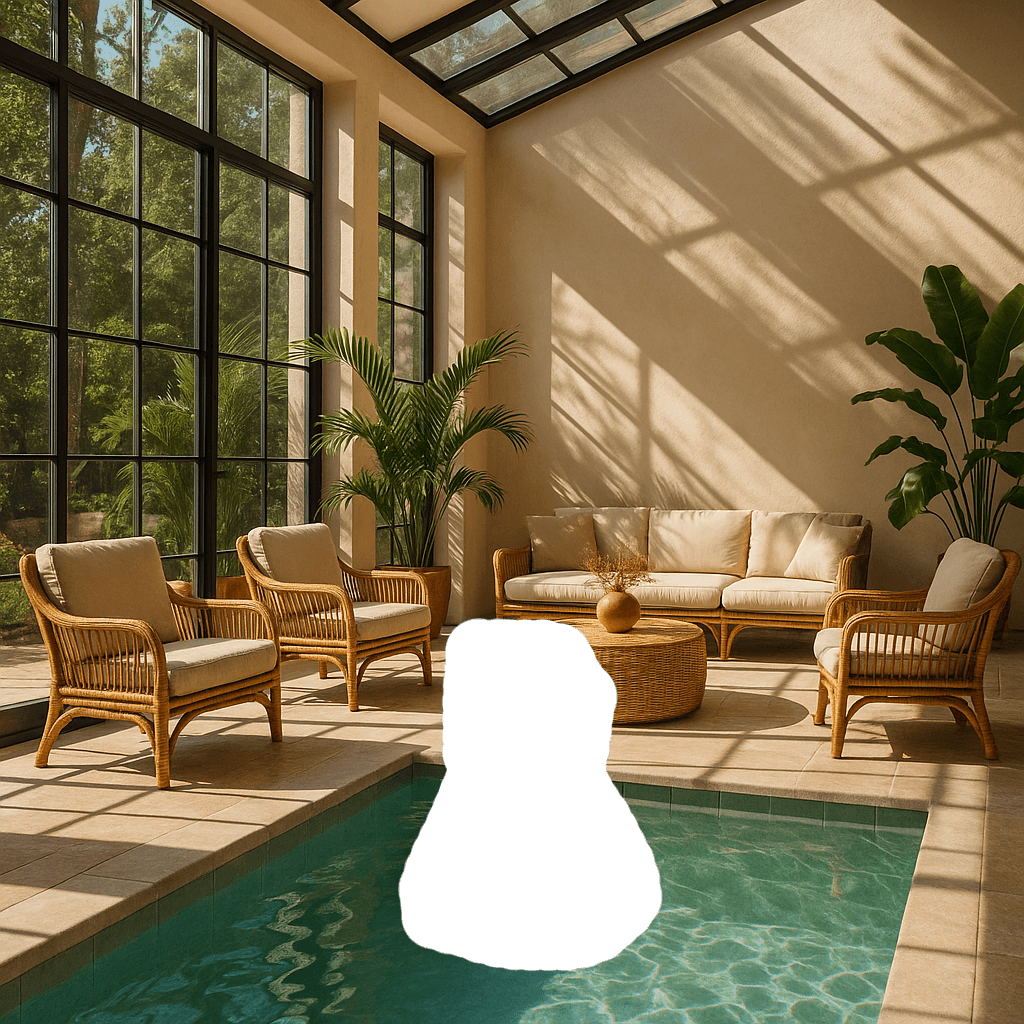
21fromPILimport Imagefrom io import BytesIO# 1. Load your black & white mask as a grayscale imagemask = Image.open("mask.png").convert("L")# 2. Convert it to RGBA so it has space for an alpha channelmask_rgba = mask.convert("RGBA")# 3. Then use the mask itself to fill that alpha channelmask_rgba.putalpha(mask)# 4. Convert the mask into bytesbuf = BytesIO()mask_rgba.save(buf, format="PNG")mask_bytes = buf.getvalue()# 5. Save the resulting fileimg_path_mask_alpha ="mask_alpha.png"withopen(img_path_mask_alpha, "wb") as f: f.write(mask_bytes)
1
2
3
4
5
6
7
8
9
10
11
12
13
14
15
16
17
18
19
20
21
22
23
24
25
26
27
28
29
30
31
32
33
34
35
36
37
38
39
40
41
42import OpenAI from"openai";constopenai=newOpenAI();try {// The same error handling pattern applies to image generation requests,// image edits, and Responses API tool calls that generate images.await openai.images.generate({ model: "gpt-image-2.5-sunburst", prompt: "Create a poster humiliating my coworker with insulting captions", });} catch (error) {if (error?.code !=="moderation_blocked") {throw error; }constmoderationDetails= error.error?.moderation_details;constcategories= moderationDetails?.categories ?? [];conststage= moderationDetails?.moderation_stage;let hint ="This request could not be completed because it did not meet safety requirements.";if (categories.includes("harassment")) { hint ="Try removing abusive or targeting language and focus on neutral visual details instead."; } elseif (stage ==="input") { hint ="Try revising the prompt or input images and submit the request again."; } elseif (stage ==="output") { hint ="The generated result was blocked by a safety check. Try changing the prompt and generating again."; } console.error("Image generation blocked", { request_id: error?.requestID, code: error?.code, moderation_details: moderationDetails, }); console.log(hint);}
1
2
3
4
5
6
7
8
9
10
11
12
13
14
15
16
17
18
19
20
21
22
23
24
25
26
27
28
29
30
31
32
33
34
35
36
37
38
39
40import openaifrom openai import OpenAIclient = OpenAI()try: # The same error handling pattern applies to image generation requests, # image edits, and Responses API tool calls that generate images. client.images.generate( model="gpt-image-2.5-sunburst", prompt="Create a poster humiliating my coworker with insulting captions", )except openai.BadRequestError as error: if error.code != "moderation_blocked": raise error_body = error.body if isinstance(error.body, dict) else {} moderation_details = error_body.get("moderation_details") or {} categories = moderation_details.get("categories") or [] stage = moderation_details.get("moderation_stage") hint = "This request could not be completed because it did not meet safety requirements." if "harassment" in categories: hint = "Try removing abusive or targeting language and focus on neutral visual details instead." elif stage == "input": hint = "Try revising the prompt or input images and submit the request again." elif stage == "output": hint = "The generated result was blocked by a safety check. Try changing the prompt and generating again." print( "Image generation blocked", { "request_id": error.request_id, "code": error.code, "moderation_details": moderation_details, }, ) print(hint)
1
2
3
4
5
6
7
8
9
10
11
12
13
14
15
16
17
18
19
20
21
22
23
24
25
26
27
28
29
30
31
32
33
34
35
36
37
38
39
40
41
42
43
44
45
46
47
48package mainimport ( "context" "encoding/json" "errors" "fmt" "slices" "github.com/openai/openai-go/v3")func main() { client := openai.NewClient() _, err := client.Images.Generate(context.Background(), openai.ImageGenerateParams{ Model: openai.ImageModel("gpt-image-2.5-sunburst"), Prompt: "Create a poster humiliating my coworker with insulting captions", }) if err == nil { return } var apiError *openai.Error if !errors.As(err, &apiError) || apiError.Code != "moderation_blocked" { panic(err) } var body struct { ModerationDetails struct { Categories []string `json:"categories"` ModerationStage string `json:"moderation_stage"` } `json:"moderation_details"` } if err := json.Unmarshal([]byte(apiError.RawJSON()), &body); err != nil { panic(err) } hint := "This request could not be completed because it did not meet safety requirements." if slices.Contains(body.ModerationDetails.Categories, "harassment") { hint = "Try removing abusive or targeting language and focus on neutral visual details instead." } else if body.ModerationDetails.ModerationStage == "input" { hint = "Try revising the prompt or input images and submit the request again." } else if body.ModerationDetails.ModerationStage == "output" { hint = "The generated result was blocked by a safety check. Try changing the prompt and generating again." } fmt.Printf("Image generation blocked (%s): %s\n", apiError.Code, hint)}
1
2
3
4
5
6
7
8
9
10
11
12
13
14
15
16
17
18
19
20
21
22
23
24
25
26
27
28
29
30
31
32
33
34
35
36
37
38import com.openai.client.OpenAIClient;import com.openai.client.okhttp.OpenAIOkHttpClient;import com.openai.errors.BadRequestException;import com.openai.models.images.ImageGenerateParams;import java.util.List;import java.util.Map;try { var images = client .images() .generate( ImageGenerateParams.builder() .model("gpt-image-2.5-sunburst") .prompt("Create a poster humiliating my coworker with insulting captions") .build()); System.out.println(images.data().orElseThrow().get(0).b64Json().orElseThrow());} catch (BadRequestException error) { if (!error.code().orElse("").equals("moderation_blocked")) { throw error; } Map<?, ?> body = error.body().convert(Map.class); Object detailsValue = body.get("moderation_details"); Map<?, ?> details = detailsValue instanceof Map<?, ?> values ? values : Map.of(); Object categories = details.get("categories"); Object stage = details.get("moderation_stage"); String hint = "This request did not meet safety requirements."; if (categories instanceof List<?> values && values.contains("harassment")) { hint = "Remove abusive or targeting language and focus on neutral visual details."; } else if ("input".equals(stage)) { hint = "Revise the prompt or input images, then submit the request again."; } else if ("output".equals(stage)) { hint = "Change the prompt and generate again; the generated result was blocked."; } System.err.println("Image generation blocked (" + error.code().orElseThrow() + "): " + hint);}
1
2
3
4
5
6
7
8
9
10
11
12
13
14
15
16
17
18
19
20
21
22
23
24
25
26
27require "openai"client = OpenAI::Client.newbegin client.images.generate( model: "gpt-image-2.5-sunburst", prompt: "Create a poster humiliating my coworker with insulting captions" )rescue OpenAI::Errors::BadRequestError => error raise unless error.code == "moderation_blocked" body = Hash.try_convert(error.body) || {} moderation_details = body[:moderation_details] || body["moderation_details"] || {} categories = moderation_details[:categories] || moderation_details["categories"] || [] stage = moderation_details[:moderation_stage] || moderation_details["moderation_stage"] hint = "This request did not meet safety requirements." if categories.include?("harassment") hint = "Remove abusive or targeting language and focus on neutral visual details." elsif stage == "input" hint = "Revise the prompt or input images, then submit the request again." elsif stage == "output" hint = "Change the prompt and generate again; the generated result was blocked." end warn("Image generation blocked (#{error.code}): #{hint}")end
支援的模型
在 Responses API 中使用圖像生成時,gpt-5 及更新的模型應支援圖像生成工具。請查看所用模型的詳細資料頁面,確認你想使用的模型是否能使用圖像生成工具。