

Sign in with ChatGPT lets users sign in to your app with their ChatGPT account and, when eligible, use their ChatGPT plan to power its AI features. Eligible ChatGPT Plus and Pro users can try your tool with the account and plan they already have, without creating or configuring an API key.
The integration supports two distinct capabilities. Identity provides verified account information so users can sign up or sign in to your app. ChatGPT plan usage is an optional permission to complete eligible AI requests with usage included in the user’s ChatGPT plan or available credits. Users choose whether to grant that permission and manage app access and usage in ChatGPT settings. Neither capability grants access to their ChatGPT conversations.
For open-source developers, this removes a setup hurdle between sharing a tool and someone using it. You can focus on building a useful harness—the tools, context, and workflows around a model—whether that’s a coding assistant, a research tool, or a desktop utility. Supporting these integrations is part of our commitment to open source: developers can build and share new experiences, and users can bring their existing plan to the tools they choose.
At launch, ChatGPT plan usage is available to open-source projects, personal projects that run locally, and selected private apps. Identity-only integration is currently offered to a select group of commercial partners. See the Sign in with ChatGPT quickstart for integration options and availability.
Add ChatGPT sign-in to Paste Perfect
Say you’ve built Paste Perfect, an open-source desktop app that rewrites copied text before pasting it. A user copies some text, chooses a recipe, and pastes the rewritten result into the app they’re using. You want to share it with your friends, but asking them to create and configure an OpenAI API key, set up billing, and pay for usage adds significant friction, especially for people who aren’t technical.
With Sign in with ChatGPT, friends with an eligible ChatGPT Plus or Pro plan can download your app, sign in, and use their plan allowance for rewrites. This cookbook walks you through adding that integration to the app you’ve already built. Follow along with the complete Paste Perfect implementation.
Here’s how it works from start to finish. First, your app creates a unique identifier for its installation on the user’s device. Next, the user signs in to ChatGPT in their browser, chooses an account and workspace, and gives your app permission to use their plan. OpenAI then registers the connection and returns the user to your app. Your app saves the connection locally so the user can use it again. Finally, the user asks Paste Perfect to rewrite some text, and your app uses their ChatGPT plan allowance to return the result.
First sign-in · new profile
From host ID to first response
-
App · this device
Generate host ID
Create and persist
ext_agent_.host_id -
User · browser
Sign in
Choose a workspace and allow ChatGPT plan usage.
-
OpenAI → app
Receive client ID
OpenAI issues
client_id. Save it before exchanging the code. -
App · local storage
Save profile
Exchange the code, verify identity, and save tokens in the profile.
-
App → OpenAI
Make first request
Discover a model and stream a response using the profile’s token.
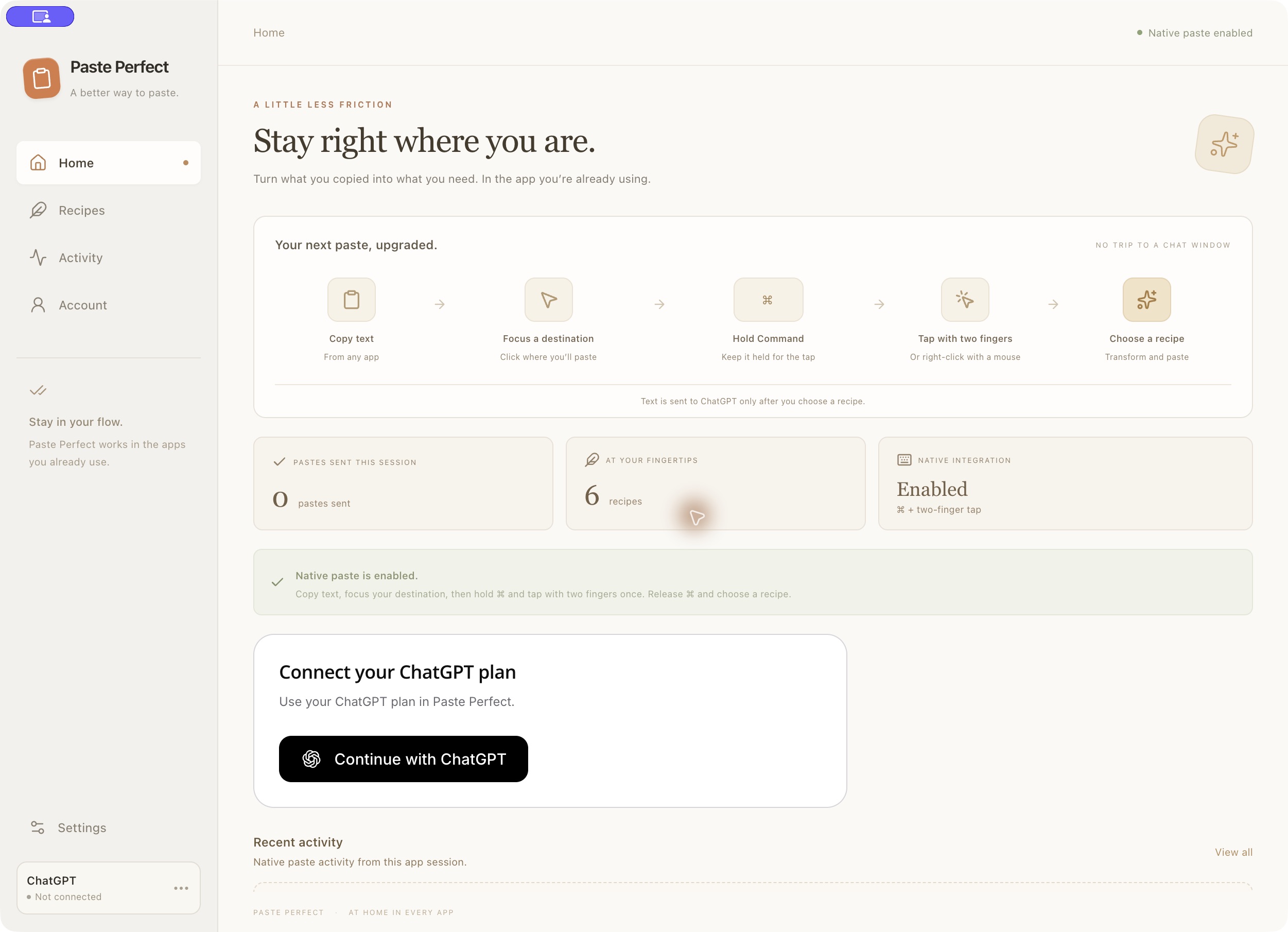
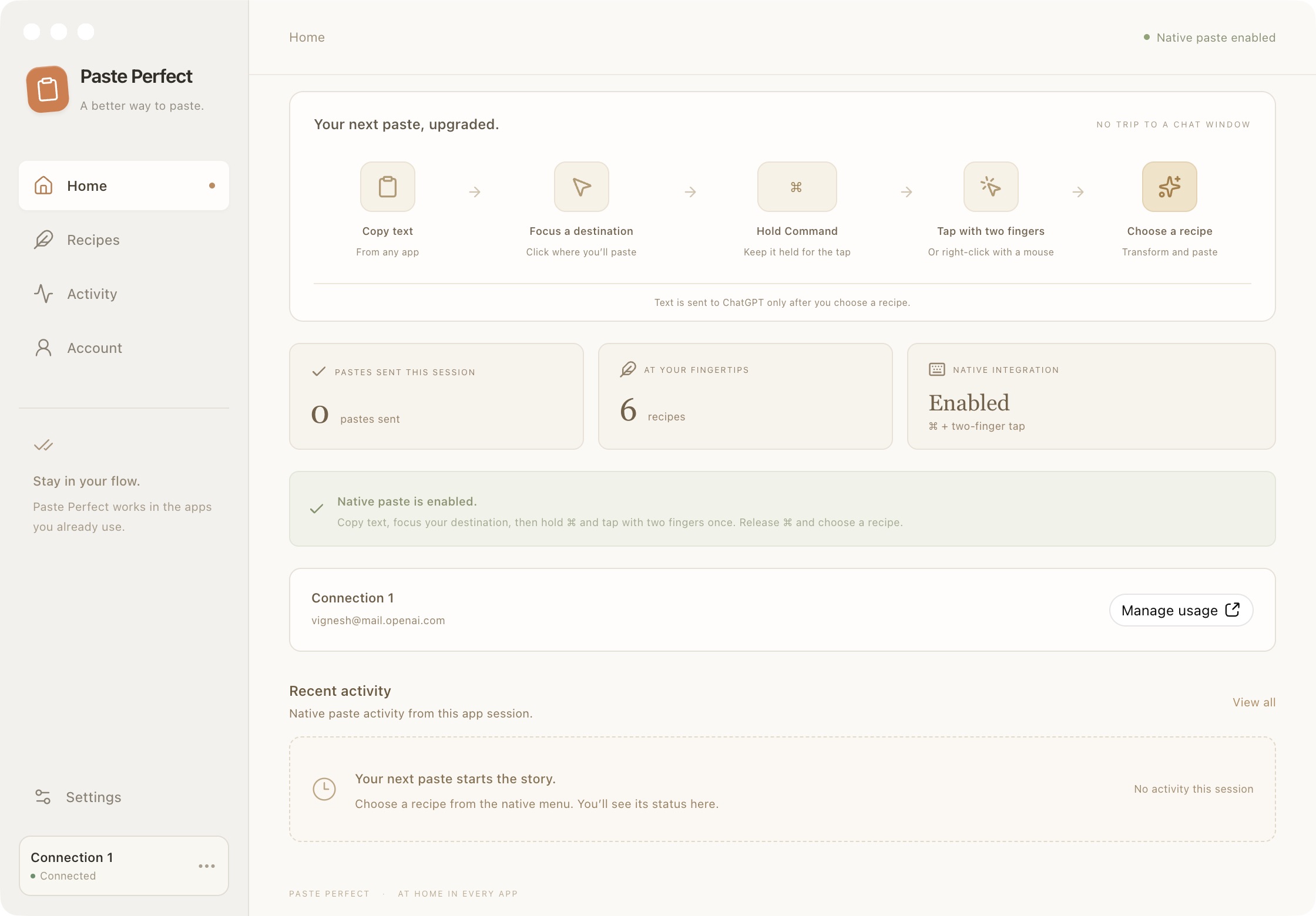
We want to give users a clear way to connect their ChatGPT account from within the app. Before they sign in, show a Continue with ChatGPT button. After sign-in, show their connected account. If they’ve enabled ChatGPT plan usage, confirm that it’s enabled and provide a Manage usage action.
Before sign-in
Connect your ChatGPT plan
Use your ChatGPT plan in Paste Perfect.
Continue with ChatGPTAfter authorization
Connection 1
example@example.com
ChatGPT plan usage is enabled.
Manage usageBefore you start
Paste Perfect is an Electron desktop app with a React interface for accounts, settings, and recipes. Its main process handles sign-in, stores credentials, and sends AI requests; a small bridge lets the interface call these functions without receiving tokens. You’ll add a Sign in with ChatGPT button that lets users connect their account and approve ChatGPT plan usage for the app’s text rewrites.
Before you get started, you will need two things:
- The devkit repository, downloaded and set up using its instructions for the Paste Perfect desktop app.
- A ChatGPT Plus or Pro account to test sign-in and ChatGPT plan usage.
1. Prepare the app’s host ID
A host ID identifies one installation of your app on a user’s device. Before the first sign-in, the local runtime generates a random UUID in the form urn:uuid:… and saves it in chatgpt-host.json in the app’s ChatGPT storage directory. It reuses that ID across restarts and account switches. Each installation gets its own host ID.
Paste Perfect creates its ChatGPT runtime with createChatGPT in electron/main.ts. Keep this instance in the main process, where it manages authentication, protected local storage, and API requests. Set sendHostId: true in its configuration so the runtime includes the saved host ID when it opens the browser for authorization. Keep the existing storage and browser settings; the complete example already includes this option.
The configuration change is:
 const chatgpt = createChatGPT({
   appName: 'Paste Perfect',
   appId: 'paste-perfect',
+  sendHostId: true,
Your app now sends the same saved host ID on later sign-ins. The app generates the host ID; OpenAI issues a separate client ID during sign-in. The next step saves that client ID for reuse with the account’s registration.
2. Register the client during sign-in
Connect the sign-in button to chatgpt.signIn(), the SDK method that runs browser sign-in and returns the connection state. The devkit’s @siwc/react components provide the button, connection card, and usage links. In Paste Perfect, the card’s onConnect callback reaches the main process through the preload bridge; the existing sign-in handler calls chatgpt.signIn(). You can reuse this wiring while the SDK handles OAuth and credential storage.
The runtime starts a callback listener on 127.0.0.1 and opens the system browser with fresh state, nonce, and PKCE values. For a new profile, it sends client_id=dynamic_agent_client, agent_name_hint=Paste Perfect, and the saved ext_agent_host_id. The user signs in, selects a workspace, and reviews the requested permissions. OpenAI registers the client during this flow, so you don’t need a client secret or an API key.
The request includes identity scopes to identify the account, offline_access to request a refresh token, and resource.invoke with chatgpt.tokens.use.direct to request API access using the user’s ChatGPT plan. The resource is https://api.openai.com/v1. After approval, the SDK exchanges the authorization code for tokens and checks the permissions OpenAI actually granted.
The registration and sign-in guide covers the full authorization flow. The SDK handles three steps when the browser returns; these excerpts from the authorization implementation show what happens inside chatgpt.signIn():
-
Save the issued client ID. The callback returns the authorization code and
client_id. Before exchanging the code, the runtime saves the registration inchatgpt-auth.json. If the code expires, a later attempt can reuse the issued client ID.const callback = await listener.result; await options.onRegistration?.(callback.clientId); -
Exchange the code for tokens. The SDK sends the code, issued client ID, and PKCE verifier to the token endpoint. The response supplies the identity and credentials needed to complete sign-in.
const data = await tokenRequest(new URLSearchParams({ grant_type: "authorization_code", client_id: callback.clientId, code: callback.code, code_verifier: verifier, redirect_uri: listener.redirectUri, resource: RESOURCE, }), signal); -
Verify identity and permission. The SDK checks that an ID token is present, then verifies its signature, issuer, audience, and nonce before saving the profile.
const identity = await verifyIdentity(data.id_token, callback.clientId, nonce);The returned session’s
sharingflag is true only when the profile is connected, has credentials, and includes the grantedchatgpt.tokens.use.directscope. Use that flag to enable AI requests; a successful identity sign-in alone does not grant permission to use the user’s ChatGPT plan.
The user is now back in Paste Perfect, where their ChatGPT connection shows Connected.
3. Save and select profiles
A login profile is a saved ChatGPT connection that a user can return to or switch between. It keeps the issued client ID, verified account identity, credentials, granted permissions, and token expiry together, so your app can reuse the connection without registering again. Separate registrations stay separate even when their email addresses match. The installation’s host ID stays the same across profiles.
One installation
Paste Perfect on this device
One persistent host ID
ext_agent_host_id
Created once.
Reused across sign-ins.
Connection 1
Saved profile-
Issued
client_id - Registration A
- Verified identity
- Issuer + subject
- Protected credentials
- Tokens + granted scopes
Connection 2
Saved profile-
Issued
client_id - Registration B
- Verified identity
- Issuer + subject
- Protected credentials
- Tokens + granted scopes
Use chatgpt.listProfiles() to populate your account picker. When the user chooses a saved connection, pass its ID to chatgpt.selectProfile() and refresh the model picker. Run this code in the main process with your existing chatgpt instance; the returned profile list contains display information, not credentials.
const profiles = await chatgpt.listProfiles();

async function selectAccount(profileId: string) {
  const session = await chatgpt.selectProfile(profileId);
  const models = session.sharing ? await chatgpt.listModels() : [];
  return { session, models };
}
See the SDK’s profile listing and selection methods. For Add account, call chatgpt.signIn({ newProfile: true }) to create a separate registration.
If a saved connection needs a new sign-in, pass that profile’s ID to chatgpt.signIn(). The SDK opens the browser using its saved client ID and the installation’s host ID, then updates the same profile after verifying the returned identity.
async function reconnectAccount(profileId: string) {
  return chatgpt.signIn({ profileId });
}
The runtime keeps the registration through logout and refreshes tokens when needed for requests. See the SDK’s signIn implementation and Paste Perfect’s account handlers for the complete wiring. The accounts and sessions guide explains account switching, token refresh, and logout.
4. Rewrite text using the user’s ChatGPT plan
We need a way to show users which models are available for their selected connection. Call chatgpt.listModels() to populate the model picker. Pass the selected model’s slug, the copied text, and Paste Perfect’s existing recipe instruction to chatgpt.streamResponse():
const models = await chatgpt.listModels();

async function rewriteText(
  modelSlug: string,
  copiedText: string,
  instructions: string,
) {
  const result = await chatgpt.streamResponse({
    model: modelSlug,
    input: copiedText,
    instructions,
  });
  return result.text;
}
The SDK’s model discovery implementation lists models available to the active connection. Its stream implementation sends the request to the public Responses API with that profile’s OAuth access token, collects the text, and returns only after response.completed. This gives your app a completed result to use.
Paste Perfect’s transformation handler connects this request to the existing paste workflow: it combines the recipe and copied text, checks the completed output, and sends it to the destination app. Keep that behavior when adding sign-in. See models and inference for the request format and completion requirements.
5. Verify ChatGPT Plan Usage
Now we need to verify that the app can complete a request using the user’s ChatGPT plan. Run a small request through the same runtime with this helper, which accepts the app’s existing chatgpt instance:
import type { ChatGPTClient } from "@siwc/local";

export async function verifyTokenSharing(chatgpt: ChatGPTClient) {
  const session = await chatgpt.getSession();
  if (!session.sharing) throw new Error("Enable token sharing first.");

  const [model] = await chatgpt.listModels();
  if (!model) throw new Error("No models are available for this profile.");

  const result = await chatgpt.streamResponse({
    model: model.slug,
    input: "Reply with exactly: Token sharing works.",
  });
  if (!result.text.trim()) throw new Error("The completed response was empty.");
  return result.text;
}
Call await verifyTokenSharing(chatgpt) in the main process. Expect Token sharing works.
Then copy a short message and run Paste Perfect’s existing Message recipe. Check that the request completes, returns nonempty text, and reaches the destination app.
A Connected badge confirms sign-in, and a populated model picker confirms discovery. Completed inference confirms ChatGPT plan usage worked for that request. If model access fails, check the selected profile and refresh its model list. The errors and recovery guide explains what to do when a user hasn’t enabled ChatGPT plan usage, reaches a usage limit, or needs to sign in again.
6. Help users manage their usage
We need to make sure users can see when their ChatGPT plan is powering their rewrites. Show Using ChatGPT plan near the model picker or account controls when requests use the user’s plan. Place a Manage usage action beside it that opens ChatGPT Settings → Usage in the browser, where users can review their usage and adjust available limits. If a request reaches a usage limit, make this the primary action in the error message.
You can reuse the ChatGPTManageUsageButton component. Paste Perfect already connects its usage actions through the bridge to the main process’s open-usage handler, which opens this URL. Keep the action available in account settings so users can find it between requests. The UI/UX guidelines cover first sign-in, usage controls, and limit messages.
Usage policy and terms
The ChatGPT plan usage integration described here is available for open-source tools and personal projects that run locally. If you’re building a paid or remotely hosted app, join the waitlist to request access before offering it to users.
Review OpenAI’s terms and policies before distributing your integration. Also review the DevKit’s licensing information before using or distributing its code.