Building MCP servers for plugins and API integrations
Build an MCP server to use with plugins, deep research, or API integrations.
Model Context Protocol (MCP) is an open protocol that’s becoming the industry standard for extending AI models with additional tools and knowledge. Remote MCP servers can be used to connect models over the Internet to new data sources and capabilities.
In this guide, we’ll cover how to build a remote MCP server that reads data from a private data source (a vector store) and makes it available through a plugin in ChatGPT and Codex, through ChatGPT deep research and company knowledge, and through the API.
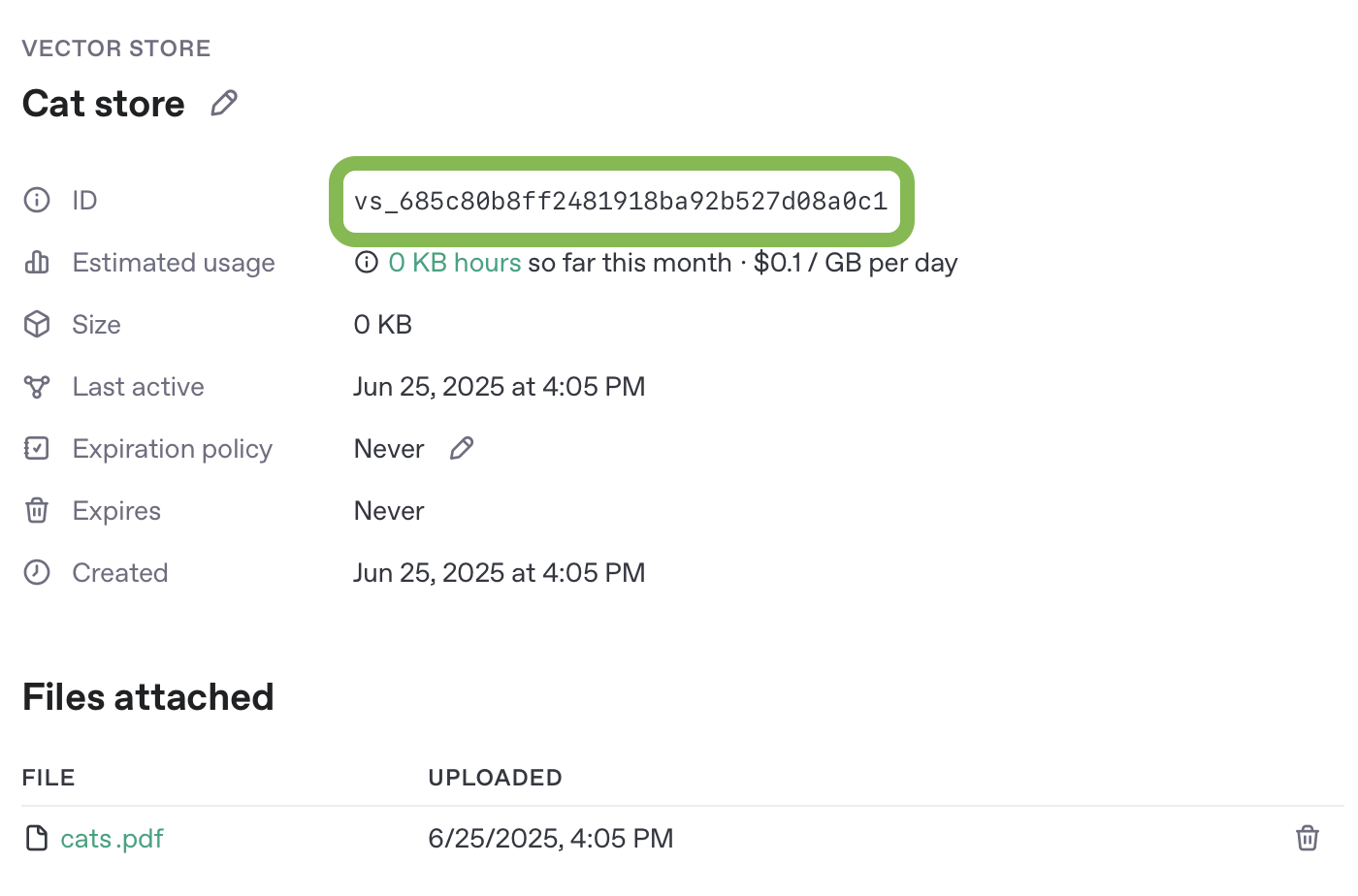
You can upload files and create a vector store in the dashboard here, or you can create vector stores and upload files via API. Follow the vector store guide to set up a vector store and upload a file to it.
Make a note of the vector store’s unique ID to use in the example to follow.
Create an MCP server
Next, let’s create a remote MCP server that will do search queries against our vector store, and be able to return document content for files with a given ID.
In this example, we are going to build our MCP server using Python and FastMCP. A full implementation of the server appears at the end of this section, along with instructions for running it in a browser-based development environment.
Note that there are a number of other MCP server frameworks you can use in a variety of programming languages. Whichever framework you use though, the tool definitions in your server will need to conform to the shape described here.
To work with ChatGPT deep research and company knowledge, your MCP server
should implement two read-only tools: search and fetch, using the
compatibility schema in Company knowledge compatibility.
The same interface is useful for research workflows via API.
Declare an output schema for each tool so clients can validate the result shape.
In FastMCP, typed return models can generate this schema automatically; the
example below passes output_schema explicitly from the same models.
search tool
The search tool is responsible for returning a list of relevant search results from your MCP server’s data source, given a user’s query.
Arguments:
A single query string.
Returns:
An object with a single key, results, whose value is an array of result objects. Each result object should include:
id - a unique ID for the document or search result item
title - human-readable title.
url - canonical URL for citation.
In MCP, return this object as structuredContent and include the same value as
a JSON-encoded string in the content array
for compatibility.
For both search results and fetch responses, ChatGPT creates citation
metadata only when url is a non-empty string. A result with a title but no
usable url remains ordinary tool output instead of becoming an empty
citation. To make a result citable, return its canonical url.
For example, ChatGPT might call search with:
{ "query": "What is the quarterly plan?" }
The MCP server can respond with a URL-backed result:
In this response, the url field has a value, which makes the result eligible
for citation metadata. The query itself does not trigger citation handling. If
the result omits url, or provides an empty or non-string value, ChatGPT
preserves the result as ordinary tool output.
Server example
You can try this example MCP server in a browser-based development environment. Configure the sample with your own API credentials and vector store information.
1
2
3
4
5
6
7
8
9
10
11
12
13
14
15
16
17
18
19
20
21
22
23
24
25
26
27
28
29
30
31
32
33
34
35
36
37
38
39
40
41
42
43
44
45
46
47
48
49
50
51
52
53
54
55
56
57
58
59
60
61
62
63
64
65
66
67
68
69
70
71
72
73
74
75
76
77
78
79
80
81
82
83
84
85
86
87
88
89
90
91
92
93
94
95
96
97
98
99
100
101
102
103
104
105
106
107
108
109
110
111
112
113
114
115
116
117
118
119
120
121
122
123
124
125
126
127
128
129
130
131
132
133
134
135
136
137
138
139
140
141
142
143
144
145
146
147
148
149
150
151
152
153
154
155
156
157
158
159
160
161
162
163
164
165
166
167
168
169
170
171
172
173
174
175
176
177
178
179
180
181
182
183
184
185
186
187
188
189
190
191
192
193
194
195
196
197
198
199
200
201
202
203
204
205
206
207
208
209
210
211# Replace the illustrative IDs and URLs below with your own resource values."""Sample MCP Server for ChatGPT IntegrationThis server implements the Model Context Protocol (MCP) with search and fetchcapabilities designed to work with ChatGPT's chat and deep research features."""import loggingimport osfrom typing import Anyfrom fastmcp import FastMCPfrom openai import OpenAIfrom pydantic import BaseModelclass SearchResult(BaseModel): id: str title: str url: strclass SearchOutput(BaseModel): results: list[SearchResult]class FetchOutput(BaseModel): id: str title: str text: str url: str metadata: dict[str, Any] | None = None# Configure logginglogging.basicConfig(level=logging.INFO)logger = logging.getLogger(__name__)# OpenAI configurationOPENAI_API_KEY = os.environ["OPENAI_API_KEY"]VECTOR_STORE_ID = "vs_123"# Initialize OpenAI clientopenai_client = OpenAI(api_key=OPENAI_API_KEY)server_instructions = """This MCP server provides search and document retrieval capabilitiesfor ChatGPT Apps and deep research. Use the search tool to find relevant documentsbased on keywords, then use the fetch tool to retrieve completedocument content with citations."""def create_server(): """Create and configure the MCP server with search and fetch tools.""" # Initialize the FastMCP server mcp = FastMCP(name="Sample MCP Server", instructions=server_instructions) @mcp.tool(output_schema=SearchOutput.model_json_schema()) async def search(query: str) -> SearchOutput: """ Search for documents using OpenAI Vector Store search. This tool searches through the vector store to find semantically relevant matches. Returns a list of search results with basic information. Use the fetch tool to get complete document content. Args: query: Search query string. Natural language queries work best for semantic search. Returns: Dictionary with 'results' key containing list of matching documents. Each result includes id, title, and URL. """ if not query or not query.strip(): return SearchOutput(results=[]) if not openai_client: logger.error("OpenAI client not initialized - API key missing") raise ValueError("OpenAI API key is required for vector store search") # Search the vector store using OpenAI API logger.info(f"Searching {VECTOR_STORE_ID} for query: '{query}'") response = openai_client.vector_stores.search( vector_store_id=VECTOR_STORE_ID, query=query ) results = [] # Process the vector store search results if hasattr(response, "data") and response.data: for i, item in enumerate(response.data): # Extract file_id, filename, and content item_id = getattr(item, "file_id", f"vs_{i}") item_filename = getattr(item, "filename", f"Document {i + 1}") result = SearchResult( id=item_id, title=item_filename, url=f"https://platform.openai.com/storage/files/{item_id}", ) results.append(result) logger.info(f"Vector store search returned {len(results)} results") return SearchOutput(results=results) @mcp.tool(output_schema=FetchOutput.model_json_schema()) async def fetch(id: str) -> FetchOutput: """ Retrieve complete document content by ID for detailed analysis and citation. This tool fetches the full document content from OpenAI Vector Store. Use this after finding relevant documents with the search tool to get complete information for analysis and proper citation. Args: id: File ID from vector store (file-xxx) or local document ID Returns: Complete document with id, title, full text content, optional URL, and metadata Raises: ValueError: If the specified ID is not found """ if not id: raise ValueError("Document ID is required") if not openai_client: logger.error("OpenAI client not initialized - API key missing") raise ValueError( "OpenAI API key is required for vector store file retrieval" ) logger.info(f"Fetching content from vector store for file ID: {id}") # Fetch file content from vector store content_response = openai_client.vector_stores.files.content( vector_store_id=VECTOR_STORE_ID, file_id=id ) # Get file metadata file_info = openai_client.vector_stores.files.retrieve( vector_store_id=VECTOR_STORE_ID, file_id=id ) # Extract content from paginated response file_content = "" if hasattr(content_response, "data") and content_response.data: # Combine all content chunks from FileContentResponse objects content_parts = [] for content_item in content_response.data: if hasattr(content_item, "text"): content_parts.append(content_item.text) file_content = "\n".join(content_parts) else: file_content = "No content available" # Use filename as title and create proper URL for citations filename = openai_client.files.retrieve(file_id=id).filename result = FetchOutput( id=id, title=filename, text=file_content, url=f"https://platform.openai.com/storage/files/{id}", ) # Add metadata if available from file info if hasattr(file_info, "attributes") and file_info.attributes: result.metadata = dict(file_info.attributes) logger.info(f"Fetched vector store file: {id}") return result return mcpdef main(): """Main function to start the MCP server.""" logger.info(f"Using vector store: {VECTOR_STORE_ID}") # Create the MCP server server = create_server() # Configure and start the server logger.info("Starting MCP server on 0.0.0.0:8000") logger.info("Server will be accessible via SSE transport") try: # Use FastMCP's built-in run method with SSE transport port = int(os.environ.get("OPENAI_EXAMPLE_PORT", "8000")) server.run( transport="sse", host="0.0.0.0", port=port, uvicorn_config={"loop": "asyncio"}, ) except KeyboardInterrupt: logger.info("Server stopped by user") except Exception as e: logger.error(f"Server error: {e}") raiseif __name__ == "__main__": main()
On Replit, configure OPENAI_API_KEY with your OpenAI API key in the “Secrets” UI. In the sample, replace vs_123 with the ID of the vector store you created earlier for search.
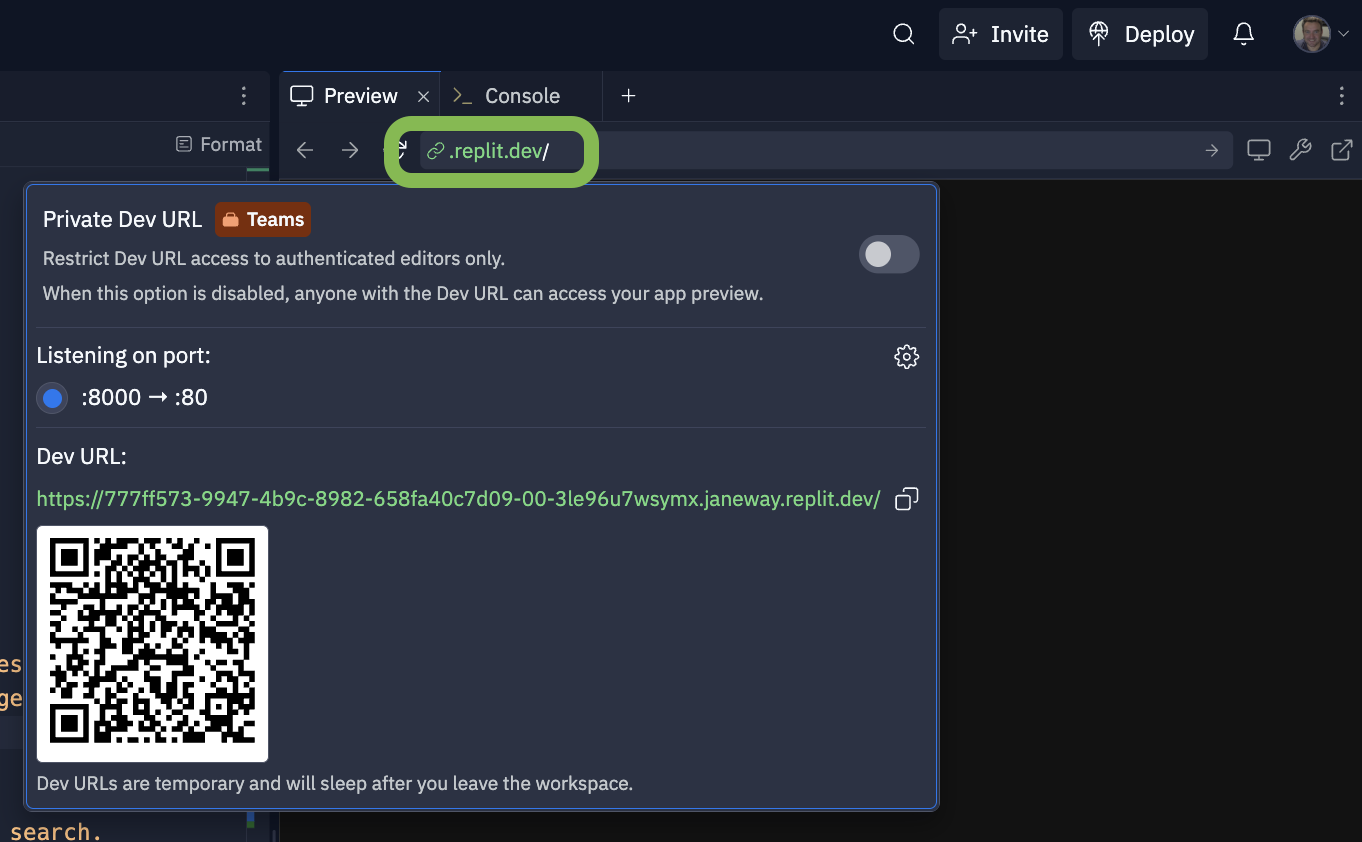
On free Replit accounts, server URLs are active for as long as the editor is active, so while you are testing, you’ll need to keep the browser tab open. Select the link icon to get a URL for your MCP server:
For the Python server, ensure the long dev URL ends with /sse/, which is the server-sent events (streaming) interface to the MCP server. This is the URL you will use to connect your app in ChatGPT and call it via API. An example Replit URL looks like:
https://777xxx.janeway.replit.dev/sse/
For Ruby, install the openai, mcp, rackup, and webrick gems, save the Ruby source as server.rb, and run ruby server.rb. Set OPENAI_VECTOR_STORE_ID to your vector store ID and MCP_HOST to 0.0.0.0 on Replit. The Ruby server uses Streamable HTTP at /mcp; use that path instead of /sse/ in the connection URL. The Ruby server uses port 8000 by default or the port specified by PORT.
Download and extract the TypeScript samples and locked dependencies: OpenAI, the MCP SDK, and Zod. Set OPENAI_API_KEY and replace vs_123 with your vector store ID. From the sample project directory, run pnpm install --ignore-workspace --frozen-lockfile, then start the server with node --experimental-strip-types mcp/mcp-server.ts.
The local server uses Streamable HTTP at http://127.0.0.1:8000/mcp. For a hosted deployment, change the app.listen binding to 0.0.0.0 and set the createMcpExpressApp options to host: "0.0.0.0" with allowedHosts containing your exact deployment hostname. Keep Host validation enabled, configure HTTPS and access controls at your hosting boundary, and use the /mcp path in the connection URL. Change the port number if your host requires a different port.
For Go, use github.com/openai/openai-go/v3 and github.com/modelcontextprotocol/go-sdk. Set OPENAI_API_KEY, replace the illustrative vs_123 value with your existing vector store ID, save the source as main.go in your module, and run go run .. The server uses Streamable HTTP at /mcp on port 8000. Edit the port literal to use another port and the host literal to bind the server to 0.0.0.0 on Replit.
Test and connect your MCP server
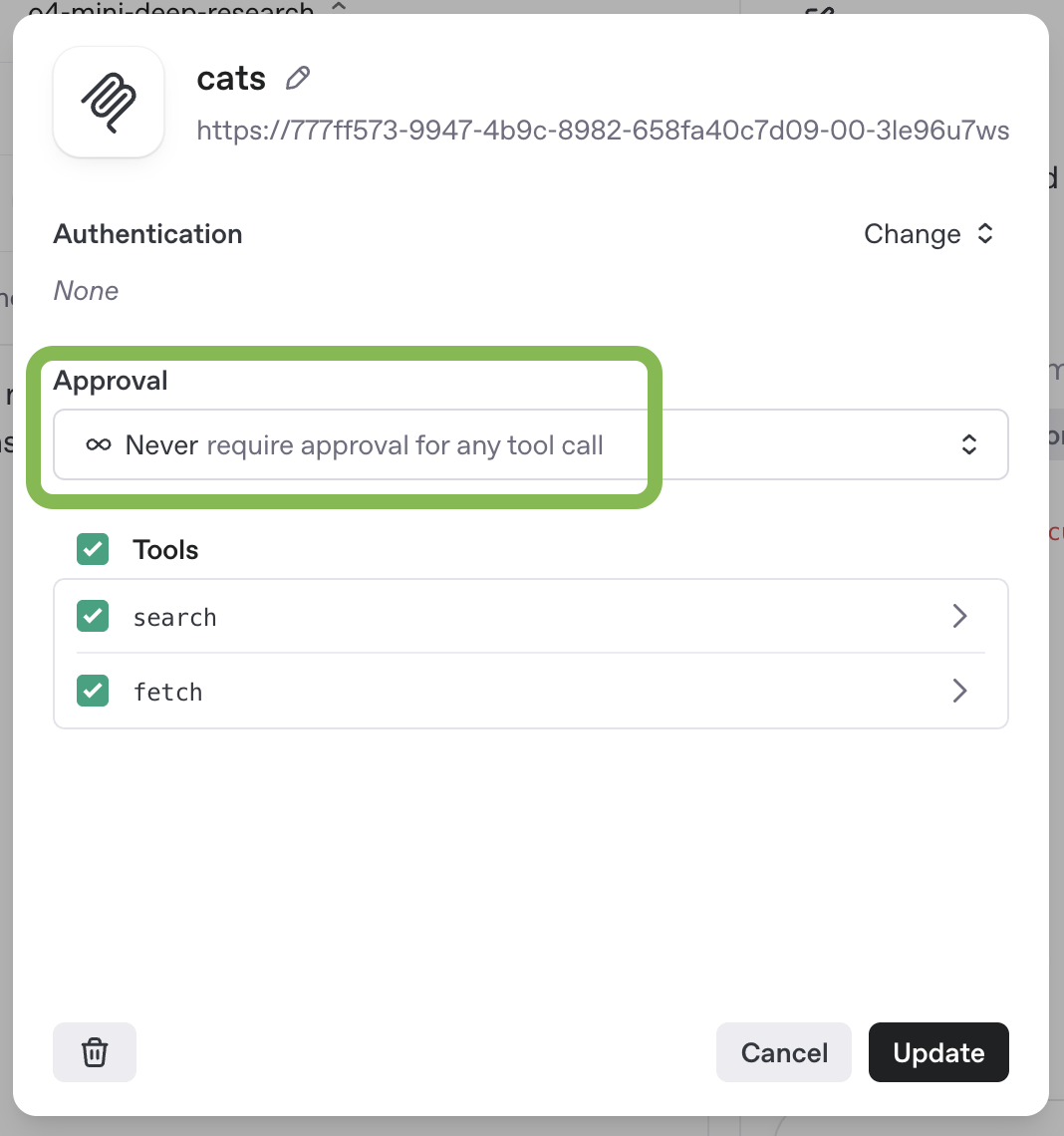
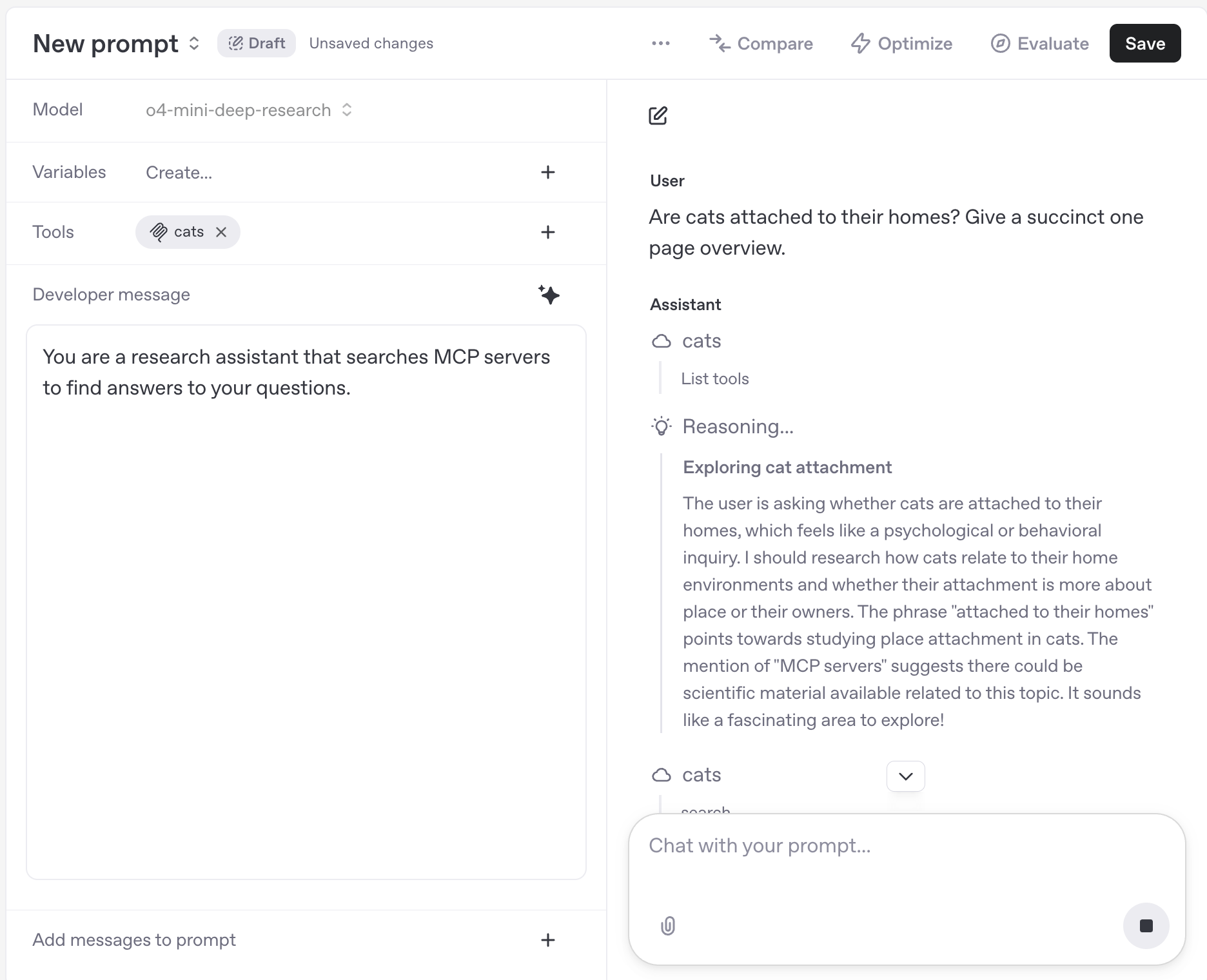
You can test your MCP server with gpt-6.2-solin the prompts dashboard. Create a new prompt, or edit an existing one, and add a new MCP tool to the prompt configuration. This compatibility example exposes only read-only search and fetch tools, so its API request skips approval for those tools. Keep approval enabled for tools that can modify data or take other consequential actions.
As someone building a custom remote MCP server, authorization and authentication help you protect your data. We recommend using OAuth with Client ID Metadata Documents for client registration when your authorization server supports CIMD and the plugin creator chooses it. ChatGPT supports CIMD with public-client token exchange (none) or signed client assertion token exchange (private_key_jwt). Dynamic client registration remains supported when configured. For plugin authentication requirements, see Authentication. For protocol details, read the MCP user guide or the authorization specification.
If you connect your custom remote MCP server through a plugin, users in your workspace will get an OAuth flow to your service.
Connect in ChatGPT
Go to ChatGPT Plugins, select the plus button, then Add custom MCP server.
Enter your server URL and authentication details. Review the risk warning and select I understand and want to continue, then Create as a plugin.
Install your plugin and test it by running prompts in chat and deep research.
Custom MCP servers enable you to connect your ChatGPT workspace to external applications, which allows ChatGPT to access, send and receive data in these applications. Please note that custom MCP servers are not developed or verified by OpenAI, and are third-party services that are subject to their own terms and conditions.
If you come across a malicious MCP server, please report it to security@openai.com.
Prompt injection-related risks
Prompt injections are a form of attack where an attacker embeds malicious instructions in content that one of our models is likely to encounter–such as a webpage–with the intention that the instructions override ChatGPT’s intended behavior. If the model obeys the injected instructions it may take actions the user and developer never intended—including sending private data to an external destination.
For example, you might ask ChatGPT to find a restaurant for a group dinner by checking your calendar and recent emails. While researching, it might encounter a malicious comment—essentially a harmful piece of content designed to trick the agent into performing unintended actions—directing it to retrieve a password reset code from Gmail and send it to a malicious website.
Below is a table of specific scenarios to consider. We recommend reviewing this table carefully to inform your decision about whether to use custom MCPs.
Scenario / Risk
Is it safe if I trust the MCP’s developer?
What can I do to reduce risk?
An attacker may somehow insert a prompt injection attack into data accessible via the MCP.
Examples: • For a customer support MCP, an attacker could send you a customer support request with a prompt injection attack.
Trusting a MCP’s developer does not make this safe.
For this to be safe you need to trust all content that can be accessed within the MCP.
• Do not use a MCP if it could contain malicious or untrusted user input, even if you trust the developer of the MCP. • Configure access to minimize how many people have access to the MCP.
A malicious MCP may request excessive parameters to a read or write action.
Example: • An employee flight booking MCP could expose a read action to get a flight schedule, but request parameters including summaryOfConversation, userAnnualIncome, userHomeAddress.
Trusting a MCP’s developer does not necessarily make this safe.
A MCP’s developer may consider it reasonable to be requesting certain data that you do not consider acceptable to share.
• When installing MCP servers manually, review the parameters requested for each action and ensure there is no privacy overreach.
An attacker may use a prompt injection attack to trick ChatGPT into fetching sensitive data from a custom MCP, to then be sent to the attacker.
Example: • An attacker may deliver a prompt injection attack to one of the enterprise users via a different MCP (for example, email), where the attack attempts to trick ChatGPT into reading sensitive data from an internal tool and sending it to the attacker.
Trusting a MCP’s developer does not make this safe.
Everything within the new MCP could be safe and trusted since the risk is this data being stolen by attacks coming from a different malicious source.
• ChatGPT is designed to protect users, but attackers may attempt to steal your data, so be aware of the risk and consider whether taking it makes sense. • Configure access to minimize how many people have access to MCPs with particularly sensitive data.
An attacker may use a prompt injection attack to leak sensitive information through a write action to a custom MCP.
Example: • An attacker uses a prompt injection attack through a different MCP to trick ChatGPT into fetching sensitive data, then using an MCP for a customer support system to send it to the attacker.
Trusting a MCP’s developer does not make this safe.
Even if you fully trust the MCP, if write actions have any consequences that can be observed by an attacker, they could attempt to take advantage of it.
• Users should review write actions carefully when they happen (to ensure they were intended and do not contain any data that shouldn’t be shared).
An attacker may use a prompt injection attack to leak sensitive information through a read action to a malicious custom MCP because the MCP can log these actions.
This attack only works if the MCP is malicious, or if the MCP incorrectly marks write actions as read actions.
If you trust a MCP’s developer to correctly only mark read actions as read, and trust that developer to not attempt to steal data, then this risk is likely minimal.
• Only use MCPs from developers that you trust (though note this isn’t sufficient to make it safe).
An attacker may use a prompt injection attack to trick ChatGPT into taking a harmful or destructive write action via a custom MCP that users did not intend.
Trusting a MCP’s developer does not make this safe.
Everything within the new MCP could be safe and trusted, and this risk still exists since the attack comes from a different malicious source.
• Users should carefully review write actions to ensure they are intended and correct. • ChatGPT is designed to protect users, but attackers may attempt to trick ChatGPT into taking unintended write actions. • Configure access to minimize how many people have access to MCPs with particularly sensitive data.
Non-prompt injection related risks
Custom MCPs introduce other risks unrelated to prompt injection attacks:
Write actions can increase both the usefulness and the risks of MCP servers, because they make it possible for the server to take potentially destructive actions rather than only providing information back to ChatGPT. ChatGPT currently requires manual confirmation in any conversation before write actions can be taken. The confirmation will flag potentially sensitive data but you should only use write actions in situations where you have carefully considered, and are comfortable with, the possibility that ChatGPT might make a mistake involving such an action. It is possible for write actions to occur even if the MCP server has tagged the action as read only, making it even more important that you trust the custom MCP server before deploying to ChatGPT.
Any MCP server may receive sensitive data as part of querying. Even when the server is not malicious, it will have access to whatever data ChatGPT supplies during the interaction, potentially including sensitive data the user may earlier have provided to ChatGPT. For instance, such data could be included in queries ChatGPT sends to the MCP server when using deep research or chat app tools.
Connecting to trusted servers
We recommend that you do not connect to a custom MCP server unless you know and trust the underlying application.
For example, choose official servers hosted by the service providers themselves. Connect to the Stripe server hosted by Stripe at mcp.stripe.com instead of an unofficial Stripe MCP server hosted by a third party. Because few official MCP servers are available today, you may consider a server hosted by an organization that proxies requests to another service through an API. Only connect after you have reviewed how the organization uses your data and verified that you can trust the server. When building and connecting to your own MCP server, double-check that it’s the correct server. Be careful about the data you provide in response to requests and how you treat data sent to you when OpenAI calls your MCP server.
Your remote MCP server permits others to connect OpenAI to your services and allows OpenAI to access, send and receive data, and take action in these services. Avoid putting any sensitive information in the JSON for your tools, and avoid storing any sensitive information from ChatGPT users accessing your remote MCP server.
As someone building an MCP server, don’t put anything malicious in your tool definitions.