Describe the structure
Name the sections, details, and information to include.
.md to the page URL.
Turn messy source material into a clear document, shape the refined content into a slide deck, and save both formats as templates to reuse.
 Doc
Doc
 Slide deck
Notes, transcripts, documents, and files rarely arrive ready to share. Attach your source material, describe the result you need, and say what should be checked before delivery.
In this example we’ll turn a weekly meeting transcript into a concise visual summary for leadership. We’re using Google Docs and Google Slides here, but you can also use Word and PowerPoint.
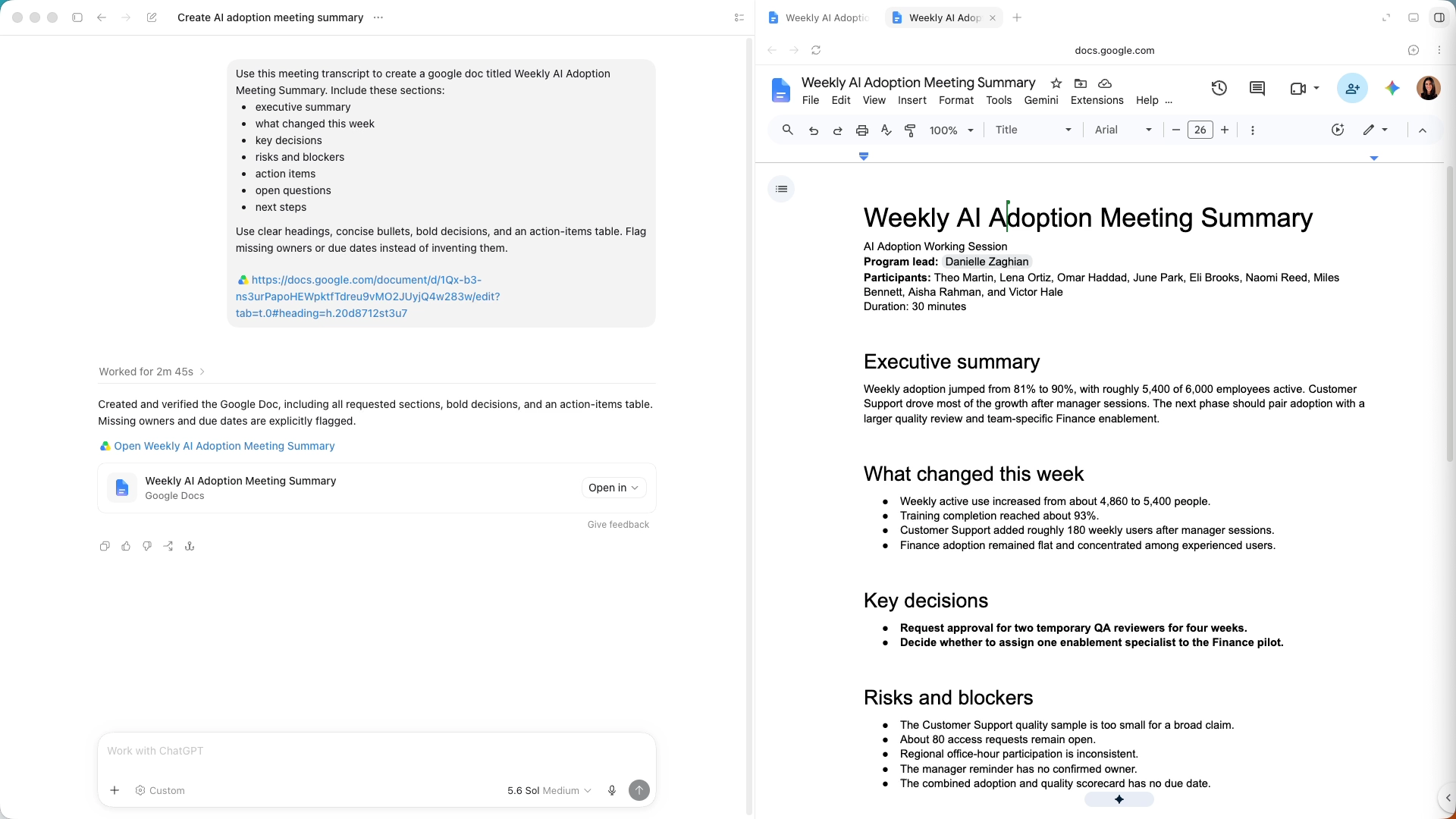
Start by asking ChatGPT to turn your transcript or notes into a Google Doc. Ask for the sections you want and for ChatGPT to flag missing details.
Here, we named the sections we wanted. You can guide the format in either of two ways.
Review the result against the original source. Once the document is accurate, it can guide the presentation.
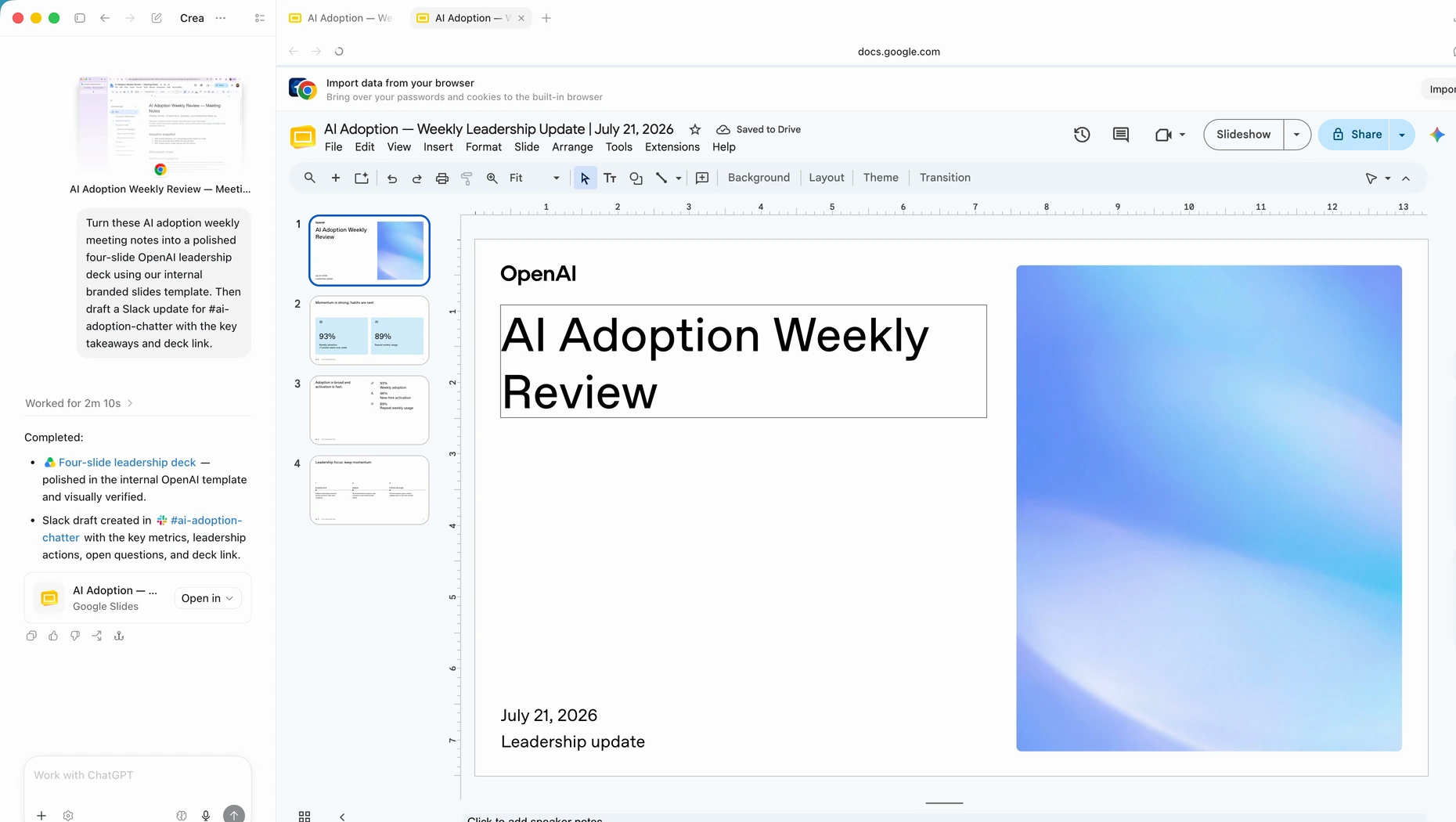
Ask ChatGPT to turn the approved document into a concise deck that follows the same key sections. Attach a reference presentation if you want it to follow a particular visual style.
The deck should prioritize the story rather than repeat every detail. Review the document or slides alongside the conversation, then ask for focused changes to specific sections without starting over.
Use @Template Creator and attach the finished document, presentation, or both. ChatGPT can save the structure and visual style as reusable templates.
Document format
Keep the sections and level of detail. Presentation style
Reuse the slide order and visual direction.Now you can attach new source material and mention the saved template. The information changes while the format stays familiar.
Open the first prompt in ChatGPT and attach your notes, transcript, or other source material. Copy the follow-up prompts into that same conversation.
Up next
ChatGPT can read what’s on screen, click, and type in apps and websites you allow it to use. Work through a spreadsheet, research a topic across websites, or fill out a form on a site you’re already signed in to.
Loading docs agent...