Working on your phone
Use ChatGPT Work from the mobile app, or use Remote to review, approve, and start tasks on your connected computer.
Use ChatGPT Work on your phone
Open the ChatGPT app, choose Work, and start a task or pick up a conversation where you left off. You can use connected plugins, attach files, and review results right from your phone.
Ask ChatGPT to catch you up on Slack, prepare you for a meeting, or pull together what needs your attention. Review the result and keep the conversation moving wherever you are.
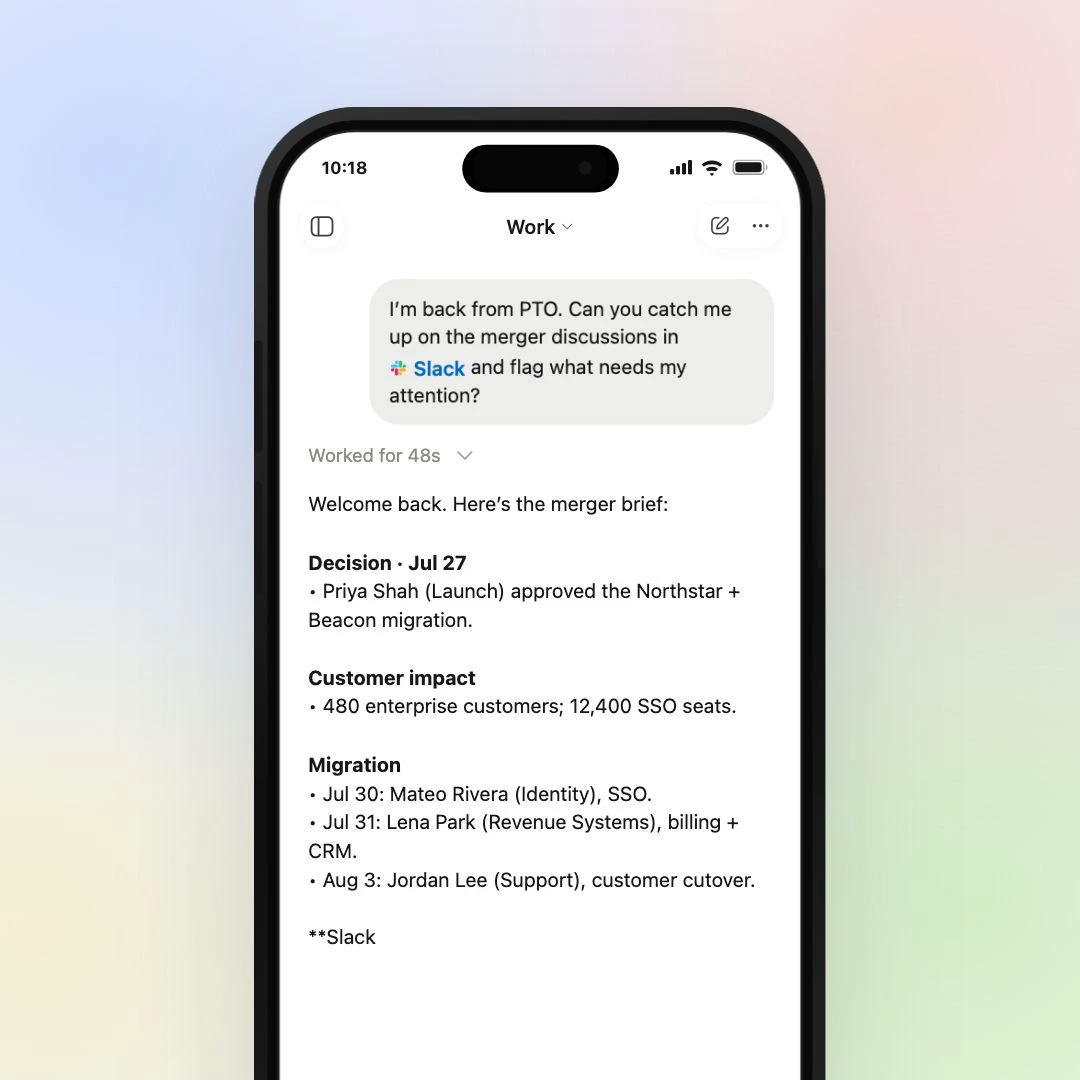
What you can do from your phone
Your mobile app brings Work conversations, connected tools, and finished results together.
- Plugins
- Use Slack, Gmail, Google Calendar, and other connected tools.
- Files
- Attach a file or review documents, spreadsheets, and presentations.
-
 Sites
Sites - Open a Site you created or shared and check it from your phone.
- Work chats
- Start a task or continue cloud work from another device.
Start, approve, and review computer tasks with Remote
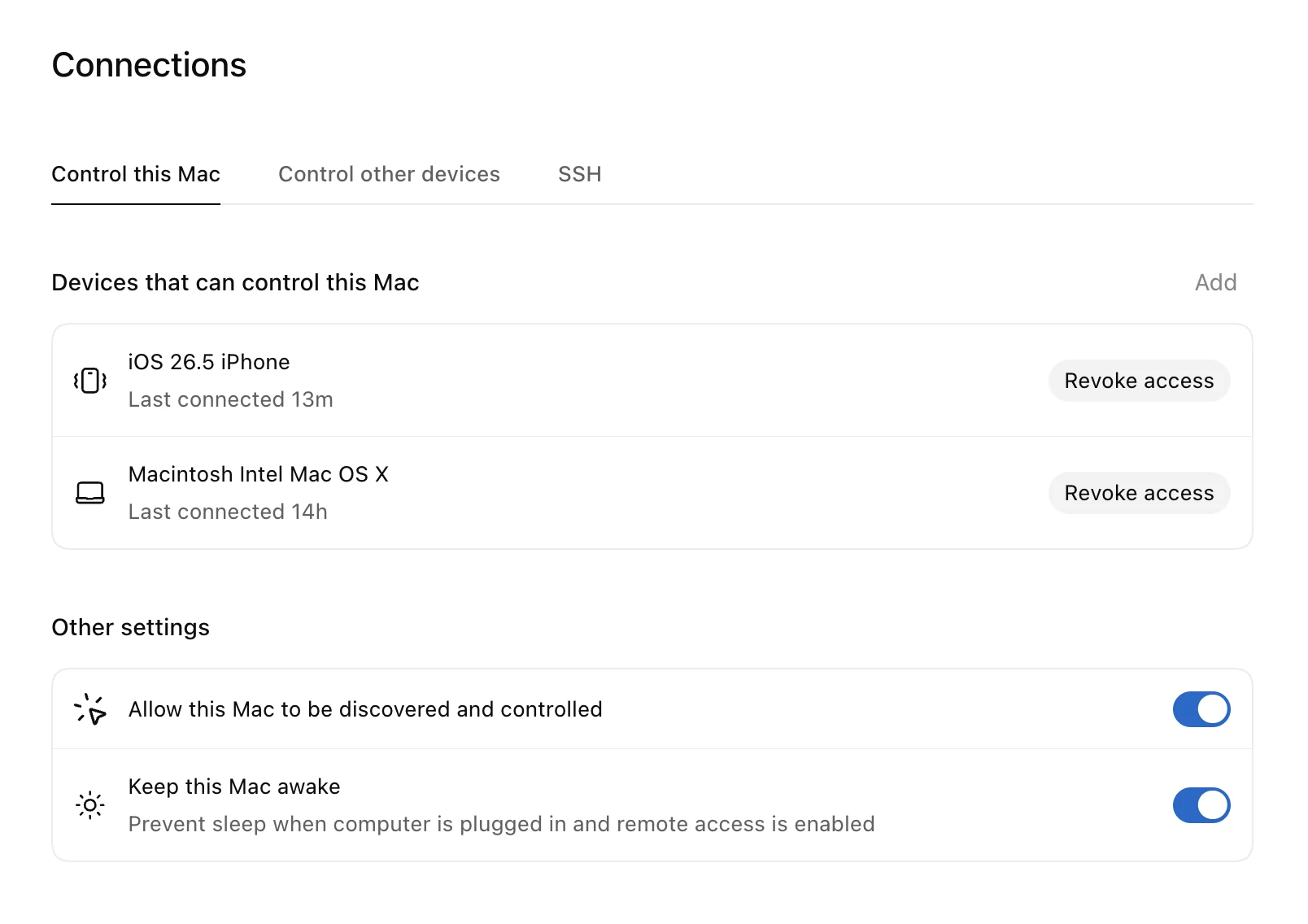
Open Remote to see your tasks, approve a requested action, review results, or start a new task on your connected computer. Your computer keeps working with its local files, desktop apps, and browser.
Set up Remote
In the ChatGPT desktop app on your computer, go to Settings → Connections → Control this Mac or PC, then select Set up or Add. Scan the QR code with your phone and select your connected computer. Keep your computer awake, online, and signed in to the same account and workspace as your phone.
Try it
Try two focused tasks you can start right from ChatGPT Work on your phone. Make sure you have the right plugins connected before starting.
-
Catch up with Slack and Calendar
Catch me up on recent @Slack messages and today’s @Google Calendar events. Flag anything urgent and update me.
Open this prompt in ChatGPT Work (opens in a new tab) -
Prepare with Google Calendar
Use @Google Calendar to check my next meeting, summarize the context I should know, and give me three quick talking points.
Open this prompt in ChatGPT Work (opens in a new tab)
Up next
Using voice
Voice lets you talk with ChatGPT while it works in the desktop app, so you can brainstorm ideas, ask for a slide deck, and refine it out loud.