Primary navigation

Plugins

Package and distribute Codex skills and app integrations as plugins

What plugins are

Plugins are installable bundles for reusable Codex workflows. They make it easier to share the same setup across projects or teams, and they can package skills, optional app integrations, and MCP server configurations in a single place.

A plugin can contain:

  • Skills: prompts that describe workflows to Codex and can be progressively discovered by the agent.
  • Apps: optional app integrations or connector mappings packaged with the plugin.
  • MCP servers: remote tools or shared context the plugin needs.

More plugin components are coming soon.

Use and install plugins

In the Codex app

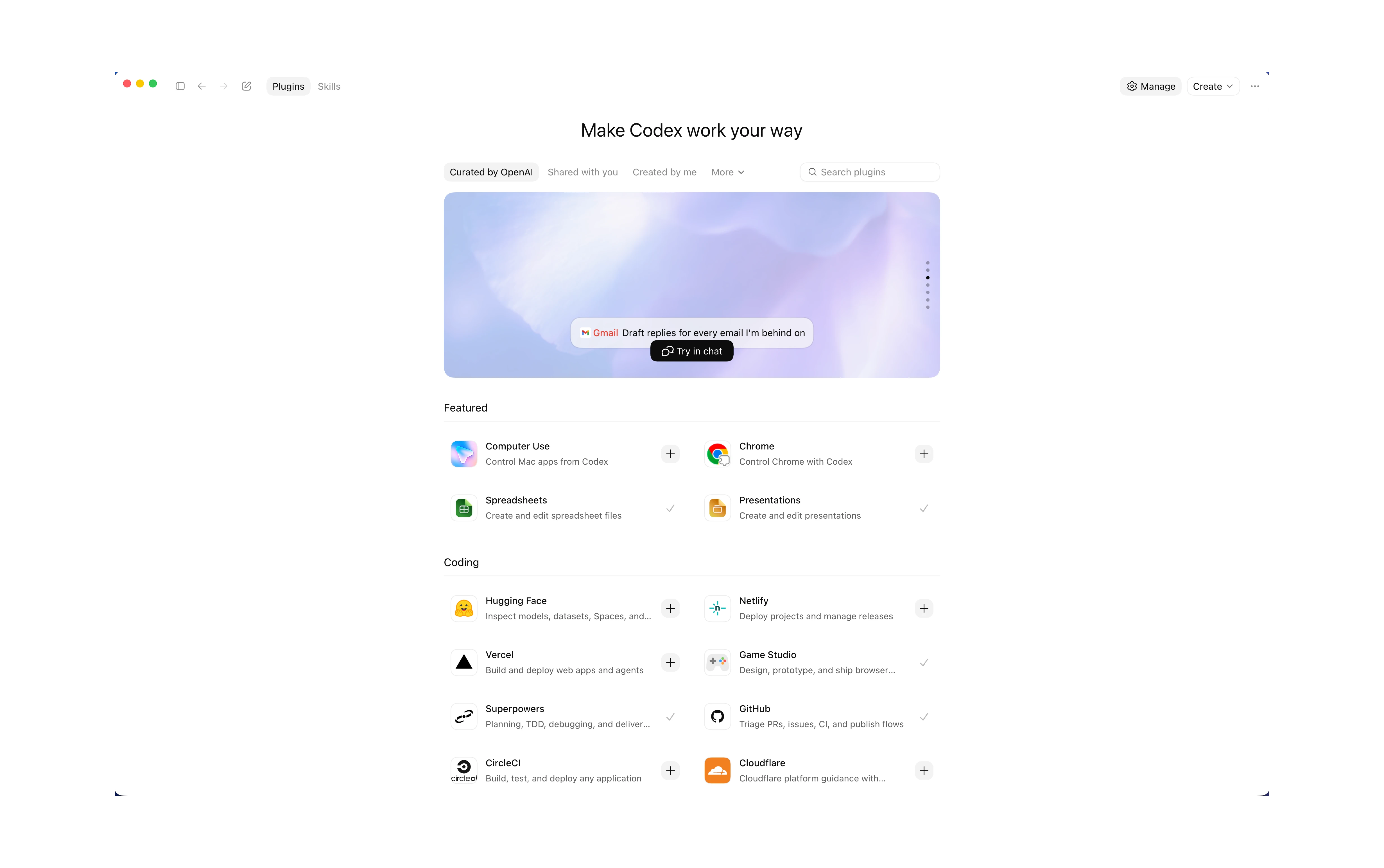
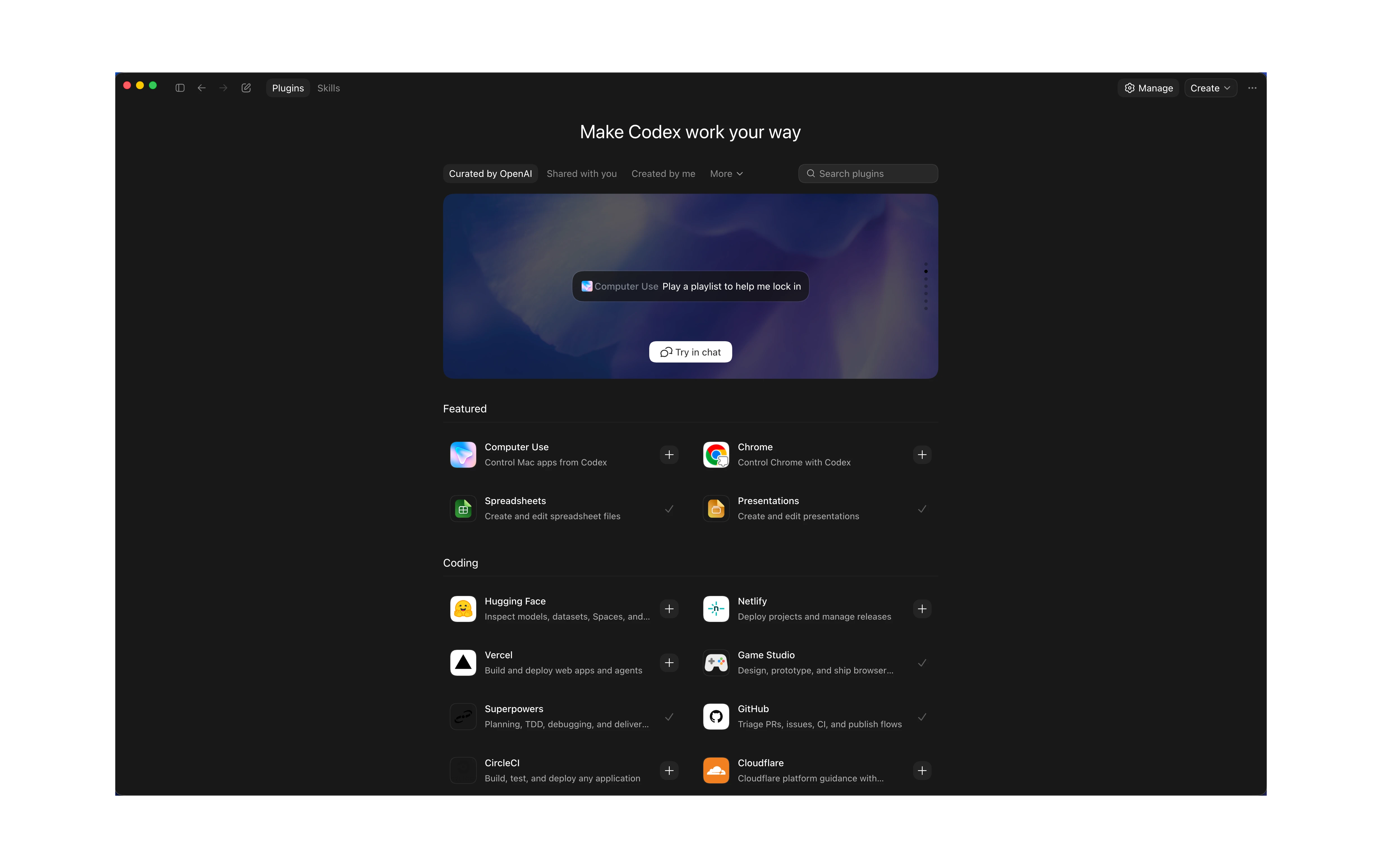
Plugins curated by OpenAI appear in the Codex directory. Start there when you want ready-made workflows or app integrations.

In the CLI

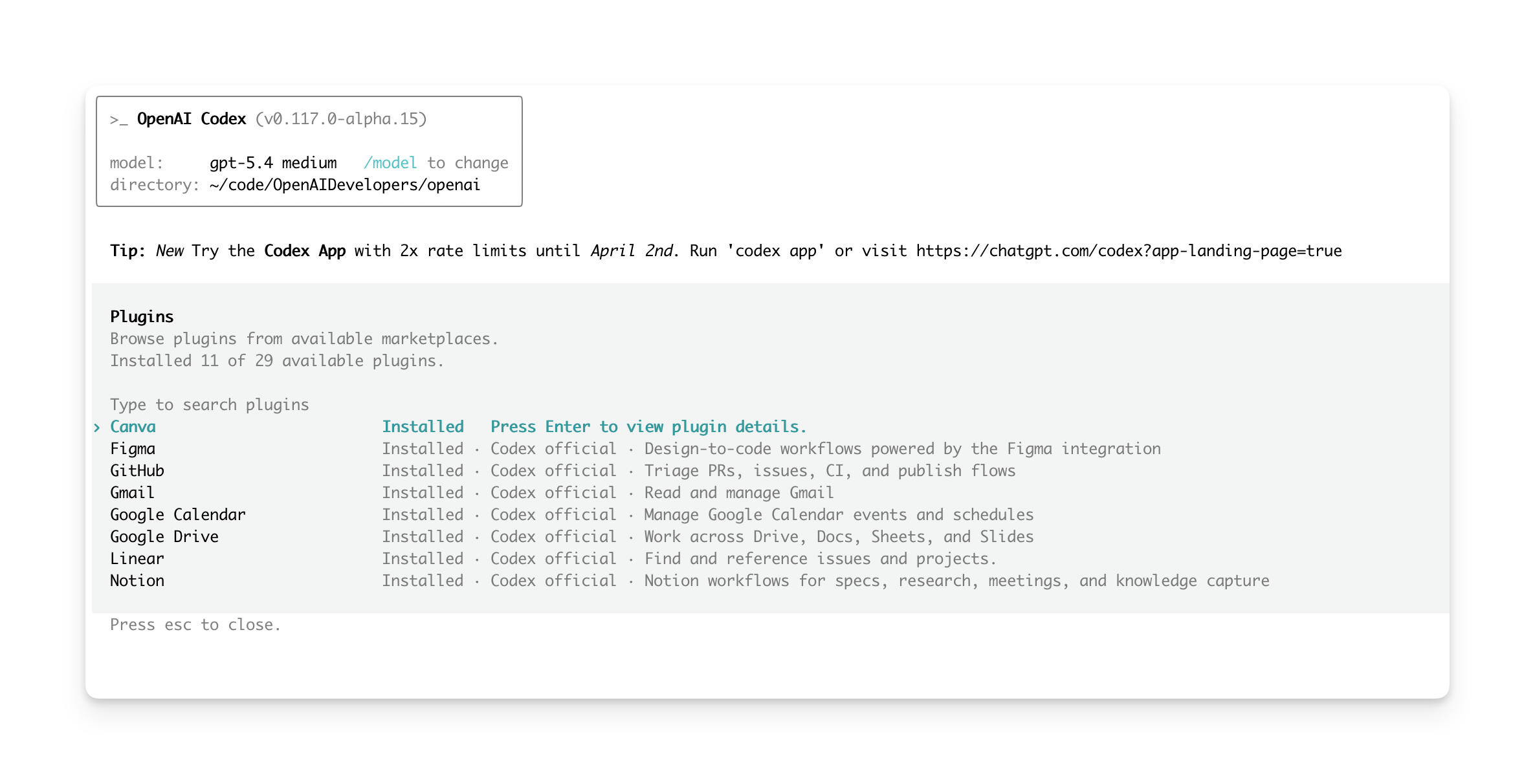
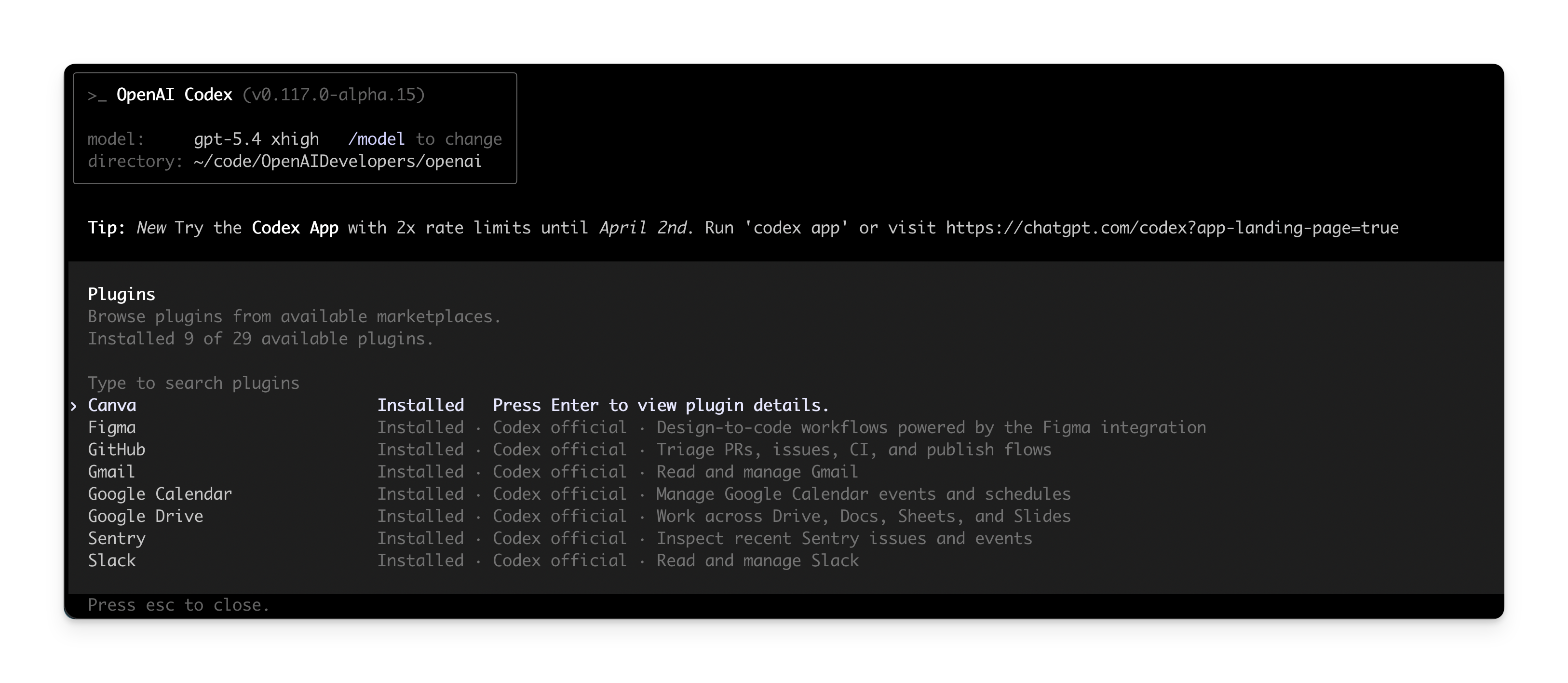
In Codex CLI, run the following command to open the plugins surface:

codex
/plugins

Use plugins locally

For the fastest setup, use the built-in @plugin-creator skill to scaffold a local plugin.

It creates the required .codex-plugin/plugin.json manifest and can also generate a local marketplace entry for testing.

If you already have a plugin from another ecosystem or a plugin you built yourself, you can add it to your local marketplace with @plugin-creator.

In the plugin directory, you can also load your own local marketplace with a custom marketplace name and browse the plugins there.

Install a local plugin manually

Use a repo marketplace or a personal marketplace, depending on who should be able to access the plugin.

Choose an option

Add a marketplace file at $REPO_ROOT/.agents/plugins/marketplace.json and store your plugins under $REPO_ROOT/plugins/.

Repo marketplace example

Step 1: Copy the plugin folder into $REPO_ROOT/plugins/my-plugin.

mkdir -p ./plugins
cp -R /absolute/path/to/my-plugin ./plugins/my-plugin

Step 2: Add or update $REPO_ROOT/.agents/plugins/marketplace.json so that source.path points to that plugin directory with a ./-prefixed relative path:

{
  "name": "local-repo",
  "plugins": [
    {
      "name": "my-plugin",
      "source": {
        "source": "local",
        "path": "./plugins/my-plugin"
      },
      "policy": {
        "installation": "AVAILABLE",
        "authentication": "ON_INSTALL"
      },
      "category": "Productivity"
    }
  ]
}

Step 3: Restart Codex and verify that the plugin appears.

The marketplace file points to the plugin location, so those directories are examples rather than fixed requirements. Codex resolves source.path relative to the marketplace root, not relative to the .agents/plugins/ folder. See Marketplace metadata for the file format.

After you change the plugin, update the plugin directory that your marketplace entry points to and restart Codex so the local install picks up the new files.

Marketplace metadata

If you maintain a repo marketplace, define it in $REPO_ROOT/.agents/plugins/marketplace.json. For a personal marketplace, use ~/.agents/plugins/marketplace.json. A marketplace file controls plugin ordering and install policies in Codex-facing catalogs. Before you add a plugin to a marketplace, make sure its version, publisher metadata, and install-surface copy are ready for other developers to see.

{
  "name": "openai-curated",
  "interface": {
    "displayName": "ChatGPT Official"
  },
  "plugins": [
    {
      "name": "my-plugin",
      "source": {
        "source": "local",
        "path": "./plugins/my-plugin"
      },
      "policy": {
        "installation": "AVAILABLE",
        "authentication": "ON_INSTALL"
      },
      "category": "Productivity"
    }
  ]
}
  • Use top-level name to identify the marketplace.
  • Use interface.displayName for the marketplace title shown in Codex.
  • Point each plugin entry’s source.path at the plugin directory you want Codex to load. For repo installs, that often lives under ./plugins/. For personal installs, it often lives under ~/.codex/plugins/.
  • Keep source.path relative to the marketplace root, start it with ./, and keep it inside that root.
  • Always include policy.installation, policy.authentication, and category on each plugin entry.
  • Use policy.installation values such as AVAILABLE, INSTALLED_BY_DEFAULT, or NOT_AVAILABLE.
  • Use policy.authentication to decide whether auth happens on install or first use.

The marketplace controls where Codex loads the plugin from. source.path can point somewhere else if your plugin lives outside those example directories. A marketplace file can live in the repo where you are developing the plugin or in a separate marketplace repo, and one marketplace file can point to one plugin or many.

How Codex uses marketplaces

A plugin marketplace is a JSON catalog of plugins that Codex can read and install.

Codex can read marketplace files from:

  • the curated marketplace that powers the official Plugin Directory
  • a repo marketplace at $REPO_ROOT/.agents/plugins/marketplace.json
  • a personal marketplace at ~/.agents/plugins/marketplace.json

You can install any plugin exposed through a marketplace. Codex installs plugins into ~/.codex/plugins/cache/$MARKETPLACE_NAME/$PLUGIN_NAME/$VERSION/. For local plugins, $VERSION is local, and Codex loads the installed copy from that cache path rather than directly from the marketplace entry.

You can enable or disable each plugin individually. Codex stores each plugin’s on or off state in ~/.codex/config.toml.

Build and distribute plugins

When to create a plugin

Use local skills when:

  • You are iterating on one repo or one workflow.
  • The behavior is personal or project-specific.
  • You are experimenting before you package something reusable.

Use plugins when:

  • You want the same skills or app integrations available across teams or projects.
  • You want to bundle skills, MCP config, and app integrations into one installable unit.
  • You want a stable, versioned package for teammates or a marketplace.

Start local, then package the workflow as a plugin when you are ready to share it.

Plugin structure

Every plugin has a manifest at .codex-plugin/plugin.json. It can also include a skills/ directory, an .app.json file that points at one or more apps or connectors, and assets used to present the plugin across supported surfaces.

  • my-plugin/
    • .codex-plugin/
      • plugin.json Required: plugin manifest
    • skills/
      • my-skill/
        • SKILL.md Optional: skill instructions
    • .app.json Optional: app or connector mappings
    • .mcp.json Optional: MCP server configuration
    • assets/ Optional: icons, logos, screenshots

Only plugin.json belongs in .codex-plugin/. Keep skills/, assets/, .mcp.json, and .app.json at the plugin root.

Published plugins typically use a richer manifest than the minimal example that appears in quick-start scaffolds. The manifest has three jobs:

  • Identify the plugin.
  • Point to bundled components such as skills, apps, or MCP servers.
  • Provide install-surface metadata such as descriptions, icons, and legal links.

Here’s a complete manifest example:

{
  "name": "my-plugin",
  "version": "0.1.0",
  "description": "Bundle reusable skills and app integrations.",
  "author": {
    "name": "Your team",
    "email": "team@example.com",
    "url": "https://example.com"
  },
  "homepage": "https://example.com/plugins/my-plugin",
  "repository": "https://github.com/example/my-plugin",
  "license": "MIT",
  "keywords": ["research", "crm"],
  "skills": "./skills/",
  "mcpServers": "./.mcp.json",
  "apps": "./.app.json",
  "interface": {
    "displayName": "My Plugin",
    "shortDescription": "Reusable skills and apps",
    "longDescription": "Distribute skills and app integrations together.",
    "developerName": "Your team",
    "category": "Productivity",
    "capabilities": ["Read", "Write"],
    "websiteURL": "https://example.com",
    "privacyPolicyURL": "https://example.com/privacy",
    "termsOfServiceURL": "https://example.com/terms",
    "defaultPrompt": [
      "Use My Plugin to summarize new CRM notes.",
      "Use My Plugin to triage new customer follow-ups."
    ],
    "brandColor": "#10A37F",
    "composerIcon": "./assets/icon.png",
    "logo": "./assets/logo.png",
    "screenshots": ["./assets/screenshot-1.png"]
  }
}

.codex-plugin/plugin.json is the required entry point. The other manifest fields are optional, but published plugins commonly use them.

Create your first plugin

Start with a minimal plugin that packages one skill.

  1. Create a plugin folder with a manifest at .codex-plugin/plugin.json.
mkdir -p my-first-plugin/.codex-plugin

my-first-plugin/.codex-plugin/plugin.json

{
  "name": "my-first-plugin",
  "version": "1.0.0",
  "description": "Reusable greeting workflow",
  "skills": "./skills/"
}

Use a stable plugin name in kebab-case. Codex uses it as the plugin identifier and component namespace.

  1. Add a skill under skills/<skill-name>/SKILL.md.
mkdir -p my-first-plugin/skills/hello

my-first-plugin/skills/hello/SKILL.md

---
name: hello
description: Greet the user with a friendly message.
---

Greet the user warmly and ask how you can help.
  1. Follow Use plugins locally to load the plugin in Codex.

From there, you can add MCP config, app integrations, or marketplace metadata as needed.

Manifest fields

Use the top-level fields to define package metadata and point to bundled components:

  • name, version, and description identify the plugin.
  • author, homepage, repository, license, and keywords provide publisher and discovery metadata.
  • skills, mcpServers, and apps point to bundled components relative to the plugin root.
  • interface controls how install surfaces present the plugin.

Use the interface object for install-surface metadata:

  • displayName, shortDescription, and longDescription control the title and descriptive copy.
  • developerName, category, and capabilities add publisher and capability metadata.
  • websiteURL, privacyPolicyURL, and termsOfServiceURL provide external links.
  • defaultPrompt, brandColor, composerIcon, logo, and screenshots control starter prompts and visual presentation.

Path rules

  • Keep manifest paths relative to the plugin root and start them with ./.
  • Store visual assets such as composerIcon, logo, and screenshots under ./assets/ when possible.
  • Use skills for bundled skill folders, apps for .app.json, and mcpServers for .mcp.json.

Publish official public plugins

Adding plugins to the official Plugin Directory is coming soon.

Self-serve plugin publishing and management are coming soon.