Showcase projects

Stop-Motion Desk
A browser studio for posing 3D characters and making stop-motion animations.

Pattern Studio
A design tool for creating seamless patterns and previewing them on objects.

Architecture Studio
A room planner with a 2D floor plan and synchronized 3D view.

Crossword Desk
Build and solve crosswords with an agent.
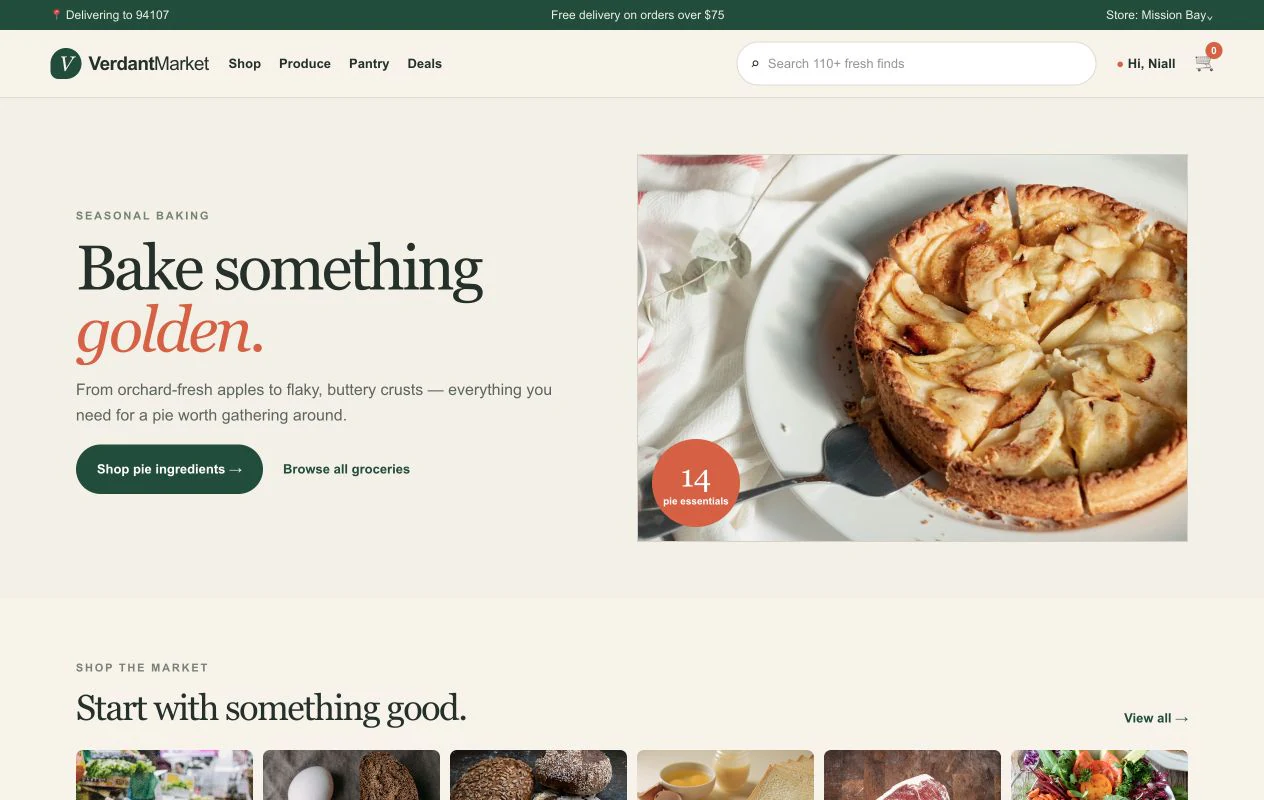
Verdant Market
Browse groceries and build a shared cart with an agent.
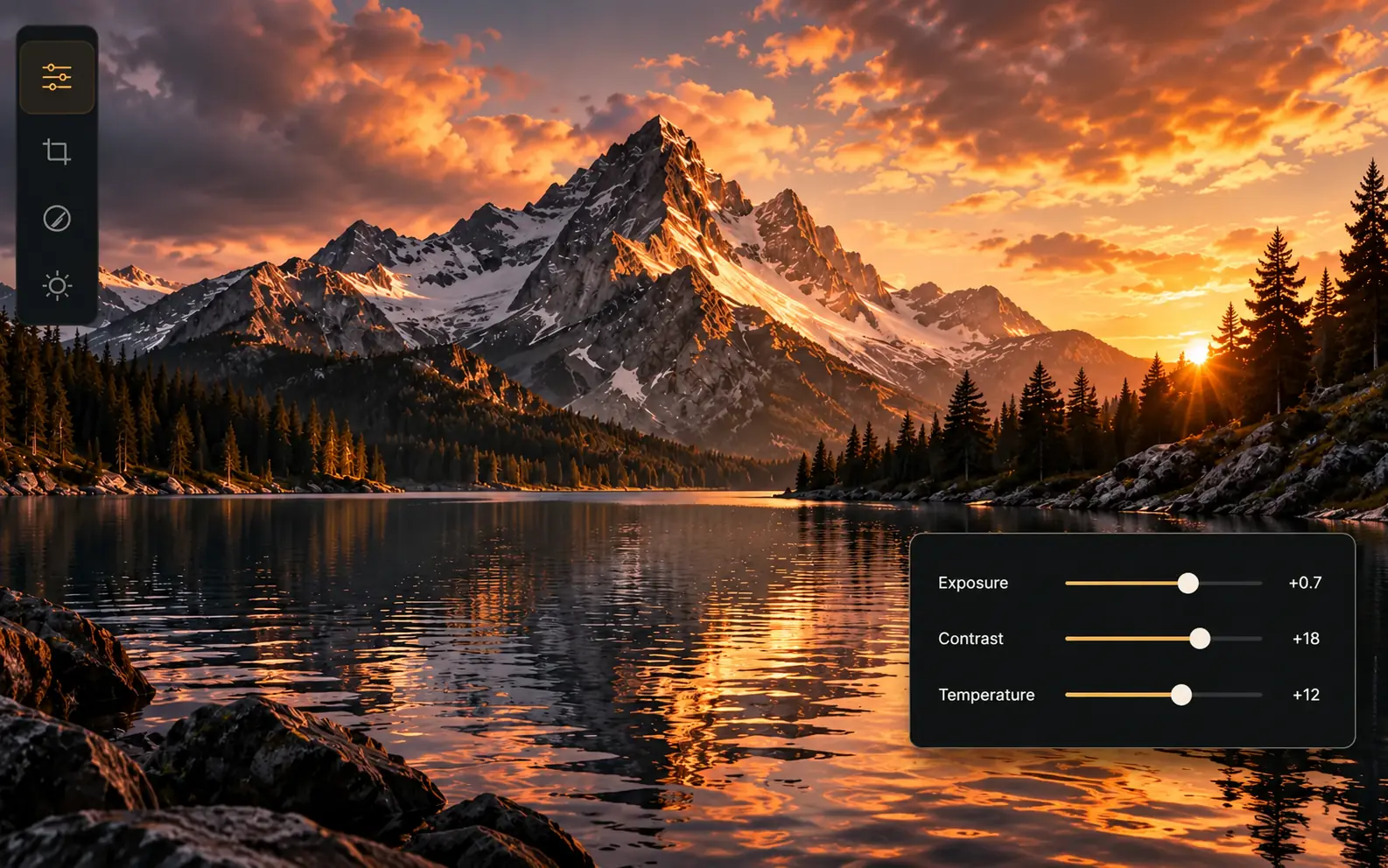
Webroom
Agent-compatible photo editing.
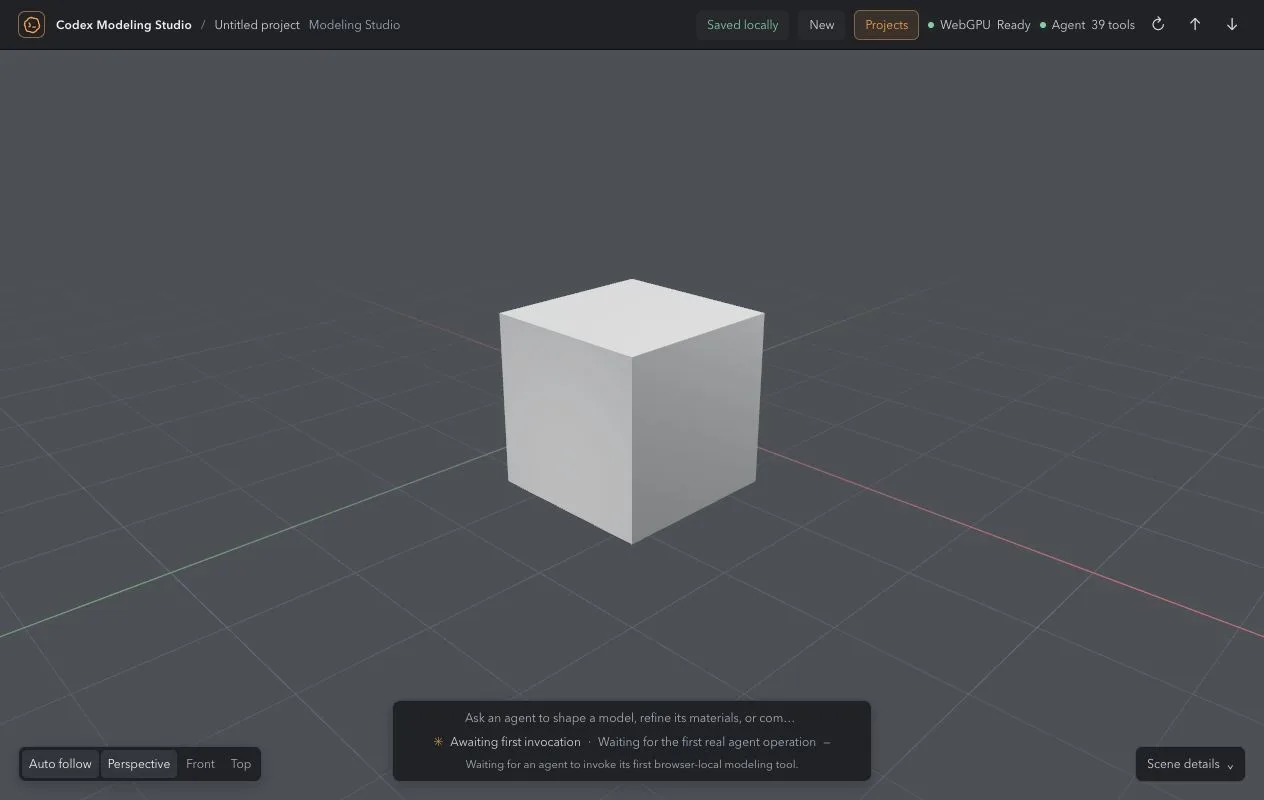
Codex Modeling Studio
A web-native 3D modeling suite designed for Codex.
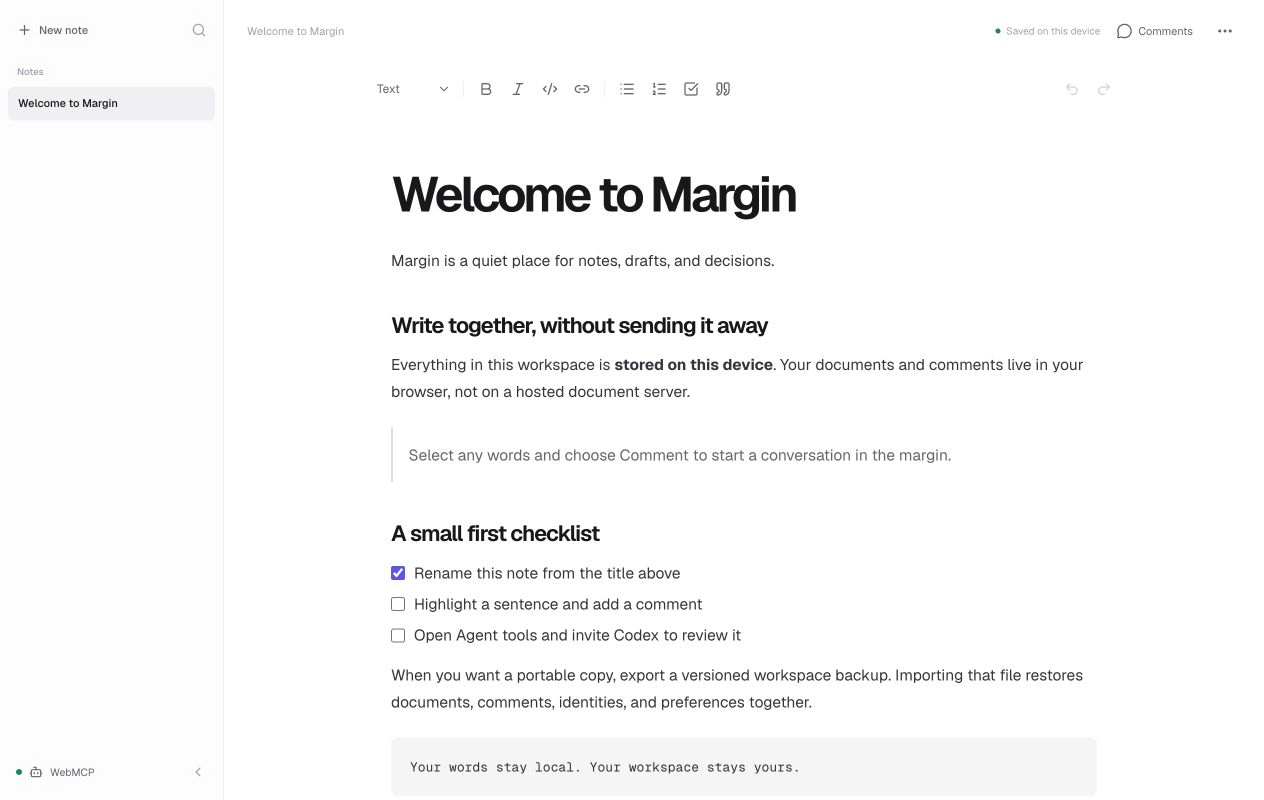
Margin Editor
A local note-taking app for collaborating with your agent.
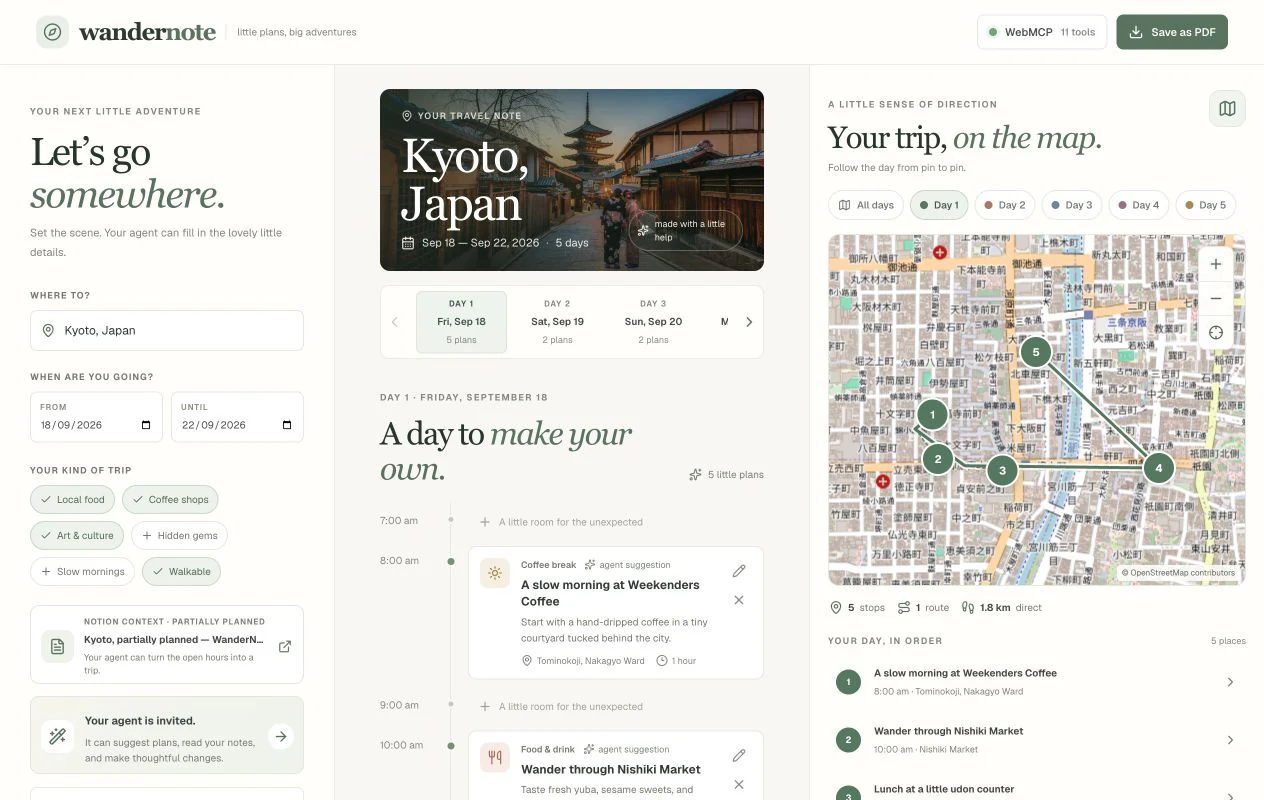
WanderNote
Plan a trip together in an editable itinerary.
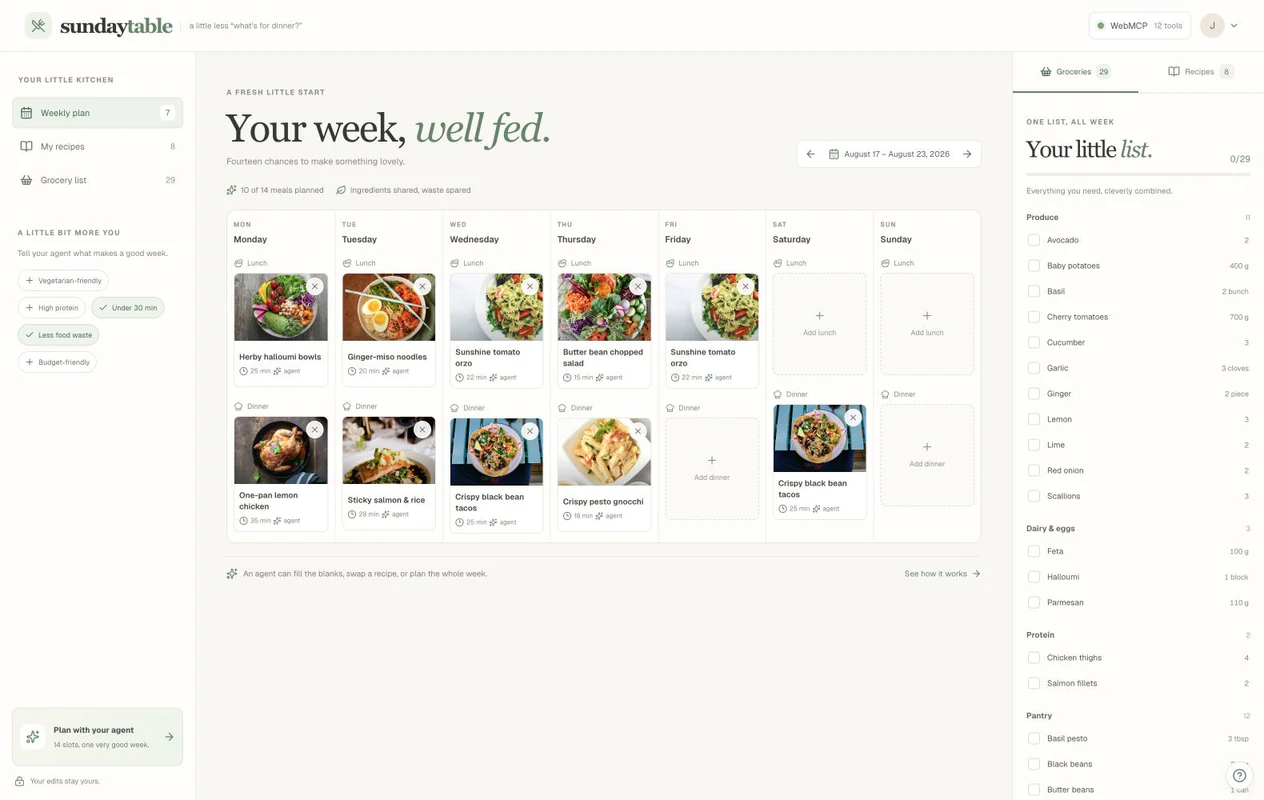
Sunday Table
Plan weekly meals, recipes, and groceries together.
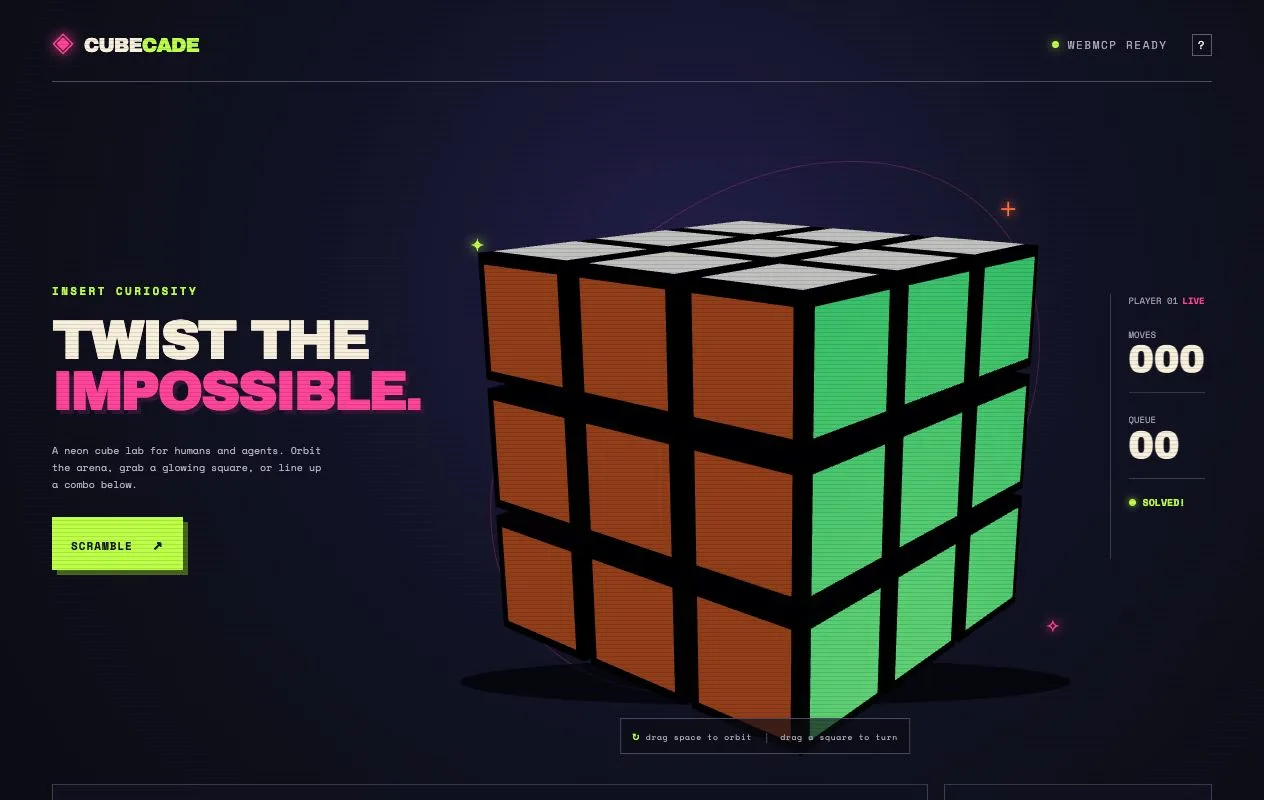
Cubecade
An arcade-style 3D puzzle cube with agent controls.
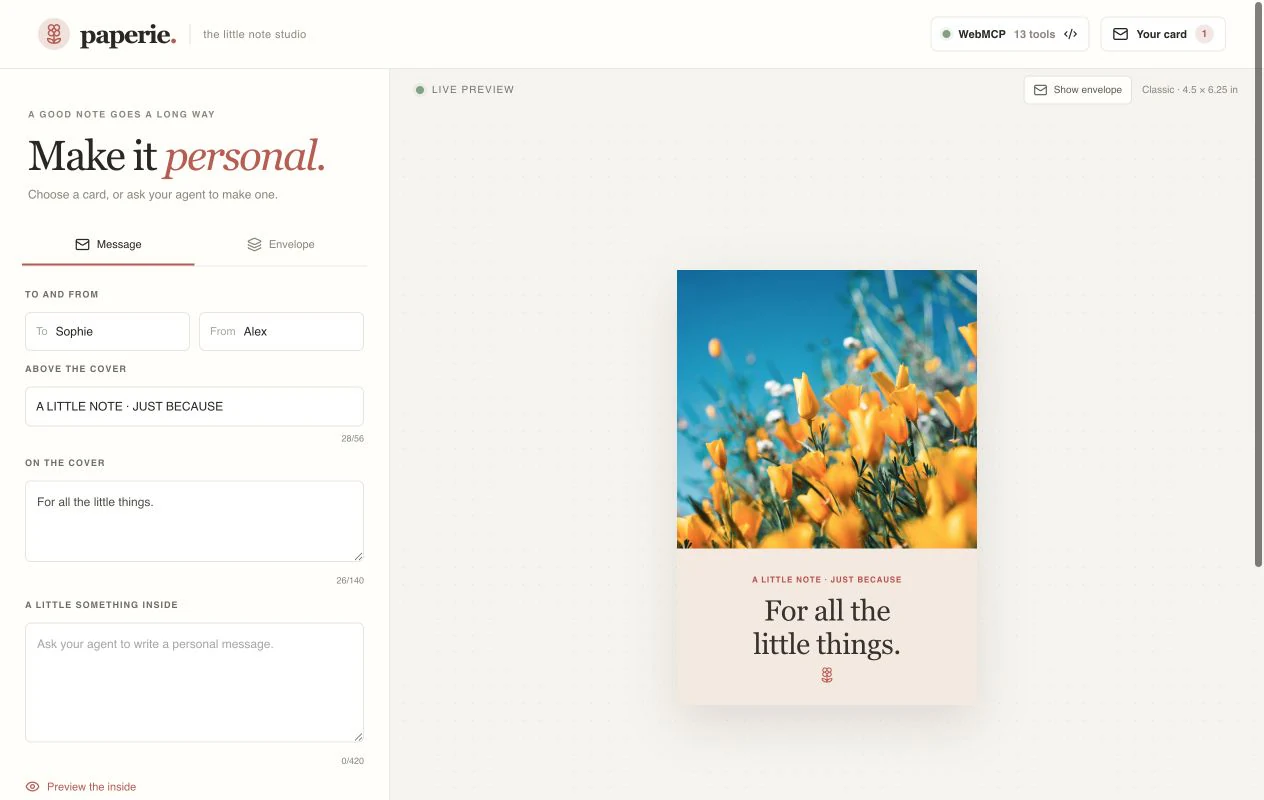
Paperie
Design greeting cards and artwork with Codex.
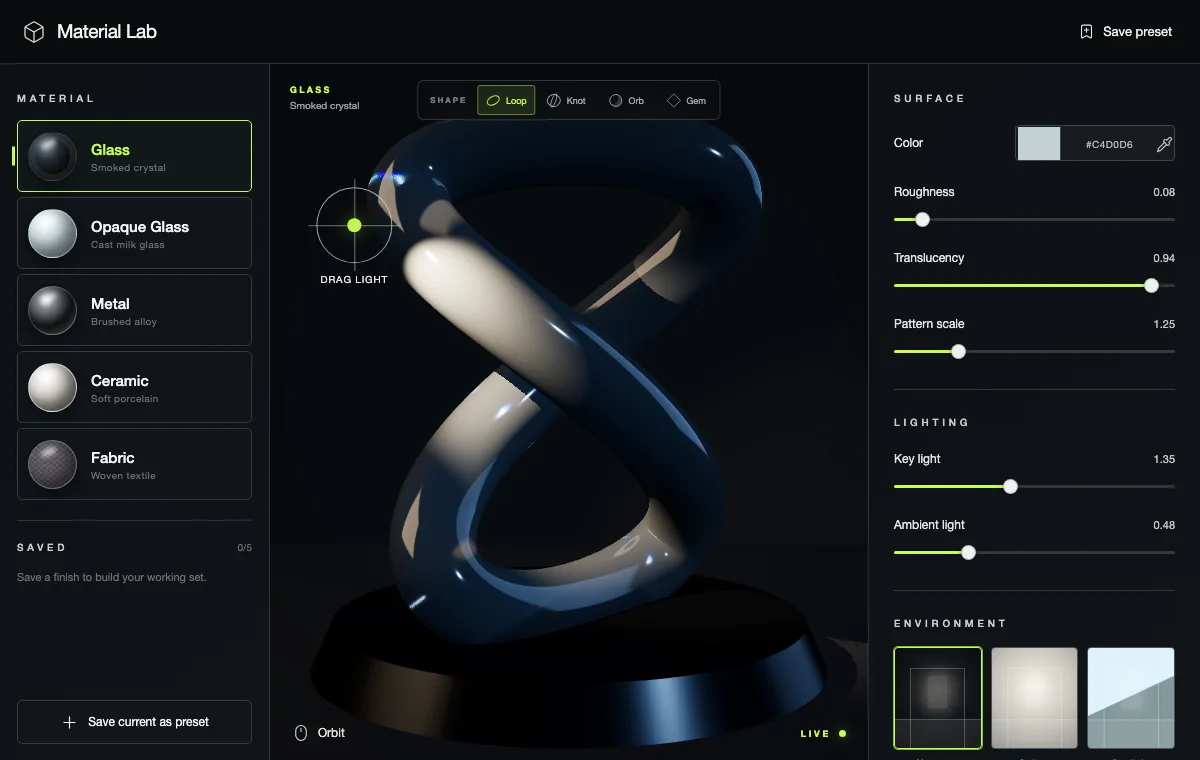
Material Lab
A real-time studio for shaping light, surface, and form.
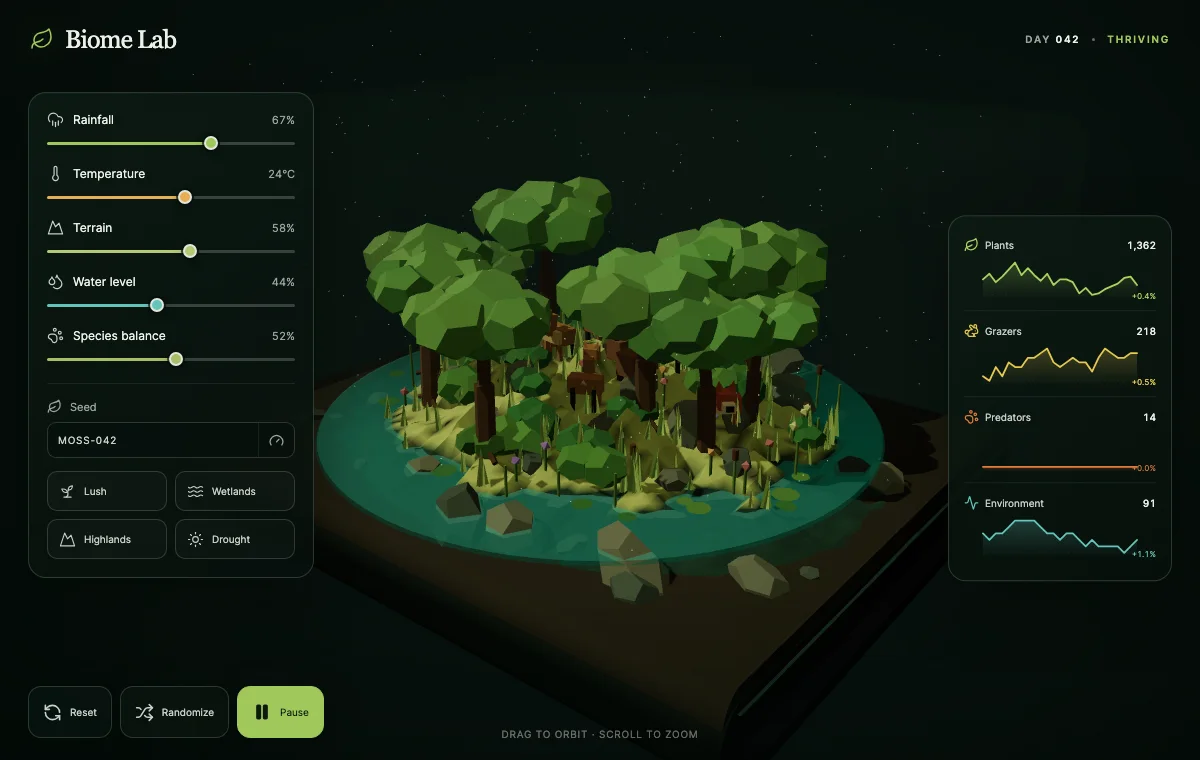
Biome Lab
A living procedural terrarium with adjustable ecosystems.
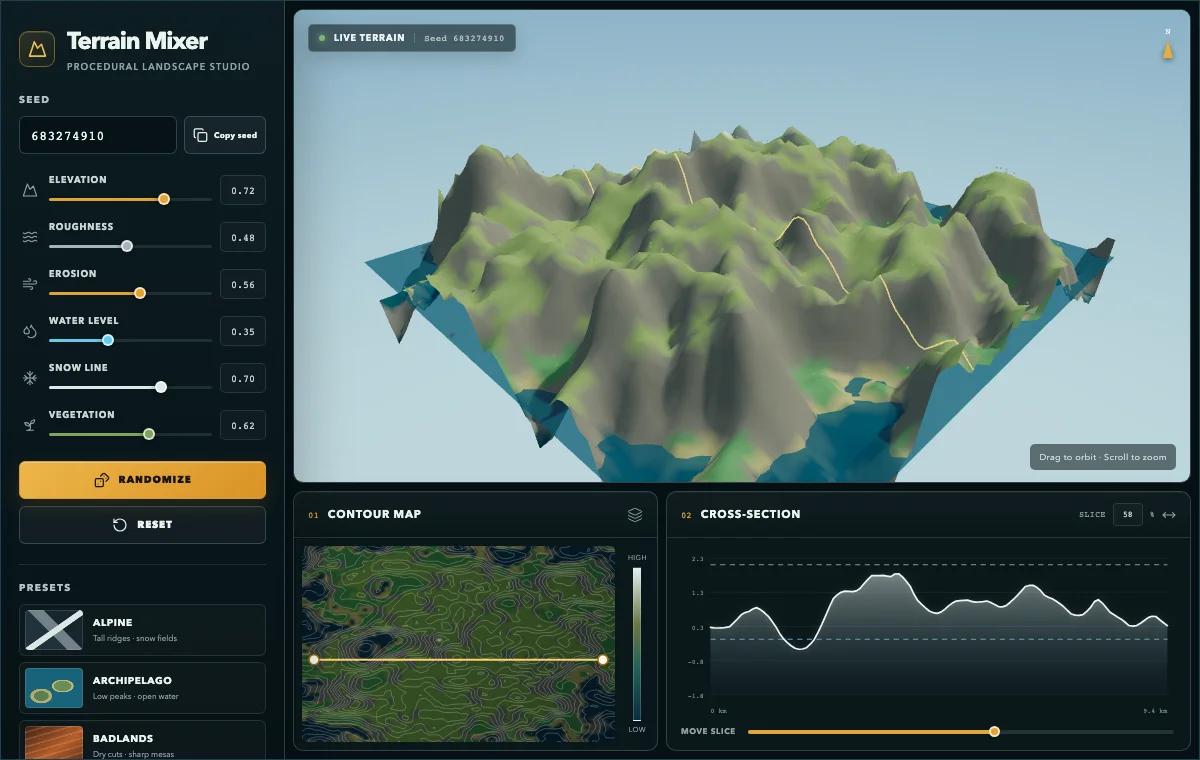
Terrain Mixer
A procedural landscape generator with synchronized analytical views.
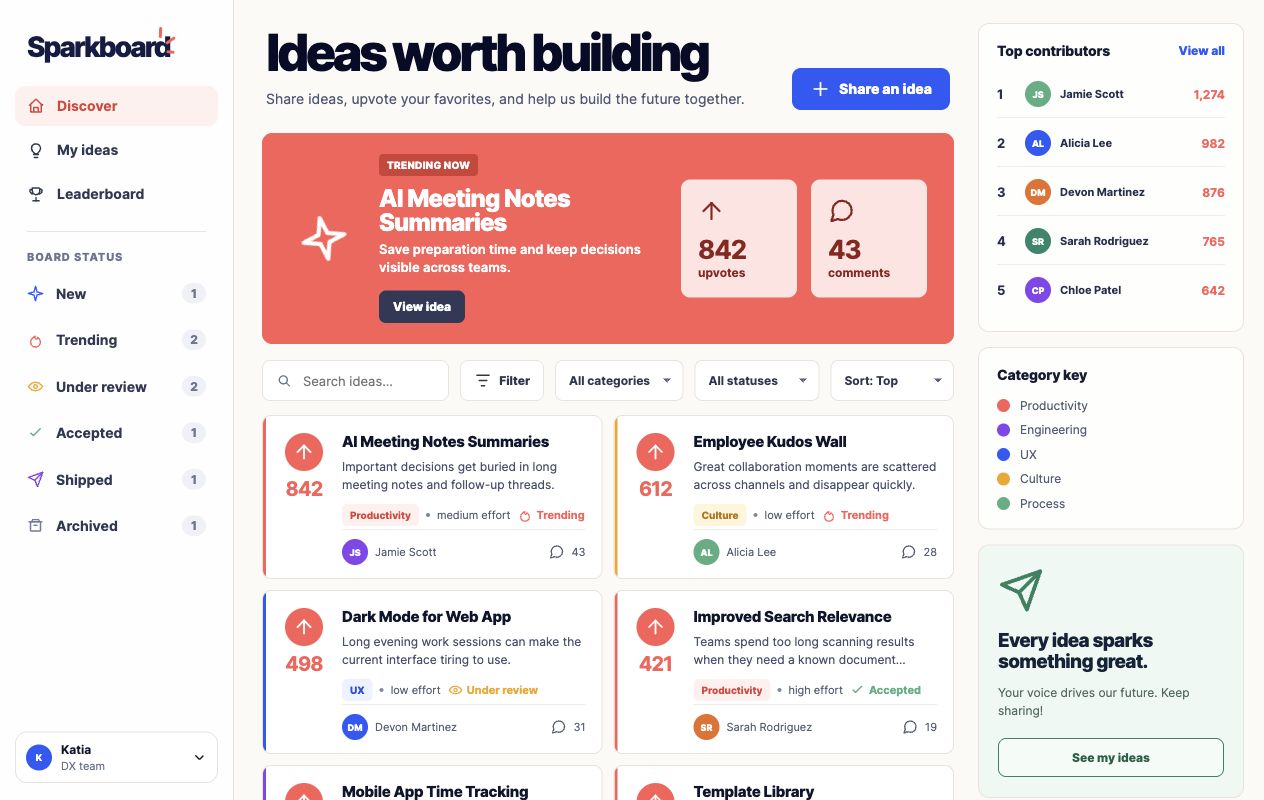
Sparkboard
An employee idea board for sharing, voting, filtering, and ranking proposals.
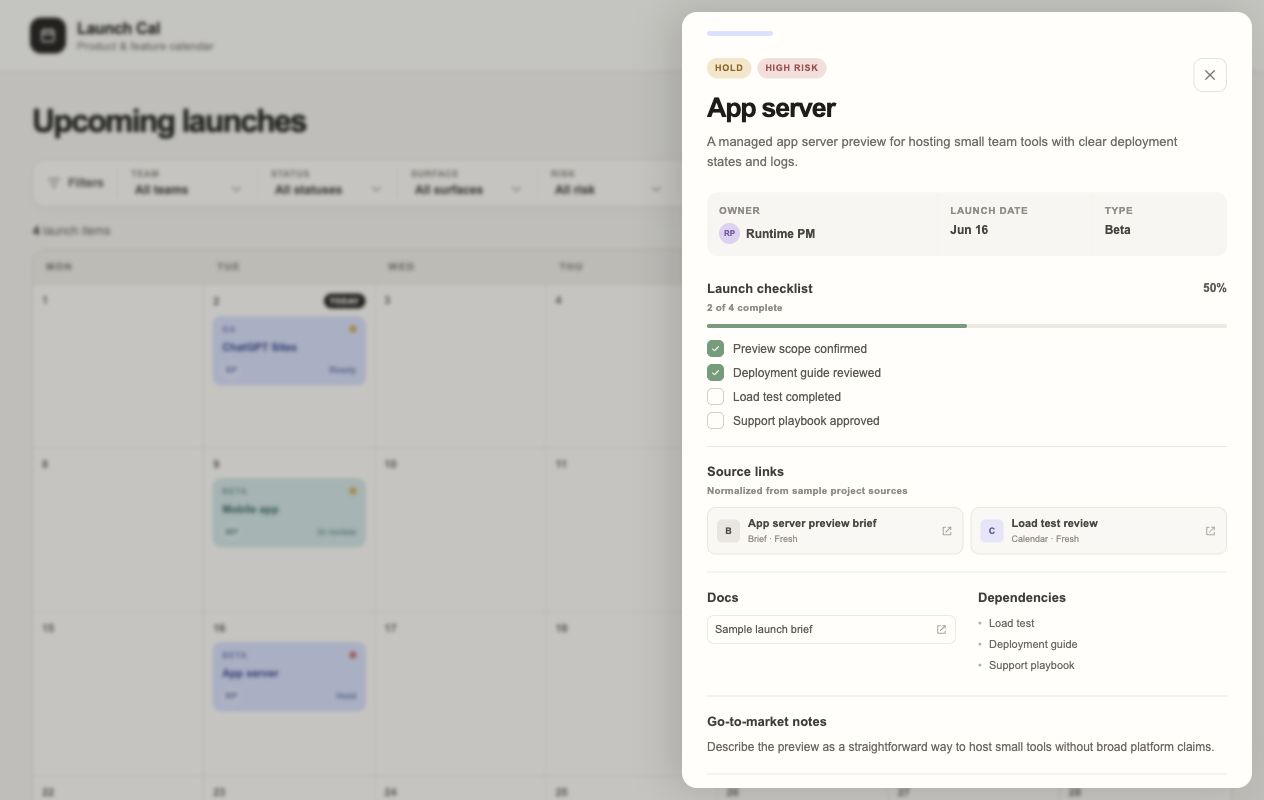
Launch Cal
A product launch calendar with planning filters, risk signals, and...
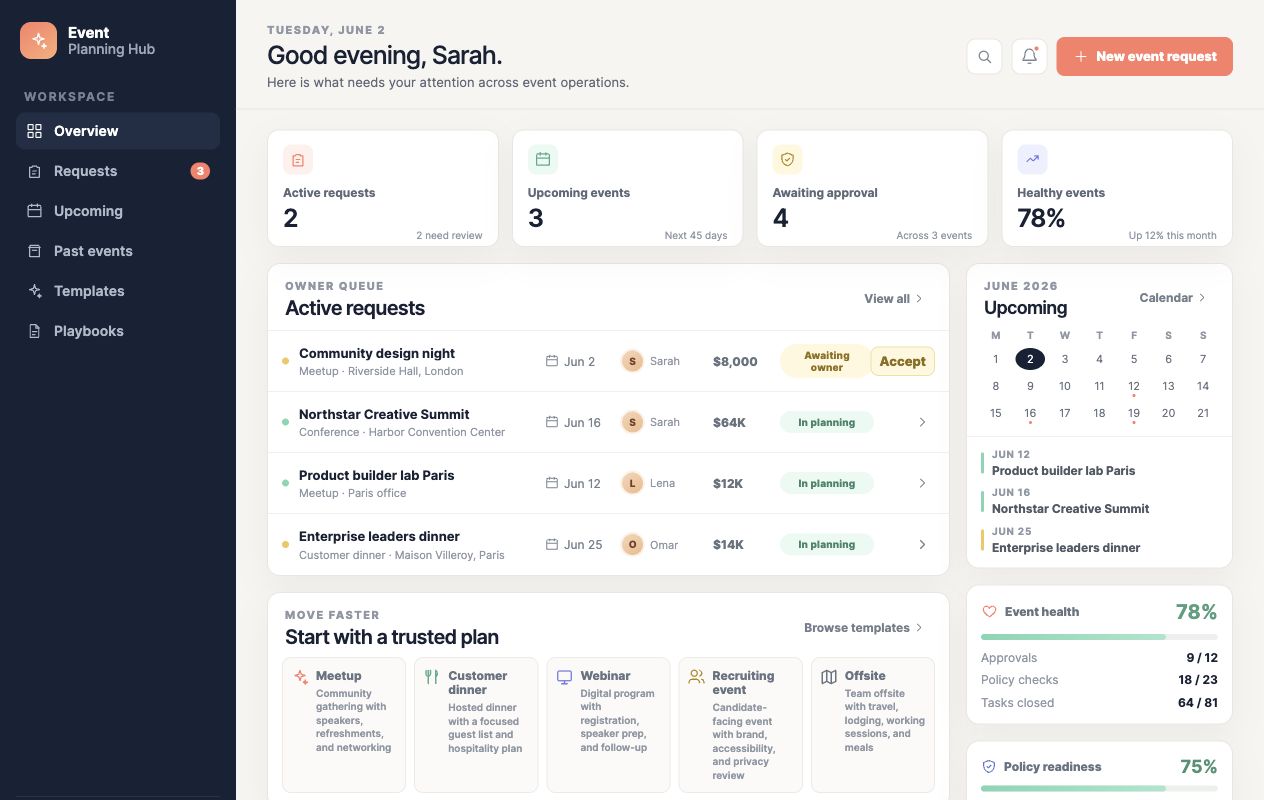
Event Planning Hub
An event operations hub for requests, templates, upcoming dates, and...
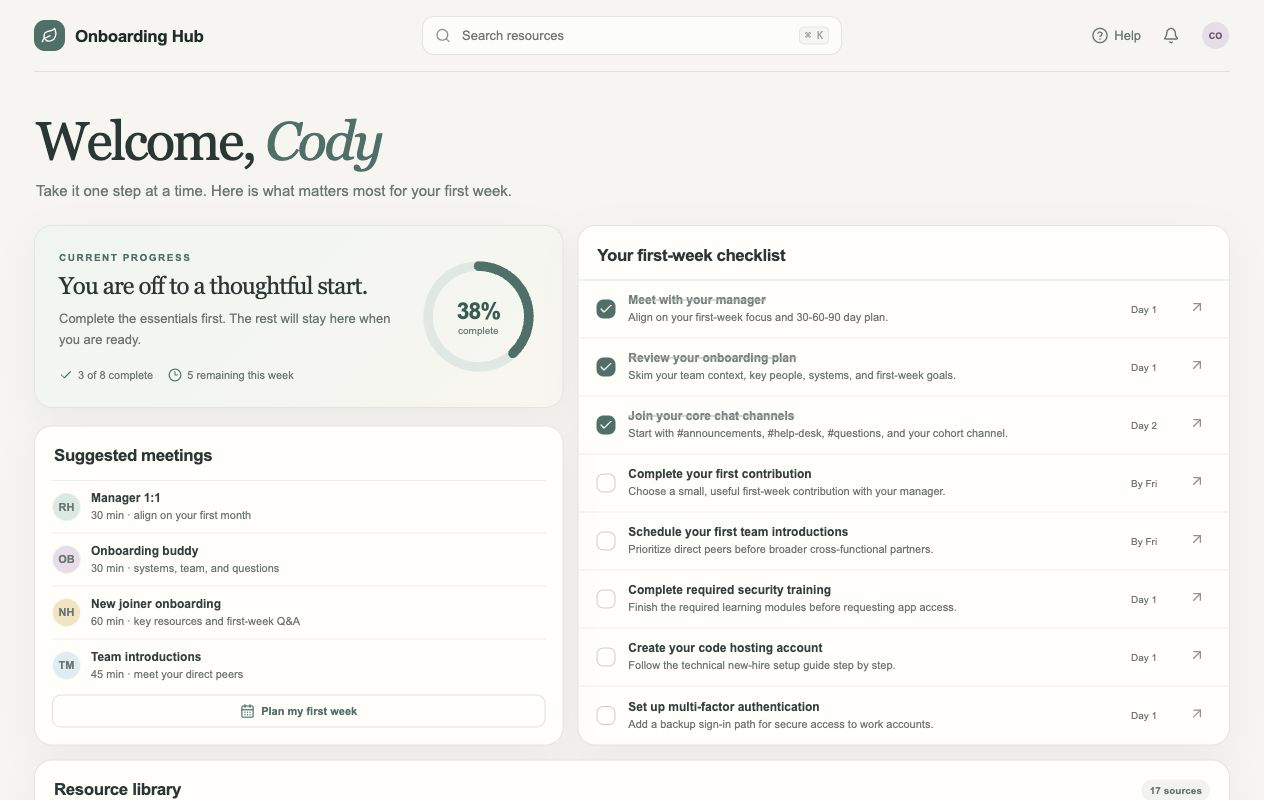
Onboarding Hub
A first-week onboarding dashboard with progress, meetings, tasks, and...
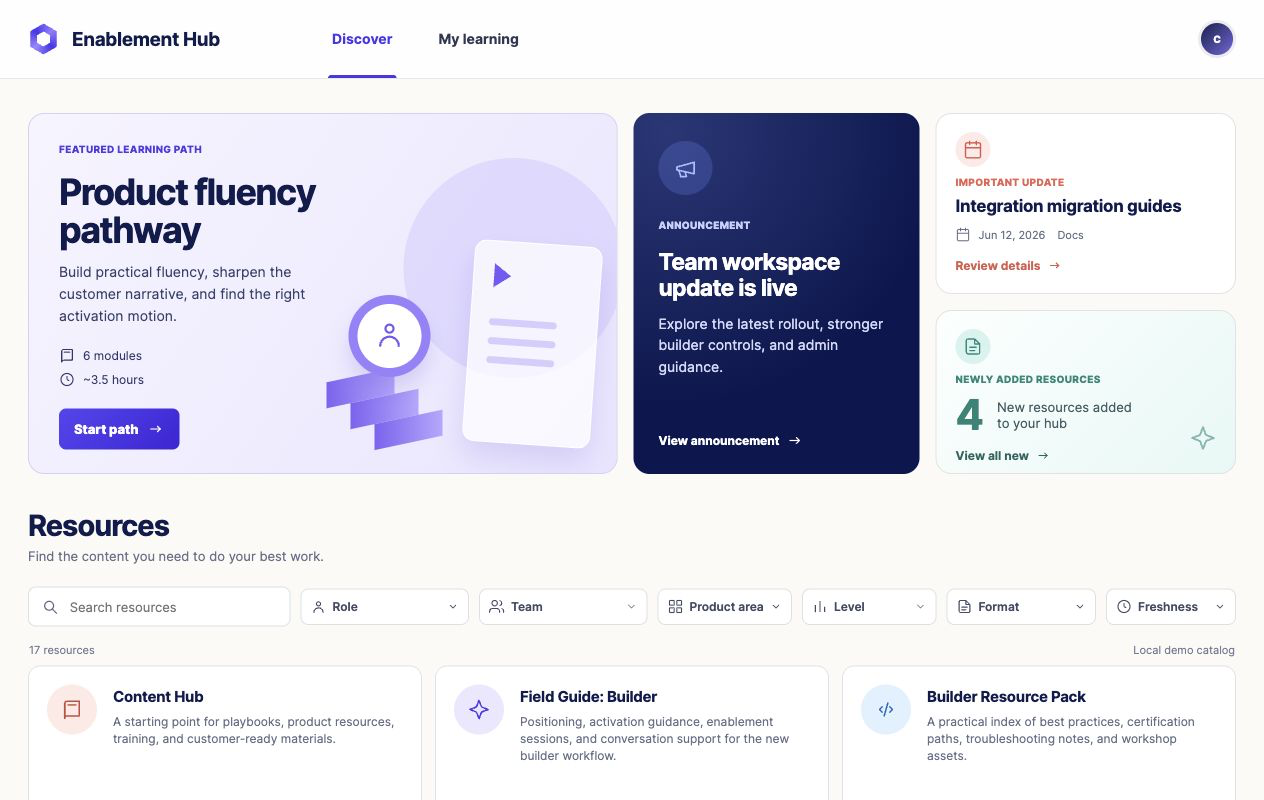
Enablement Hub
A searchable enablement library with featured learning paths, updates, and...
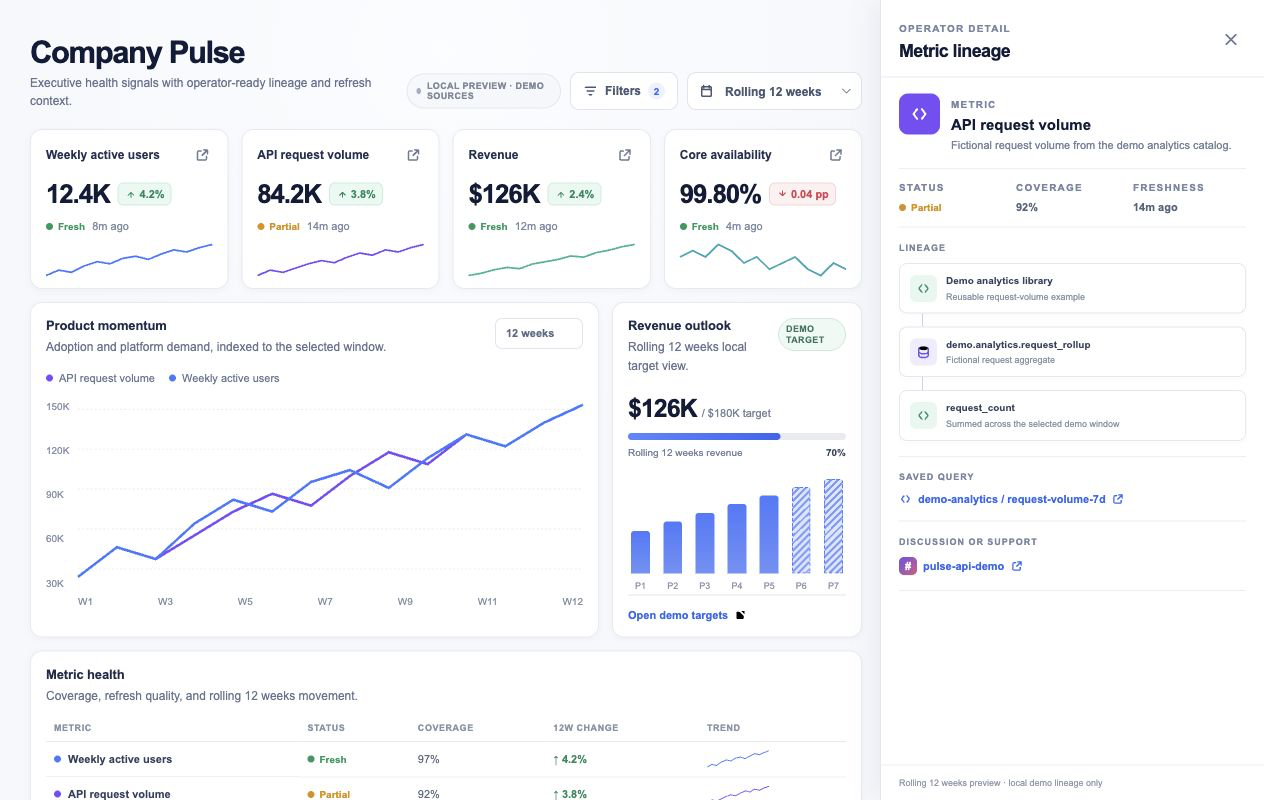
Pulse Dashboard
An executive KPI dashboard with trends, targets, metric health, and...

Codex 101
A bilingual 101 tutorial that helps developers learn Codex across CLI...
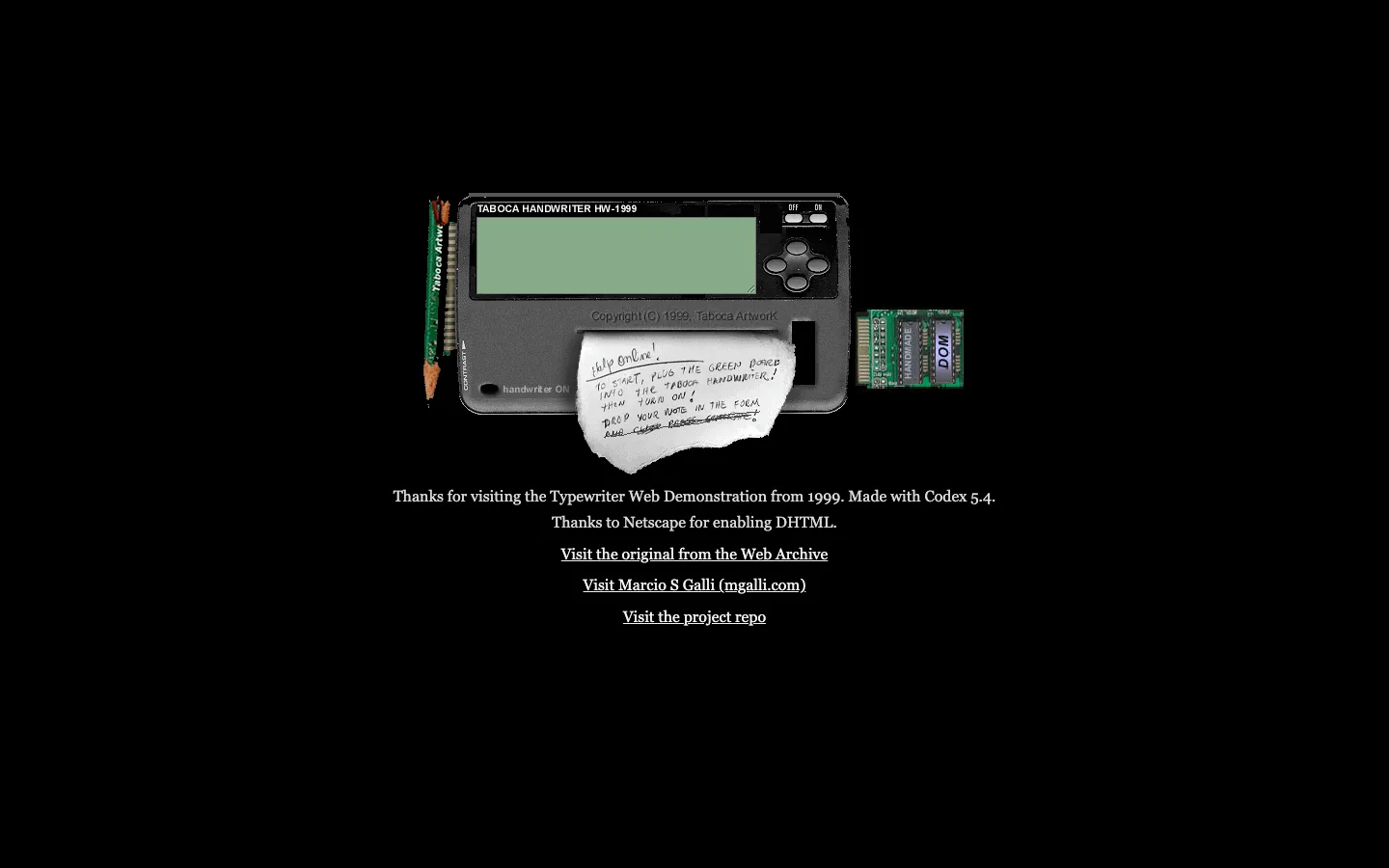
The TypewriterWeb Demonstration from 1999
A 1999 DHTML demo restored with Codex 5.4.
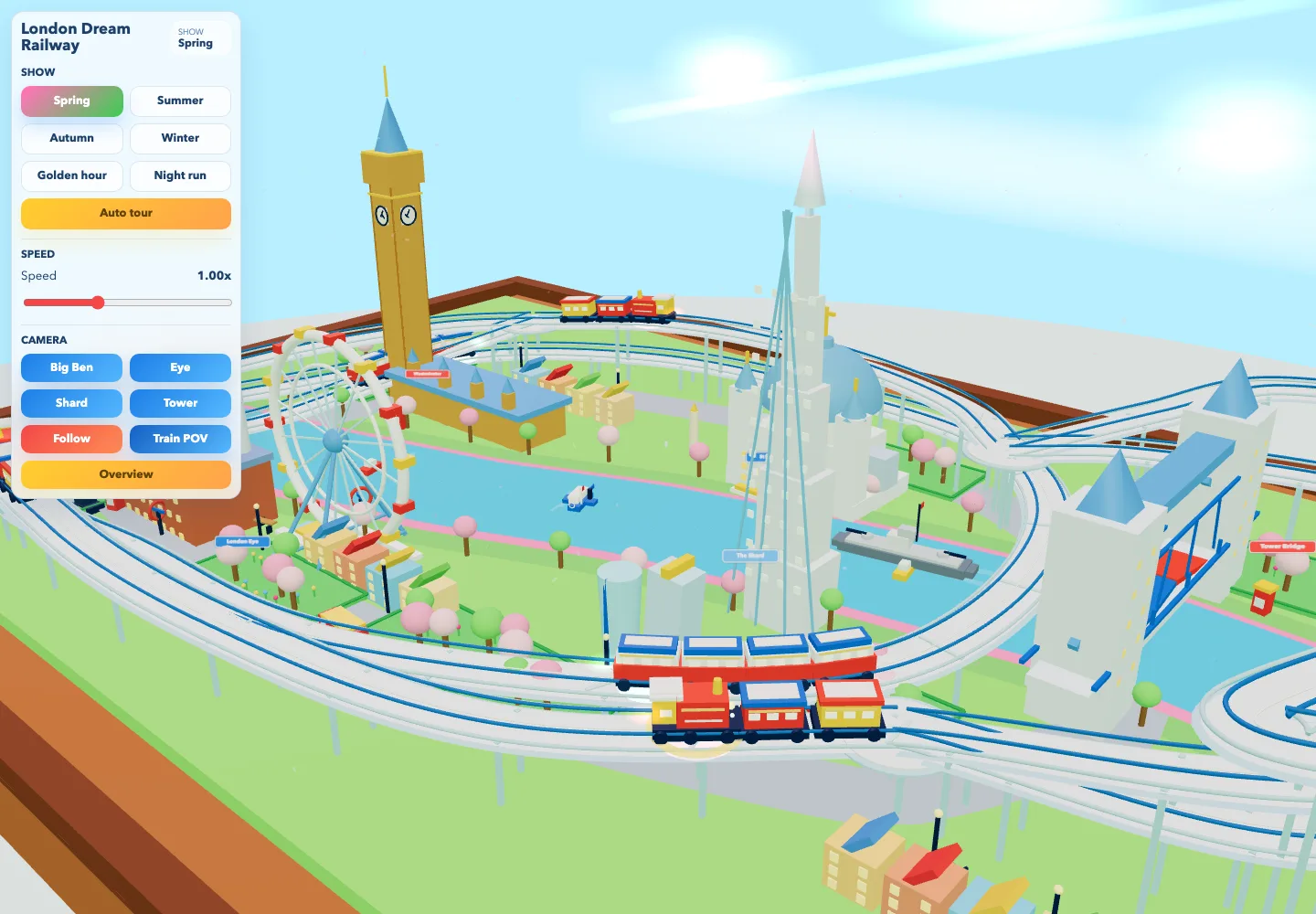
London Dream Railway
A playful 3D toy-table version of London with miniature trains, landmarks...
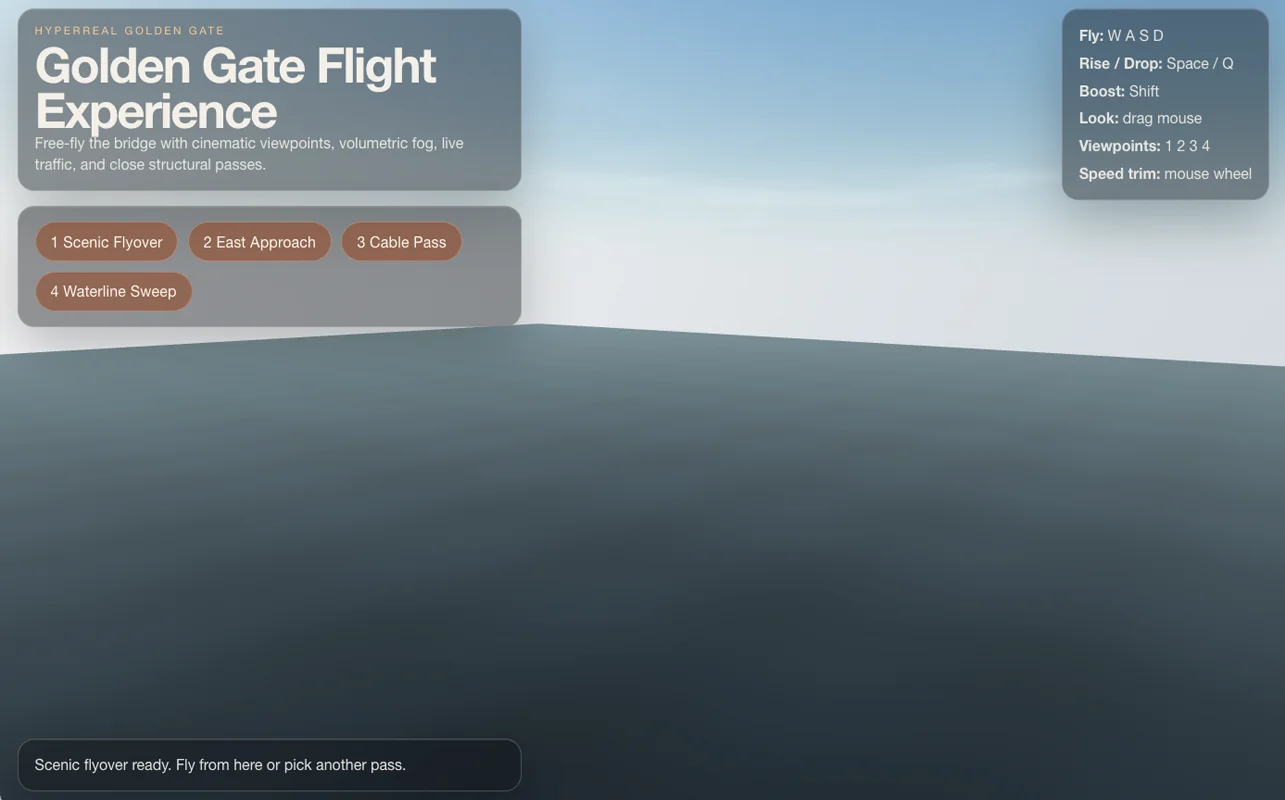
Golden Gate Experience
Cinematic experience where you can fly around the Golden Gate Bridge.
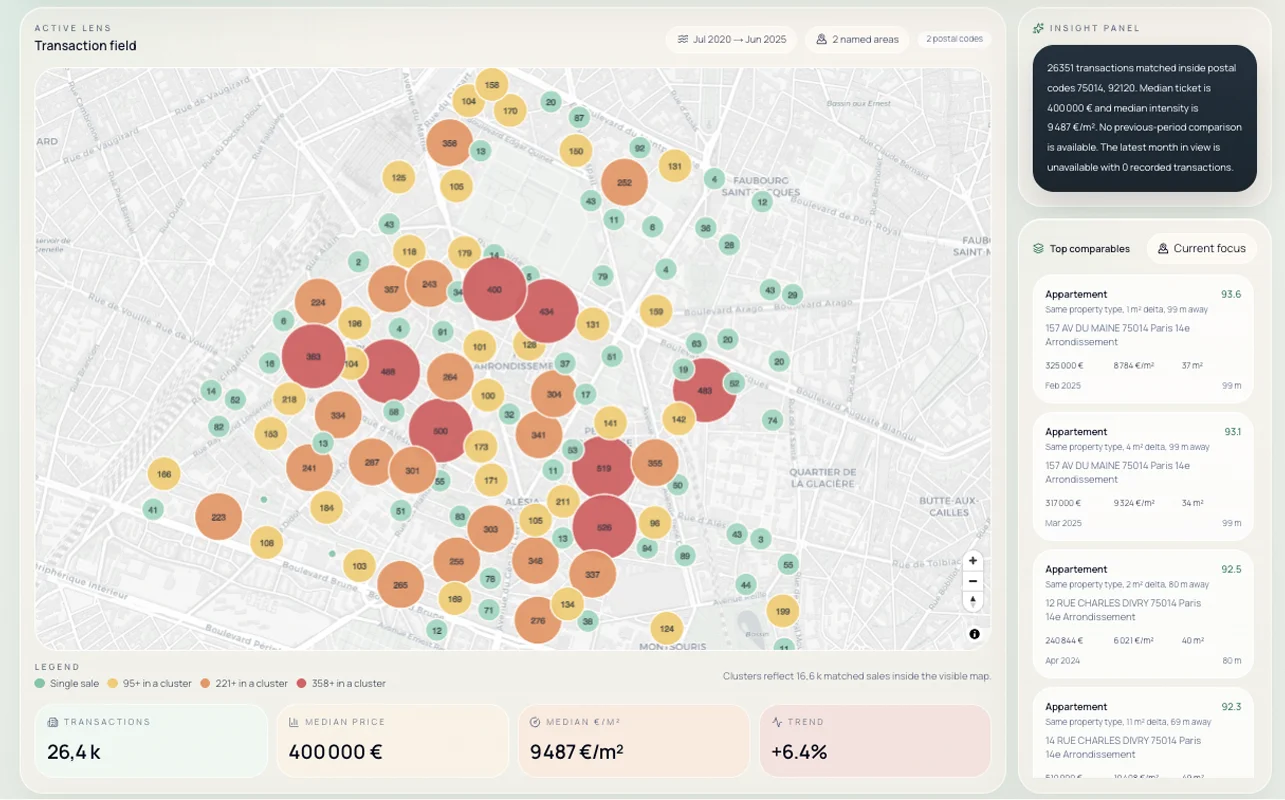
Real estate data viz
App to get insights on the Paris real-estate market using the French Gov...
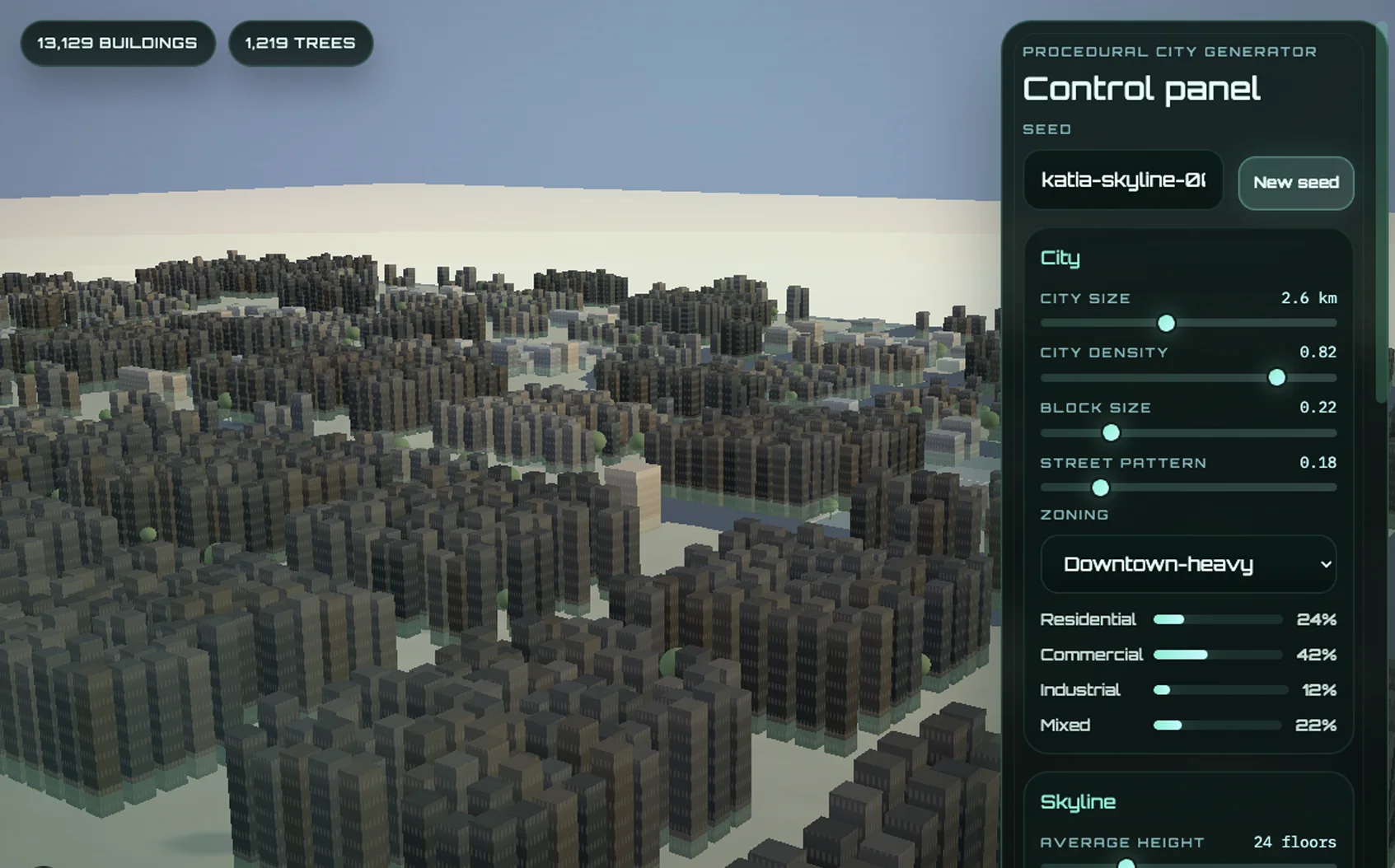
Procedural City Generator
Browser-based 3D city generator.
Pulse Dashboard by OpenAI
An executive KPI dashboard with trends, targets, metric health, and lineage details.
Build process
Related projects
Enablement Hub
An internal learning hub with featured training, announcements, and a...
Event Planning Hub
An event planning dashboard with active request triage, event templates...
Launch Cal
A monthly product and feature calendar with team, status, surface, risk...