
Remote connections let you use Codex from another device or another machine. Use Codex in the ChatGPT mobile app to work with Codex on a connected Mac or Windows device, continue work from another supported Codex App device, or connect the Codex App to projects on an SSH host.
Remote access uses the connected host’s projects, threads, files, credentials, permissions, plugins, Computer Use, browser setup, and local tools.
What you can do remotely
- Start new threads in projects on the host, or continue existing ones.
- Send follow-up instructions, answer questions, and steer active work.
- Approve commands and other actions.
- Review outputs, diffs, test results, terminal output, and screenshots.
- Get notified when Codex completes a task or needs your attention.
- Switch between connected hosts and threads.
The next sections cover using Codex in the ChatGPT mobile app to control a Codex App host. To connect Codex to a project on an SSH host, see connect to an SSH host.
Before you set up mobile access
Codex mobile setup supports Codex App hosts on macOS and Windows. You can control a Windows host from ChatGPT on iOS or Android, or from a Mac running Codex. Windows can’t currently control another computer from the Codex App.
Make sure you have:
- Codex access in the ChatGPT account and workspace you want to use.
- The latest ChatGPT mobile app on an iOS or Android device. If you don’t see Codex in the ChatGPT mobile app, update ChatGPT first.
- The latest Codex App for macOS or Windows running on a host that’s awake, online, and signed in to the same account and workspace. Mobile setup starts from the Codex App; you can’t set it up from the Codex CLI or IDE Extension.
- Any required multi-factor authentication, SSO, or passkey configuration for that account or workspace.
If you use Codex through a ChatGPT workspace, your admin may need to enable Remote Control access before you can connect from your phone.
Set up mobile access
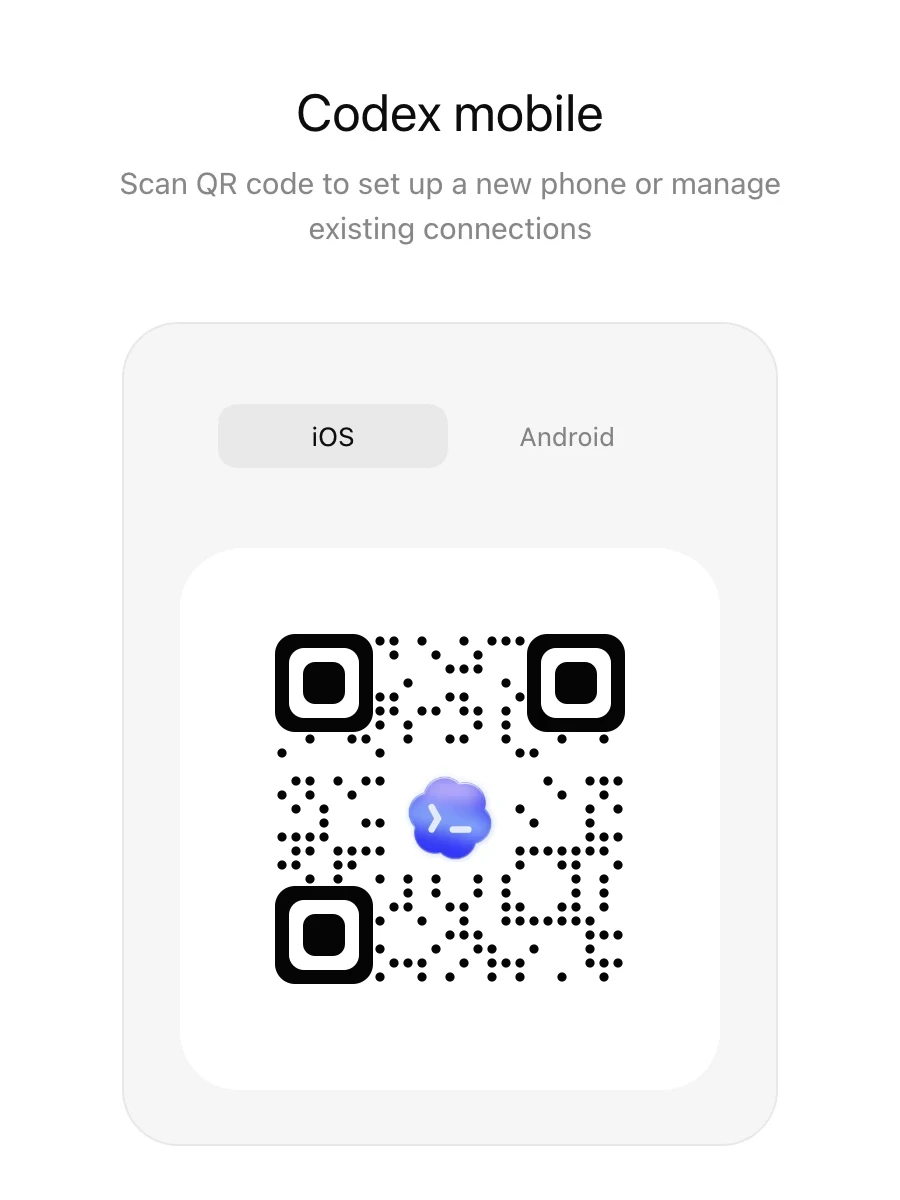
Start in the Codex App on the host you want to connect. The setup flow enables remote access for that host, then shows a QR code you can scan from your phone. The QR code pairs that phone with that host. Pair every phone or supported Codex App device with every host you want it to control.
Existing connections used since June 8, 2026, remain paired. If you haven’t used an existing connection since June 8, 2026, update both apps and pair the devices again.
-
Start Codex mobile setup.
Open Codex on the host and select Set up Codex mobile in the sidebar.
-
Scan the QR code.
Use your phone to scan the QR code shown by Codex. The code opens ChatGPT so you can finish connecting the mobile app to the host.
-
Finish setup in ChatGPT.
ChatGPT opens the Codex mobile setup flow. Confirm the same ChatGPT account and workspace, then complete any required multi-factor authentication, SSO, or passkey steps. After setup succeeds, the host appears in Codex on your phone.
-
Review host settings.
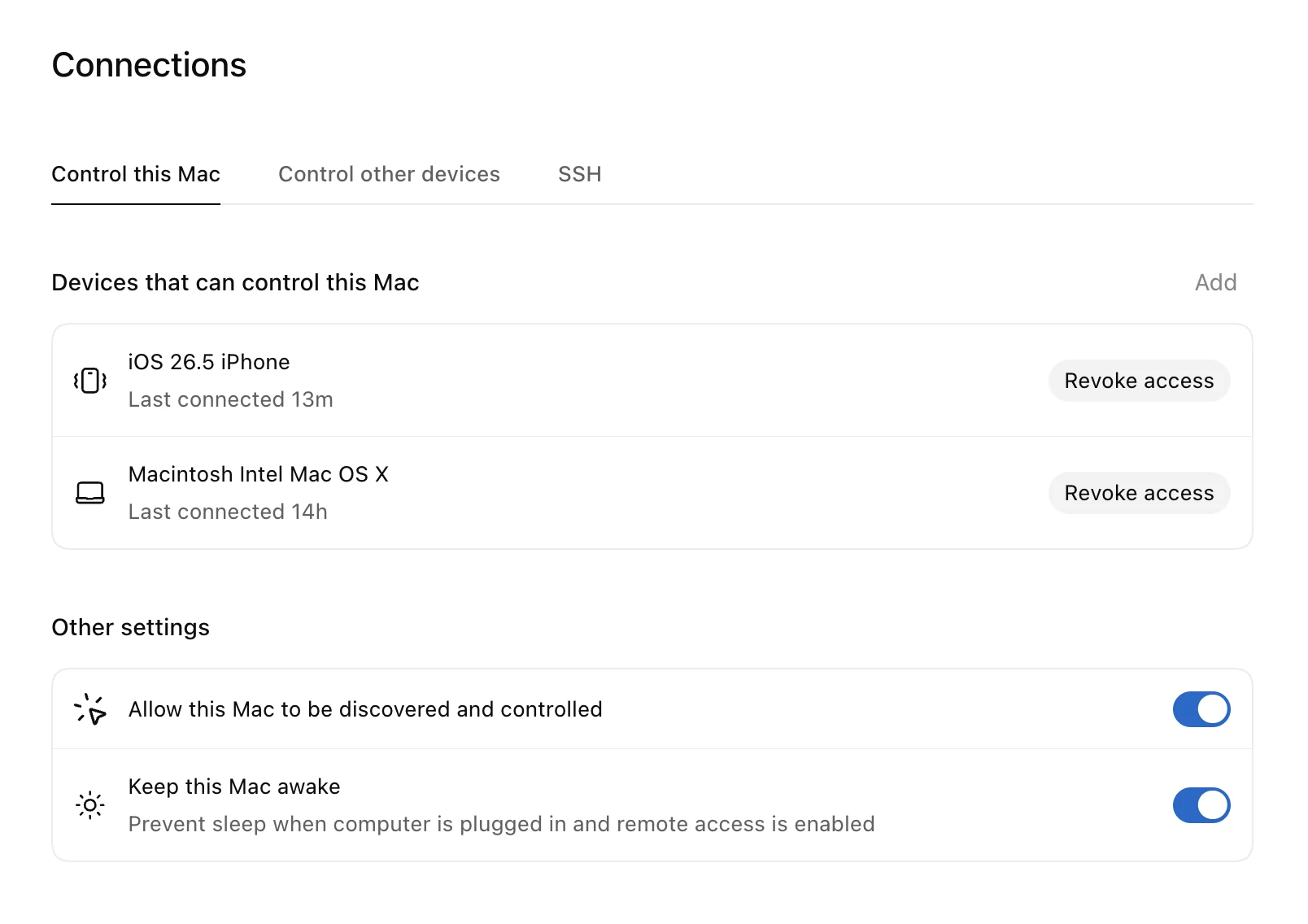
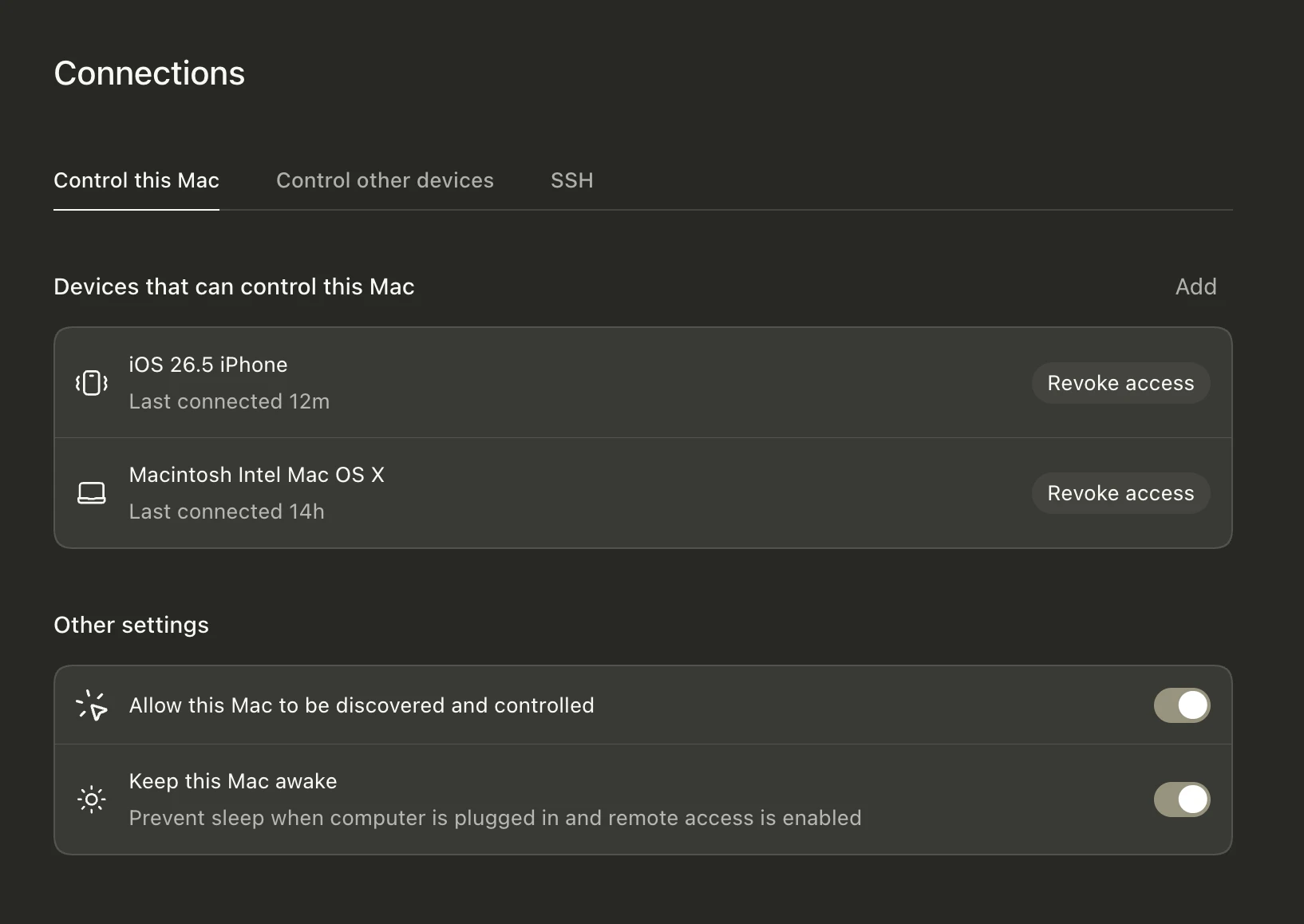
In Codex on the host, use Settings > Connections to manage connected devices. You can also choose whether to keep the computer awake, enable Computer Use, or install the Chrome extension.
Choose what to connect
Start with the laptop or desktop where you already use Codex. Add an always-on computer or SSH host when you need continuous access or a different environment.
Your laptop or desktop
Connect the Mac or Windows PC where you already run Codex day to day. This gives remote access to the same projects, threads, credentials, plugins, and local setup you already use.
If that computer sleeps, loses network access, or closes Codex, remote access stops until it’s available again. If you use this computer as your host device, keep it plugged in and use the host’s connection settings to keep it awake where available.
On a Mac laptop, remote access can stay available with the lid open and power connected. With the lid closed, connect an external display as well. Choosing Sleep still stops remote access.
On a Windows host, keep the session unlocked and available for tasks that use Computer Use. Computer use on Windows runs in the foreground, so remote control is best for starting or checking work while you dedicate the host desktop to the task.
A dedicated always-on computer
Use a dedicated always-on Mac or Windows PC when you want Codex to stay reachable for longer-running work.
Install the projects, credentials, plugins, MCP servers, and tools Codex should use on that machine.
A remote development environment
Use an SSH host or managed remote development environment when the project already lives in a remote environment. Connect the Codex App host to that environment first; your phone still connects to the Codex App host, and Codex works in the remote environment with its dependencies, security policies, and compute resources.
For SSH setup details, see connect to an SSH host.
For browser or desktop tasks on an always-on computer or remote host, enable Computer Use and install the Chrome extension on that host.
What comes from the connected host
Your phone sends prompts, approvals, and follow-up messages to Codex. The connected host provides the environment Codex uses.
That means:
- Repository files and local documents come from the connected host.
- Shell commands run on that host or remote environment.
- Any plugin installed on that host is available when you use Codex remotely.
- MCP servers, skills, browser access, and Computer Use come from that host’s configuration.
- Signed-in websites and desktop apps are available only when the host can access them.
- The sandboxing settings, security controls, and action approvals still apply to the connected session.
Codex uses a secure relay layer to keep trusted machines reachable across your authorized ChatGPT devices without exposing them directly to the public internet.
Pick up work from another device
You can continue work from another signed-in Codex App device that supports remote control. For example, if your laptop is unavailable, you can start a thread from your phone on an always-on host, then later open Codex on your laptop and continue that same thread there.
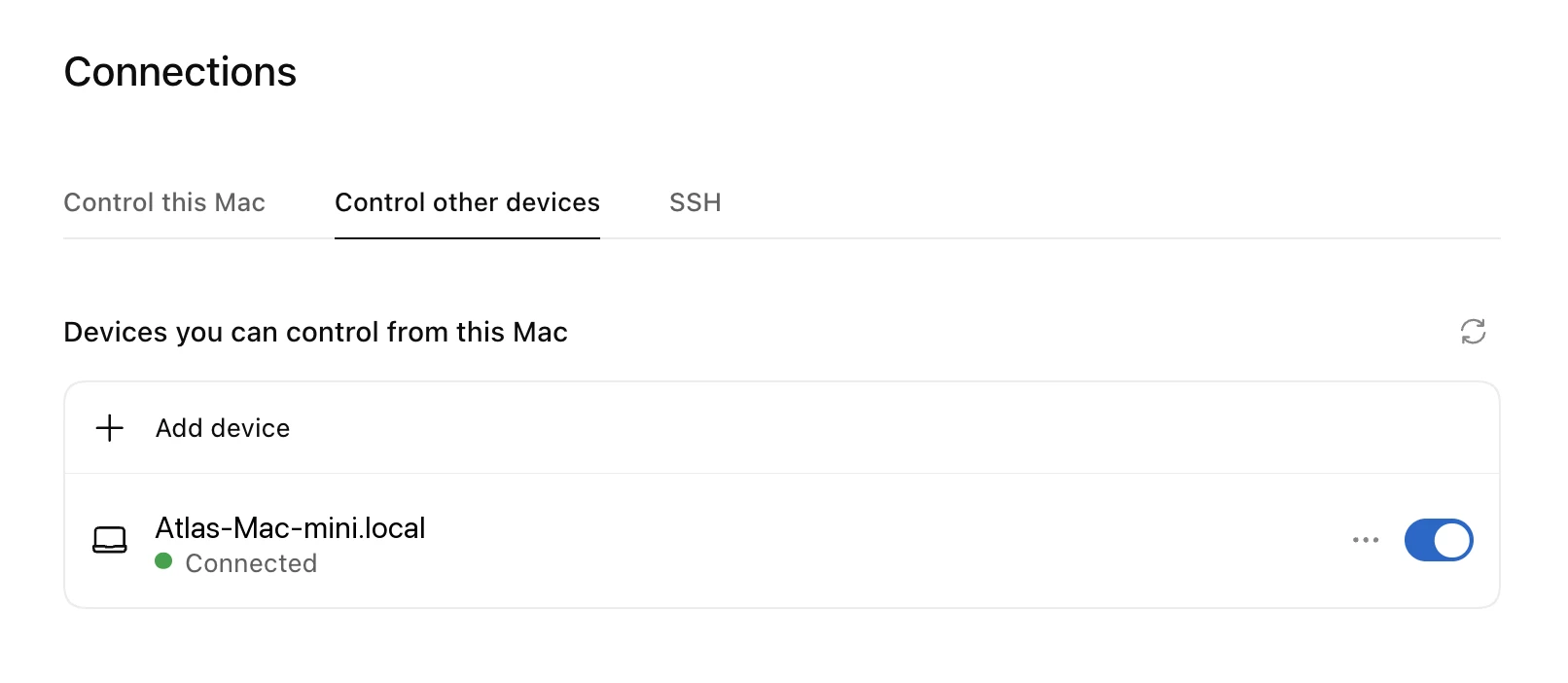
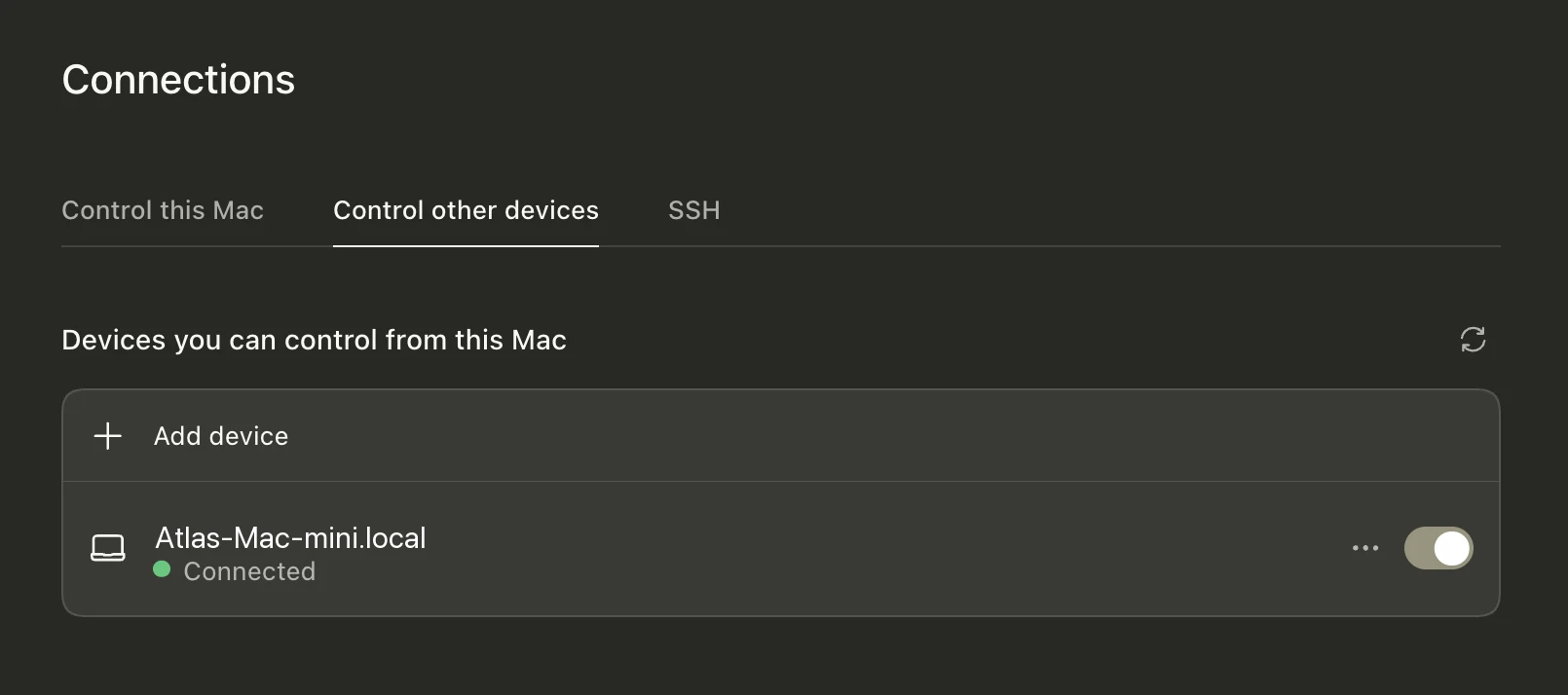
In Codex on a Mac, use Settings > Connections > Control other devices to add the other host. A device can allow remote access and control another device at the same time. You can control Windows hosts from a Mac or from ChatGPT on iOS or Android, but you can’t use Windows to control another computer. For example, you can control a Windows device from your Mac or phone, but you can’t use a Windows device to control another Windows device.
Connect to an SSH host
In the Codex App, add remote projects from an SSH host and run threads against the remote filesystem and shell. Remote project threads run commands, read files, and write changes on the remote host.
Keep the remote host configured with the same security expectations you use for normal SSH access: trusted keys, least-privilege accounts, and no unauthenticated public listeners.
-
Add the host to your SSH config so Codex can auto-discover it.
Host devbox
  HostName devbox.example.com
  User you
  IdentityFile ~/.ssh/id_ed25519
Codex reads concrete host aliases from
~/.ssh/config, resolves them with OpenSSH, and ignores pattern-only hosts. -
Confirm you can SSH to the host from the machine running the Codex App.
ssh devbox -
Install and authenticate Codex on the remote host.
The app starts the remote Codex app server through SSH, using the remote user’s login shell. Make sure the
codexcommand is available on the remote host’sPATHin that shell. -
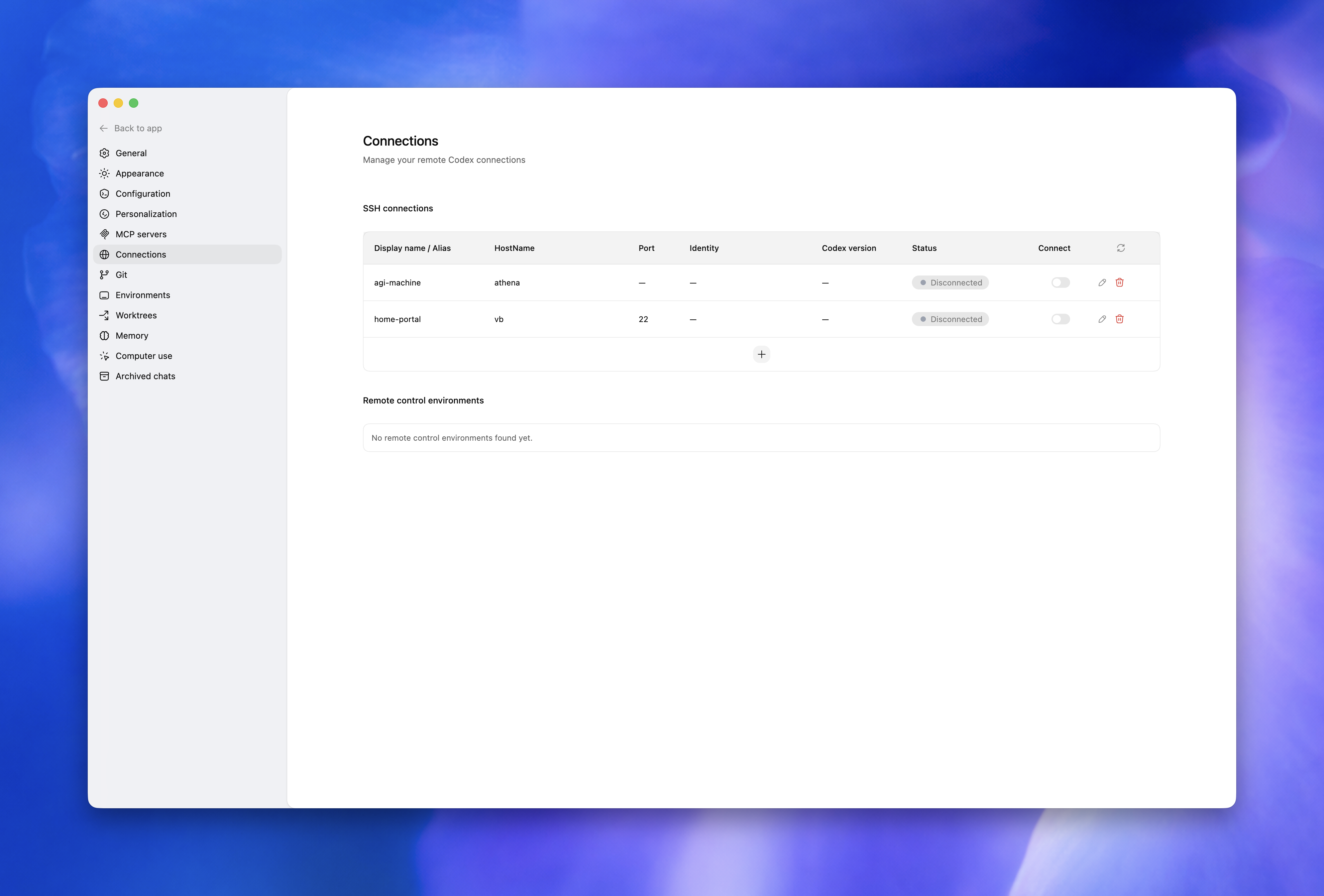
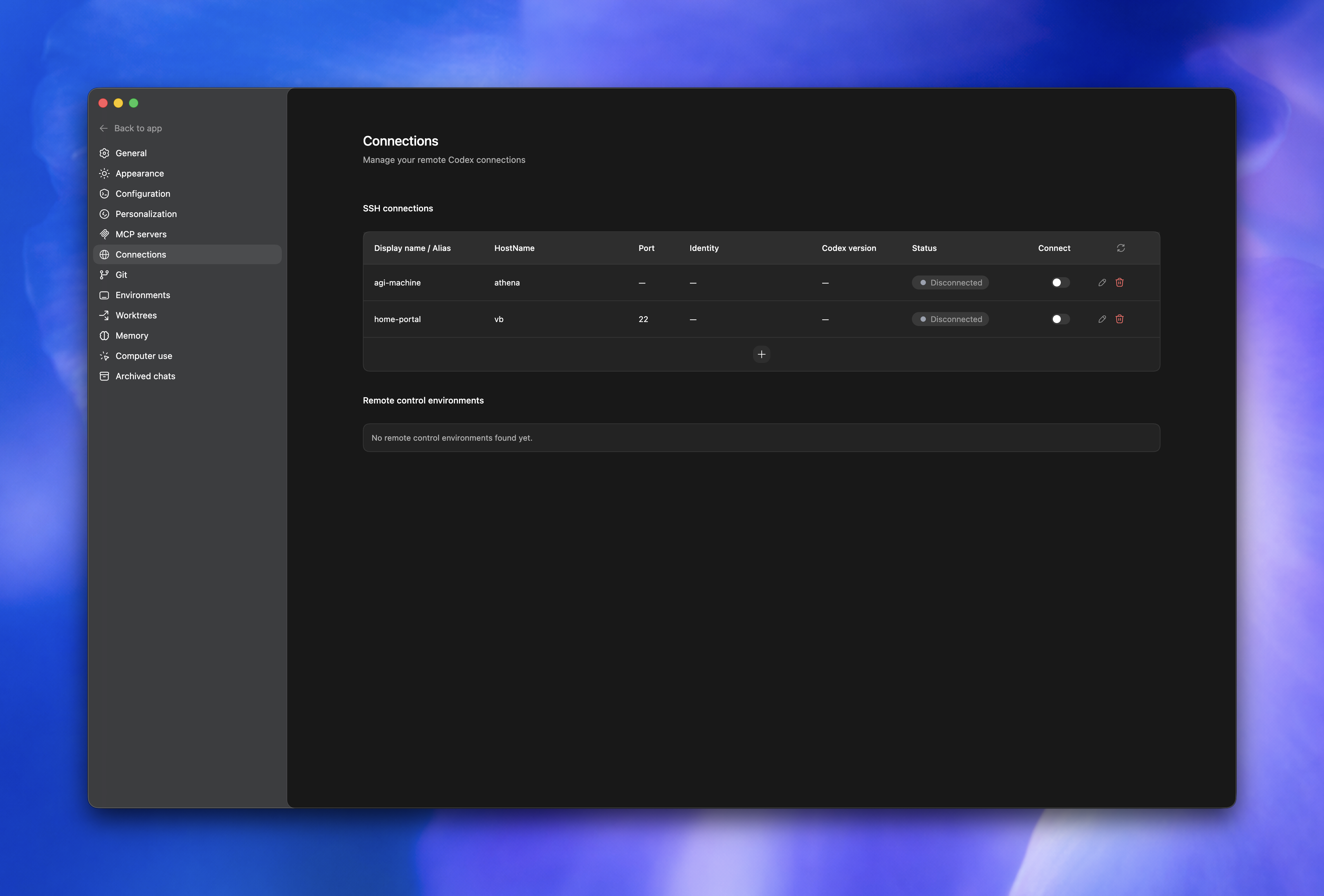
In the Codex App, open Settings > Connections, add or enable the SSH host, then choose a remote project folder.
Hand off a thread between hosts
Handoff moves an existing thread and its Git state between your local computer and a connected remote host. Use it to start work locally, continue in a worktree on a remote computer, and bring the thread back later.
Before you hand off a thread, connect the destination host and save a project for the same Git repository on that host. If the project is a subdirectory of the repository, save the same subdirectory on both hosts. Codex only shows destinations with a matching saved project.
To hand off a thread:
- Open the thread in the Codex App.
- In the thread footer, select the current run location, then select the destination host. Select This computer when handing a remote thread back to your local computer.
- Review the destination and branch, then select Hand off.
Codex creates or reuses a worktree on the destination host, transfers the thread and Git state, and switches the thread to that host. If the thread is running, handoff interrupts the current response before transferring it.
You can also ask Codex in another thread to hand off a named thread to a connected host. Codex can’t hand off the thread making the request, and handoff to a Codex cloud environment isn’t supported.
Authentication and network exposure
Remote connections use SSH to start and manage the remote Codex app server. Don’t expose app-server transports directly on a shared or public network.
If you need to reach a remote machine outside your current network, use a VPN or mesh networking tool instead of exposing the app server directly to the internet.
Troubleshooting
You don’t see the host on your phone
Confirm that the Codex App is running on the host, you’ve enabled Allow other devices to connect, and both devices use the same ChatGPT account and workspace. If you haven’t used the connection since June 8, 2026, update both apps and pair the devices again.
Remote Control is off after you sign back in
Signing out of ChatGPT turns off Remote Control, but it doesn’t remove your existing device pairings. After you sign back in, turn on Remote Control to restore the previous connection state.
If you see an error after you turn on Remote Control and select Add, restart the Codex App on the host, then try again.
The approval request doesn’t appear
Open Codex in the ChatGPT mobile app. Confirm that the phone and host use the same ChatGPT account and workspace, then scan the QR code again or restart setup from the host. If you use a ChatGPT workspace, ask your admin to confirm that they’ve enabled Remote Control access.
The remote session disconnects
Check whether the host went to sleep, lost network access, or closed Codex. Keep the host awake and connected while Codex works.
Authentication blocks setup
Complete the account or workspace authentication prompt shown during setup. If your organization requires SSO, multi-factor authentication, or a passkey, finish that flow before trying again. If setup still fails, ask your workspace admin to confirm that they’ve enabled Remote Control access.