


1. Introduction
OpenAI’s gpt-image generation models are designed for production-quality visuals and highly controllable creative workflows. They are well-suited for both professional design tasks and iterative content creation, and support both high-quality rendering and lower-latency use cases depending on the workflow.
Key Capabilities include:
- High-fidelity photorealism with natural lighting, accurate materials, and rich color rendering
- Flexible quality–latency tradeoffs, allowing faster generation at lower settings while still exceeding the visual quality of prior-generation image models
- Robust facial and identity preservation for edits, character consistency, and multi-step workflows
- Transparent-background PNG and WebP assets (preview) with
gpt-image-2for reusable logos, product cutouts, stickers, and presentation graphics - Reliable text rendering with crisp lettering, consistent layout, and strong contrast inside images
- Complex structured visuals, including infographics, diagrams, and multi-panel compositions
- Precise style control and style transfer with minimal prompting, supporting everything from branded design systems to fine-art styles
- Strong real-world knowledge and reasoning, enabling accurate depictions of objects, environments, and scenarios
This guide highlights prompting patterns, best practices, and example prompts drawn from real production use cases for gpt-image-2. It is our most capable image model, with stronger image quality, improved editing performance, and broader support for production workflows. The low quality setting is especially strong for latency-sensitive use cases, while medium and high remain good fits when maximum fidelity matters.
1.1 OpenAI Image Model Parameters
This section is a reference for the image models covered in this guide, focused on:
- model name
- supported
outputQualityvalues - supported
input_fidelityvalues - supported
size/ resolution behavior backgroundandoutput_formatrequirements for transparent assets- recommended use cases by workflow
Model summary
As of April 21, 2026, OpenAI has the following image models available.
| Model | outputQuality |
input_fidelity |
Resolutions | Recommended use |
|---|---|---|---|---|
gpt-image-2 |
low, medium, high |
Disabled. input_fidelity does not work for this model because output is already high fidelity by default |
Any resolution that satisfies the constraints below | Recommended default for new builds. Use for highest-quality generation and editing, text-heavy images, photorealism, compositing, identity-sensitive edits, and workflows where fewer retries matter more than the lowest possible cost. |
gpt-image-1.5 |
low, medium, high |
low, high |
1024x1024, 1024x1536, 1536x1024, auto |
Keep for existing validated workflows during migration. For new work, prefer gpt-image-2, especially when quality, editing reliability, or flexible sizing matter. |
gpt-image-1 |
low, medium, high |
low, high |
1024x1024, 1024x1536, 1536x1024, auto |
Legacy compatibility only. If you are starting a new workflow or refreshing prompts, move to gpt-image-2; keep gpt-image-1 only when you need short-term stability while validating the upgrade. |
gpt-image-1-mini |
low, medium, high |
low, high |
1024x1024, 1024x1536, 1536x1024, auto |
Use when cost and throughput are the main constraint: large batch variant generation, rapid ideation, previews, lightweight personalization, and draft assets that do not require the strongest generation or editing performance. |
Transparent backgrounds with gpt-image-2 (preview)
Transparent backgrounds are available in preview for gpt-image-2. To generate or edit an image with a transparent background:
- Set
background="transparent". - Set
output_format="png"(the default) oroutput_format="webp". Both support transparency;jpegdoes not. - Omit
output_compressionfor PNG output. WebP supports optional compression. - Explicitly request an isolated subject on a fully transparent background, with no scenery, solid backdrop, checkerboard, or unwanted shadows.
- For edits, explicitly preserve the transparent background in each prompt so later steps do not introduce a new background.
- Keep the returned image as a PNG or WebP file and preserve its alpha channel throughout downstream processing.
gpt-image-2 size options
gpt-image-2 supports any resolution passed in the size parameter as long as all of these constraints are met:
- Maximum edge length must be less than
3840px - Both edges must be a multiple of
16 - Ratio between the long edge and short edge must not be greater than
3:1 - Total pixels must not exceed
8,294,400 - Total pixels must not be less than
655,360
If the output image exceeds 2560x1440 pixels (3,686,400 total pixels), commonly referred to as 2K, treat it as experimental because results can be more variable above this size.
Popular gpt-image-2 sizes
These are useful reference points that fit the constraints above:
| Label | Resolution | Notes |
|---|---|---|
| HD portrait | 1024x1536 |
Standard portrait option |
| HD landscape | 1536x1024 |
Standard landscape option |
| Square | 1024x1024 |
Good general-purpose default |
| 2K / QHD | 2560x1440 |
Popular widescreen format and recommended upper reliability boundary for gpt-image-2 |
| 4K / UHD | 3840x2160 |
Experimental upper-end target. If the max-edge rule is enforced literally as < 3840, round down to the nearest valid size such as 3824x2144 |
When to use which model
- Choose
gpt-image-2as the default for most production workflows. It is the strongest overall model and the right upgrade target for teams currently usinggpt-image-1.5orgpt-image-1for high-quality outputs. - Choose
gpt-image-2with quality: low when speed and unit economics dominate the decision. This setting has good quality for a lot of use cases and it a strong fit for high-volume generation and experimentation. You can also trygpt-image-1-minifor these use cases, but we have seen quality: low works just as well. - Keep
gpt-image-1.5orgpt-image-1only for backward compatibility while you validate prompt migrations, regression-test outputs, or maintain older workflows that are not yet ready to move.
Recommended upgrade path from gpt-image-1.5 and gpt-image-1
For workflows currently using gpt-image-1.5 or gpt-image-1, the recommendation is:
- Upgrade to
gpt-image-2for customer-facing assets, photorealistic generation, editing-heavy flows, brand-sensitive creative, text-in-image work, and any workflow where better first-pass quality reduces manual review or reruns. - Consider
gpt-image-1-miniinstead of legacy models only when the main goal is lowering cost for large batches of exploratory or lower-stakes images. - During migration, keep prompts largely the same at first, then retune only after you have compared output quality, latency, and retry rates on your real workload.
2. Prompting Fundamentals
The following prompting fundamentals are applicable to GPT image generation models. They are based on patterns that showed up repeatedly in alpha testing across generation, edits, infographics, ads, human images, UI mockups, and compositing workflows.
-
Structure + goal: Write prompts in a consistent order (background/scene → subject → key details → constraints) and include the intended use (ad, UI mock, infographic) to set the “mode” and level of polish. For complex requests, use short labeled segments or line breaks instead of one long paragraph.
-
Prompt format: Use the format that is easiest to maintain. Minimal prompts, descriptive paragraphs, JSON-like structures, instruction-style prompts, and tag-based prompts can all work well as long as the intent and constraints are clear. For production systems, prioritize a skimmable template over clever prompt syntax.
-
Specificity + quality cues: Be concrete about materials, shapes, textures, and the visual medium (photo, watercolor, 3D render), and add targeted “quality levers” only when needed (e.g., film grain, textured brushstrokes, macro detail). For photorealism, include the word “photorealistic” directly in the prompt to strongly engage the model’s photorealistic mode. Similar phrases like “real photograph,” “taken on a real camera,” “professional photography,” or “iPhone photo” can also help, but detailed camera specs may be interpreted loosely, so use them mainly for high-level look and composition rather than exact physical simulation.
-
Latency vs fidelity: For latency-sensitive or high-volume use cases, start with
quality="low"and evaluate whether it meets your visual requirements. In many cases, it provides sufficient fidelity with significantly faster generation. For small or dense text, detailed infographics, close-up portraits, identity-sensitive edits, and high-resolution outputs, comparemediumorhighbefore shipping. -
Composition: Specify framing and viewpoint (close-up, wide, top-down), perspective/angle (eye-level, low-angle), and lighting/mood (soft diffuse, golden hour, high-contrast) to control the shot. If layout matters, call out placement (e.g., “logo top-right,” “subject centered with negative space on left”). For wide, cinematic, low-light, rain, or neon scenes, add extra detail about scale, atmosphere, and color so the model does not trade mood for surface realism.
-
People, pose, and action: For people in scenes, describe scale, body framing, gaze, and object interactions. Examples: “full body visible, feet included,” “child-sized relative to the table,” “looking down at the open book, not at the camera,” or “hands naturally gripping the handlebars.” These details help with body proportion, action geometry, and gaze alignment.
-
Constraints (what to change vs preserve): State exclusions and invariants explicitly (e.g., “no watermark,” “no extra text,” “no logos/trademarks,” “preserve identity/geometry/layout/brand elements”). For edits, use “change only X” + “keep everything else the same,” and repeat the preserve list on each iteration to reduce drift. If the edit should be surgical, also say not to alter saturation, contrast, layout, arrows, labels, camera angle, or surrounding objects.
-
Transparent backgrounds: For
gpt-image-2, transparency is available in preview. Pairbackground="transparent"withoutput_format="png"(the default) oroutput_format="webp";jpegdoes not support transparency. Describe the subject as isolated on a fully transparent background and explicitly exclude scenery, solid backdrops, checkerboards, and unwanted shadows. For edits, repeat “preserve the transparent background” so the workflow does not introduce or preserve an opaque scene. Omitoutput_compressionfor PNG; WebP supports optional compression. -
Text in images: Put literal text in quotes or ALL CAPS and specify typography details (font style, size, color, placement) as constraints. For tricky words (brand names, uncommon spellings), spell them out letter-by-letter to improve character accuracy. Use
mediumorhighquality for small text, dense information panels, and multi-font layouts. -
Multi-image inputs: Reference each input by index and description (“Image 1: product photo… Image 2: style reference…”) and describe how they interact (“apply Image 2’s style to Image 1”). When compositing, be explicit about which elements move where (“put the bird from Image 1 on the elephant in Image 2”).
-
Iterate instead of overloading: Long prompts can work well, but debugging is easier when you start with a clean base prompt and refine with small, single-change follow-ups (“make lighting warmer,” “remove the extra tree,” “restore the original background”). Use references like “same style as before” or “the subject” to leverage context, but re-specify critical details if they start to drift.
3. Setup
Run this once. It:
- creates the API client
- creates
output_images/in the images folder. - adds a small helper to save base64 images
Put any reference images used for edits into input_images/ (or update the paths in the examples). When saving transparent outputs, use a .png or .webp extension matching the selected output format and preserve the returned image bytes; converting an RGBA image to RGB discards its transparent background.
import os
import base64
from openai import OpenAI

client = OpenAI()

os.makedirs("../../images/input_images", exist_ok=True)
os.makedirs("../../images/output_images", exist_ok=True)

def save_image(result, filename: str) -> None:
    """
    Saves the first returned image to the given filename inside the output_images folder.
    """
    image_base64 = result.data[0].b64_json
    out_path = os.path.join("../../images/output_images", filename)
    with open(out_path, "wb") as f:
        f.write(base64.b64decode(image_base64))

from IPython.display import HTML, Image, display

def display_image_grid(items, width=240):
    cards = []
    for item in items:
        title = item.get("title", "")
        label = f'<div style="font-weight:600;margin-bottom:8px">{title}</div>' if title else ""
        cards.append(
            '<div style="text-align:center">'
            + label
            + f'<img src="{item["path"]}" width="{width}" style="max-width:100%;height:auto;" />'
            + '</div>'
        )
    display(HTML('<div style="display:flex;flex-wrap:wrap;gap:16px;align-items:flex-start">' + ''.join(cards) + '</div>'))
The examples below uses our most capable image model gpt-image-2
4. Use Cases — Generate (text → image)
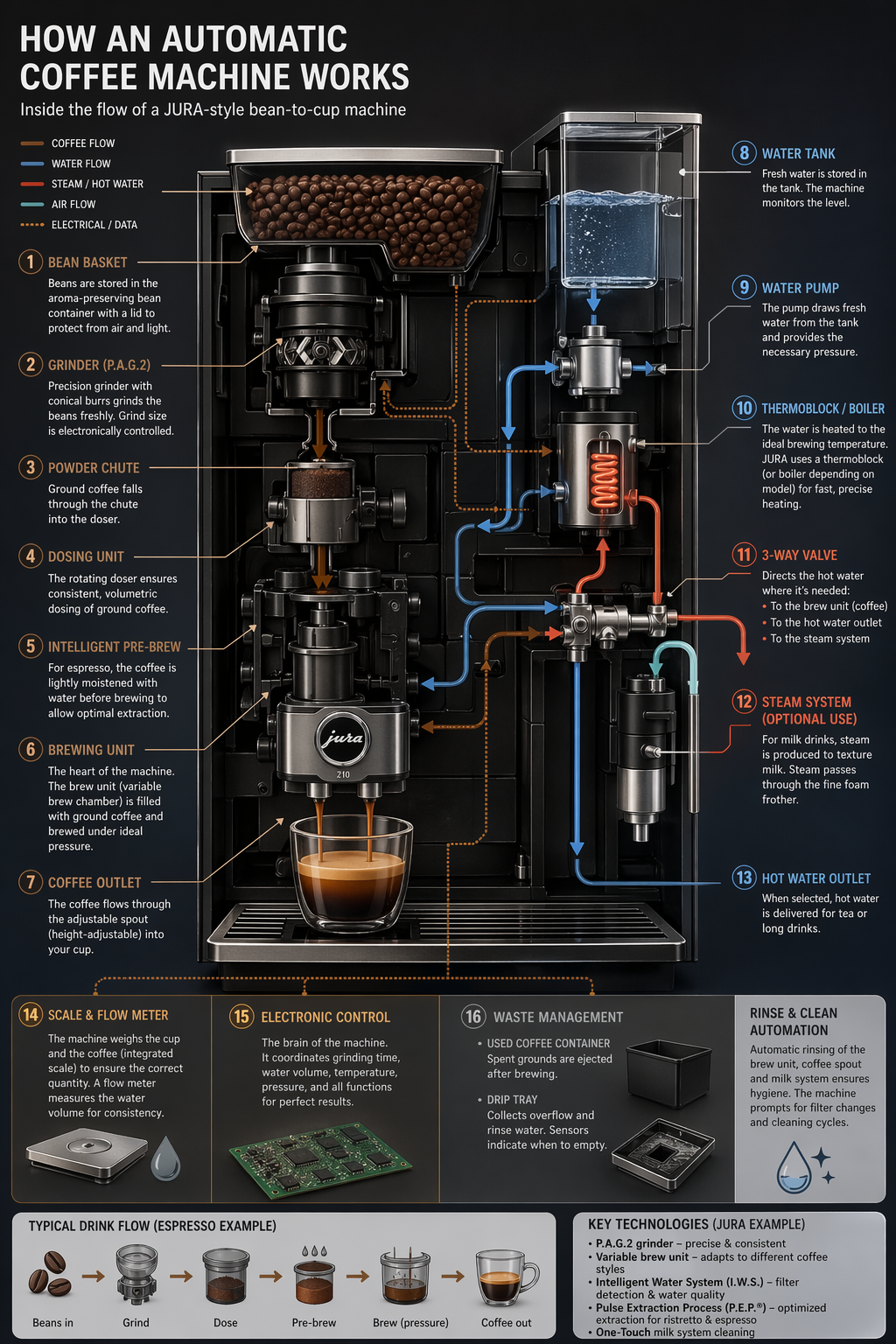
4.1 Infographics
Use infographics to explain structured information for a specific audience: students, executives, customers, or the general public. Examples include explainers, posters, labeled diagrams, timelines, and “visual wiki” assets. For dense layouts or heavy in-image text, it’s recommended to set output generation quality to “high”.
prompt = """
Create a detailed Infographic of the functioning and flow of an automatic coffee machine like a Jura.
From bean basket, to grinding, to scale, water tank, boiler, etc.
I'd like to understand technically and visually the flow.
"""

result = client.images.generate(
    model="gpt-image-2",
    prompt=prompt,
    size="1024x1536",
    quality="medium",
)

save_image(result, "infographic_coffee_machine_gpt-image-2.png")
Output Image:
4.2 Translation in Images
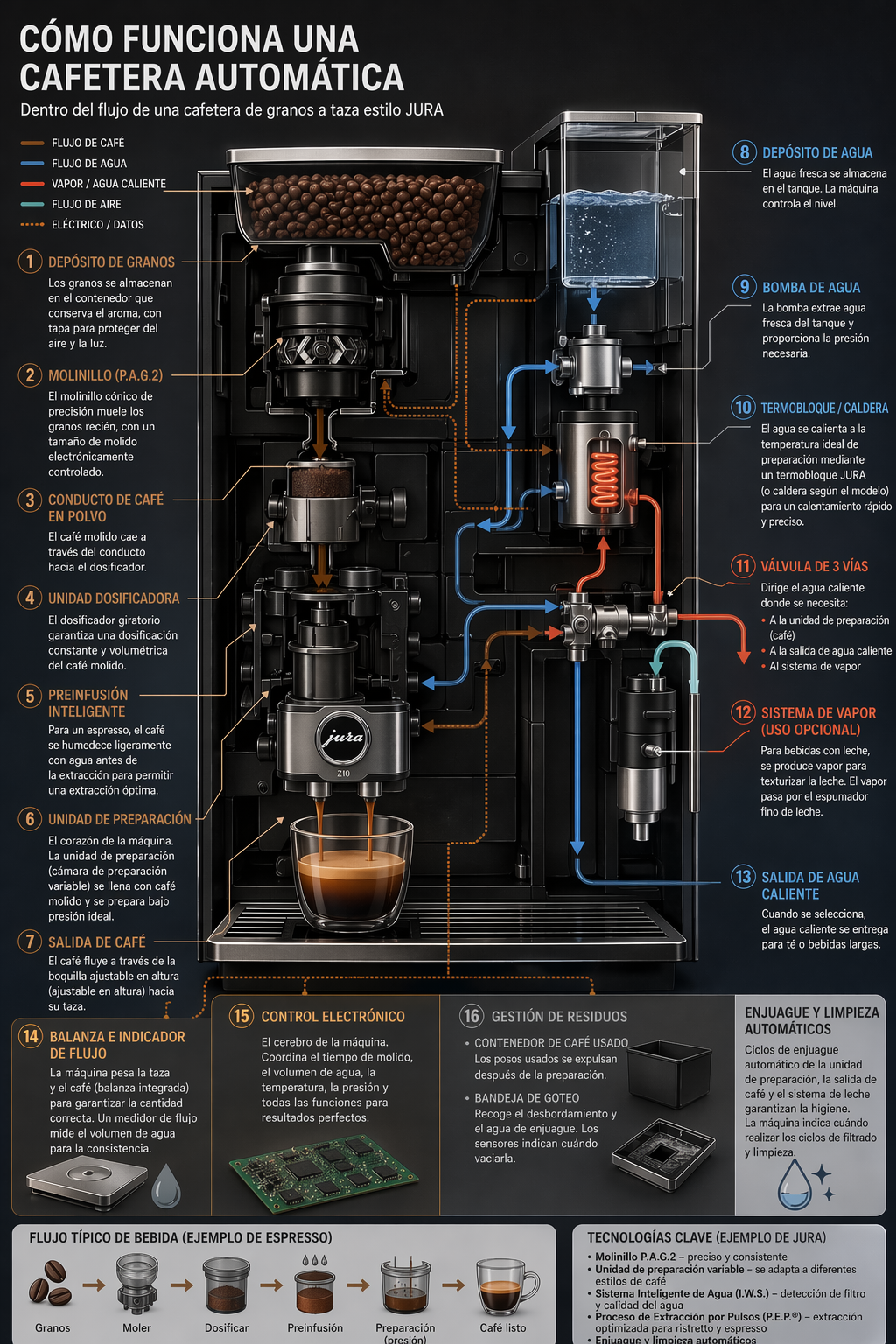
Used for localizing existing designs (ads, UI screenshots, packaging, infographics) into another language without rebuilding the layout from scratch. The key is to preserve everything except the text—keep typography style, placement, spacing, and hierarchy consistent—while translating verbatim and accurately, with no extra words, no reflow unless necessary, and no unintended edits to logos, icons, or imagery.
prompt = """
Translate the text in the infographic to Spanish. Do not change any other aspect of the image.
"""

result = client.images.edit(
    model="gpt-image-2",
    image=[
        open("../../images/output_images/infographic_coffee_machine_gpt-image-2.png", "rb"),
    ],
    prompt=prompt,
    size="1024x1536",
    quality="medium",
)


save_image(result, "infographic_coffee_machine_sp_gpt-image-2.png")
Output Image:
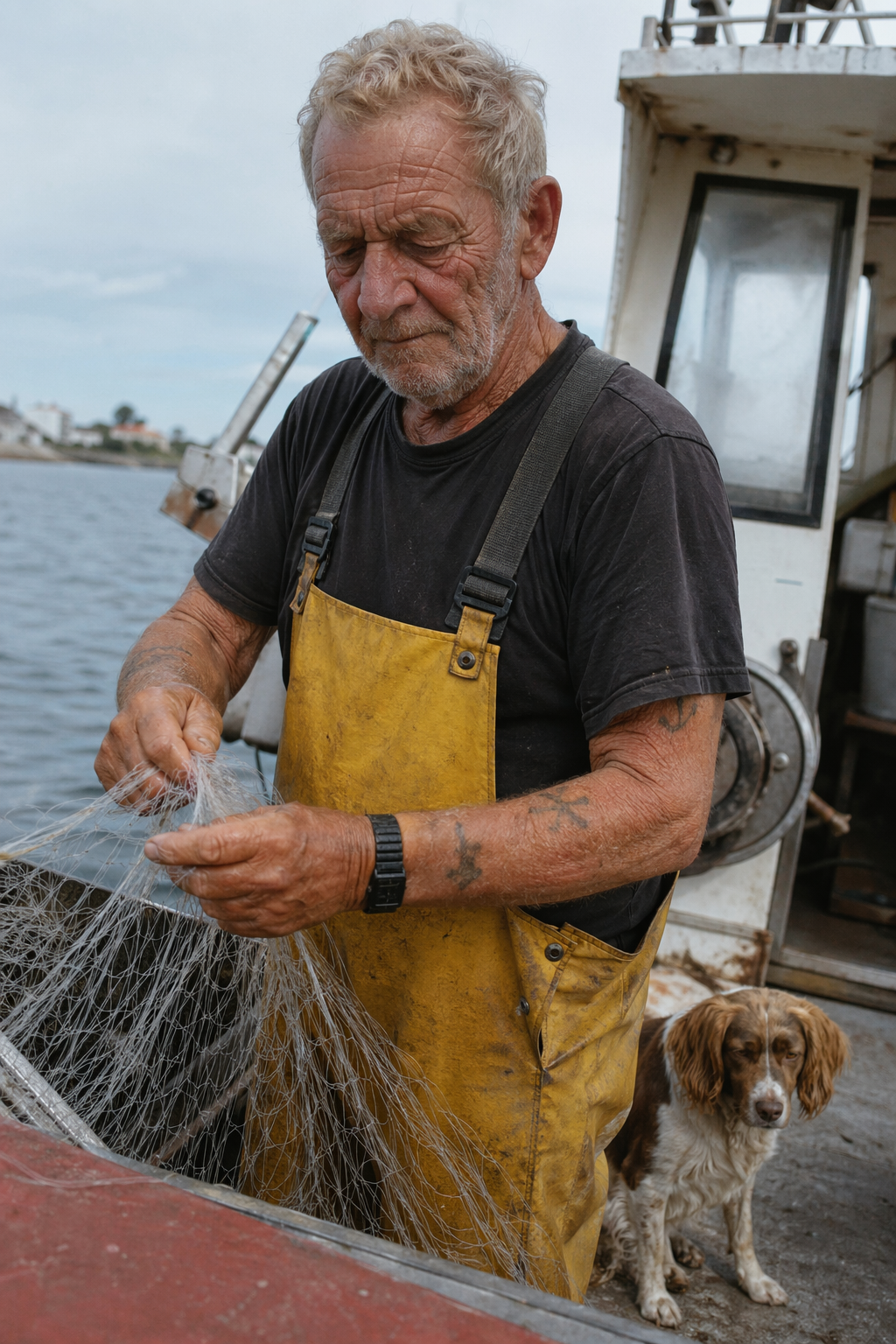
4.3 Photorealistic Images that Feel “natural”
To get believable photorealism, prompt the model as if a real photo is being captured in the moment. Use photography language (lens, lighting, framing) and explicitly ask for real texture (pores, wrinkles, fabric wear, imperfections). Avoid words that imply studio polish or staging. When detail matters, set quality=“high”.
prompt = """
Create a photorealistic candid photograph of an elderly sailor standing on a small fishing boat.
He has weathered skin with visible wrinkles, pores, and sun texture, and a few faded traditional sailor tattoos on his arms.
He is calmly adjusting a net while his dog sits nearby on the deck. Shot like a 35mm film photograph, medium close-up at eye level, using a 50mm lens.
Soft coastal daylight, shallow depth of field, subtle film grain, natural color balance.
The image should feel honest and unposed, with real skin texture, worn materials, and everyday detail. No glamorization, no heavy retouching.
"""

result = client.images.generate(
    model="gpt-image-2",
    prompt=prompt,
    size="1024x1536",
    quality="medium",
)

save_image(result, "photorealism-gpt-image-2.png")
Output Image:
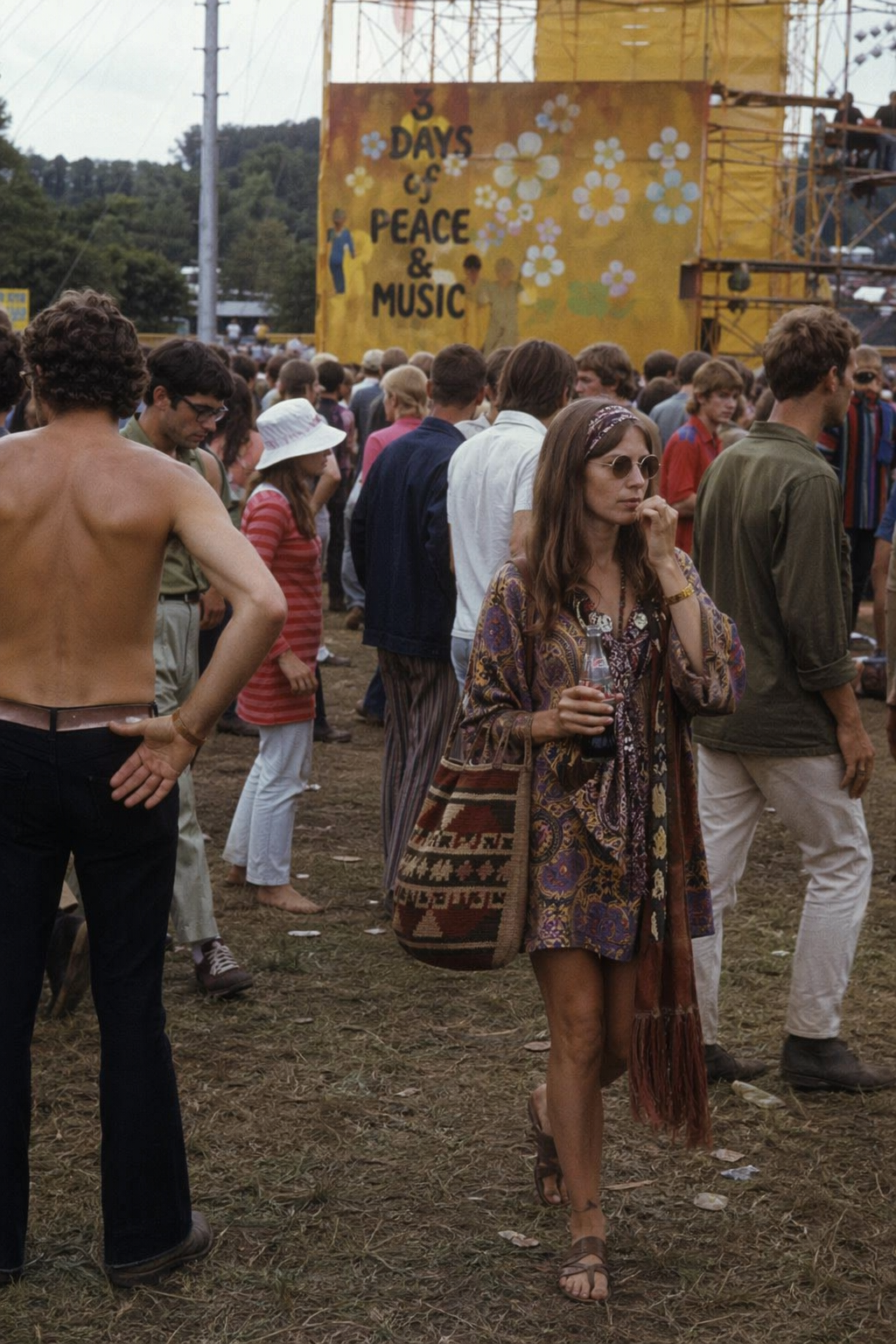
4.4 World knowledge
GPT image generation models can pair strong reasoning with world knowledge. For example, when asked to generate a scene set in Bethel, New York in August 1969, they can infer Woodstock and produce an accurate, context-appropriate image without being explicitly told about the event.
prompt = """
Create a realistic outdoor crowd scene in Bethel, New York on August 16, 1969.
Photorealistic, period-accurate clothing, staging, and environment.
"""

result = client.images.generate(
    model="gpt-image-2",
    prompt=prompt,
    size="1024x1536",
    quality="medium",
)

save_image(result, "world_knowledge-gpt-image-2.png")
Output Image:
4.5 Logo Generation
Strong logo generation comes from clear brand constraints and simplicity. Describe the brand’s personality and use case, then ask for a clean, original mark with strong shape, balanced negative space, and scalability across sizes. Use a transparent-background PNG or WebP file when the logo needs to be reused across different website, campaign, or presentation backgrounds.
You can specify parameter “n” to denote the number of variations you would like to generate.
prompt = """
Create an original, non-infringing logo for a company called Field & Flour, a local bakery.
The logo should feel warm, simple, and timeless. Use clean, vector-like shapes, a strong silhouette, and balanced negative space.
Favor simplicity over detail so it reads clearly at small and large sizes. Flat design, minimal strokes, no gradients unless essential.
Fully transparent background. Deliver a single centered logo with generous padding, clean alpha edges, and no solid backdrop, scenery, checkerboard, or watermark.
"""

result = client.images.generate(
    model="gpt-image-2",
    prompt=prompt,
    size="1024x1536",
    quality="medium",
    background="transparent",
    output_format="png",
    n=4,    # Generate 4 versions of the logo
)

# Save all 4 images to separate files
for i, item in enumerate(result.data, start=1):
    image_base64 = item.b64_json
    image_bytes = base64.b64decode(image_base64)
    with open(f"../../images/output_images/logo_generation_{i}_gpt-image-2.png", "wb") as f:
        f.write(image_bytes)
Output Images:
| Option 1 | Option 2 | Option 3 | Option 4 |
|---|---|---|---|
 |
 |
 |
 |
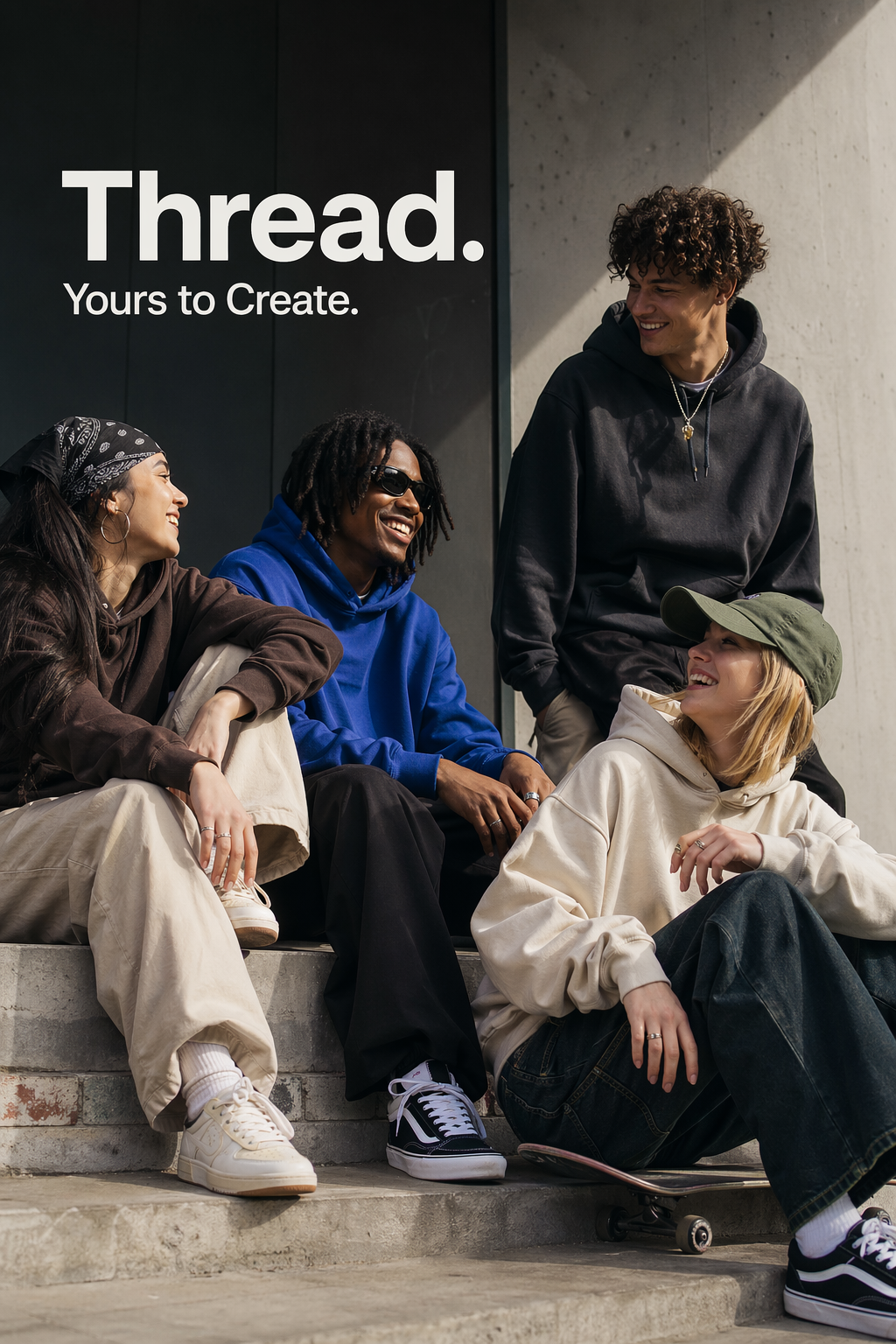
4.6 Ads Generation
Ad generation works best when the prompt is written like a creative brief rather than a purely technical image spec. Describe the brand, audience, culture, concept, composition, and exact copy, then let the model make taste-driven creative decisions inside those boundaries. This is useful for early campaign exploration because the model can interpret audience cues, infer art direction, and propose visual details that make the ad feel considered rather than merely rendered.
For stronger results, include the brand positioning, desired vibe, target audience, scene, and tagline in the same prompt. If the text must appear in the image, quote it exactly and ask for clean, legible typography.
prompt = """
Give me a cool in culture ad / fashion shot for a brand called Thread.
It's a hip young street brand. The ad shows a group of friends hanging out together with the tagline "Yours to Create."
Make it feel like a polished campaign image for a youth streetwear audience: stylish, contemporary, energetic, and tasteful.
Use clean composition, strong color direction, natural poses, and premium fashion photography cues.
Render the tagline exactly once, clearly and legibly, integrated into the ad layout.
No extra text, no watermarks, no unrelated logos.
"""

result = client.images.generate(
    model="gpt-image-2",
    prompt=prompt,
    size="1024x1536",
    quality="medium",
)

save_image(result, "thread_ad_gpt-image-2.png")
Output Image:
4.7 Story-to-Comic Strip
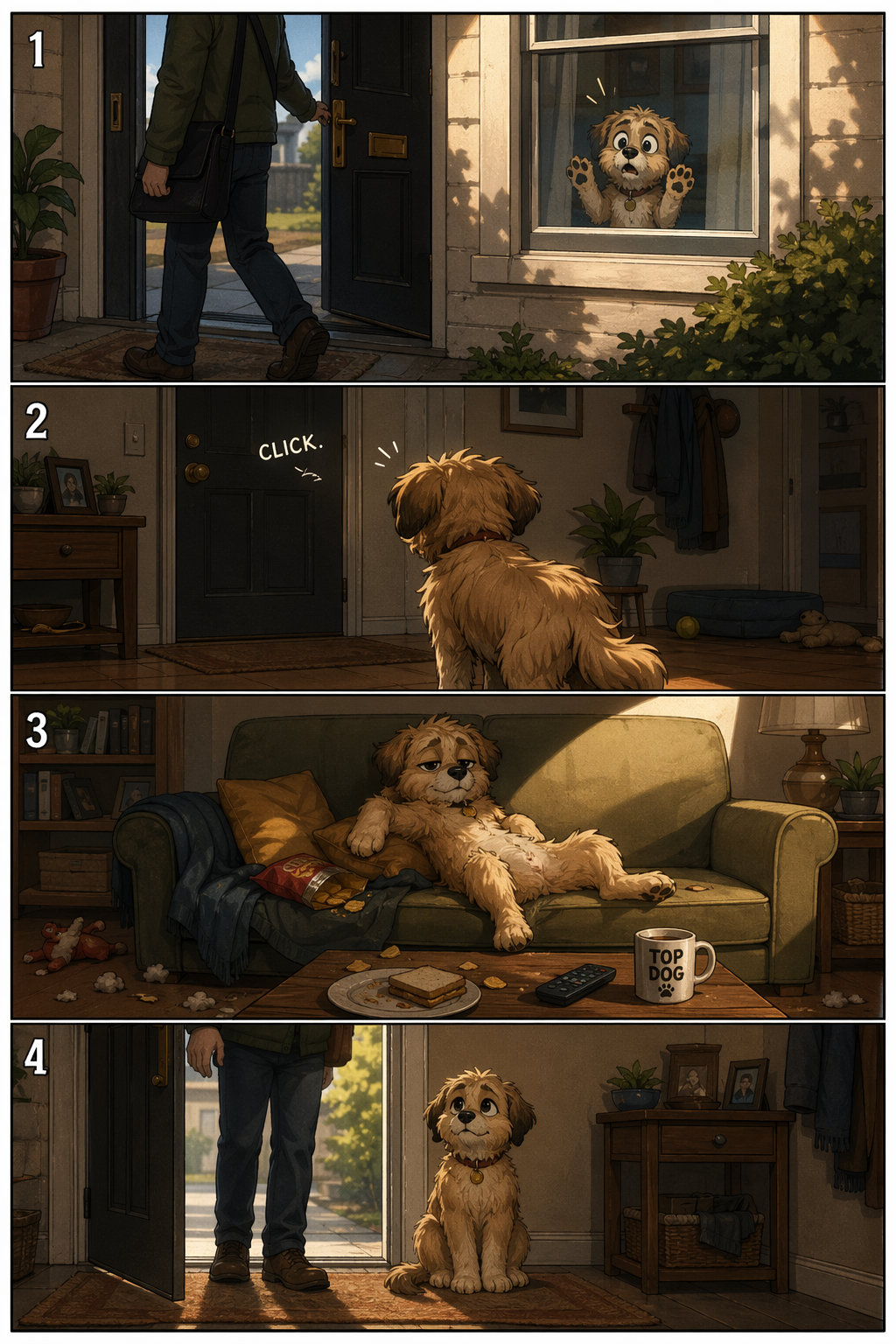
For story-to-comic generation, define the narrative as a sequence of clear visual beats, one per panel. Keep descriptions concrete and action-focused so the model can translate the story into readable, well-paced panels.
prompt = """
Create a short vertical comic-style reel with 4 equal-sized panels.
Panel 1: The owner leaves through the front door. The pet is framed in the window behind them, small against the glass, eyes wide, paws pressed high, the house suddenly quiet.
Panel 2: The door clicks shut. Silence breaks. The pet slowly turns toward the empty house, posture shifting, eyes sharp with possibility.
Panel 3: The house transformed. The pet sprawls across the couch like it owns the place, crumbs nearby, sunlight cutting across the room like a spotlight.
Panel 4: The door opens. The pet is seated perfectly by the entrance, alert and composed, as if nothing happened.
"""

result = client.images.generate(
    model="gpt-image-2",
    prompt=prompt,
    size="1024x1536",
    quality="medium",
)

save_image(result, "comic_reel-gpt-image-2.png")
Output Image:
4.8 UI Mockups
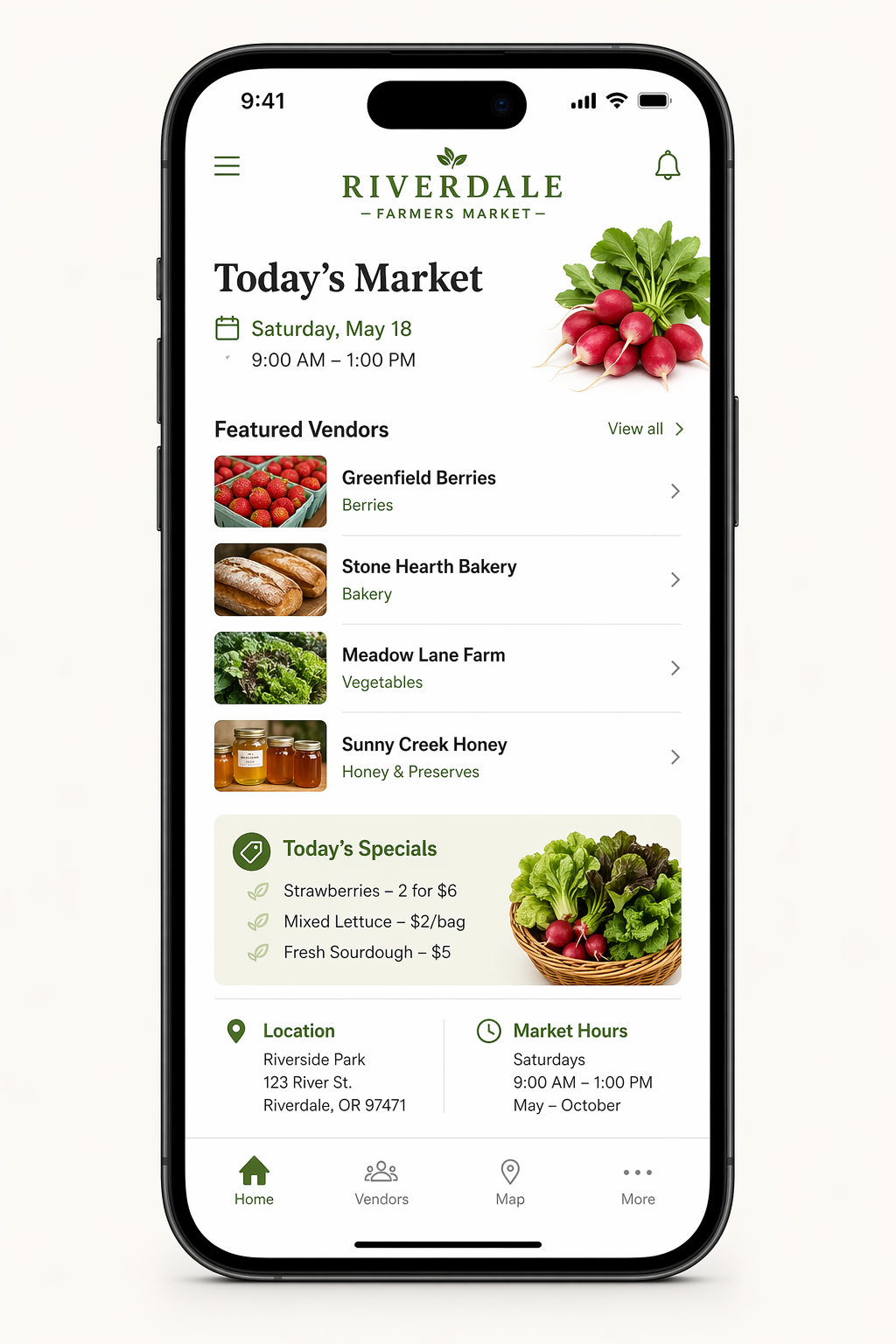
UI mockups work best when you describe the product as if it already exists. Focus on layout, hierarchy, spacing, and real interface elements, and avoid concept art language so the result looks like a usable, shipped interface rather than a design sketch.
prompt = """
Create a realistic mobile app UI mockup for a local farmers market.
Show today’s market with a simple header, a short list of vendors with small photos and categories, a small “Today’s specials” section, and basic information for location and hours.
Design it to be practical, and easy to use. White background, subtle natural accent colors, clear typography, and minimal decoration.
It should look like a real, well-designed, beautiful app for a small local market.
Place the UI mockup in an iPhone frame.
"""

result = client.images.generate(
    model="gpt-image-2",
    prompt=prompt,
    size="1024x1536",
    quality="medium",
)

save_image(result, "ui_farmers_market_gpt-image-2.png")
Output Image:
4.9 Scientific / Educational Visuals
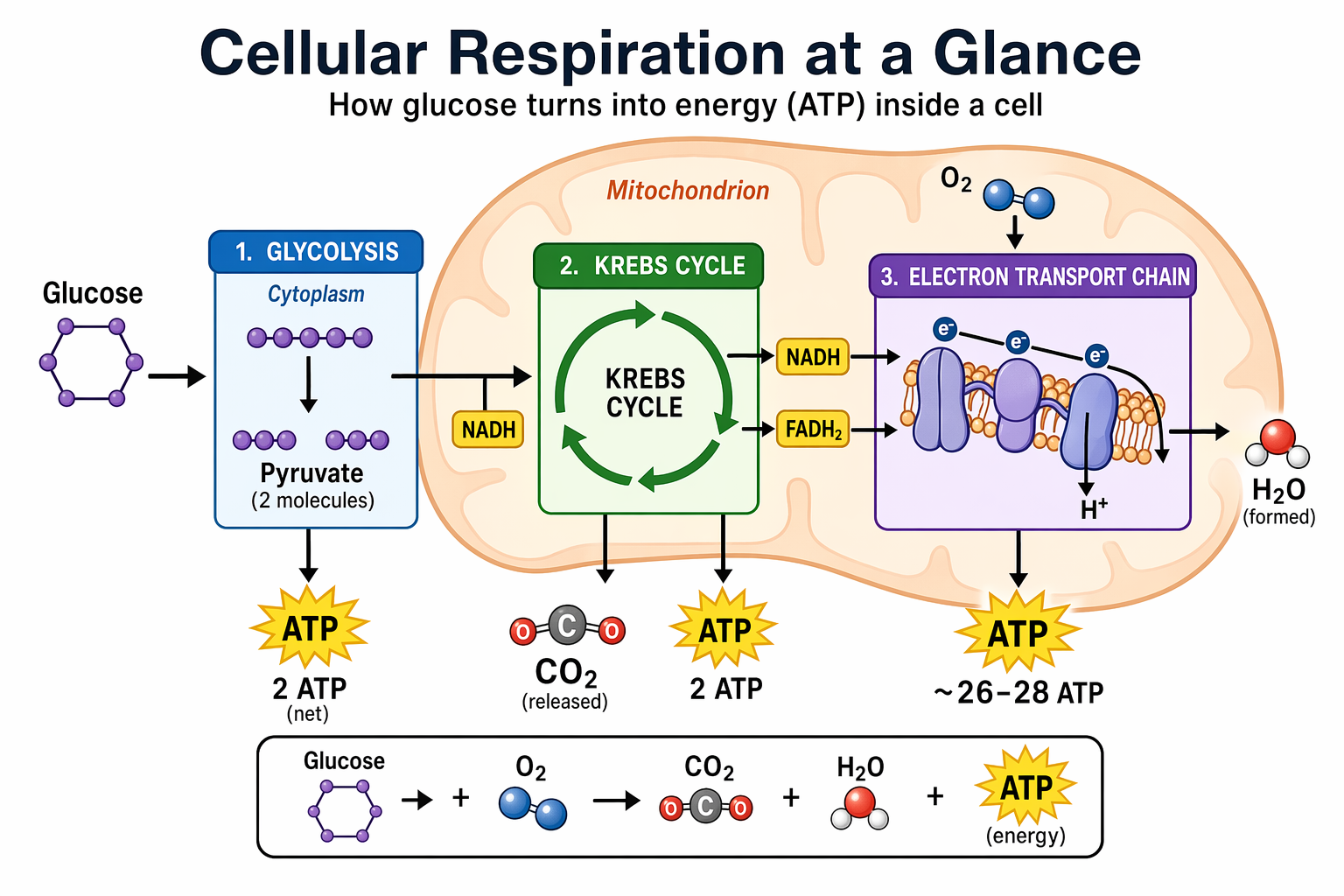
Scientific and educational visuals are strong fits for biology, chemistry, classroom explainers, flat scientific icon systems, diagrams, and learning assets. Prompt them like an instructional design brief: define the audience, lesson objective, visual format, required labels, and scientific constraints. For best results, ask for a clean, flat visual system with consistent icon style, clear arrows, readable labels, and enough white space for students to scan the concept quickly.
When accuracy matters, list the required components explicitly and say what should not be included. Use quality="high" for dense labels, diagrams, or assets that will be used in slides or course materials.
prompt = """
Create a simple biology diagram titled "Cellular Respiration at a Glance" for high school students.

Show how glucose turns into energy inside a cell. Include glycolysis, the Krebs cycle, and the electron transport chain.
Use arrows to connect the steps, and label the main molecules: glucose, pyruvate, ATP, NADH, FADH2, CO2, O2, and H2O.
Make it look like a clean classroom handout or slide, with a white background, simple icons, clear labels, and easy-to-read text.

Avoid tiny text, extra decoration, or anything that makes the diagram hard to understand.
"""

result = client.images.generate(
    model="gpt-image-2",
    prompt=prompt,
    size="1536x1024",
    quality="high",
)

save_image(result, "scientific_educational_cellular_respiration_gpt-image-2.png")
Output Image:
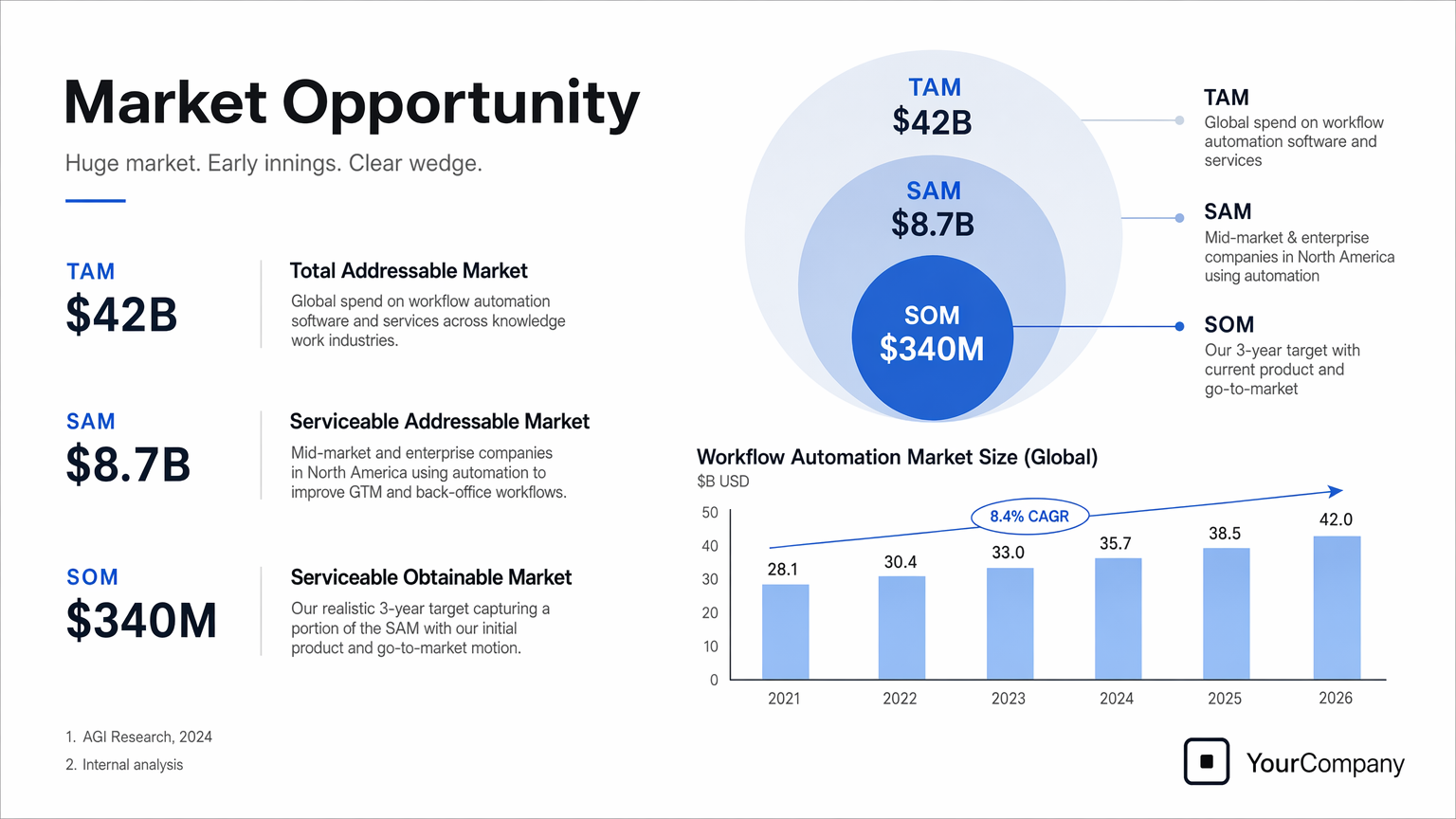
4.10 Slides, Diagrams, Charts, and Productivity Images
Productivity visuals work best when the prompt is written like an artifact spec rather than an illustration request. Name the exact deliverable (slide, workflow diagram, chart, page image), define the canvas and hierarchy, provide the real text or data, and describe the visual language. These prompts should include practical constraints: readable typography, polished spacing, no decorative clutter, and no generic stock-photo treatment.
For slides, charts, and diagram-heavy assets, include the numbers and labels directly in the prompt. Use a landscape size for deck-style outputs and quality="high" when the image contains small text, legends, axes, or footnotes.
prompt = """
Create one pitch-deck slide titled **"Market Opportunity"** that feels like a real Series A fundraising slide from a YC-backed startup.

Use a clean white background, modern sans-serif typography like Inter, and a crisp, minimal layout. The slide should include:

* A TAM/SAM/SOM concentric-circle diagram in muted blues and grays
* Specific, believable market sizing numbers:

  * **TAM:** $42B
  * **SAM:** $8.7B
  * **SOM:** $340M
* A clean bar chart below showing market growth from **2021 to 2026**, with a subtle upward trend
* Small footnotes: **"AGI Research, 2024"** and **"Internal analysis"**
* A company logo placeholder in the bottom-right corner

The design should look like it belongs in a deck that actually raised money: highly readable text, clear data hierarchy, polished spacing, and professional startup-style visual language.

Avoid clip art, stock photography, gradients, shadows, decorative elements, or anything that feels generic or overdesigned.
"""

result = client.images.generate(
    model="gpt-image-2",
    prompt=prompt,
    size="1536x864",
    quality="high",
)

save_image(result, "market_opportunity_slide_gpt-image-2.png")
Output Image:
5. Use cases — Edit (text + image → image)
5.1 Style Transfer
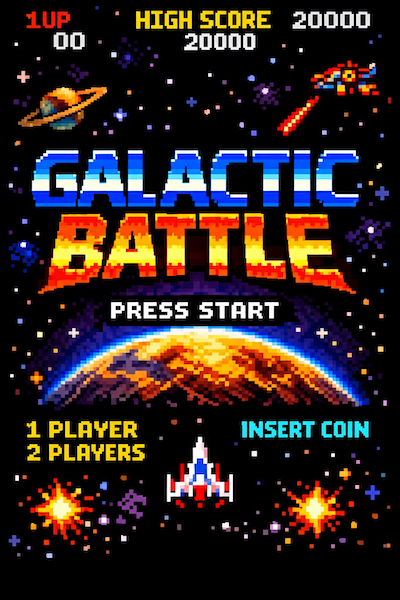
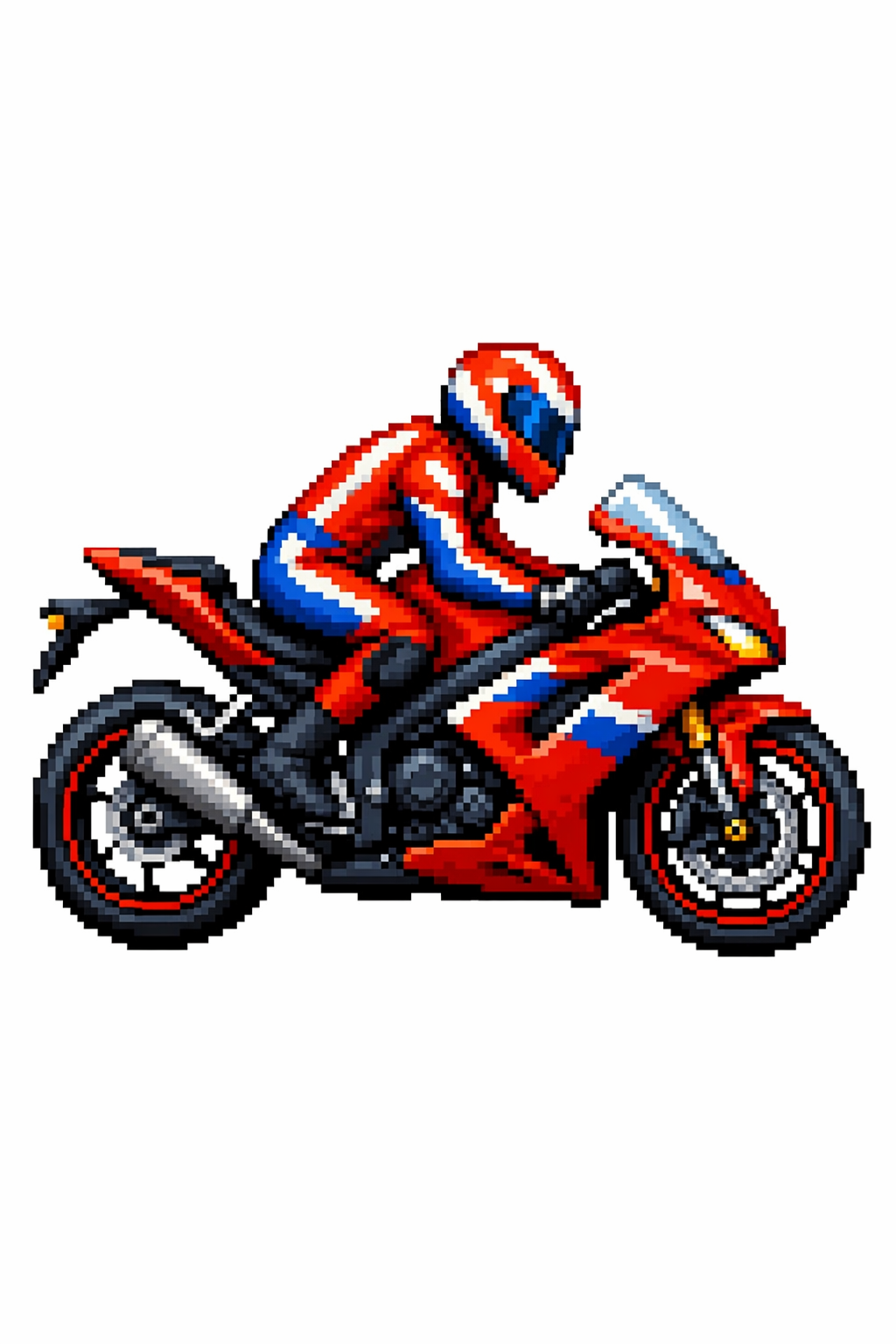
Style transfer is useful when you want to keep the visual language of a reference image (palette, texture, brushwork, film grain, etc.) while changing the subject or scene. For best results, describe what must stay consistent (style cues) and what must change (new content), and add hard constraints like background, framing, and “no extra elements” to prevent drift.
prompt = """
Use the same style from the input image and generate a man riding a motorcycle on a white background.
"""

result = client.images.edit(
    model="gpt-image-2",
    image=[
        open("../../images/input_images/pixels.png", "rb"),
    ],
    prompt=prompt,
    size="1024x1536",
    quality="medium",
)

save_image(result, "motorcycle_gpt-image-2.png")
Input Image:
Output Image:
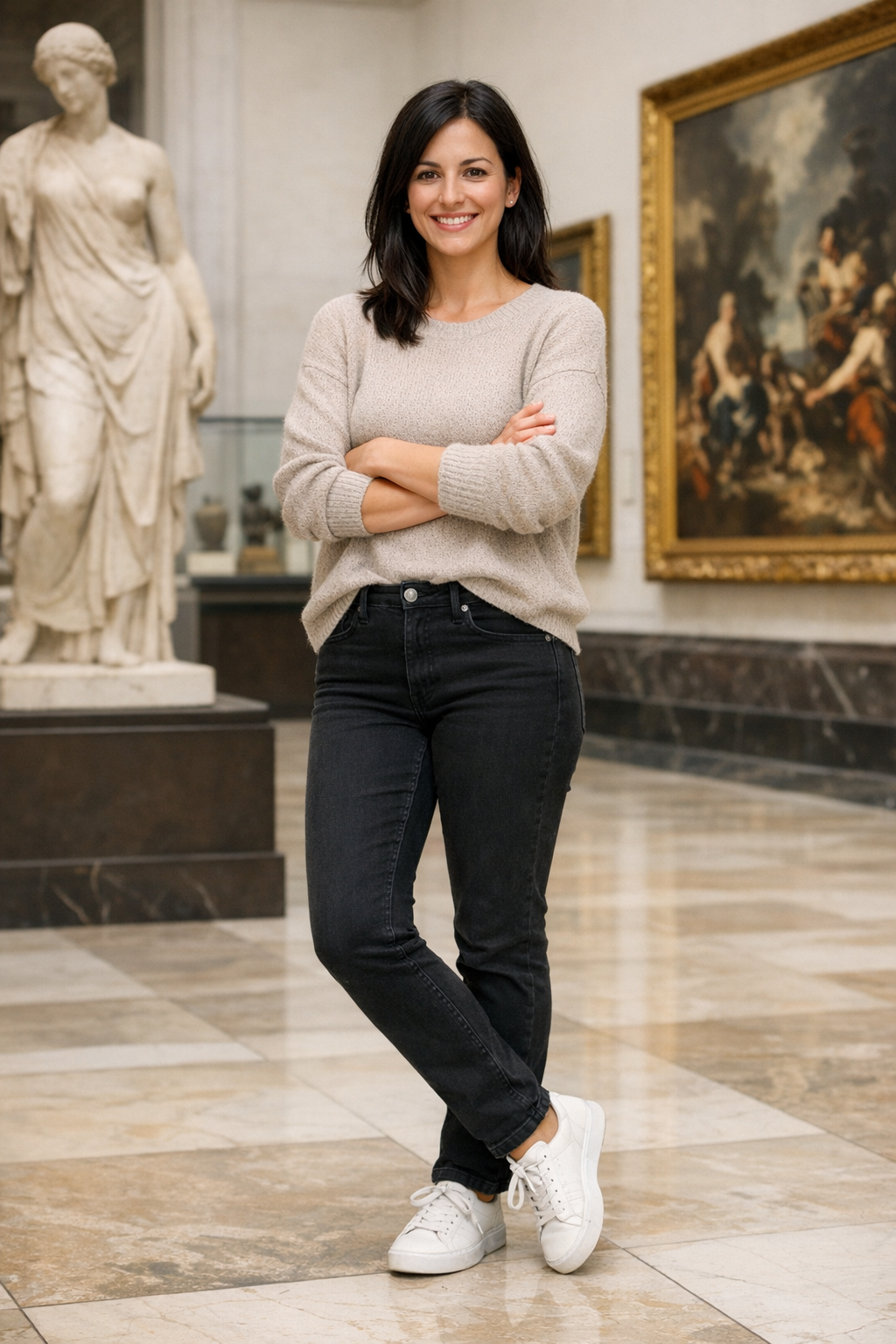
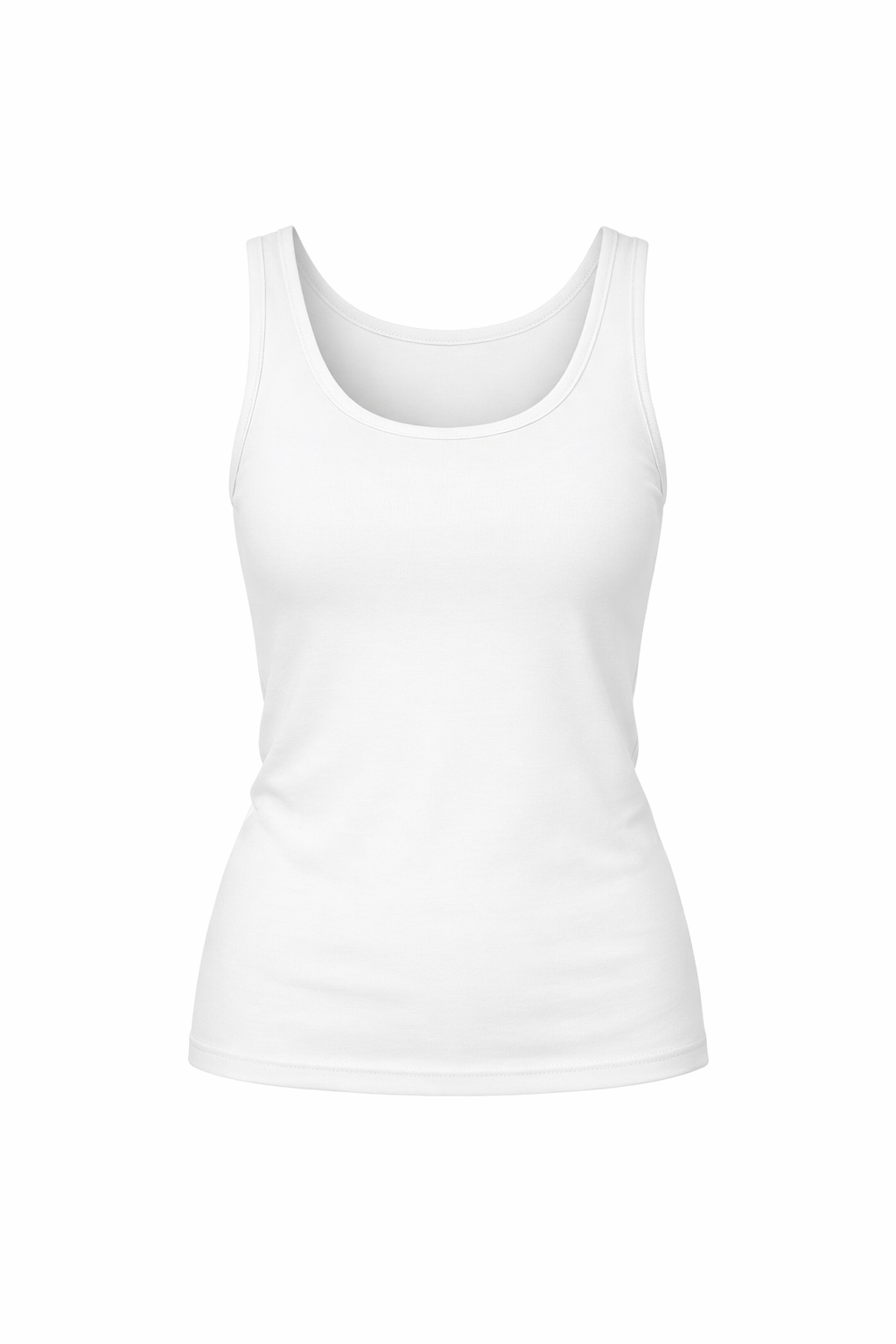
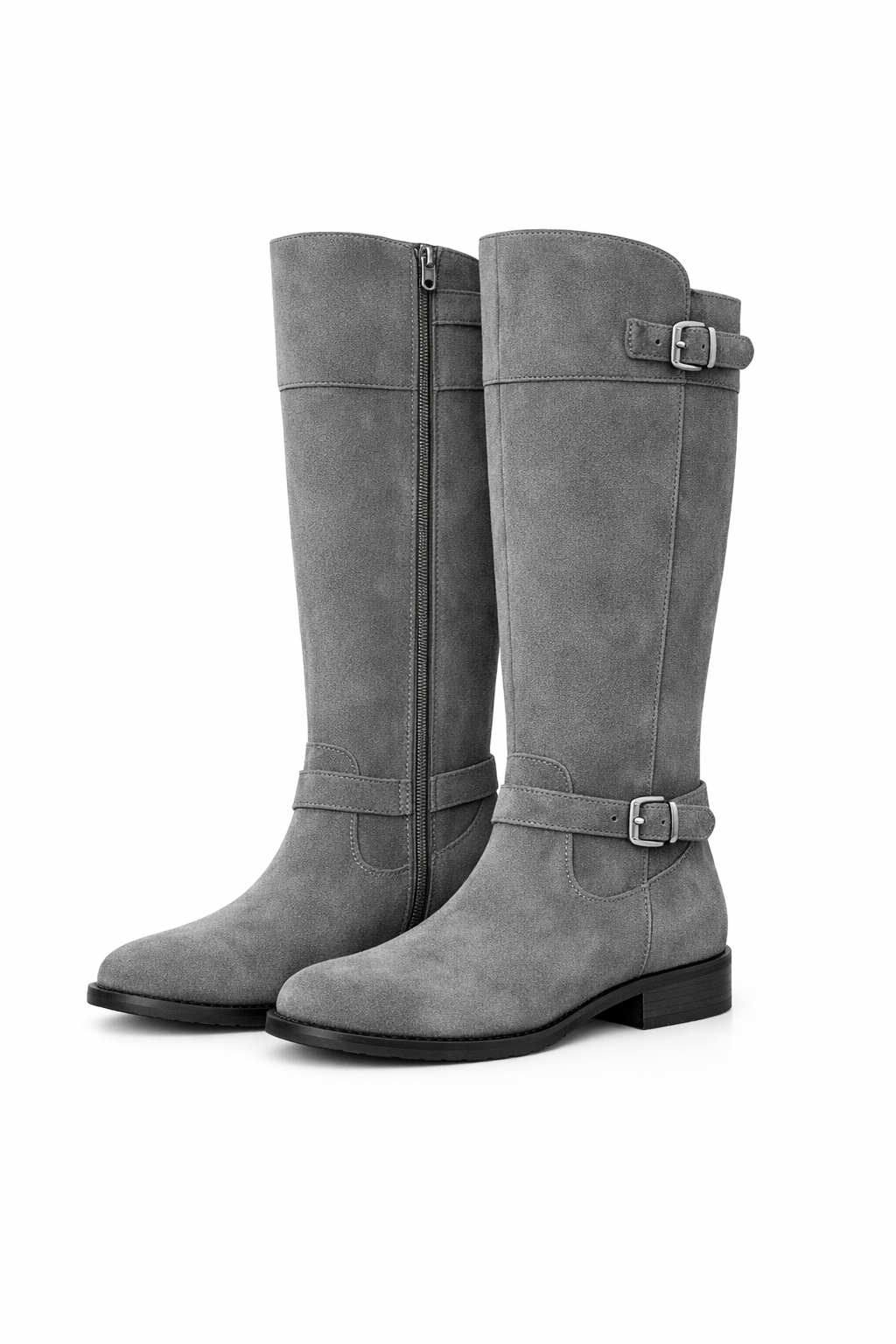
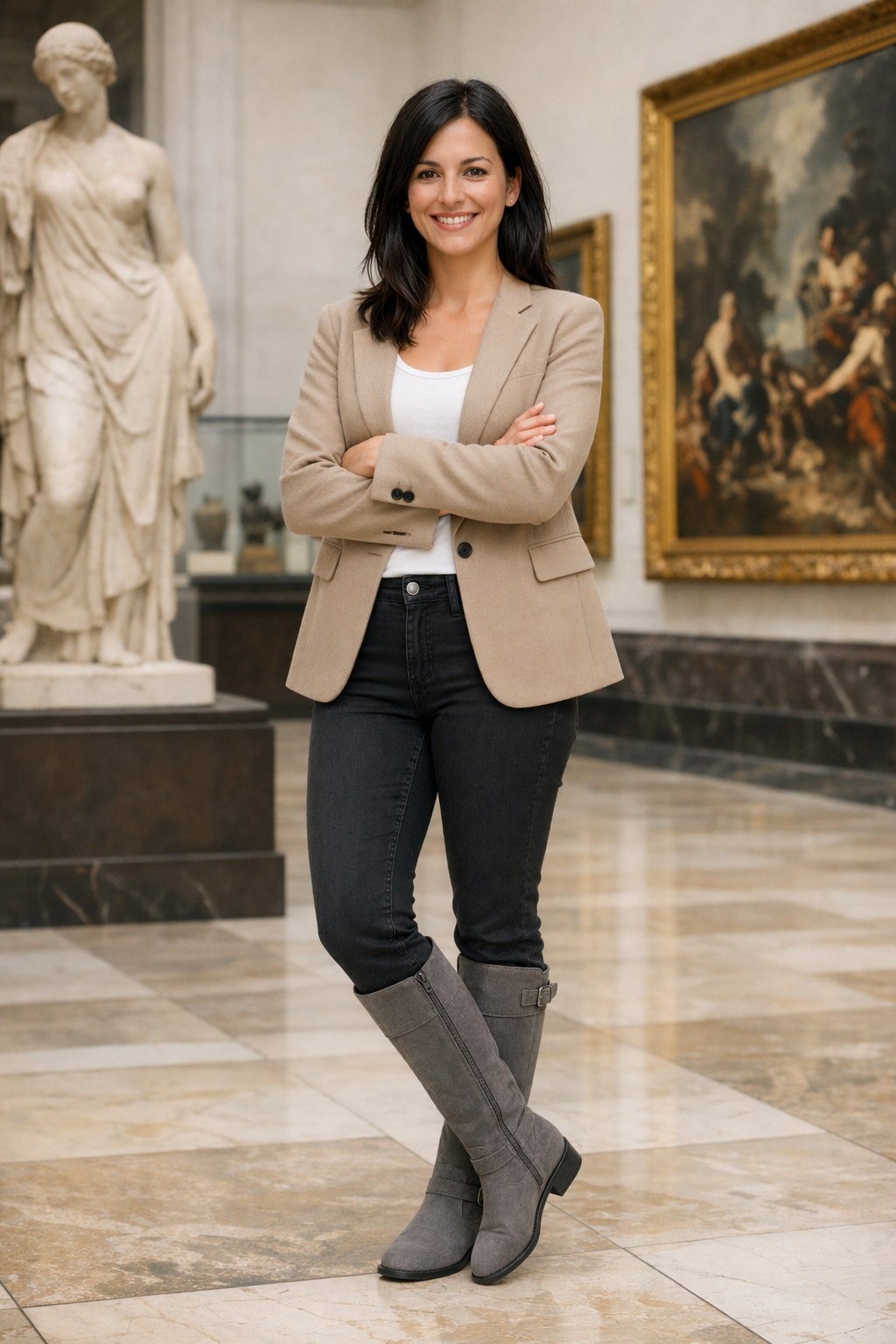
5.2 Virtual Clothing Try-On
Virtual try-on is ideal for ecommerce previews where identity preservation is critical. The key is to explicitly lock the person (face, body shape, pose, hair, expression) and allow changes only to garments, then require realistic fit (draping, folds, occlusion) plus consistent lighting/shadows so the outfit looks naturally worn—not pasted on.
prompt = """
Edit the image to dress the woman using the provided clothing images. Do not change her face, facial features, skin tone, body shape, pose, or identity in any way. Preserve her exact likeness, expression, hairstyle, and proportions. Replace only the clothing, fitting the garments naturally to her existing pose and body geometry with realistic fabric behavior. Match lighting, shadows, and color temperature to the original photo so the outfit integrates photorealistically, without looking pasted on. Do not change the background, camera angle, framing, or image quality, and do not add accessories, text, logos, or watermarks.
"""

result = client.images.edit(
    model="gpt-image-2",
    image=[
        open("../../images/input_images/woman_in_museum.png", "rb"),
        open("../../images/input_images/tank_top.png", "rb"),
        open("../../images/input_images/jacket.png", "rb"),
        open("../../images/input_images/tank_top.png", "rb"),
        open("../../images/input_images/boots.png", "rb"),
    ],
    prompt=prompt,
    size="1024x1536",
    quality="medium",
)

save_image(result, "outfit_gpt-image-2.png")
Input Images:
| Full Body | Item 1 |
|---|---|
 |
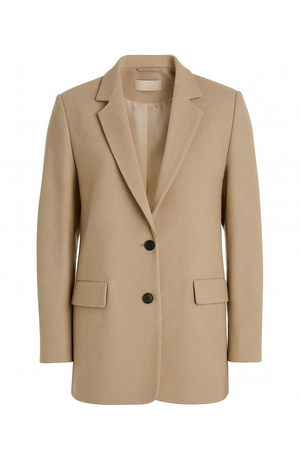 |
| Item 2 | Item 3 |
 |
 |
Output Image:
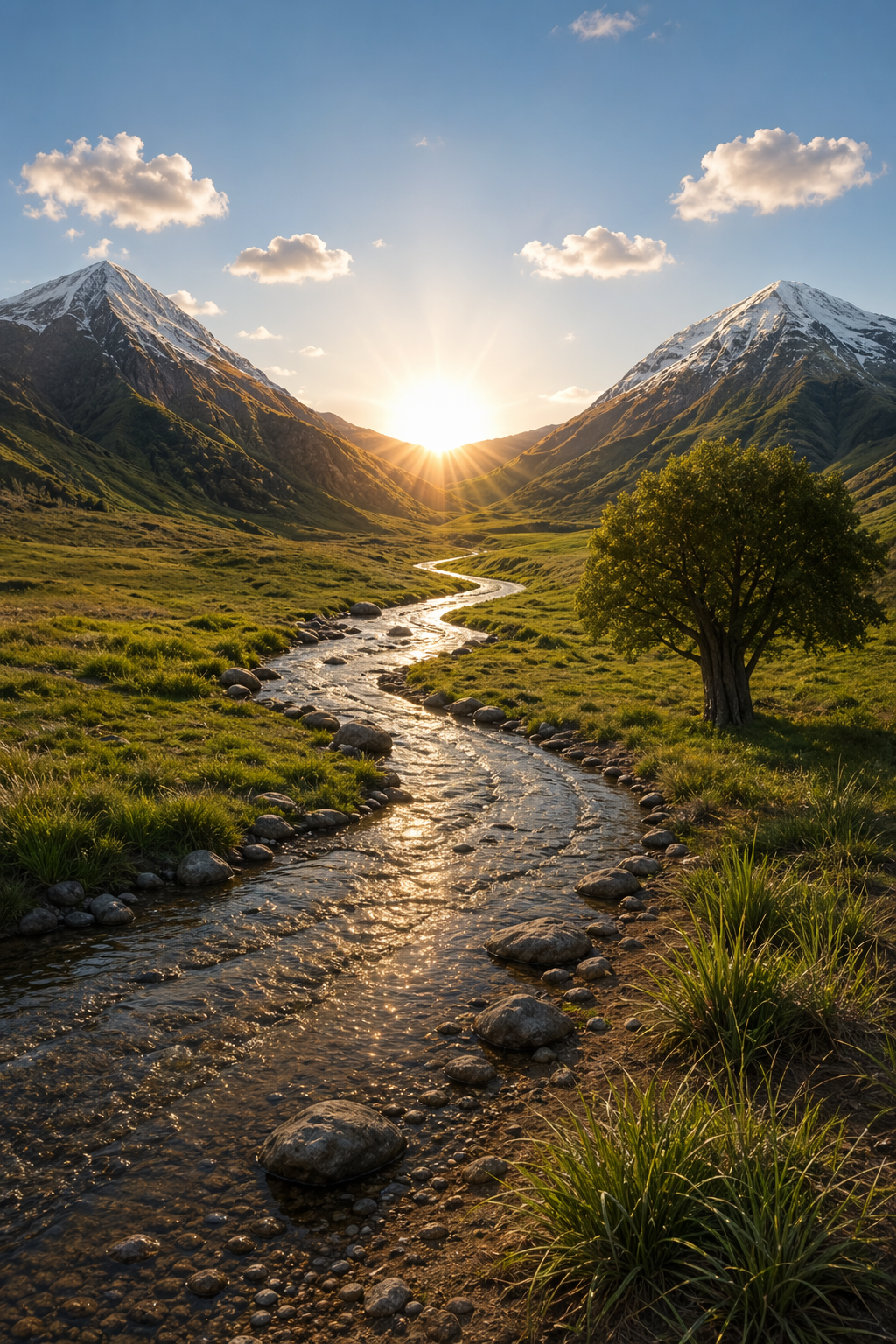
5.3 Drawing → Image (Rendering)
Sketch-to-render workflows are great for turning rough drawings into photorealistic concepts while keeping the original intent. Treat the prompt like a spec: preserve layout and perspective, then add realism by specifying plausible materials, lighting, and environment. Include “do not add new elements/text” to avoid creative reinterpretations.
prompt = """
Turn this drawing into a photorealistic image.
Preserve the exact layout, proportions, and perspective.
Choose realistic materials and lighting consistent with the sketch intent.
Do not add new elements or text.
"""

result = client.images.edit(
    model="gpt-image-2",
    image=[
        open("../../images/input_images/drawings.png", "rb"),
    ],
    prompt=prompt,
    size="1024x1536",
    quality="medium",
)

save_image(result, "realistic_valley_gpt-image-2.png")
Input Image:
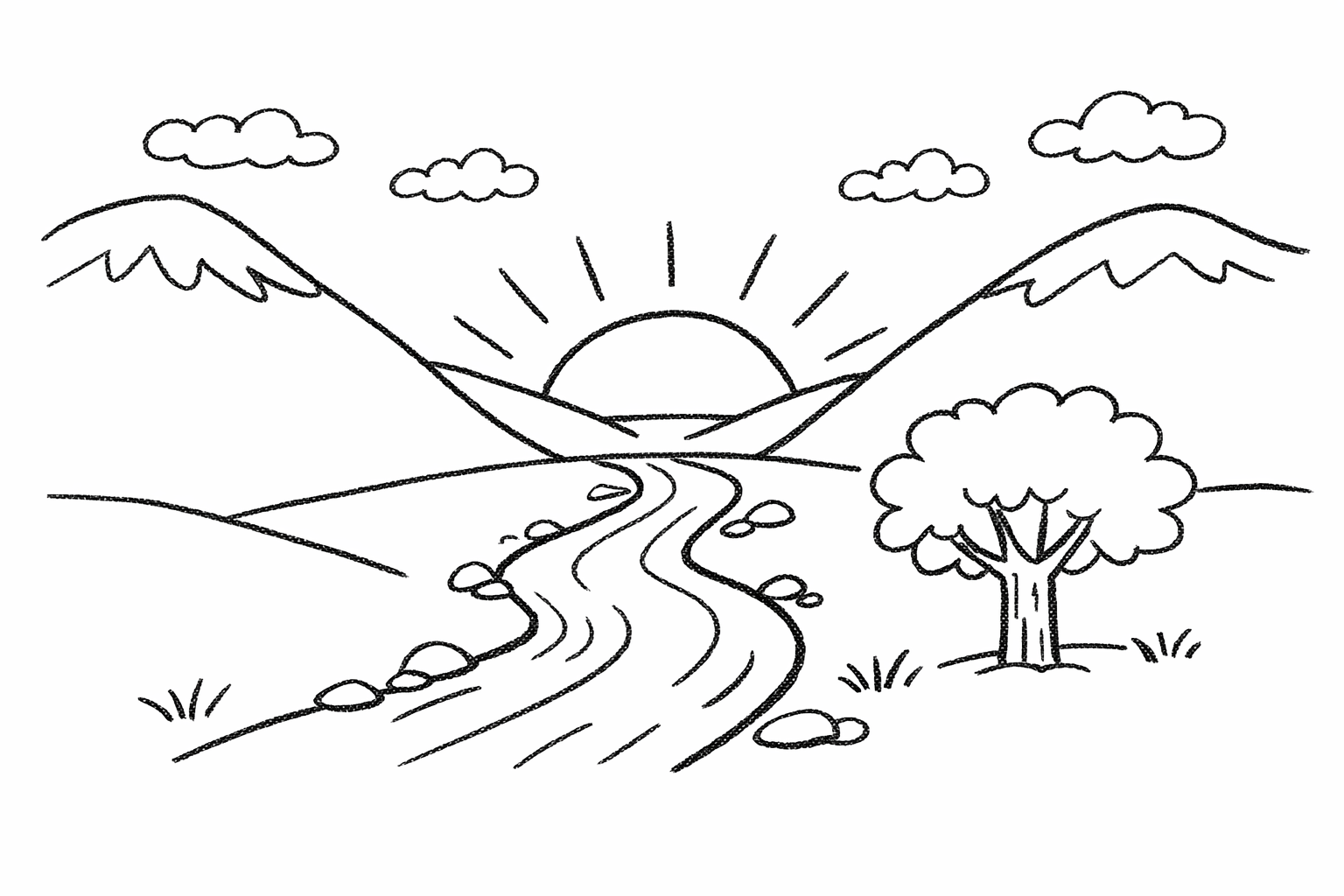
Output Image:
5.4 Product Mockups (transparent background + label integrity)
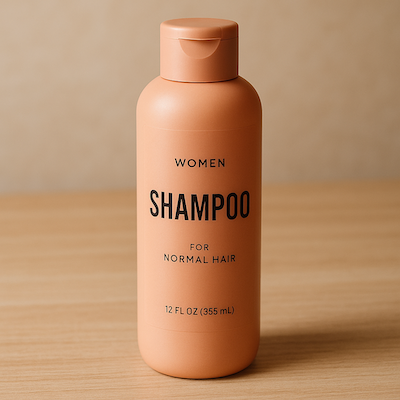
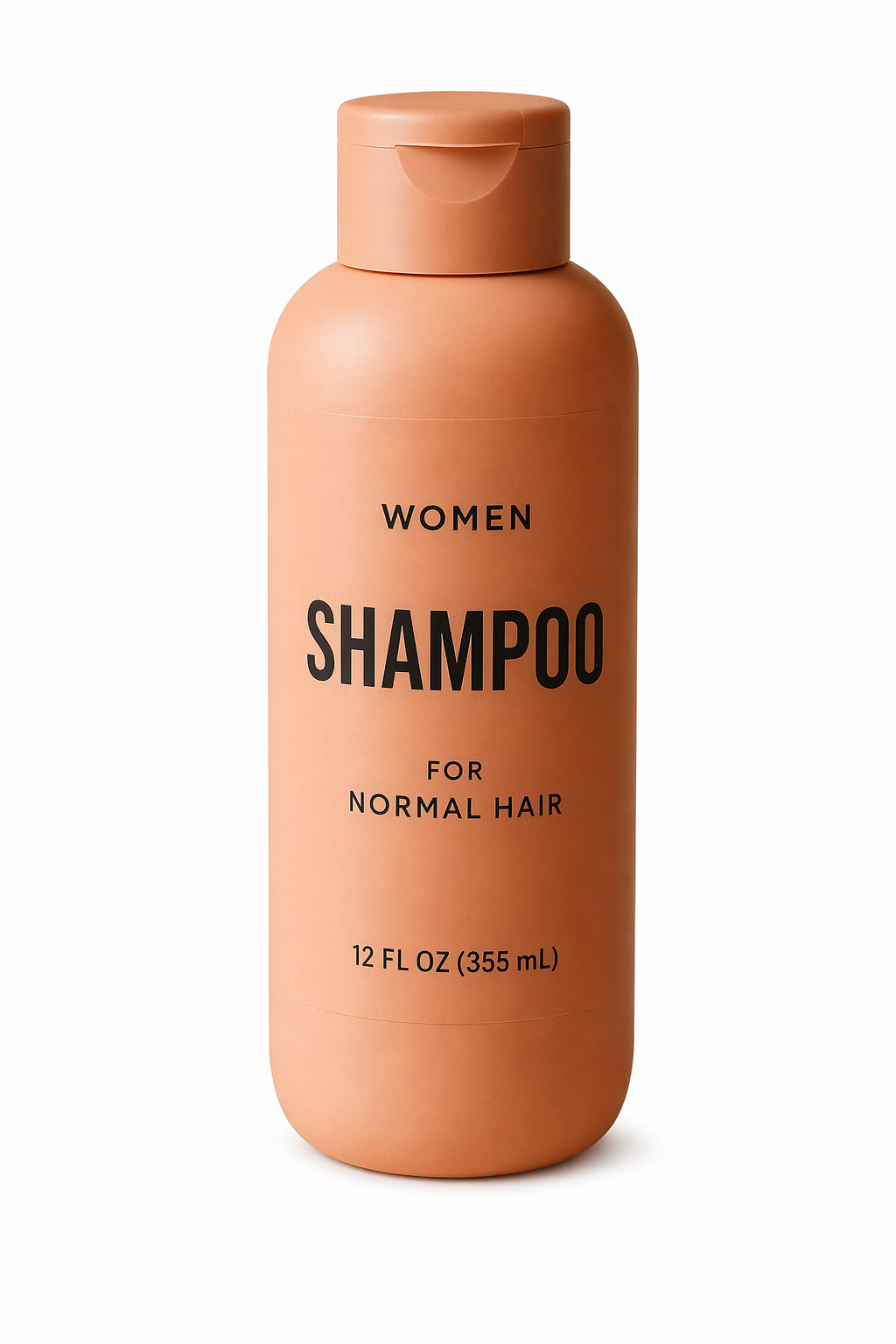
Product extraction and mockup prep is commonly used for catalogs, marketplaces, and design systems. Success depends on edge quality (clean silhouette, no fringing/halos) and label integrity (text stays sharp and unchanged). Transparent backgrounds are available in preview for gpt-image-2; request background="transparent" with output_format="png" (the default) or output_format="webp" to create a reusable product cutout directly. jpeg does not support transparent backgrounds. Ask for an isolated subject, preserve the existing product geometry and label, and omit solid backdrops, checkerboards, and unnecessary shadows. Omit output_compression for PNG output; WebP supports optional compression.
prompt = """
Extract the product from the input image and isolate it on a fully transparent background.
Output: centered product, crisp silhouette, no halos/fringing.
Preserve product geometry and label legibility exactly.
Add only light polishing. Do not add a solid backdrop, checkerboard, scenery, or shadow.
Do not restyle the product; remove the background and preserve clean alpha transparency.
"""

result = client.images.edit(
    model="gpt-image-2",
    image=[
        open("../../images/input_images/shampoo.png", "rb"),
    ],
    prompt=prompt,
    size="1024x1536",
    quality="medium",
    background="transparent",
    output_format="png",
)

save_image(result, "extract_product_gpt-image-2.png")
Input Image:
Output Image:
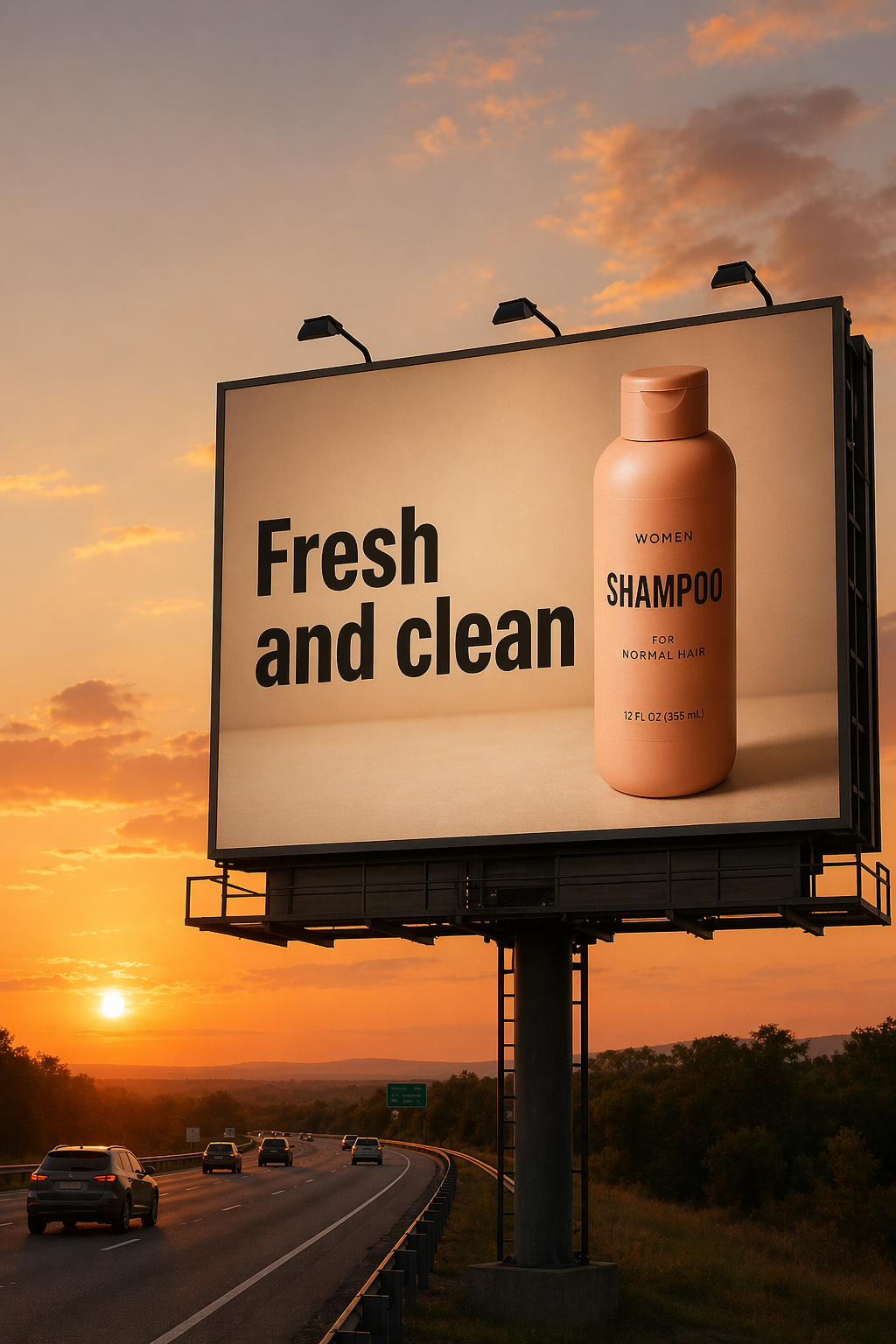
5.5 Marketing Creatives with Real Text In-Image
Marketing creatives with real in-image text are great for rapid ad concepting, but typography needs explicit constraints. Put the exact copy in quotes, demand verbatim rendering (no extra characters), and describe placement and font style. If text fidelity is imperfect, keep the prompt strict and iterate—small wording/layout tweaks usually improve legibility.
prompt = """
Create a realistic billboard mockup of the shampoo on a highway scene during sunset.
Billboard text (EXACT, verbatim, no extra characters):
"Fresh and clean"
Typography: bold sans-serif, high contrast, centered, clean kerning.
Ensure text appears once and is perfectly legible.
No watermarks, no logos.
"""

result = client.images.edit(
    model="gpt-image-2",
    image=[
        open("../../images/input_images/shampoo.png", "rb"),
    ],
    prompt=prompt,
    size="1024x1536",
    quality="medium",
)

save_image(result, "billboard_gpt-image-2.png")
Input Image:
Output Image:
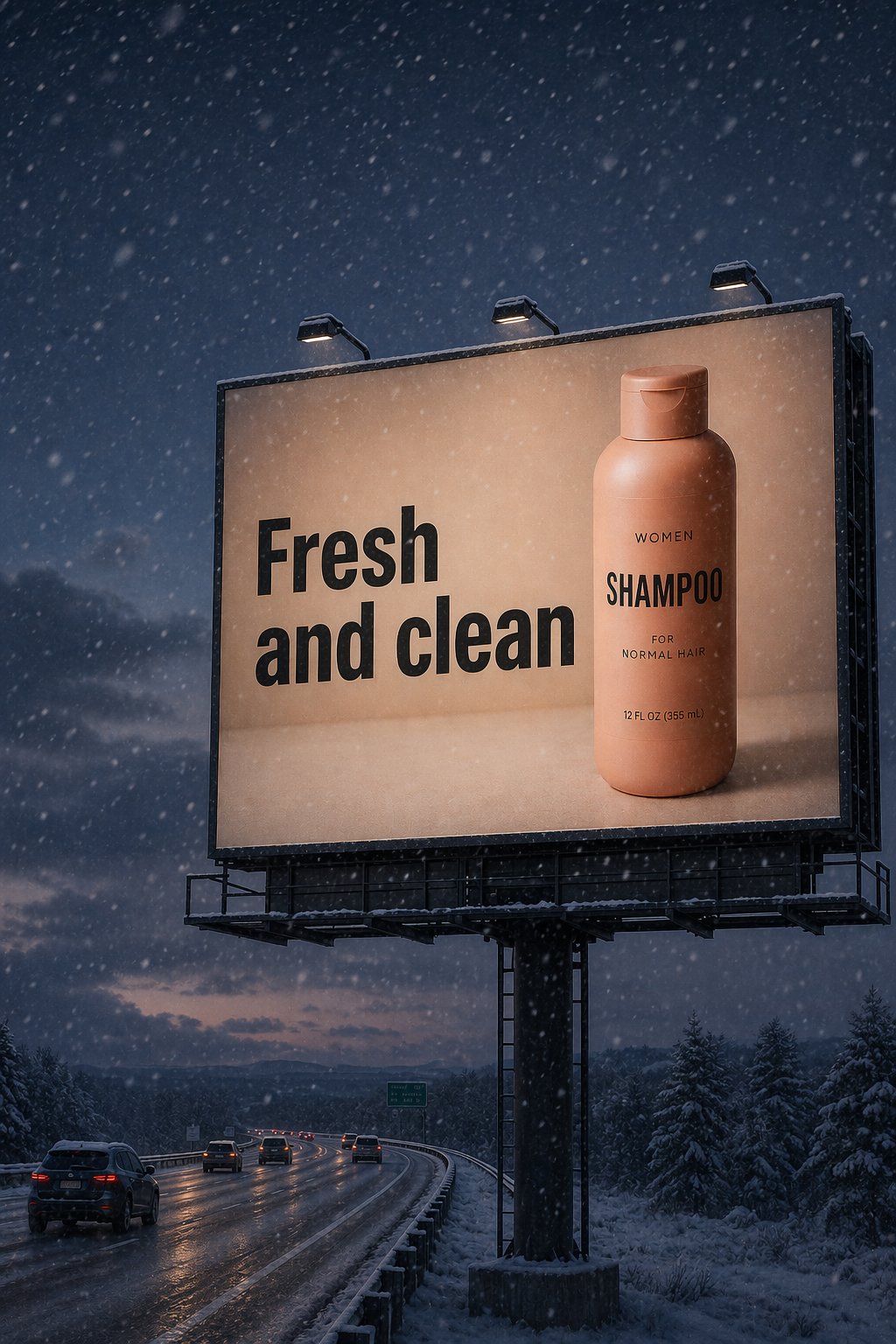
5.6 Lighting and Weather Transformation
Used to re-stage a photo for different moods, seasons, or time-of-day variants (e.g., sunny → overcast, daytime → dusk, clear → snowy) while keeping the scene composition intact. The key is to change only environmental conditions—lighting direction/quality, shadows, atmosphere, precipitation, and ground wetness—while preserving identity, geometry, camera angle, and object placement so it still reads as the same original photo.
prompt = """
Make it look like a winter evening with snowfall.
"""

result = client.images.edit(
    model="gpt-image-2",
    input_fidelity="high",
    image=[
        open("../../images/output_images/billboard_gpt-image-2.png", "rb"),
    ],
    prompt=prompt,
    size="1024x1536",
    quality="medium",
)

save_image(result, "billboard_winter_gpt-image-2.png")
Output Image:
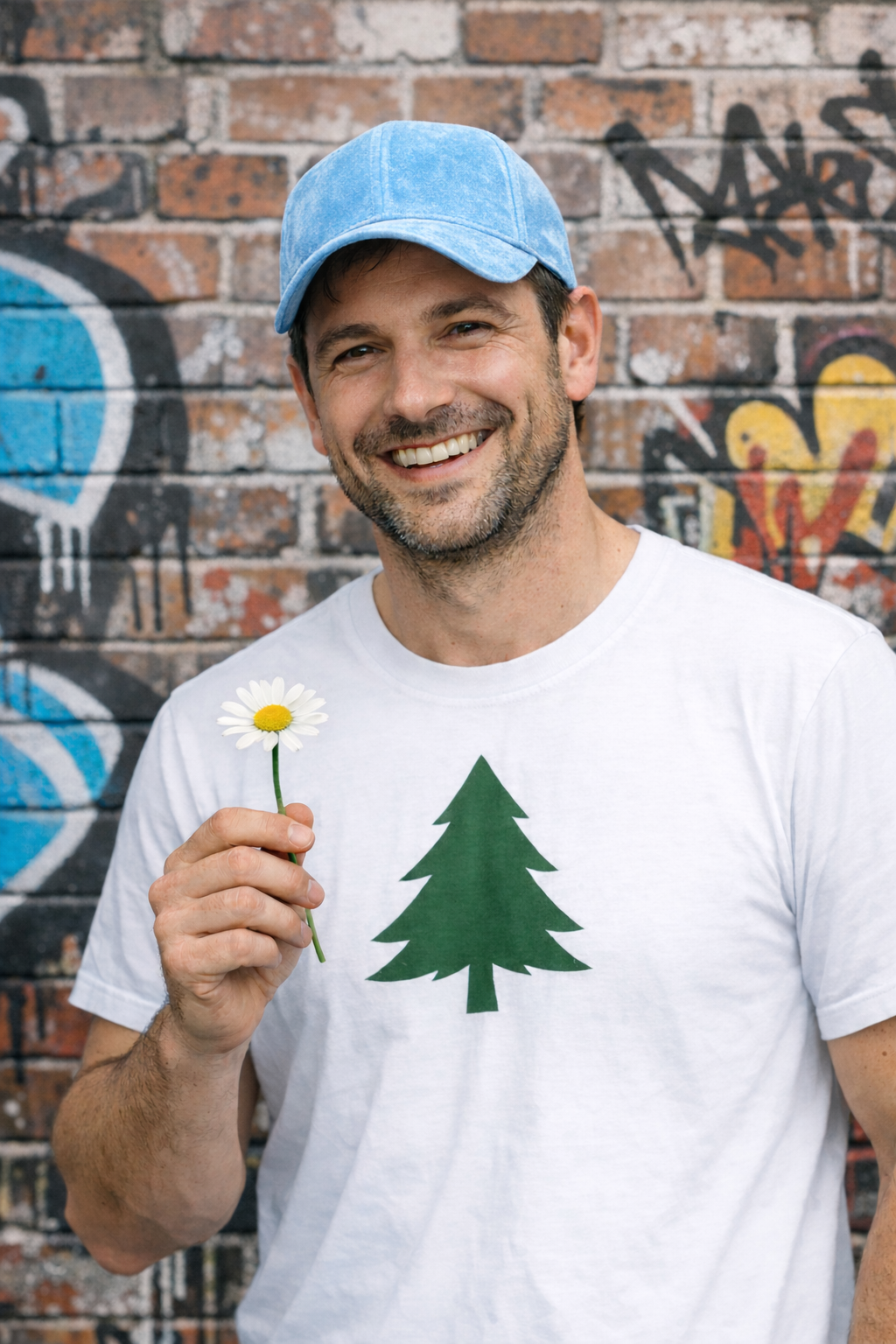
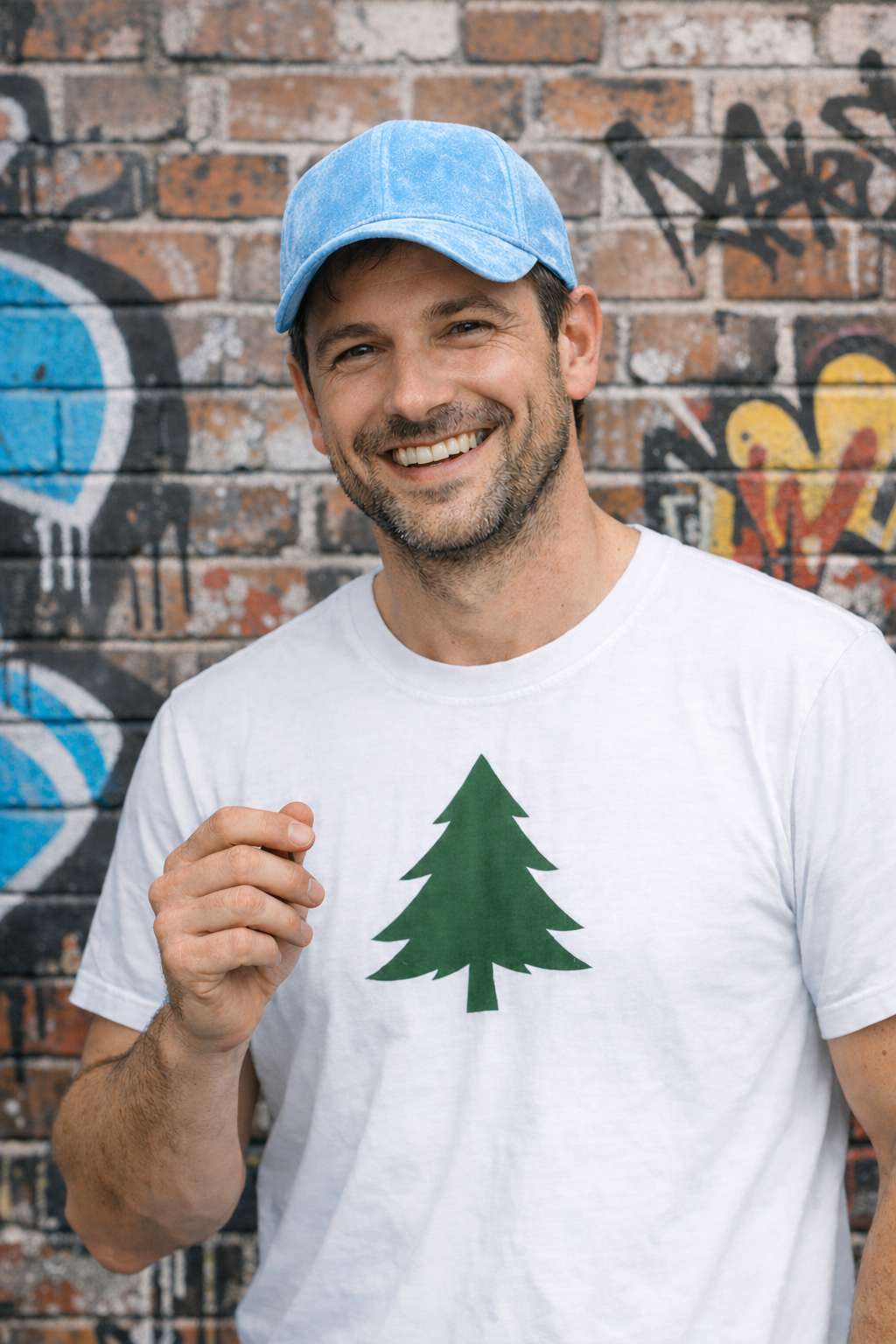
5.7 Object Removal
Person-in-scene compositing is useful for storyboards, campaigns, and “what if” scenarios where facial/identity preservation matters. Anchor realism by specifying a grounded photographic look (natural lighting, believable detail, no cinematic grading), and lock what must not change about the subject. When available, higher input fidelity helps maintain likeness during larger scene edits.
prompt = """
Remove the flower from man's hand. Do not change anything else.
"""


result = client.images.edit(
    model="gpt-image-2",
    input_fidelity="high",
    image=[
        open("../../images/output_images/man_with_blue_hat.png", "rb"),
    ],
    prompt=prompt,
    size="1024x1536",
    quality="medium",
)

save_image(result, "man_with_no_flower_gpt-image-2.png")
Input and output images:
| Original Input | Output Image |
|---|---|
 |
 |
5.8 Insert the Person Into a Scene
Person-in-scene compositing is useful for storyboards, campaigns, and “what if” scenarios where facial/identity preservation matters. Anchor realism by specifying a grounded photographic look (natural lighting, believable detail, no cinematic grading), and lock what must not change about the subject. When available, higher input fidelity helps maintain likeness during larger scene edits.
prompt = """
Generate a highly realistic action scene where this person is running away from a large, realistic brown bear attacking a campsite. The image should look like a real photograph someone could have taken, not an overly enhanced or cinematic movie-poster image.
She is centered in the image but looking away from the camera, wearing outdoorsy camping attire, with dirt on her face and tears in her clothing. She is clearly afraid but focused on escaping, running away from the bear as it destroys the campsite behind her.
The campsite is in Yosemite National Park, with believable natural details. The time of day is dusk, with natural lighting and realistic colors. Everything should feel grounded, authentic, and unstyled, as if captured in a real moment. Avoid cinematic lighting, dramatic color grading, or stylized composition.
"""

result = client.images.edit(
    model="gpt-image-2",
    input_fidelity="high",
    image=[
        open("../../images/input_images/woman_in_museum.png", "rb"),
    ],
    prompt=prompt,
    size="1024x1536",
    quality="medium",
)

save_image(result, "scene_gpt-image-2.png")
Output Image:
from IPython.display import Image, display
display(Image(filename="../../images/output_images/scene_gpt-image-2.png", width=500))
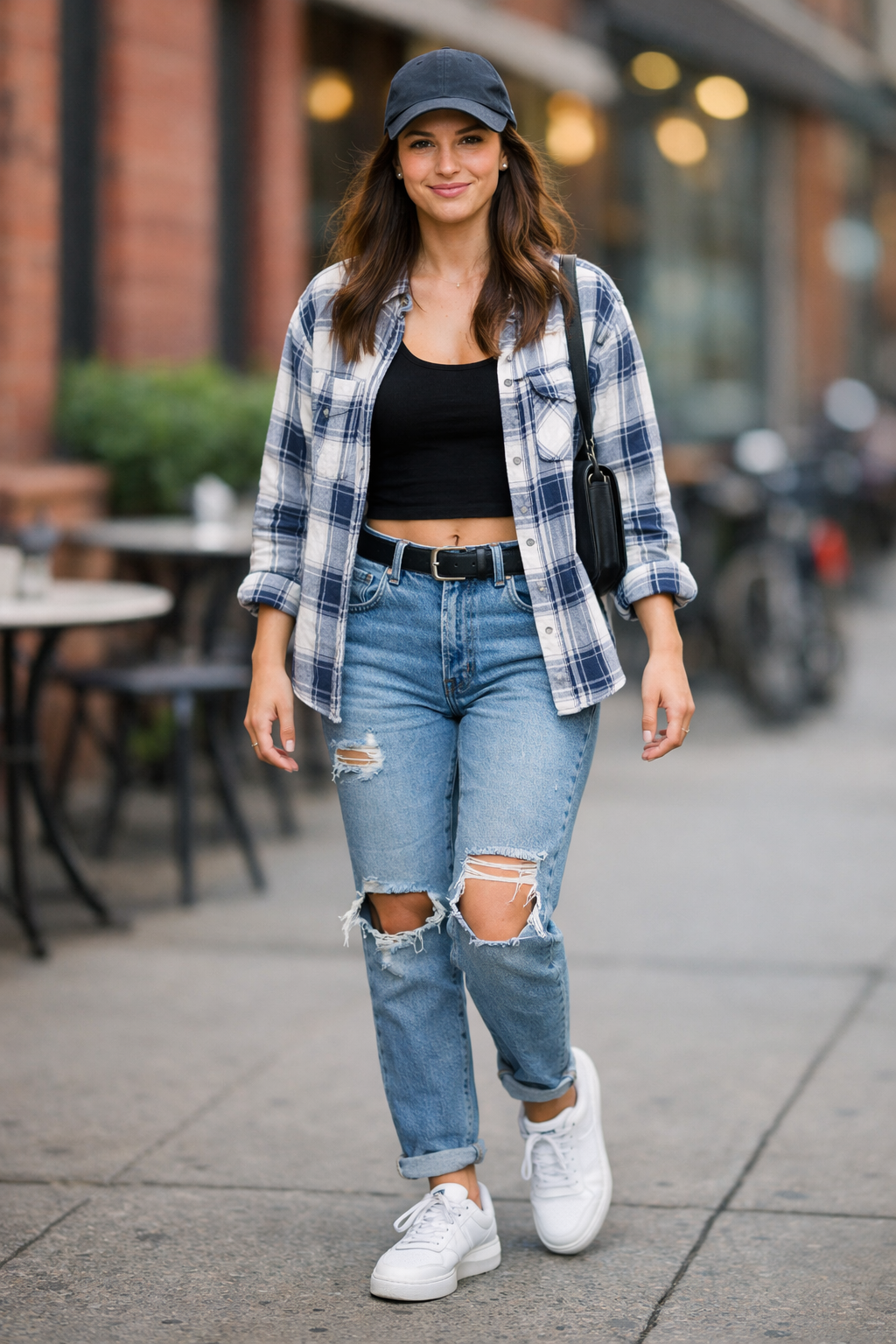
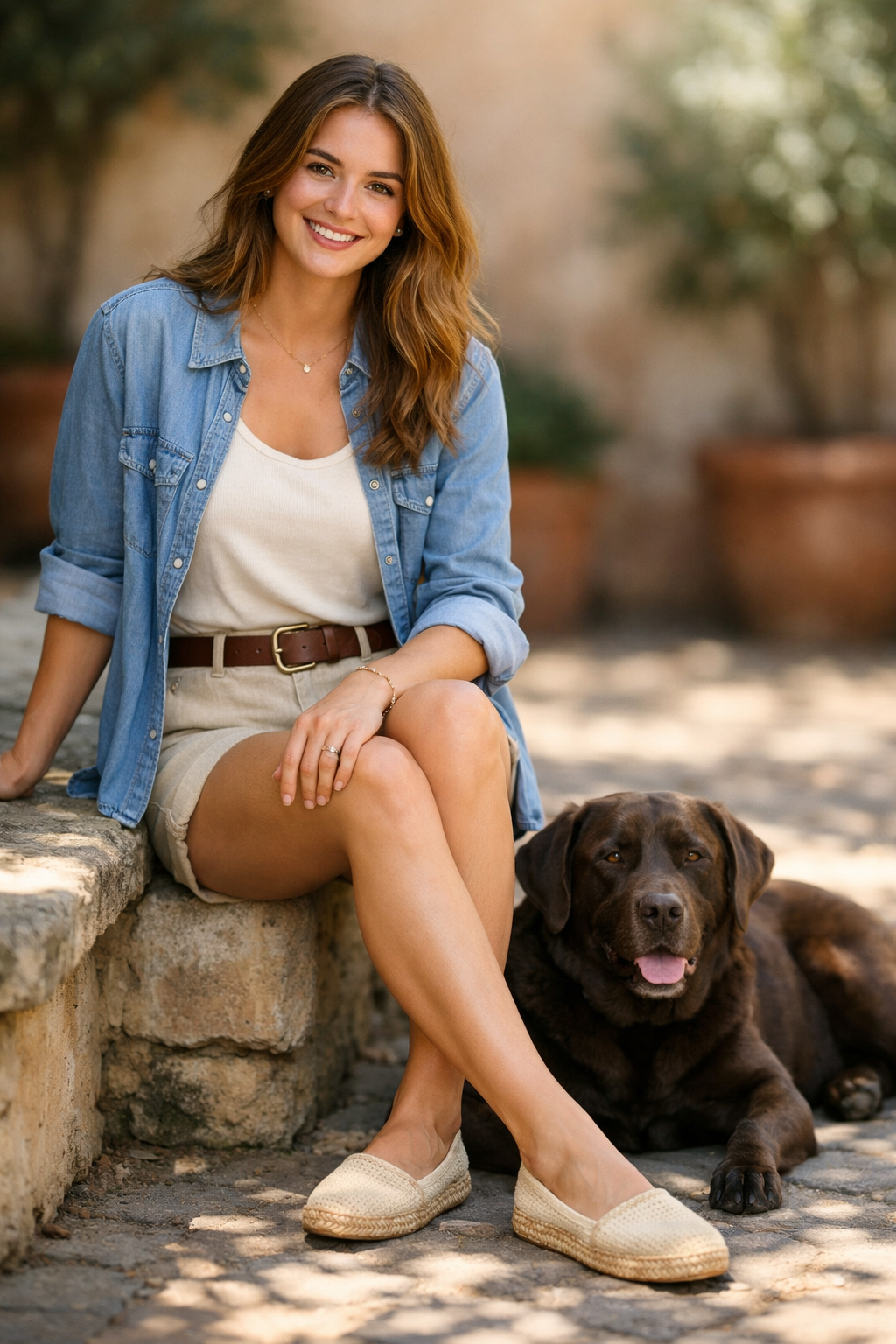
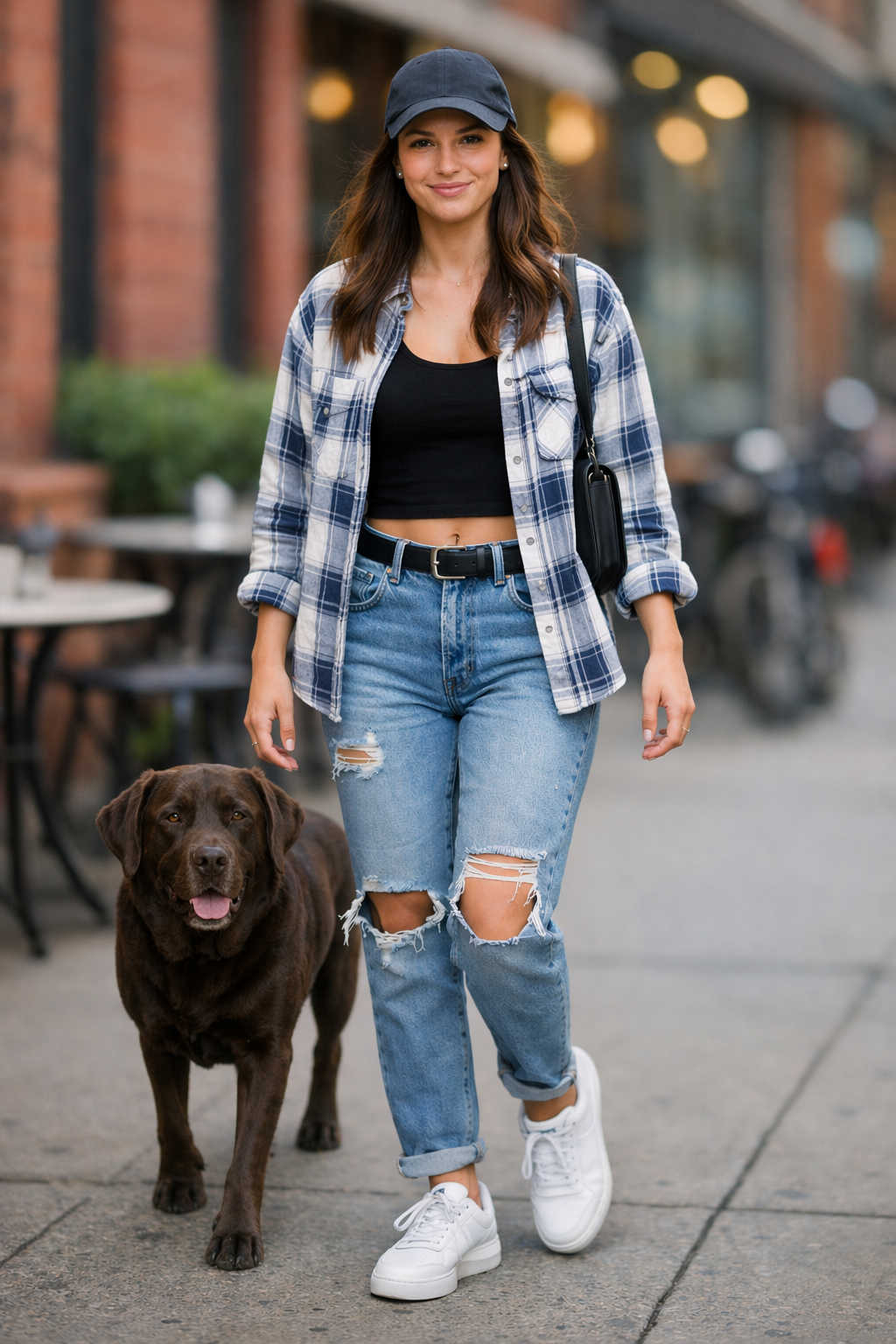
5.9 Multi-Image Referencing and Compositing
Used to combine elements from multiple inputs into a single, believable image—great for “insert this object/person into that scene” workflows without re-generating everything. The key is to clearly specify what to transplant (the dog from image 2), where it should go (right next to the woman in image 1), and what must remain unchanged (scene, background, framing), while matching lighting, perspective, scale, and shadows so the composite looks naturally captured in the original photo.
prompt = """
Place the dog from the second image into the setting of image 1, right next to the woman, use the same style of lighting, composition and background. Do not change anything else.
"""

result = client.images.edit(
    model="gpt-image-2",
    input_fidelity="high",
    image=[
        open("../../images/output_images/test_woman.png", "rb"),
        open("../../images/output_images/test_woman_2.png", "rb"),
    ],
    prompt=prompt,
    size="1024x1536",
    quality="medium",
)


save_image(result, "test_woman_with_dog_gpt-image-2.png")
Input and output images:
| Original Input | Remove Red Stripes | Change Hat Color |
|---|---|---|
 |
 |
 |
6. Additional High-Value Use Cases
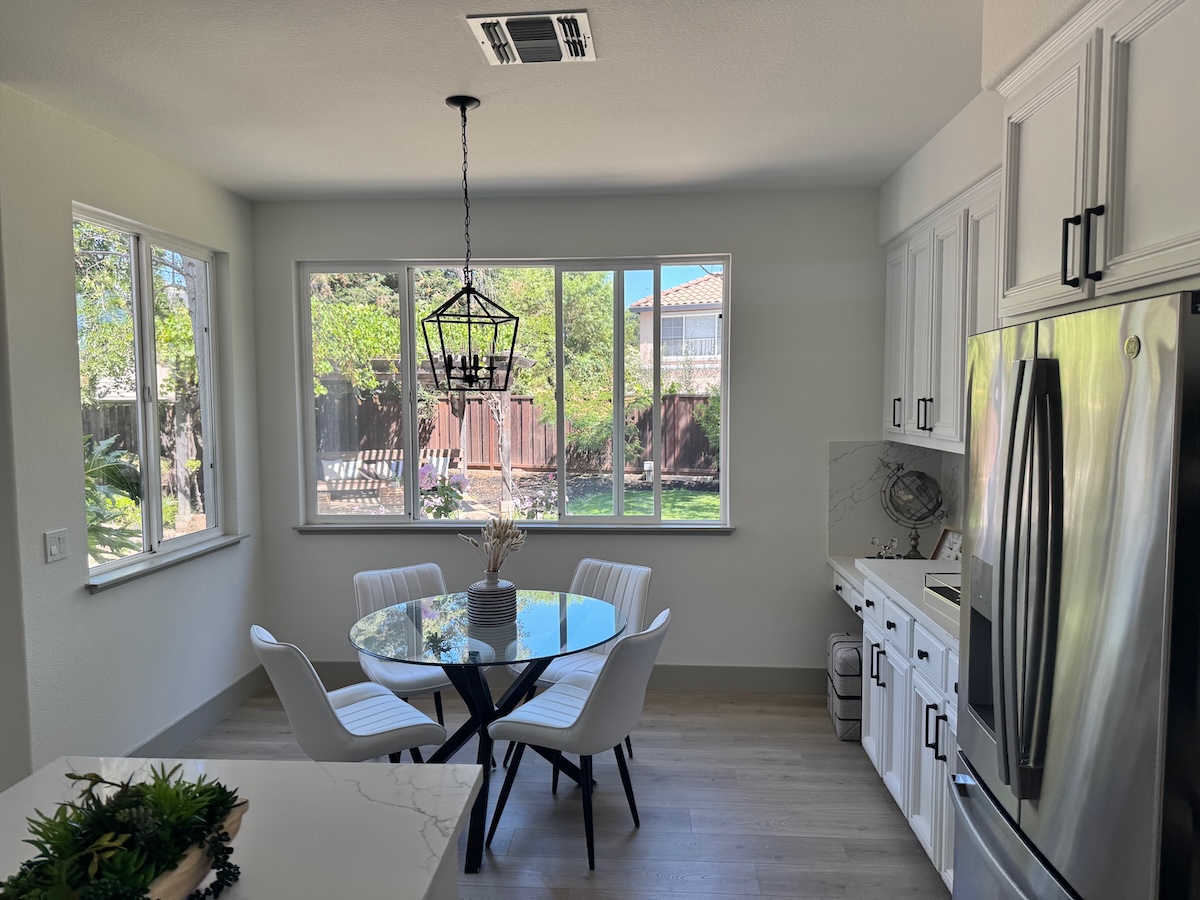
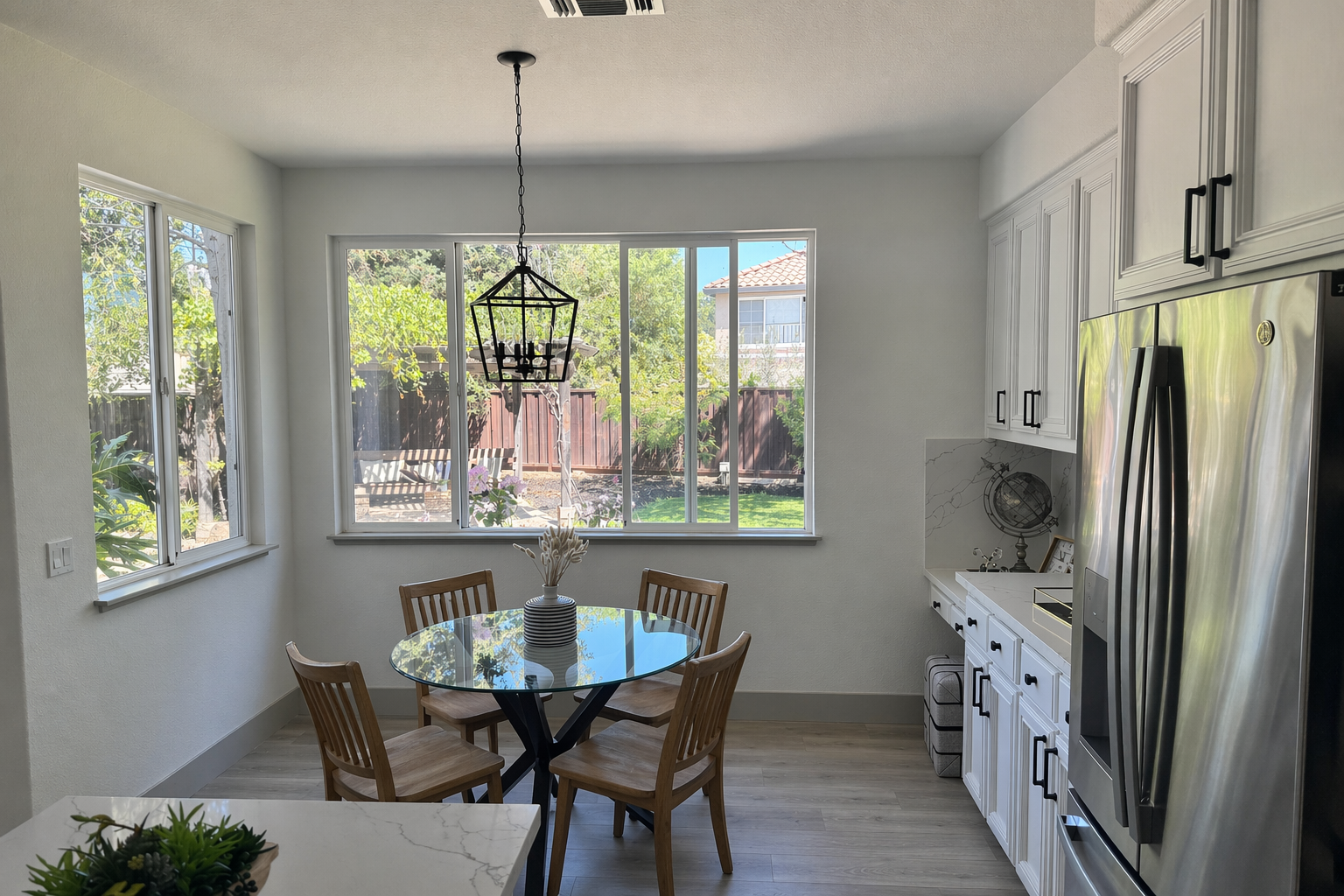
6.1 Interior design “swap” (precision edits)
Used for visualizing furniture or decor changes in real spaces without re-rendering the entire scene. The goal is surgical realism: swap a single object while preserving camera angle, lighting, shadows, and surrounding context so the edit looks like a real photograph, not a redesign.
prompt = """
In this room photo, replace ONLY white with chairs made of wood.
Preserve camera angle, room lighting, floor shadows, and surrounding objects.
Keep all other aspects of the image unchanged.
Photorealistic contact shadows and fabric texture.
"""

result = client.images.edit(
    model="gpt-image-2",
    image=[
        open("../../images/input_images/kitchen.jpeg", "rb"),
    ],
    prompt=prompt,
    size="1536x1024",
    quality="medium",
)

save_image(result, "kitchen-chairs_gpt-image-2.png")
Input and output images:
| Input Image | Output Image |
|---|---|
 |
 |
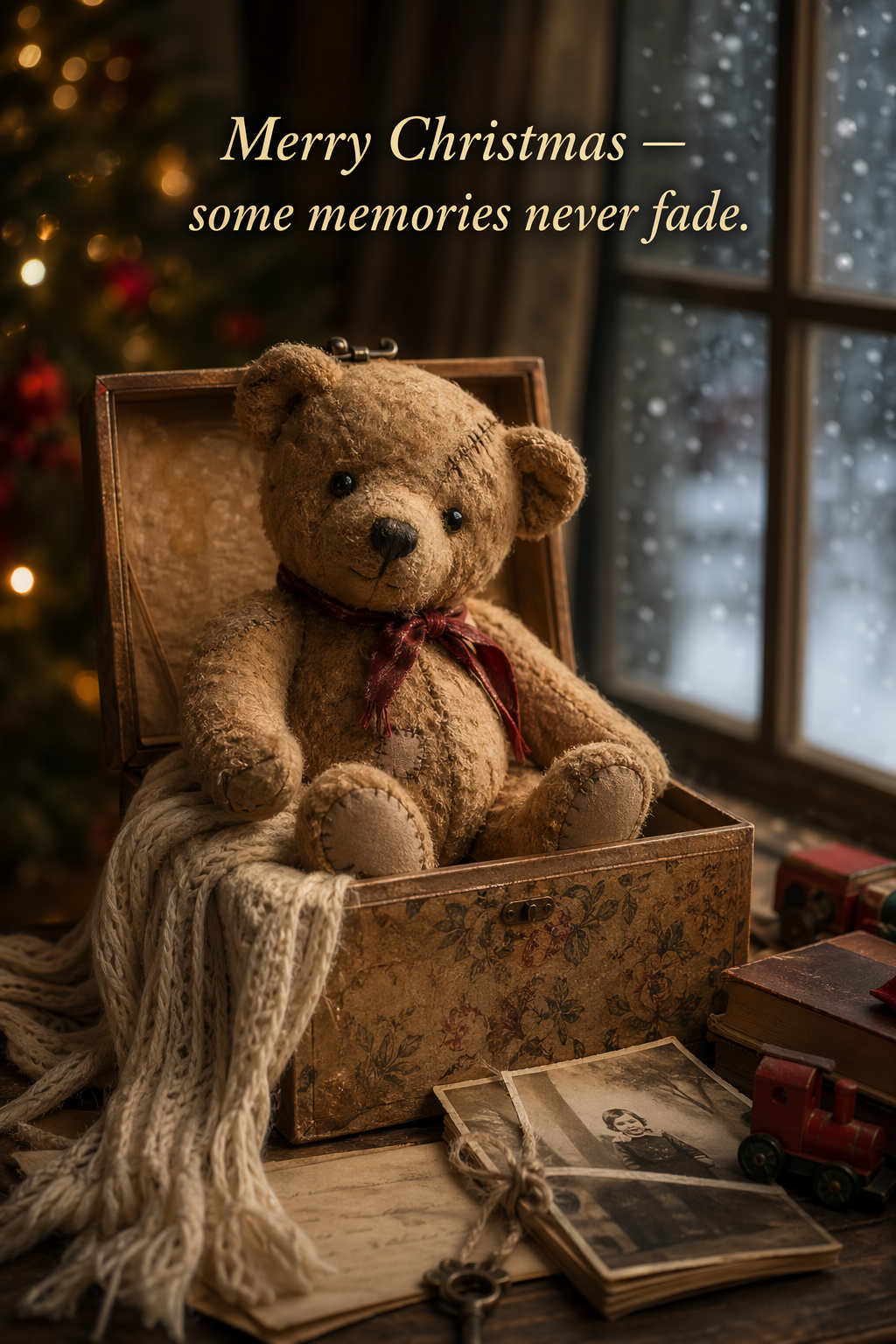
6.2 3D pop-up holiday card (product-style mock)
Ideal for seasonal marketing concepts and print previews. Emphasizes tactile realism—paper layers, fibers, folds, and soft studio lighting—so the result reads as a photographed physical product rather than a flat illustration.
scene_description = (
    "a cozy Christmas scene with an old teddy bear sitting inside a keepsake box, "
    "slightly worn fur, soft stitching repairs, placed near a window with falling snow outside. "
    "The scene suggests the child has grown up, but the memories remain."
)

short_copy = "Merry Christmas — some memories never fade."

prompt = f"""
Create a Christmas holiday card illustration.

Scene:
{scene_description}

Mood:
Warm, nostalgic, gentle, emotional.

Style:
Premium holiday card photography, soft cinematic lighting,
realistic textures, shallow depth of field,
tasteful bokeh lights, high print-quality composition.

Constraints:
- Original artwork only
- No trademarks
- No watermarks
- No logos

Include ONLY this card text (verbatim):
"{short_copy}"
"""

result = client.images.generate(
    model="gpt-image-2",
    prompt=prompt,
    size="1024x1536",
    quality="medium",
)

save_image(result, "christmas_holiday_card_teddy_gpt-image-2.png")
Output Image:
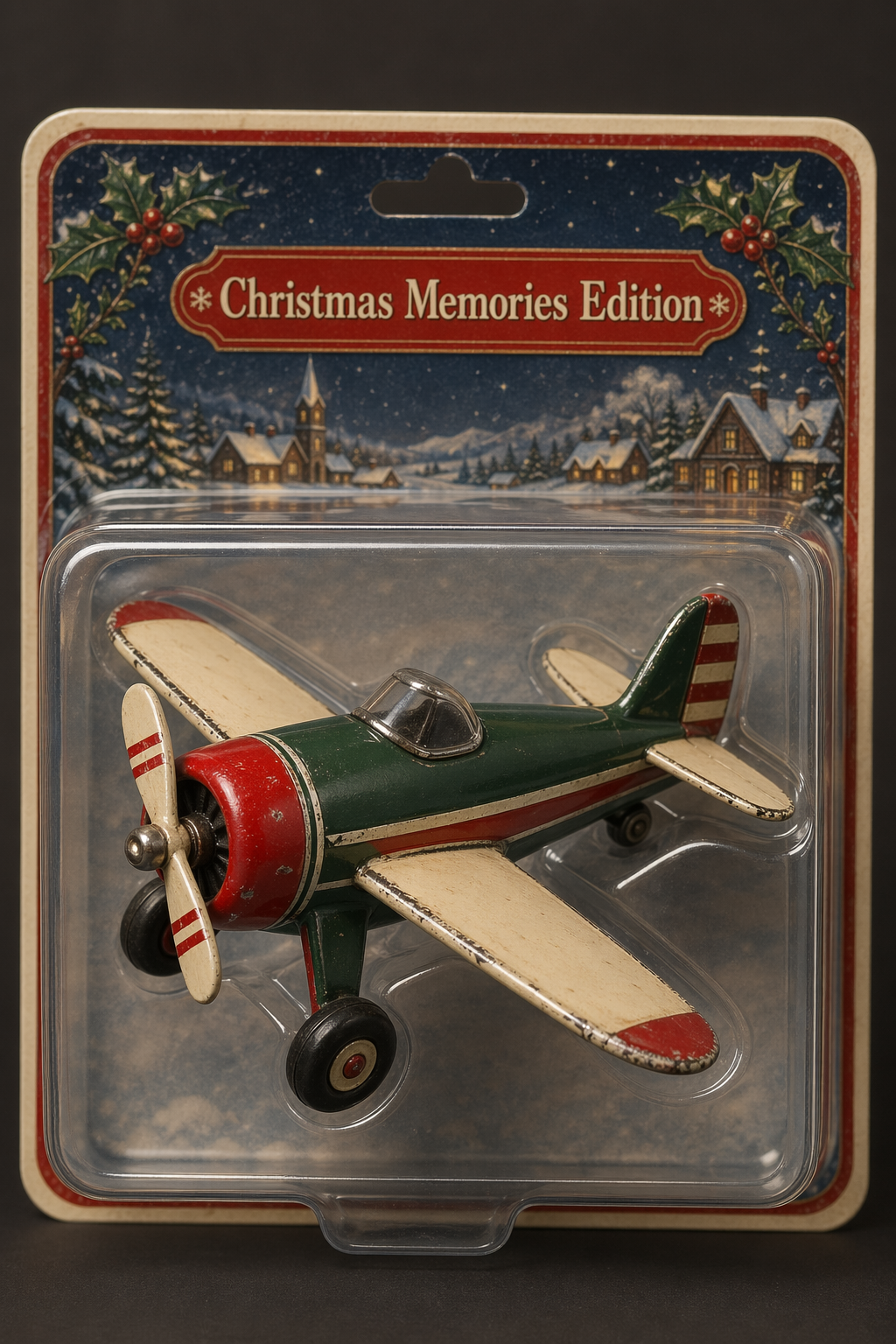
6.3 Collectible Action Figure / Plush Keychain (merch concept)
Used for early merch ideation and pitch visuals. Focuses on premium product photography cues (materials, packaging, print clarity) while keeping designs original and non-infringing. Works well for testing multiple character or packaging variants quickly.
# ---- Inputs ----
character_description = (
    "a vintage-style toy propeller airplane with rounded wings, "
    "a front-mounted spinning propeller, slightly worn paint edges, "
    "classic childhood proportions, designed as a nostalgic holiday collectible"
)

short_copy = "Christmas Memories Edition"

# ---- Prompt ----
prompt = f"""
Create a collectible action figure of {character_description}, in blister packaging.

Concept:
A nostalgic holiday collectible inspired by the simple toy airplanes
children used to play with during winter holidays.
Evokes warmth, imagination, and childhood wonder.

Style:
Premium toy photography, realistic plastic and painted metal textures,
studio lighting, shallow depth of field,
sharp label printing, high-end retail presentation.

Constraints:
- Original design only
- No trademarks
- No watermarks
- No logos

Include ONLY this packaging text (verbatim):
"{short_copy}"
"""

result = client.images.generate(
    model="gpt-image-2",
    prompt=prompt,
    size="1024x1536",
    quality="medium",
)

save_image(result, "christmas_collectible_toy_airplane_gpt-image-2.png")
Output Image:
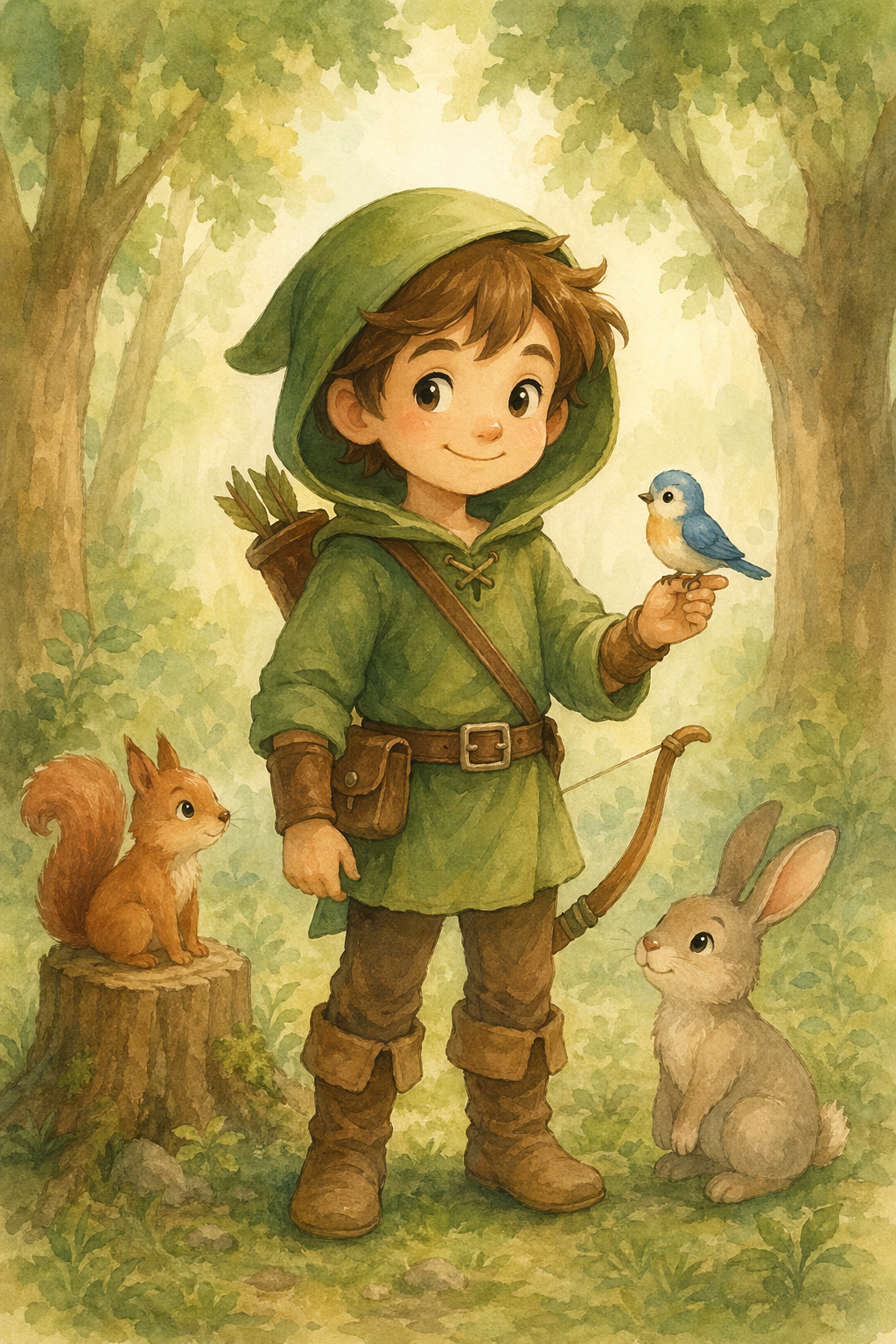
6.4 Children’s Book Art with Character Consistency (multi-image workflow)
Designed for multi-page illustration pipelines where character drift is unacceptable. A reusable “character anchor” ensures visual continuity across scenes, poses, and pages while allowing environmental and narrative variation.
1️⃣ Character Anchor — establish the reusable main character
Goal: Lock the character’s appearance, proportions, outfit, and tone.
# ---- Inputs ----
prompt = """
Create a children’s book illustration introducing a main character.

Character:
A young, storybook-style hero inspired by a little forest outlaw,
wearing a simple green hooded tunic, soft brown boots, and a small belt pouch.
The character has a kind expression, gentle eyes, and a brave but warm demeanor.
Carries a small wooden bow used only for helping, never harming.

Theme:
The character protects and rescues small forest animals like squirrels, birds, and rabbits.

Style:
Children’s book illustration, hand-painted watercolor look,
soft outlines, warm earthy colors, whimsical and friendly.
Proportions suitable for picture books (slightly oversized head, expressive face).

Constraints:
- Original character (no copyrighted characters)
- No text
- No watermarks
- Plain forest background to clearly showcase the character
"""

# ---- Image generation ----
result = client.images.generate(
    model="gpt-image-2",
    prompt=prompt,
    size="1024x1536",
    quality="medium",
)

save_image(result, "childrens_book_illustration_1_gpt-image-2.png")
Output Image:
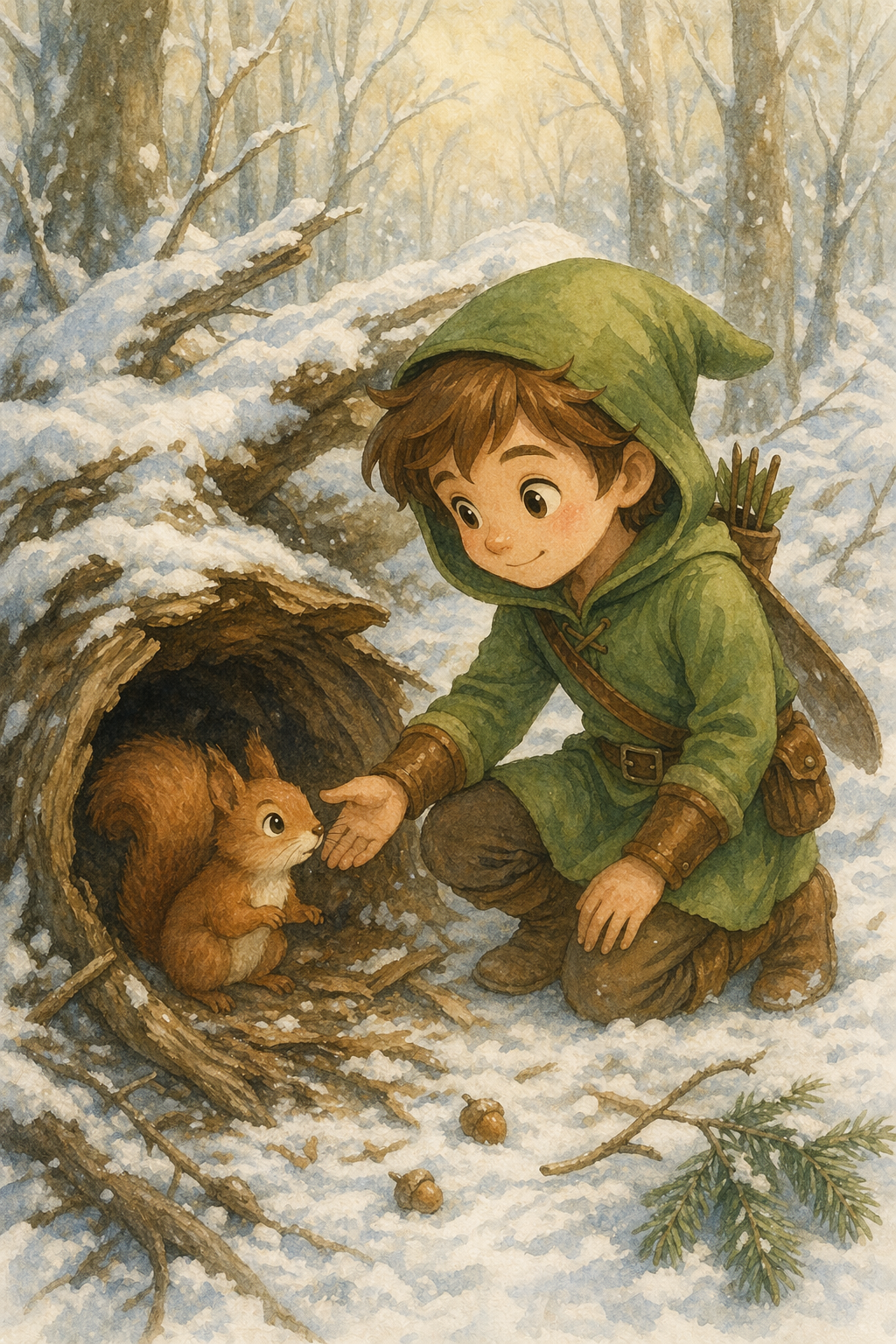
2️⃣ Story continuation — reuse character, advance the narrative
Goal: Same character, new scene + action. Character appearance must remain unchanged.
# ---- Inputs ----
prompt = """
Continue the children’s book story using the same character.

Scene:
The same young forest hero is gently helping a frightened squirrel
out of a fallen tree after a winter storm.
The character kneels beside the squirrel, offering reassurance.

Character Consistency:
- Same green hooded tunic
- Same facial features, proportions, and color palette
- Same gentle, heroic personality

Style:
Children’s book watercolor illustration,
soft lighting, snowy forest environment,
warm and comforting mood.

Constraints:
- Do not redesign the character
- No text
- No watermarks
"""
# ---- Image generation ----
result = client.images.edit(
    model="gpt-image-2",
    image=[
        open("../../images/output_images/childrens_book_illustration_1_gpt-image-2.png", "rb"),  # use image from step 1
    ],
    prompt=prompt,
    size="1024x1536",
    quality="medium",
)

save_image(result, "childrens_book_illustration_2_gpt-image-2.png")
Output Image:
Conclusion
In this notebook, we demonstrate how to use gpt-image generation models to build high-quality, controllable image generation and editing workflows that hold up in real production settings. The cookbook emphasizes prompt structure, explicit constraints, and small iterative changes as the primary tools for controlling realism, layout, text accuracy, and identity preservation. We cover both generation and editing patterns, ranging from infographics, photorealism, UI mockups, and logos to translation, style transfer, virtual try-on, compositing, and lighting changes. Throughout the examples, the cookbook reinforces the importance of clearly separating what should change from what must remain invariant, and of restating those invariants on every iteration to prevent drift. We also highlight how quality and input-fidelity settings enable deliberate tradeoffs between latency and visual precision depending on the use case. Together, these examples form a practical, repeatable playbook for applying gpt-image generation models in production image workflows.